Tip
These settings allow you to configure how tips are handled throughout Verona POS, including when tips are collected, how tip information is displayed and printed, and how customers can select their tip amount.
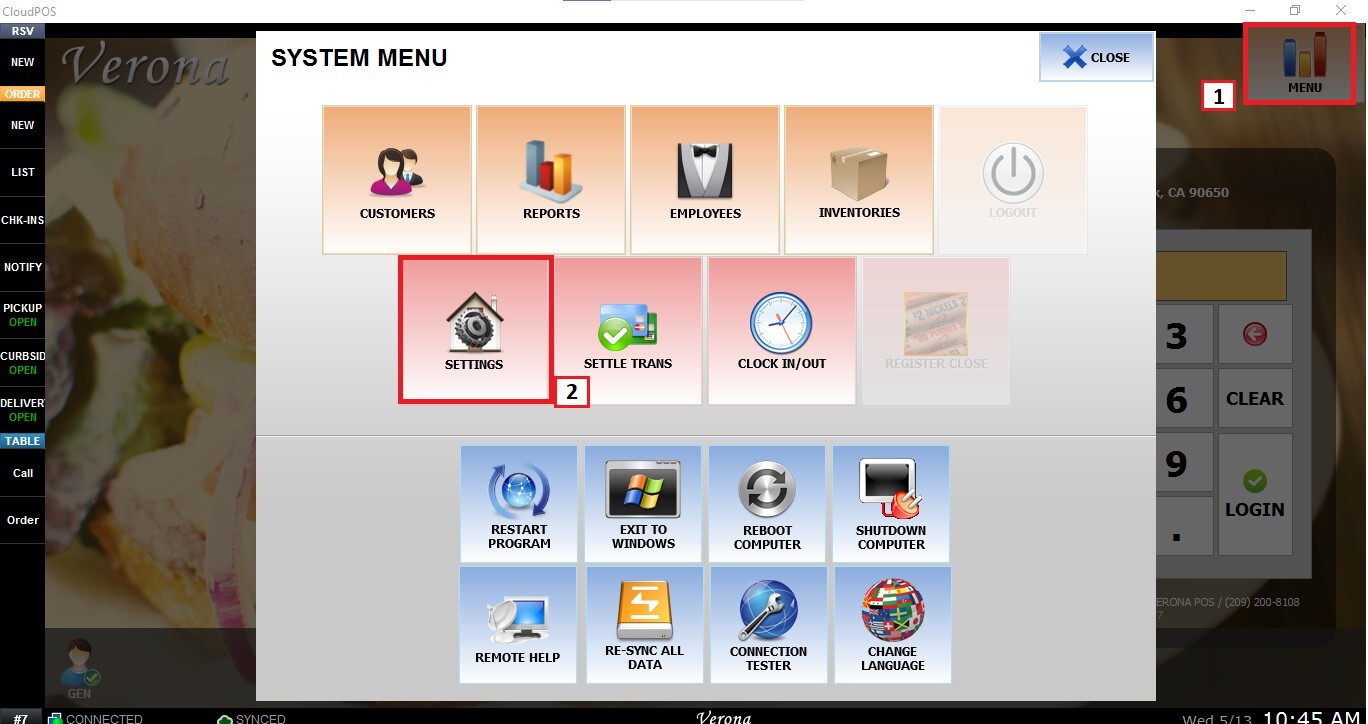
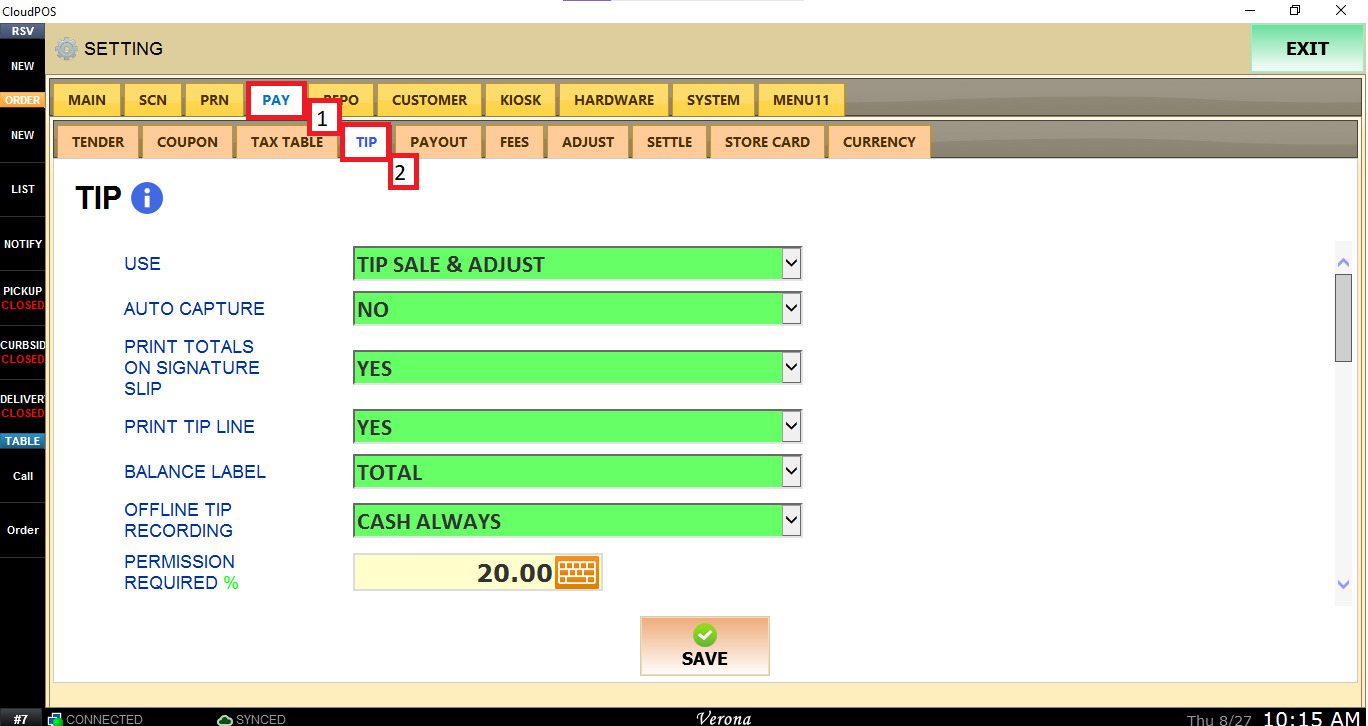
Main Screen>MENU>SETTINGS>PAY>TIP
From the Main Screen, select SETTINGS.
Navigate to PAY and select TIP.
This section controls the general behavior of tip processing, including when tips can be collected, how they are captured, and what tip information is displayed or printed.
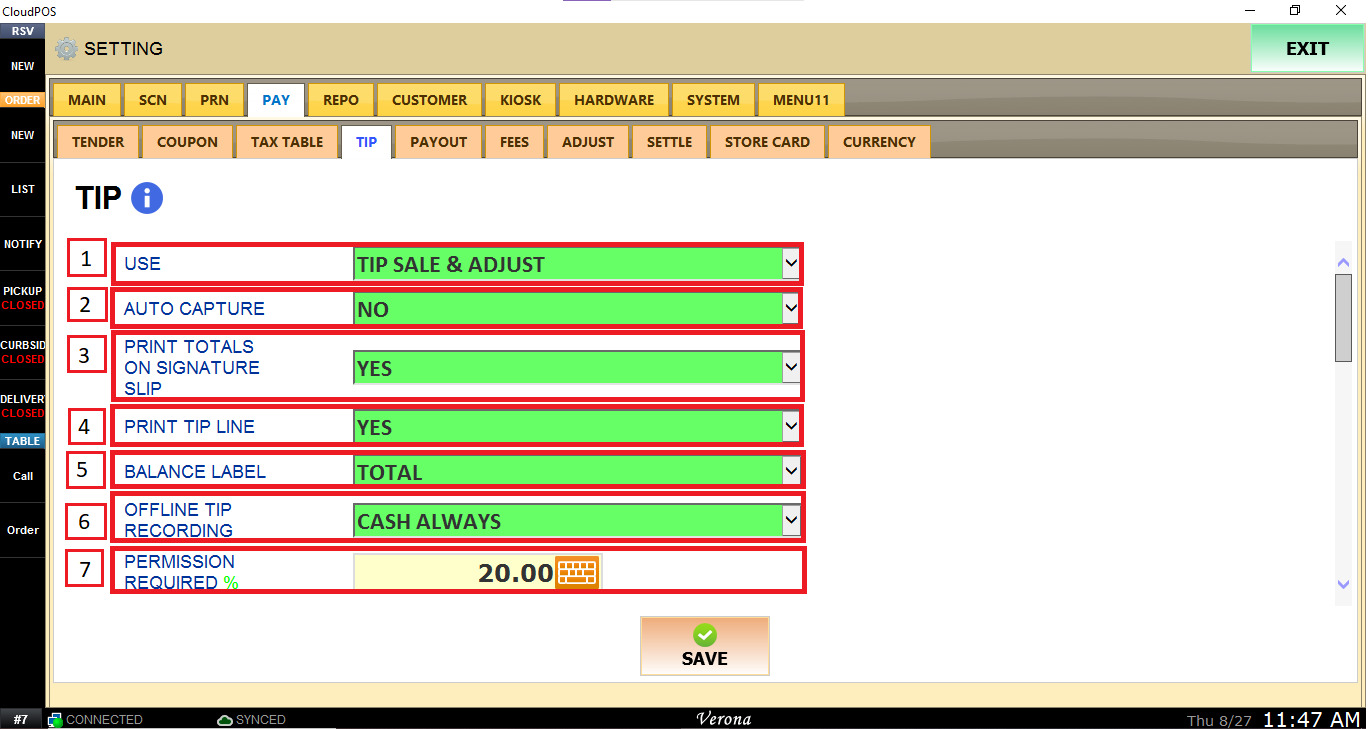
1. USE: Determines when the POS will use tip processing:
- NO TIP: Disables tip collection.
- TIP SALE & ADJUST: Allows tips to be collected and adjusted.
- PREAUTH & CAPTURE: Allows tips to be added during the preauthorization/capture process.
2. AUTO CAPTURE: Determines whether eligible preauthorized transactions are automatically captured.
- NO: Transactions require the applicable capture process.
- YES: Transactions are automatically captured.
3. PRINT TOTALS ON SIGNATURE SLIP: Determines whether transaction totals are printed on the signature slip.
- NO: Totals are not printed.
- YES: Totals are printed.
4. PRINT TIP LINE: Determines whether a tip line is printed for the customer to enter a tip manually.
- YES: Prints a tip line.
- NO: Does not print a tip line.
5. BALANCE LABEL: Determines which label is displayed for the balance amount:
- CHECK
- TOTAL
- BALANCE
- TICKET
6. OFFLINE TIP RECORDING: Determines whether tips can be recorded for offline transactions:
- NONE: No offline tip recording.
- ALL CASH: Records tips for cash transactions.
- ALWAYS: Allows offline tip recording regardless of payment type.
7. PERMISSION REQUIRED %: Enter the tip percentage at which additional permission is required.
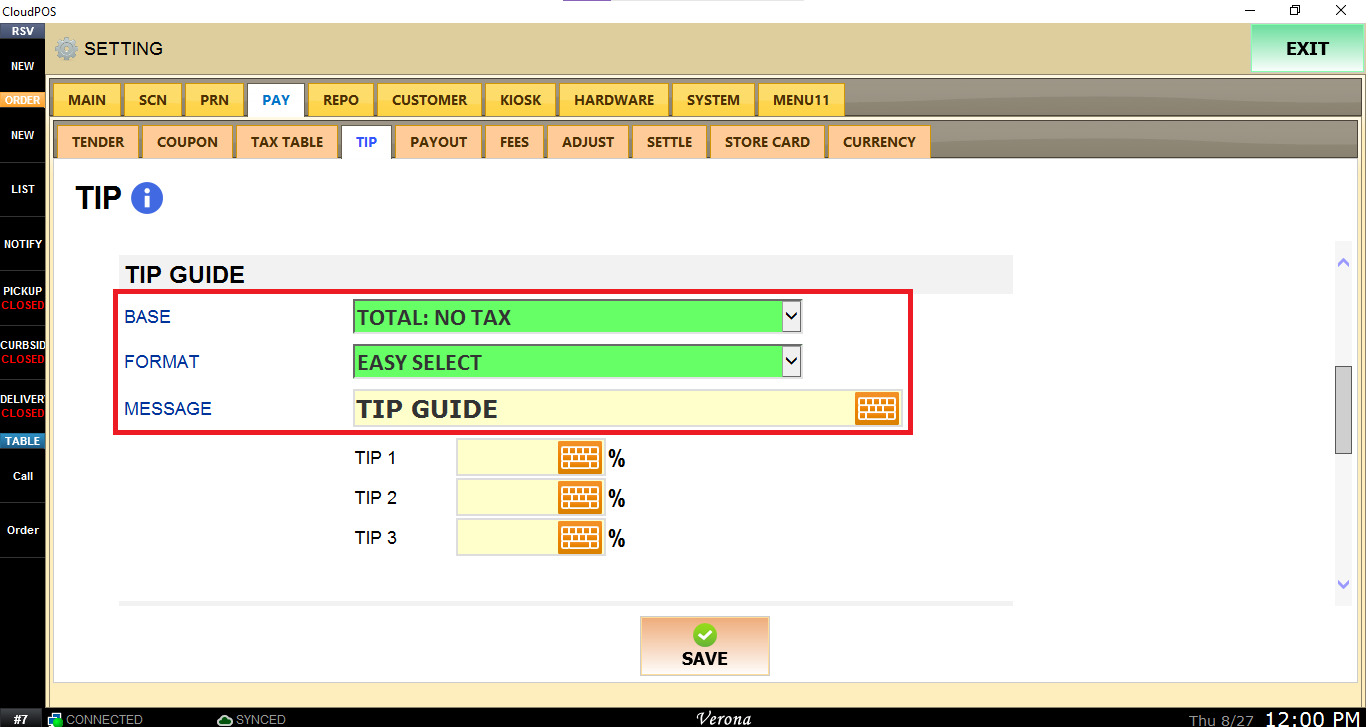
Tip Guide
This section controls the tip suggestions displayed or printed on the receipt.
BASE: Determines the amount used to calculate the suggested tip. Available options include:
- DISABLED
- TOTAL
- TOTAL: PRE-DISCOUNT
- TOTAL: PRE-DISCOUNT, NO FEES
- TOTAL: NO TAX
- TOTAL: NO TAX, NO FEES
- TOTAL: NO TAX, NO FEES, PRE-DISCOUNT
FORMAT: Determines how the tip guide is presented:
- SIMPLE: Displays a basic tip guide.
- EASY SELECT: Provides a simplified format for selecting a suggested tip.
MESSAGE: Enter a custom message to be displayed with the tip guide.
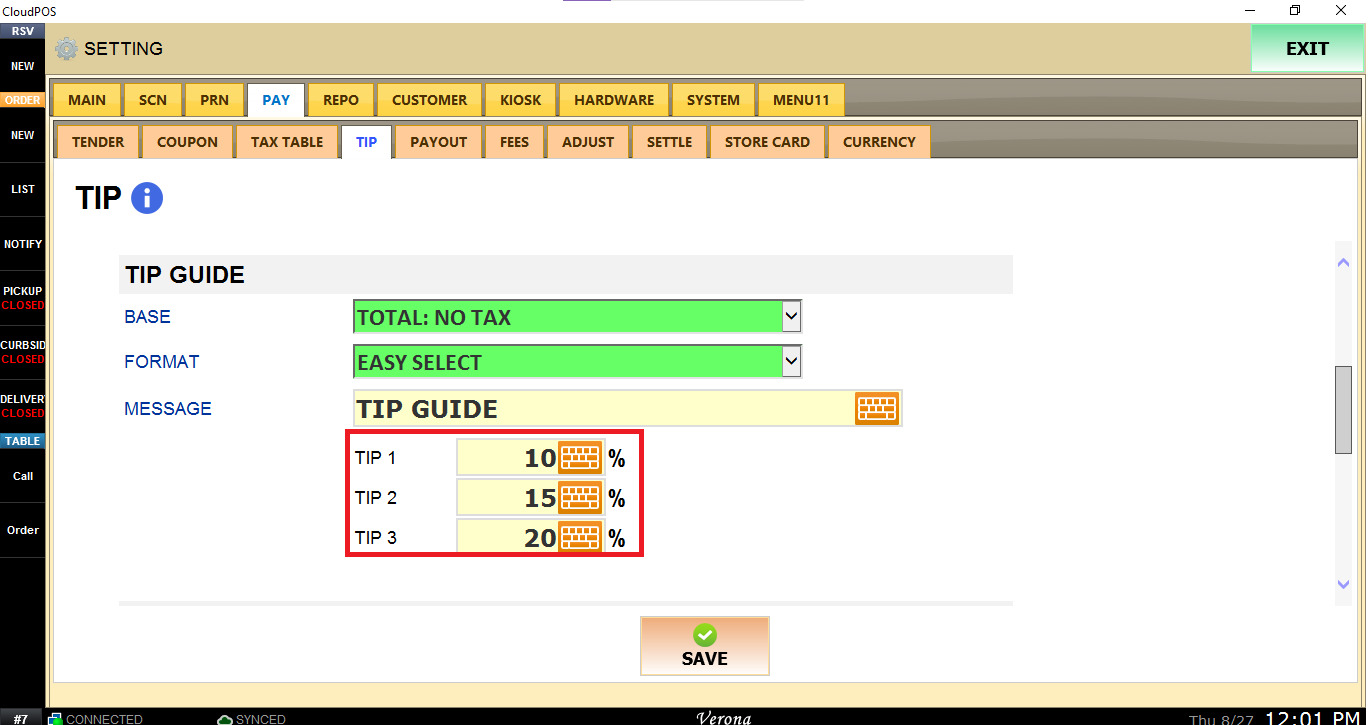
TIP 1, TIP 2, and TIP 3 let you set up to 3 suggested tip percentages for customers to use as a guide.
Tip Dialog
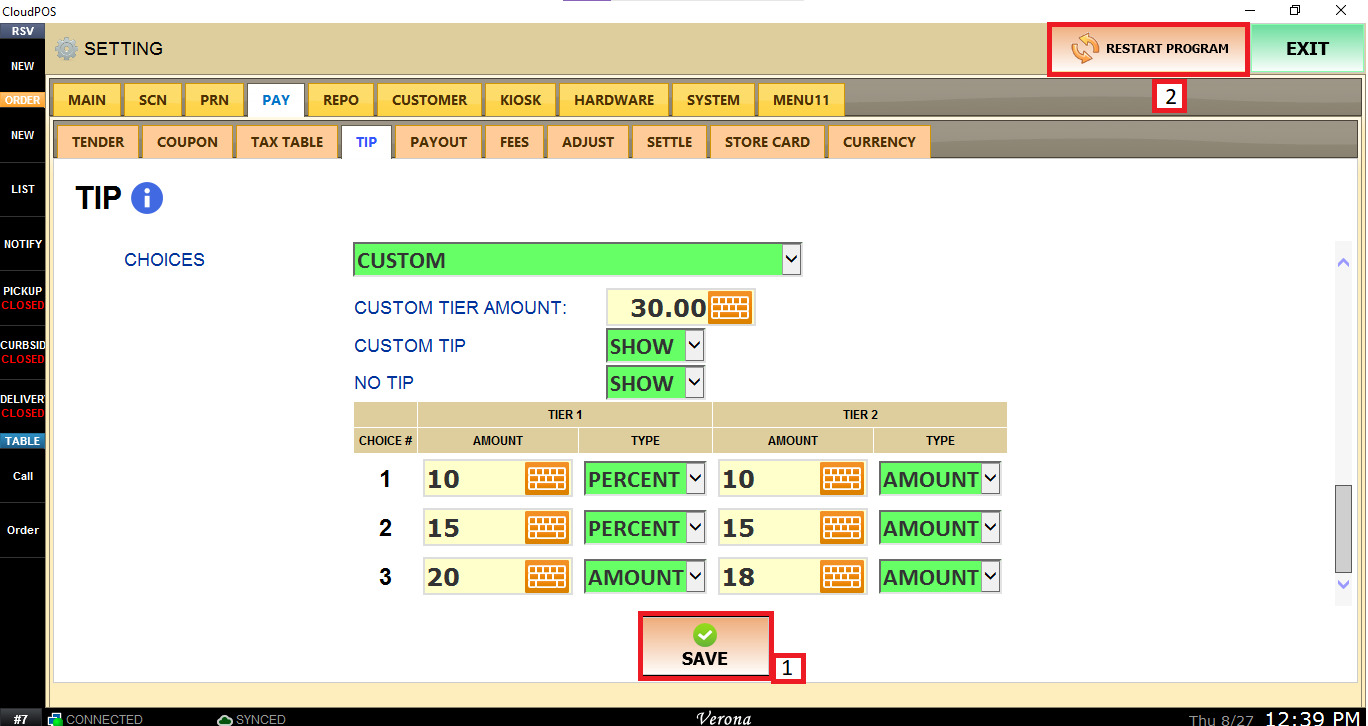
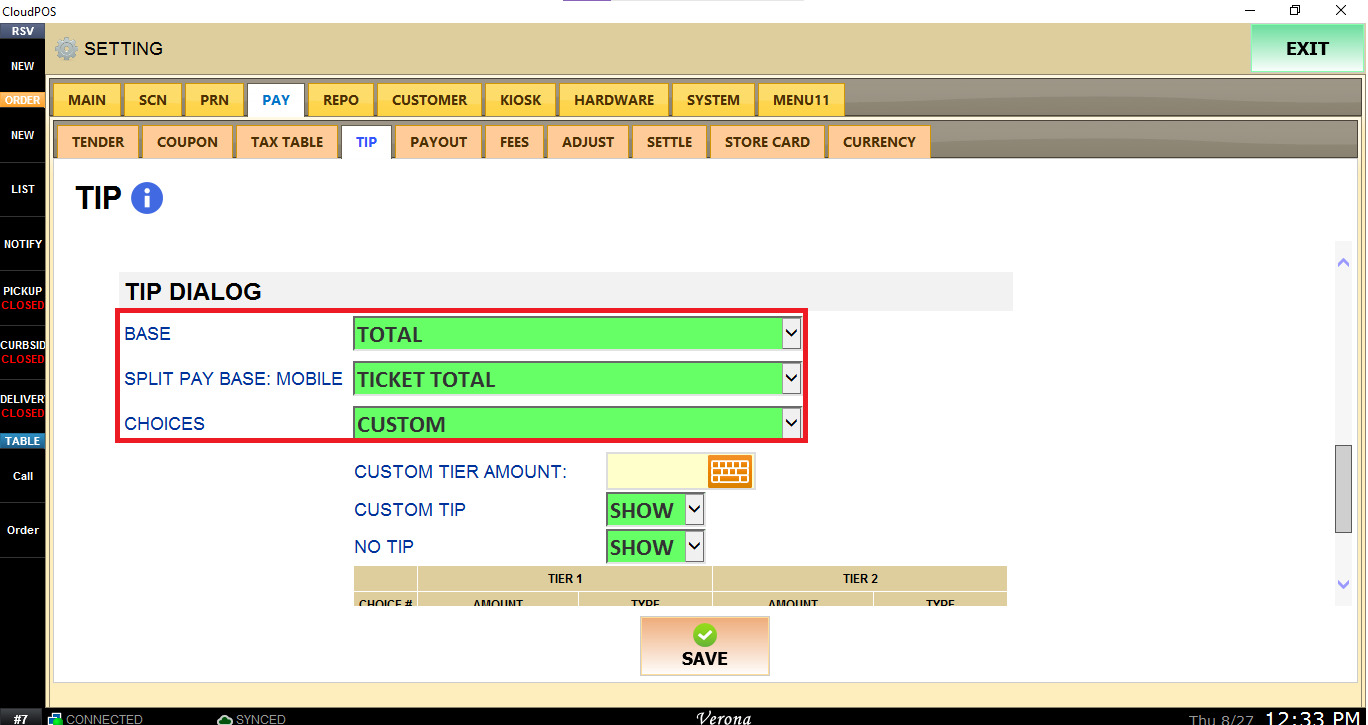
This section controls the on-screen tip selection interface presented to customers during payment. From here, you can determine how the tip is calculated and which tip options customers can select.
BASE: Determines the amount used to calculate the tip. Available options include:
- TOTAL
- TOTAL: PRE-DISCOUNT
- TOTAL: PRE-DISCOUNT, NO FEES
- TOTAL: NO TAX
- TOTAL: NO TAX, NO FEES
- TOTAL: NO TAX, NO FEES, PRE-DISCOUNT
SPLIT PAY BASE: Determines which amount is used as the tip calculation base when the ticket is split.
- TICKET TOTAL: Calculates the tip based on the full ticket total.
- PAYMENT AMOUNT: Calculates the tip based on the amount being paid in the current payment.
CHOICES: Determines how customers can select their tip:
- AUTO: Uses the predefined tip selections configured by the system or processor.
- CUSTOM: Uses the customized tip selections configured in the Tip Dialog.
- MANUAL INPUT ONLY: Requires the customer to enter the tip amount manually.
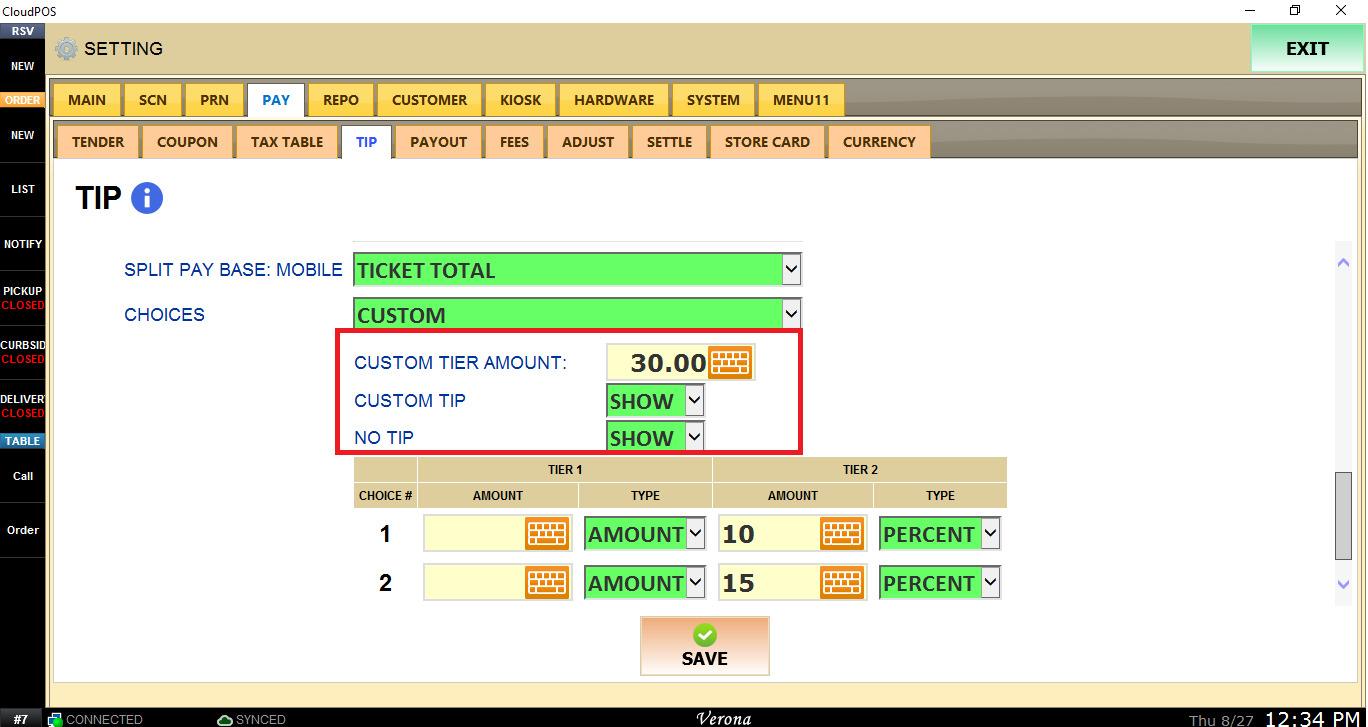
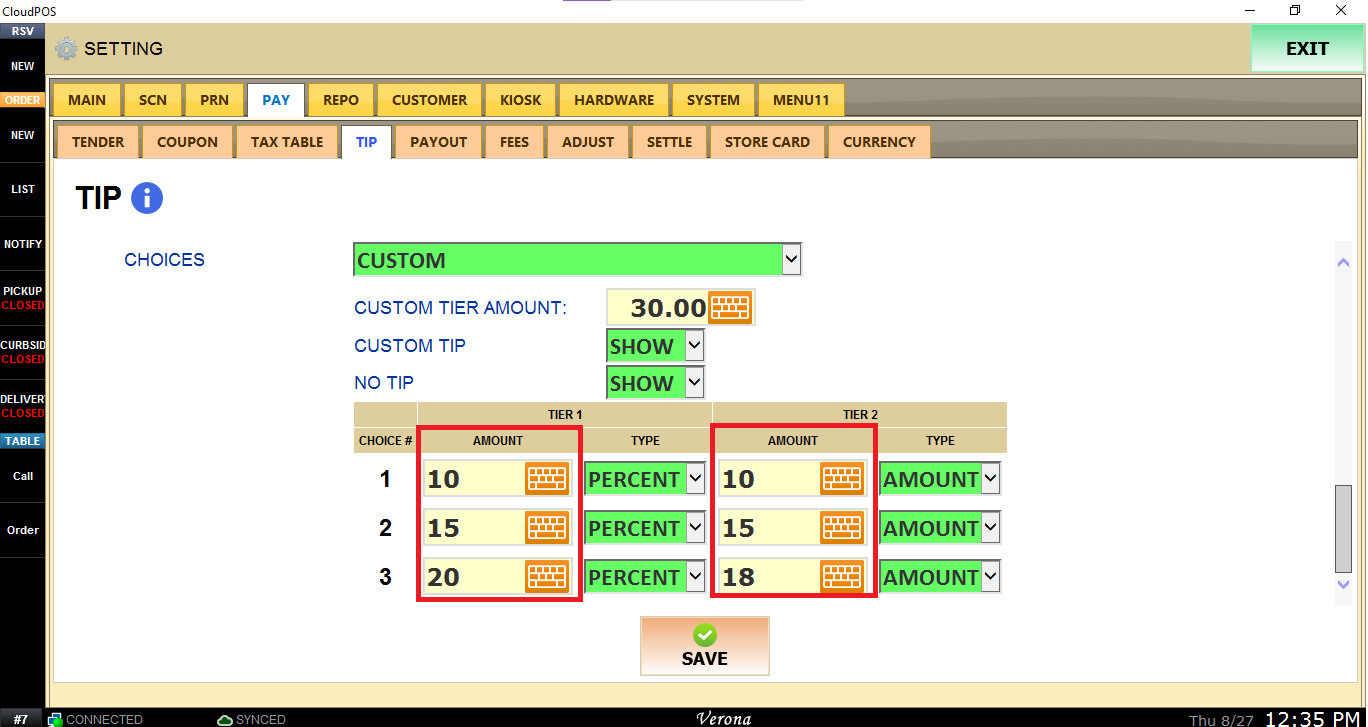
CUSTOM TIER AMOUNT: Determines which set of custom tip choices will be displayed based on the order amount.
- If the applicable amount is less than the configured Custom Tier Amount, Tier 1 choices are displayed.
- If the applicable amount is equal to or greater than the configured Custom Tier Amount, Tier 2 choices are displayed.
CUSTOM TIP: Determines whether the customer can enter a custom tip amount in the Tip Dialog.
- SHOW: Allows a custom tip amount.
- HIDE: Removes the custom tip option.
NO TIP: Determines whether customers can choose not to leave a tip.
- SHOW: Displays a NO TIP option.
- HIDE: Removes the option.
TIER 1 and TIER 2: Each tier provides up to three tip choices.
For each CHOICE #, configure:
- AMOUNT: Enter the suggested tip value.
- TYPE: Select whether the value is calculated as a PERCENT or a fixed AMOUNT.
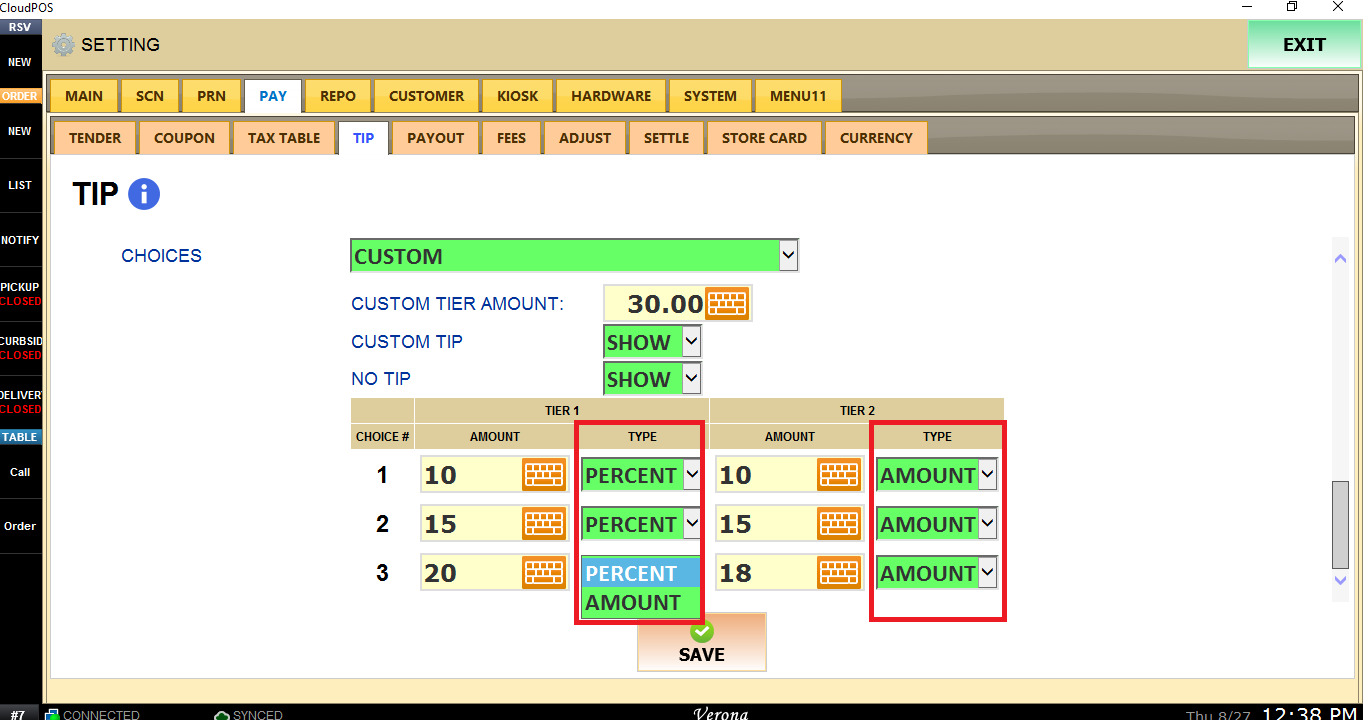
After configuring, click SAVE and RESTART PROGRAM to apply the settings.