How to Operate QR Curbside for Store
QR Curbside allows customers to place pickup orders by scanning a QR code while near the store. Unlike QR Table or QR Contactless Dining, it is intended for pickup orders rather than dine-in service. Once configured, customers can place orders, and staff can receive, prepare, and notify them when the order is ready for pickup.
ONLINE REPORT > MENU11 > STORE > QR ORDER > QR CURBSIDE
From the ONLINE REPORT, navigate to MENU11 then QR ORDER

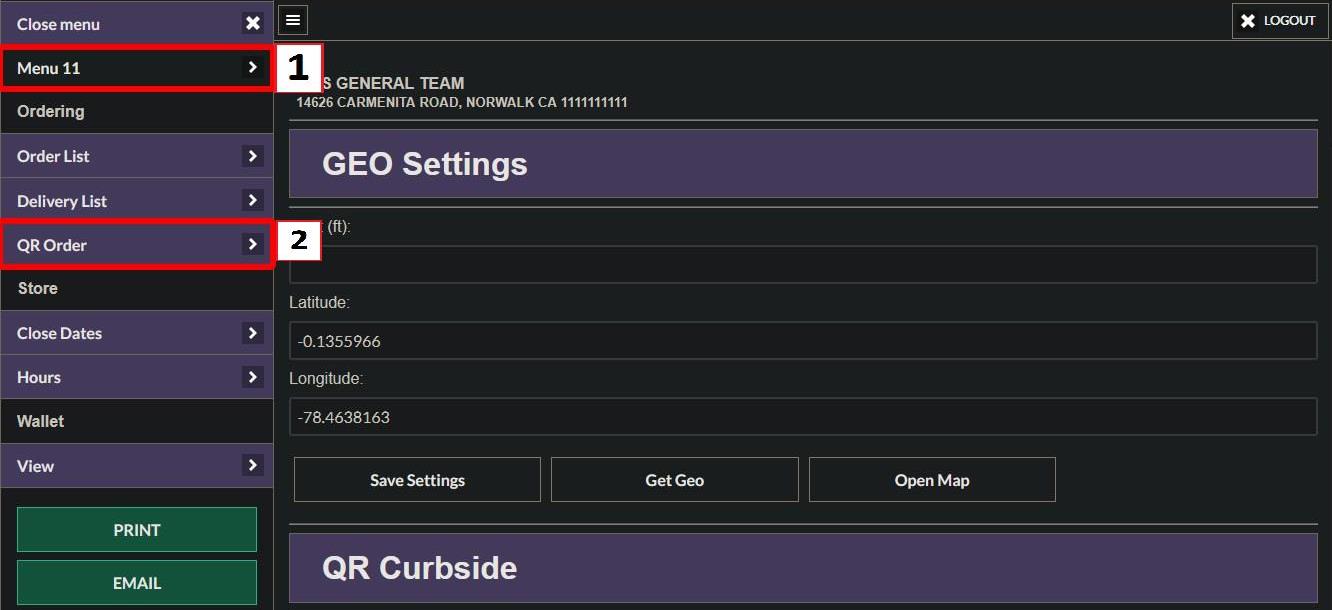
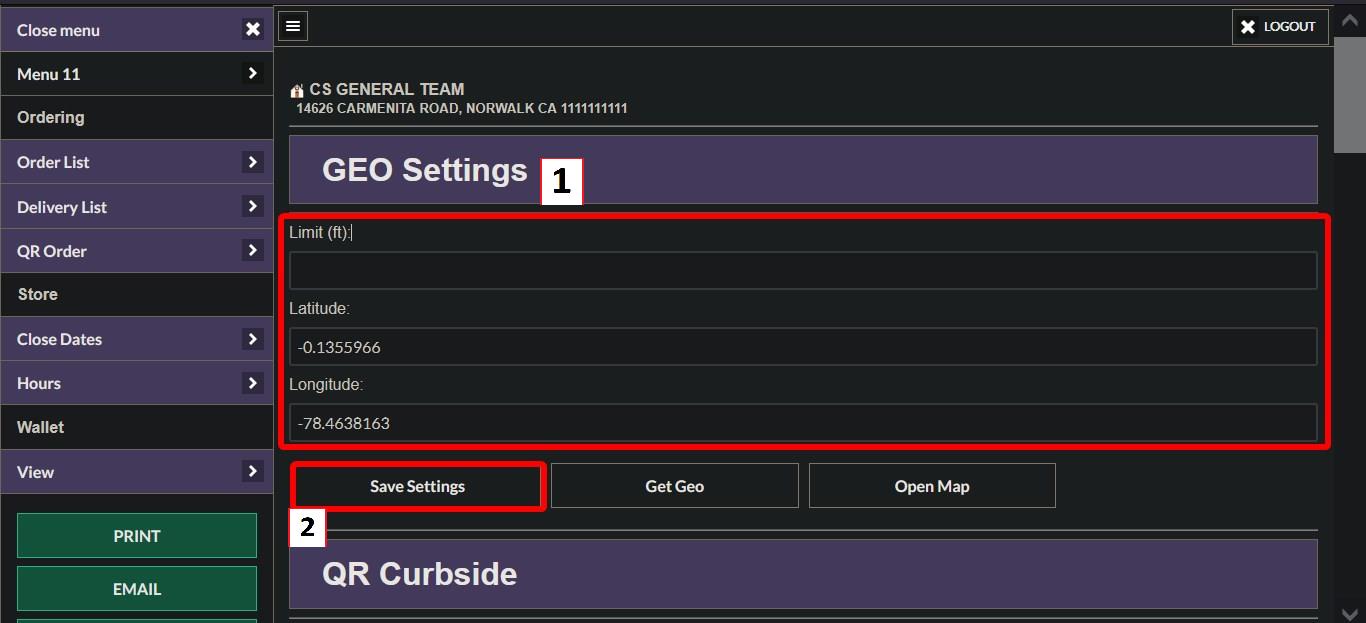
Optionally Enter the delivery LIMIT (in feet), LATITUDE, and LONGITUDE for your store, then save the settings.
Hint: The LIMIT defines how far customers can be from the store while placing a QR Curbside order. LATITUDE and LONGITUDE can be obtained from Google Maps.
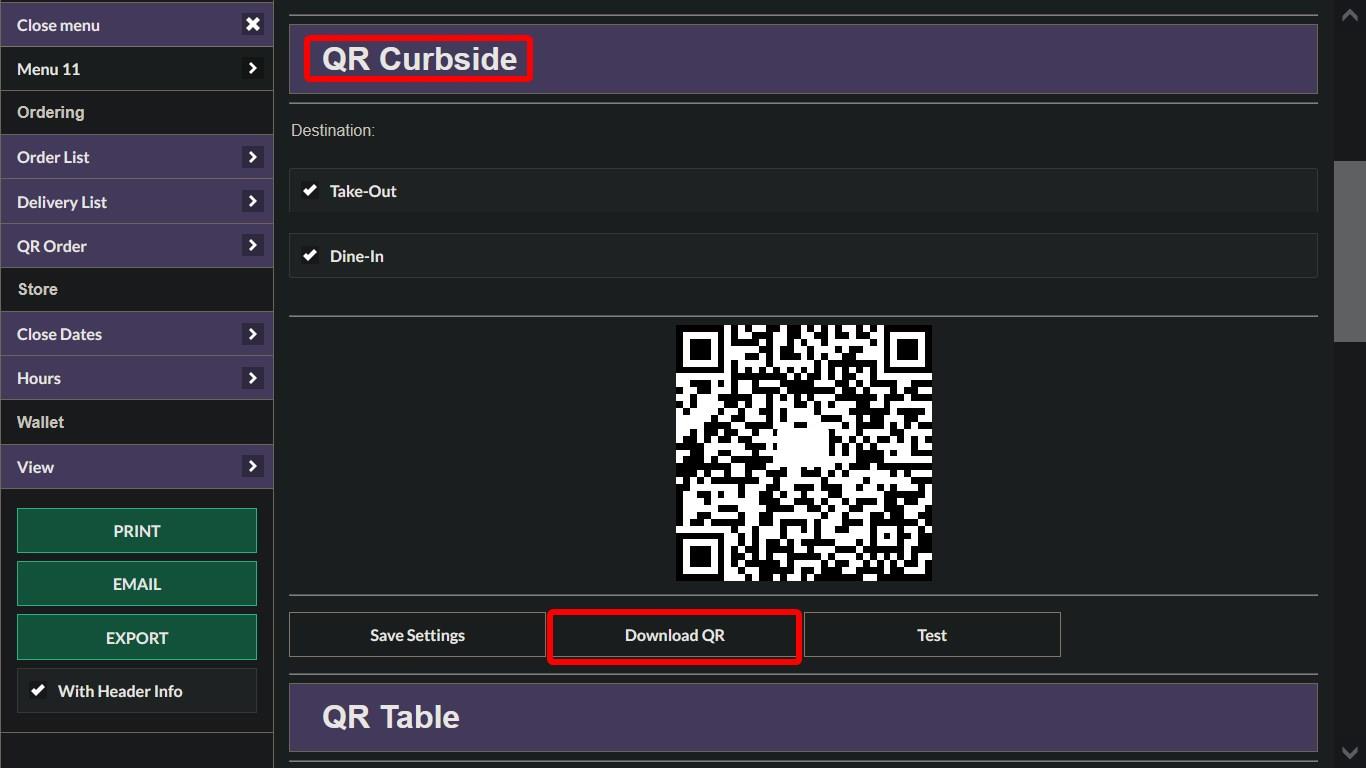
Scroll down, click DOWNLOAD QR to download it.
Print the QR code and place it in a location where customers can scan it to place curbside orders.

Receiving the order
By default, QR Curbside orders are automatically confirmed. If automatic confirmation is disabled, orders must be confirmed manually.
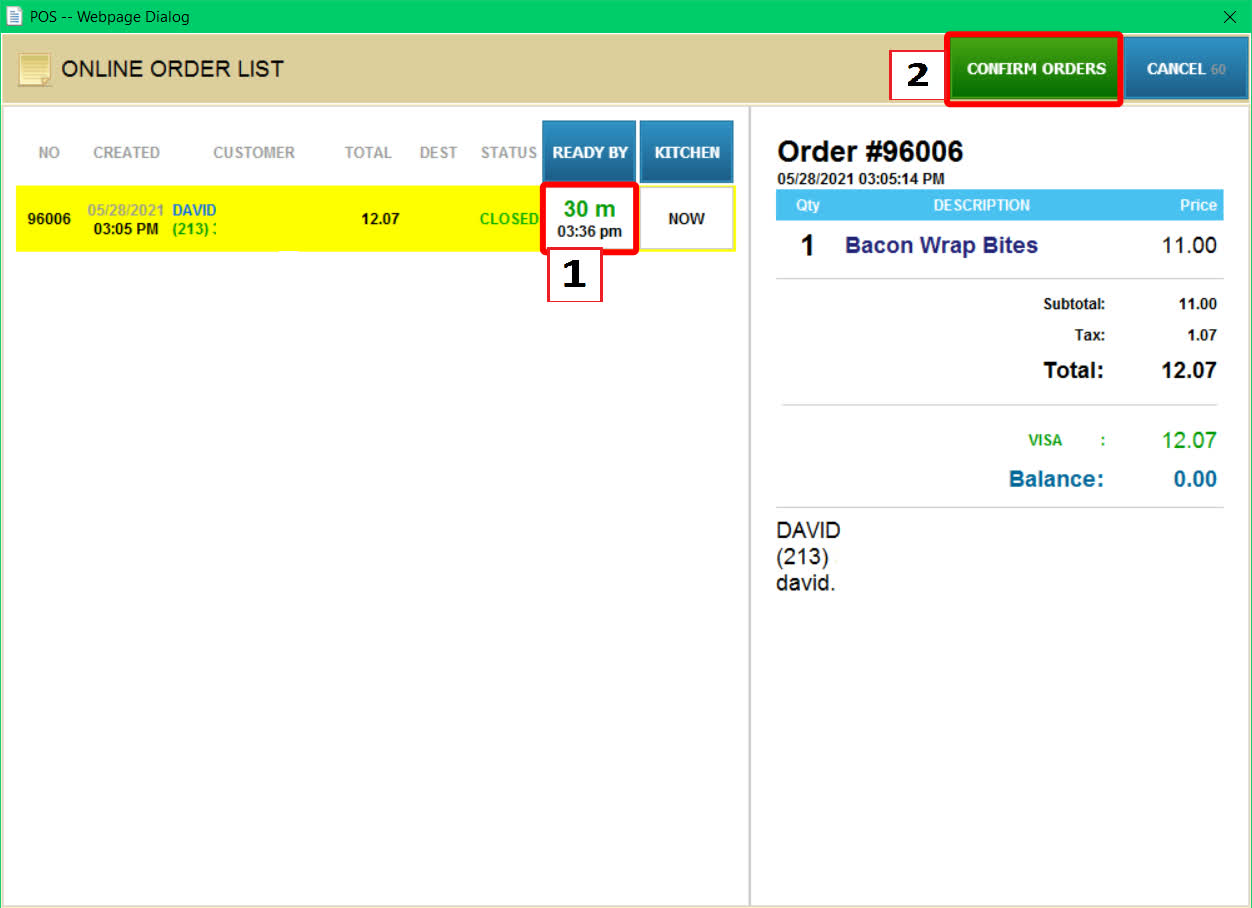
To do so when a customer places an order, the ONLINE NEW button will turn yellow. On the Main Screen or Sales Screen of the POS. Click the ONLINE NEW button.


Select the order, set the desired ready time, then click CONFIRM. The order will be confirmed and the kitchen ticket will be printed.

Sending order ready notifications
Click NOTIFY on the left side of the POS.

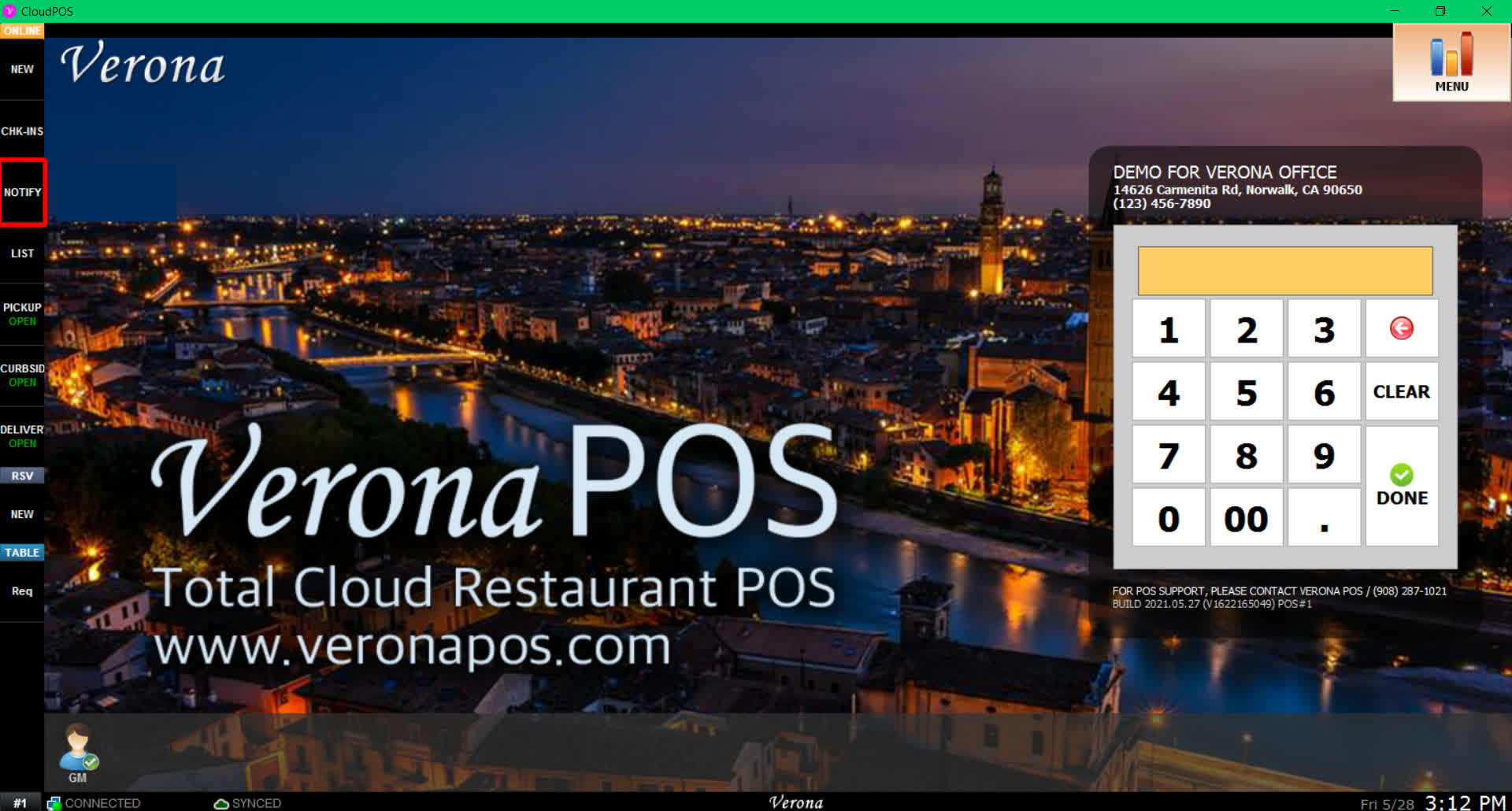
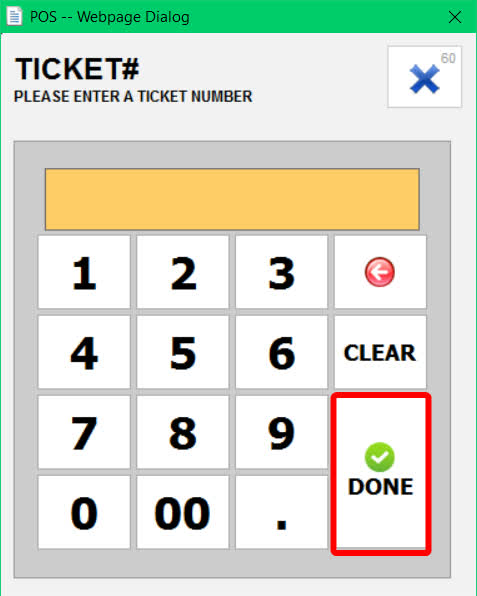
Enter the ticket number of the completed order.

Click YES to send an email or text message notifying the customer that their order is ready.

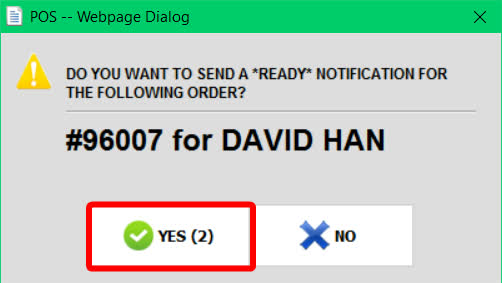
Result
Customers will be able to place QR Curbside orders, staff can receive and confirm incoming orders, and ready notifications can be sent when the order is available for pickup.