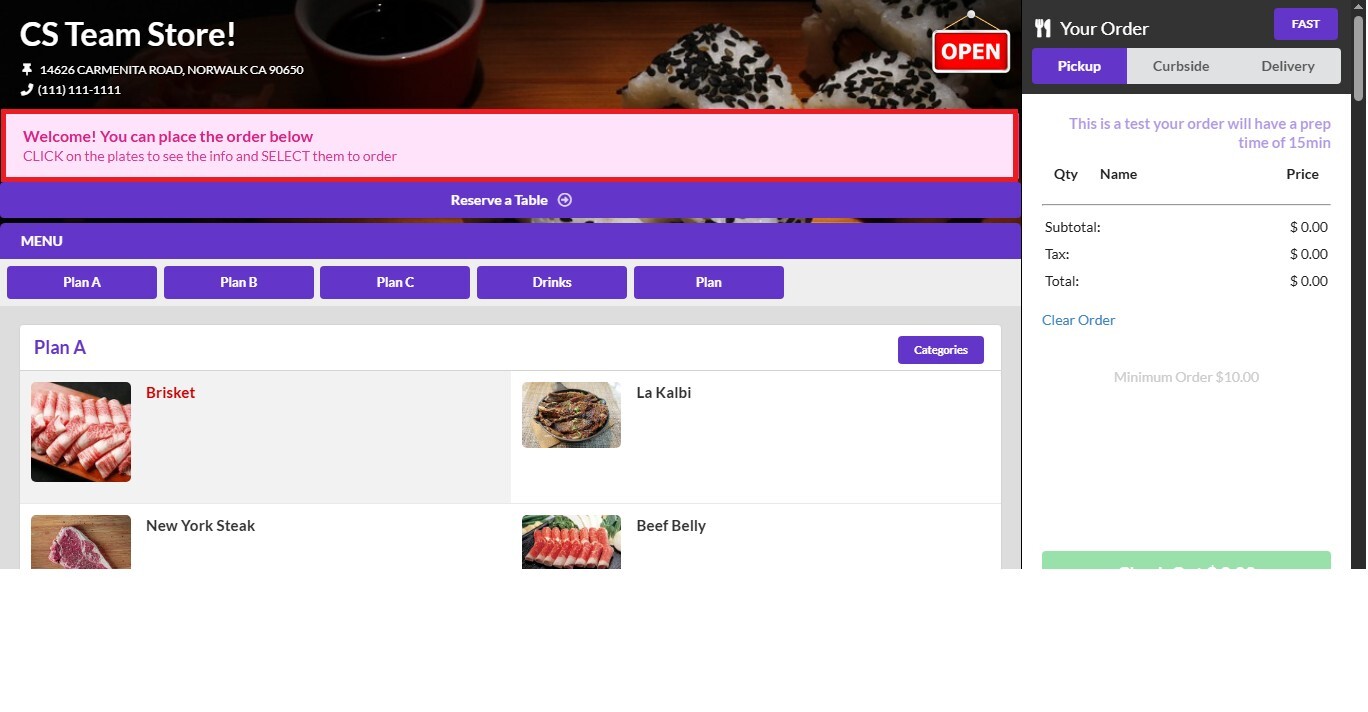
MSG (Message)
The Online Ordering Messages feature allows you to display custom announcements, promotions, or important information on your online ordering website. Messages can be shown as a pop-up when customers enter the site or displayed at the top of the page, making them an effective way to communicate special offers, holiday notices, temporary updates, or other important information.
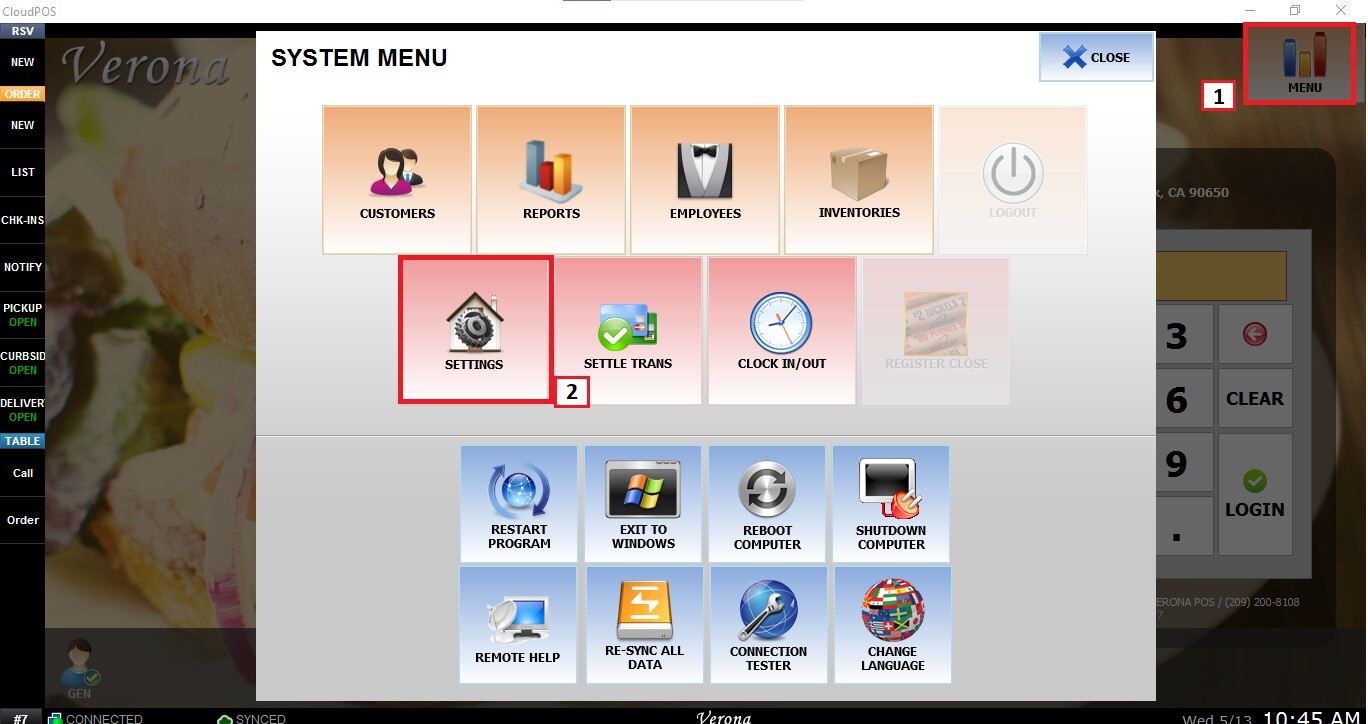
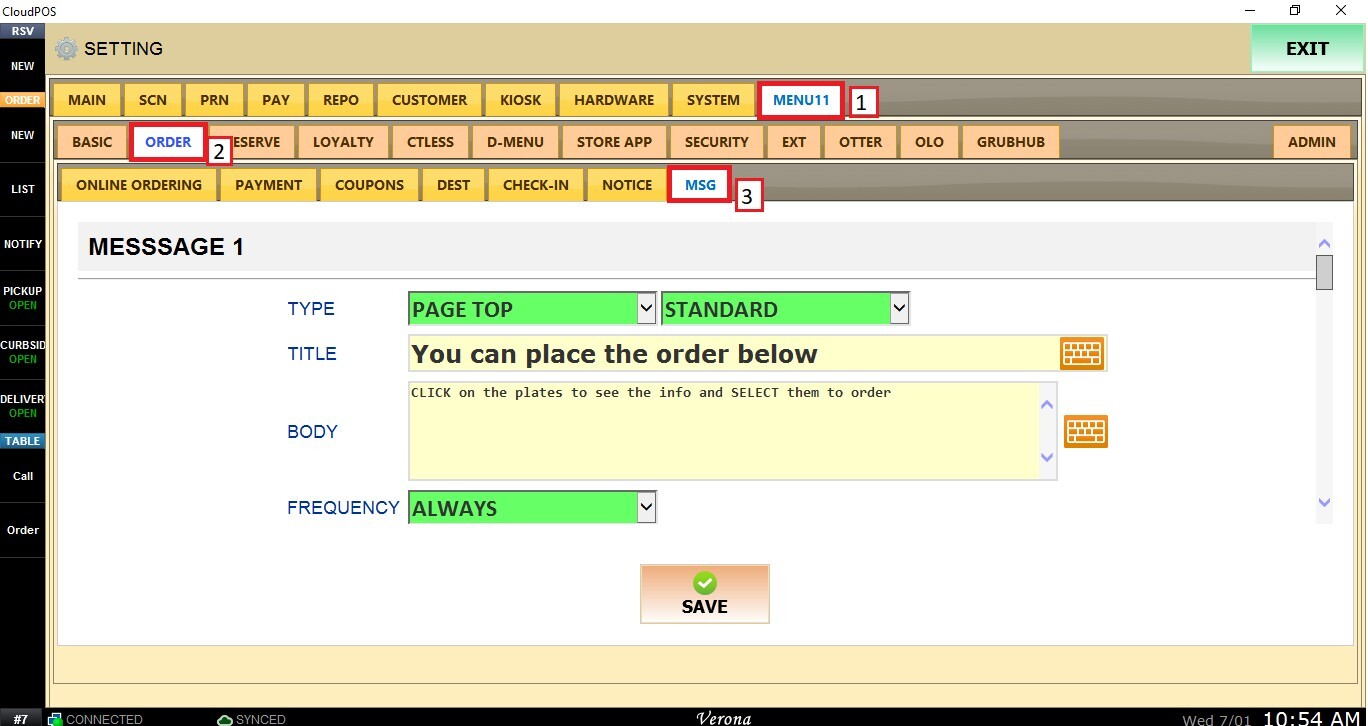
Main Screen> MENU>SETTINGS>MENU11>ORDER>MSG
From the Main Screen, click MENU and then SETTINGS.
Select MENU11, click ORDER, and open the MSG tab.
Creating a Message
You can configure up to five different messages, customize their appearance, and control how and when they are displayed.
Select the message slot you want to configure.
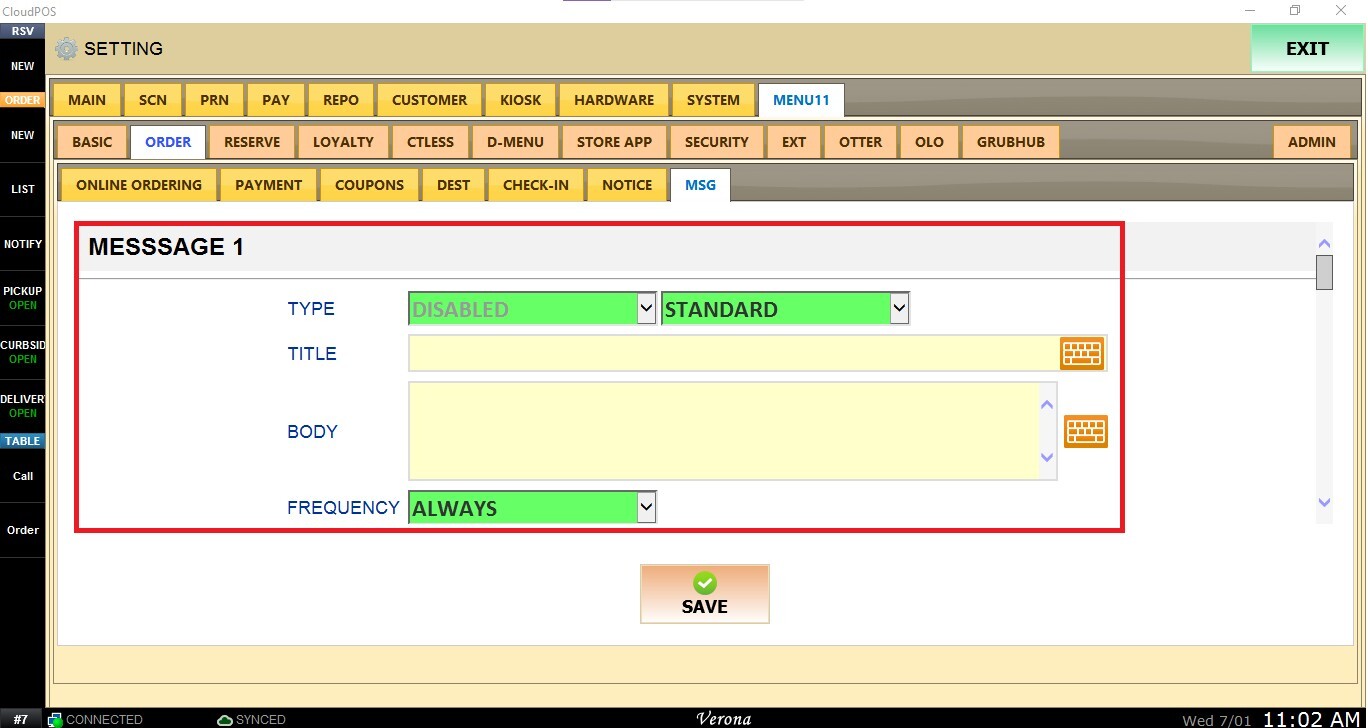
TYPE: Determines where the message will appear and how it will be formatted.
The first drop-down menu controls the display location. Select one of the available options:
POP-UP: Displays the message in a pop-up window when customers first visit the online ordering website.
PAGE TOP: Displays the message directly below the online ordering site's header.
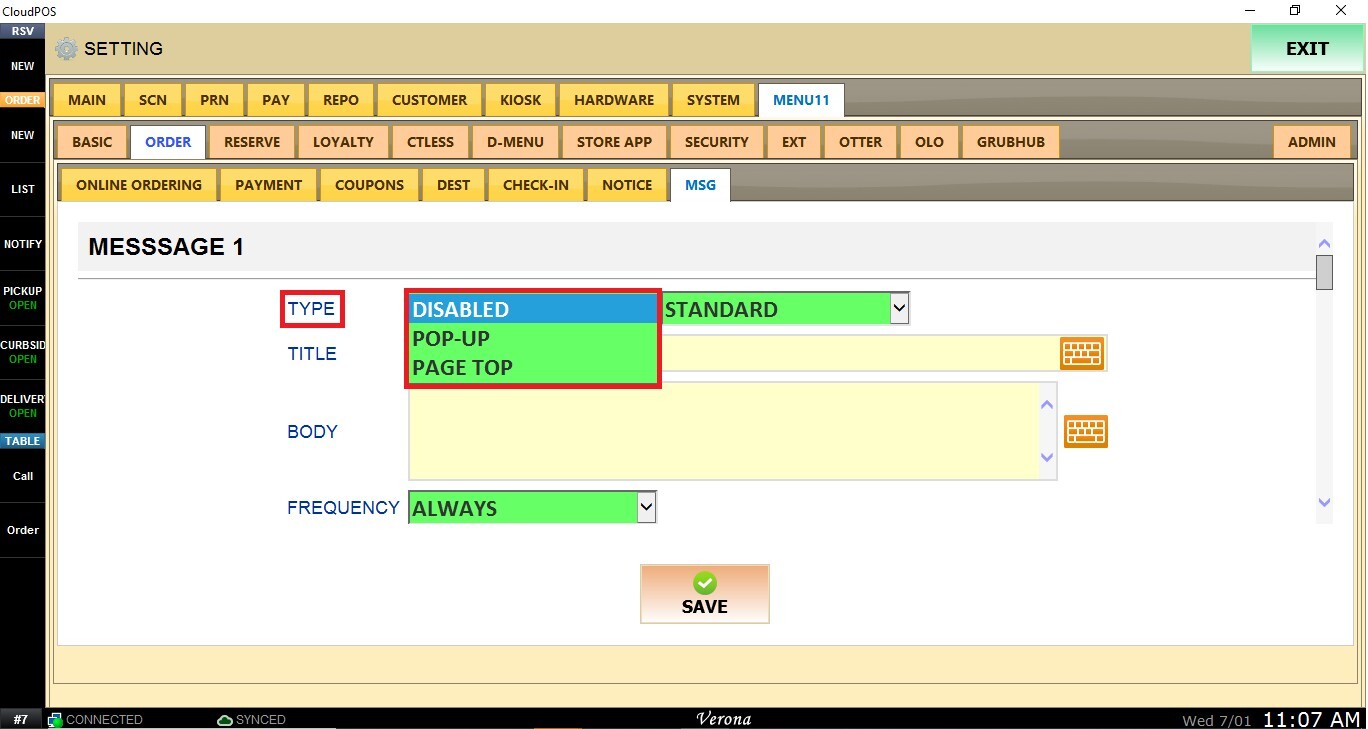
The second drop-down controls the message format. Select one of the available options:
STANDARD: Displays the message as plain text. When this option is selected, you can configure TITLE and BODY.
HTML: Allows you to create fully customized messages using HTML code.
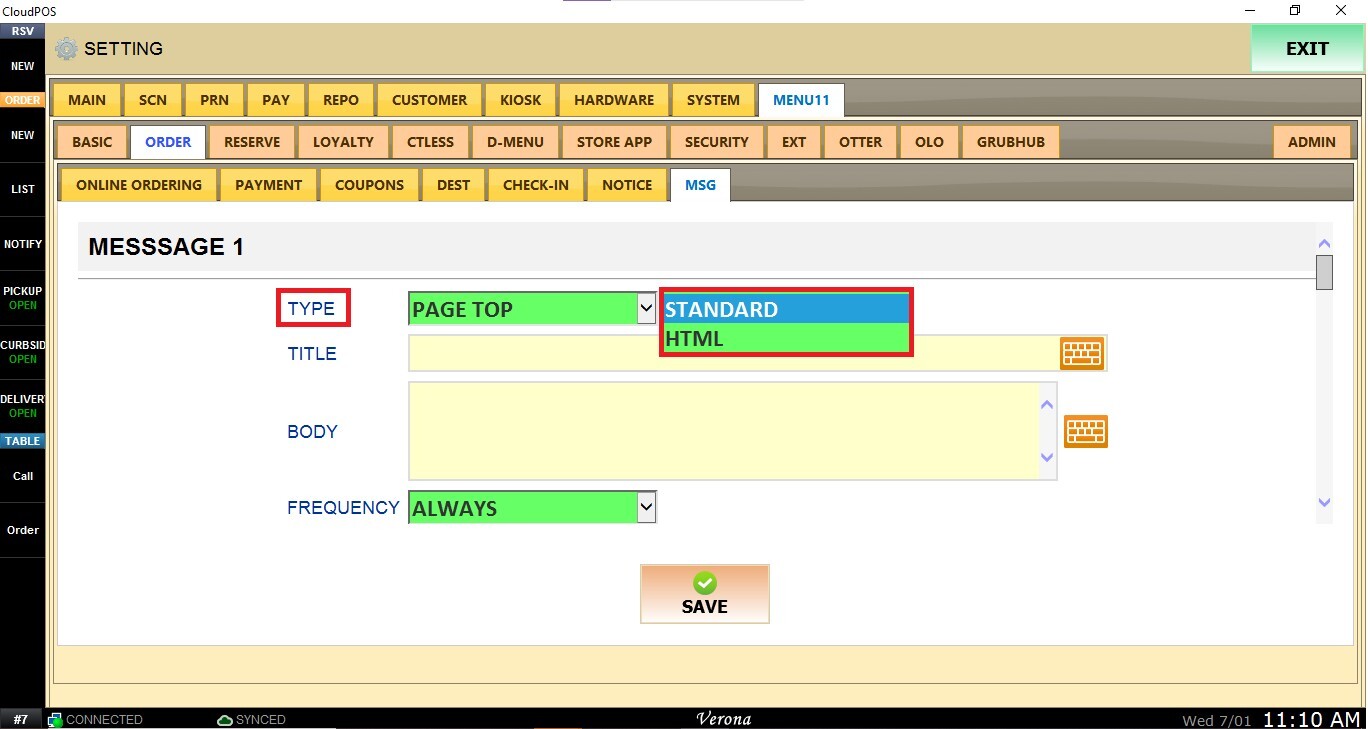
TITLE: Defines the heading displayed for STANDARD messages.
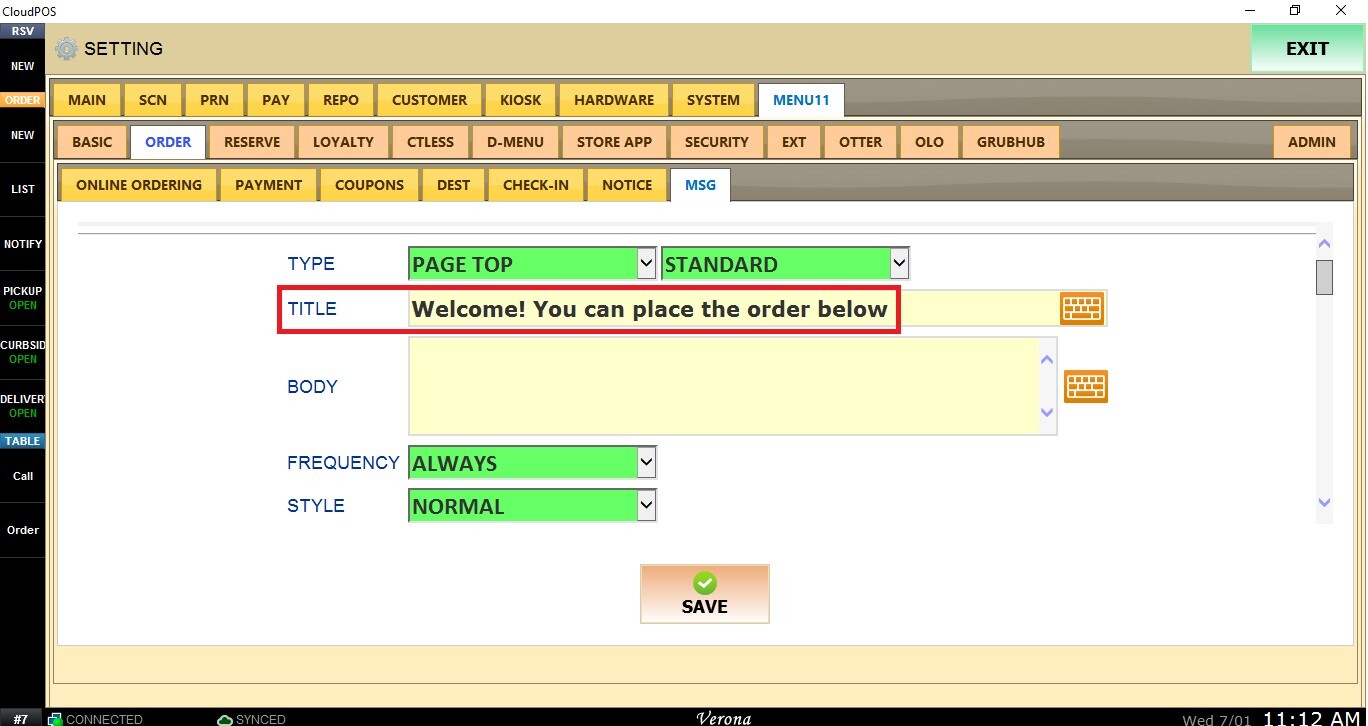
BODY: Contains the main content of the message. For STANDARD messages, simply enter the text you want customers to see. When using the HTML format, enter the HTML code that will generate the desired message layout.
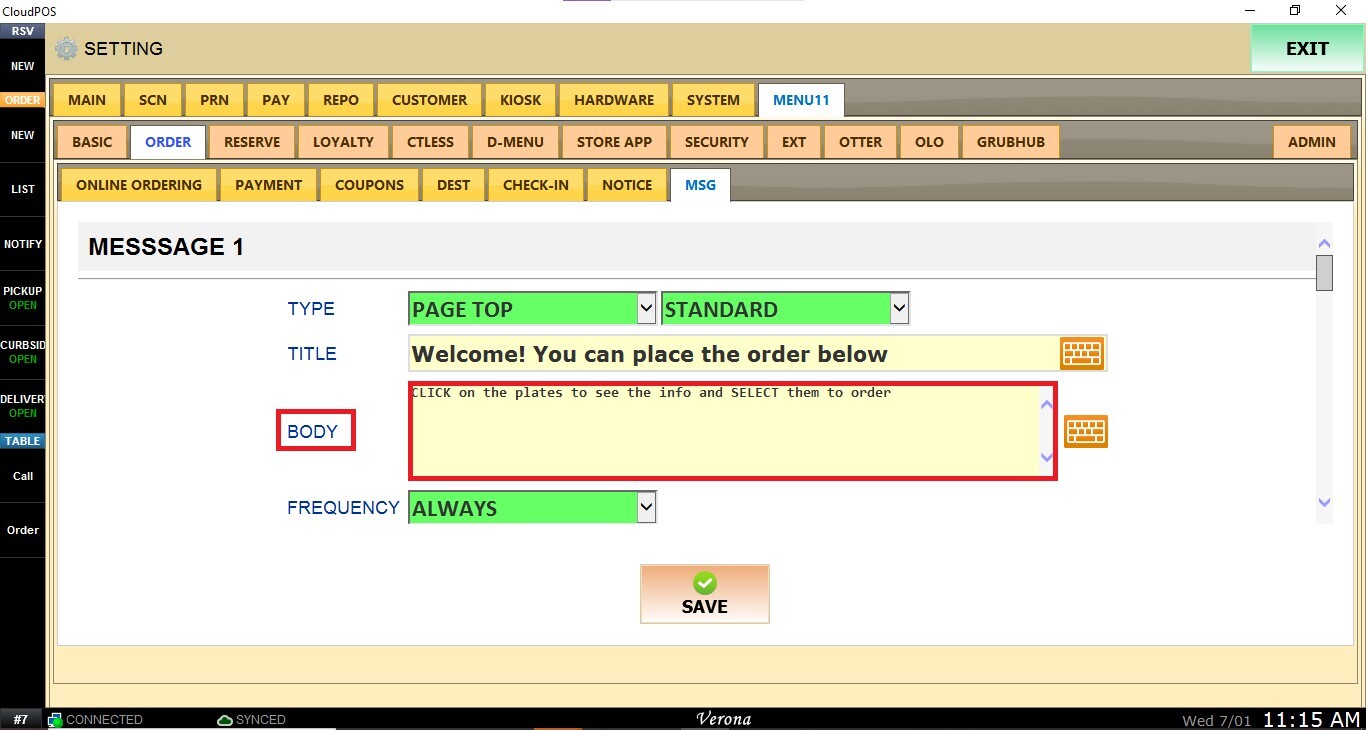
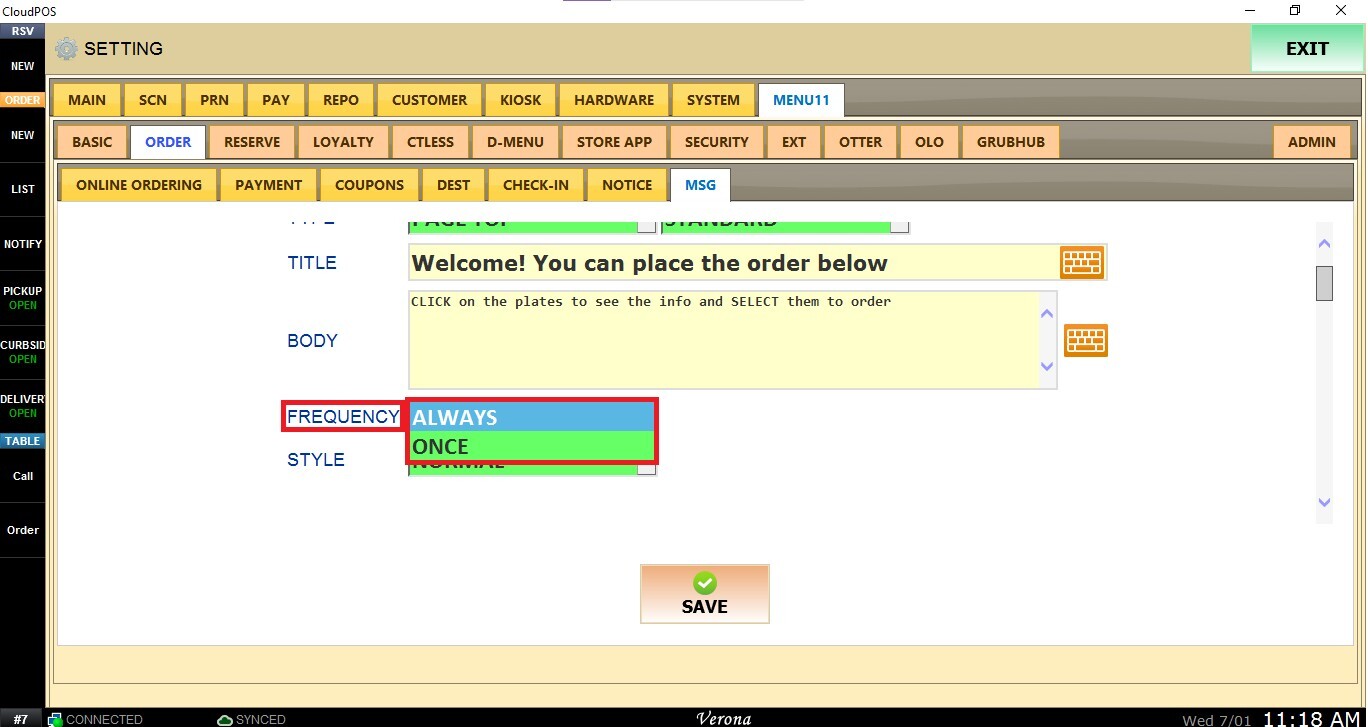
FREQUENCY: Determines how often a POP-UP message is displayed to customers.
Depending on the selected option, the message can be displayed:
ALWAYS: Every time customers visit the website.
ONCE: Only once during a browsing session.
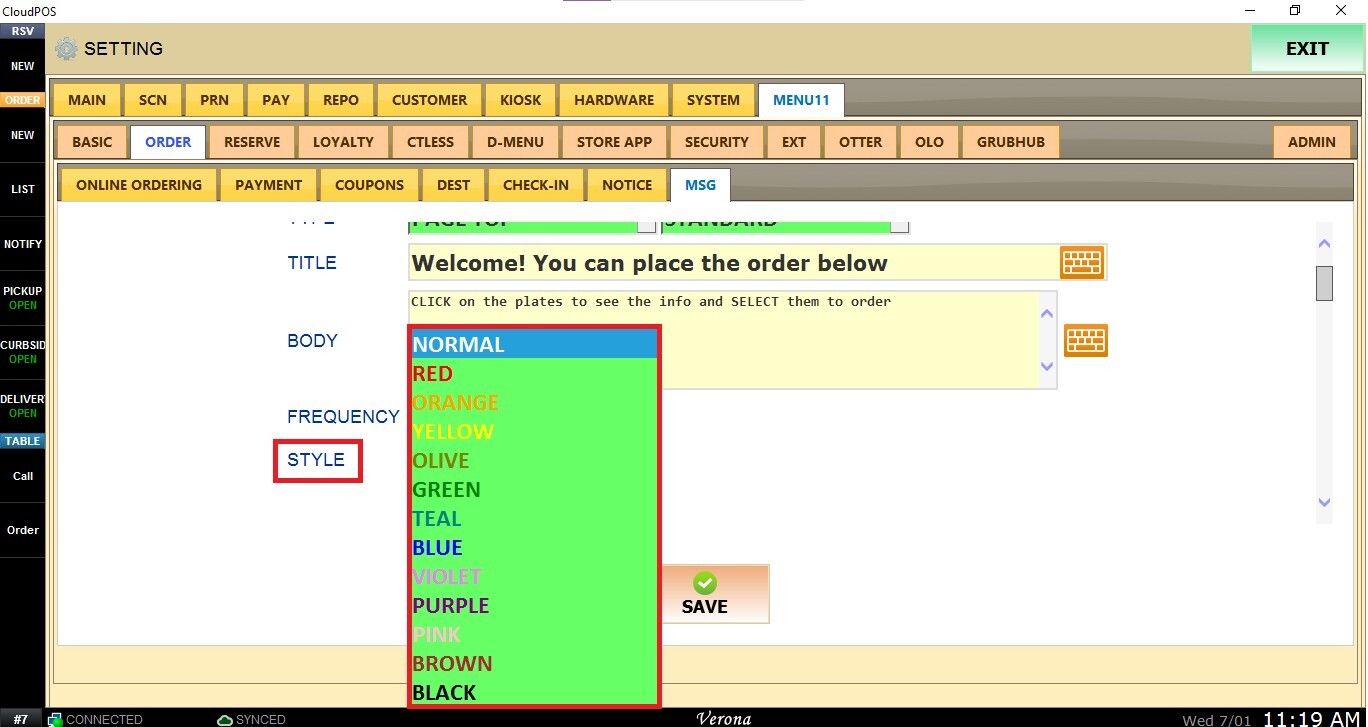
STYLE: Controls the color theme of the message.
Select the desired color from the drop-down menu to match your branding or emphasize important announcements.
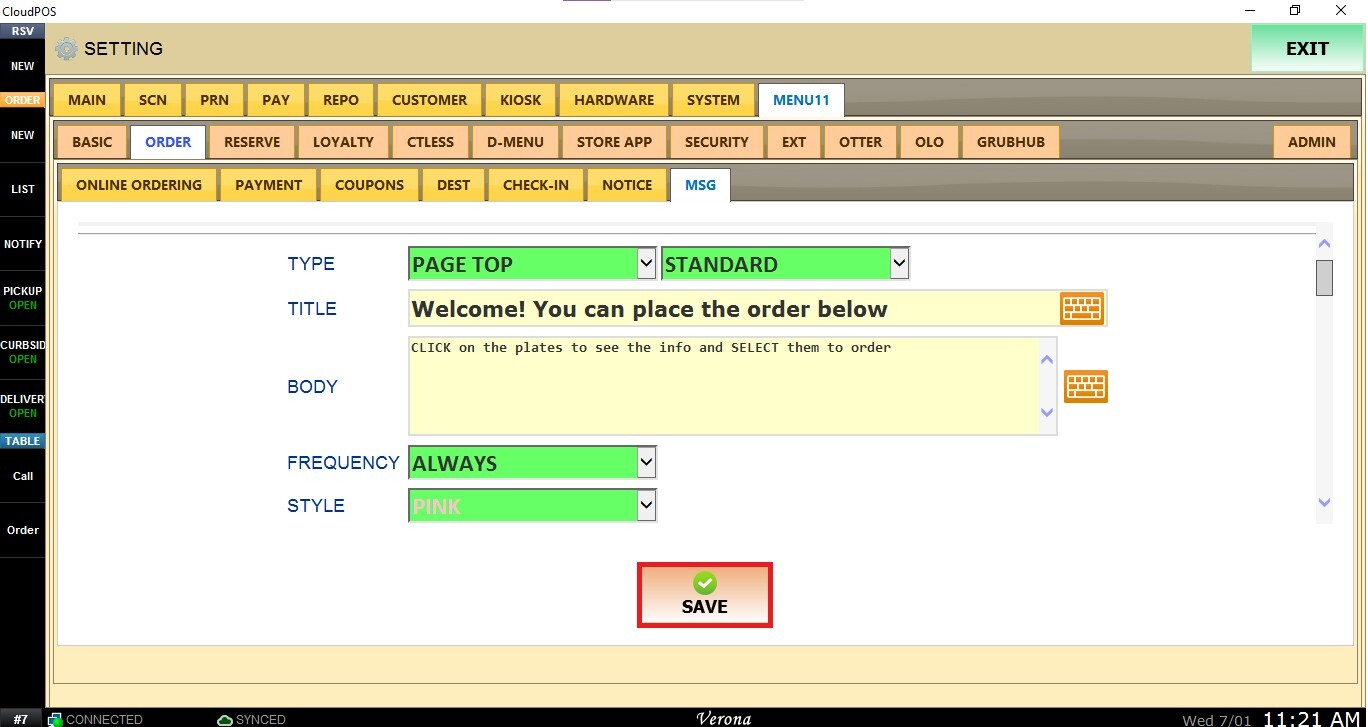
After configuring your message, SAVE the changes.
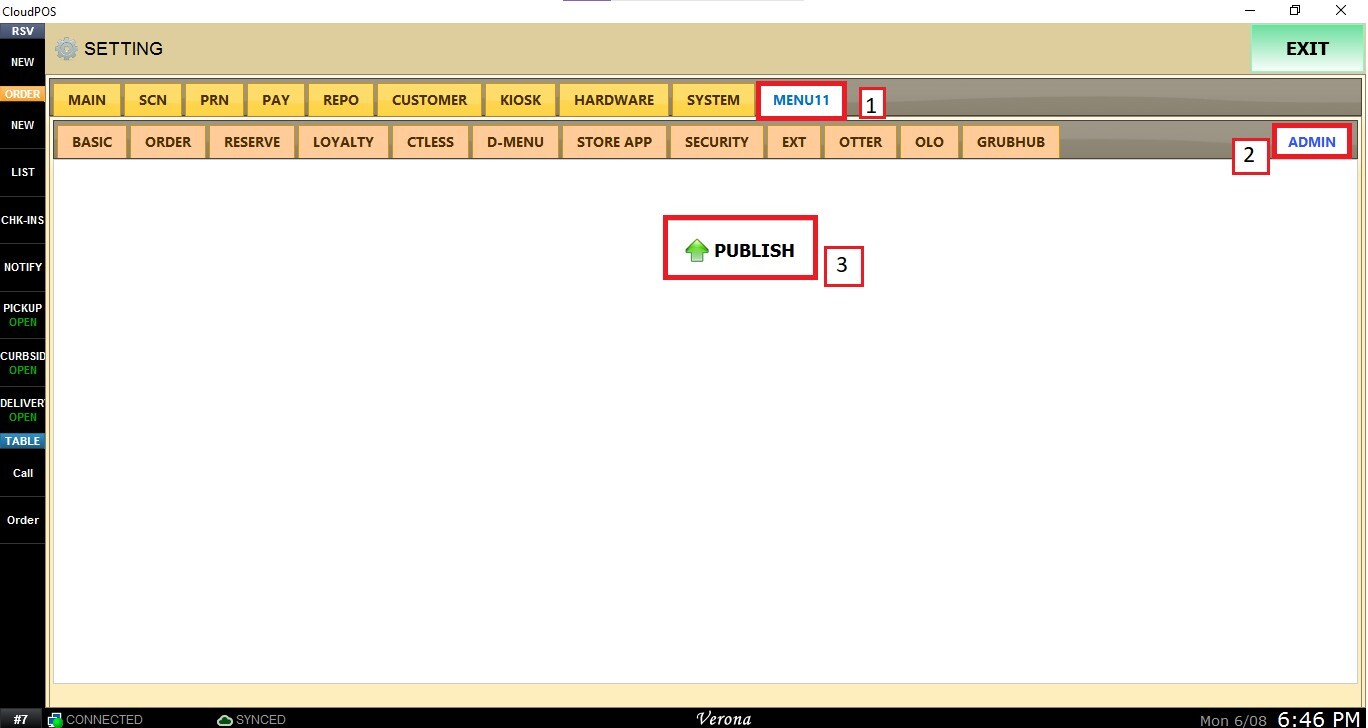
Then navigate to the MENU11 tab, select ADMIN, and click PUBLISH to apply the changes.
Result: