Store Hour
Set the store hours for the online order site. Hours can be configured as a default schedule, or customized individually for each day of the week, and separately for each destination type: Store, Pickup, Delivery, and Curbside.
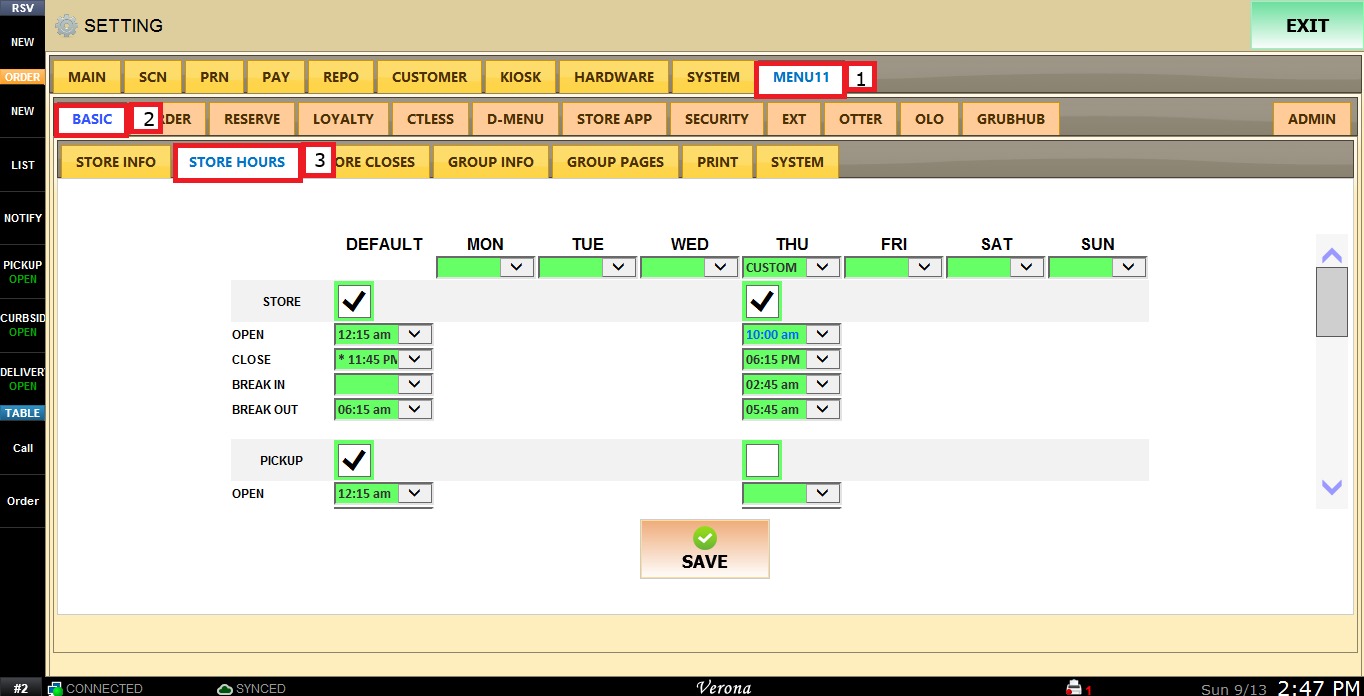
MENU > SETTINGS > MENU11 > BASIC > STORE HOURS.
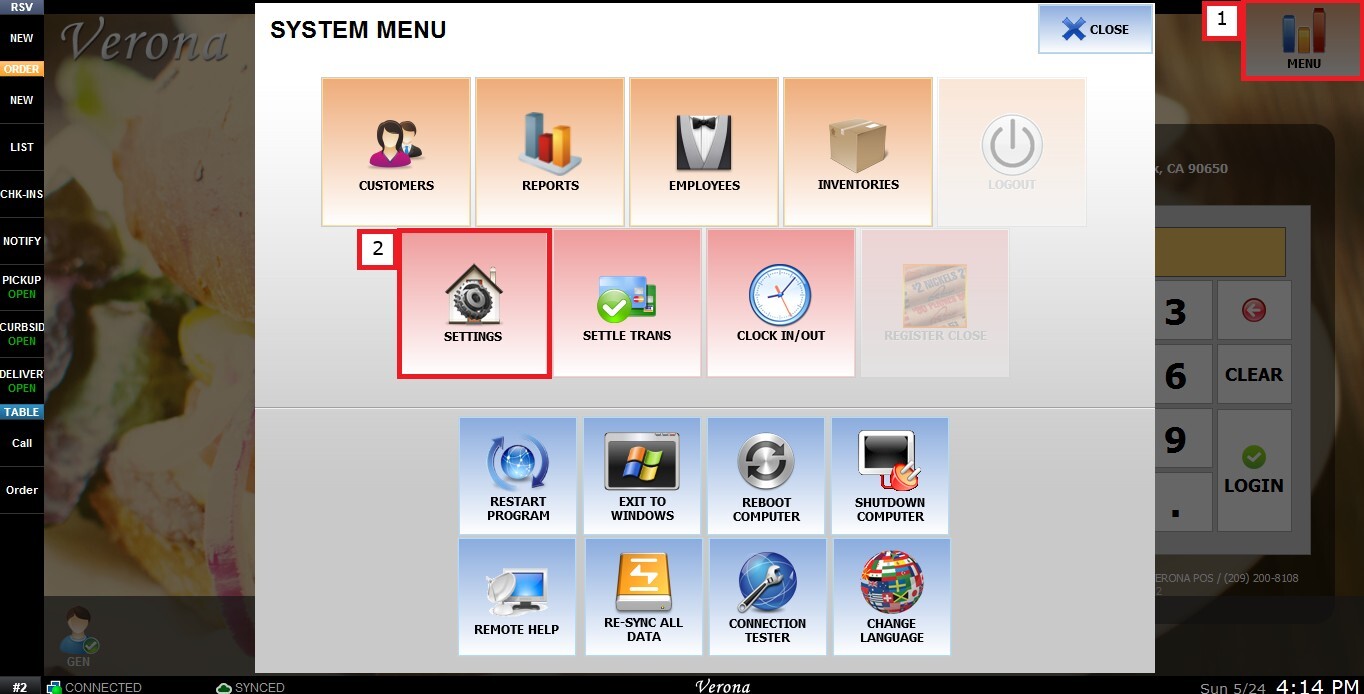
From the Main Screen, click MENU, then select SETTINGS.
Under MENU11, select BASIC, and go to STORE HOURS.
DEFAULT
This setting is the base configuration for the online order site. Any day not set to CUSTOM will follow the Default setting.
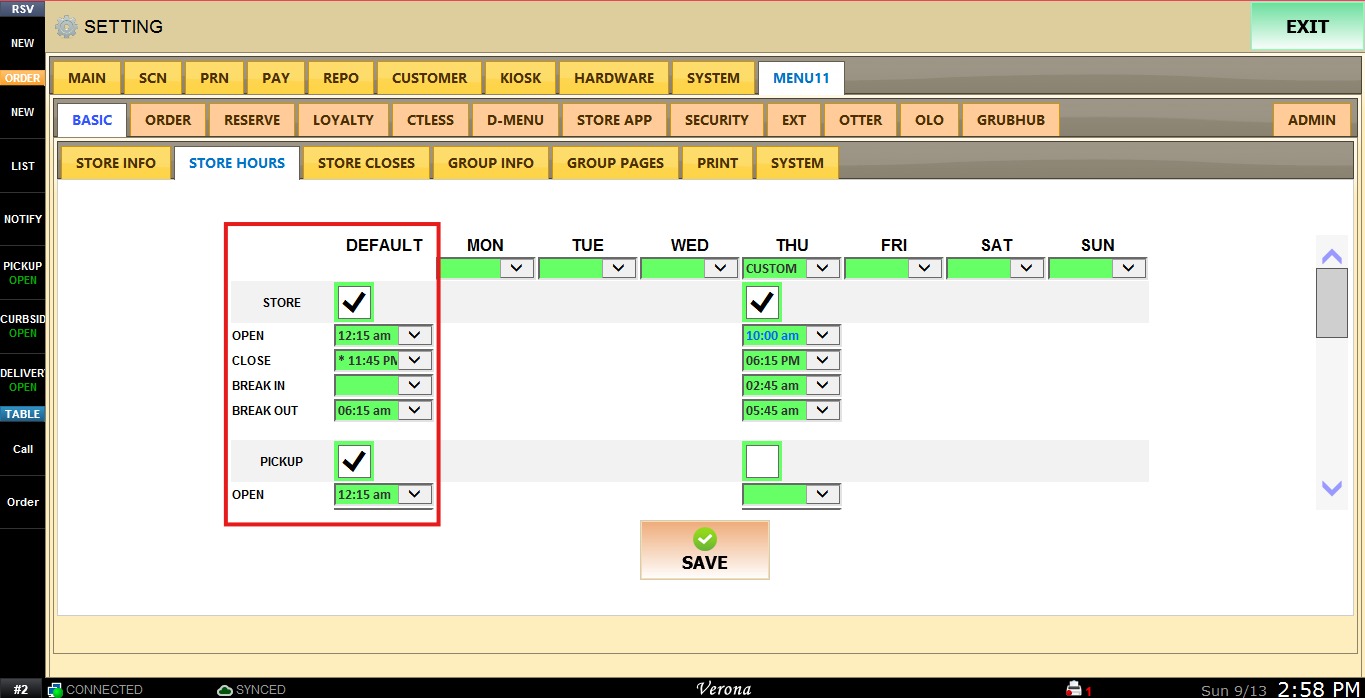
Click the checkbox to display a check mark. Check all the boxes for the destination types you plan to use (Store, Pickup, Delivery, and/or Curbside).
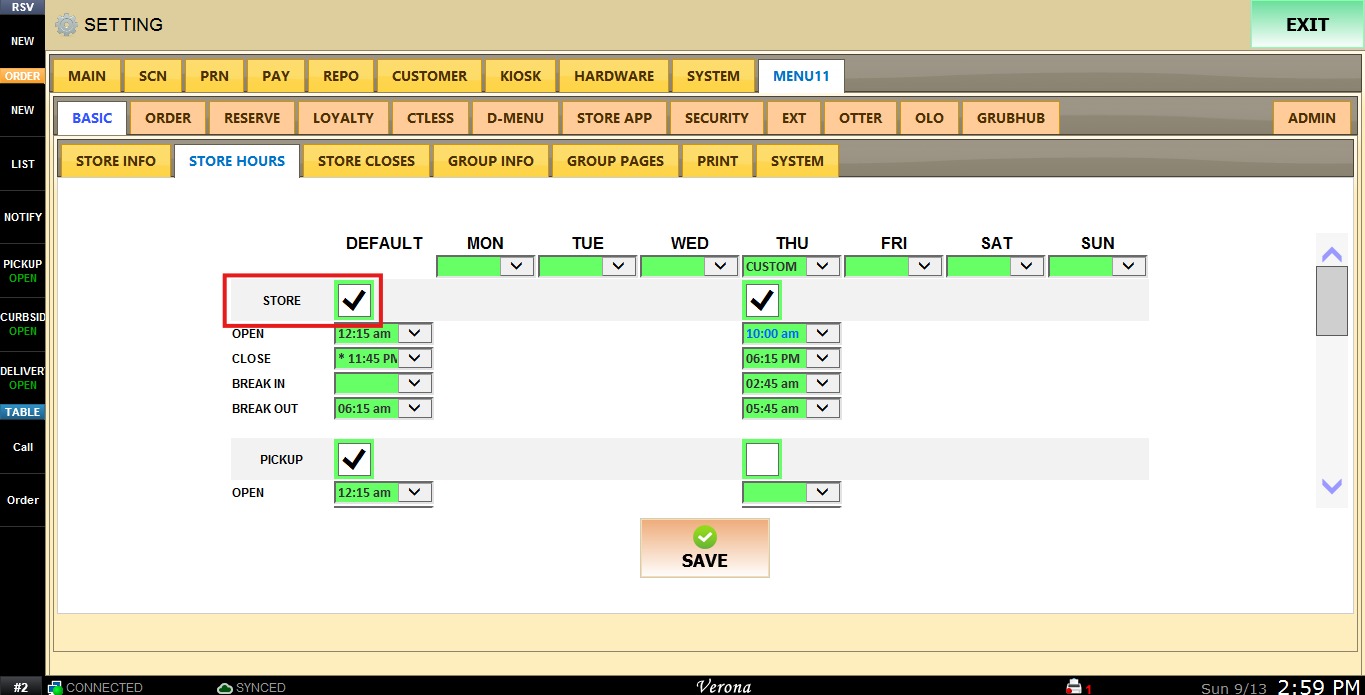
Set the hours as desired: Open and Close hour (and Break In/Break Out, if there is a break time in between store hours).
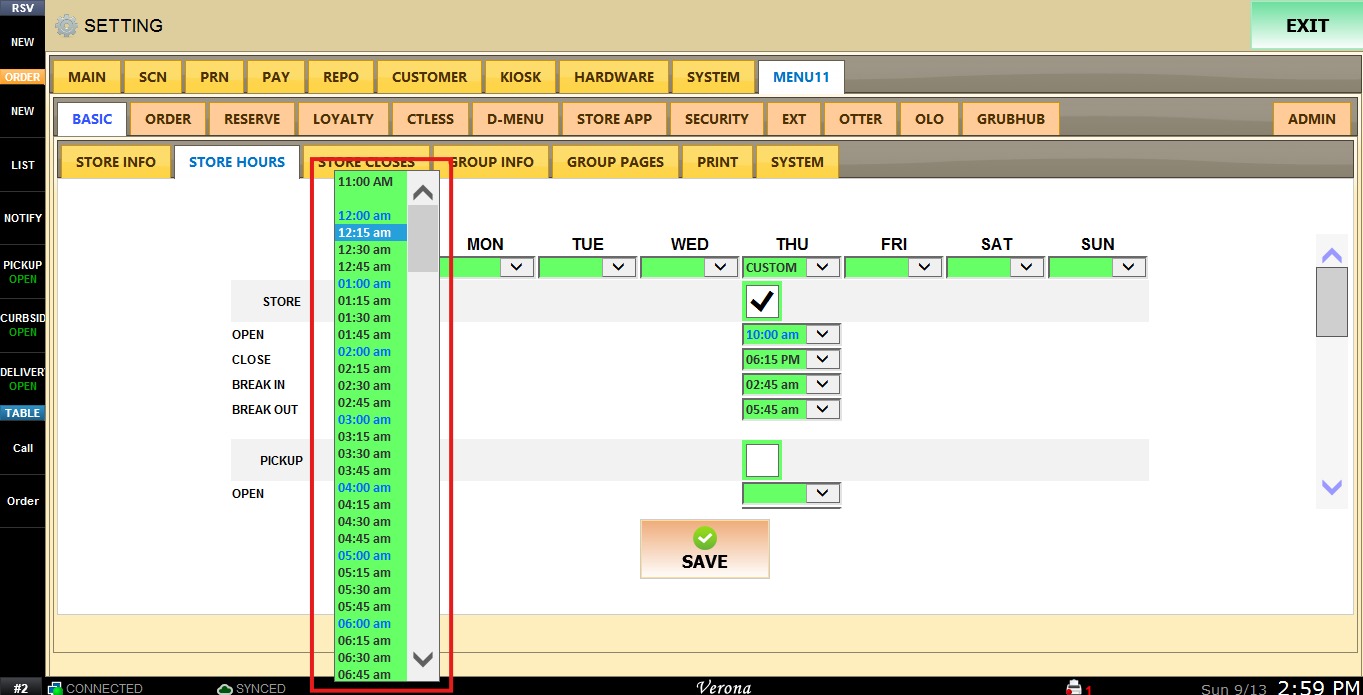
MON–SUN
This setting allows the user to configure custom hours for each individual day.
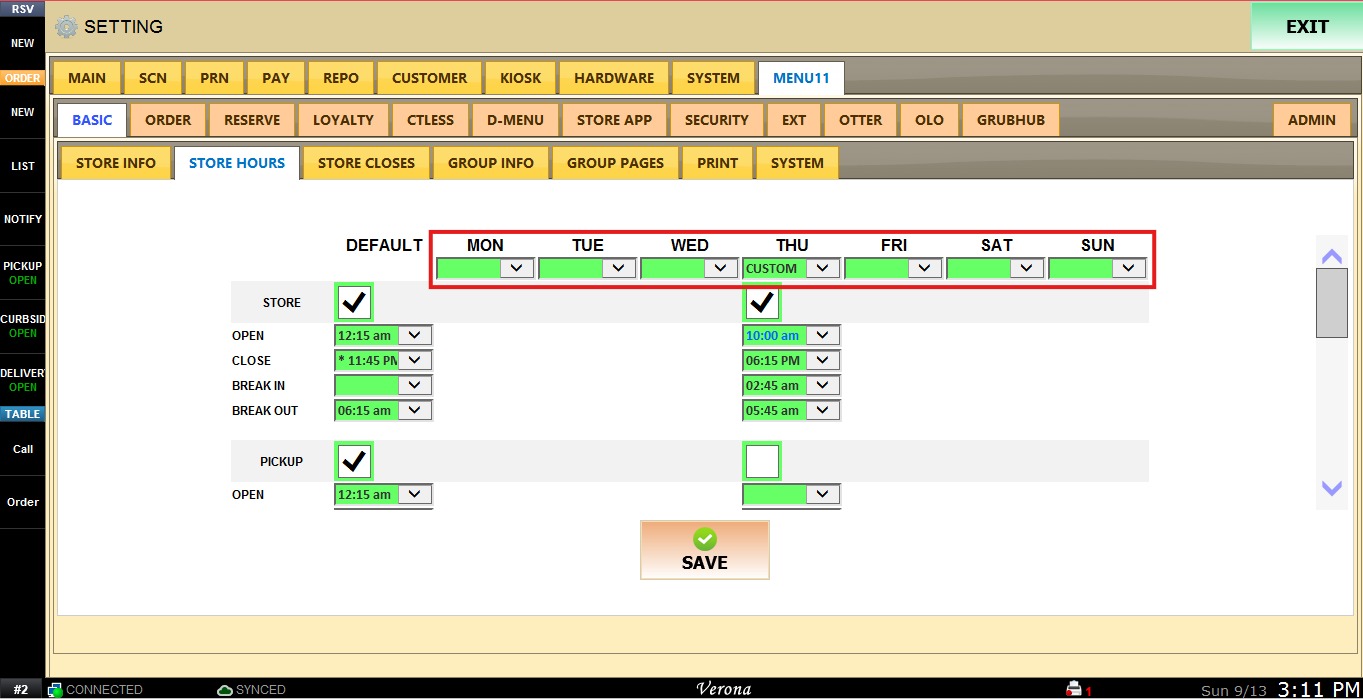
To set custom hours, enable CUSTOM on the dropdown for that day, then click the checkbox to display a check mark. Check all the boxes for the destination types you plan to use (Store, Pickup, Delivery, and/or Curbside).
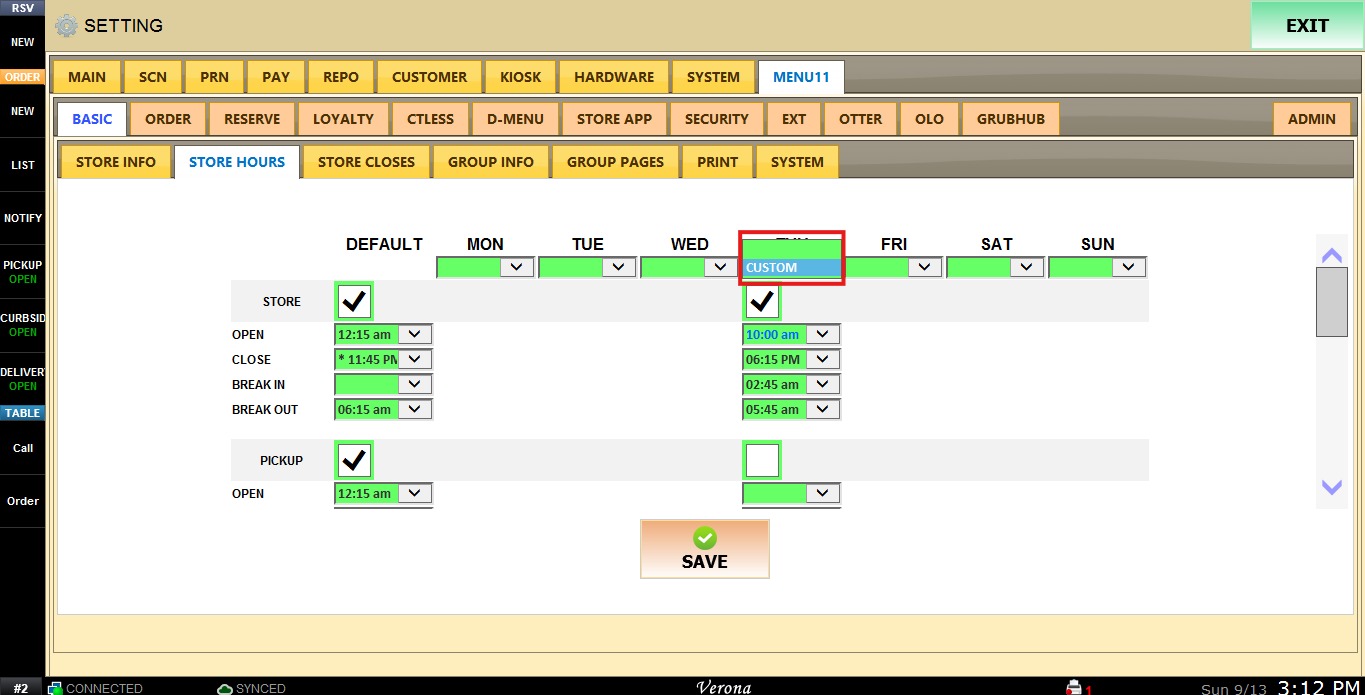
Set the hours as desired: Open and Close hour (and Break In/Break Out, if there is a break time in between store hours).
Tip: If the store is closed on a certain day, set that day to CUSTOM and leave the checkbox unchecked.
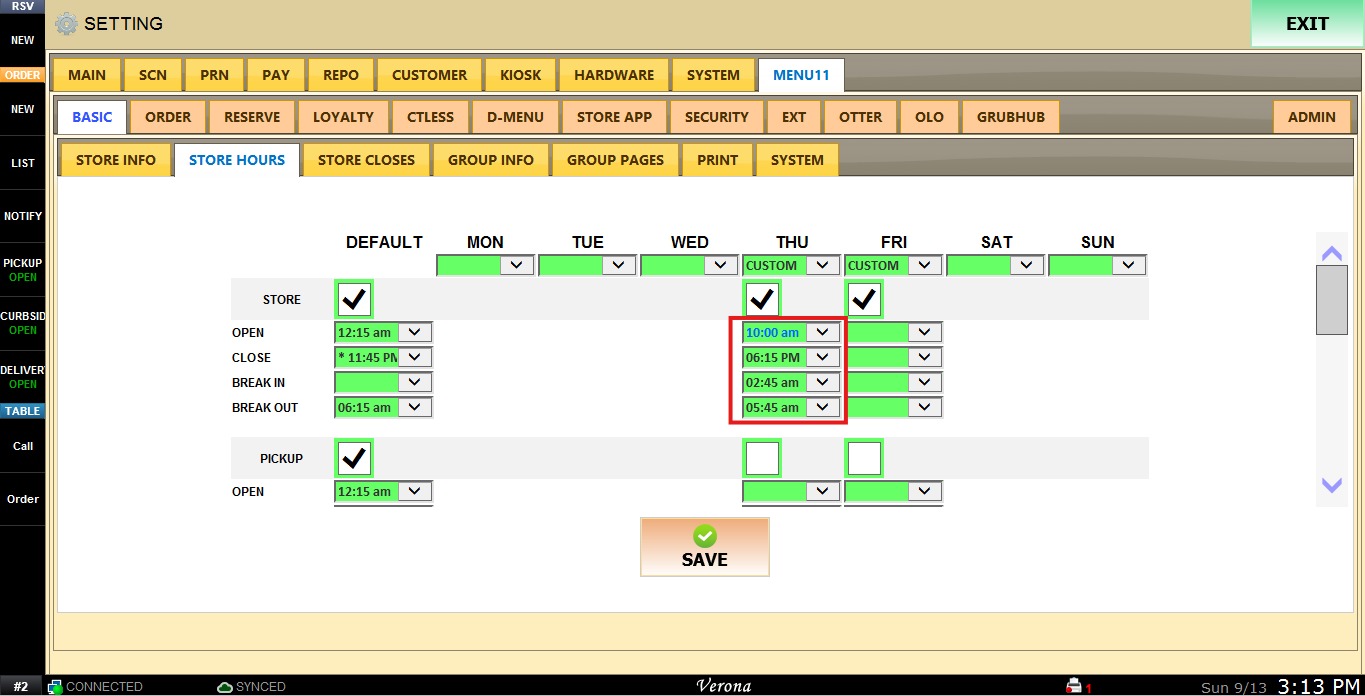
Click SAVE to apply the changes.
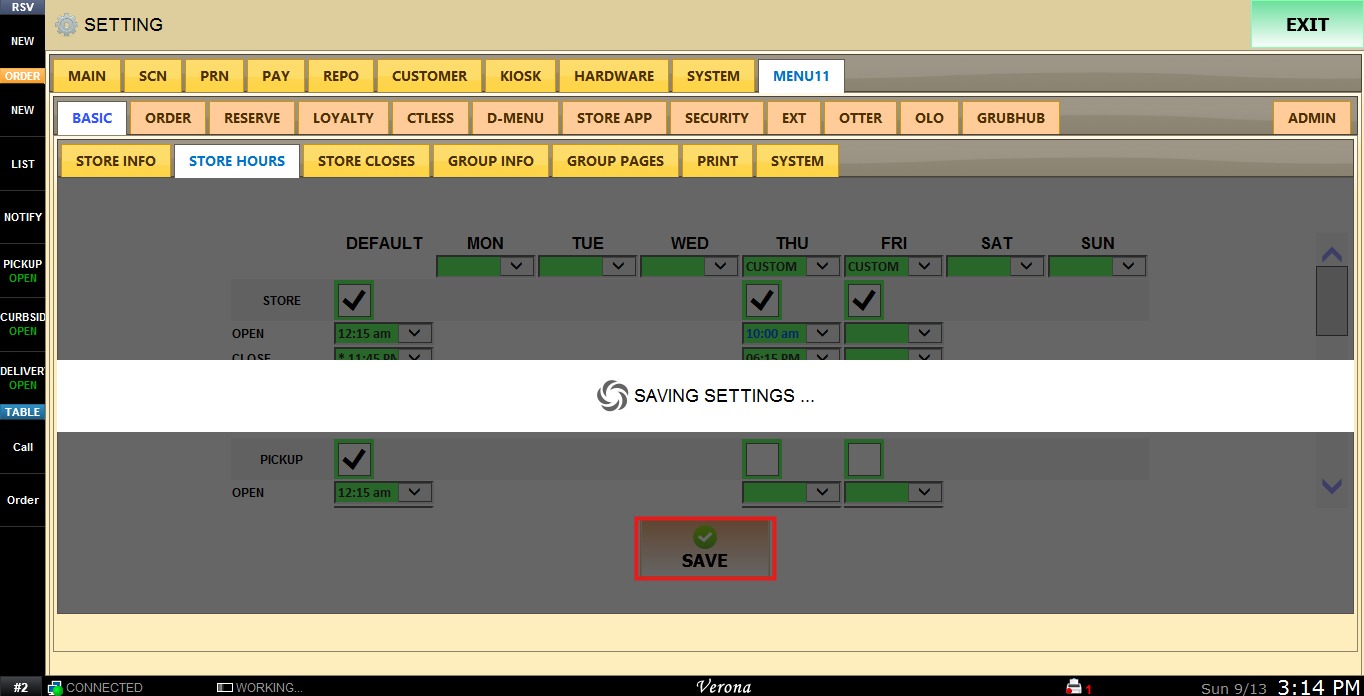
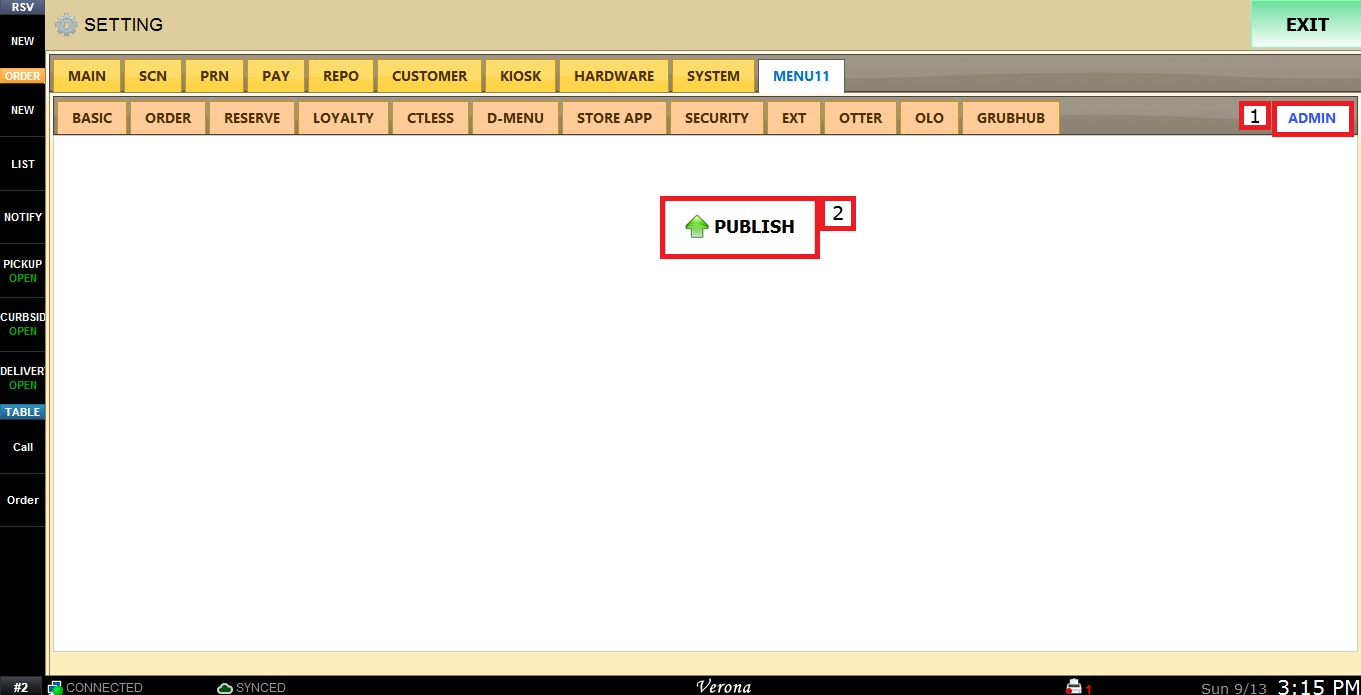
After confirming all the settings are correct and saved, go to ADMIN and select PUBLISH, to ensure the changes are seen on the online webpage too.