[Verona] Err_Unable to get property [table_number] of undefined or null reference
If the POS displays the error "Unable to get property 'table_number' of undefined or null reference" when selecting a table, it is typically caused by a table synchronization issue, network communication problem, duplicate table configuration, or an outdated Verona POS version. Perform the following checks before attempting more advanced troubleshooting.
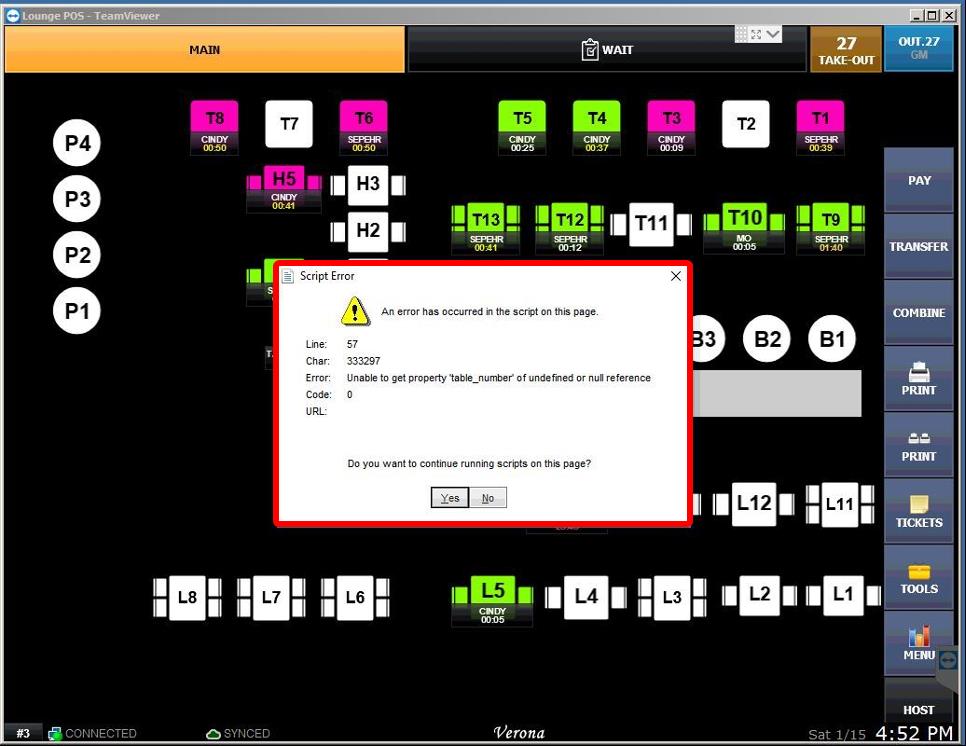
TABLE_NUMBER SCRIPT ERROR
This error may appear as:
CHECKLIST
Verify the following:
1. Confirm that every table on the map has a unique table number and name. Duplicate table numbers or names can cause this error. Refer to the CREATING MAP SCREEN guide to verify the table configuration.
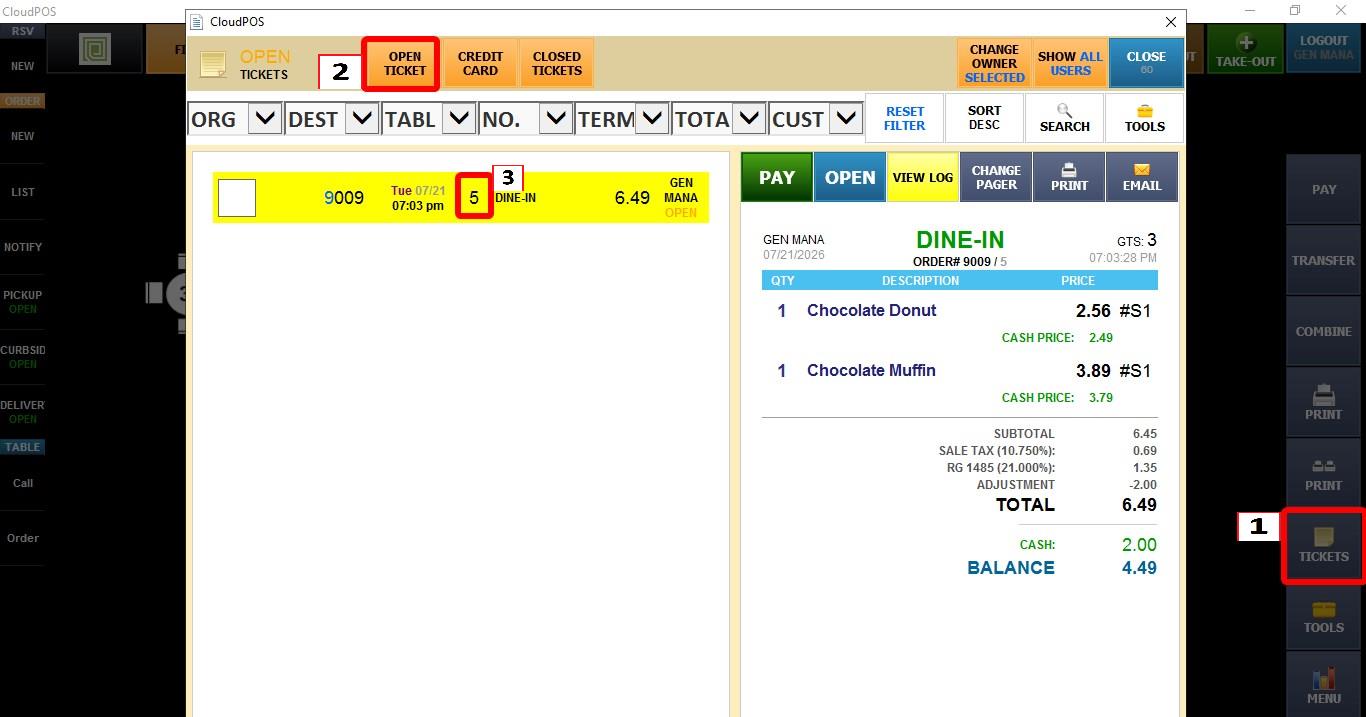
2. If the error occurs when selecting a specific table, go to the SALES screen, open the TICKETS section, then select OPEN TICKETS. The table number displayed on each ticket allows you to identify the affected table and verify that the ticket still exists.
3. Check whether the same table or ticket is currently open on another POS terminal.
4. Verify that all POS terminals are connected to the same network. Open and modify a ticket on one POS and verify that the change is reflected on the other POS terminal. If it is not, troubleshoot the network connection before continuing.
5. Verify that all POS terminals are running the latest version of Verona POS. If not, update the system before continuing.
SOLUTION 1 - COMPLETE THE OPEN TICKET
Close the Verona POS program on every POS terminal except the one where the order with the error was originally created.
Next On the original POS terminal, complete the transaction by finishing the order (for example, by completing the payment or voiding).
Once the transaction has been completed, reopen Verona POS on the remaining terminals.
SOLUTION 2 - DELETE THE TABLE STATUS FILE
If the issue persists, perform the following only when there are no open tables and no open tickets. It is recommended to perform these steps after business hours or before opening.
From the MAIN SCREEN, go to MENU > SETTINGS > SYSTEM > STORAGE. And Note the STORAGE PATH for the shared folder
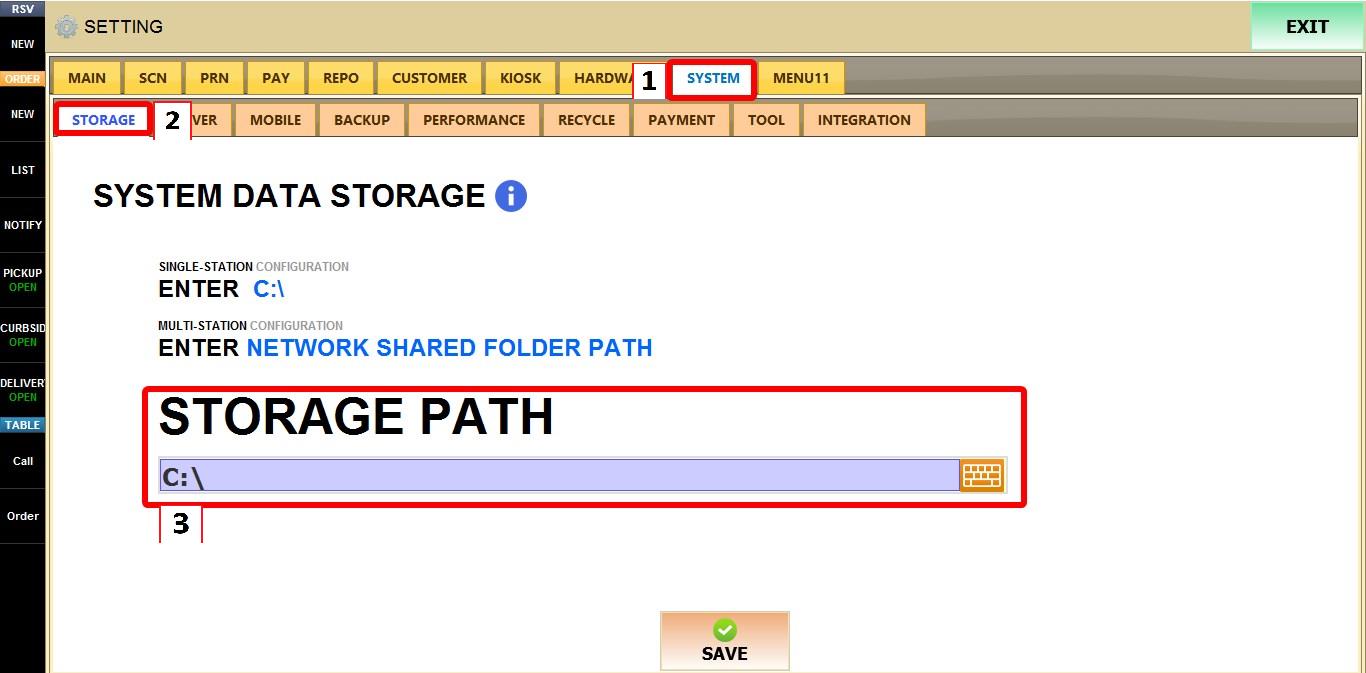
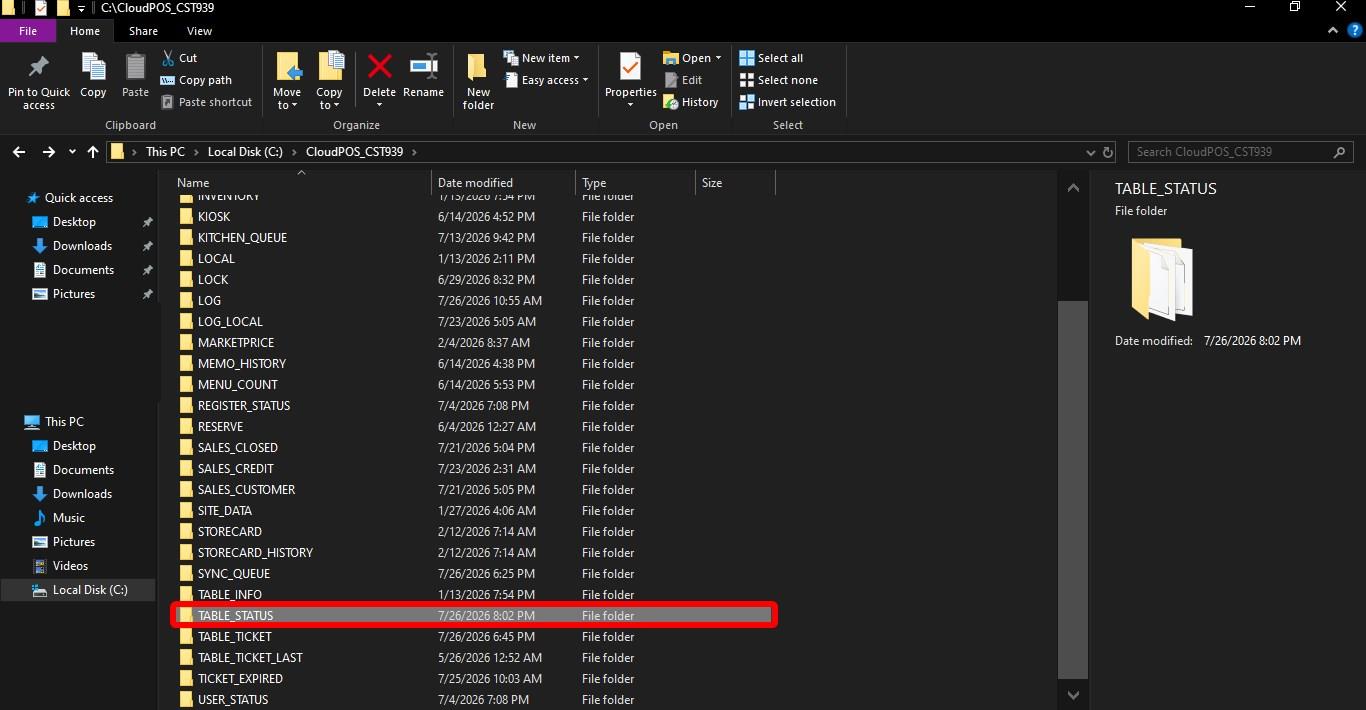
Navigate to the store's SHARE folder.
Locate the TABLE STATUS file. Verify there are no open tables or tickets, then delete the TABLE STATUS files inside the folder.
Restart Verona POS on all terminals.