Review and Send Order
This guide explains how to review an order and send it to the kitchen from CloudPOS Mobile.
CloudPOS Mobile > HOME > TABLES > Select a table > ORDER > Order total
Review the Order:
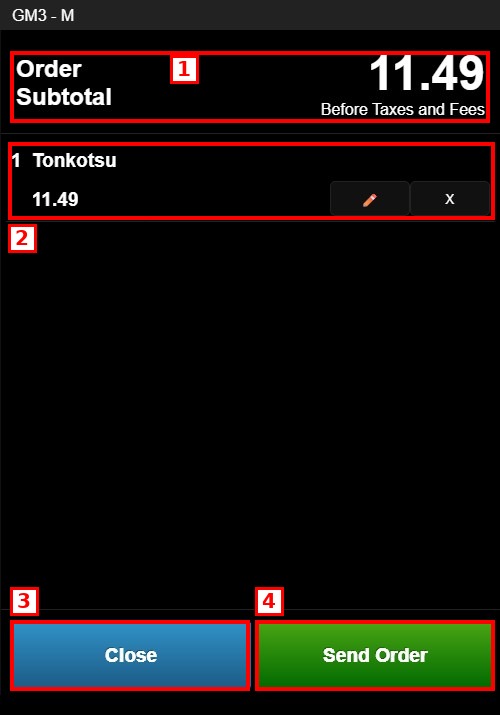
1. ORDER SUBTOTAL: Displays the order subtotal before taxes and fees.
2. ORDER ITEMS: Lists each item with its quantity and price.
3. CLOSE: Returns to the menu to keep adding items.
4. SEND ORDER: Sends the order to the kitchen.
Ticket Screen:
After sending the order, the ticket screen displays the complete order summary.
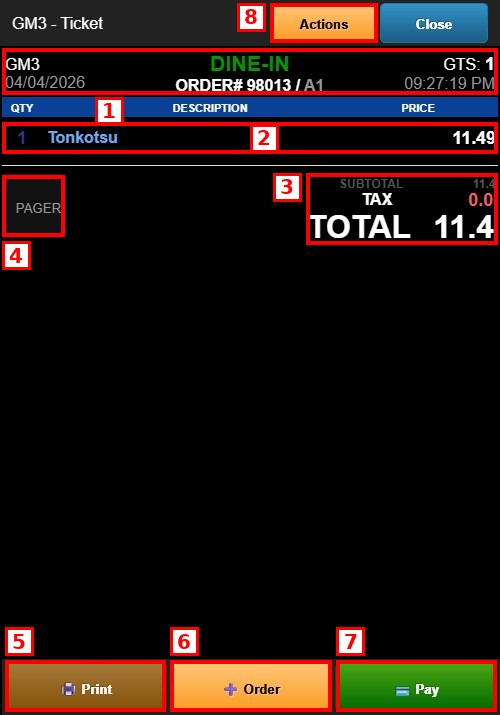
1. TICKET HEADER: Shows the register, order type (DINE-IN), order number, table, guest count (GTS), date and time.
2. ORDER ITEMS: Lists the QTY, DESCRIPTION and PRICE of each item. The CASH PRICE is displayed below the item when it differs from the regular price.
3. TOTALS: Shows the SUBTOTAL, TAX, TIP (if applicable) and TOTAL. PAY WITH CASH and PAY WITH CREDIT amounts are displayed below when they differ.
4. PAGER: Assigns a pager to the order.
5. PRINT: Prints the ticket.
6. ORDER: Returns to the menu to add more items.
7. PAY: Opens the Payment Options screen.
8. ACTIONS: Gives access to additional ticket operations.