Performing Data Clear from PAX devices
When instructed to perform a DATA CLEAR on a PAX credit card terminal, follow the steps below. This process clears the transaction data stored in the payment application and resets the batch information.
OPEN THE PAYMENT APPLICATION SETTINGS
The steps to access the settings depend on the payment application installed on the terminal.
TSYS SIERRA
Open the TSYS SIERRA application, then tap the MENU icon in the upper-right corner (three squares with one reversed L-shaped icon).
RAPID CONNECT
in this example we are using Rapid Connect’s setting. (Please contact your credit card service provider to find out how to do it from other pinpads. For Rapid Connect, Open the RAPID CONNECT application, then tap the four corners of the screen in clockwise order, starting from the TOP LEFT corner.


ENTER THE PASSWORD
When prompted, enter today's date using the MMDDYYYY format.
Example: March 26, 2026 = 03262026
PERFORM BATCH CLOSE
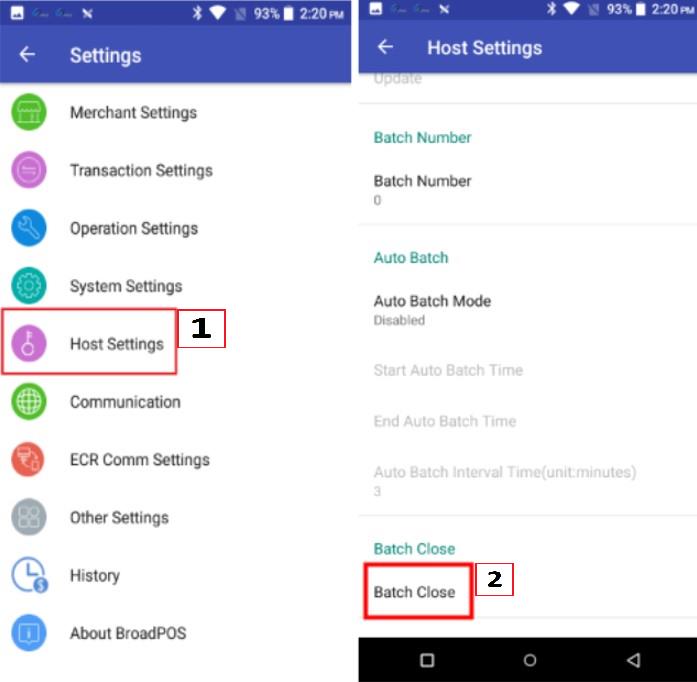
Open HOST SETTINGS, scroll down to BATCH CLOSE, then select it.
Wait for the payment application to complete the batch close process.
CLEAR ALL TRANSACTION DATA
Return to the settings menu, then open OTHER SETTINGS.

Select CLEAR ALL to remove all transaction data stored by the payment application.

RESET THE BATCH NUMBER
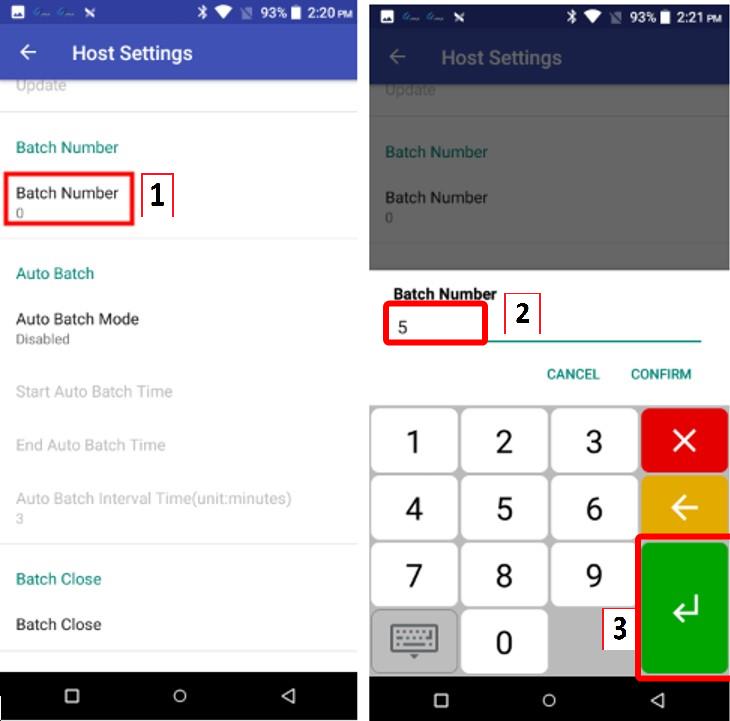
Open HOST SETTINGS again, then select BATCH NUMBER.
Set the batch number to 5.

After completing these steps, reopen the payment application if necessary and retry the transaction or settlement.