Open ticket
This feature allows you to view and manage tickets that have been saved but not yet paid, such as open tables. From the Open Ticket list you can reopen a ticket to add or modify items, take payment, print or email it, and review its history.
Main Screen> Number Pad> Table Screen> TICKETS> OPEN TICKET
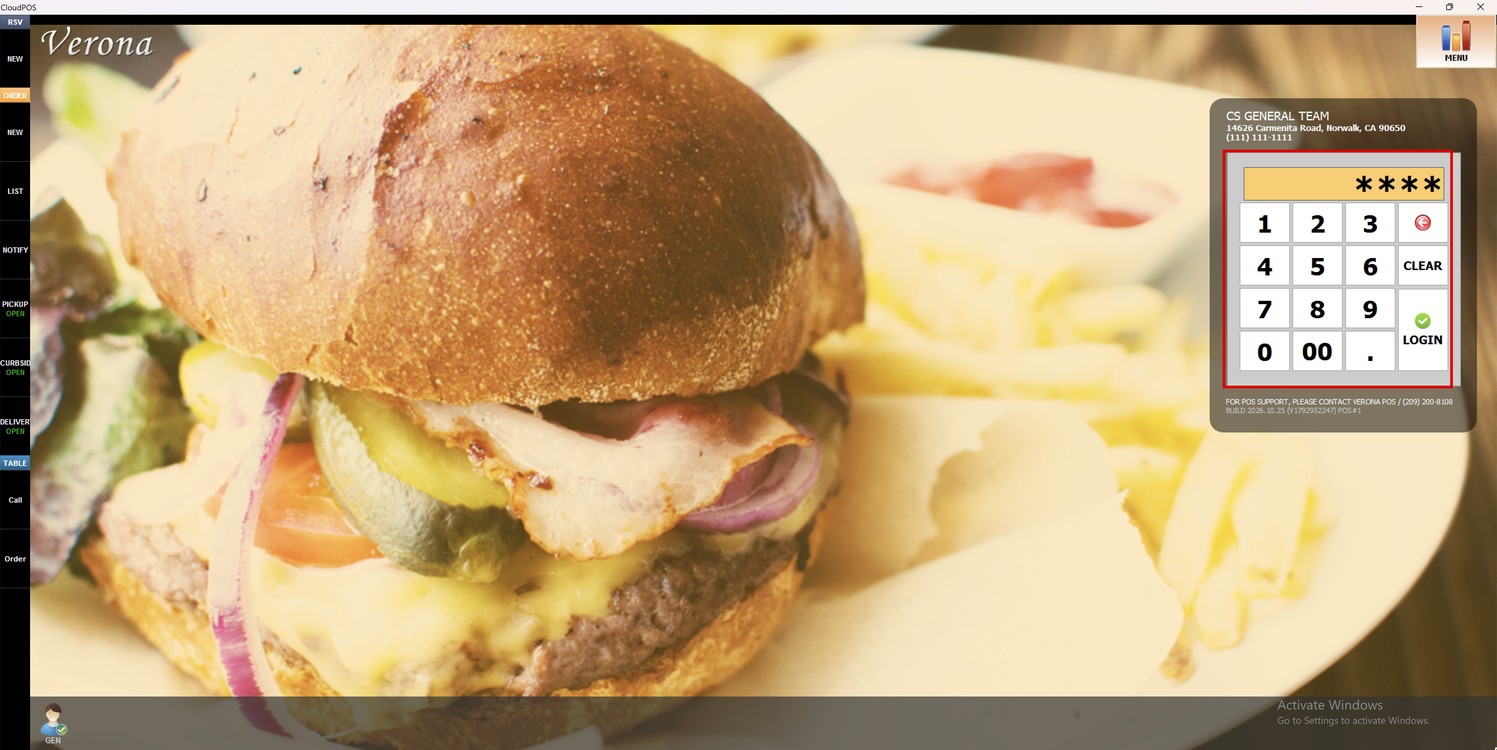
From the Main Screen, use the number pad and enter the assigned employee's password to log in.
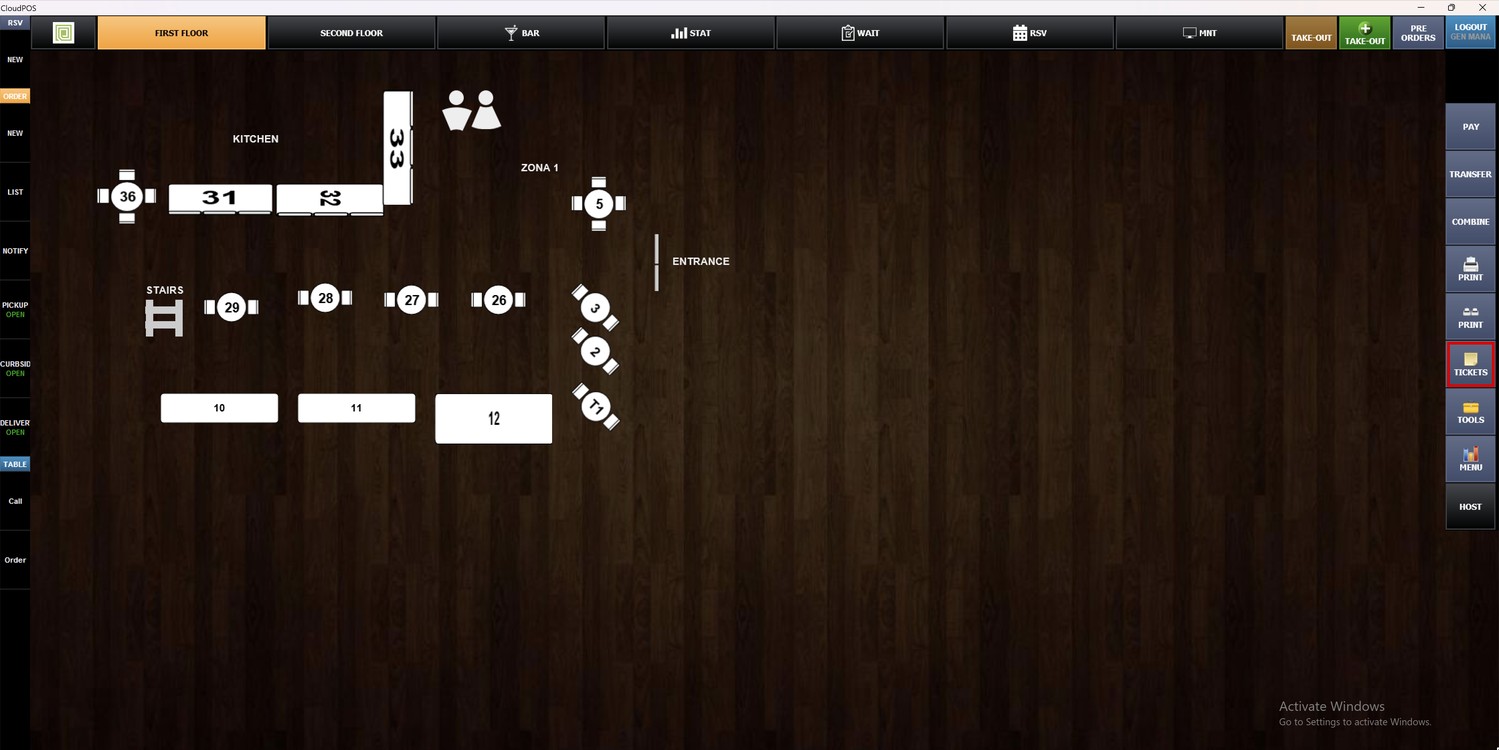
On the toolbar of the Table Screen, click on TICKETS.
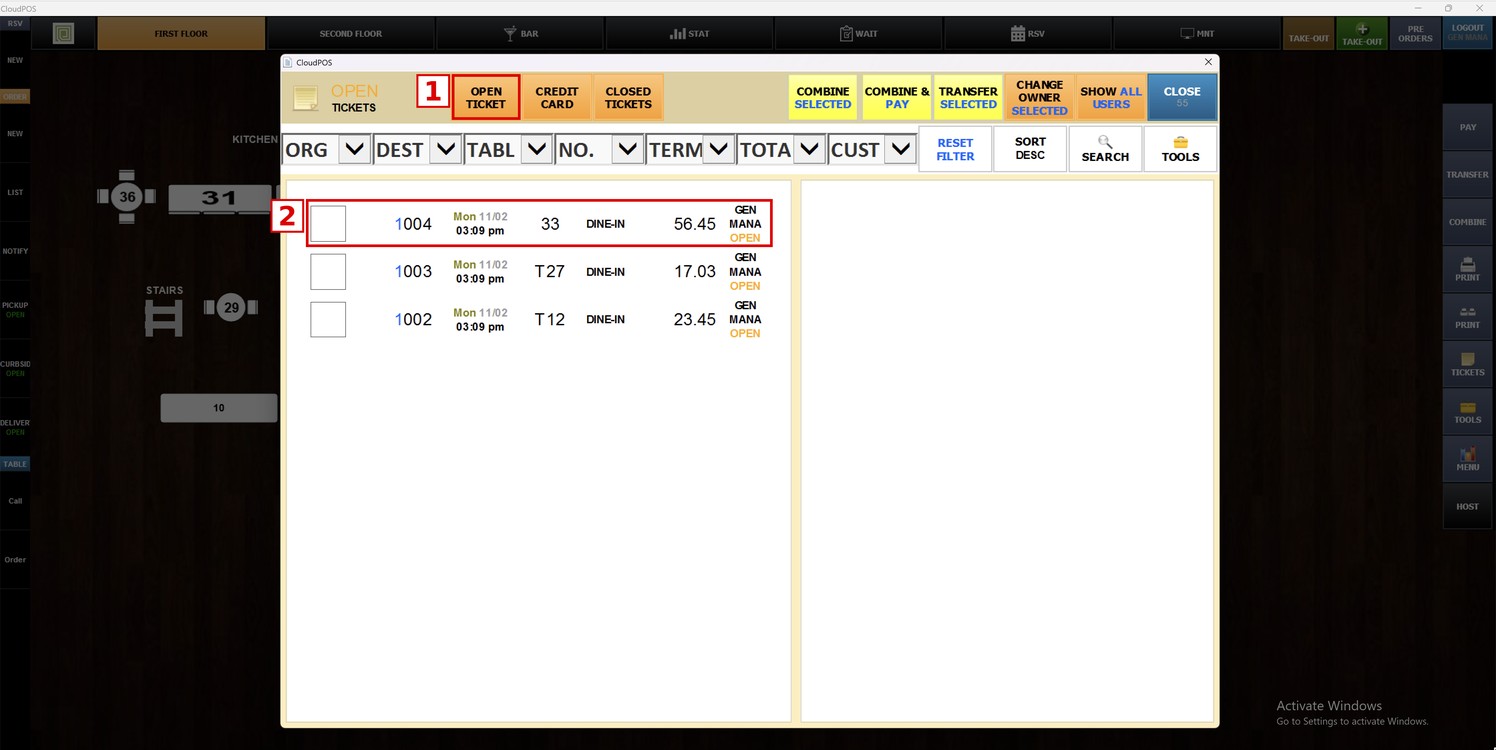
Hint: You can also access the Open Ticket list from the Sales Screen by selecting TOOLS and TICKET LIST.
Select the OPEN TICKET tab to display all tickets that have not been paid yet. Then select the ticket you want to manage.
The ticket details will be displayed on the right side of the screen, along with the following options:
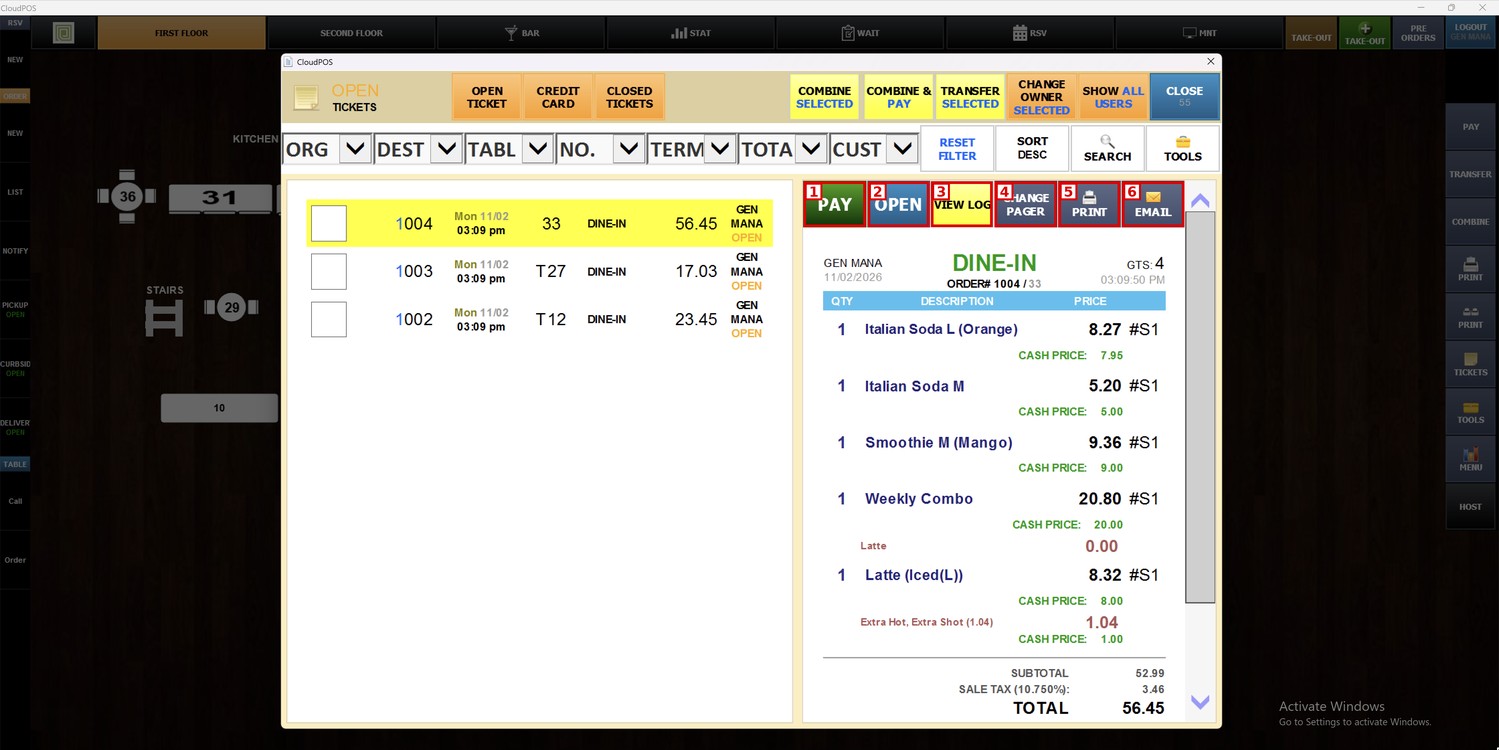
1. PAY: Opens the PAYMENT METHOD screen, where you can select how the customer will pay and close the ticket.
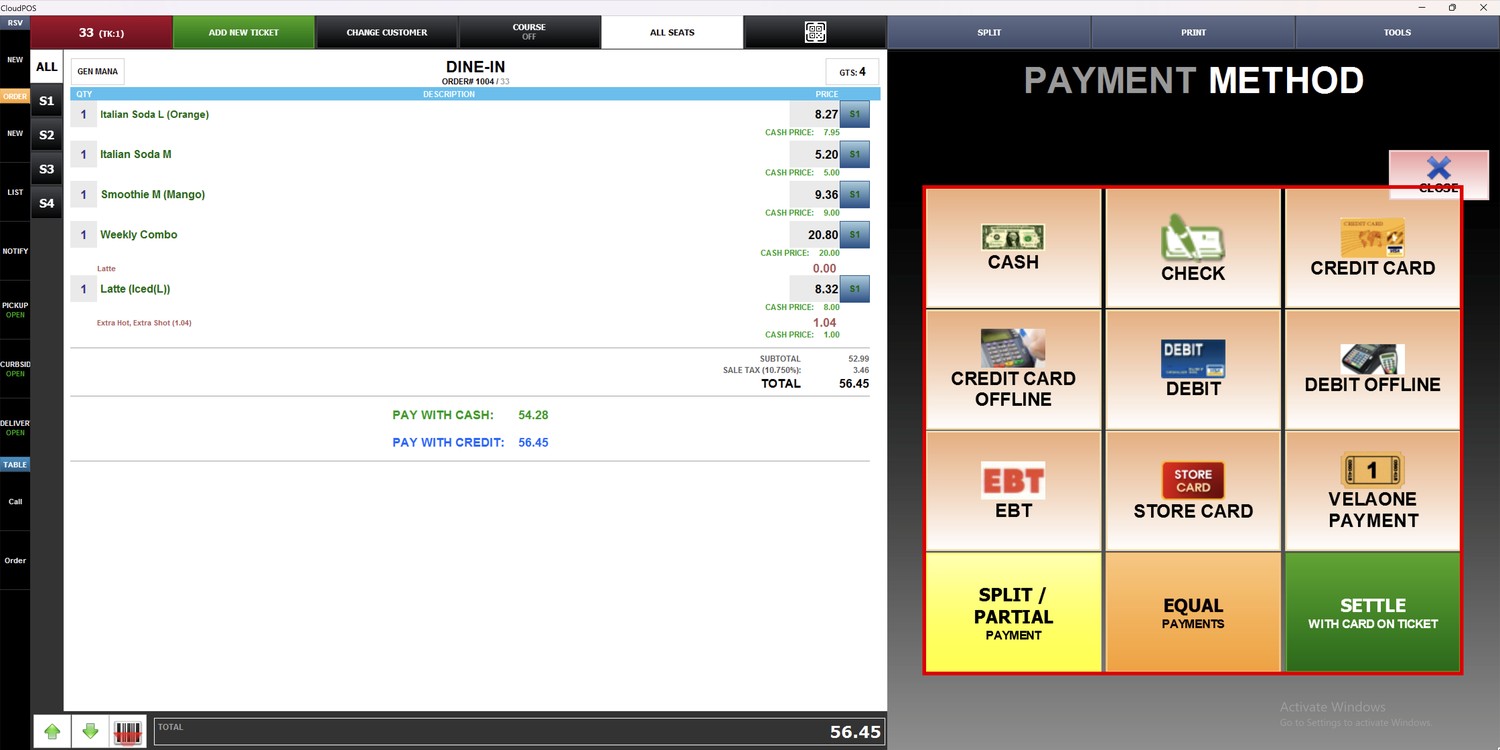
2. OPEN: Opens the ticket on the Sales Screen to add, remove, modify items, or proceed to payment.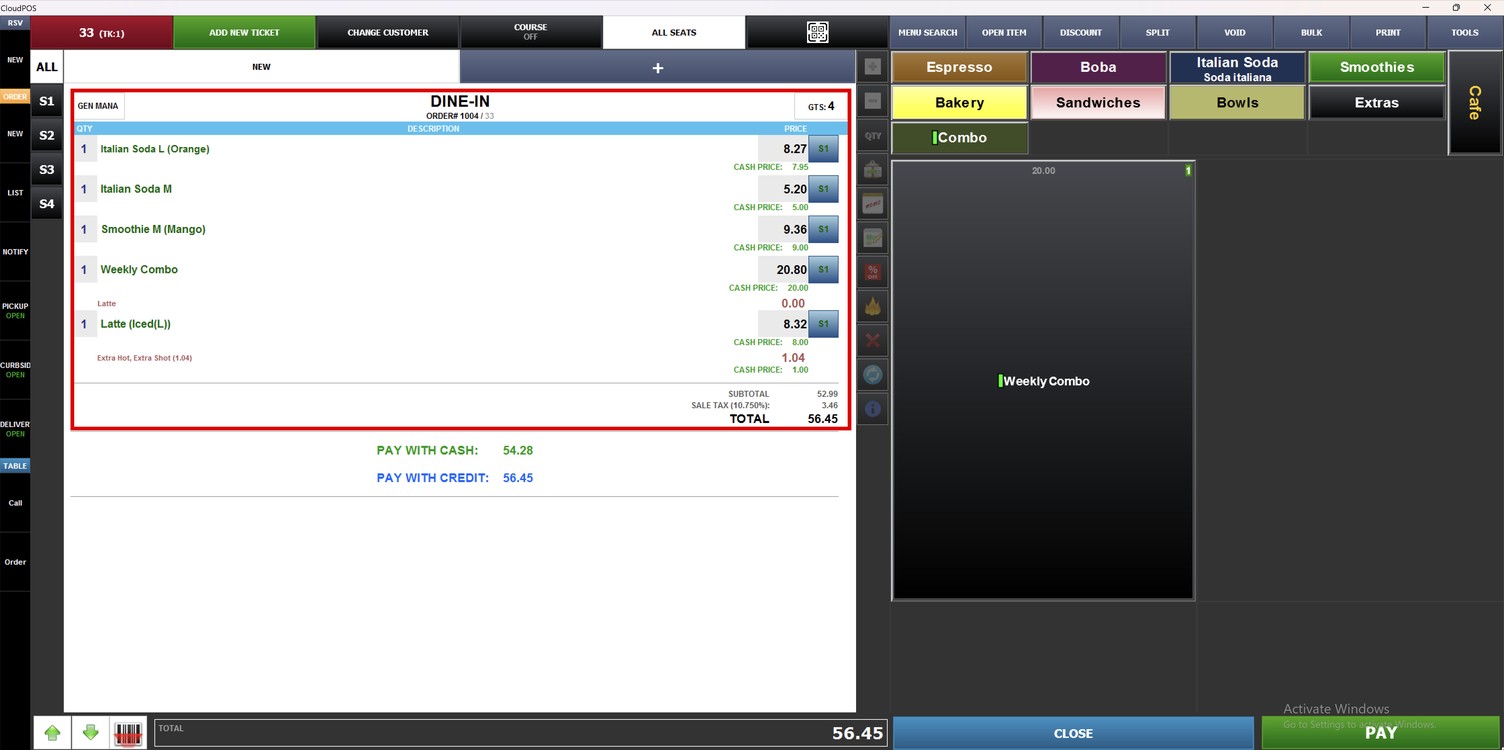
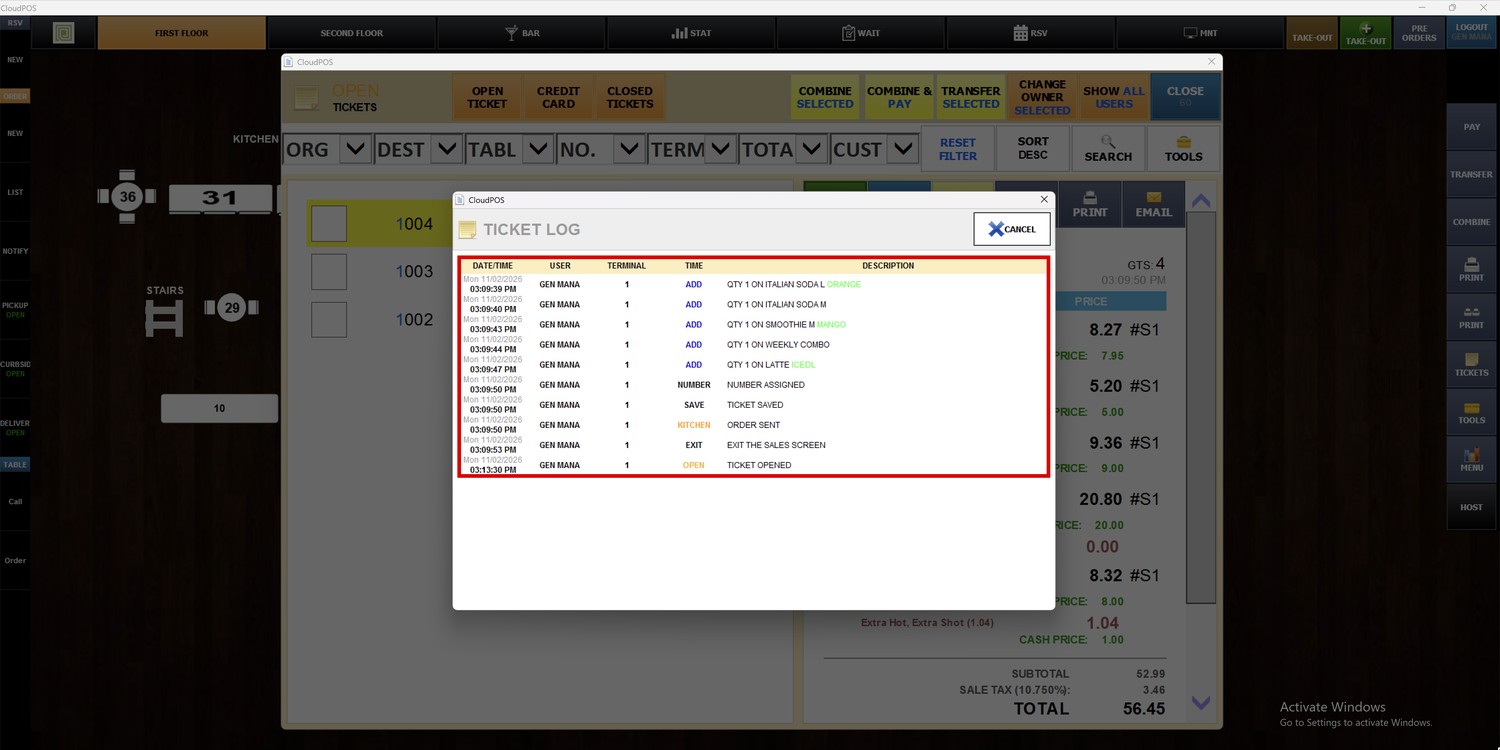
3. VIEW LOG: Opens the TICKET LOG, which shows every action performed on the ticket, including the date and time, user, terminal, and a description of each change.
4. CHANGE PAGER: Opens the NUMBER pad to assign a new pager number to the ticket. Enter the number and select DONE.
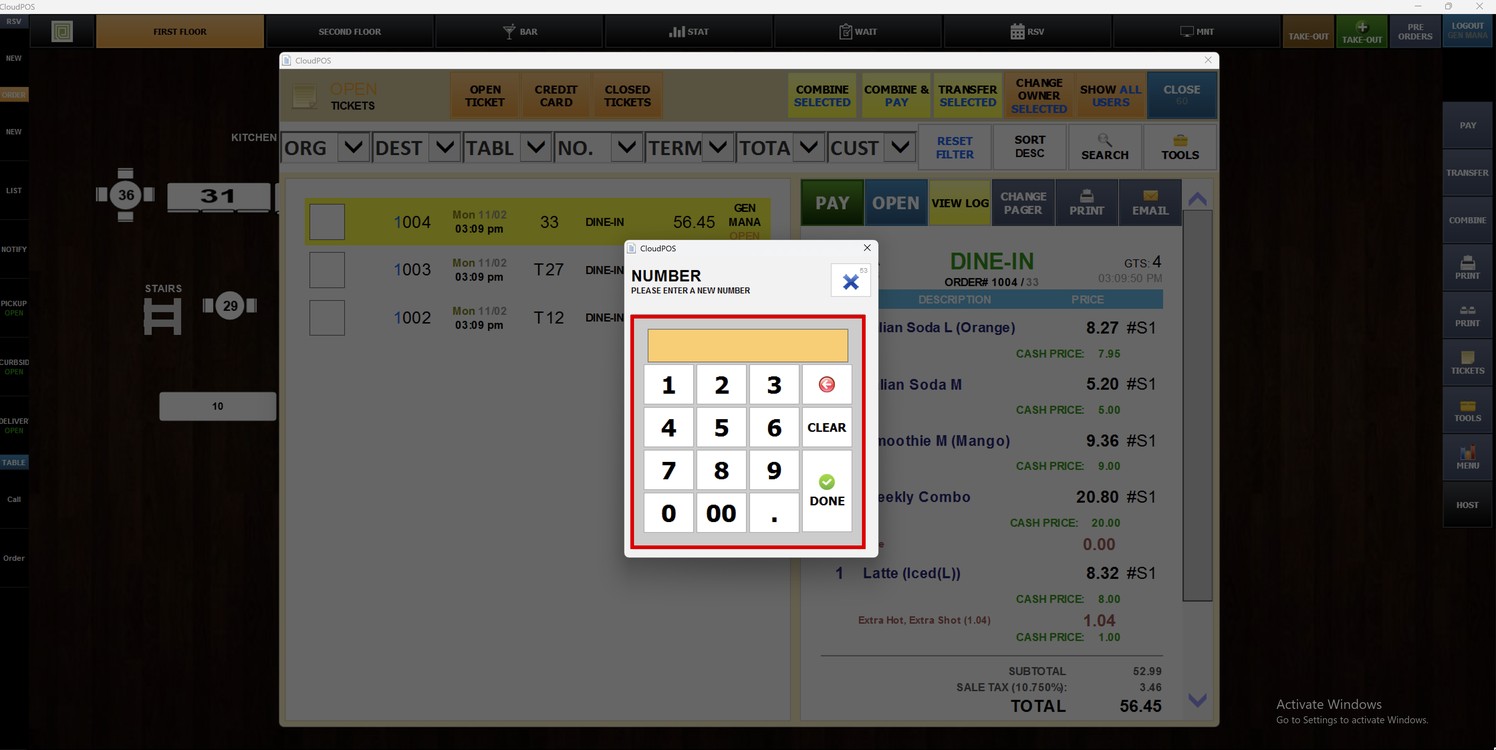
Note: To learn how to configure the Pager, please refer to the Pager Guide.
5. PRINT: Prints the ticket.
6. EMAIL: Sends the ticket to the customer by email.