Menu Tools (Gear Icon)
The gear icon in Menu Manager provides access to backup and remote management tools for menus. Use these options to restore a previous menu version or manage menus across assets remotely.
MENU > SETTINGS > REPO > MENU > Gear Icon
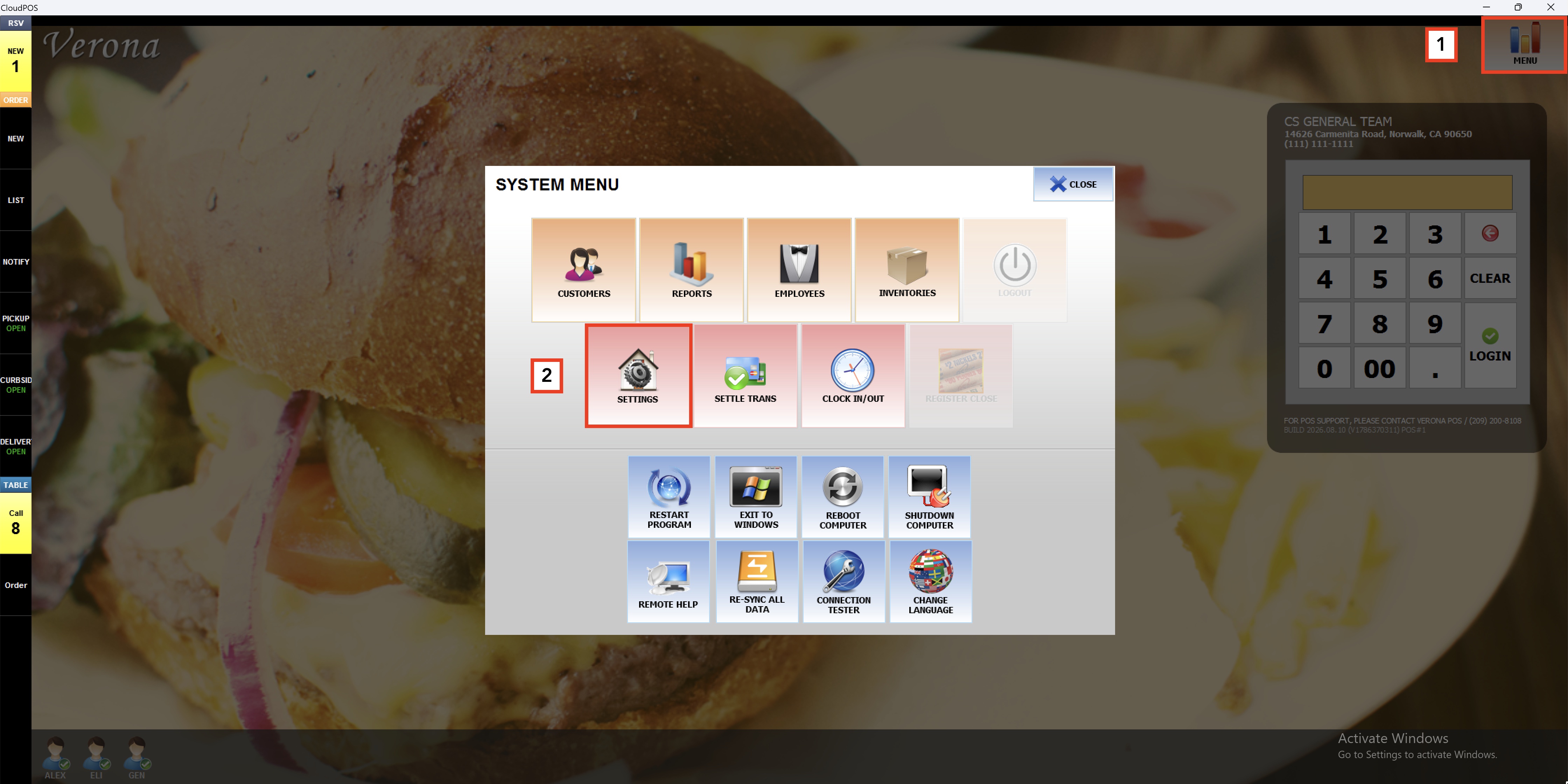
Press MENU on the main screen, then select SETTINGS
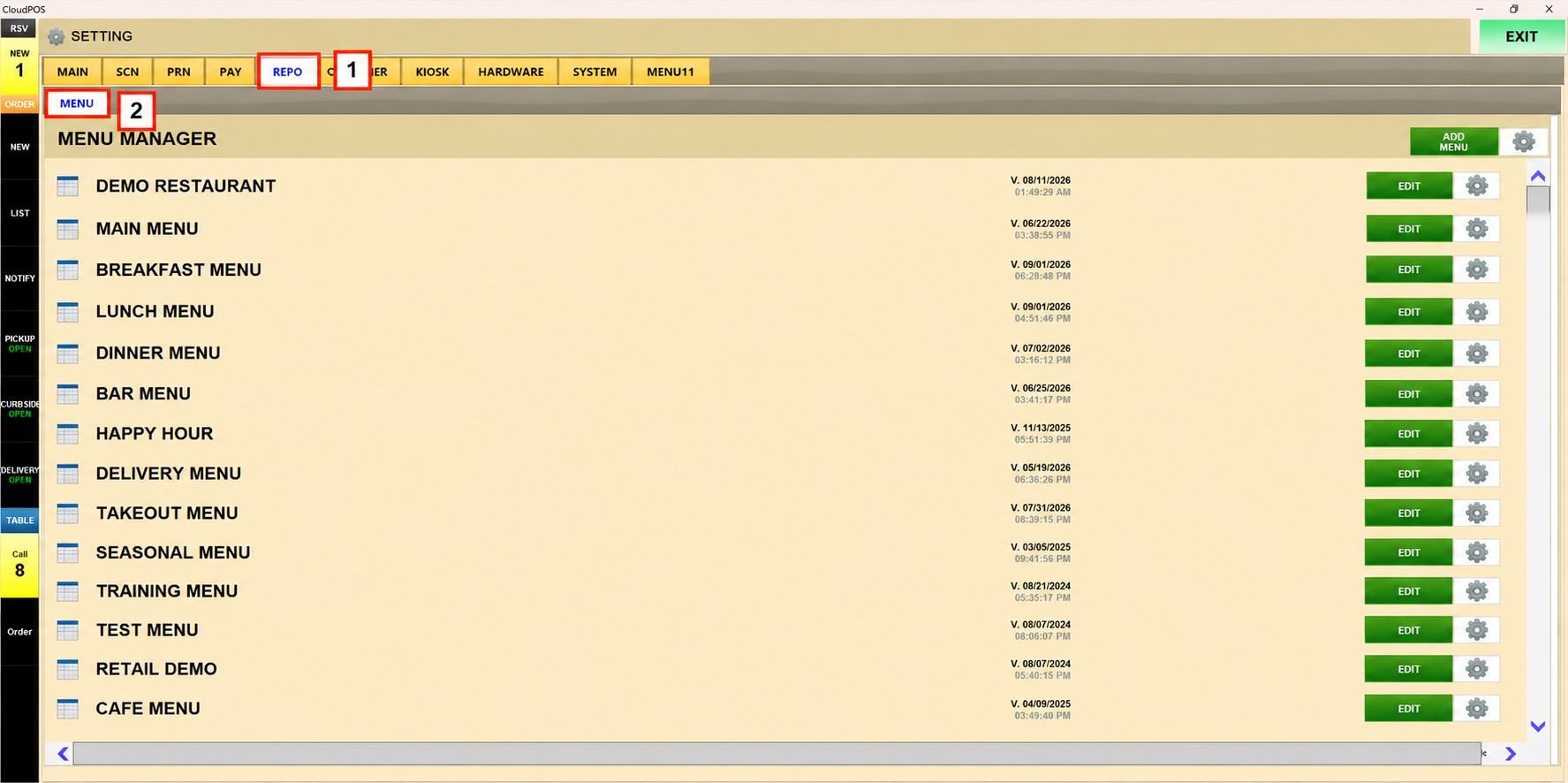
Select the REPO tab, then press the MENU subtab to open Menu Manager.
Press the gear icon at the top right of the Menu Manager screen. A SELECT YOUR CHOICE dialog appears with two options: BACKUP LIST and REMOTE MANAGE ASSET CODE.

1. BACKUP LIST: Press BACKUP LIST to open the Menu Backup List. The list displays saved menu versions by name and timestamp.

Locate the version to restore and press RESTORE next to it. The selected version is automatically applied to your menu list.
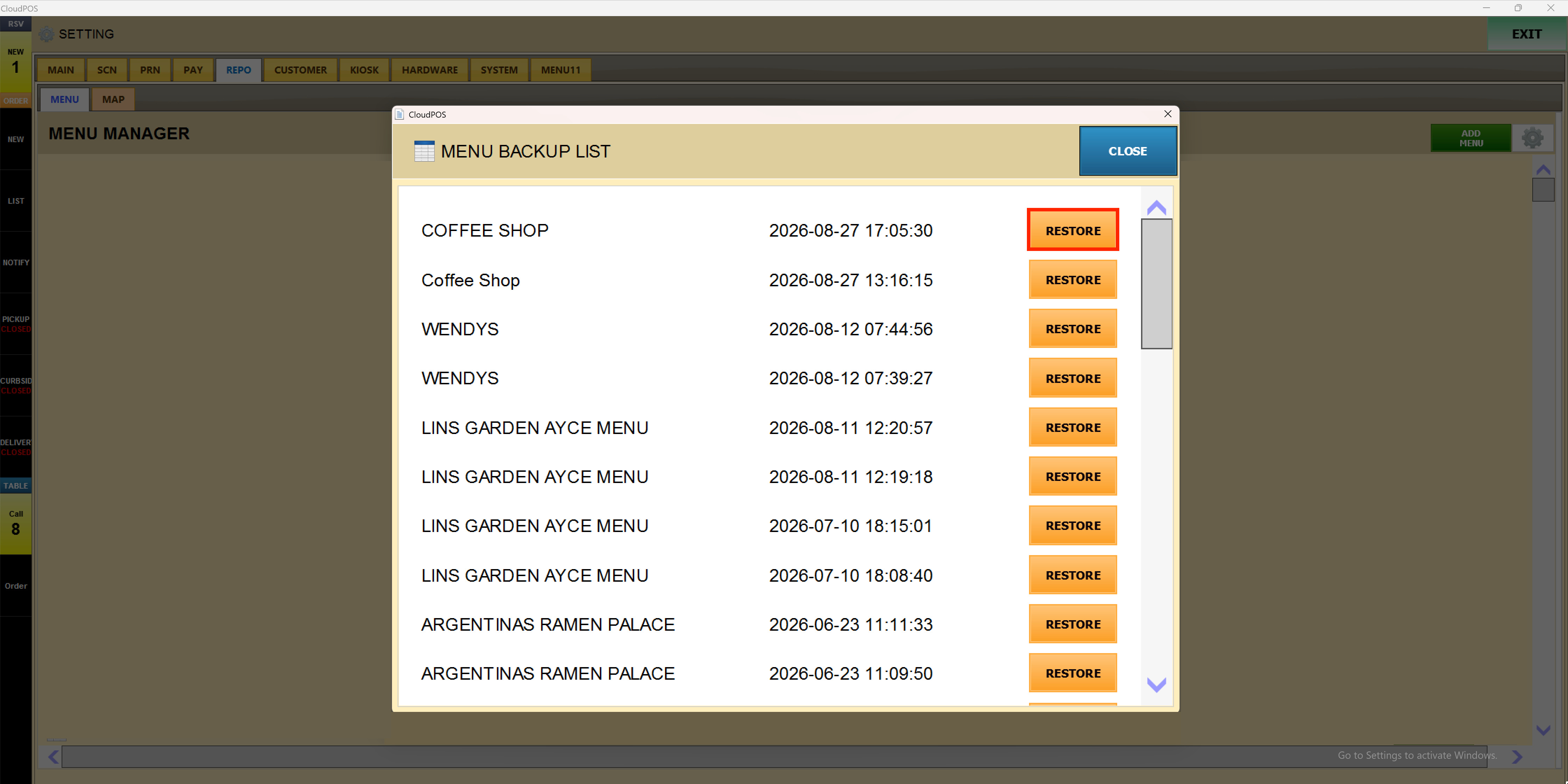
Hint: Each entry in the Backup List shows the menu name and the exact date and time it was saved, making it easy to identify the correct version to restore.
Result:
Hint: Each entry in the Backup List shows the menu name and the exact date and time it was saved, making it easy to identify the correct version to restore.
Result:

2. REMOTE MANAGE ASSET CODE: Press REMOTE MANAGE ASSET CODE to open the remote management dialog. Three options appear: EDIT, IMPORT, and PUSH.


To edit a remote menu, press EDIT.

Input the asset code when prompted.

The system prompts to confirm whether the asset being imported is correct.

Result:
The system navigates automatically to that menu's edit screen.

Input the asset code when prompted.
The system prompts to confirm whether the asset being imported is correct.
Result:
The system navigates automatically to that menu's edit screen.
To import a menu from another asset, press IMPORT.

Input the asset code when prompted.
The system prompts to confirm whether the asset being imported is correct.

Once the asset is confirmed, the system displays an “IMPORT COMPLETED” message.

Result:
The menu from that asset is imported into the system.

Note: Contact your provider or Technical Support for your Asset Code.
Input the asset code when prompted.
The system prompts to confirm whether the asset being imported is correct.
Once the asset is confirmed, the system displays an “IMPORT COMPLETED” message.
Result:
The menu from that asset is imported into the system.
Note: Contact your provider or Technical Support for your Asset Code.