Menu
This report shows how many units of a menu item were sold on a selected date.
Merchant Portal> REPORTS> SALES> MENU> ITEM DAILY COUNT
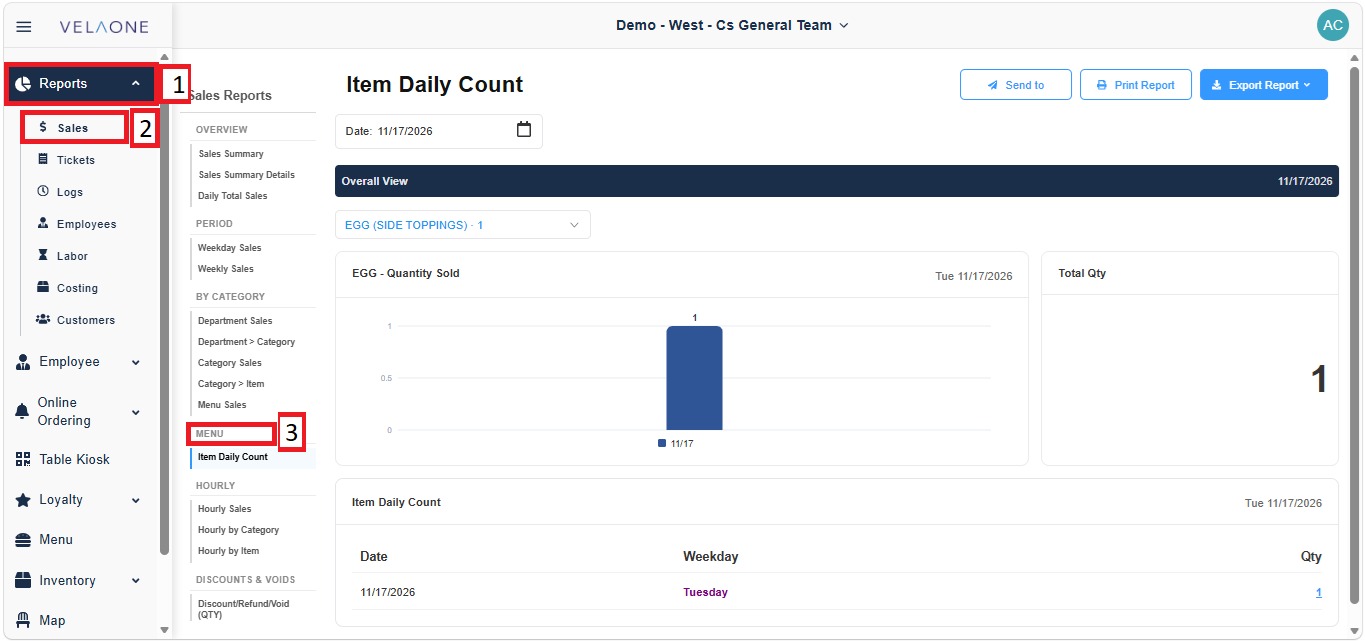
From the Merchant Portal, click REPORTS, then select SALES.
In the SALES REPORTS panel, go to the MENU section and click ITEM DAILY COUNT.
FILTERS
The filters and report buttons are at the top of the report.
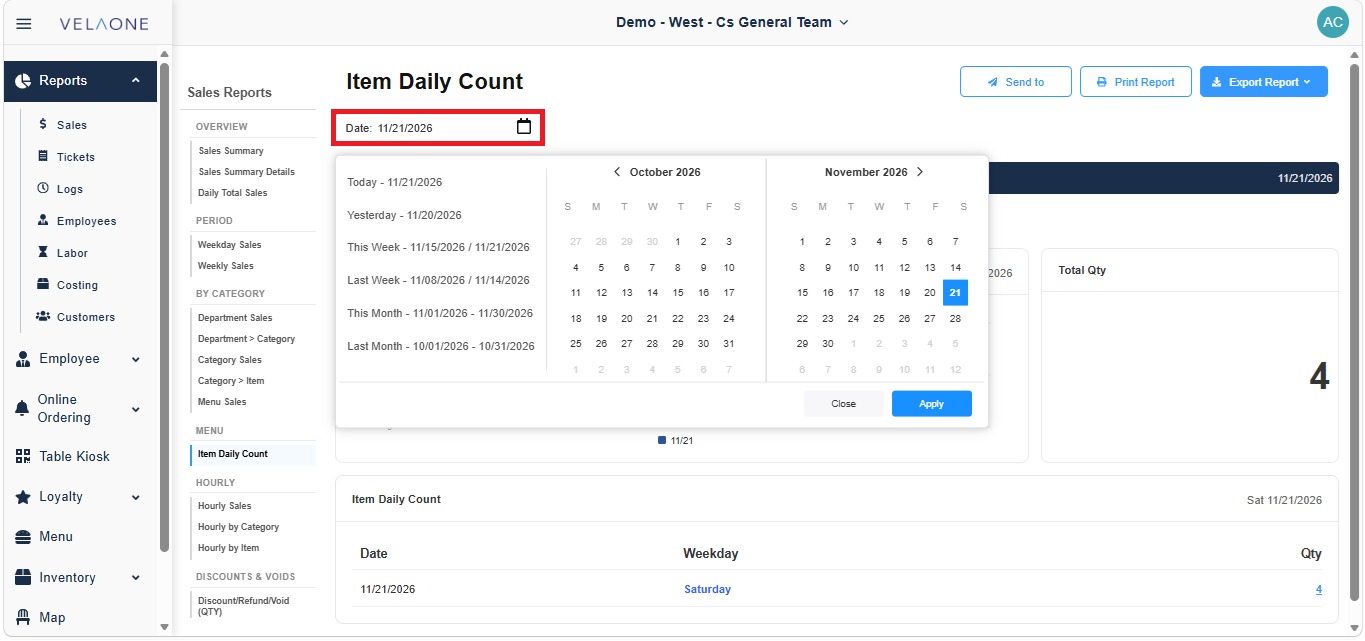
1. DATE: sets the day or period the report covers.
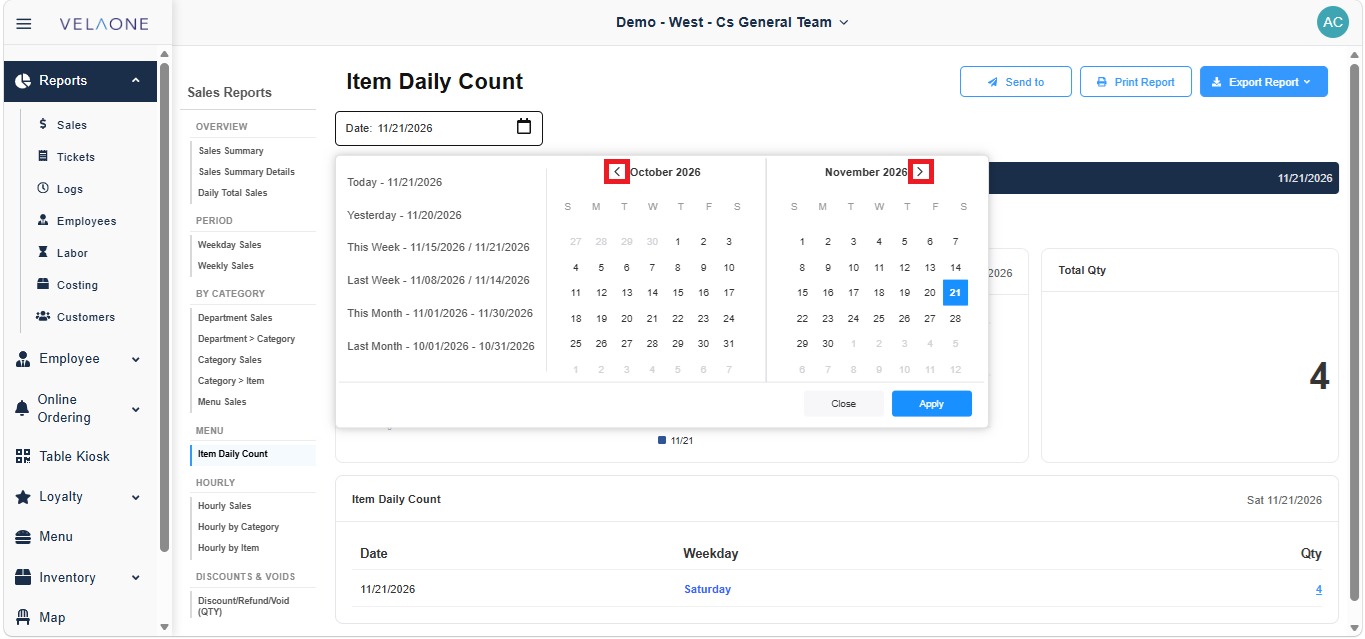
Click the DATE field to open the calendar.

Select a preset period from the list on the left (TODAY, YESTERDAY, THIS WEEK, LAST WEEK, THIS MONTH or LAST MONTH), or click the dates directly on the calendars.
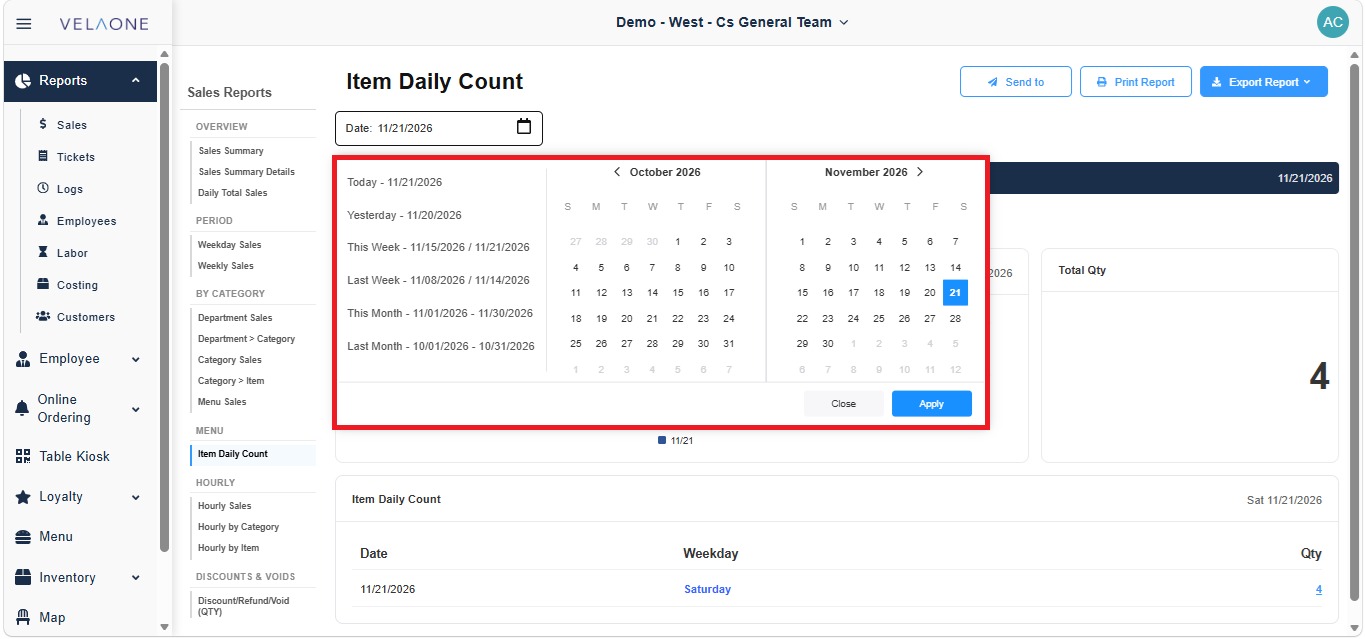
Use the arrows next to the month names to move to earlier or later months.
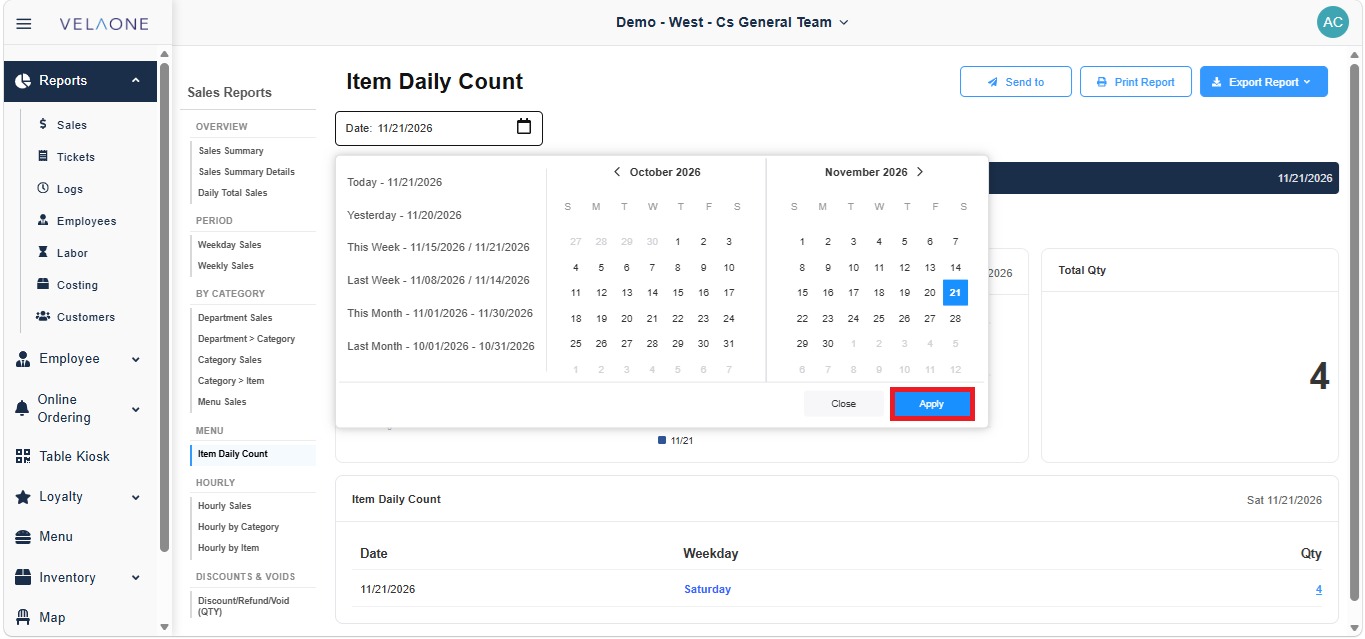
Click APPLY to load the report for the selected date.
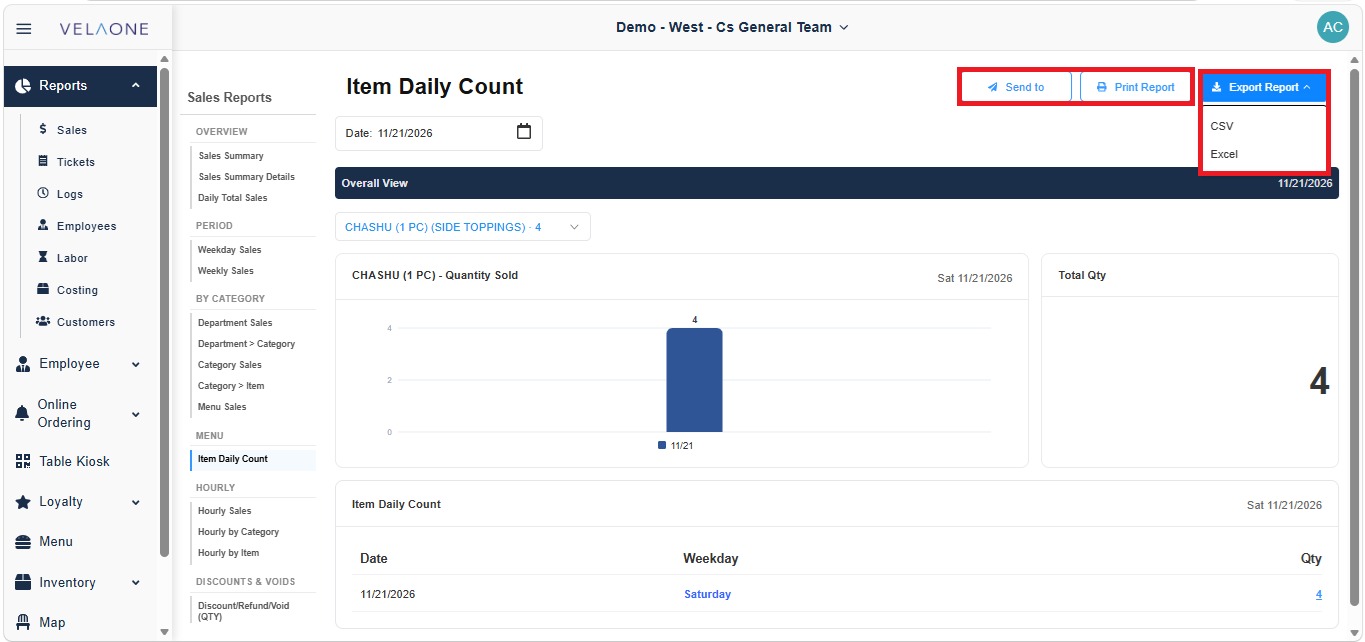
Export Options
SEND TO: sends the report to a recipient.
PRINT REPORT: prints the report as it is displayed.
EXPORT REPORT: downloads the report. Click EXPORT REPORT, then select CSV or EXCEL.
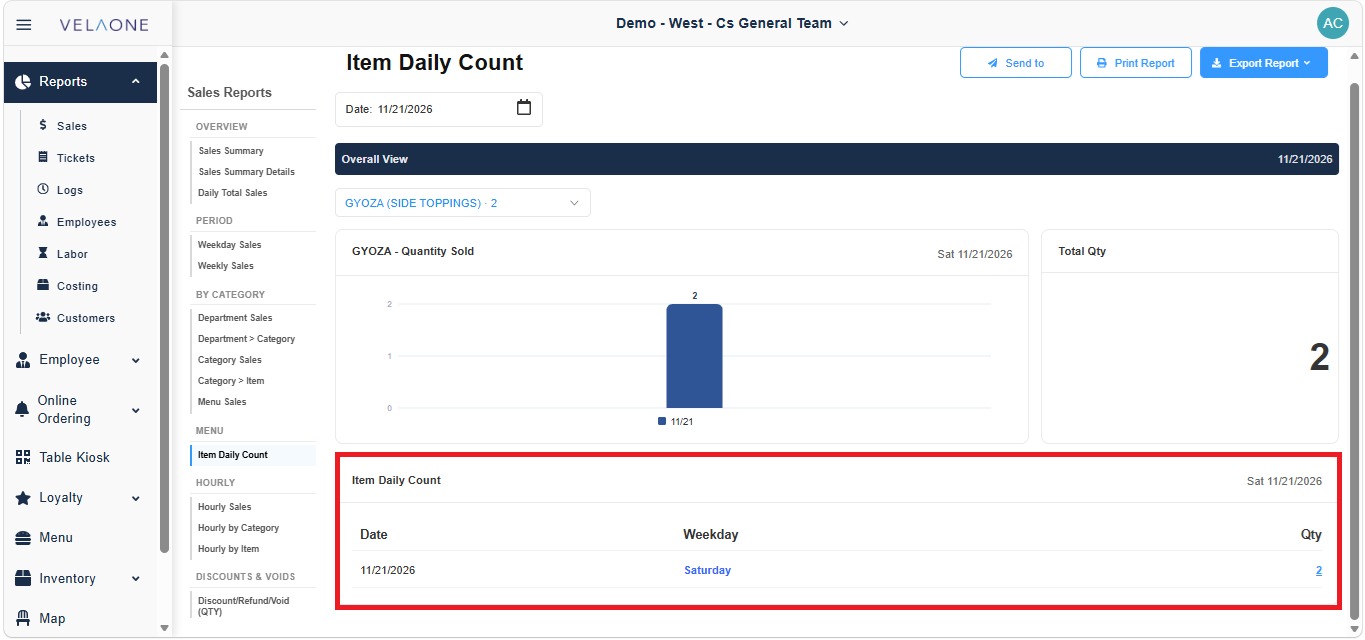
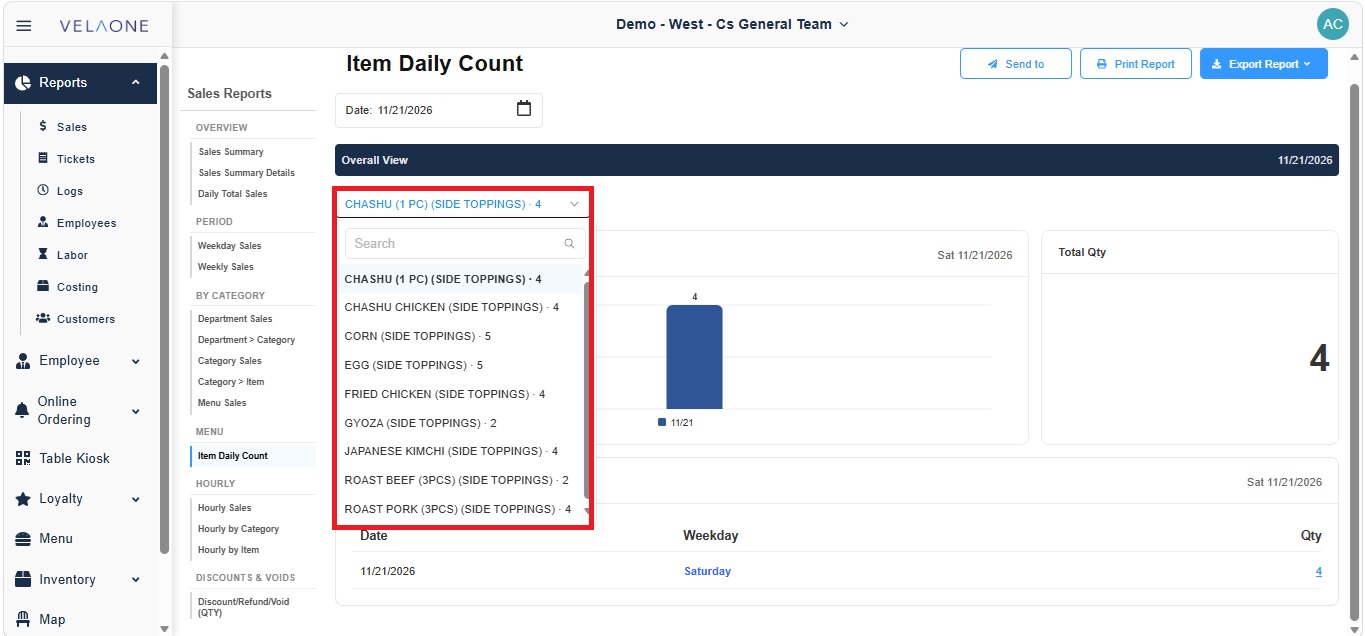
When the report opens, the OVERALL VIEW bar shows the selected date, and the report displays the sales data for one item at a time.
Click the item DROPDOWN MENU below OVERALL VIEW to choose the item to display. The list shows each item sold on the selected date, followed by its group in parentheses and the quantity sold, for example CHASHU (1 PC) (SIDE TOPPINGS). Type in the SEARCH field to find an item quickly.
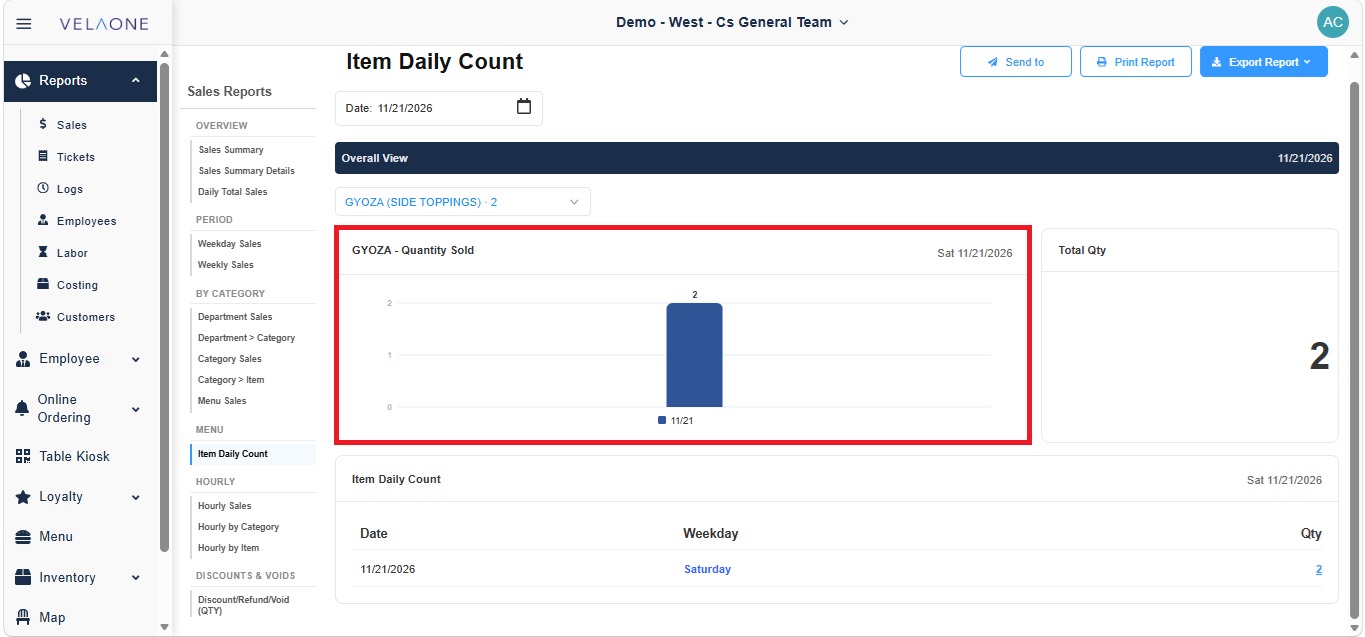
After an item is selected, the QUANTITY SOLD chart shows a bar with the number of units of that item sold on the selected date.
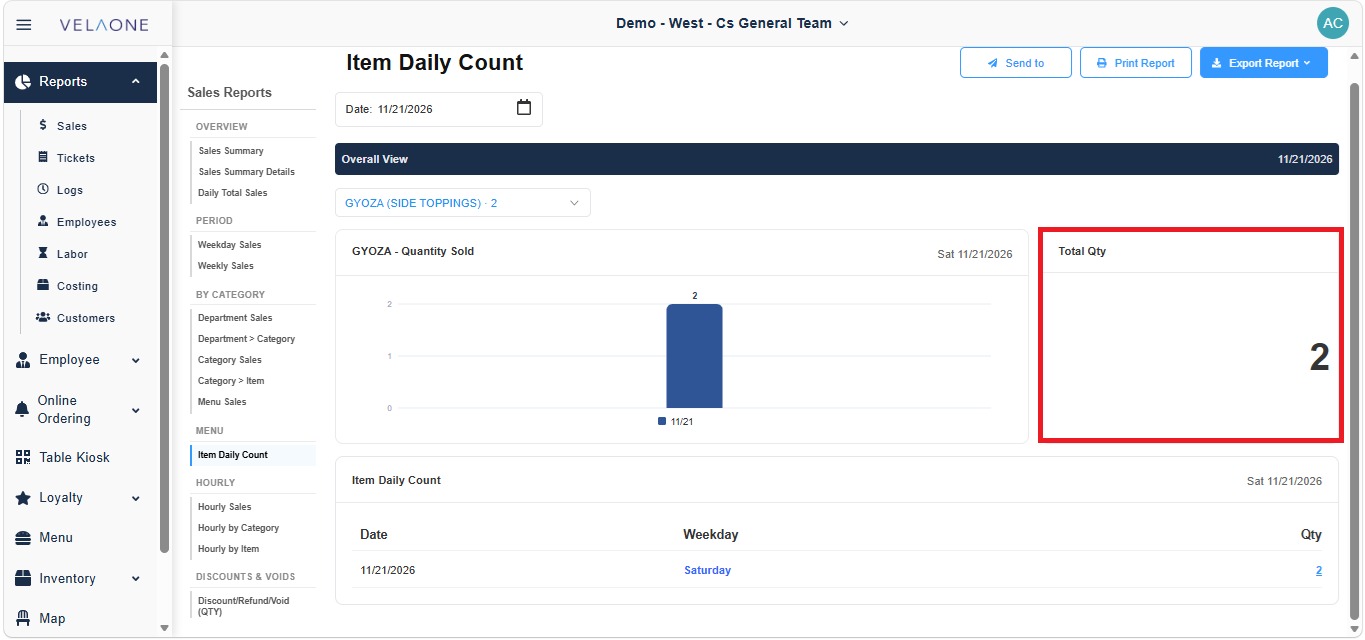
The TOTAL QTY panel shows the total quantity sold for the selected item.
The ITEM DAILY COUNT table at the bottom lists the DATE, the WEEKDAY and the QTY sold for the selected item.