General
These settings control the default receipt format, the number of receipts and packing slips printed automatically for each order destination, and whether void slips are printed. Use these settings to customize receipt printing behavior for both the entire store and individual terminals.
MENU > SETTINGS > PRINT RECEIPT > GENERAL
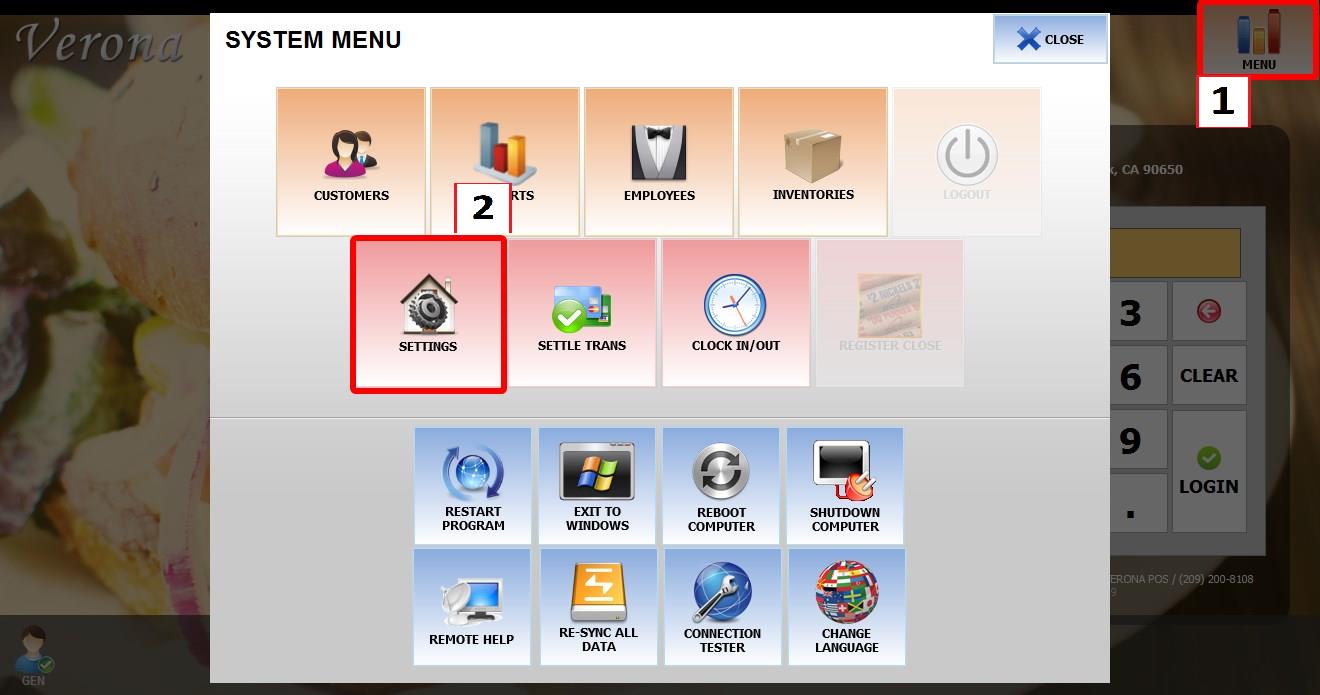
From the MAIN SCREEN, click MENU, then select SETTINGS.
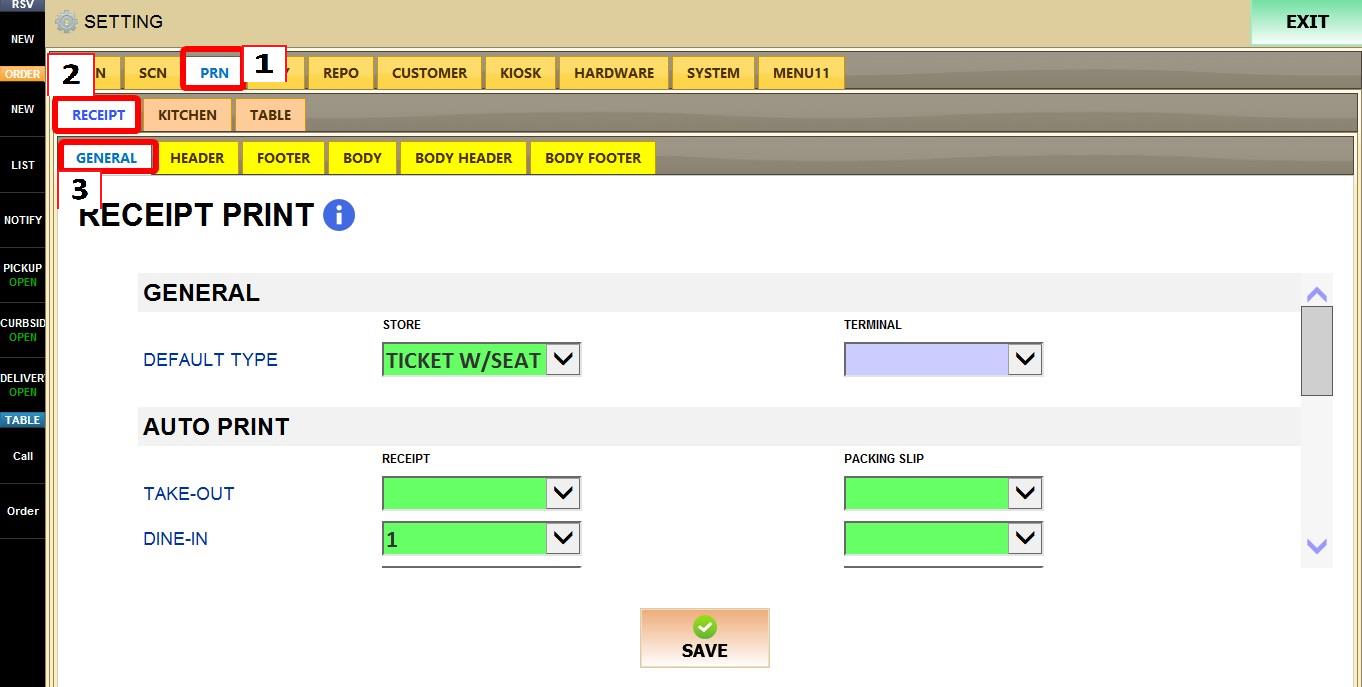
Open the PRINT tab, then RECEIPT then select GENERAL.
GENERAL
DEFAULT TYPE
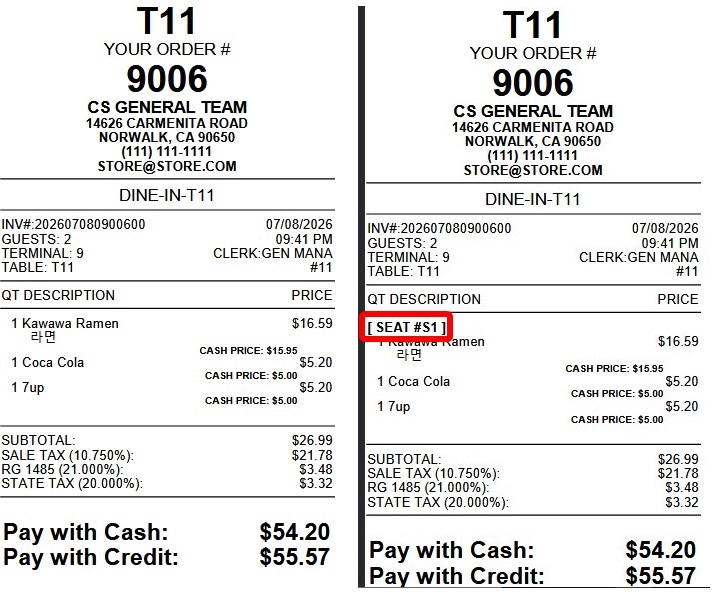
Determines the default receipt format used when printing customer receipts.
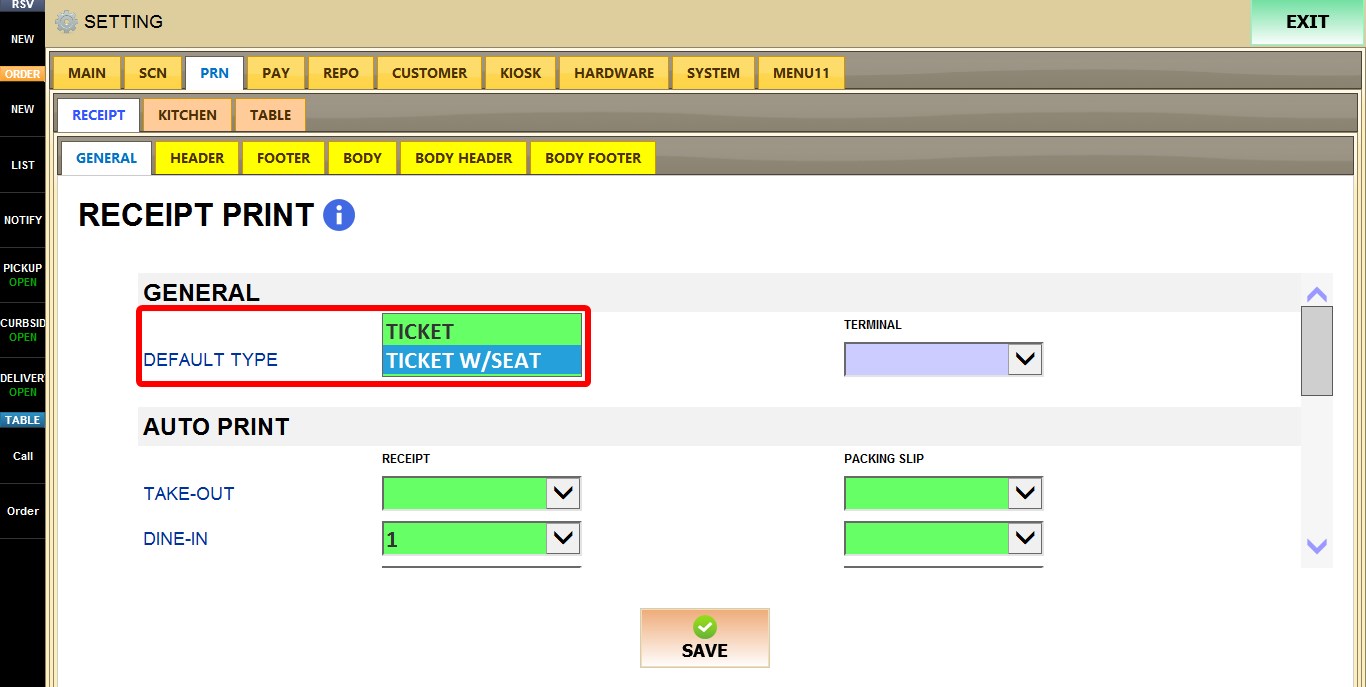
1. TICKET: Prints a standard customer receipt.
2. TICKET W/SEAT: Prints the receipt including seat information.
RESULT
TERMINAL
Overrides the receipt format for the current terminal only.
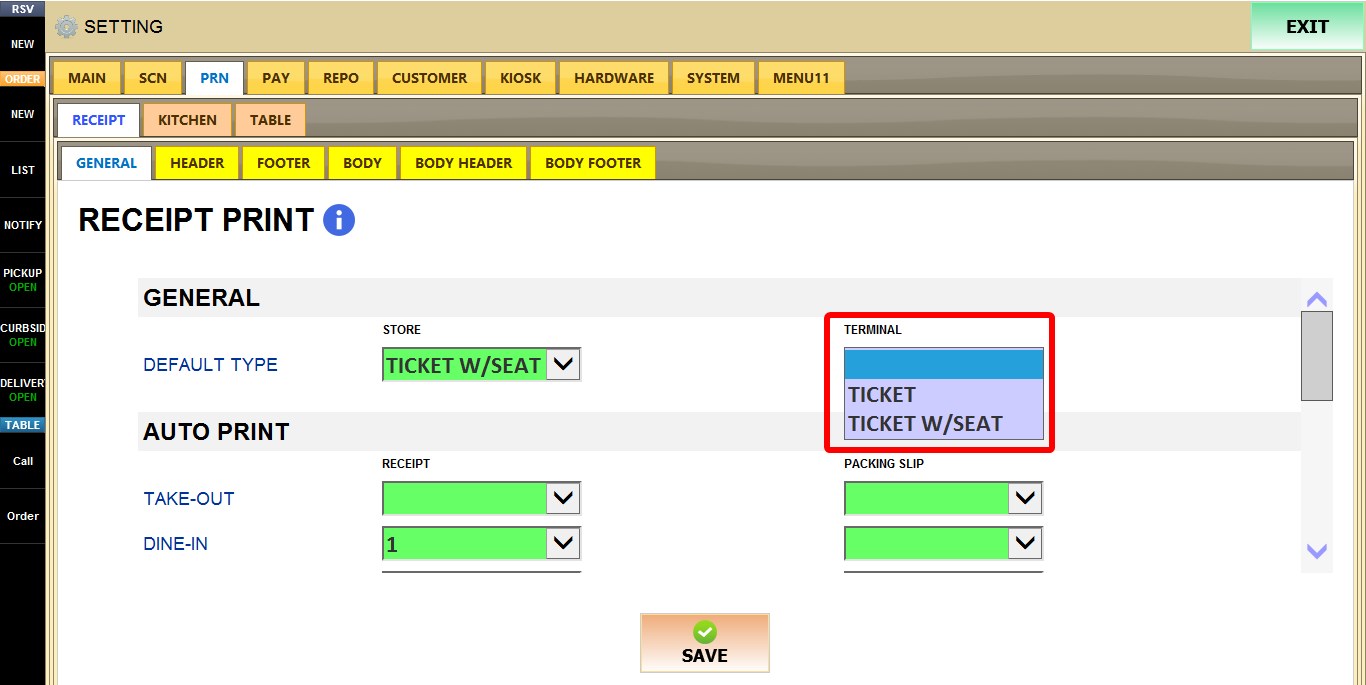
1. BLANK: Uses the store setting.
2. TICKET: Prints a standard customer receipt from this terminal.
3. TICKET W/SEAT: Prints the receipt including seat information from this terminal.
AUTO PRINT
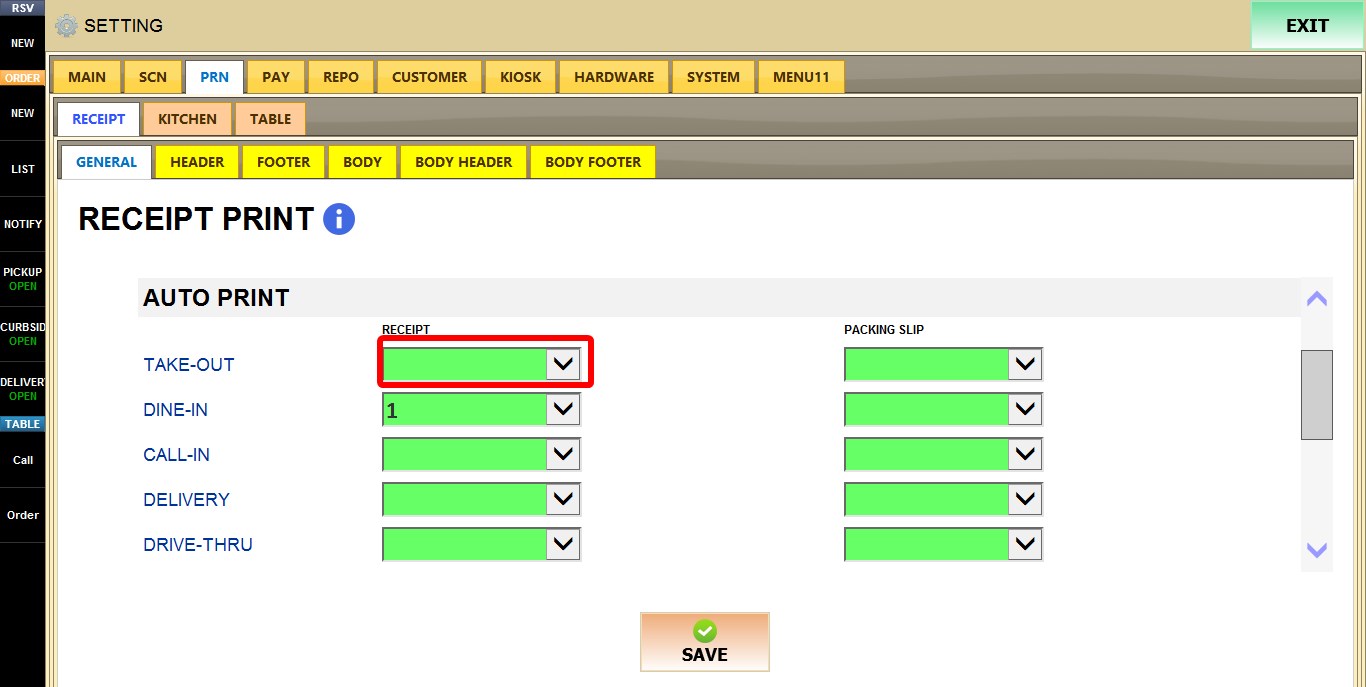
These settings determine how many customer receipts and packing slips are printed automatically for each order destination.
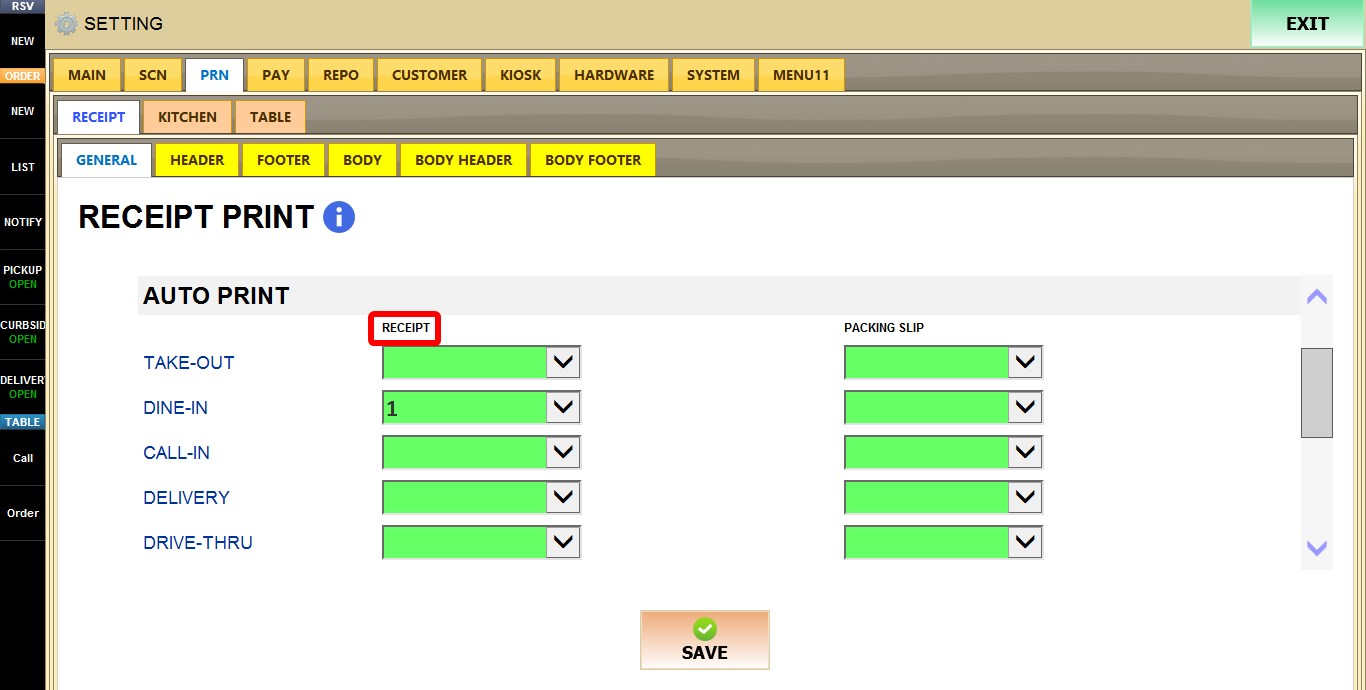
RECEIPT
Specifies how many customer receipts are automatically printed for each order destination.
PACKING SLIP
Specifies how many packing slips are automatically printed for each order destination. (e.g TAKE-OUT
DINE-IN)
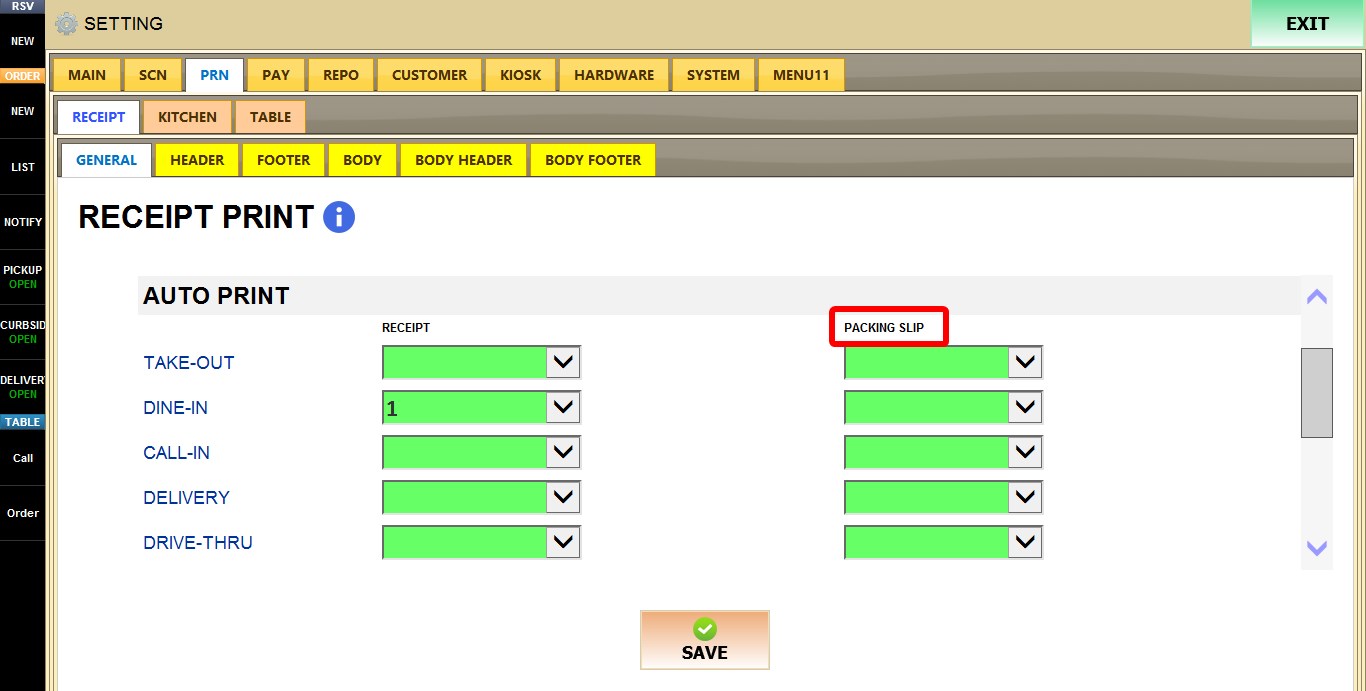
For both RECEIPT and PACKING SLIP, each destination uses a dropdown with the following options:
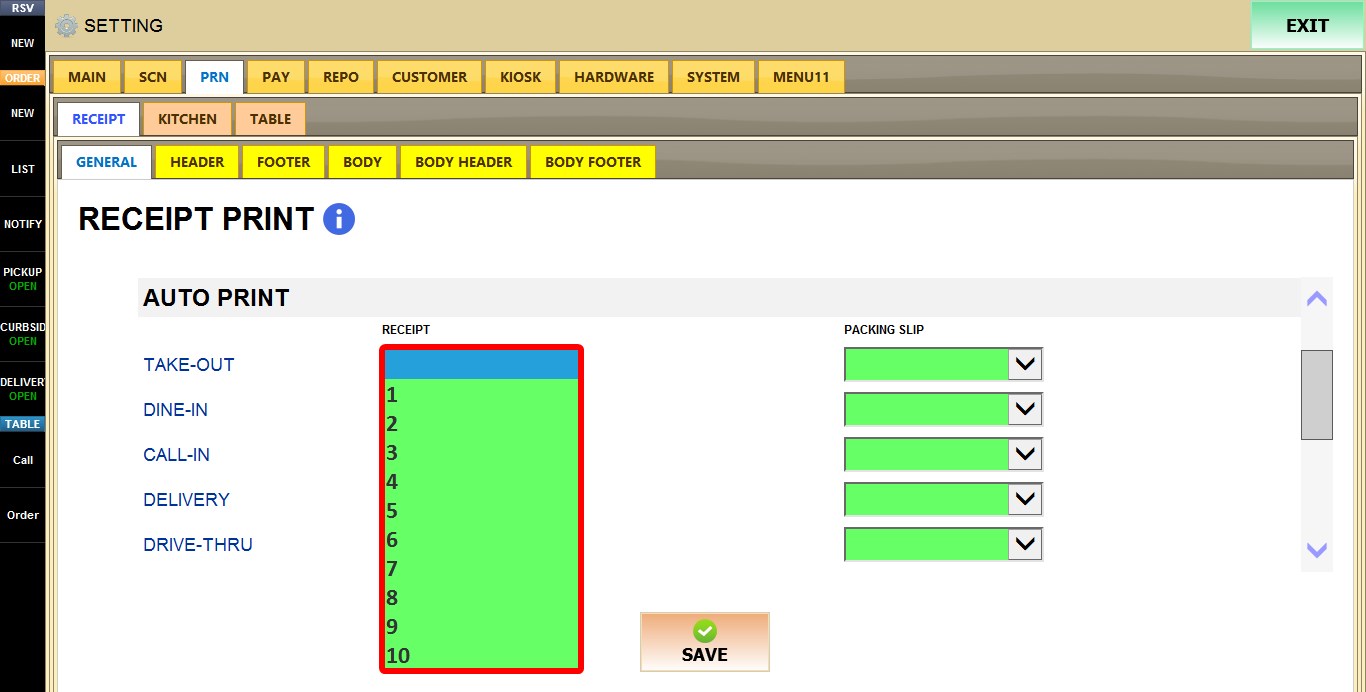
1. BLANK: Does not print automatically.
2. 1–10: Prints the selected number of copies automatically.
VOID SLIP
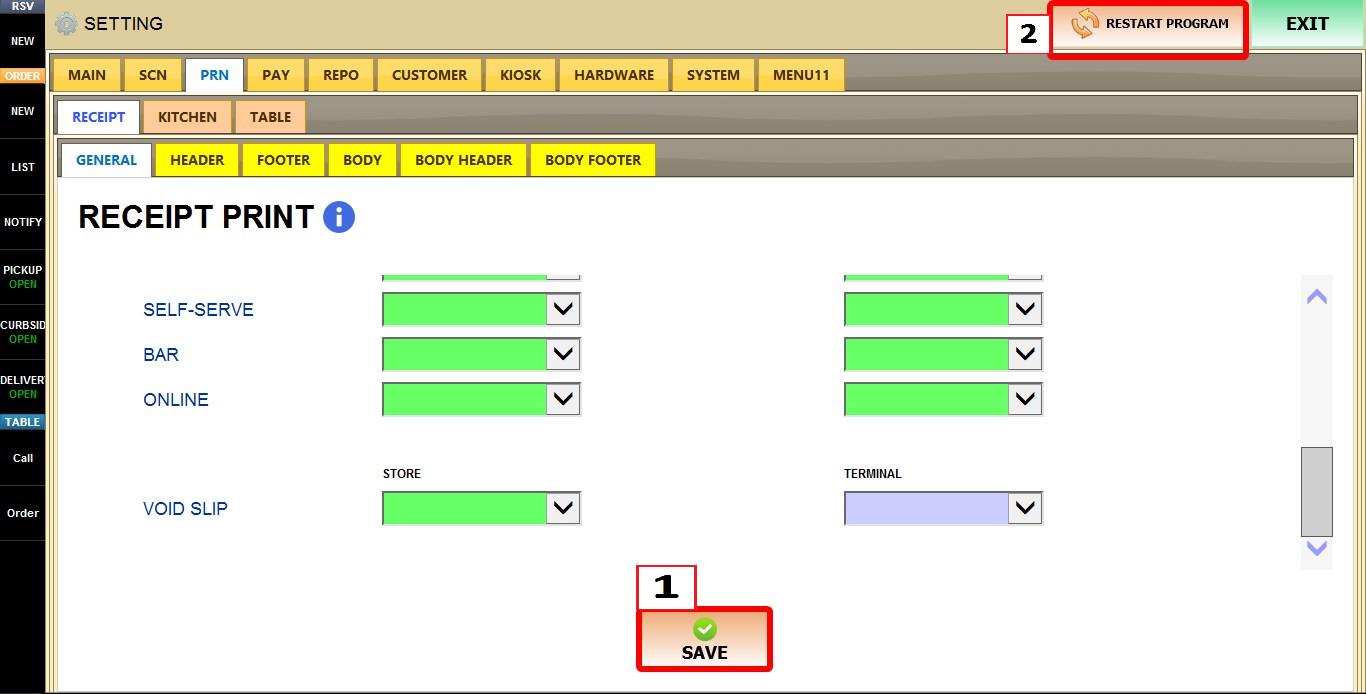
Determines whether a void slip is automatically printed when an item or ticket is voided.
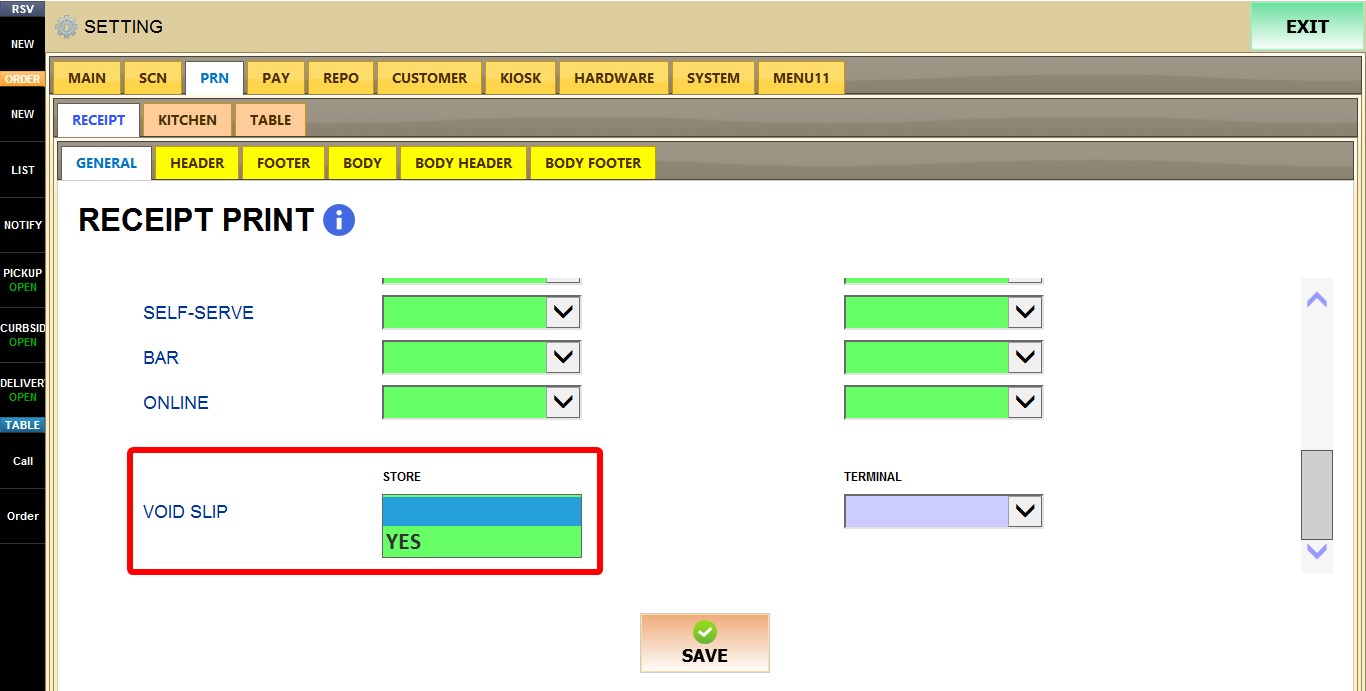
1. BLANK: Does not print void slips.
2. YES: Automatically prints a void slip.
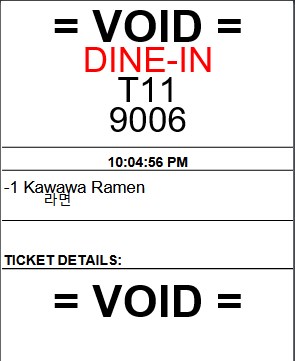
TERMINAL
Overrides the void slip setting for the current terminal only.
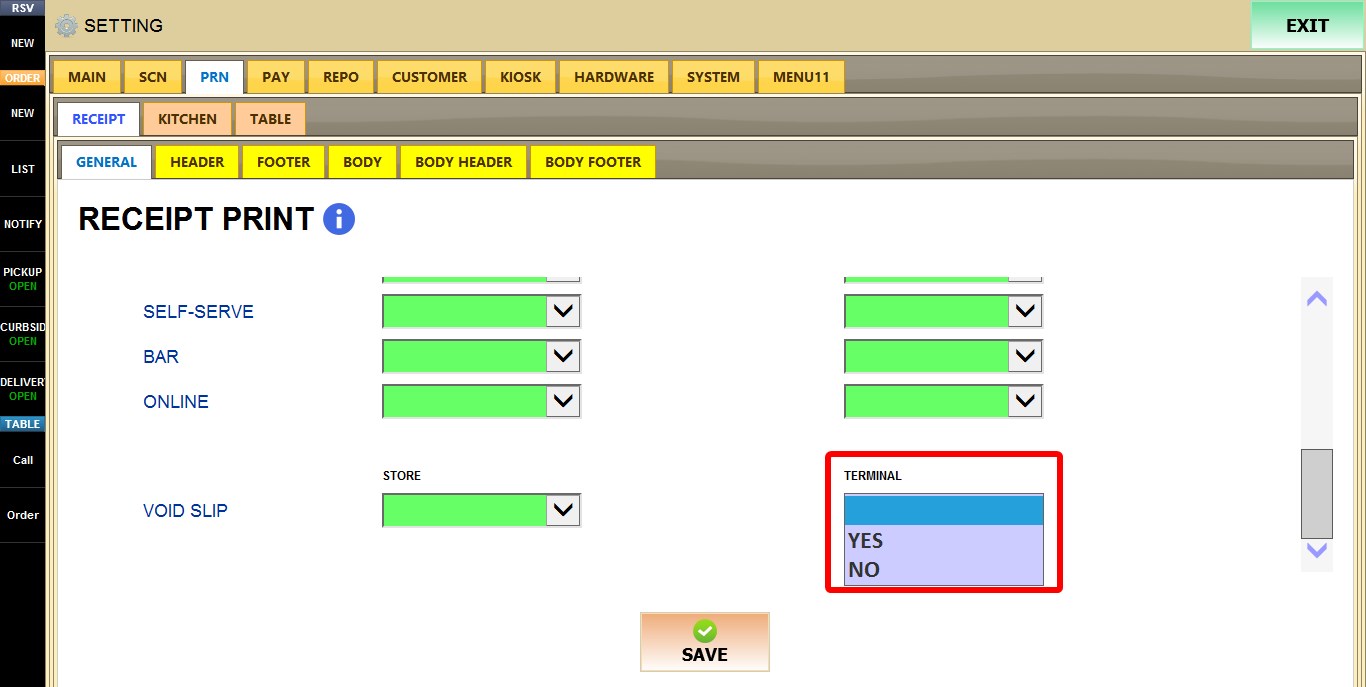
1. BLANK: Uses the store setting.
2. YES: Always prints a void slip from this terminal.
3. NO: Does not print a void slip from this terminal, regardless of the store setting.
After you are done configuring the settings click SAVE and RESTART THE PROGRAM