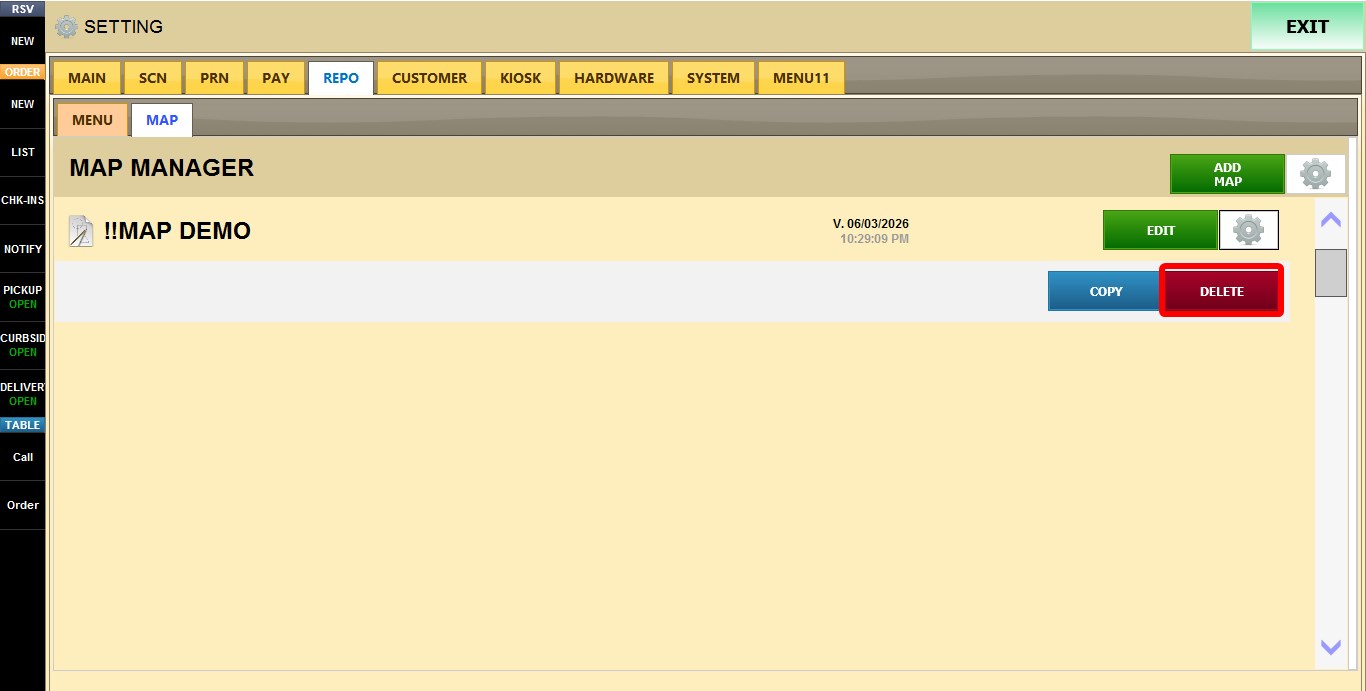
Table Map Tools (Gear Icon)
The Map Gear Icon allows you to manage existing table maps. You can create copies of existing maps or remove maps that are no longer needed.
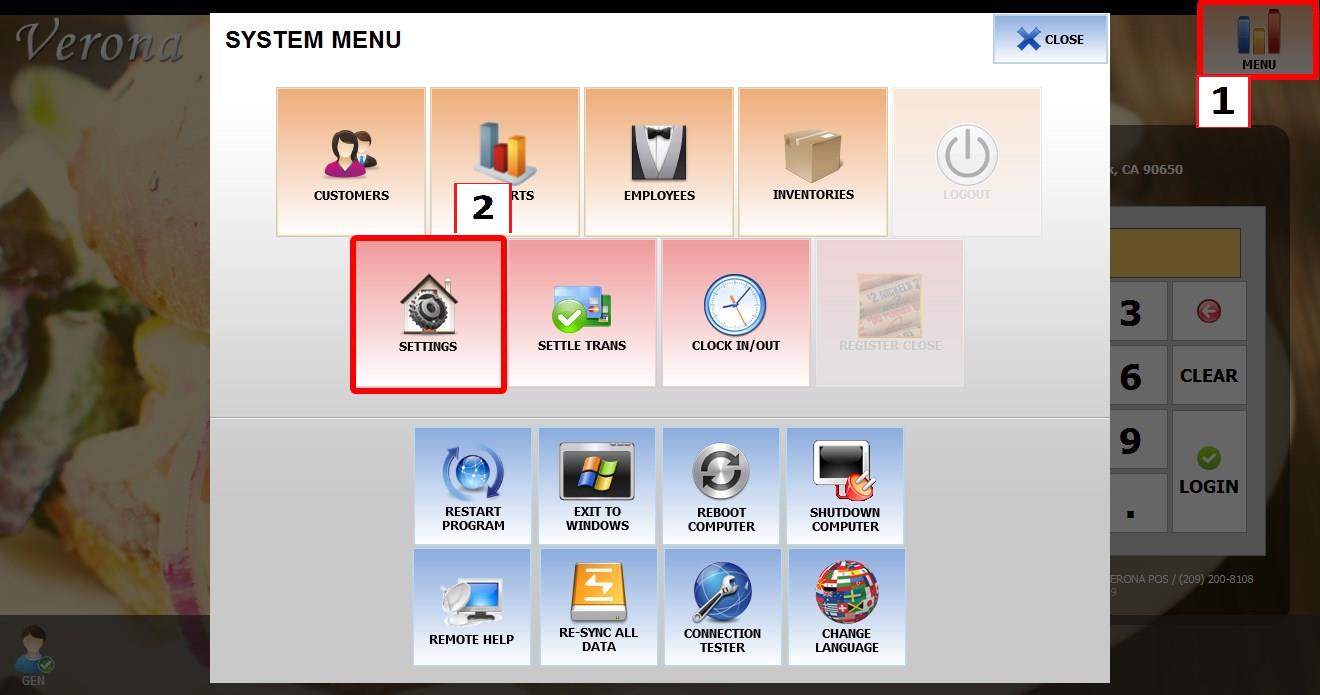
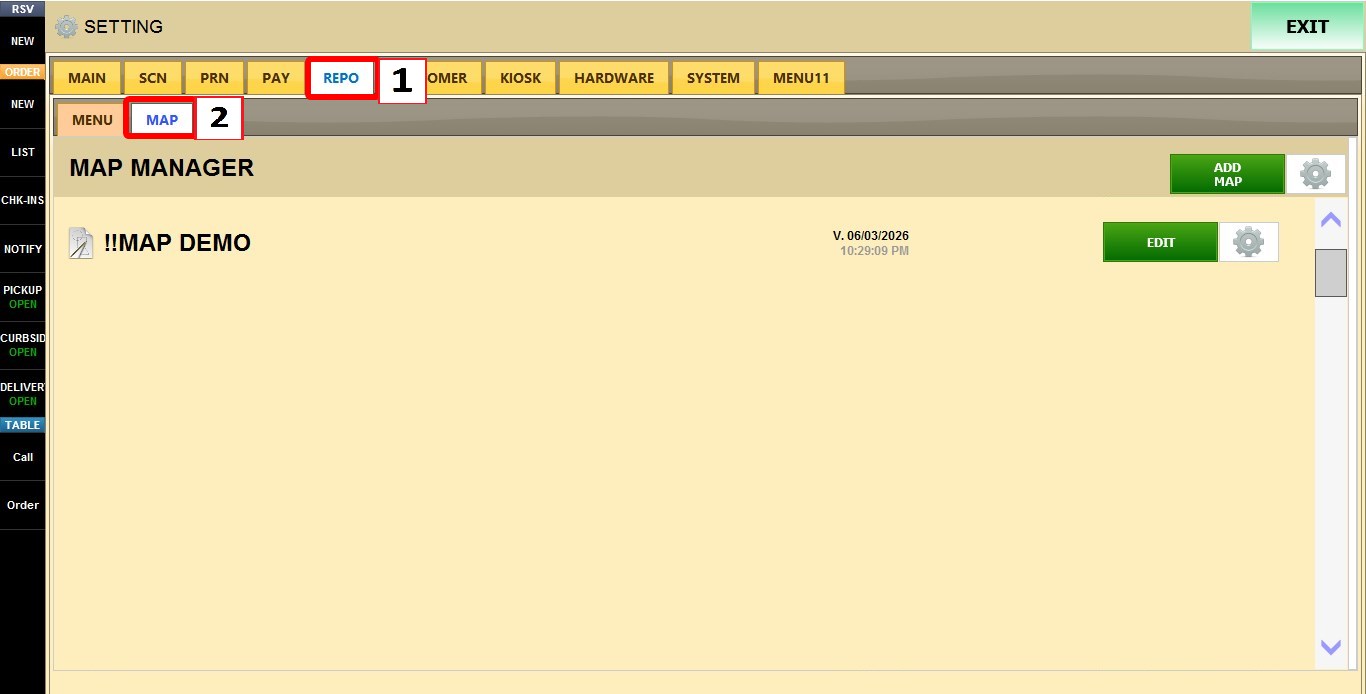
MENU > SETTINGS > REPO > MAP> GEAR ICON.
Go to MENU, then select SETTINGS.
Go to REPO, then select MAP.
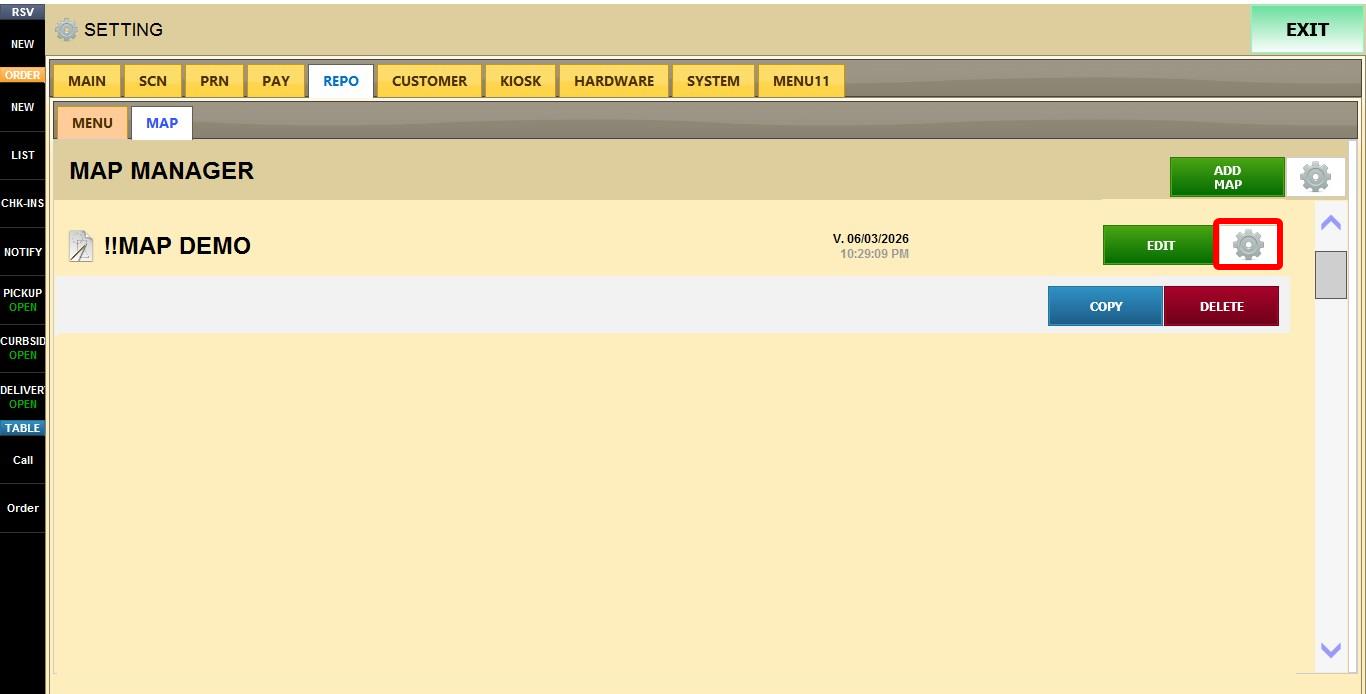
Locate the map you want to manage and click its GEAR ICON.
NOTE: For additional information on creating table maps, configuring map settings, and assigning maps to the system, refer to the Map.
The following options are available:
1. COPY: Creates a duplicate of the selected map.
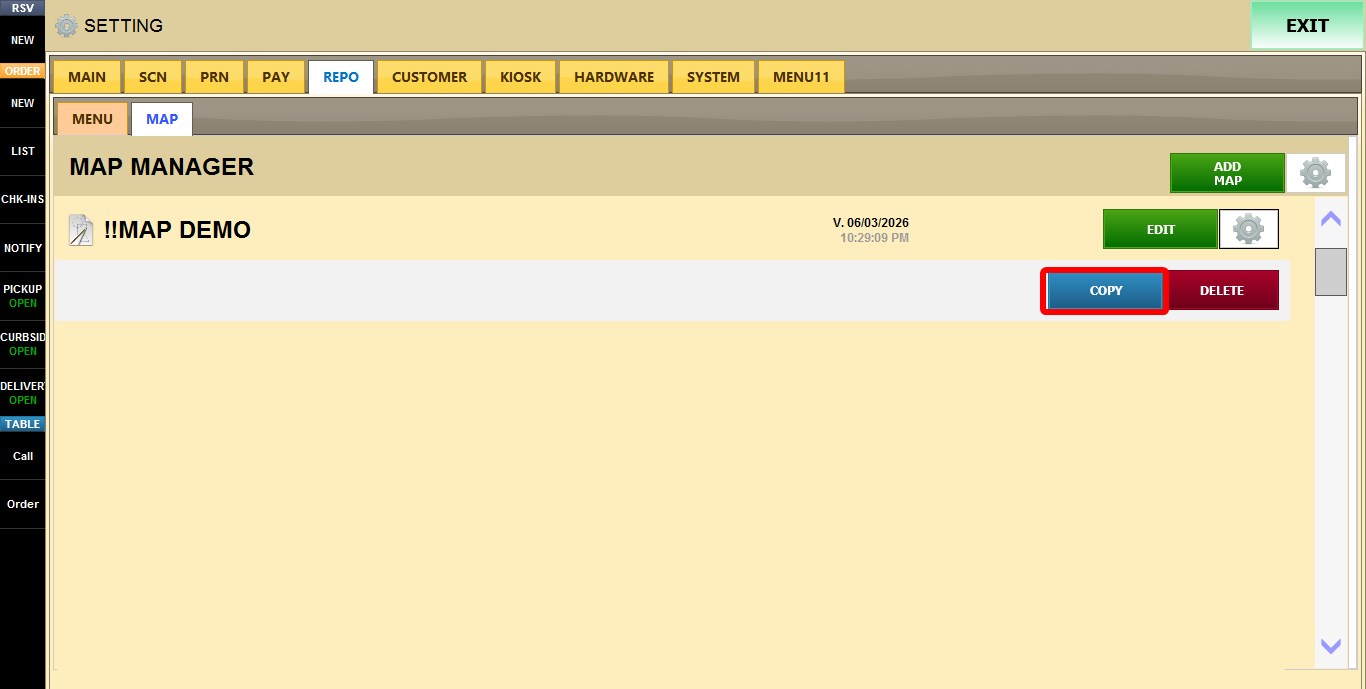
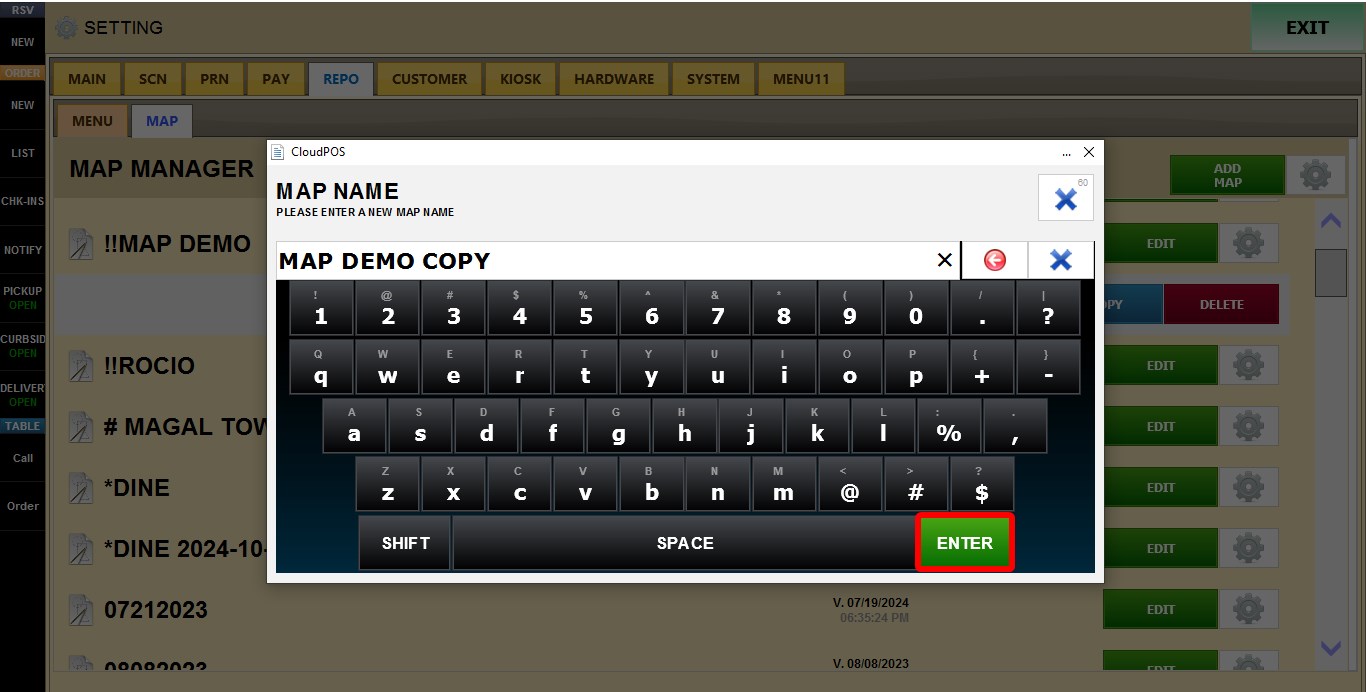
After selecting COPY, you will be prompted to enter a name for the new map. Once saved, the copied map will appear in the map list.
2. DELETE: Permanently removes the selected map from the map list.