[PinPad] Checklist for A920
This section explains the minimum network and platform configuration required to connect a PAX A920 pinpad with system. It covers the required network settings, platform parameters, IP configuration, and VeronaPOS settings to establish communication between the pinpad and the server.
Network Configuration - Requirements
-Use the same WiFi.
-The Default Gateway is the same.
-The Connect IP of A920 is the same as the IP Address of the server.
For example:
-Server default gateway: 10.10.10.1
-Server IP Address: 10.10.10.104
-A920 IP Address: 10.10.10.110
-A920 Connect IP: 10.10.10.104
The Parameters of Platform for A920
The below lists are the minimal list to be built up in the file. You have to set up the parameters more to reach the customer’s requirements.
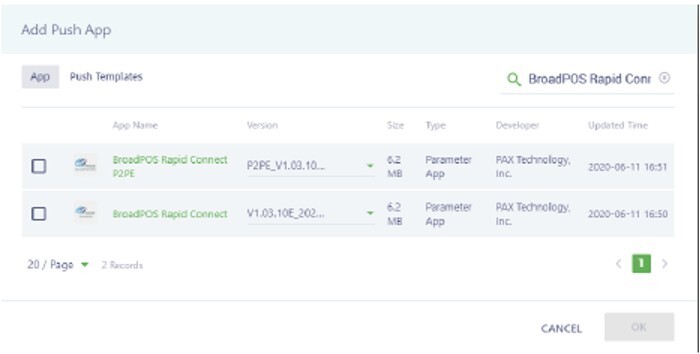
1. Search for the BroadPOS app for the desired platform
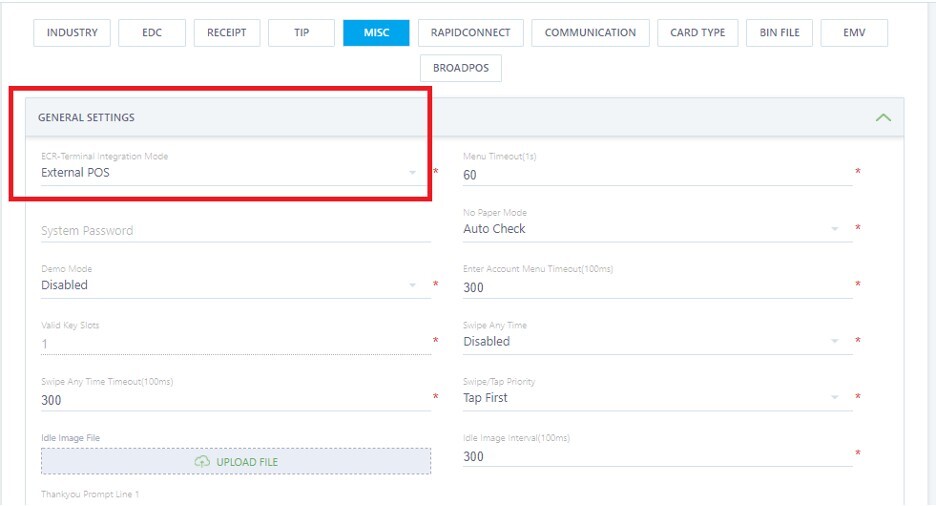
2. Set on MISC
ECR-Terminal Integration Mode: External POS
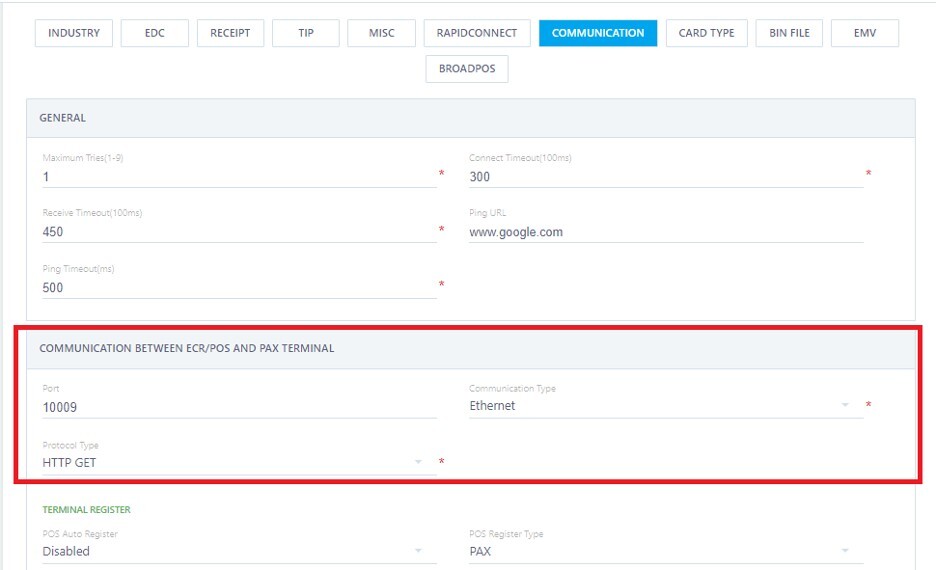
3. Set on COMMUNICATION
-Port: 10009
-Protocol Type: HTTP GET
-Communication Type: Ethernet
How to Connect IP on A920
The connecting IP has to be the same as the IP address of the Server.
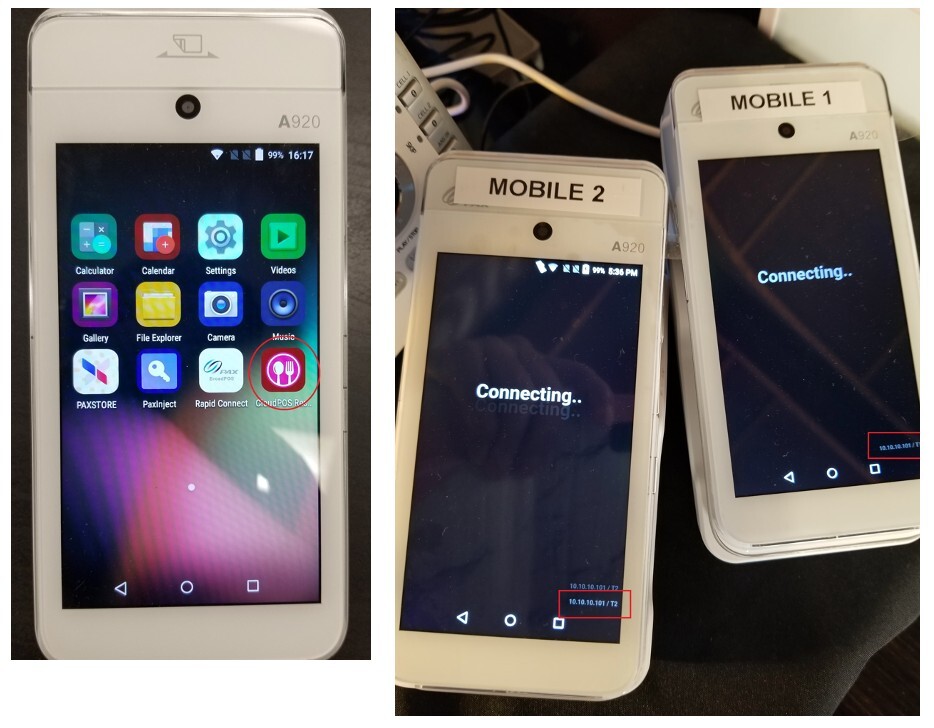
When you run CloudPOS on A920, the connecting IP is shown on the bottom right before the menu comes on.
How to know the IP Address of A920
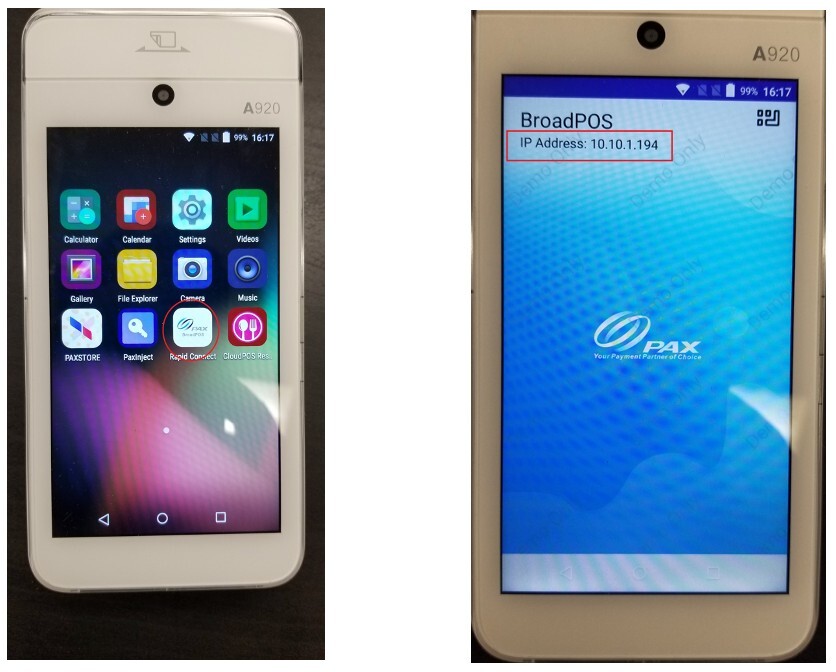
When you run BroadPOS on A920, the IP Address of A920 is shown on the top left.
How to know the IP Address and Gateway
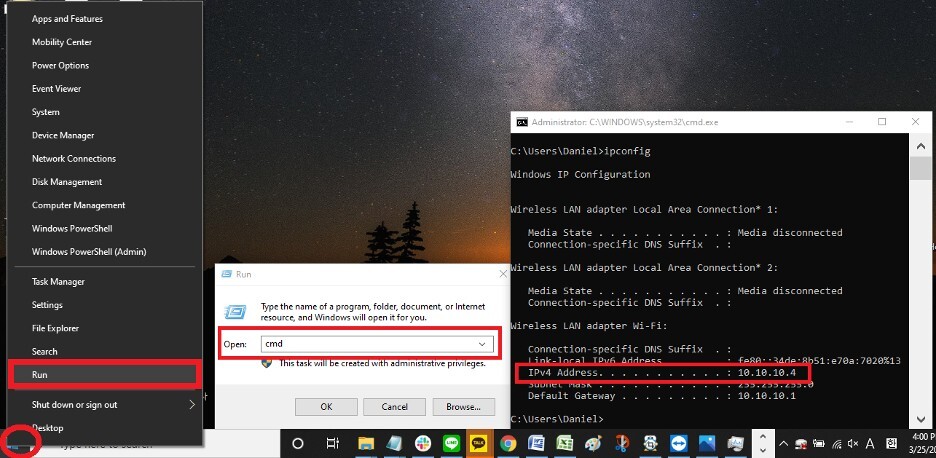
Right-click on the windows at the server.
-Select the Run
-Input the cmd
-Input the ipconfig & ENTER
-IPv4 Address is the IP ADRESS OF the current device
The Default Gateway should be the same as the gateway of the router. You can verify this by right-clicking the Windows Start button, selecting Run, entering cmd, typing ipconfig, and pressing Enter.
Verona Setting
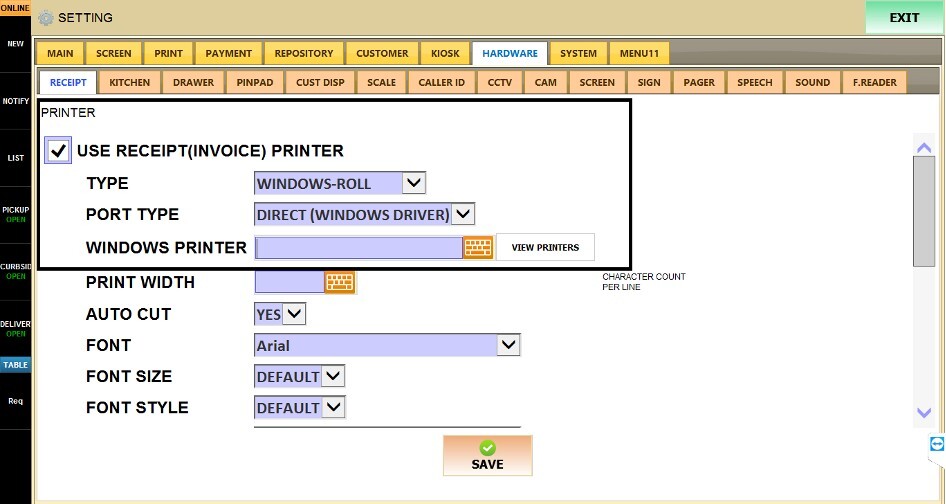
On SETTINGS> HARDWARE> RECEIPT
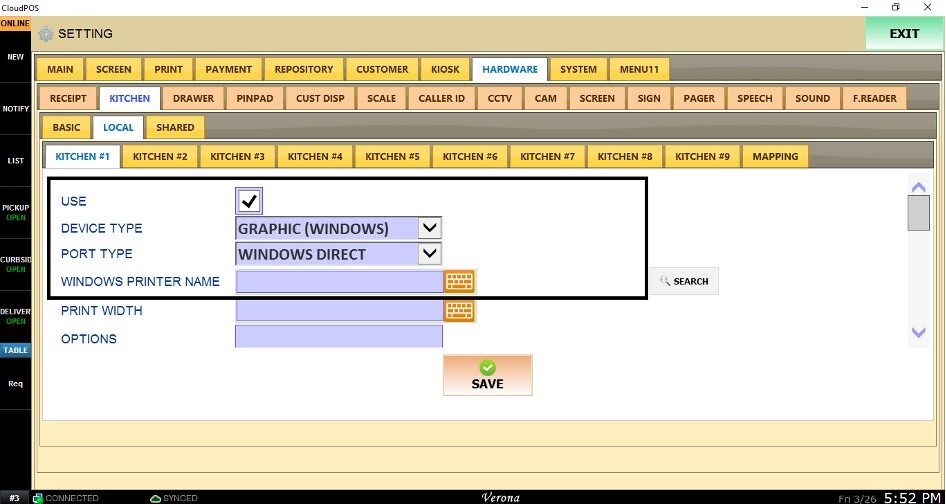
HARDWARE> KITCHEN
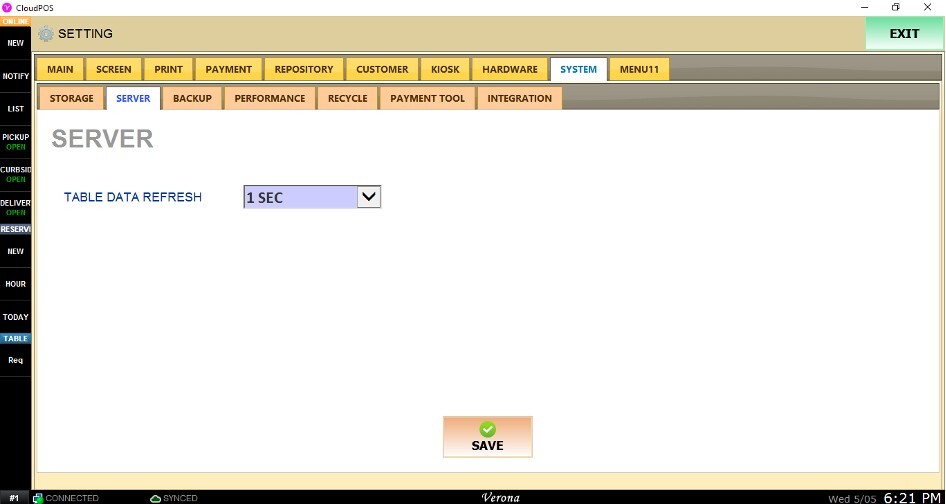
SYSTEM> SERVER