Print Action
The PRINT ACTION setting controls how the table is visually marked after a guest check has been printed. This helps employees quickly identify tables with printed checks from the table map.
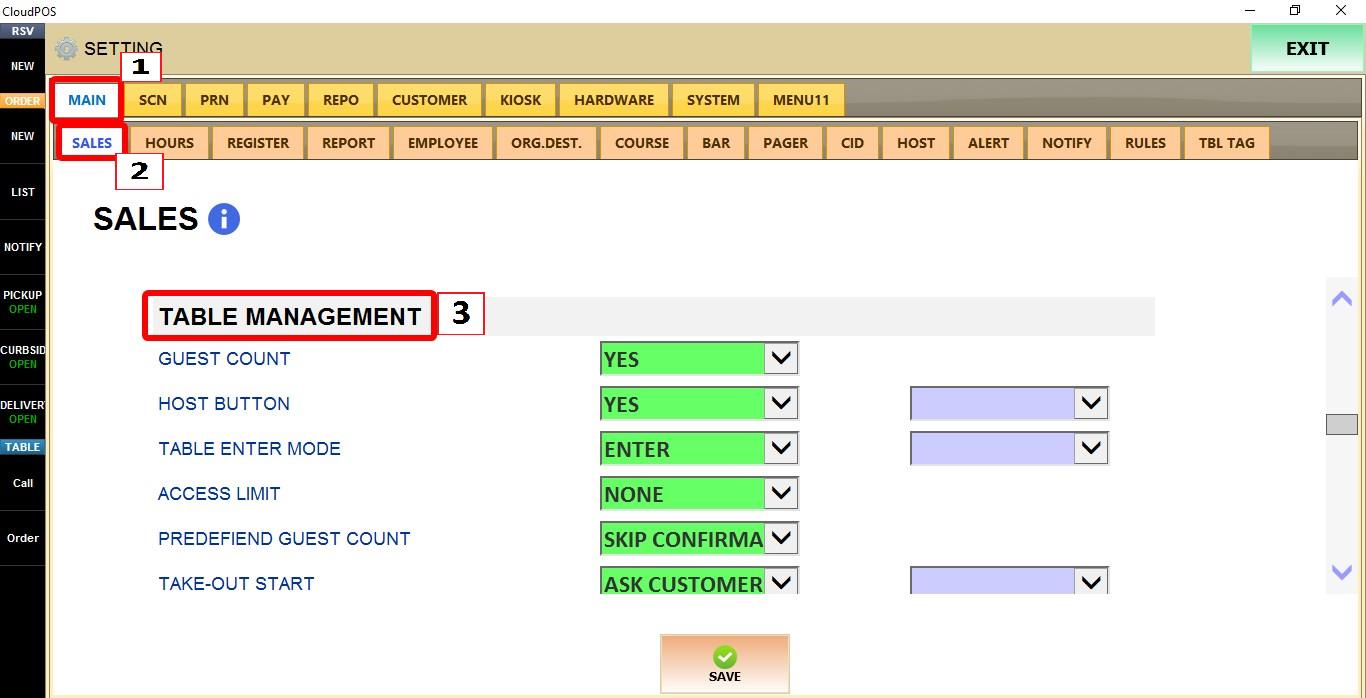
MENU > SETTINGS > MAIN > SALES > TABLE MANAGEMENT
From the MAIN SCREEN, click MENU, then select SETTINGS.

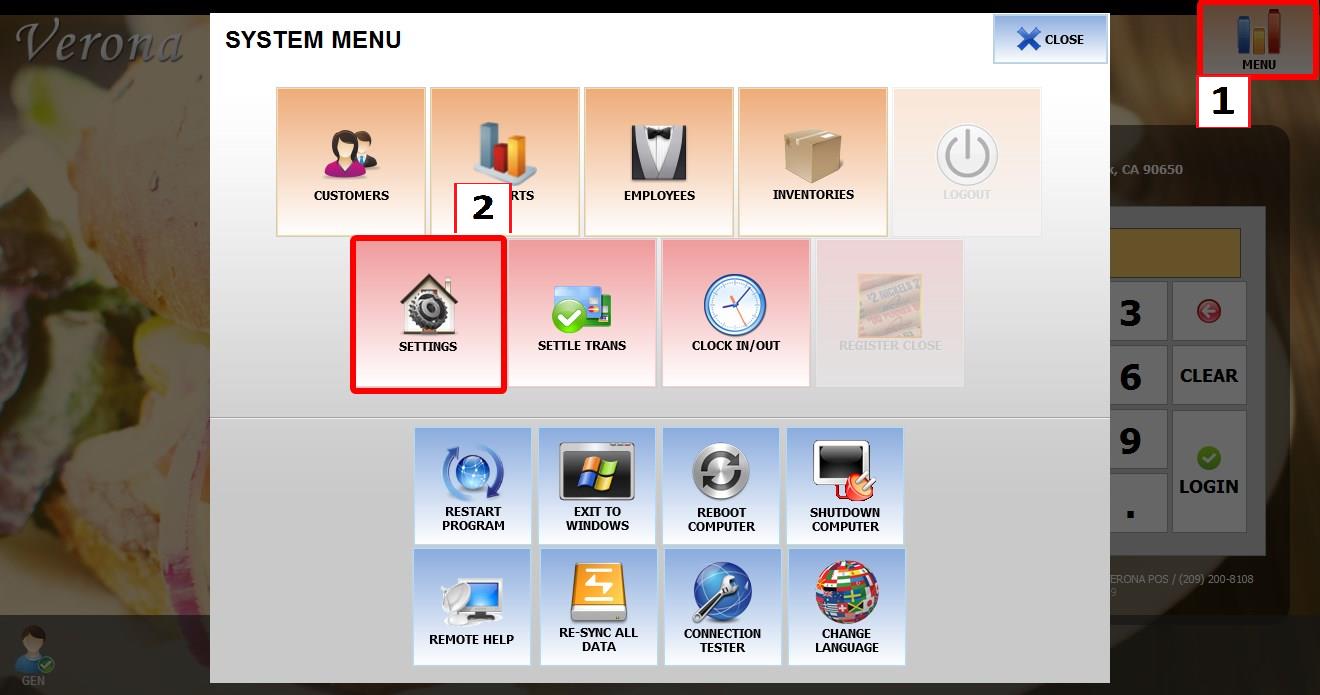
Go to MAIN > SALES > TABLE MANAGEMENT.
TERMINAL
Use the TERMINAL dropdown to configure this setting for the specific POS terminal you are on.

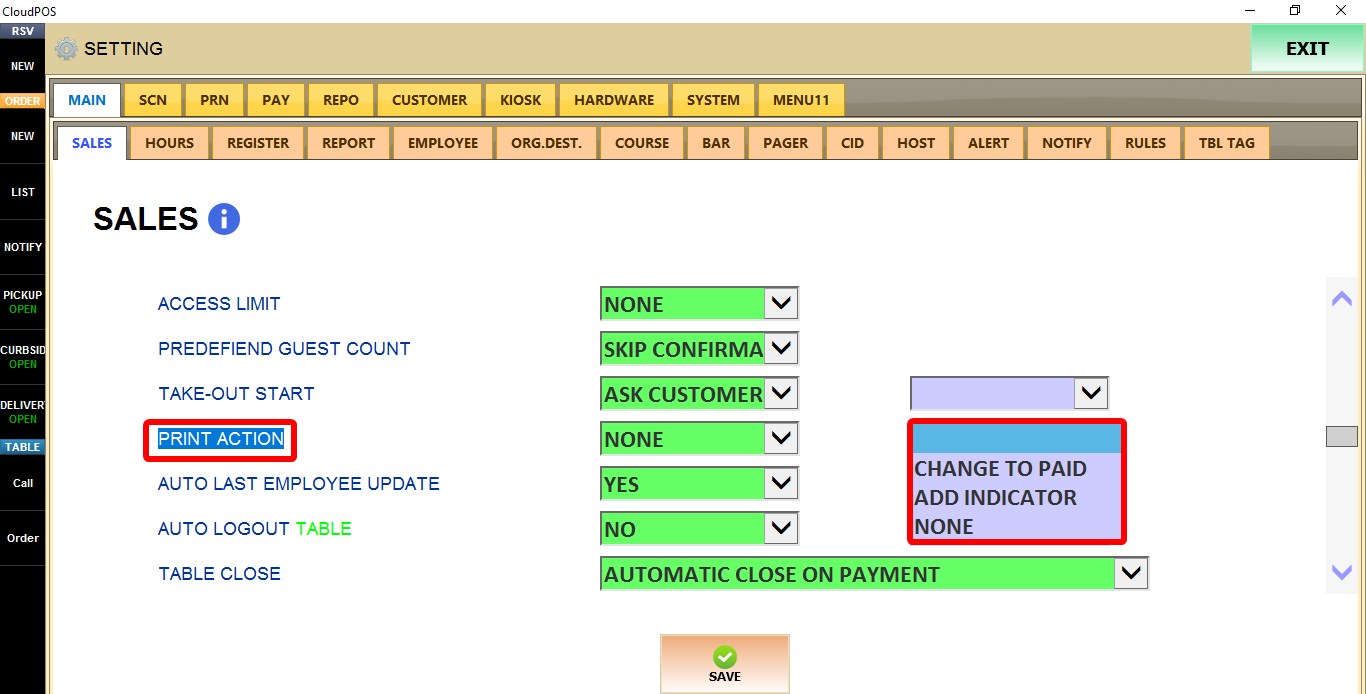
PRINT ACTION
Controls how a table is marked after its guest check has been printed.
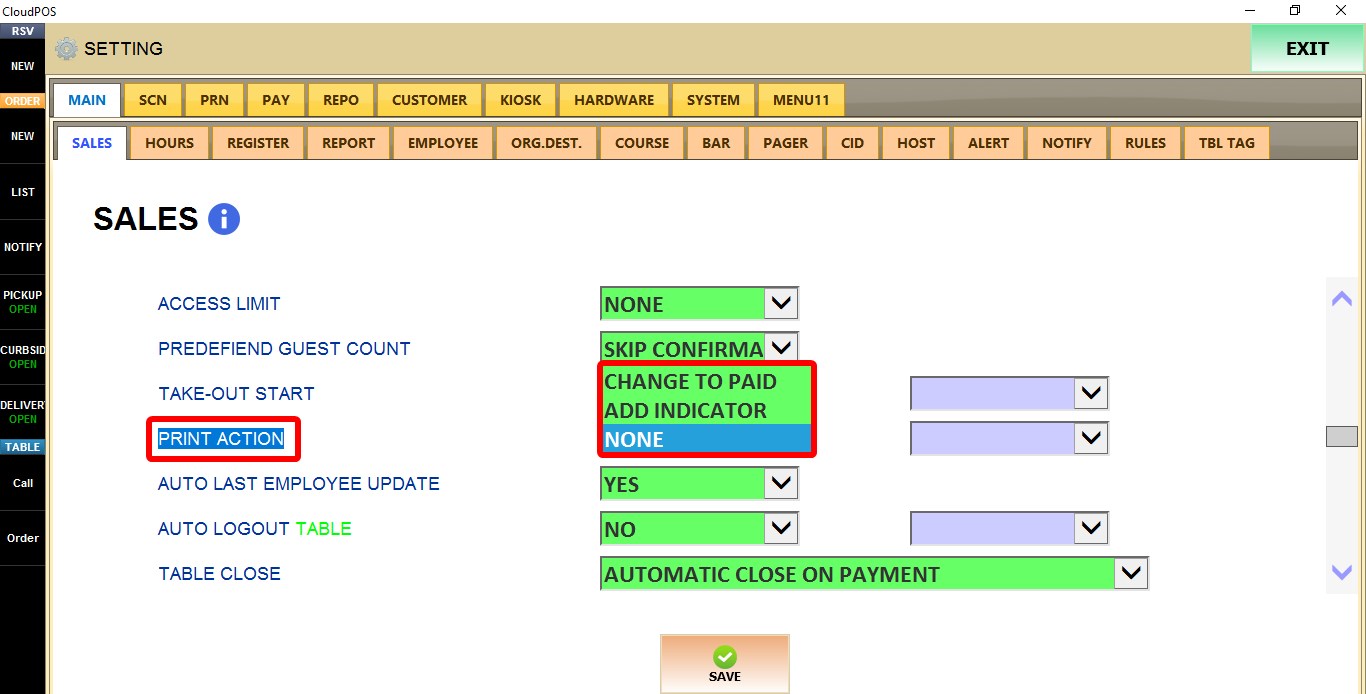
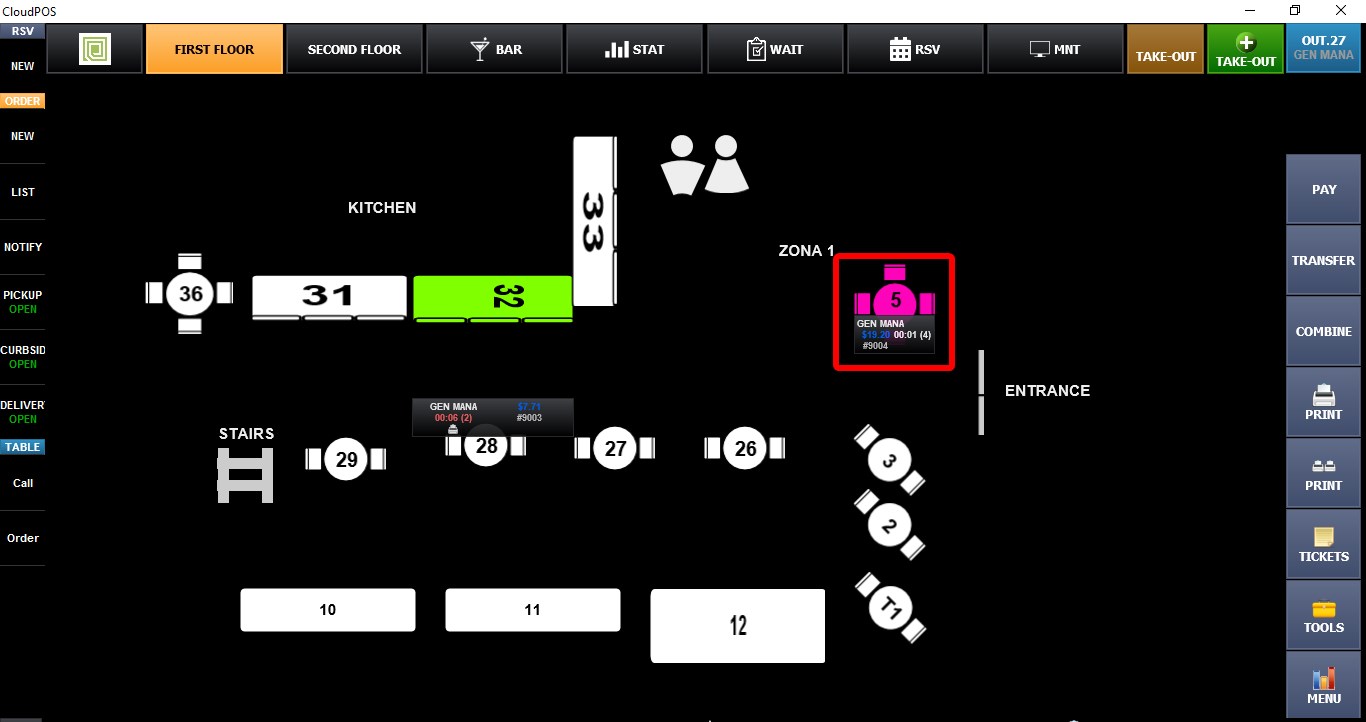
1. CHANGE TO PAID: Changes the table color to purple on the table map after the guest check is printed.
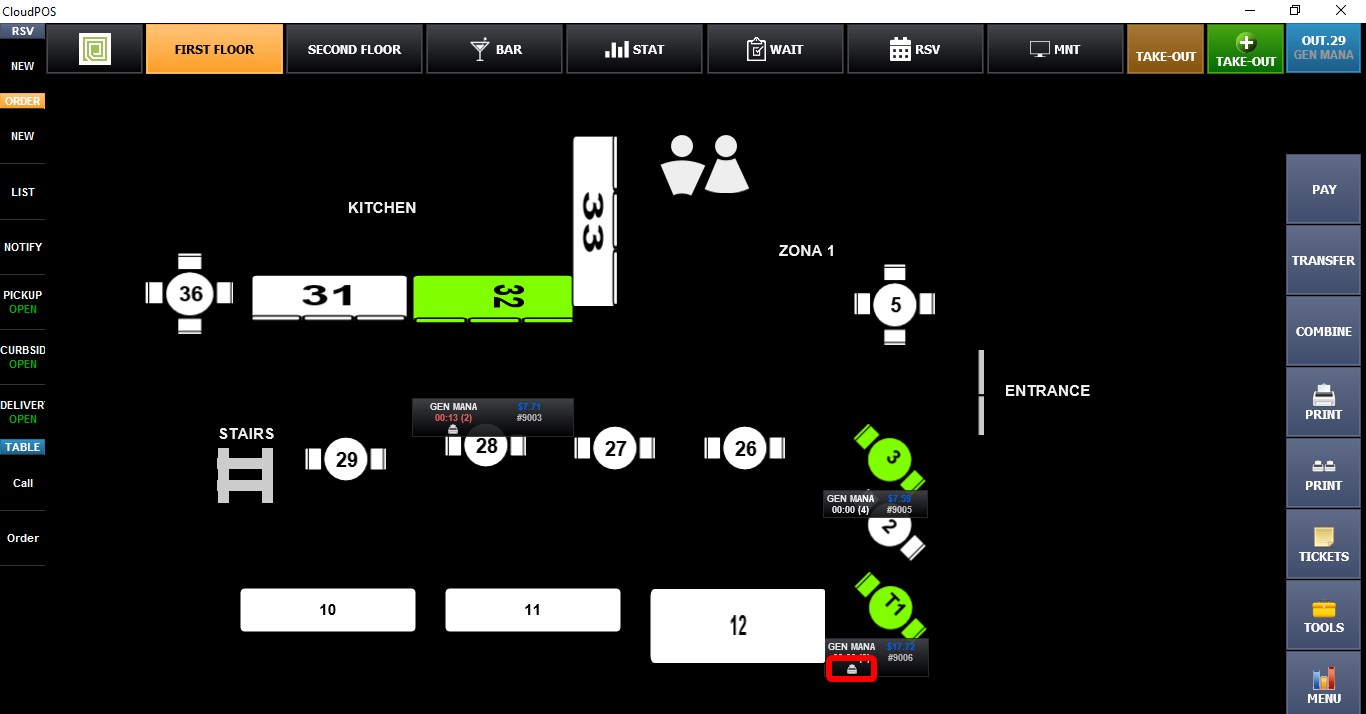
2. ADD INDICATOR: Displays a small printer icon below the table on the table map after the guest check is printed.
3. NONE: No visual indicator is shown after printing the guest check.
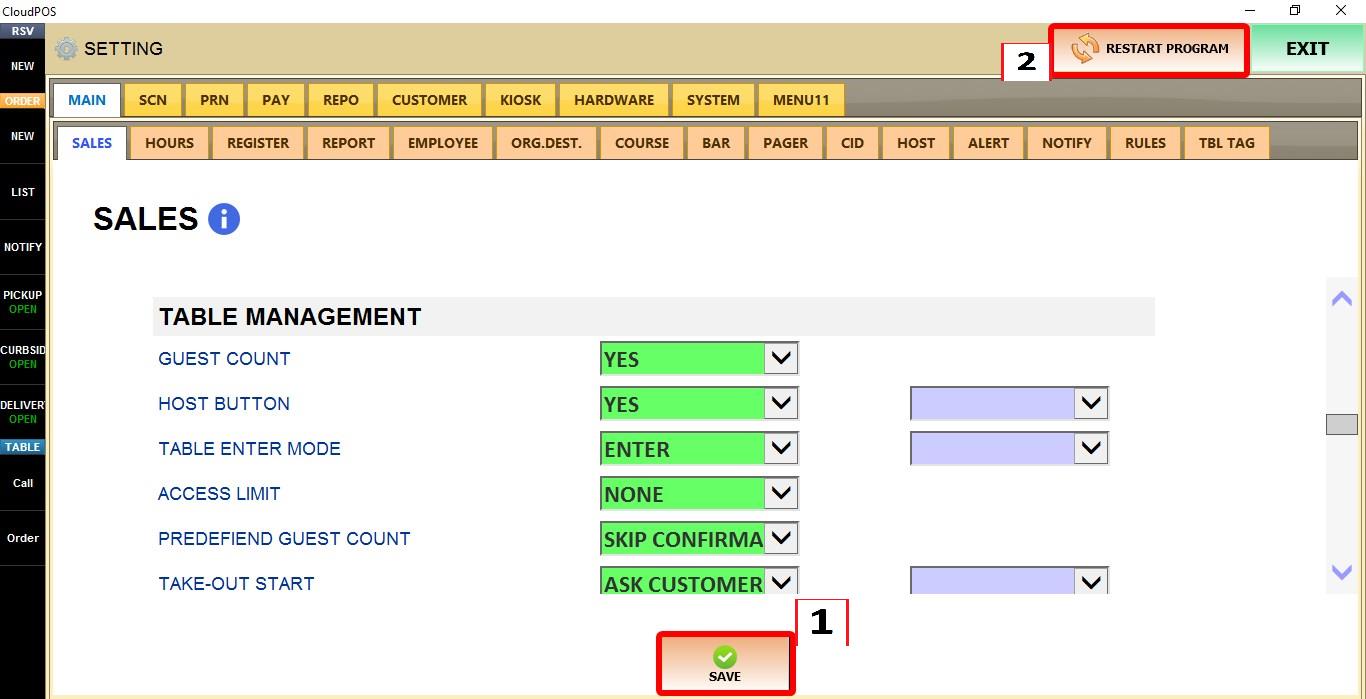
Click SAVE to apply the changes, then RESTART the program.