Excel
This section allows you to import and export product categories using a CSV file. This simplifies bulk category management and helps maintain consistent category structures across locations.
Main Screen> MENU> SETTING> REPO> MENU> EDIT> DEPARTMENTS> CATEGORY
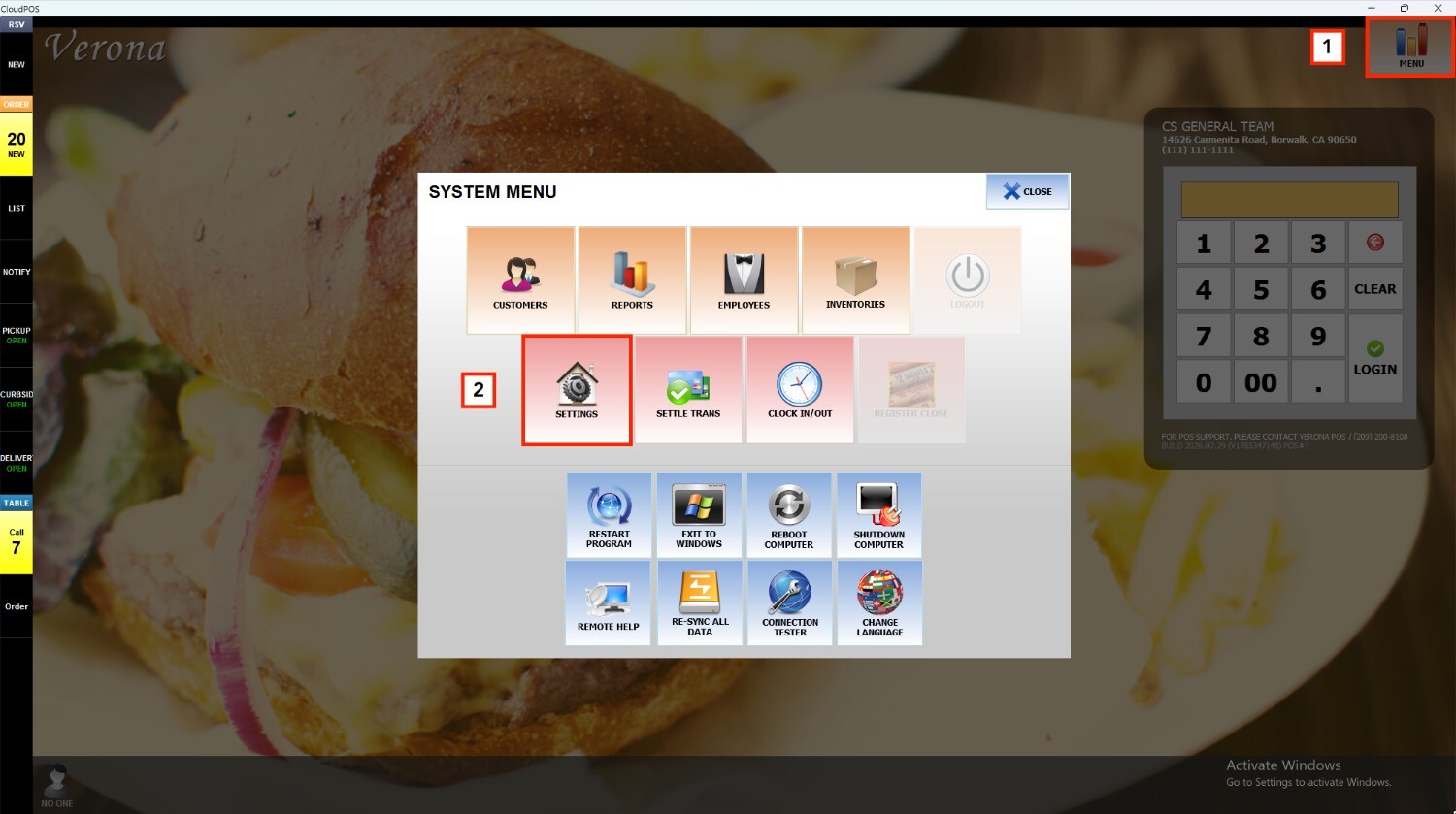
Go to MENU and select SETTINGS.
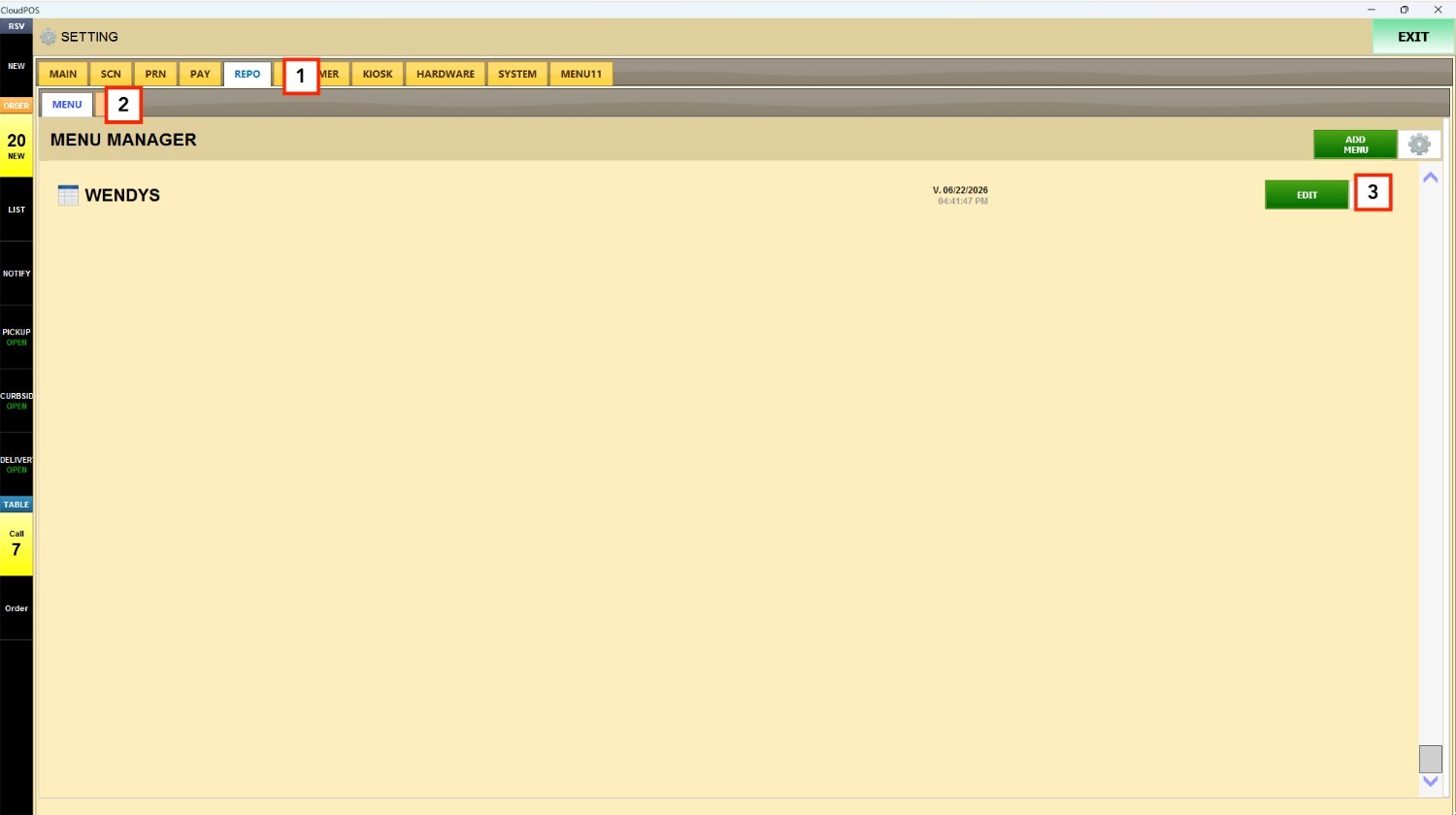
Go to the REPO tab, select MENU, and locate the menu you want to modify. Press EDIT to open the menu settings.
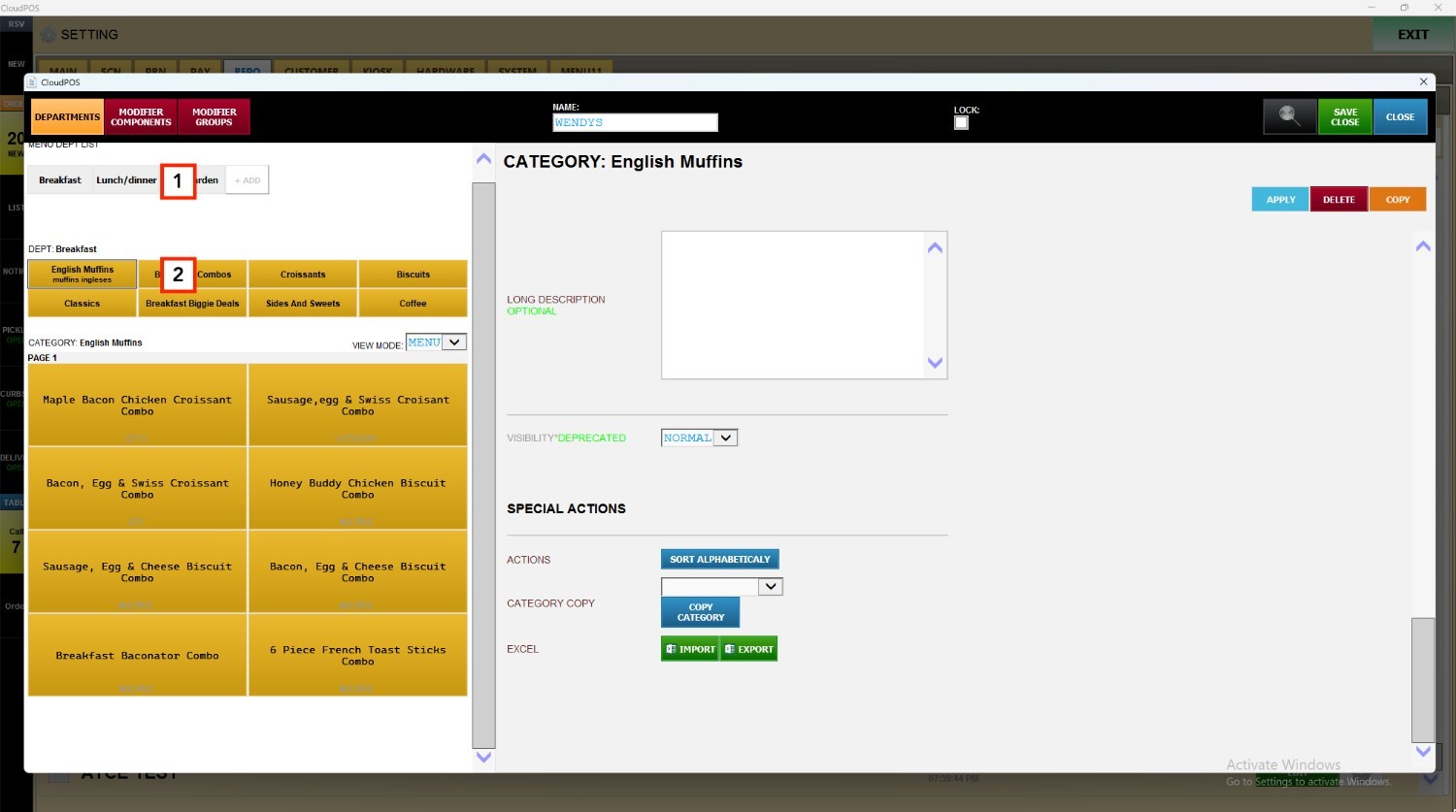
Select a department to display its categories, then choose the category you want to configure.
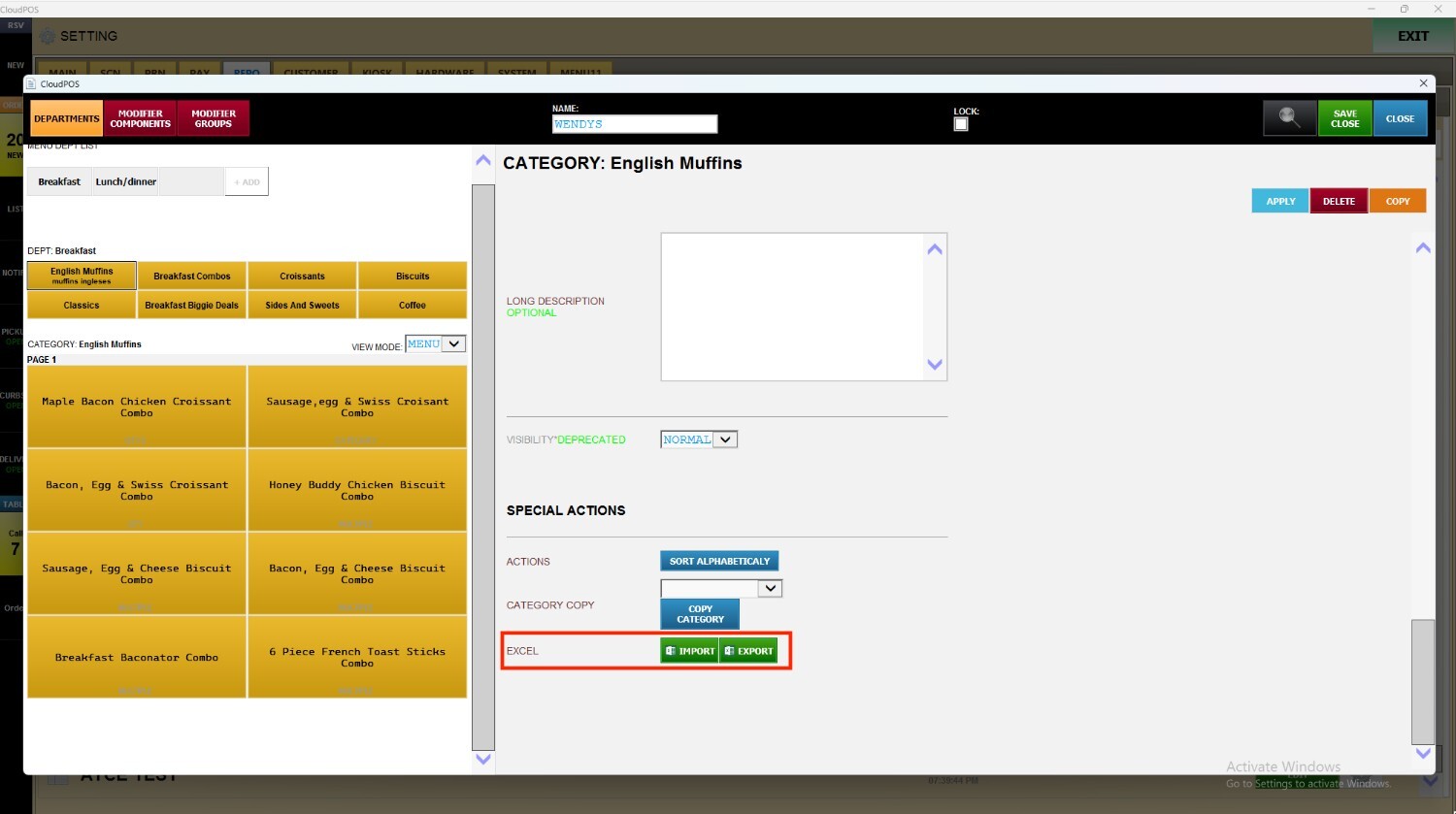
Scroll down to the EXCEL section within SPECIAL ACTIONS to access the IMPORT and EXPORT options.
EXPORT
Press EXPORT to open the Excel export window, where you can copy the category information, including the complete product details, or save the data as a CSV file for further use.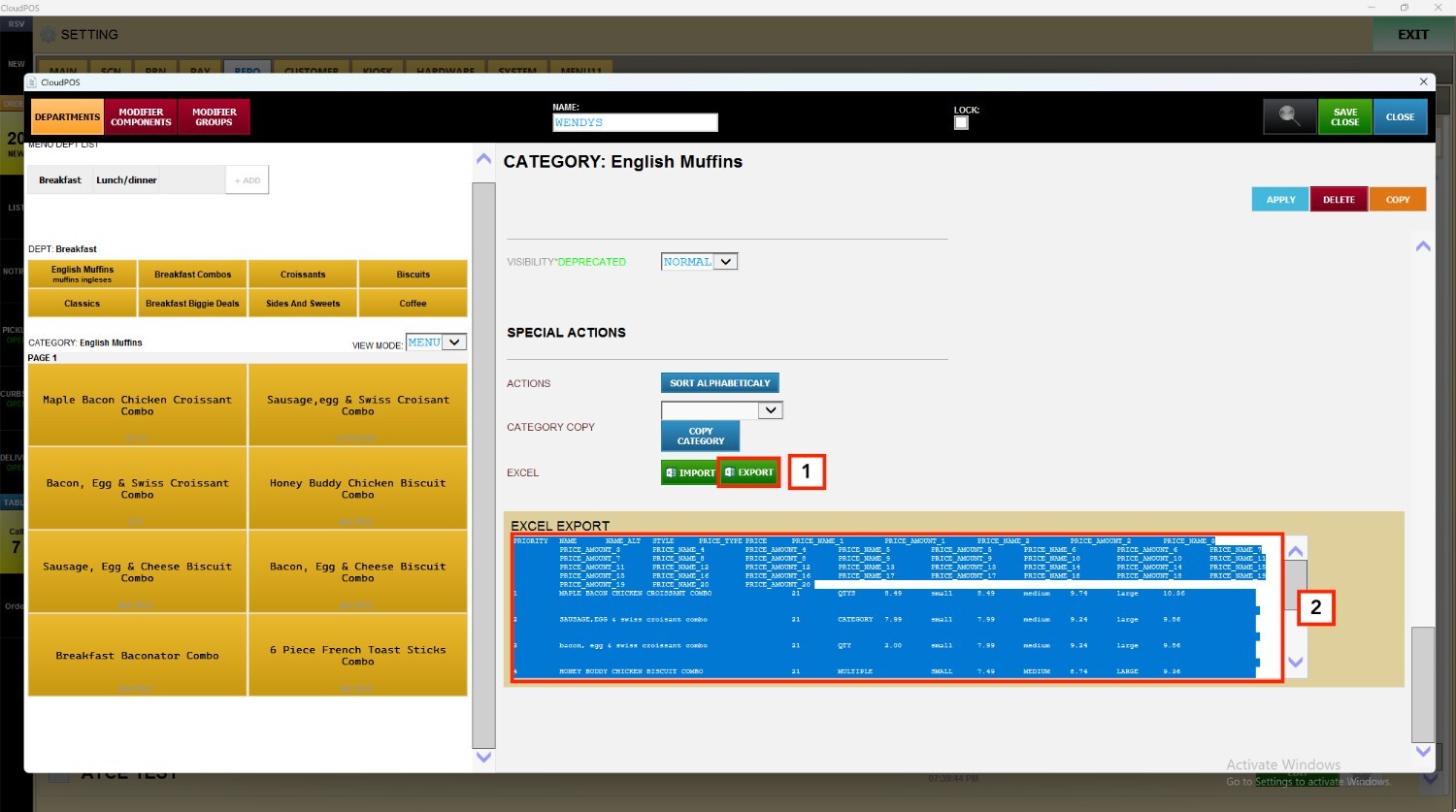
Hint: The exported data can also be used as a template when preparing files for the IMPORT function.
IMPORT
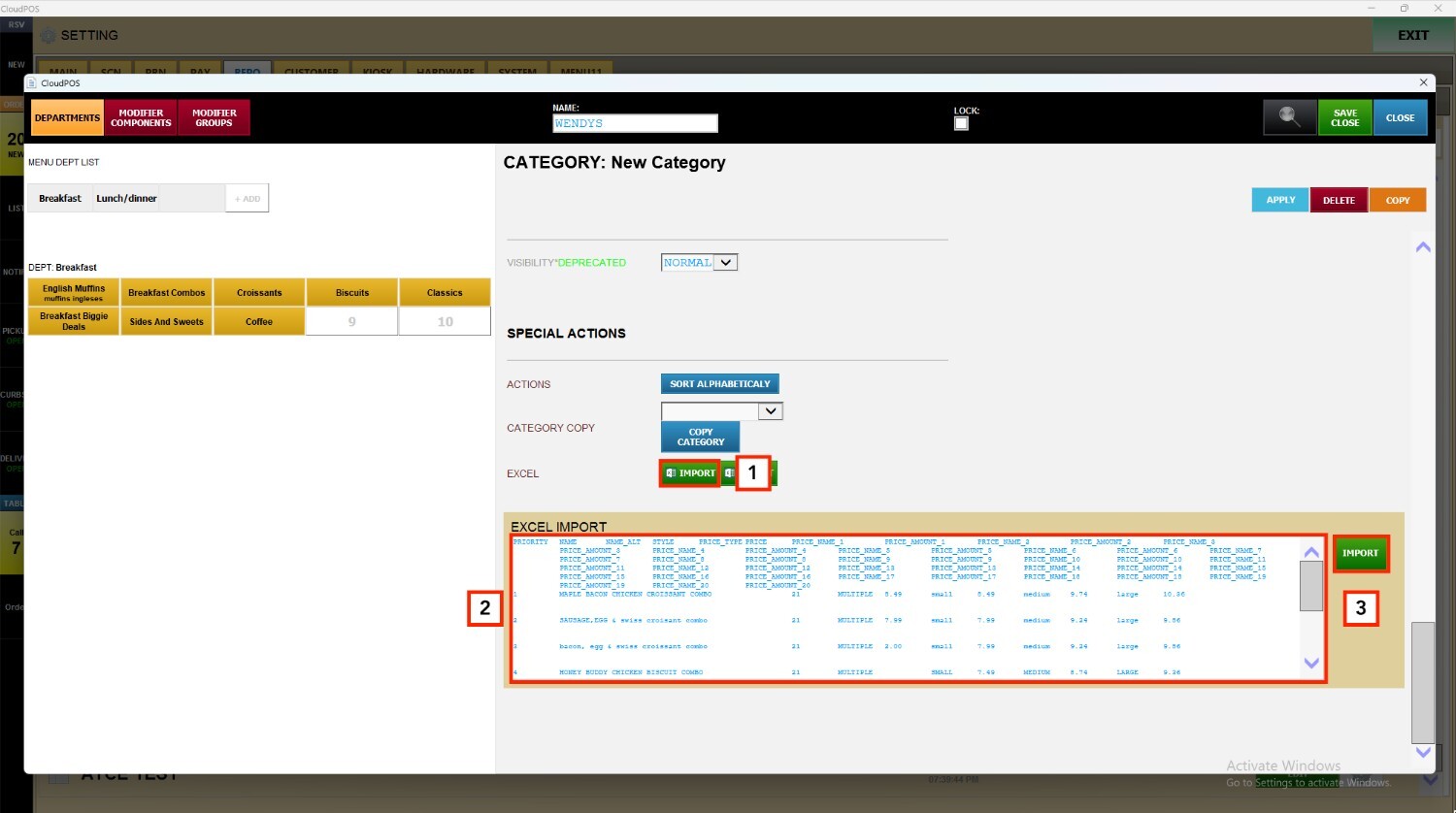
Press IMPORT to open the Excel Import window. Copy the category information from your Excel file and paste it into the blank area provided.
Then, press IMPORT on the left side of the screen to import the entire category along with all its associated product information.
Press APPLY and SAVE & CLOSE to store the changes.
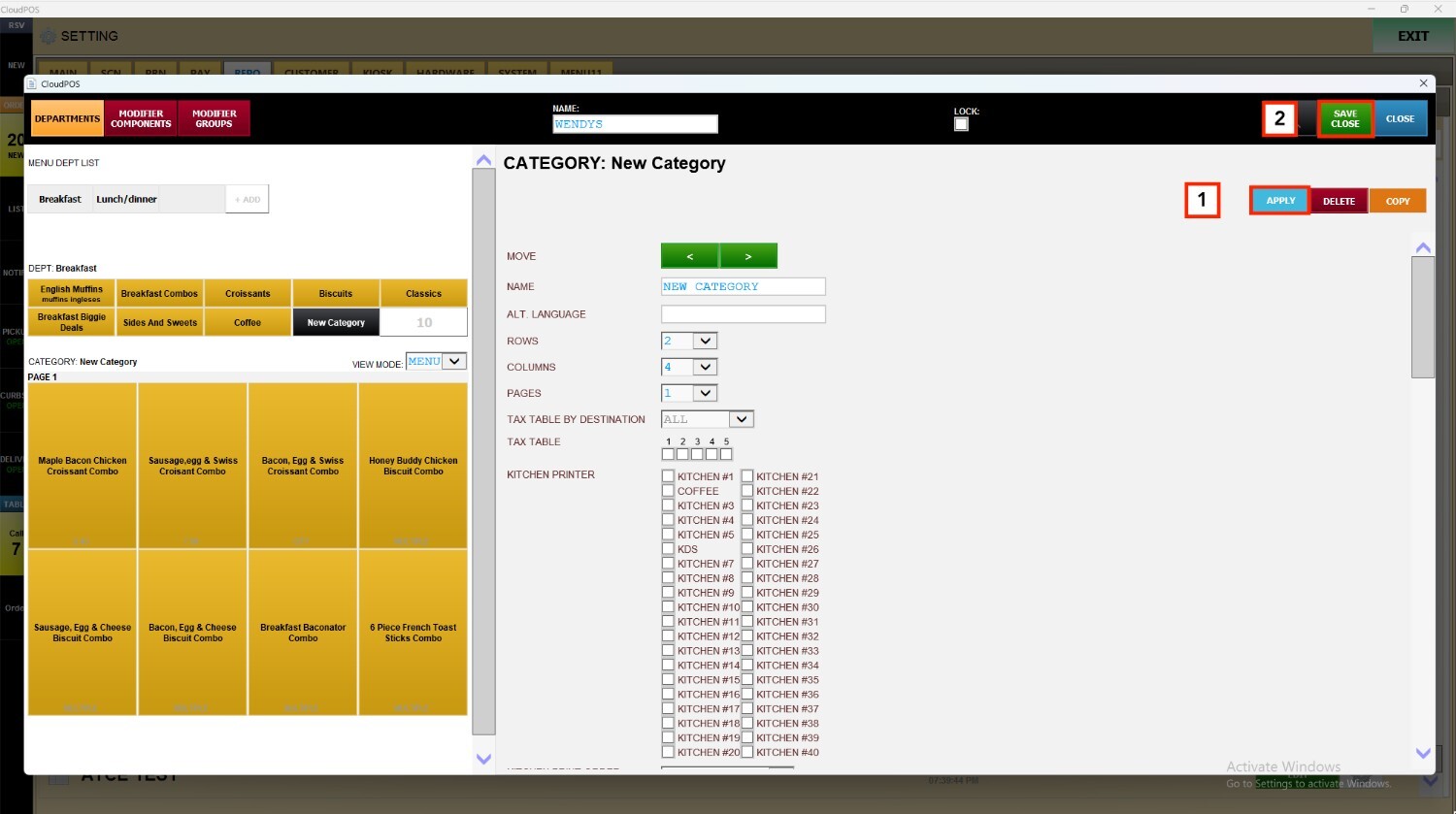
Note: The category name is not included during the import process. To add or modify the category name, refer to the Creating a Category article for instructions.