Course
The Courses setting allows the user to create courses that can later be assigned to menu items or categories. Items are then displayed in course order.
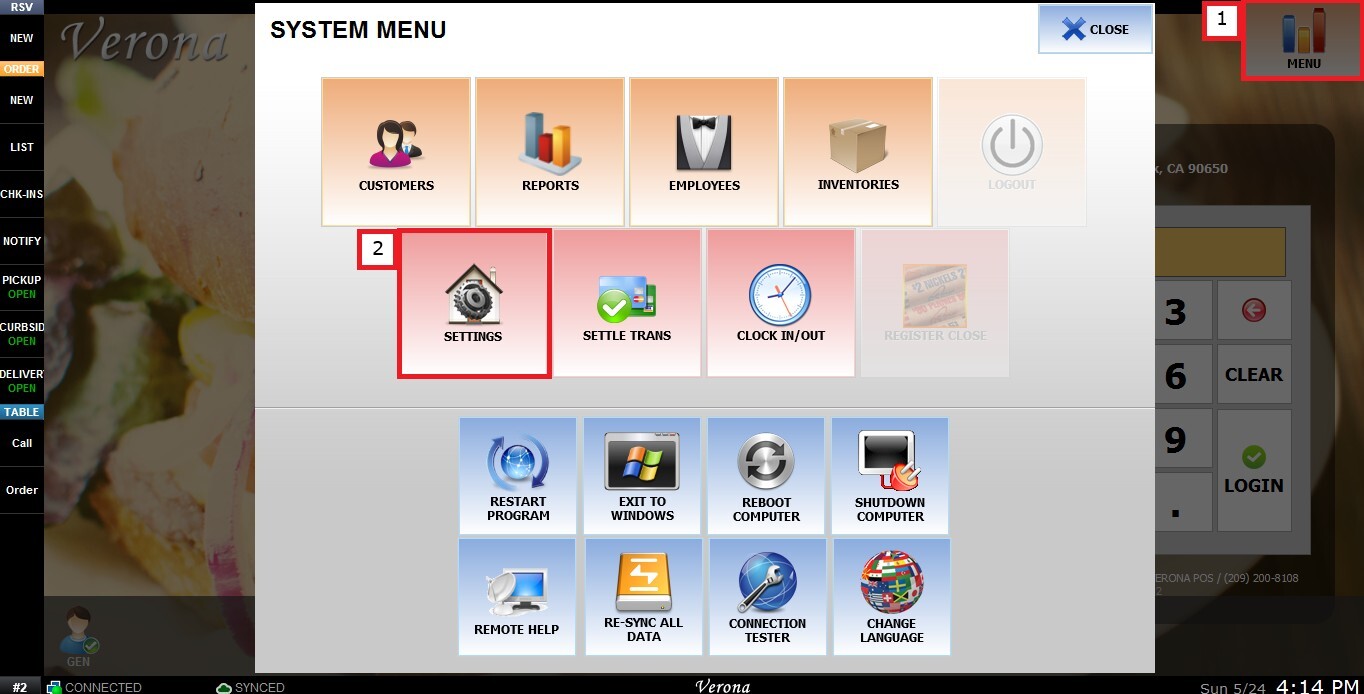
MENU > SETTINGS > MAIN > COURSE
From the Main Screen, click MENU, then select SETTINGS.
Under MAIN, select COURSE, and review the available configuration options.
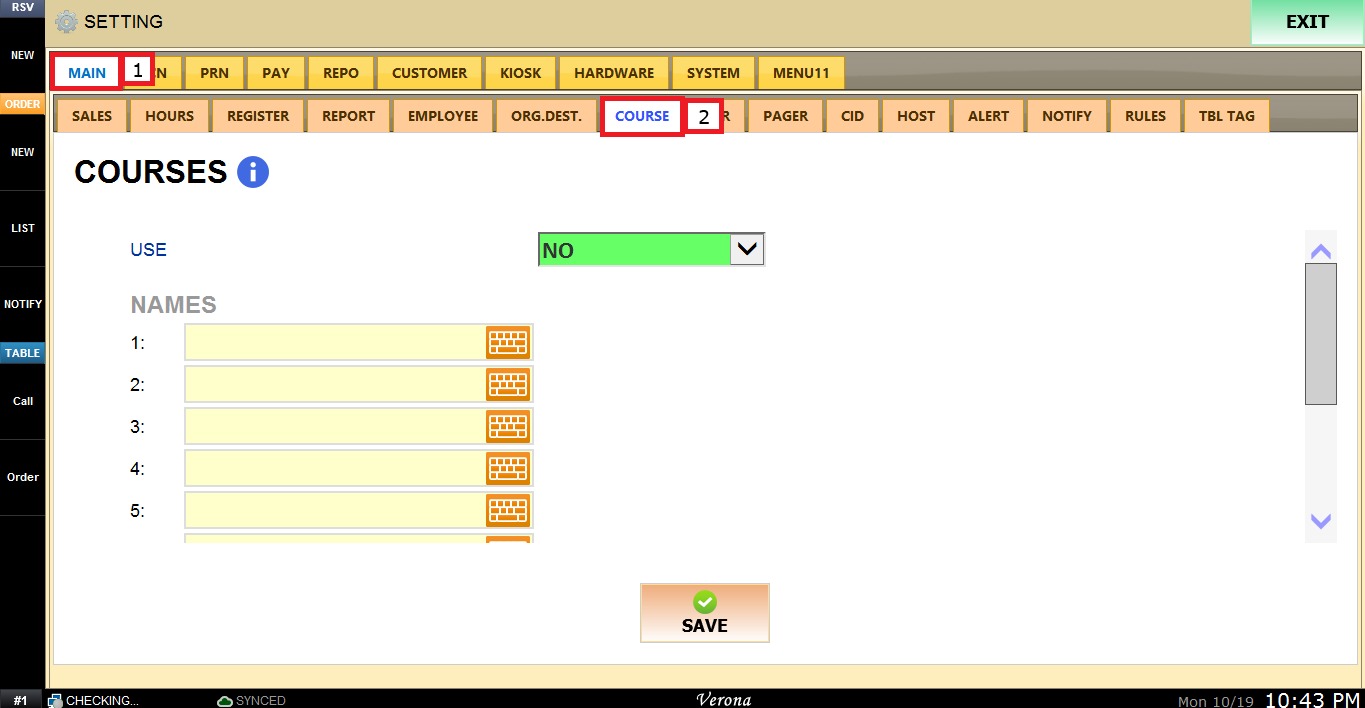
Use
This setting controls whether the Courses feature is enabled and how courses are applied when ringing up items.
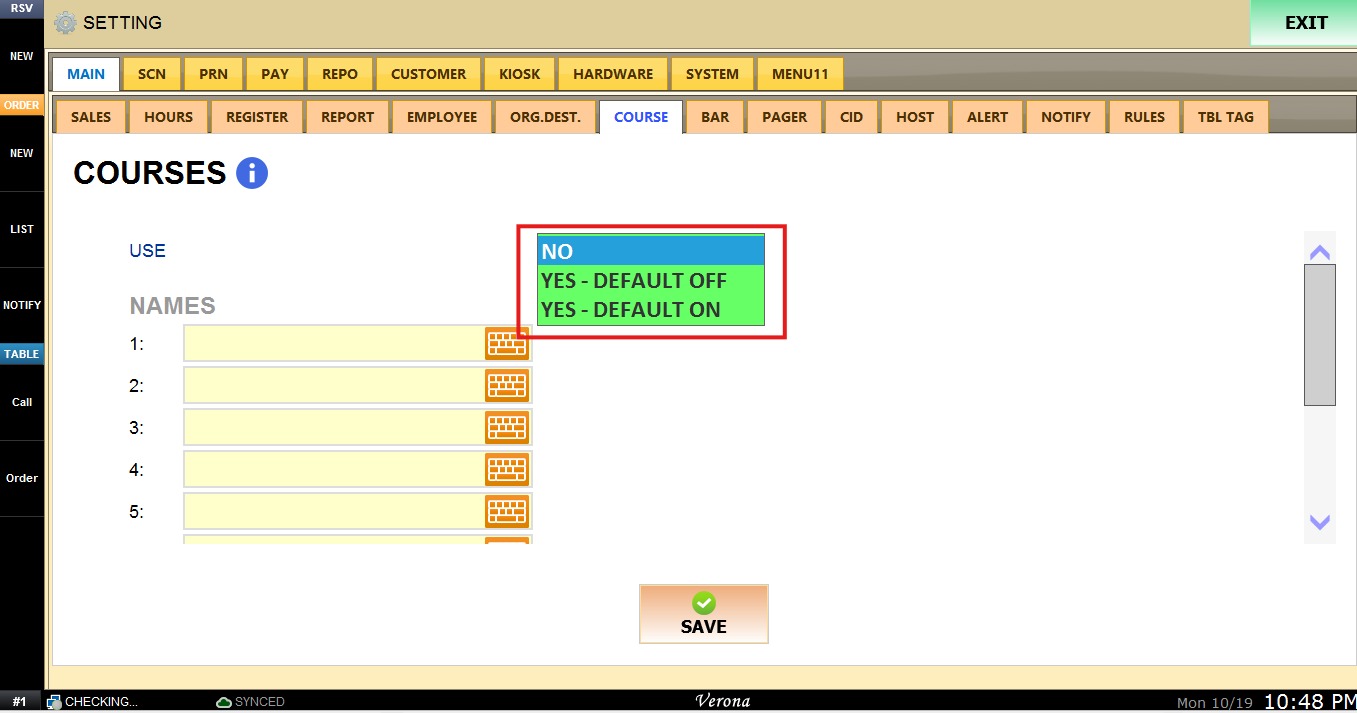
The USE dropdown menu has the following options:
1. NO: Disables the Courses feature.
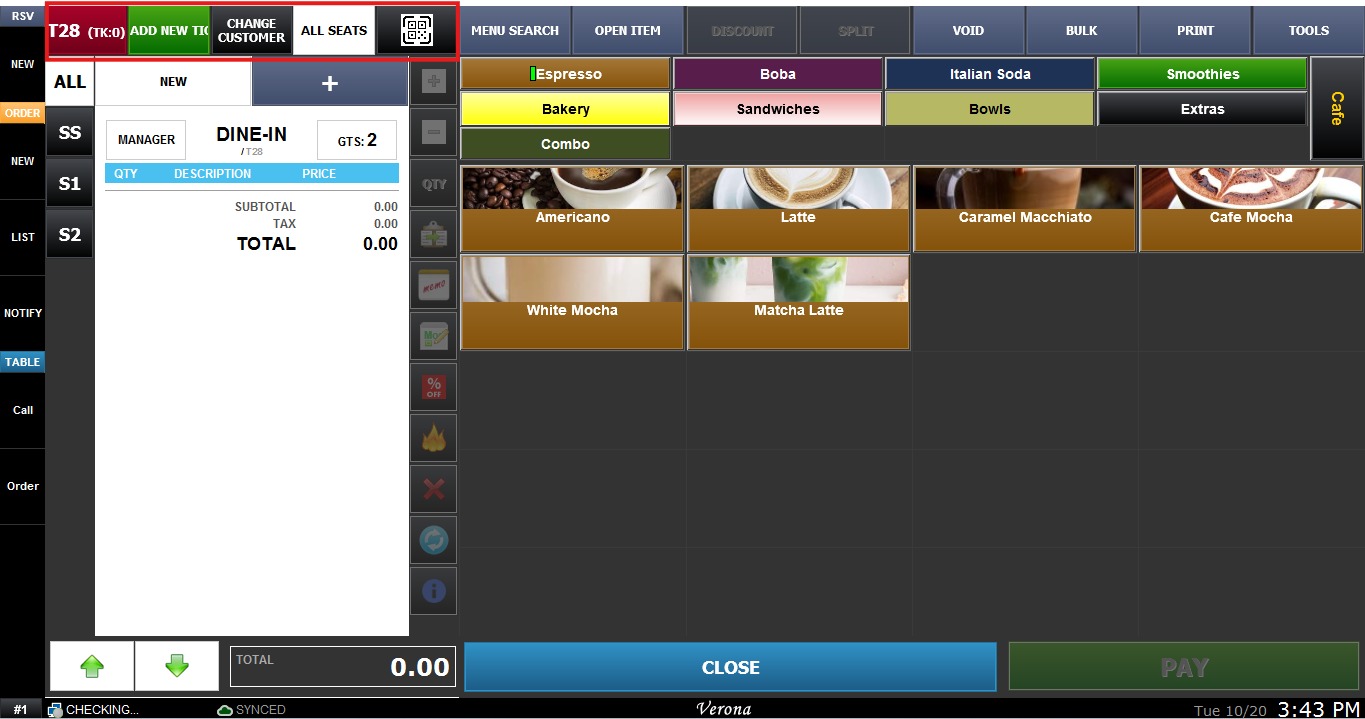
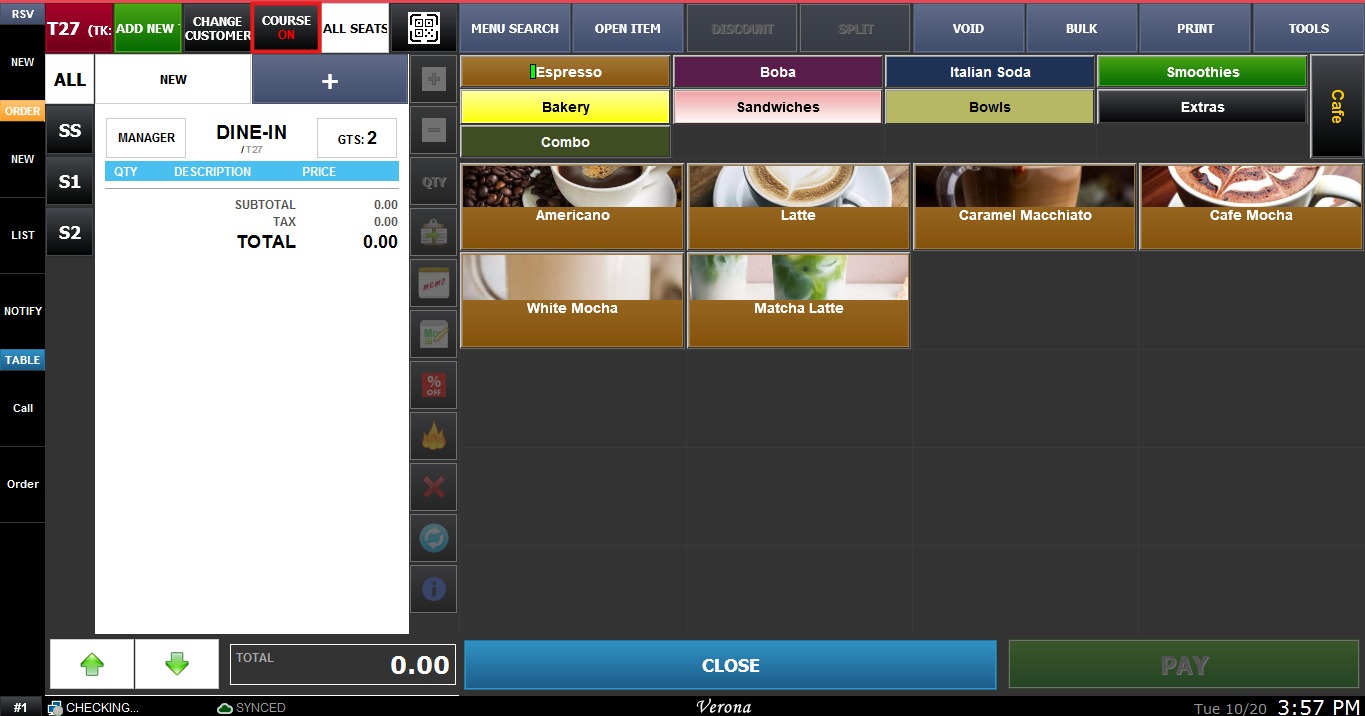
2. YES - DEFAULT OFF: Enables the Courses feature, but courses are not applied automatically. The server must activate them manually on the Sales screen for them to be shown.
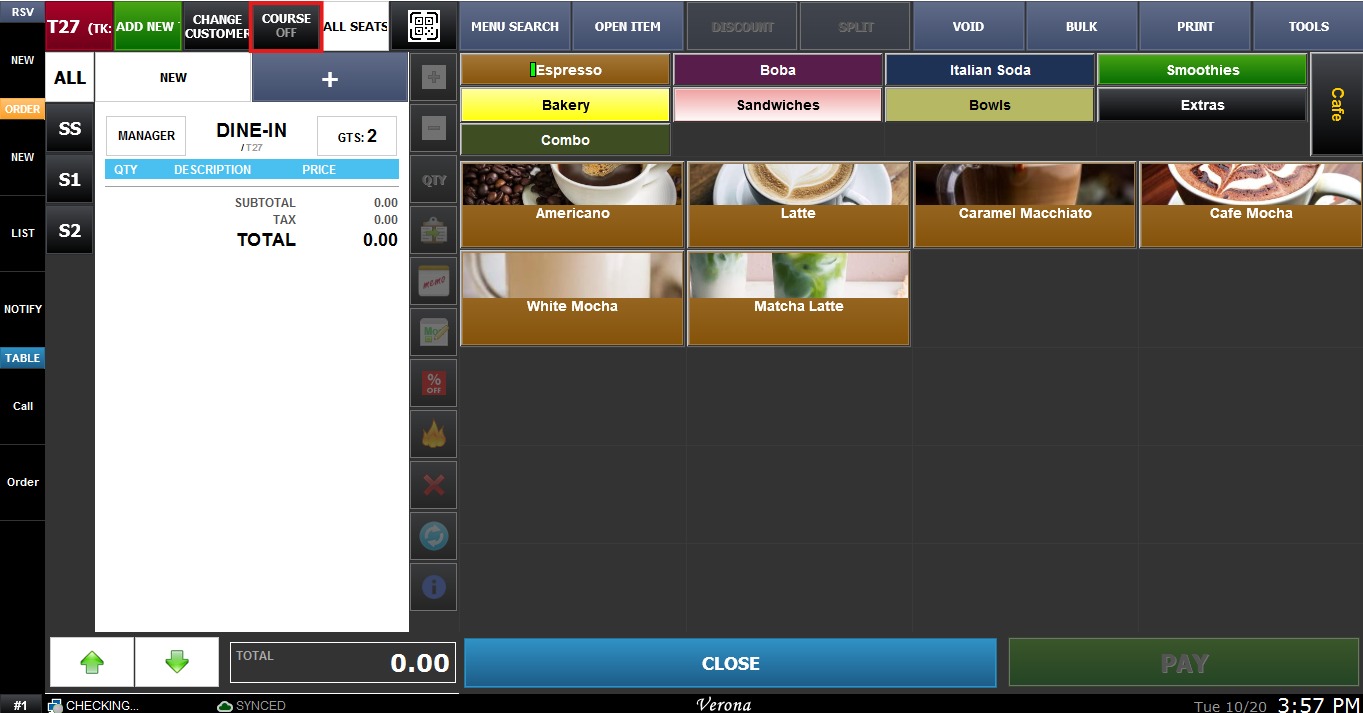
3. YES- DEFAULT ON: Enables the Courses feature and automatically assigns the courses when items are rung up.
Names
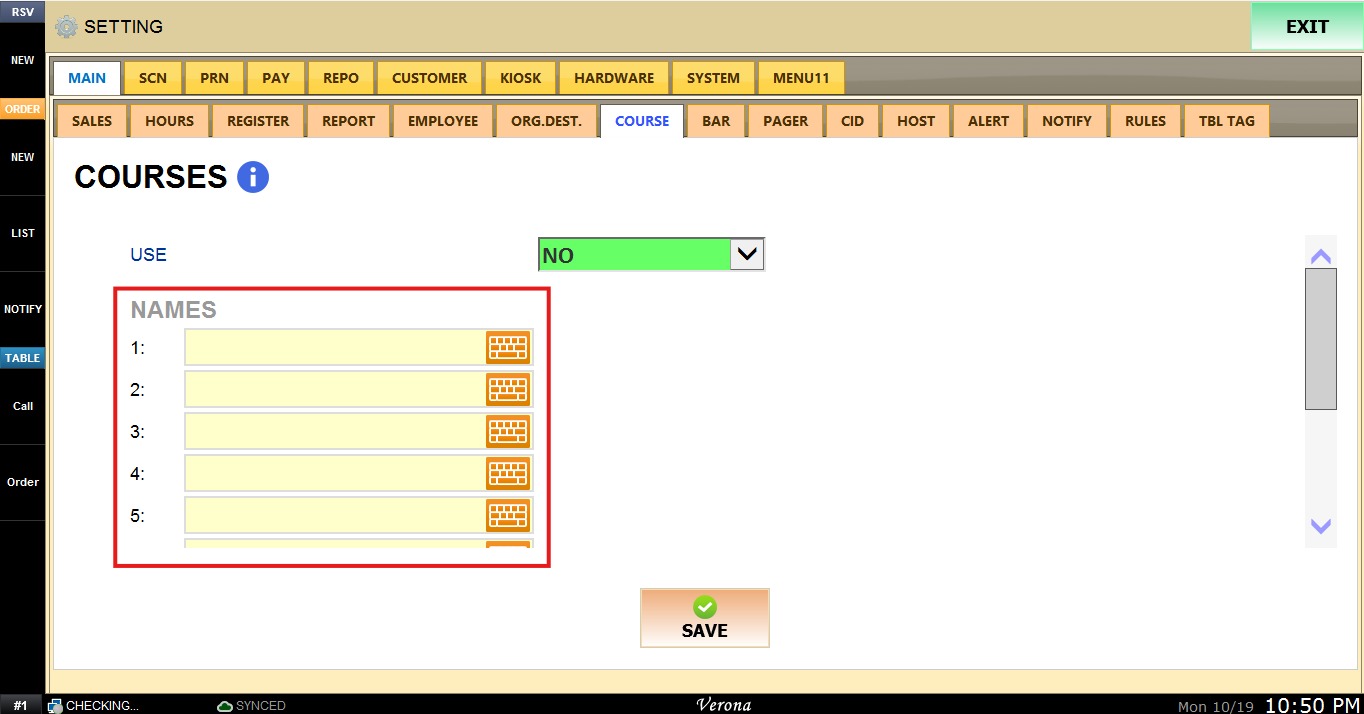
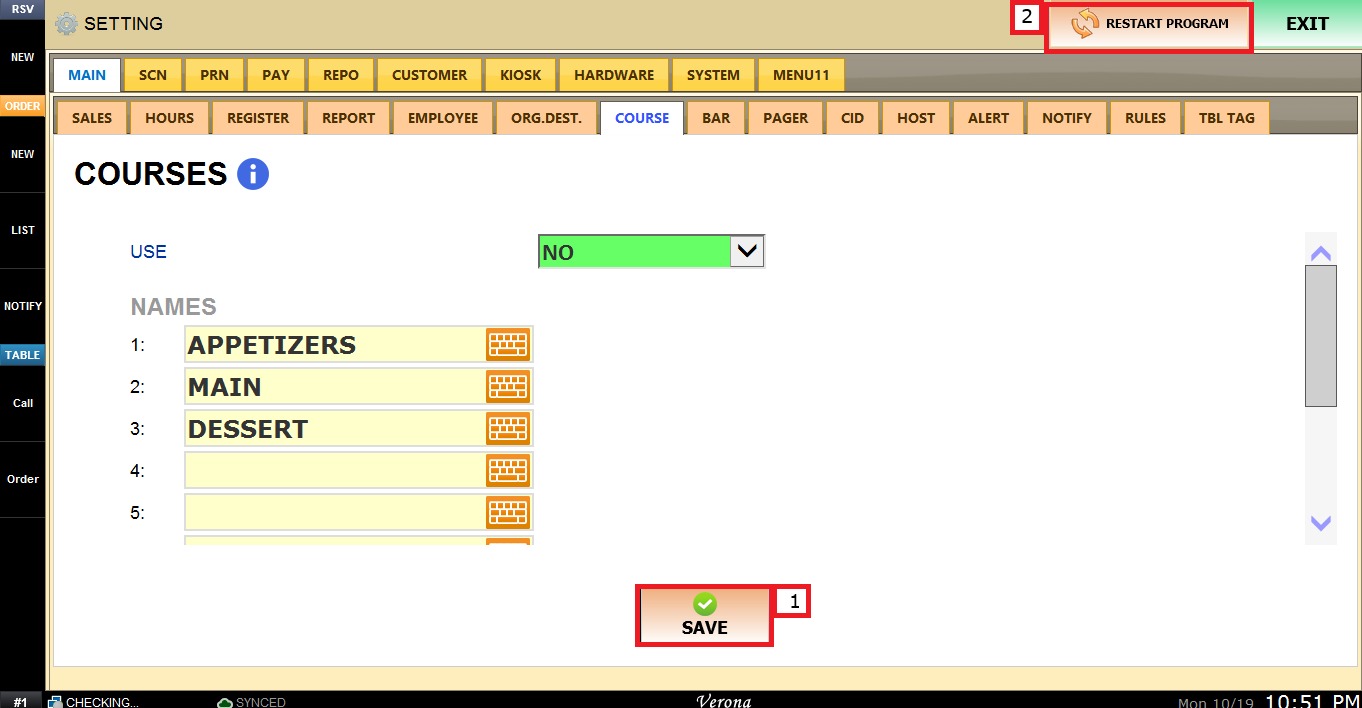
This section allows the user to create the courses. Click each numbered field, enter the name of the course using the on-screen keyboard, and repeat for each course needed. Up to 9 courses can be created, and they are displayed in the order they are numbered.
Click SAVE and RESTART PROGRAM to apply the changes.
To learn How to assign a course to a menu item please refer to Course Items Guide or How to assign a course to a category.
To see how to use the course feature please refer to Courses Operation Guide.