Earning Details
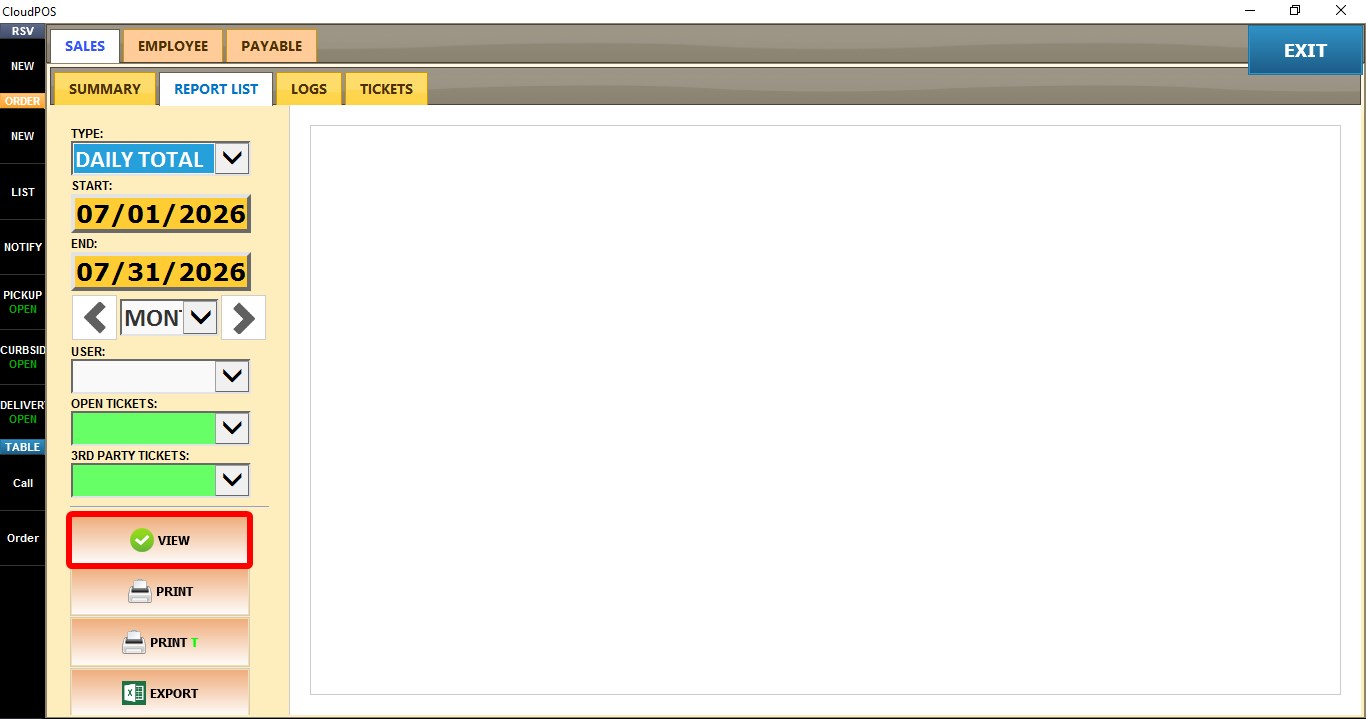
The Earning Detail report displays each employee work session together with the tips earned during that shift. Use this report to review clock-in/out times, worked hours, and tip earnings.
MAIN SCREEN > MENU > REPORTS > USER > REPORT LIST
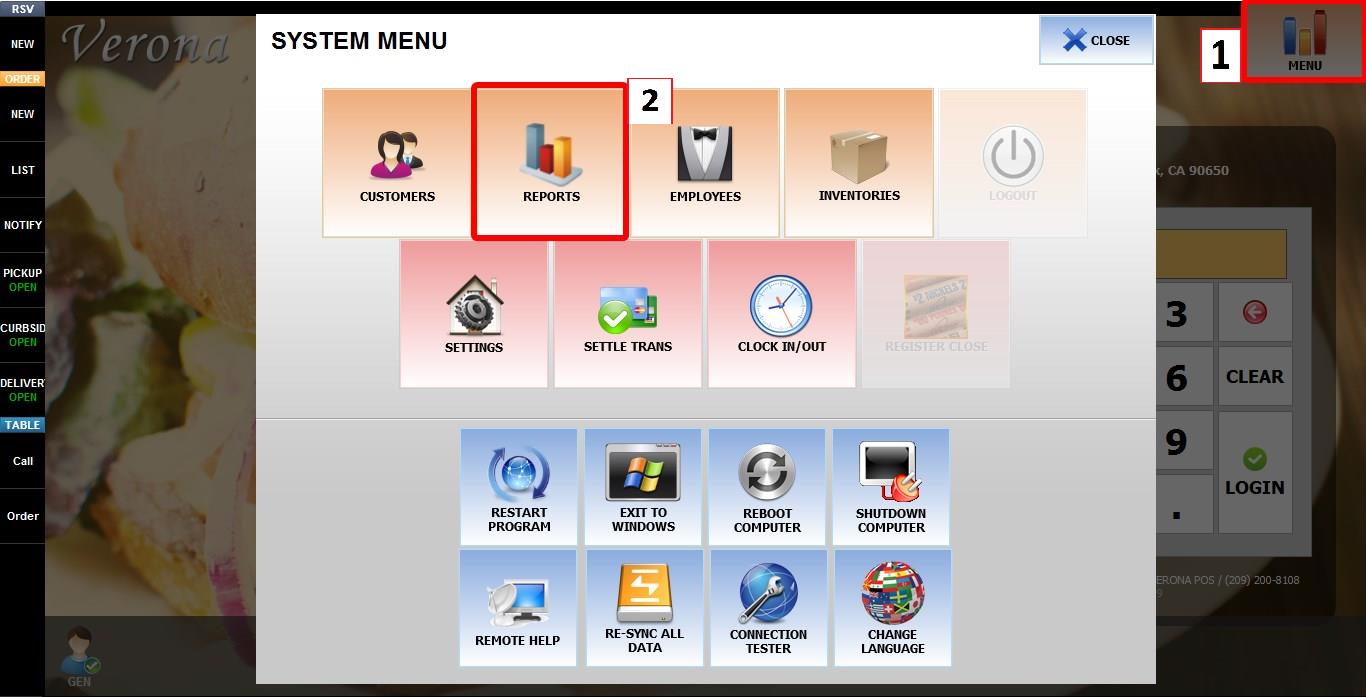
From the MAIN SCREEN, click MENU, then select REPORTS.
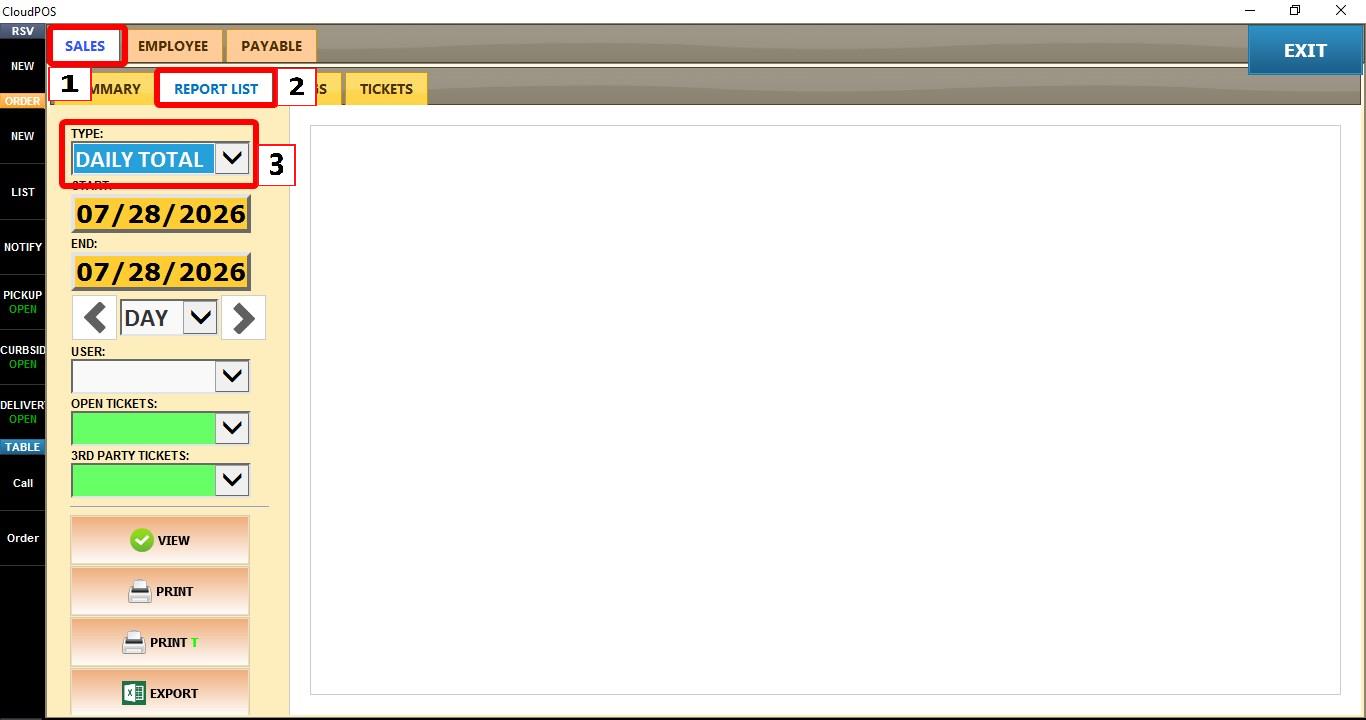
Open the SALES tab, then click REPORT LIST. Click the TYPE dropdown.
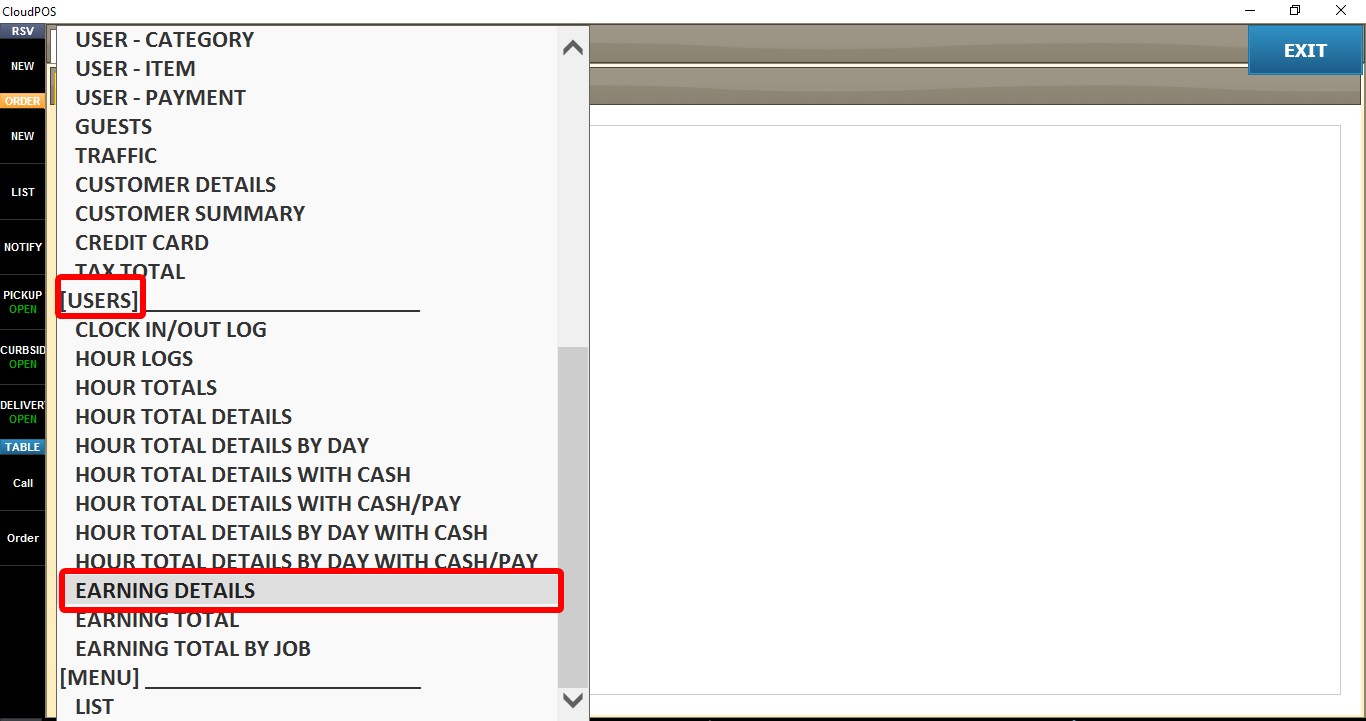
Select EARNING DETAIL.

Click VIEW to display the report or after changing any filters to refresh the results.

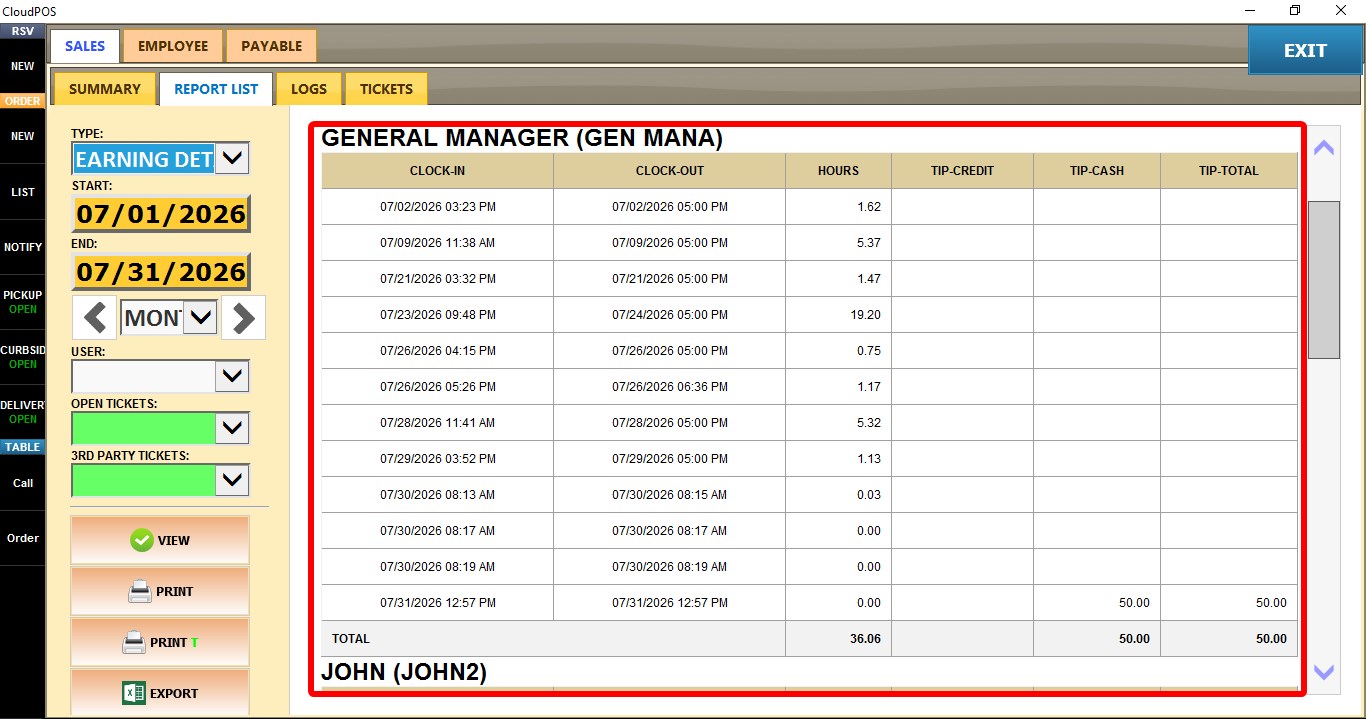
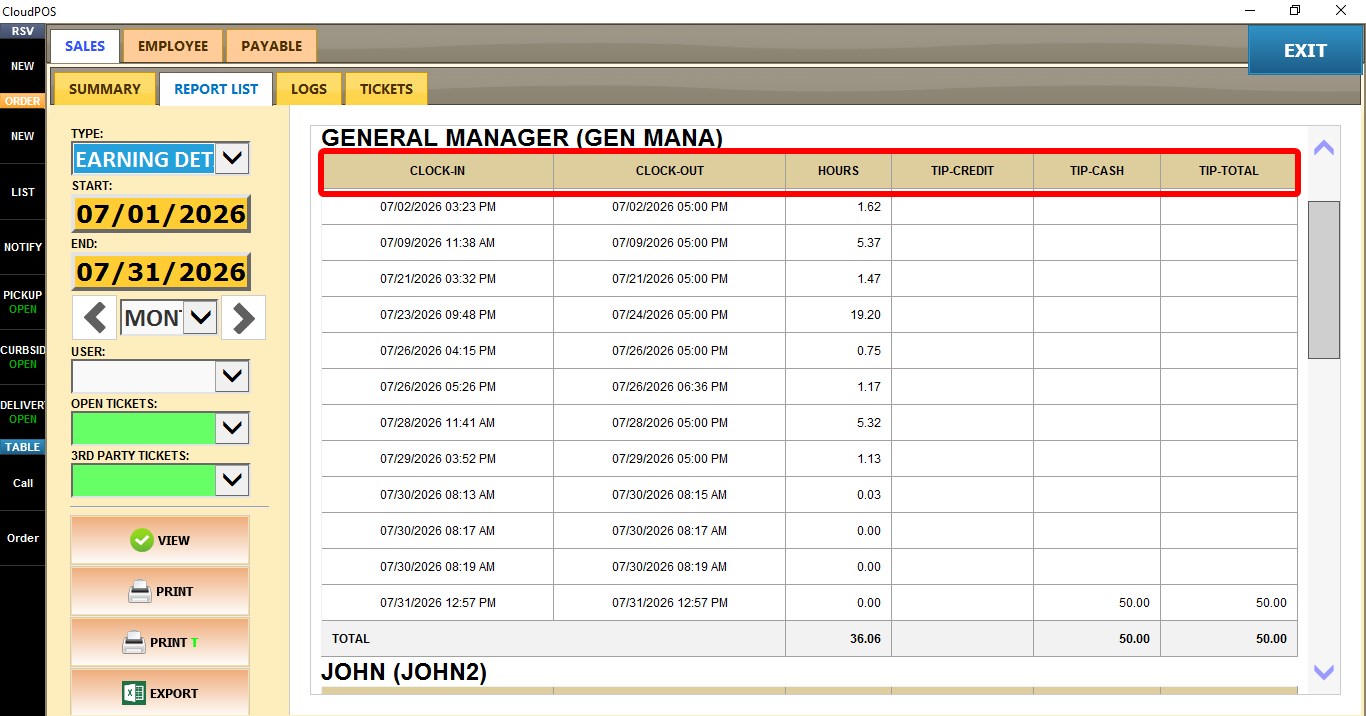
CLOCK-IN / CLOCK-OUT
Displays the employee's clock-in and clock-out time for each work session.
HOURS
Displays the total hours worked during the work session.
TIP-CREDIT
Displays the total credit card tips received.
TIP-CASH
Displays the total cash tips received.
TIP-TOTAL
Displays the combined total of credit card and cash tips.

FILTERS
START / END
Allows you to select a custom date range for the report.
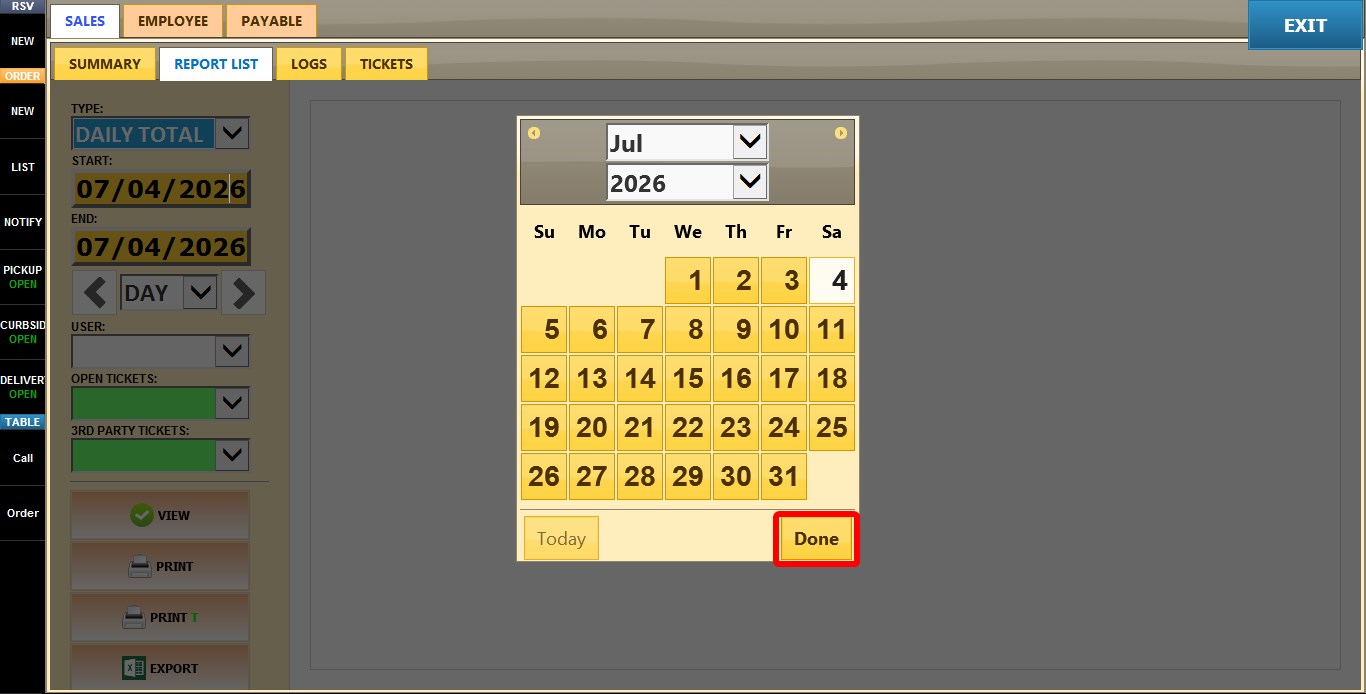
Click either START or END to open the calendar.
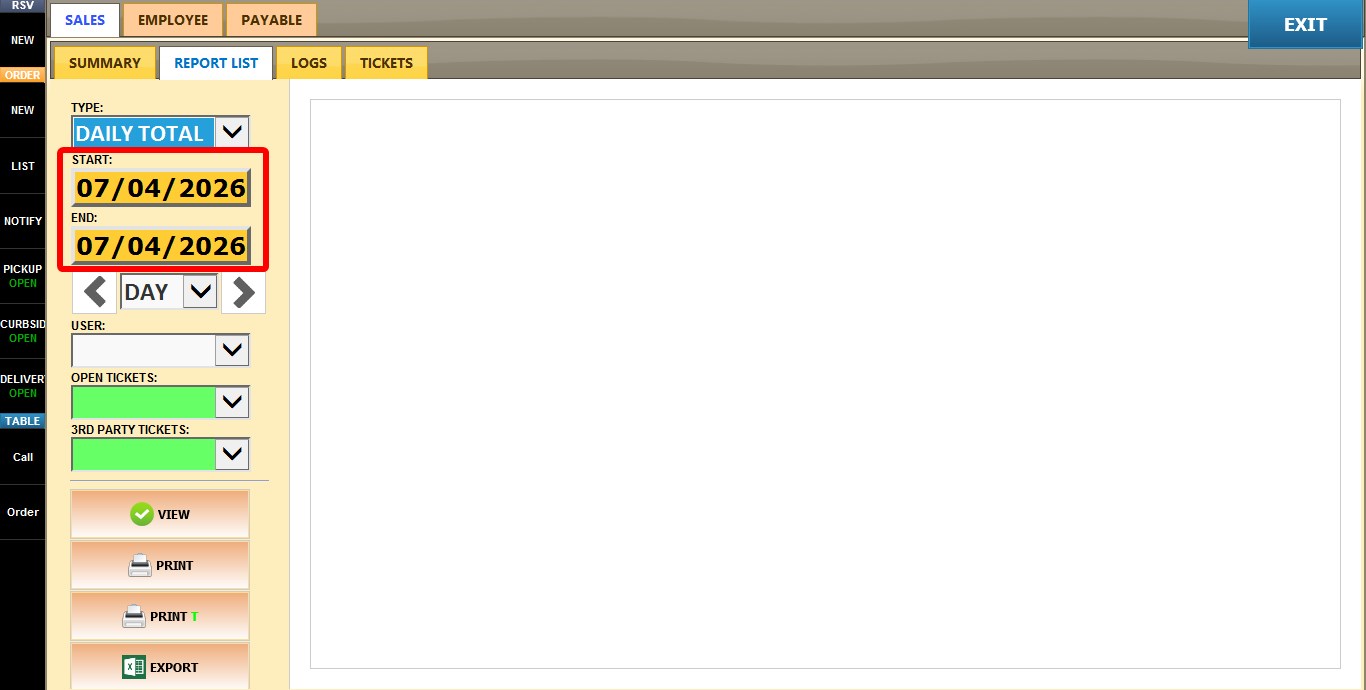
Select the desired date and click DONE.
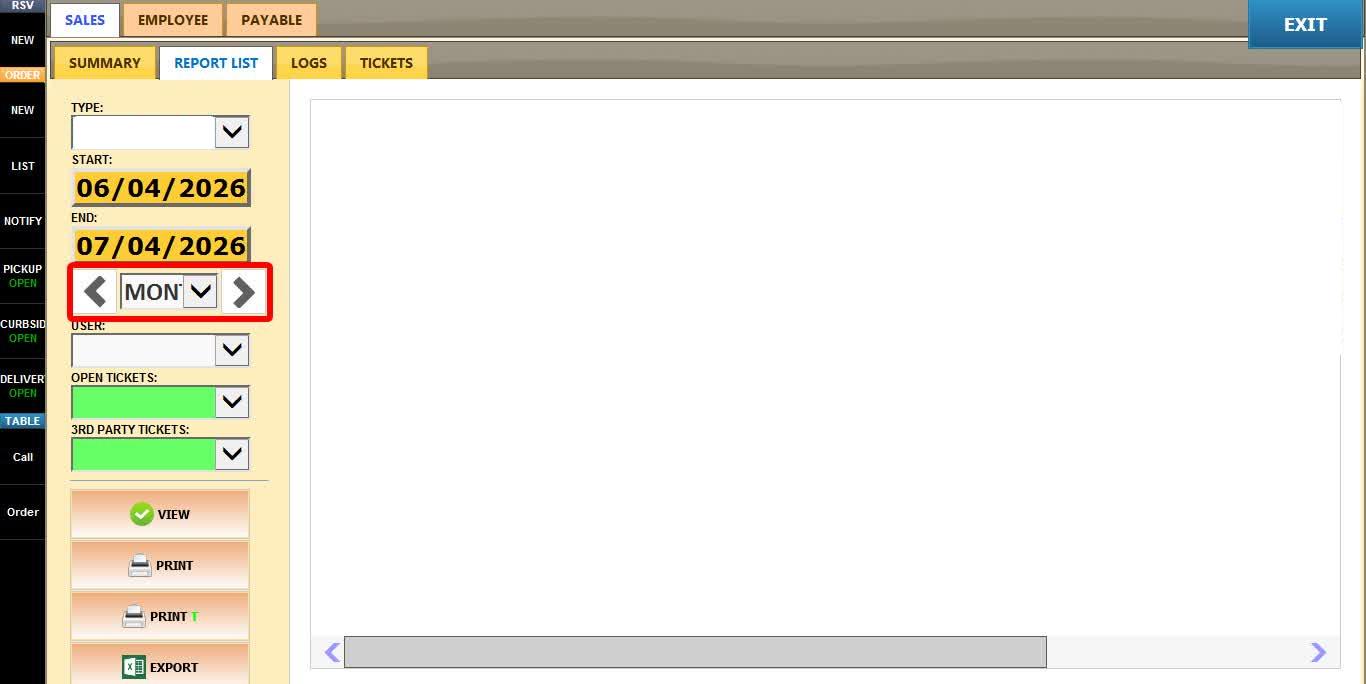
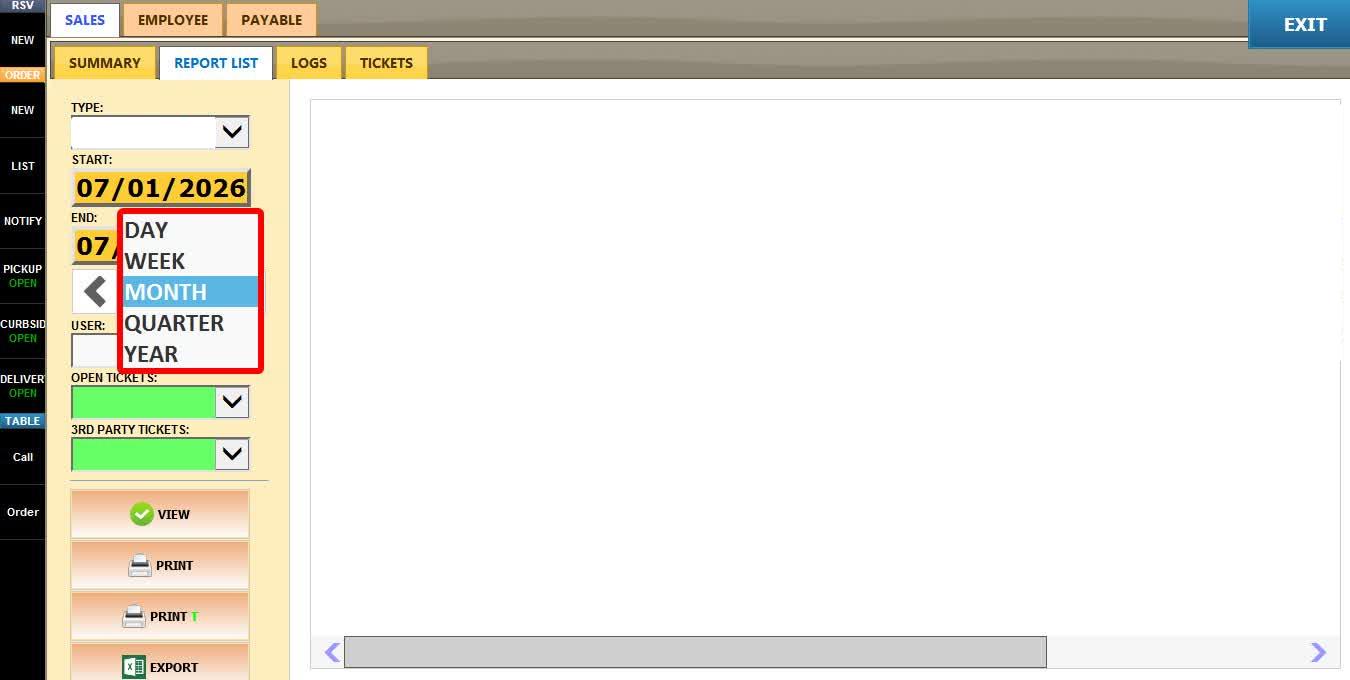
TIME FRAME
Allows you to quickly filter the report using predefined time periods.
Use the LEFT and RIGHT arrows to move backward or forward through the selected period.
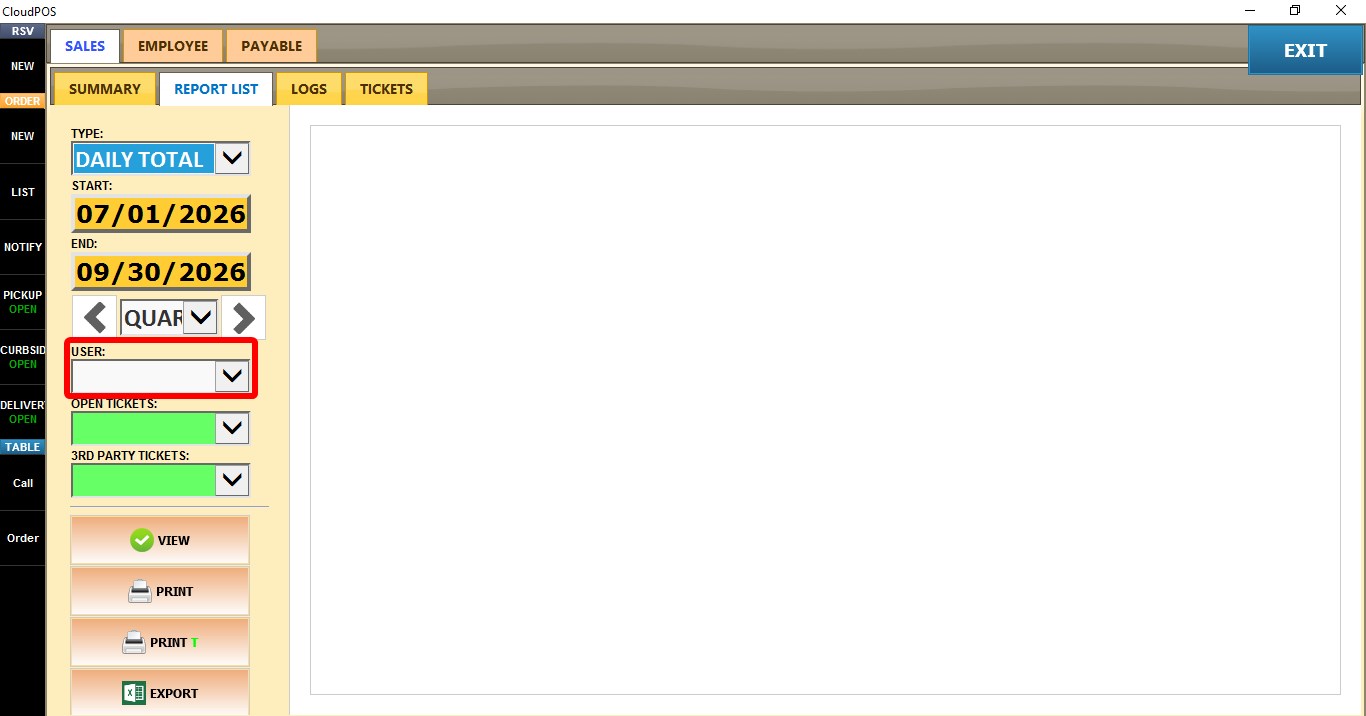
USER
Displays earnings for a specific employee.
Leave the field blank to include all employees, or select an employee from the dropdown.
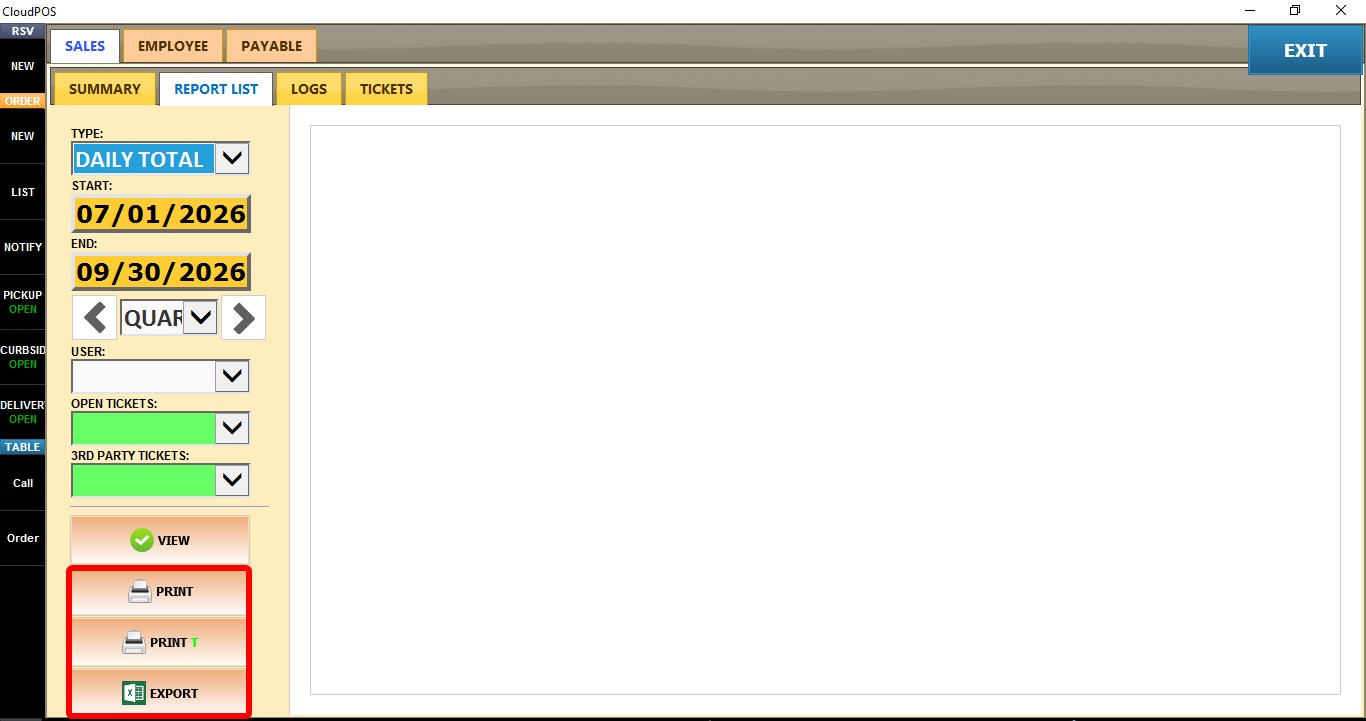
You can also PRINT, PRINT T, EXPORT, or EMAIL the report for record keeping, sharing, or further analysis.