Screen
The TERMINAL settings configure the terminal type and adjust the layout and scaling of the POS interface.
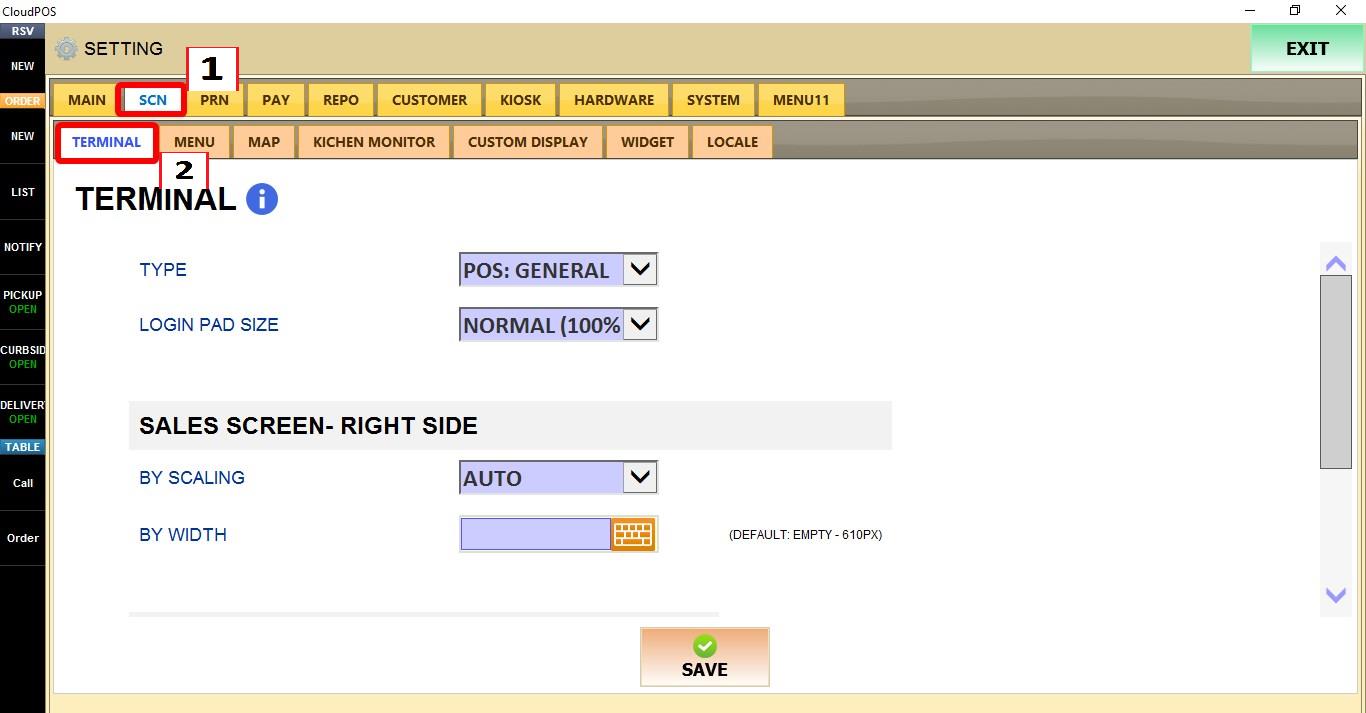
MENU > SETTINGS > SCN > TERMINAL
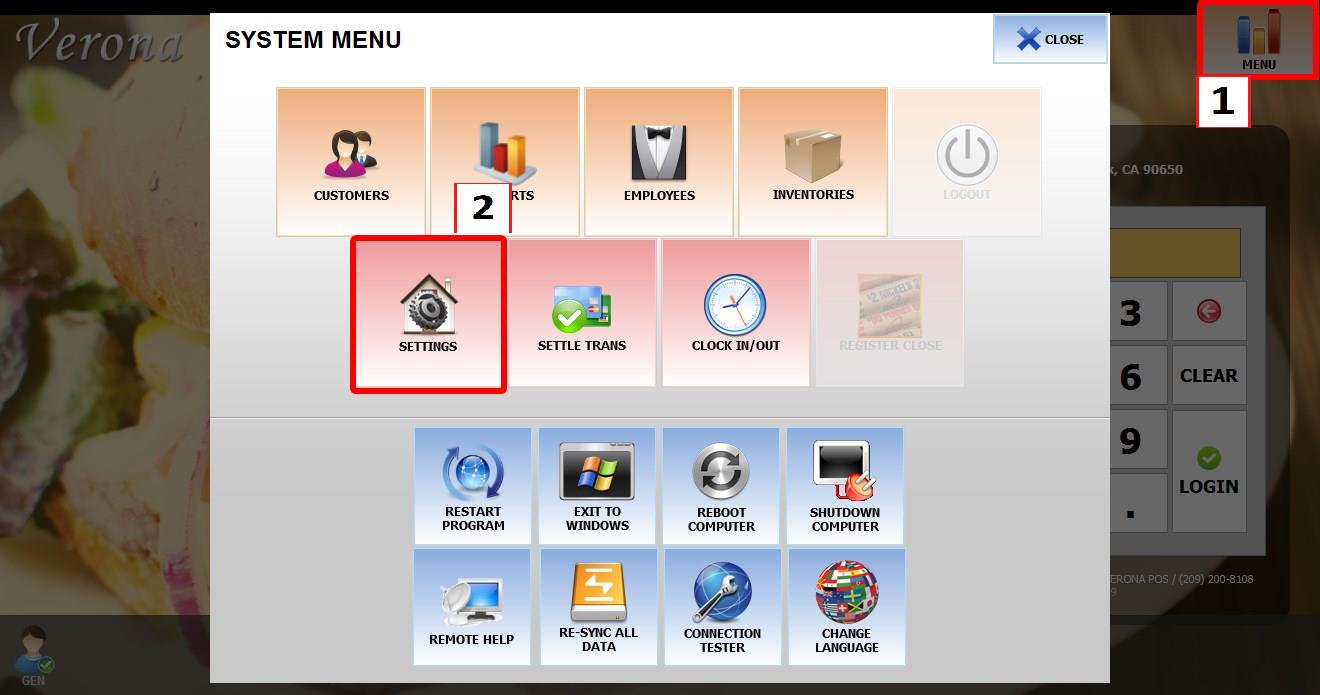
From the MAIN SCREEN, click MENU, then select SETTINGS.
Go to SCN > TERMINAL.
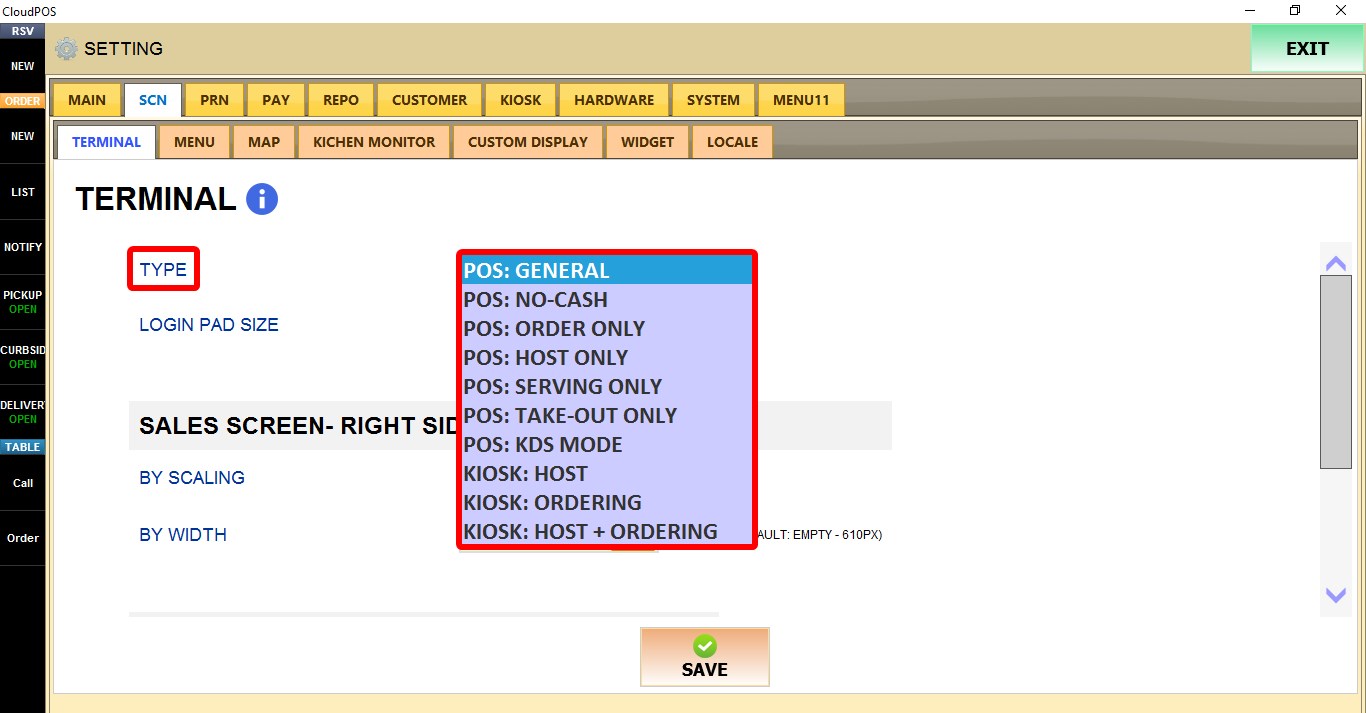
TYPE
Defines the role of the current terminal.
1. POS: GENERAL: Standard POS terminal with full functionality.
2. POS: NO-CASH: POS terminal that does not process cash payments.
3. POS: ORDER ONLY: Used for entering orders only.
4. POS: HOST ONLY: Used for host and seating functions.
5. POS: SERVING ONLY: Used primarily for table service.
6. POS: TAKE-OUT ONLY: Used for take-out orders.
7. POS: KDS MODE: Configures the terminal as a Kitchen Display System.
8. KIOSK: HOST: Configures the kiosk for host functions.
9. KIOSK: ORDERING: Configures the kiosk for self-ordering.
10. KIOSK: HOST + ORDERING: Enables both host and self-ordering functions.
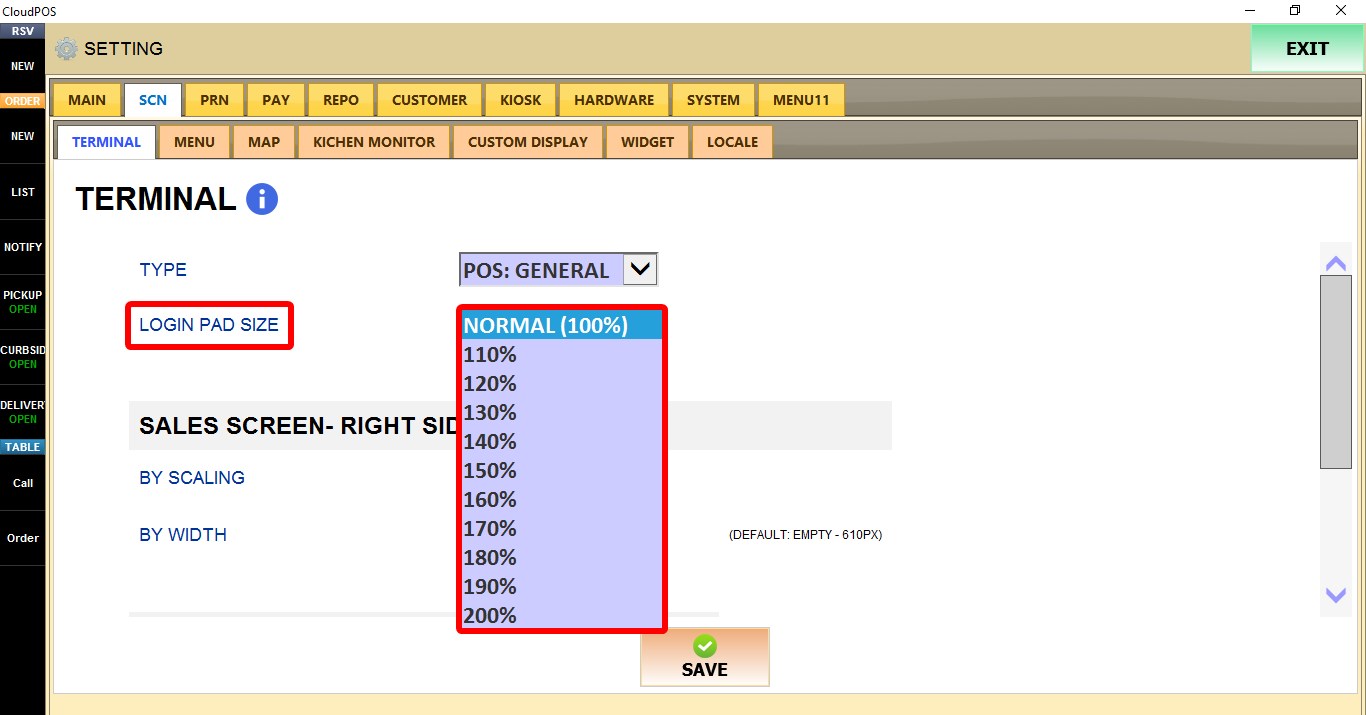
LOGIN PAD SIZE
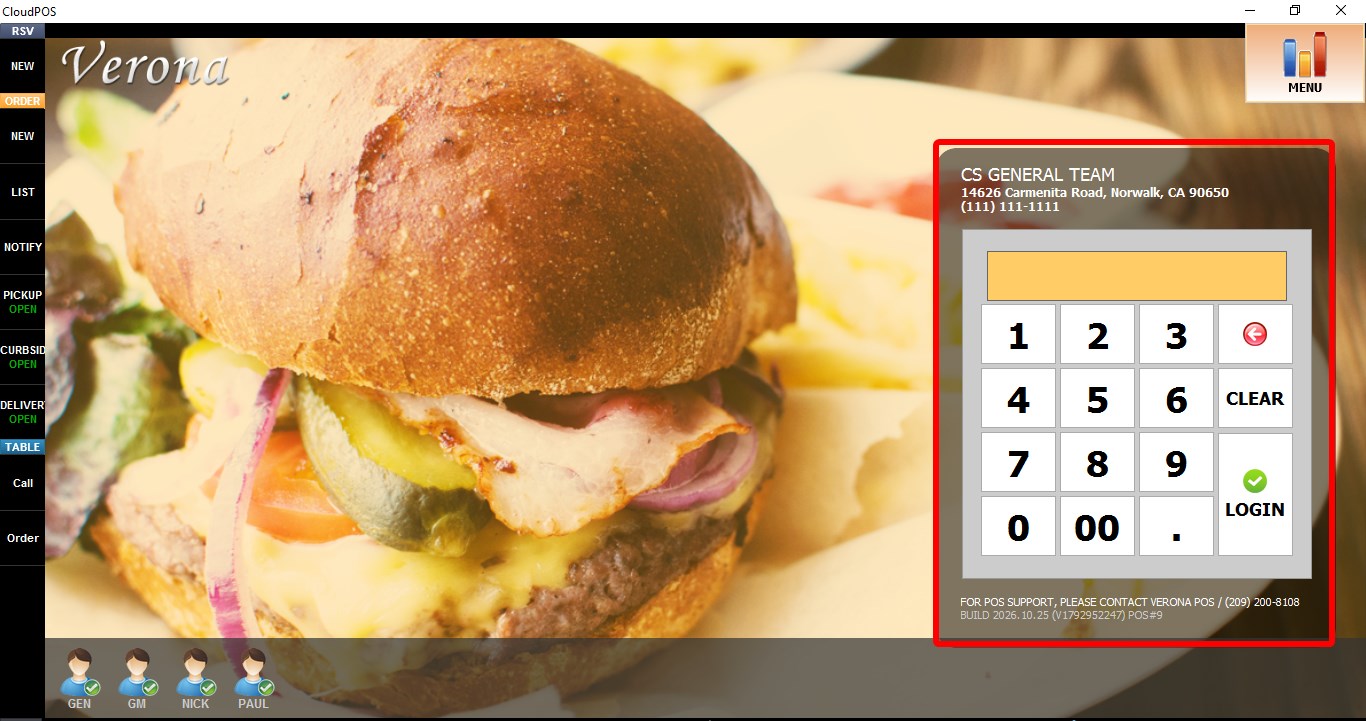
Controls the size of the login keypad displayed on the Main Screen.
1. NORMAL (100%): Uses the default keypad size.
2. 110% - 200%: Enlarges the login keypad to the selected size.
SALES SCREEN - RIGHT SIDE
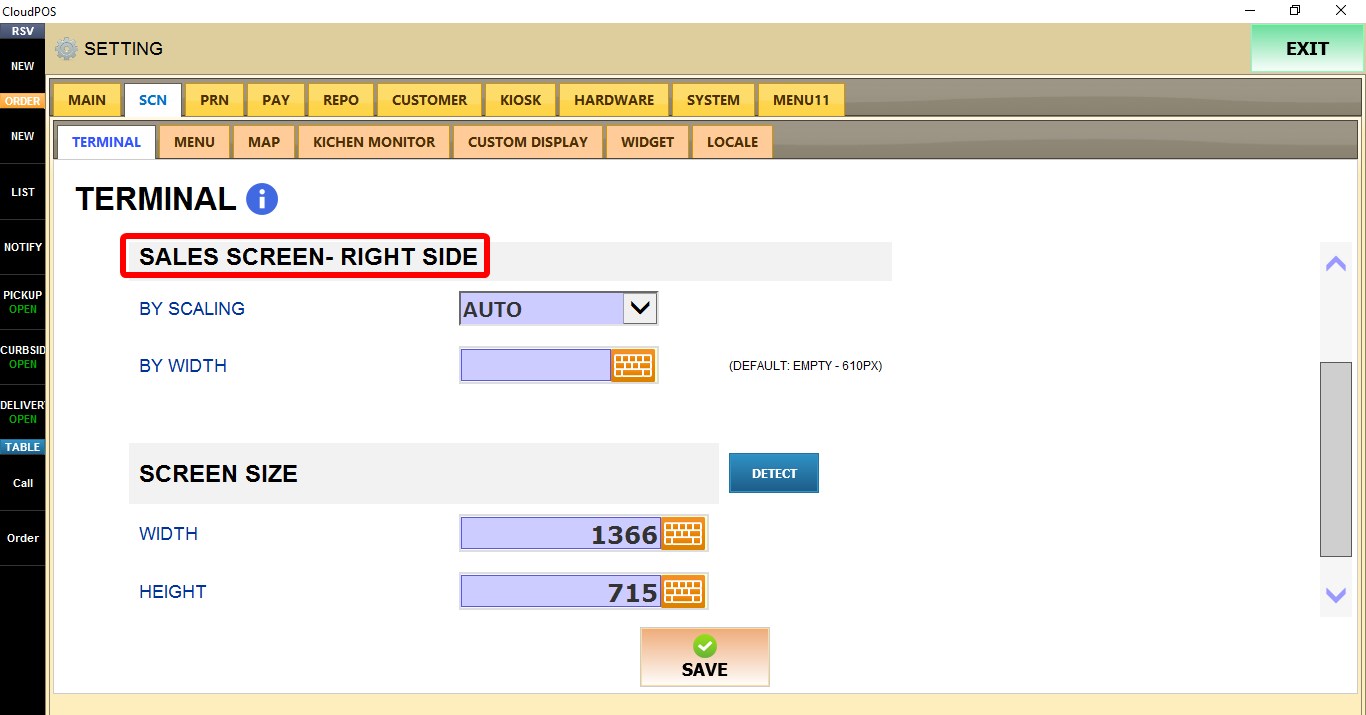
These settings control the size of the right panel on the Sales Screen, where menus, categories, and menu items are displayed.
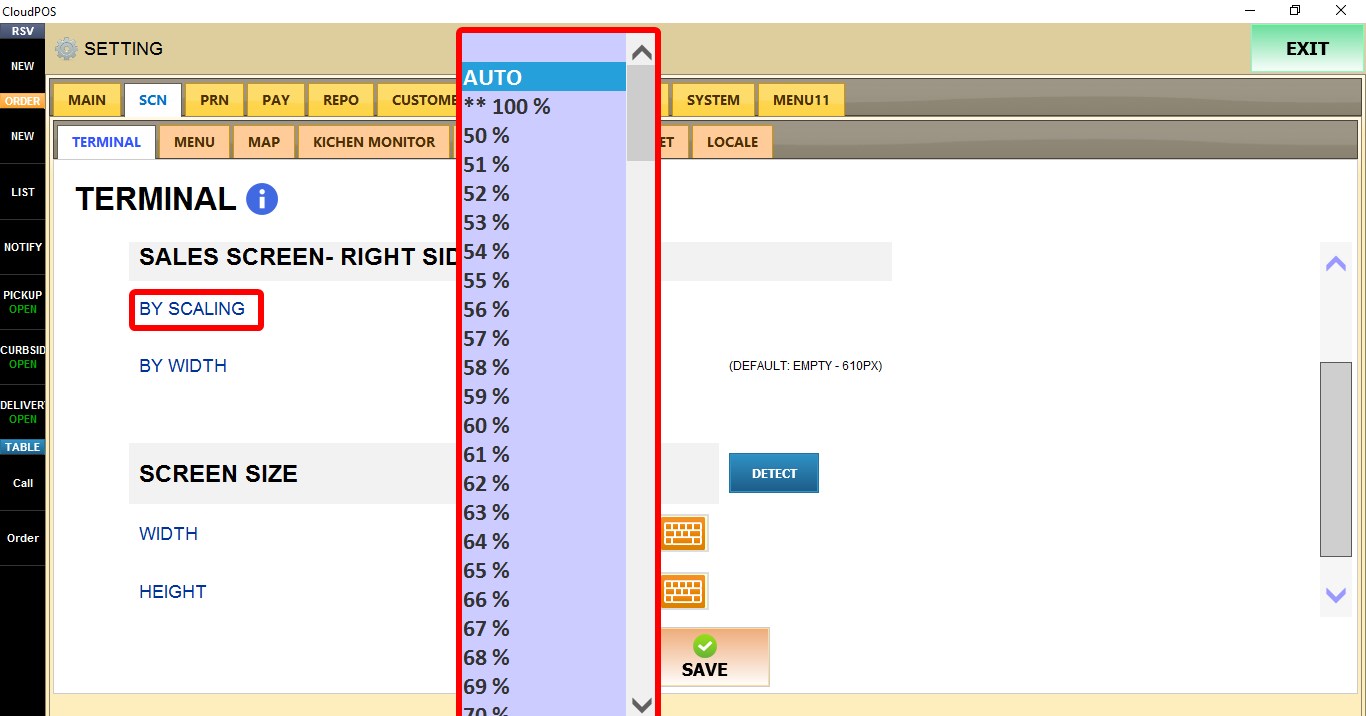
BY SCALING
Adjusts the size of the right panel using a scaling percentage.
1. AUTO: Automatically adjusts the panel size.
2. 50% - 200%: Uses the selected scaling percentage.
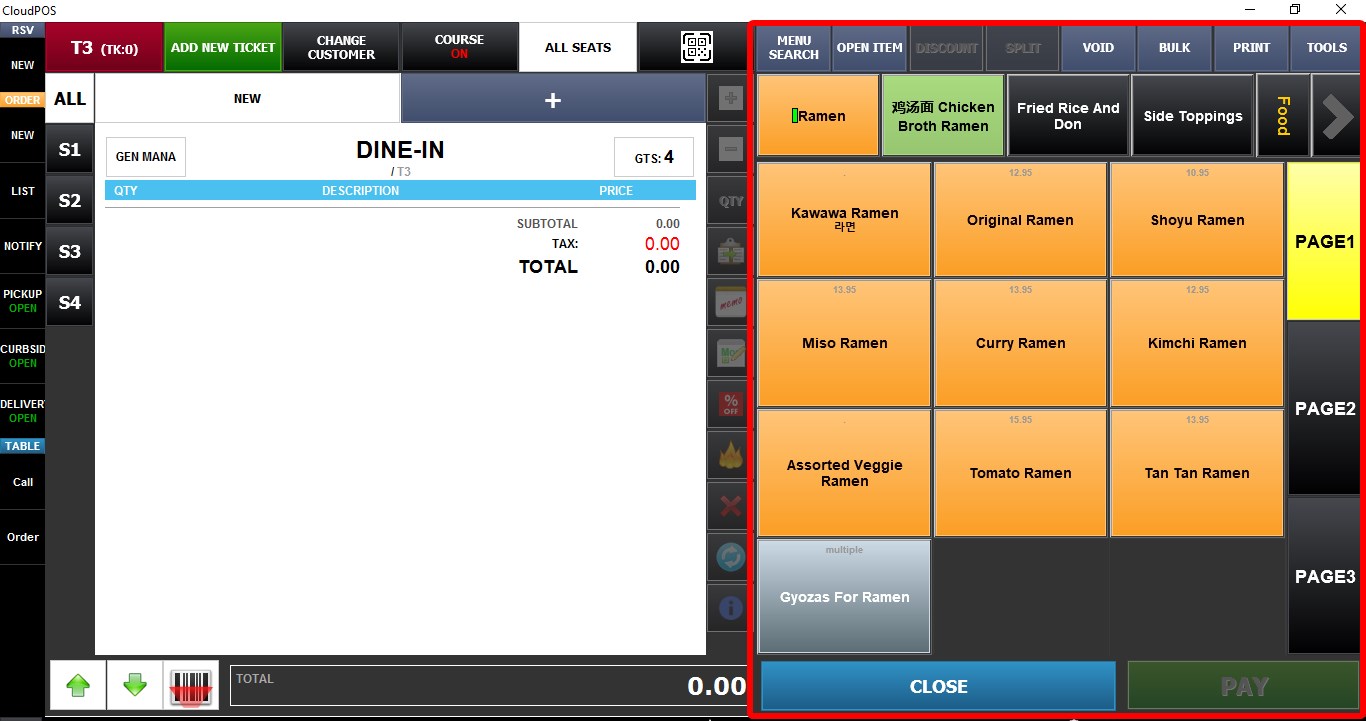
BY WIDTH
Allows a custom width value to be entered for the right panel.


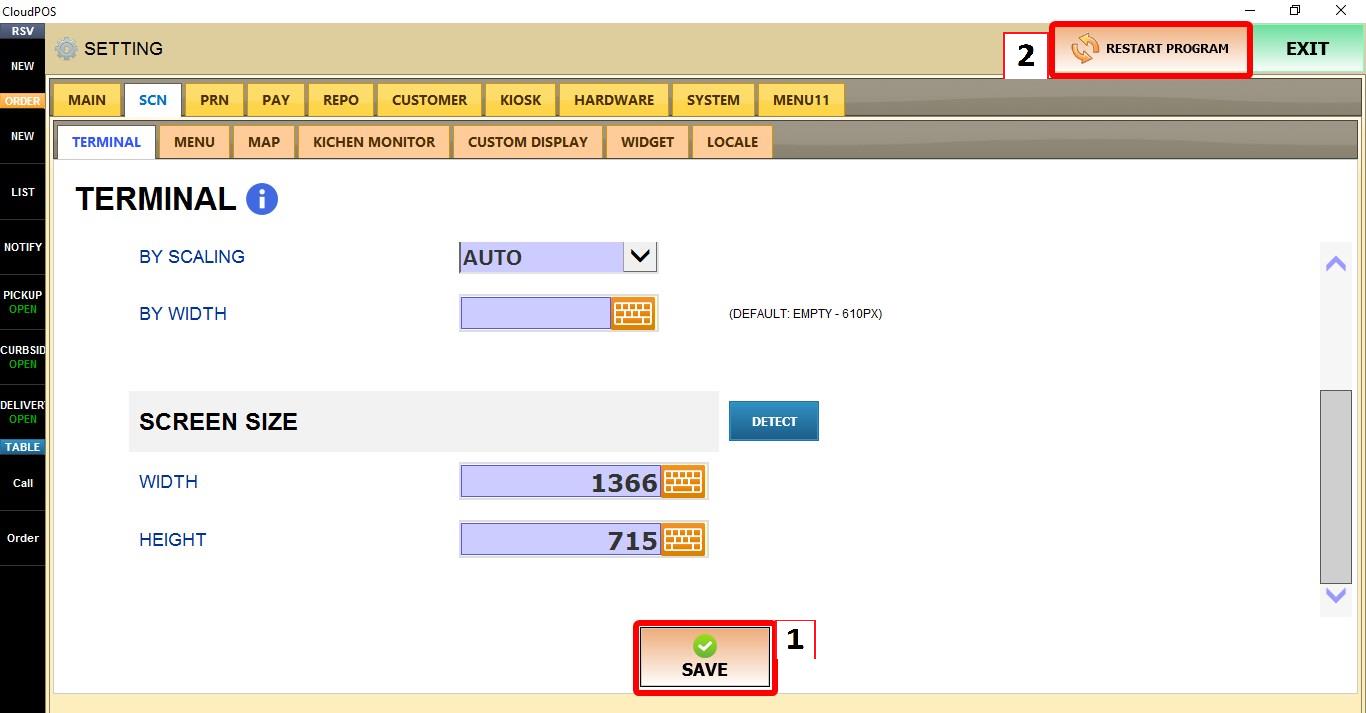
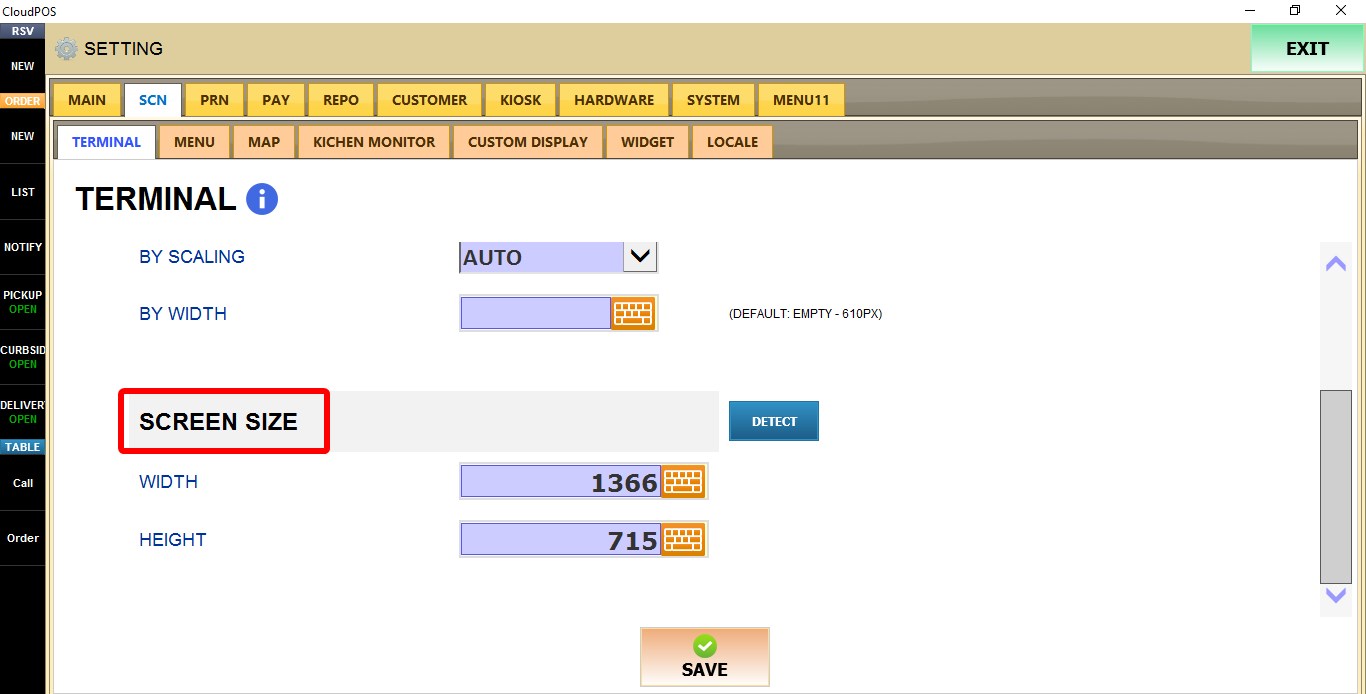
SCREEN SIZE
These settings define the screen resolution used by the POS.
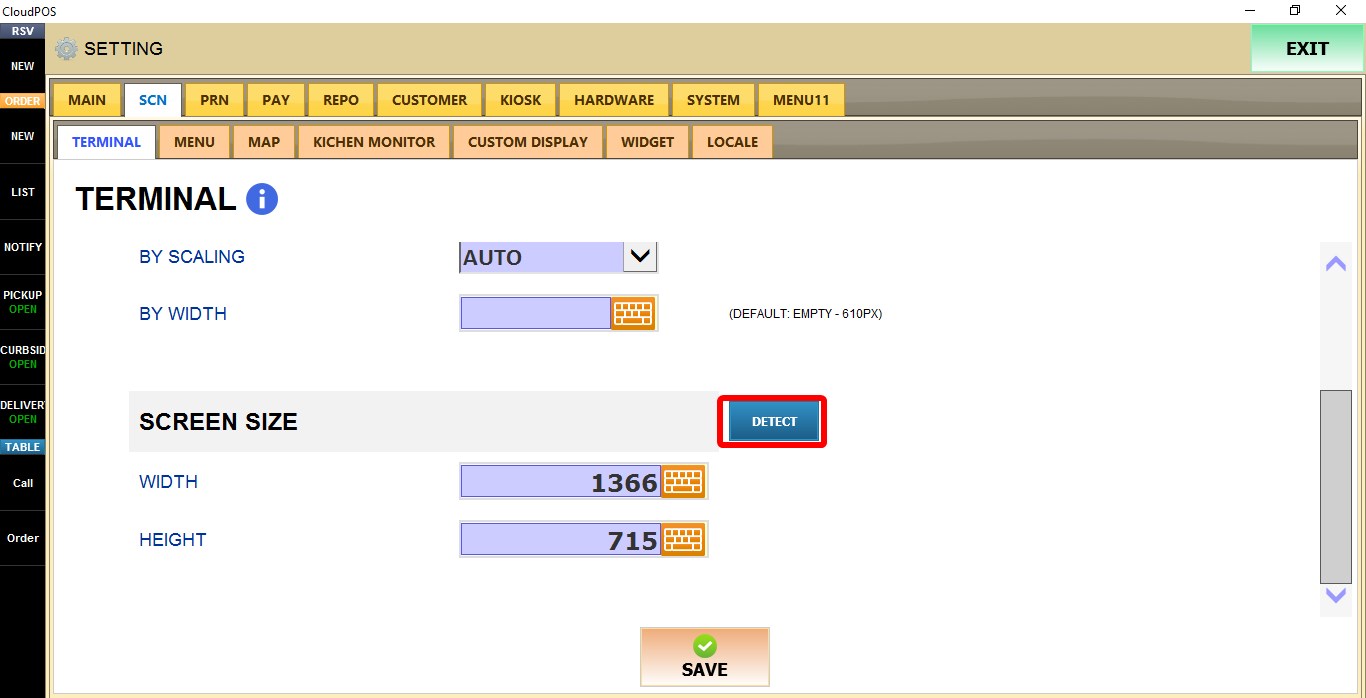
DETECT
Automatically detects and fills in the current screen resolution.
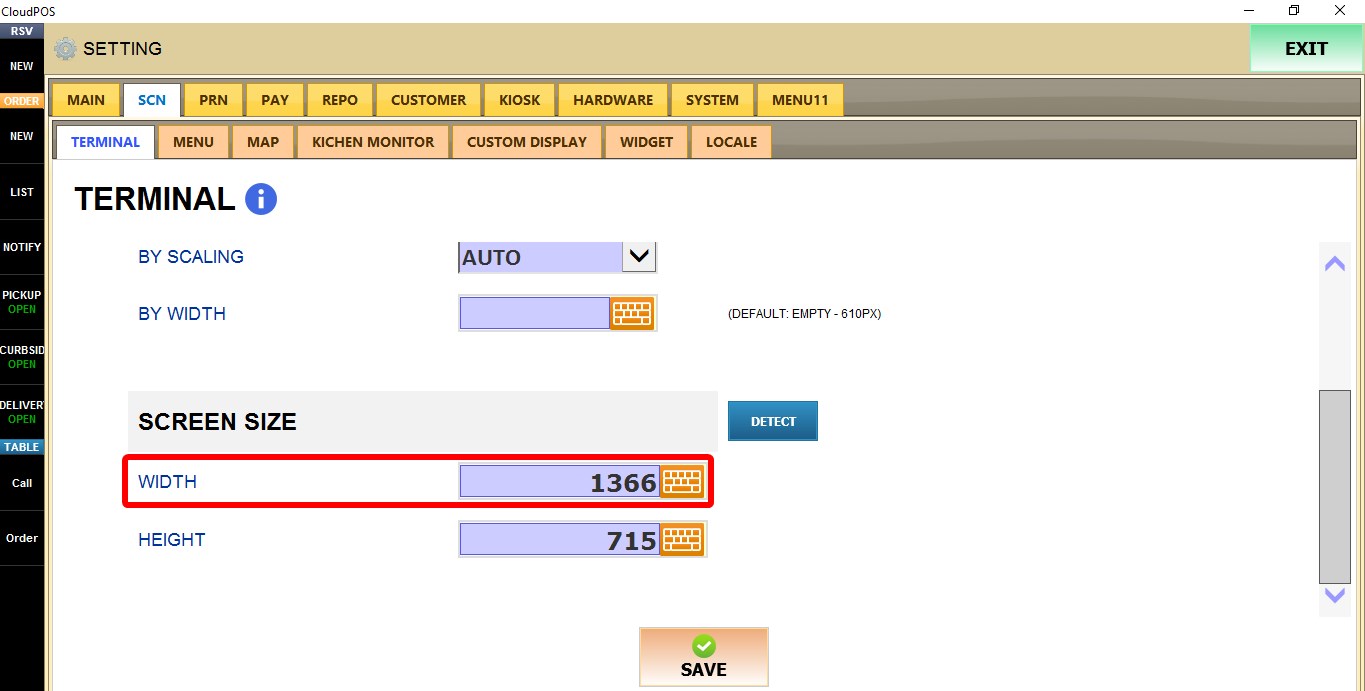
WIDTH
Enter the desired screen width.
HEIGHT
Enter the desired screen height.

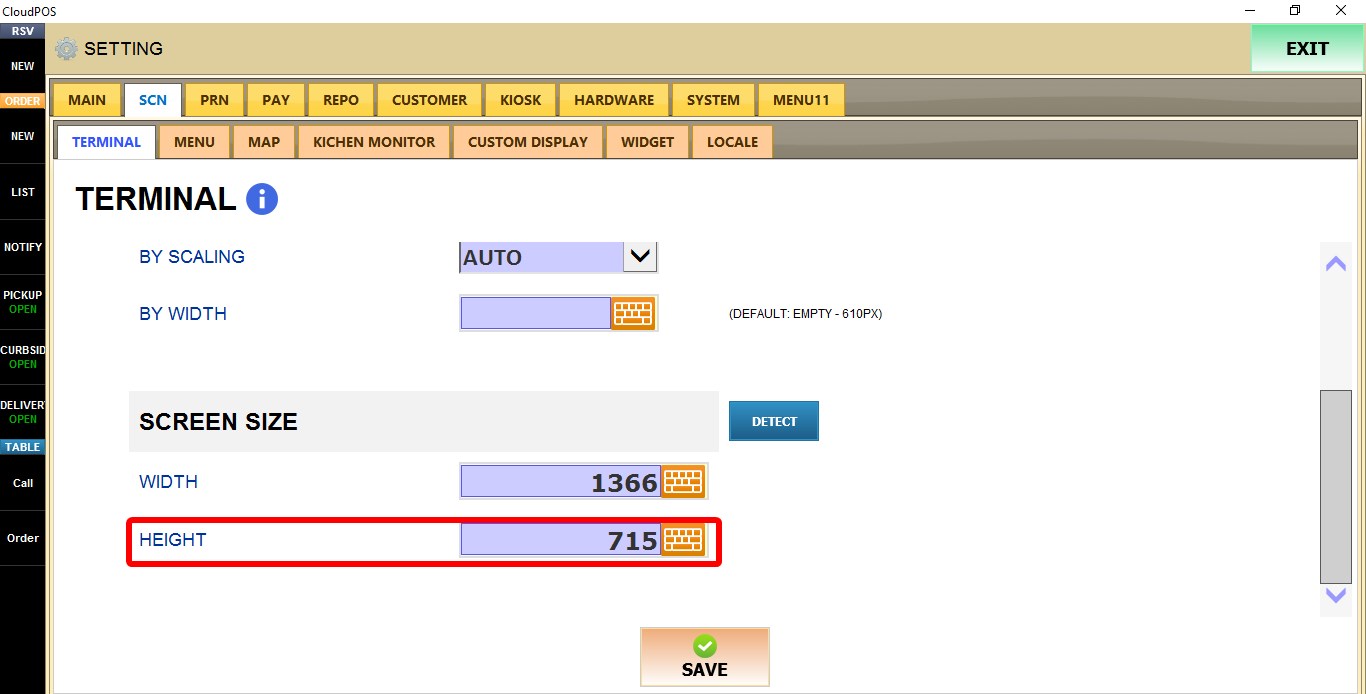
Click SAVE and restart the program to apply the changes.