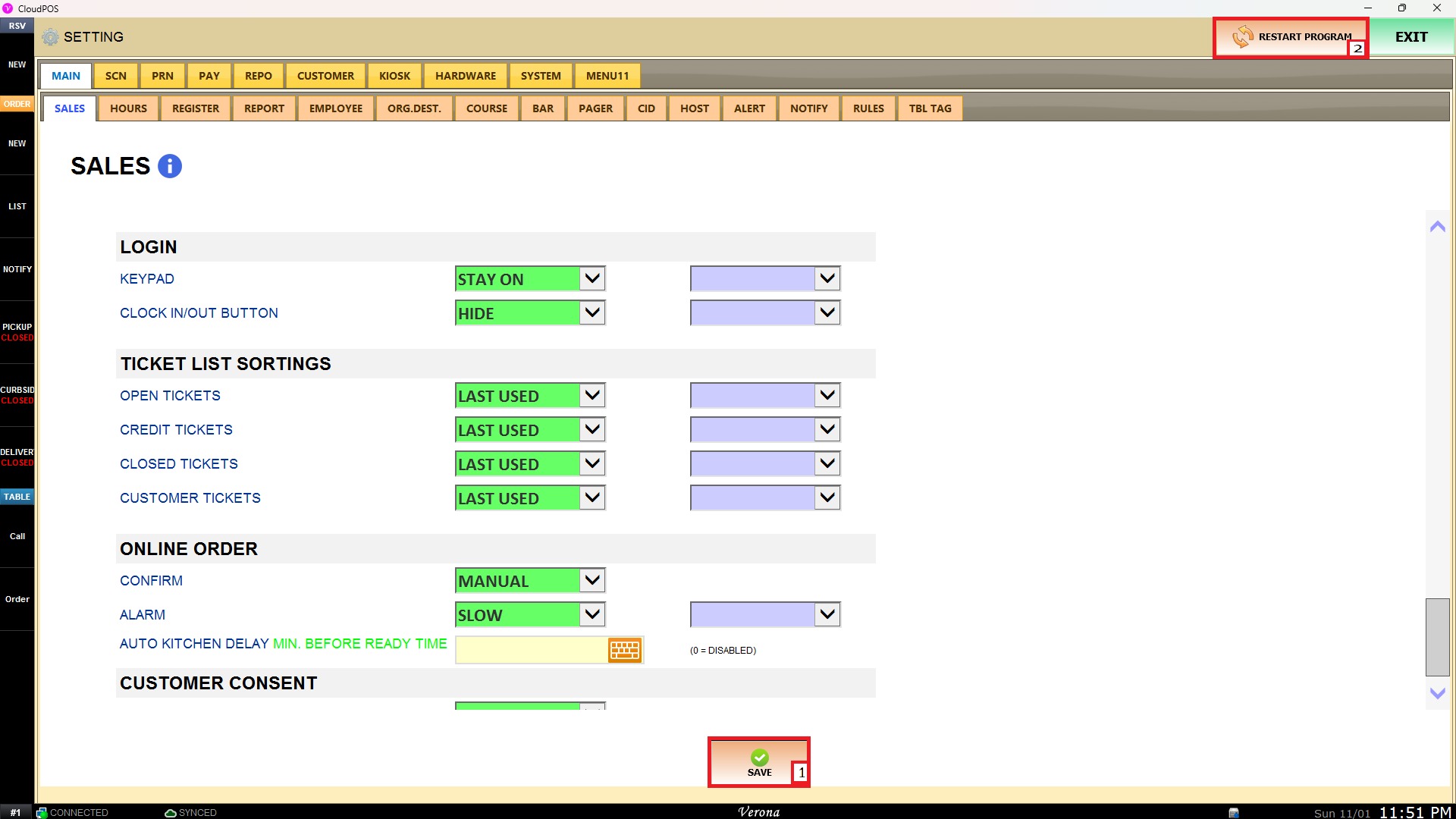
Login
The LOGIN settings section allows administrators to configure the main screen with login screen behavior, such as keypad display modes and whether the clock in/out button appears on the login interface. These settings help customize employee access options and screen security on the POS terminal.
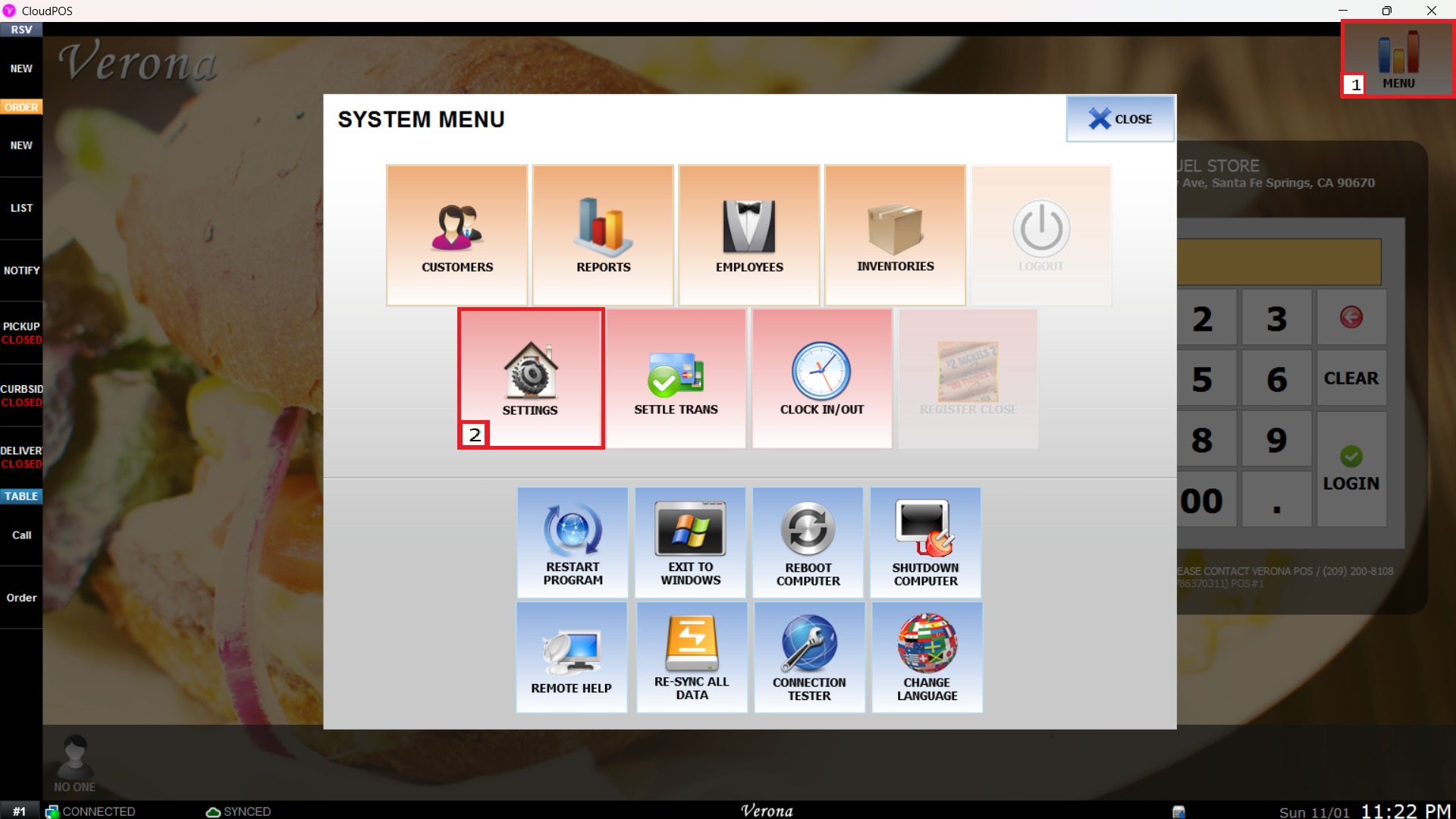
Main Screen > MENU > SETTINGS > MAIN > SALES
From the Main Screen, select MENU and then press SETTINGS.
Under the MAIN tab, select SALES, and locate the LOGIN configuration section.

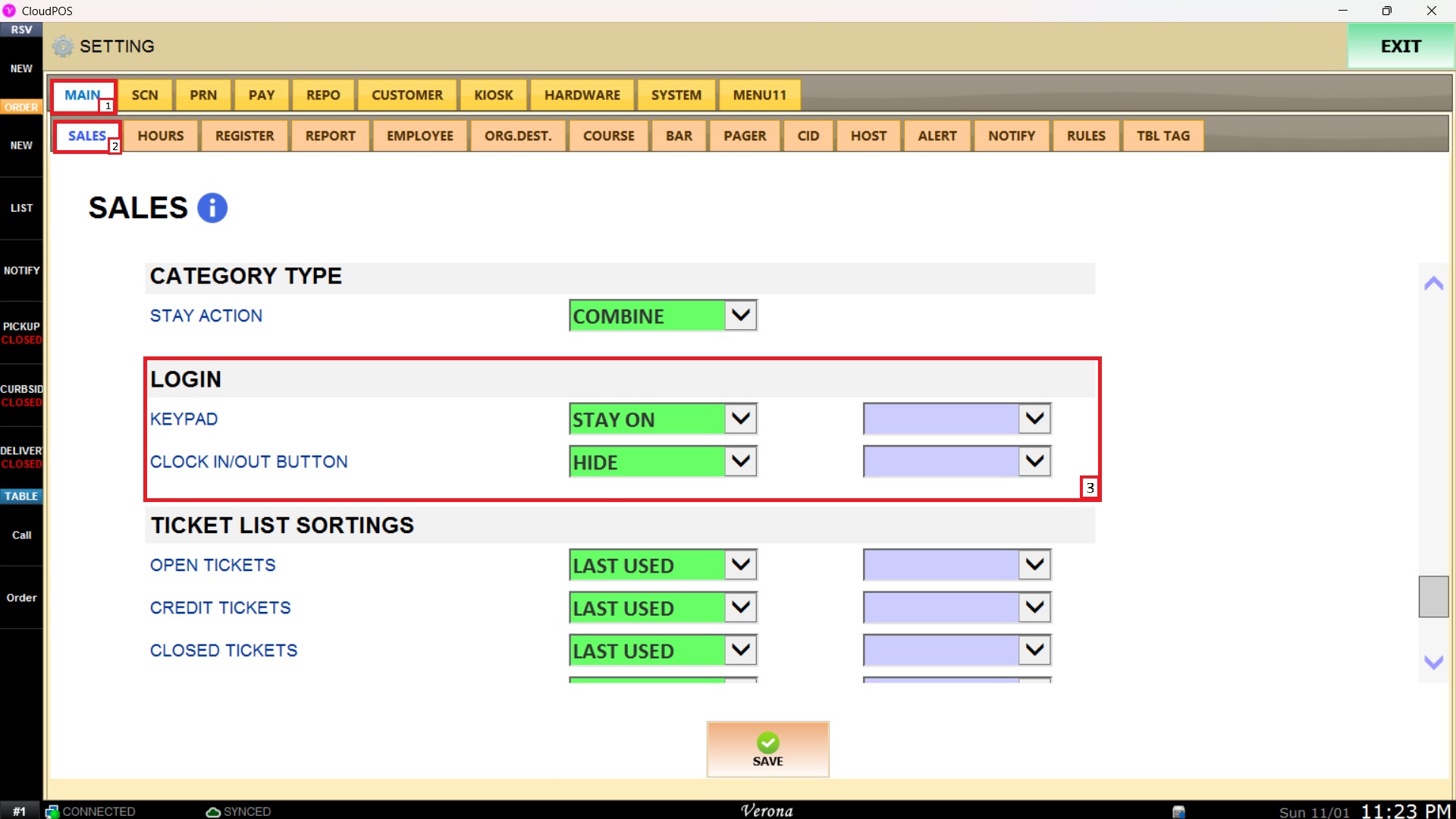

KEYPAD
This setting controls how the password keypad behaves on the login screen.

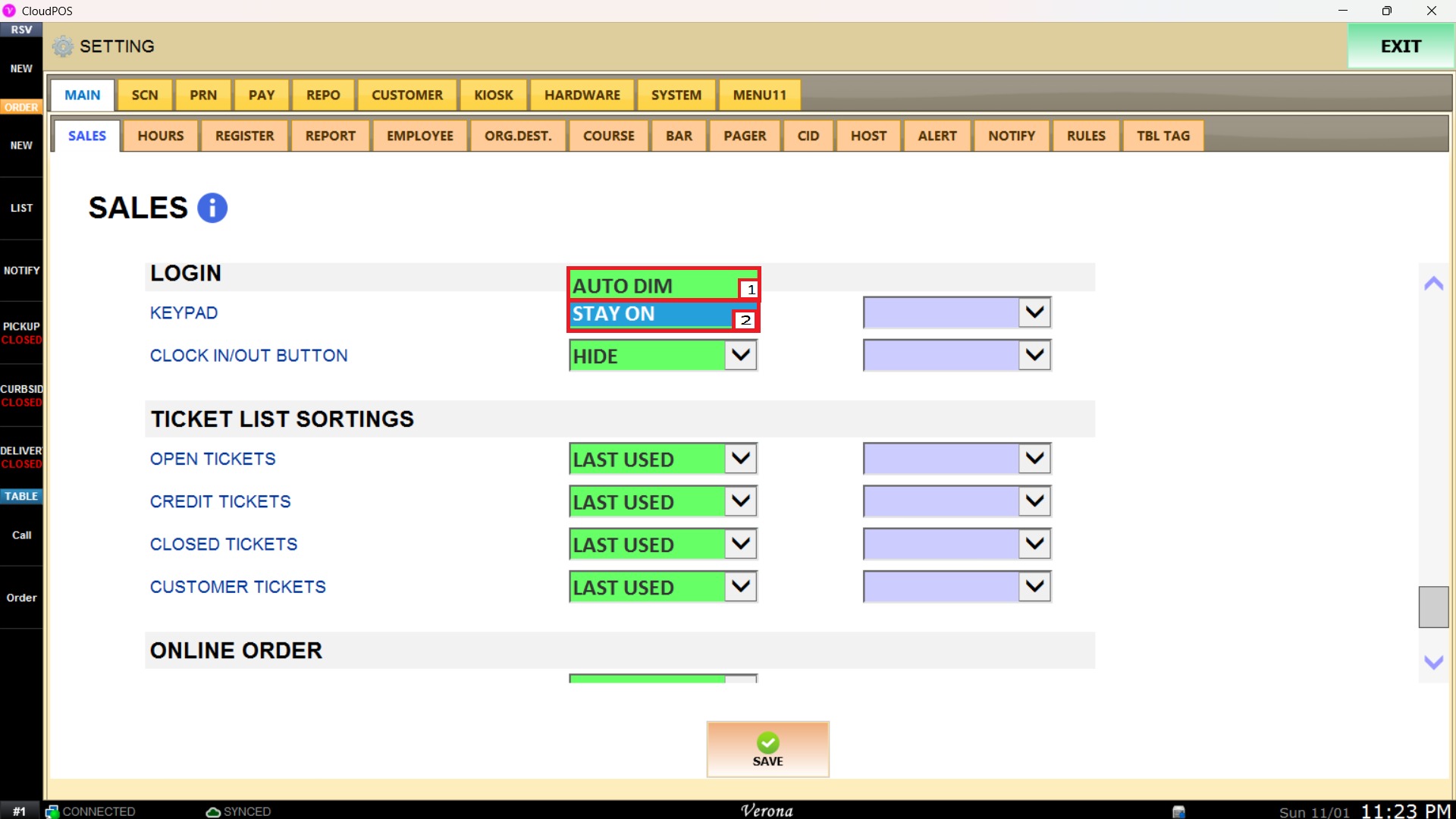


1. AUTO DIM: The keypad automatically dims when not actively in use to secure the login screen.

2. STAY ON: The keypad remains fully visible and active on the login screen at all times.


CLOCK IN/OUT BUTTON
This setting controls whether the clock-in/out button is accessible directly from the login screen.

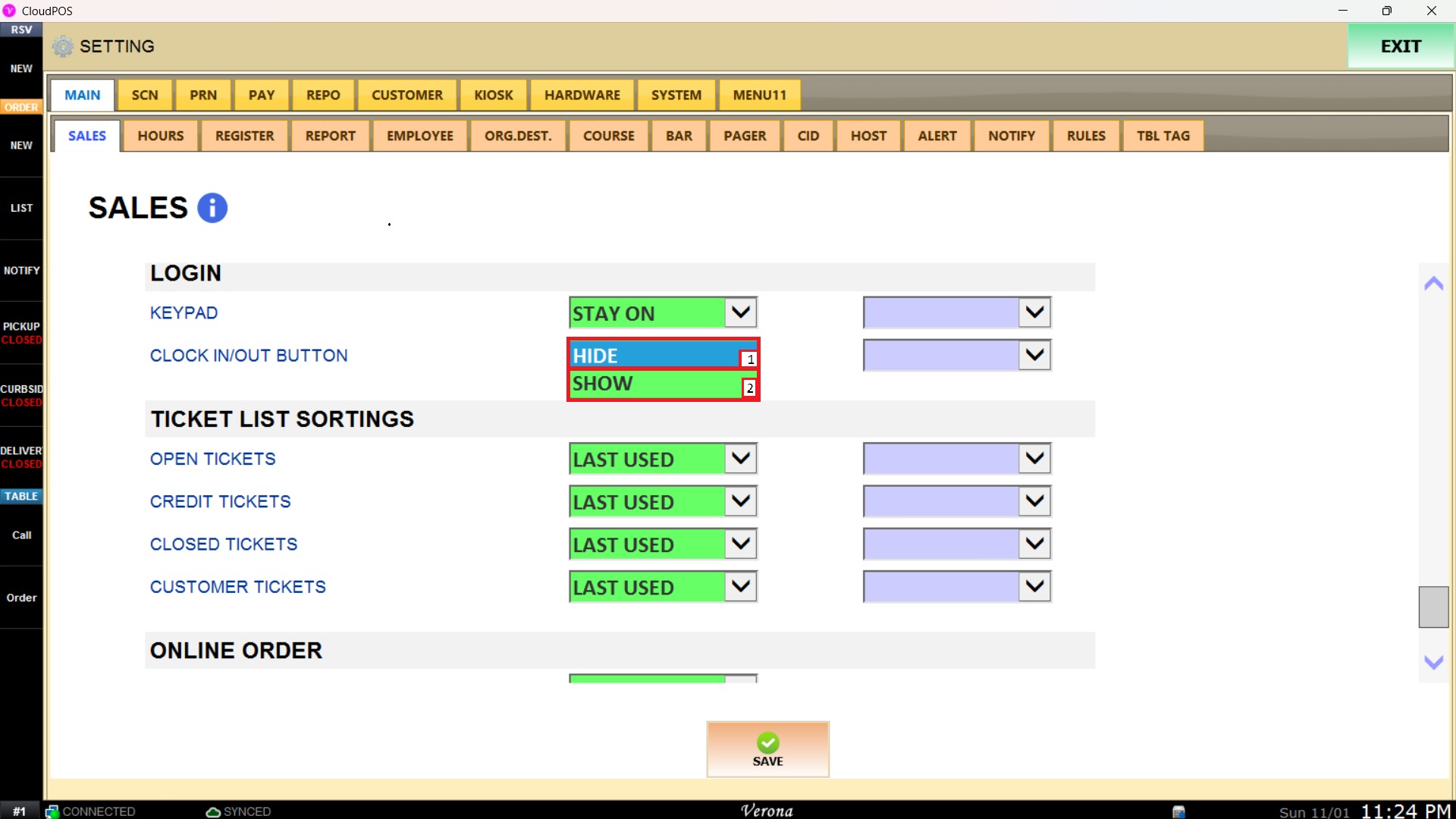

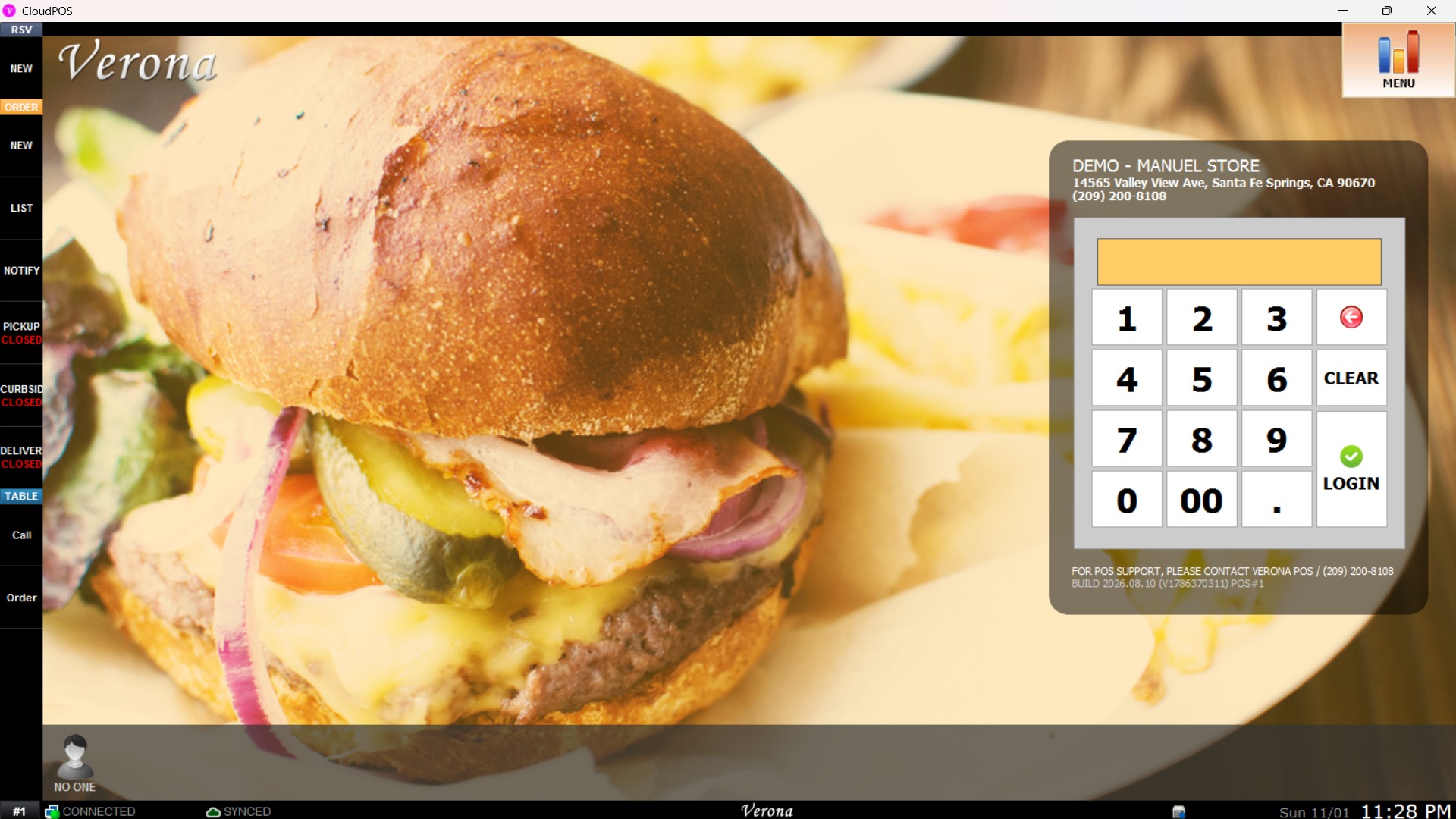
1. HIDE: Hides the CLOCK IN/OUT button from the Main Screen.
2. SHOW: Displays the CLOCK IN/OUT button on the Main Screen, allowing employees to record attendance easily.
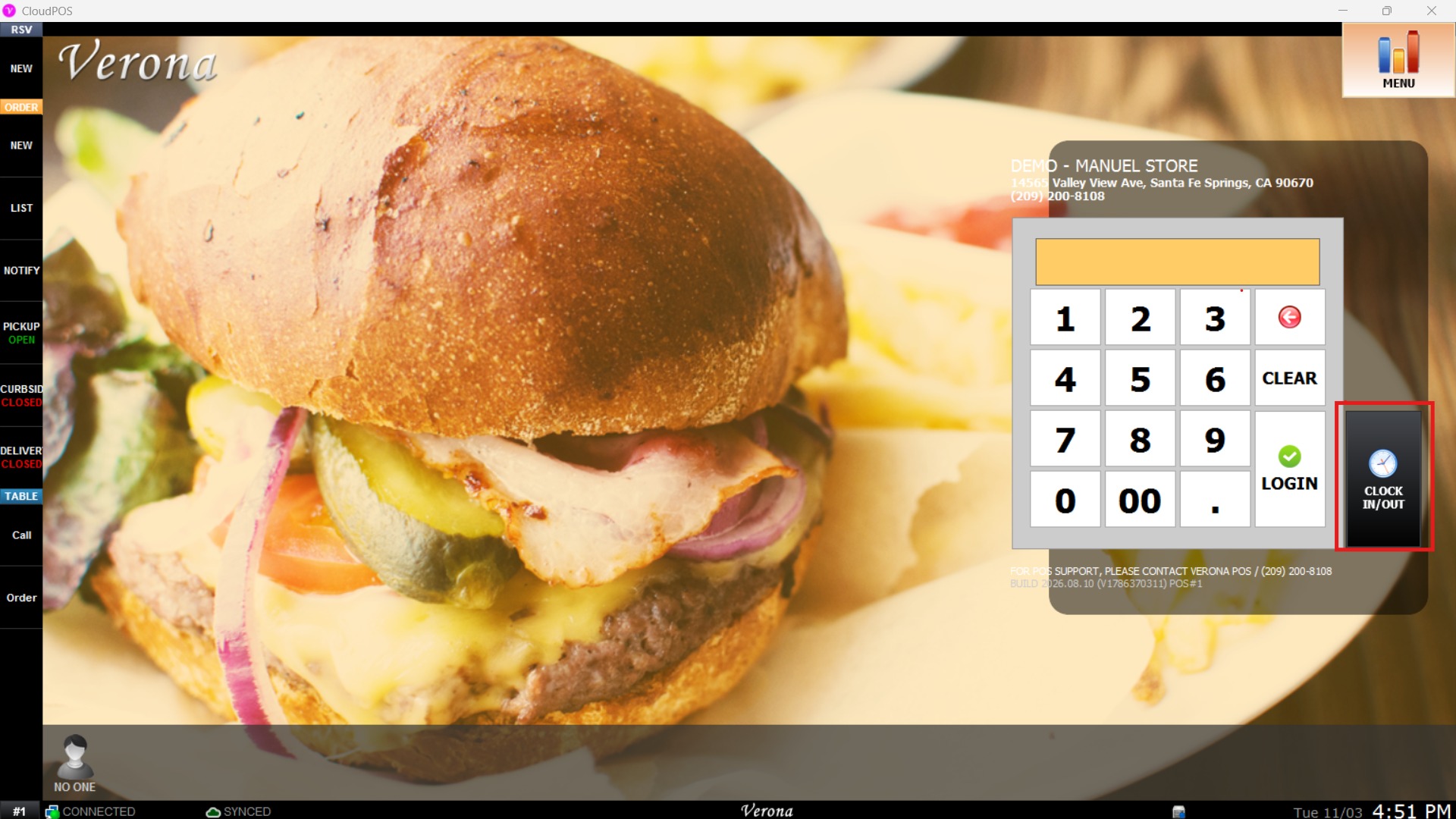
Click SAVE to apply the changes, then RESTART the program.