Employee Hour Report View
Allows quick review of an employee’s time activity directly from the POS. It provides a simple way to track clock-ins, clock-outs, and total hours worked.
MENU > SETTINGS > MAIN > EMPLOYEE > EMPLOYEE HOUR REPORT VIEW
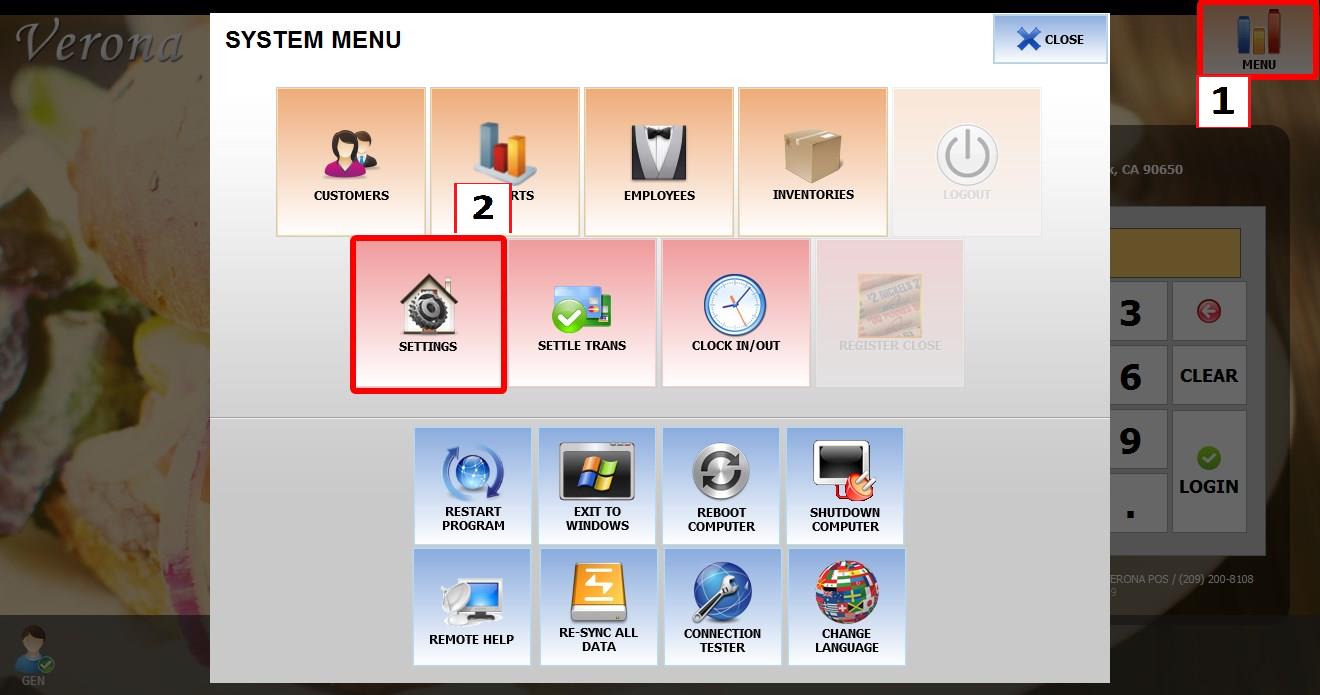
Go to MENU then SETTINGS
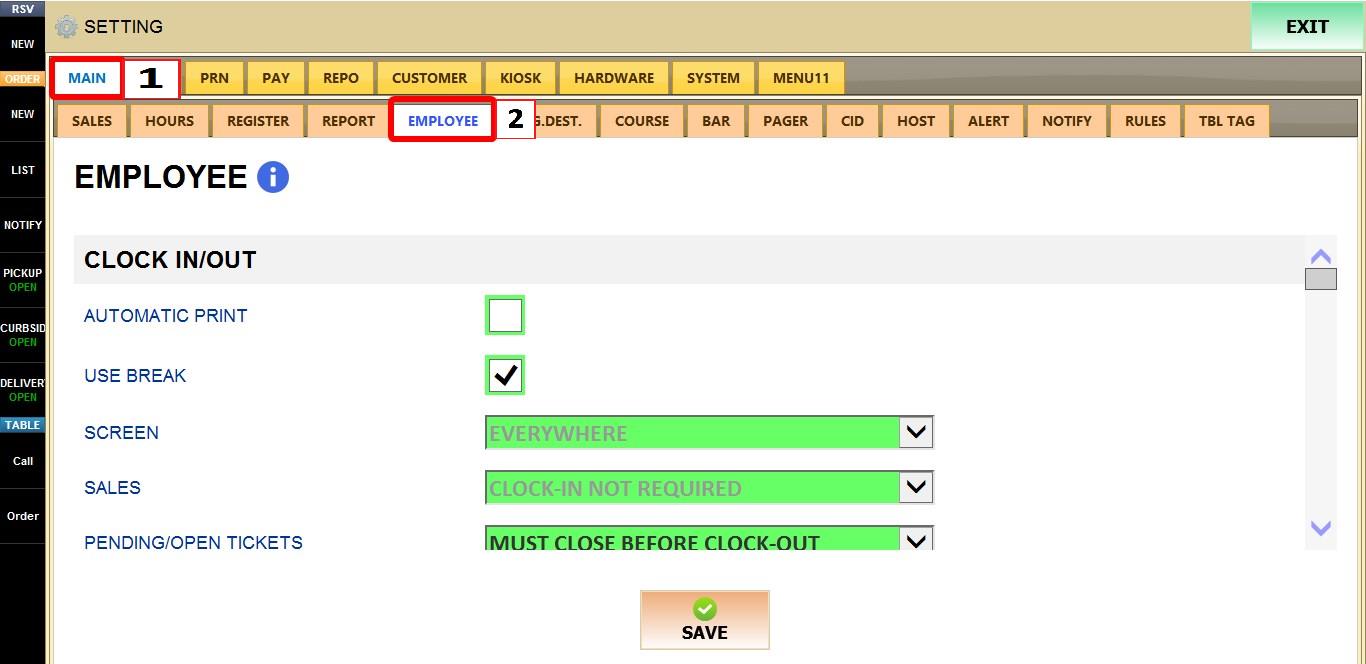
Go to MAIN then EMPLOYEE
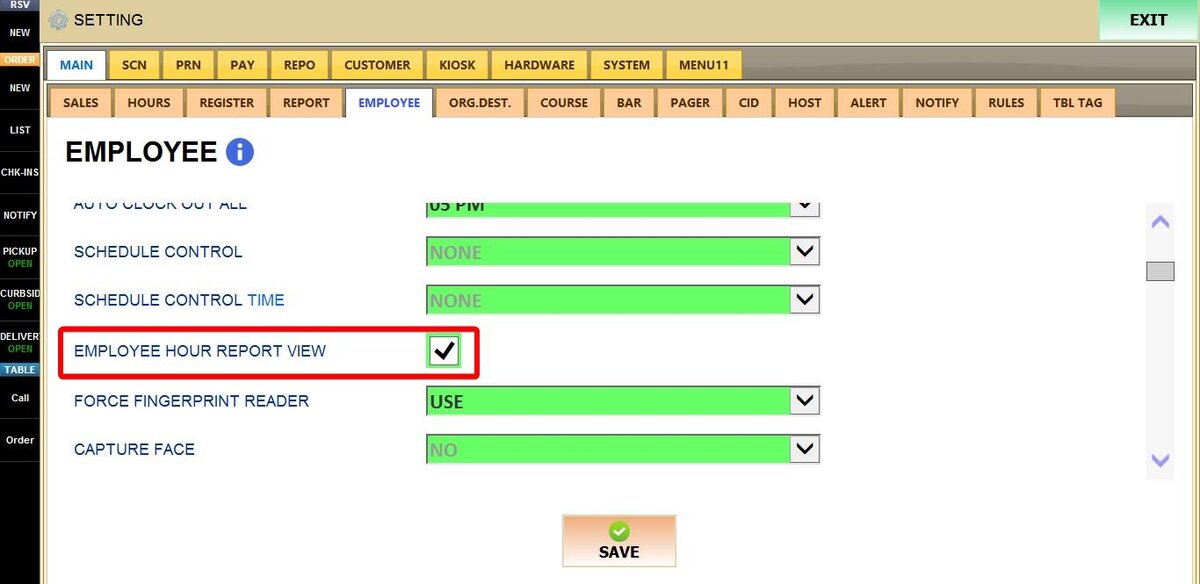
Enable the checkbox to activate the feature.
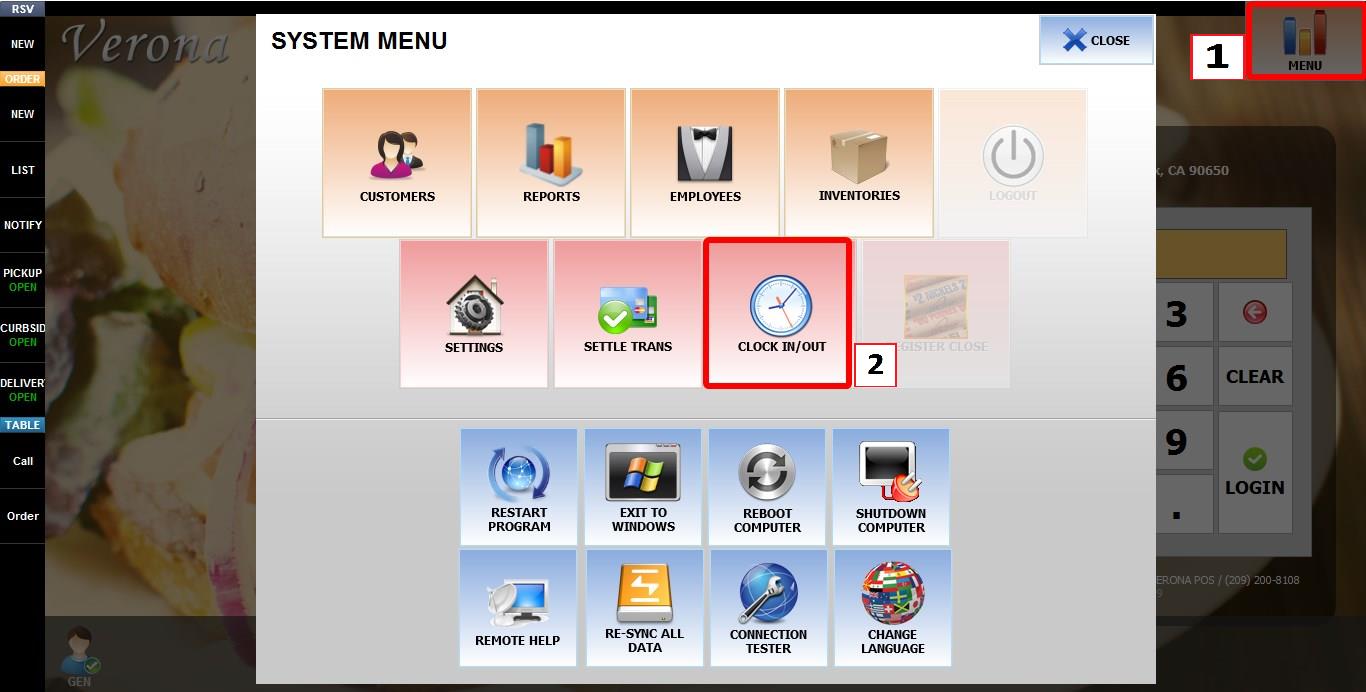
Once enabled go to MENU then Clock In/Out. Enter the employee code
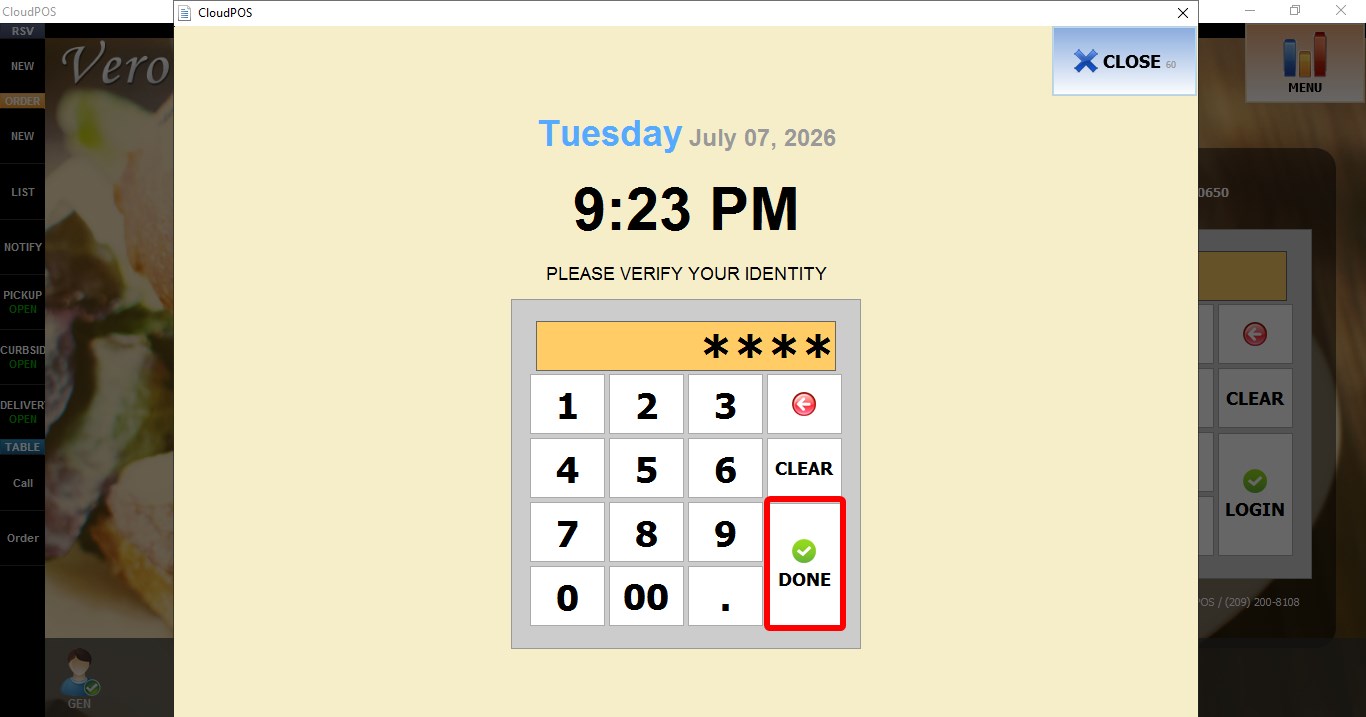
Input the employee acceses code
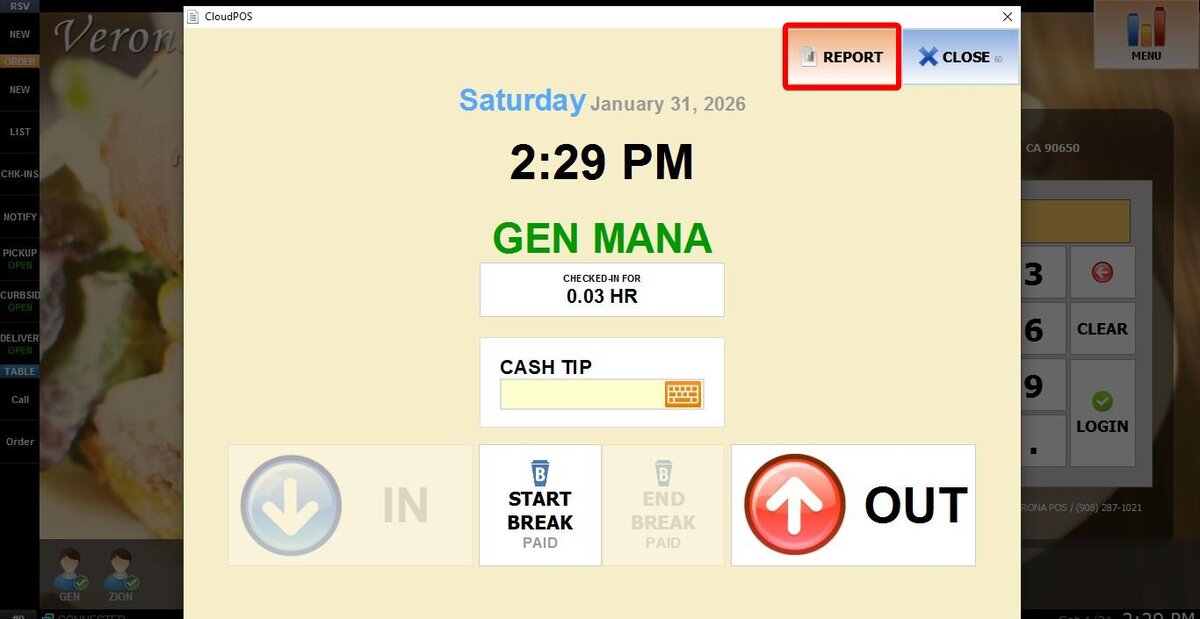
Tap the REPORT button at the top
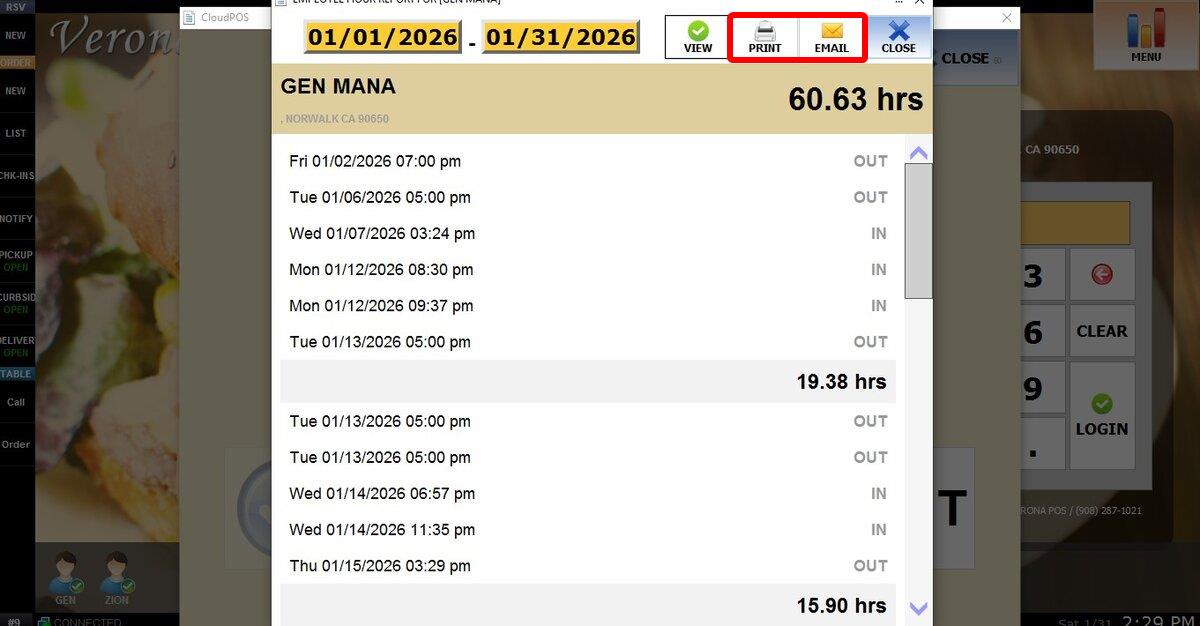
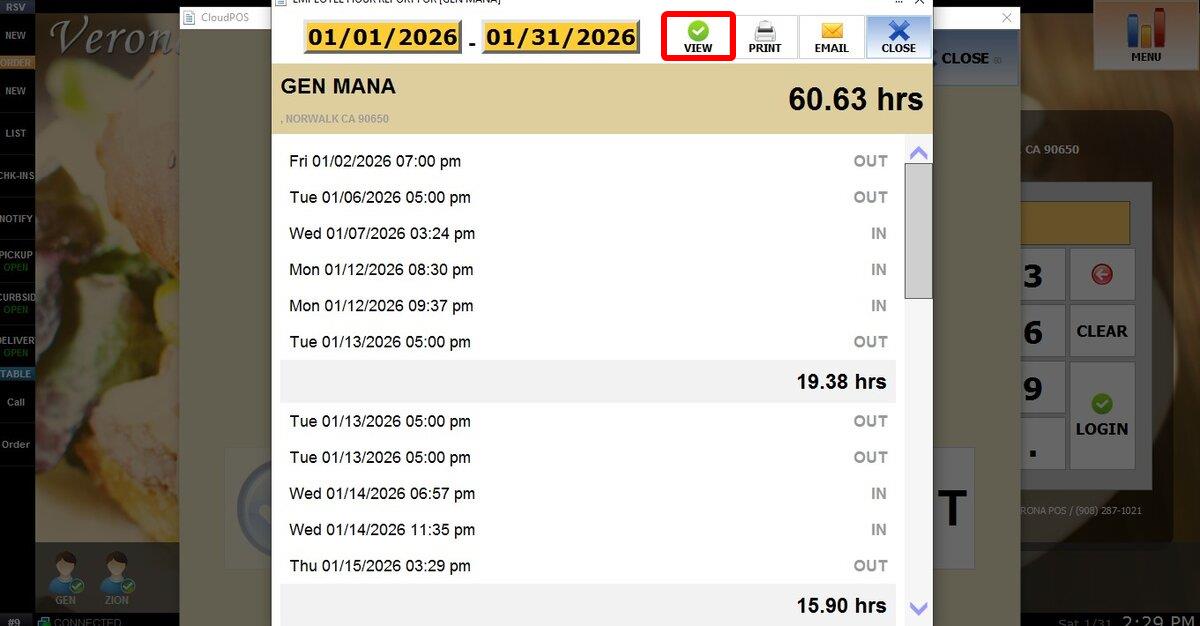
Employee Hour Report
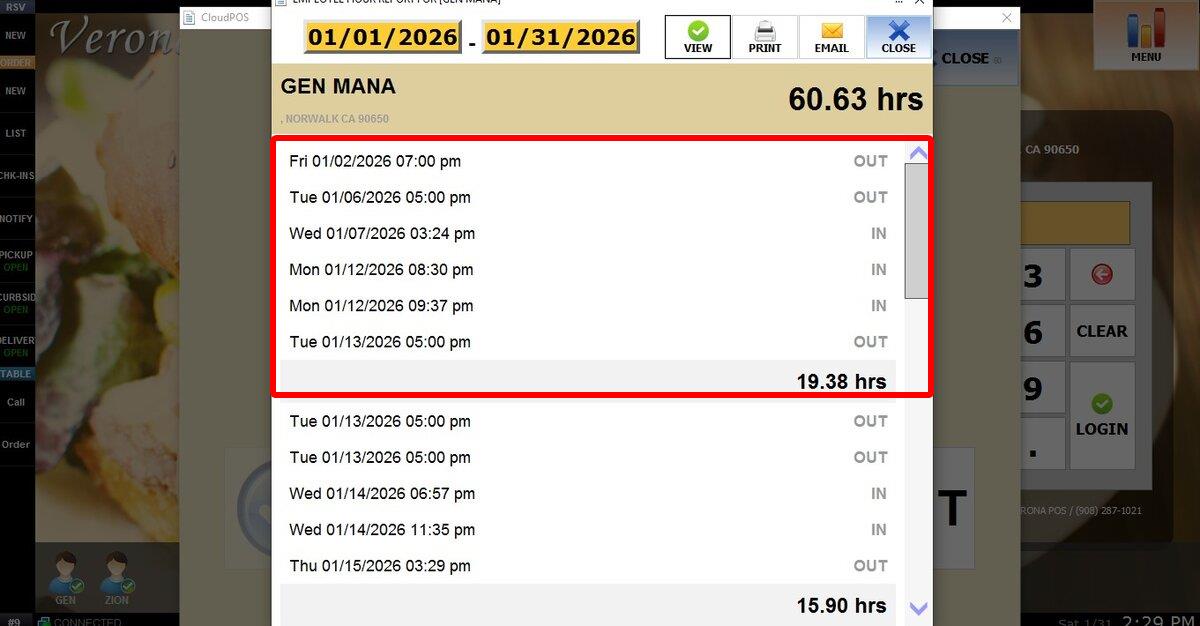
It shows number of clock-ins and clock-outs. As wells as Total hours worked.
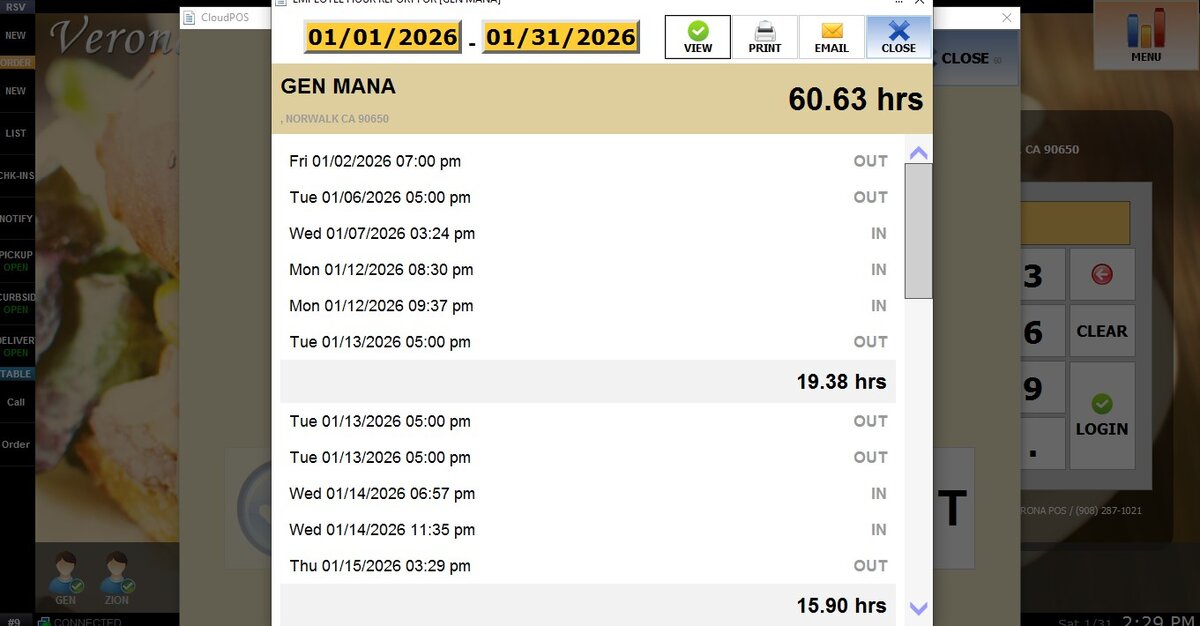
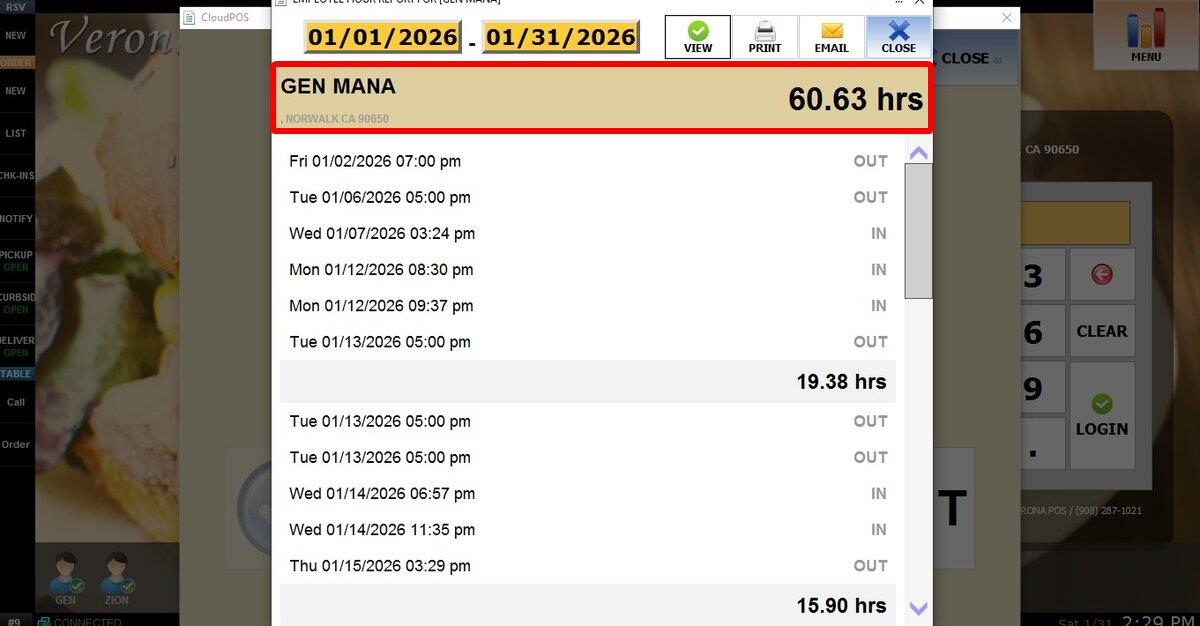
This section will show you the Employee, the location and total hours worked in the time frame selected
Displays each clock-in and clock-out event, including the exact date, time, and whether the entry is a clock-in or clock-out.
FILTERS
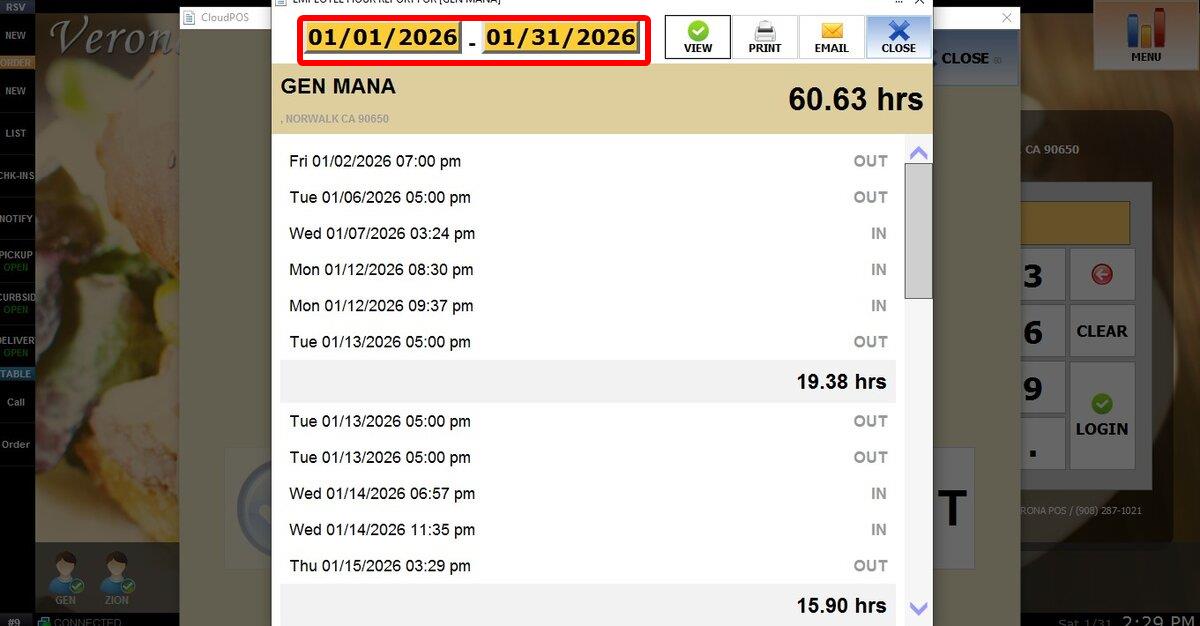
CALENDAR
Allows you to select a custom date range for the report.
Click either Starting date or End date to open the calendar

Select the desired date and click DONE
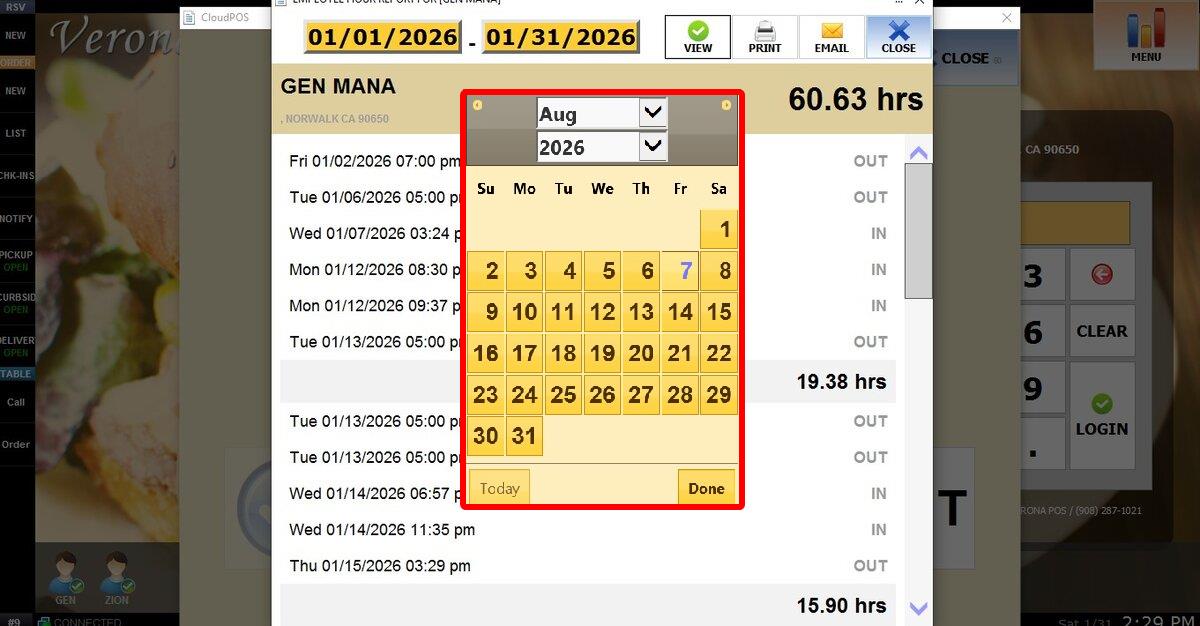
Click VIEW to see the report after changing the date
Prints the report currently displayed on the screen.
Gives you the option to type an email adress to send the report.