Managing To-Go Orders
The MANAGING TO-GO ORDERS module allows staff to review, edit, and fulfill pickup orders from the Sales Screen. It provides access to ticket management actions including payment processing, order modifications, activity history logs, customer notifications, ticket printing, and email options.
Main Screen > Sales Screen > TAKE-OUT
From the Sales Screen, tap the TAKE OUT button located in the upper-right corner.
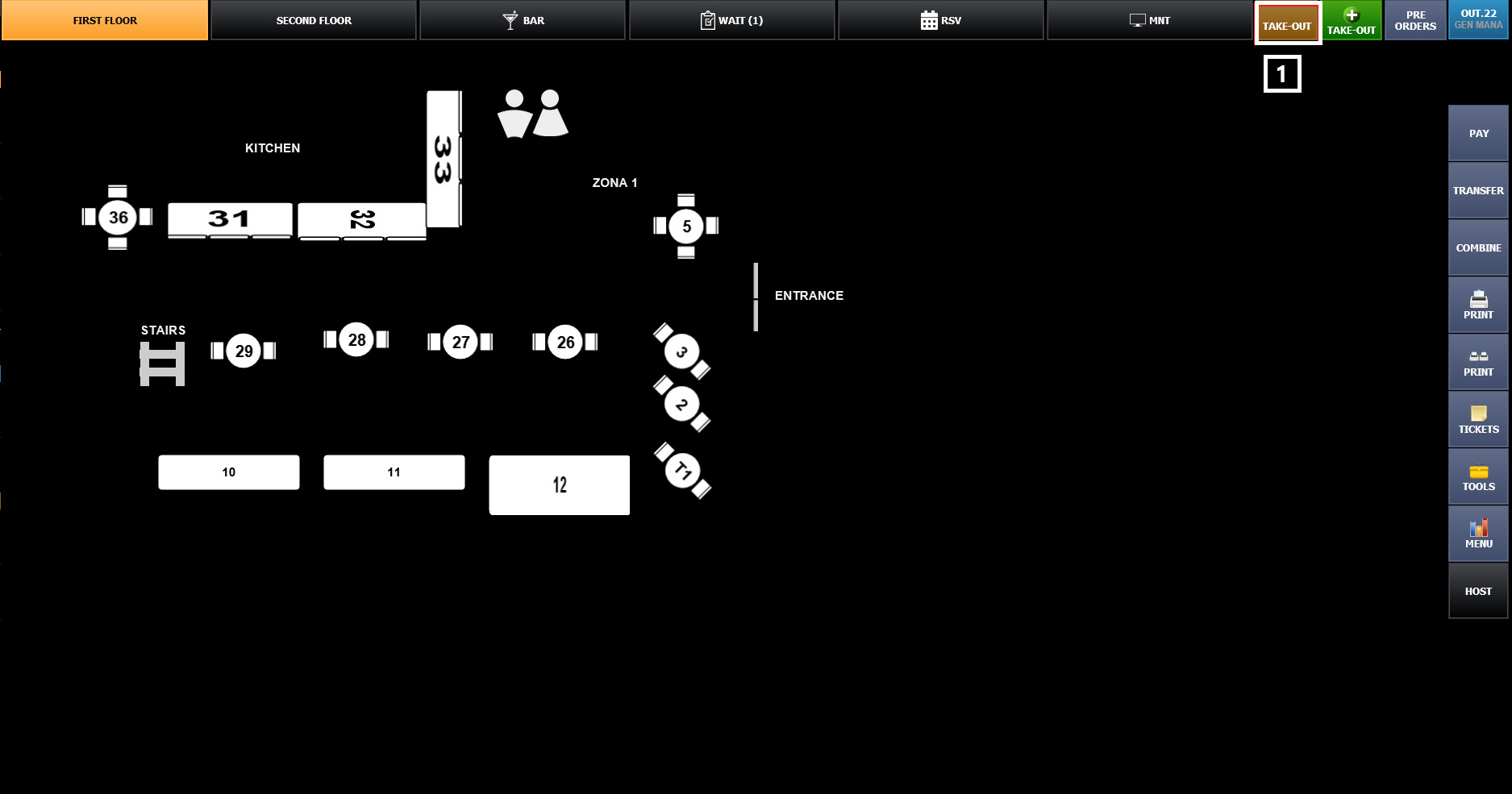
Take-Out Ticket List will appear. Select the To-Go ticket you want to manage.
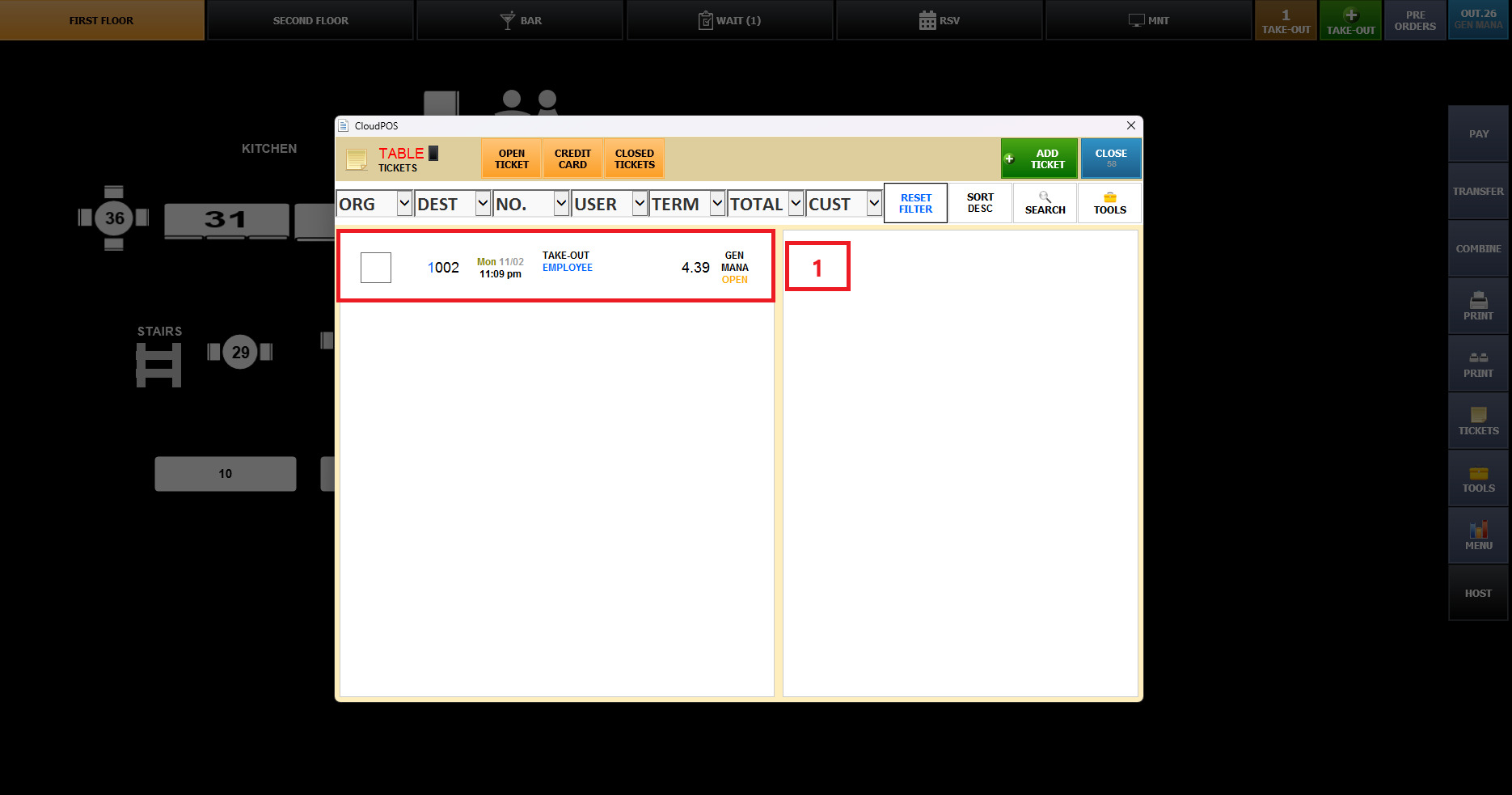
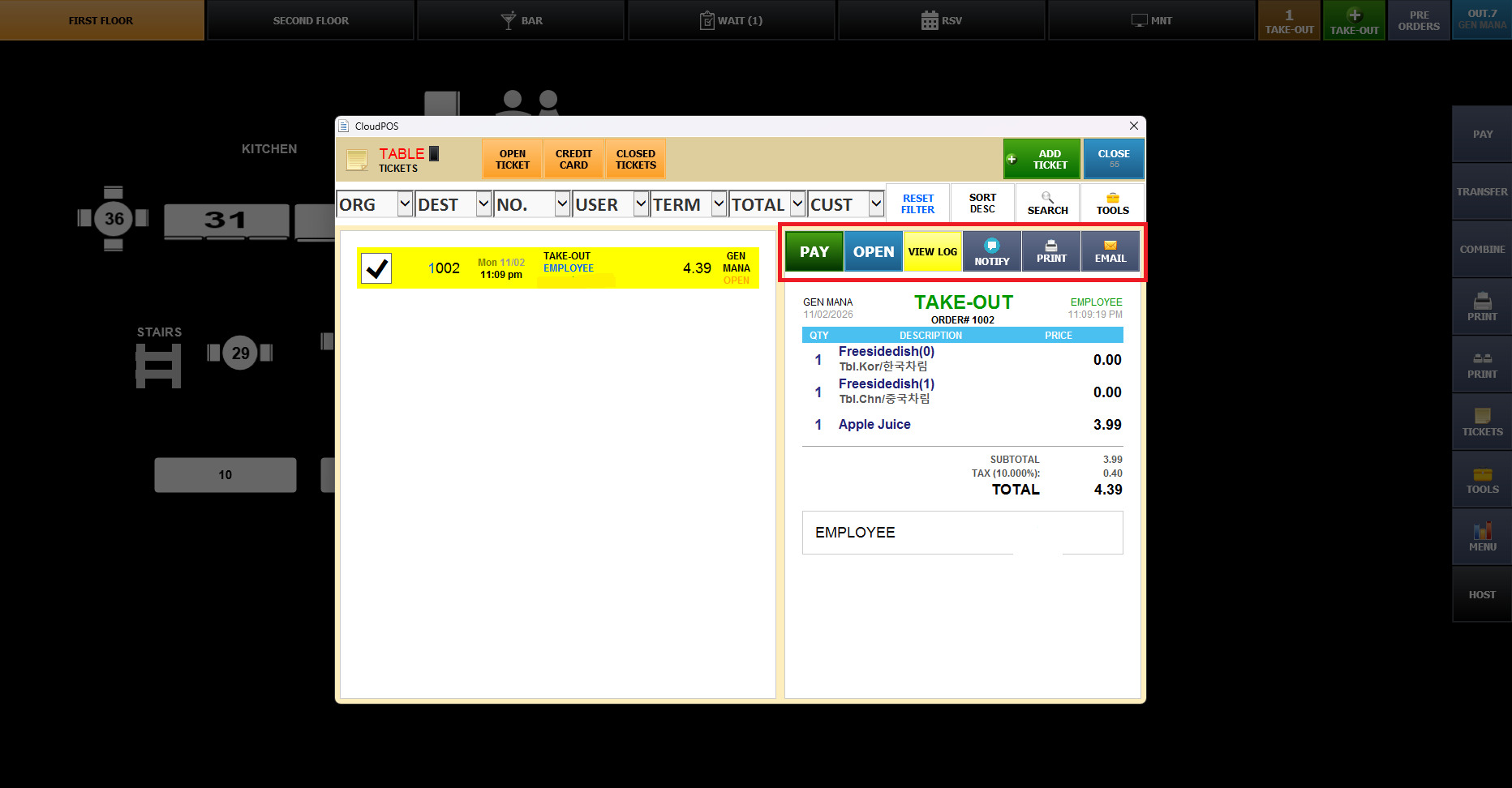
Once selected, the ticket details will appear on the right side of the screen.
You can manage the selected order using the available options:
PAY, OPEN, VIEW LOG, NOTIFY, PRINT, and EMAIL.
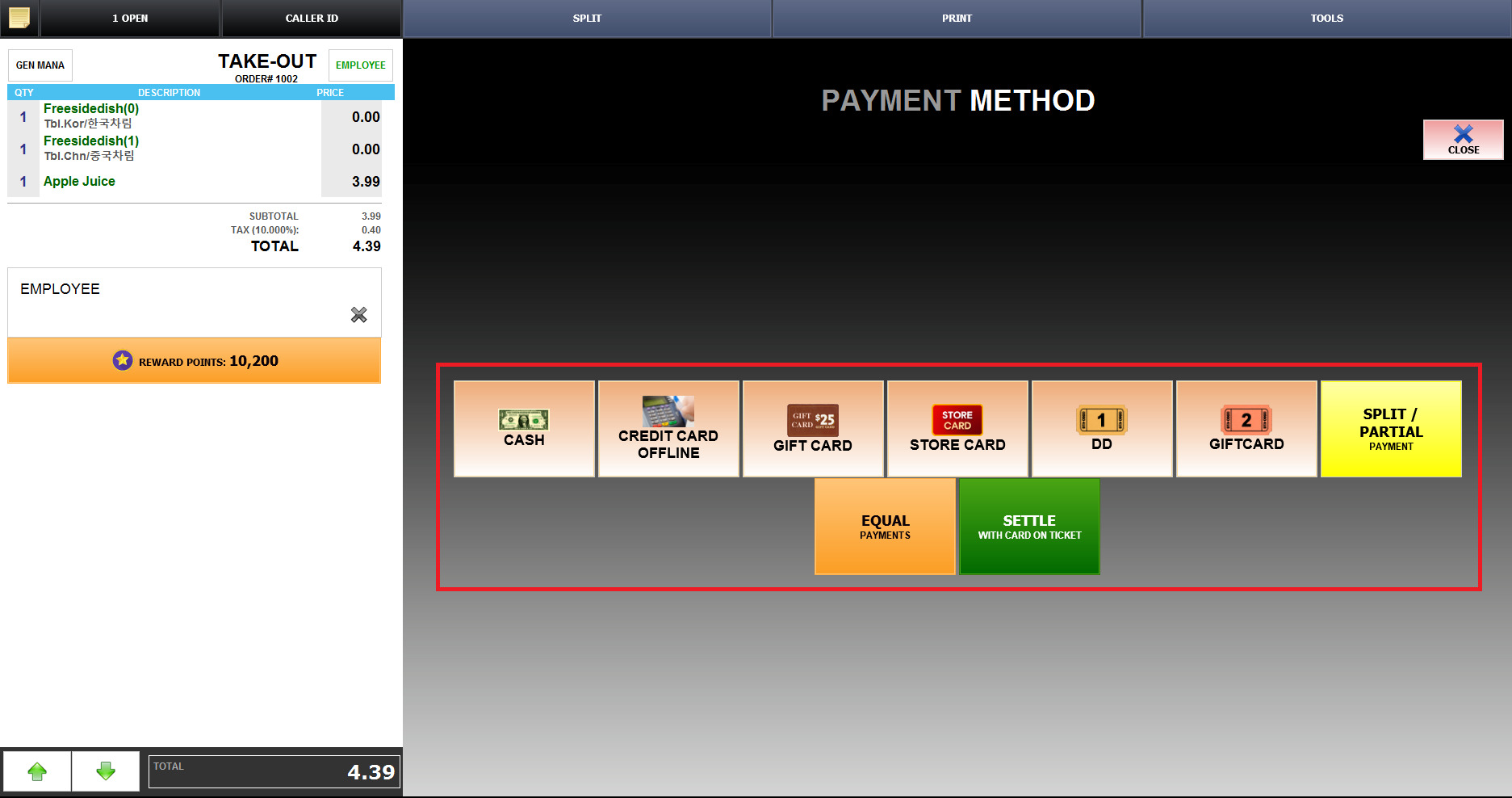
Select PAY to proceed to the payment screen.
Choose the appropriate payment method,
such as Cash, Credit Card, Gift Card, Store Card, or Split/Partial Payment.
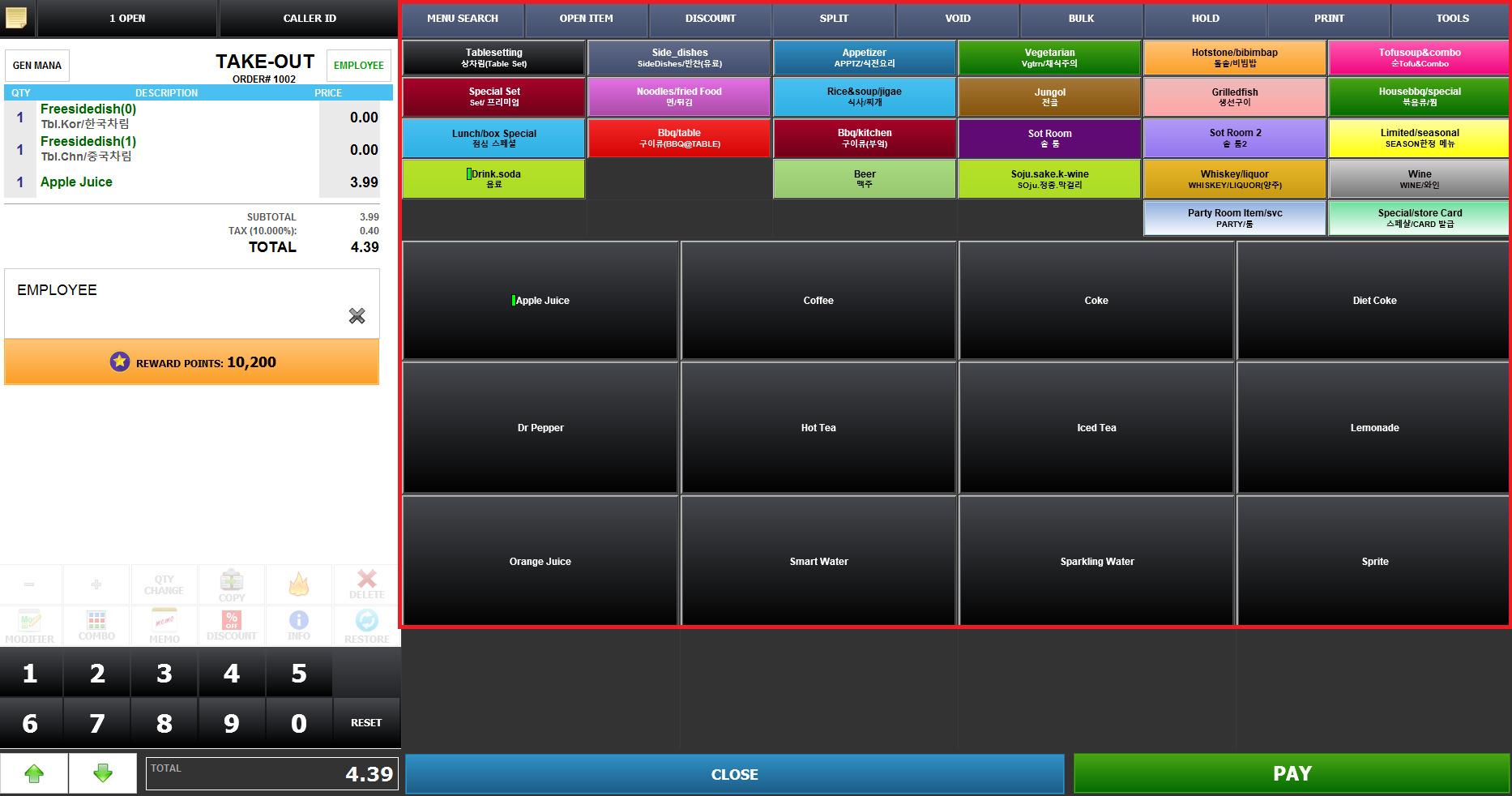
Select OPEN to reopen the selected To-Go ticket in the Sales Screen.
You can review the order and make necessary changes,
such as adding or removing items, modifying quantities, or adjusting the order.
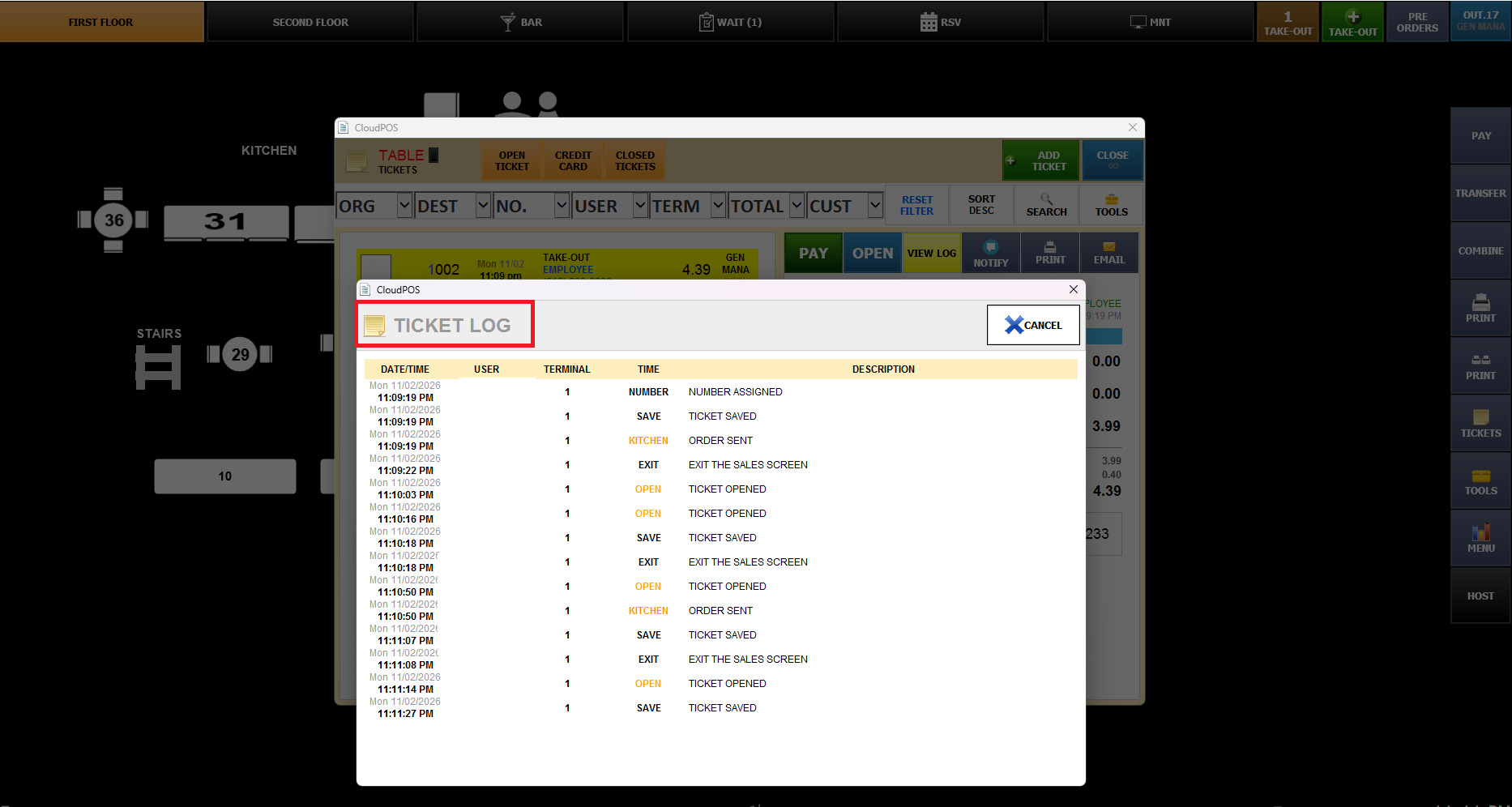
Select VIEW LOG to review the selected ticket's activity history.
The Ticket Log displays information such as the date, time, user, terminal, and description of each recorded action.
You can check when the ticket was created, saved, opened, or sent to the kitchen.
Select NOTIFY to send an order notification.
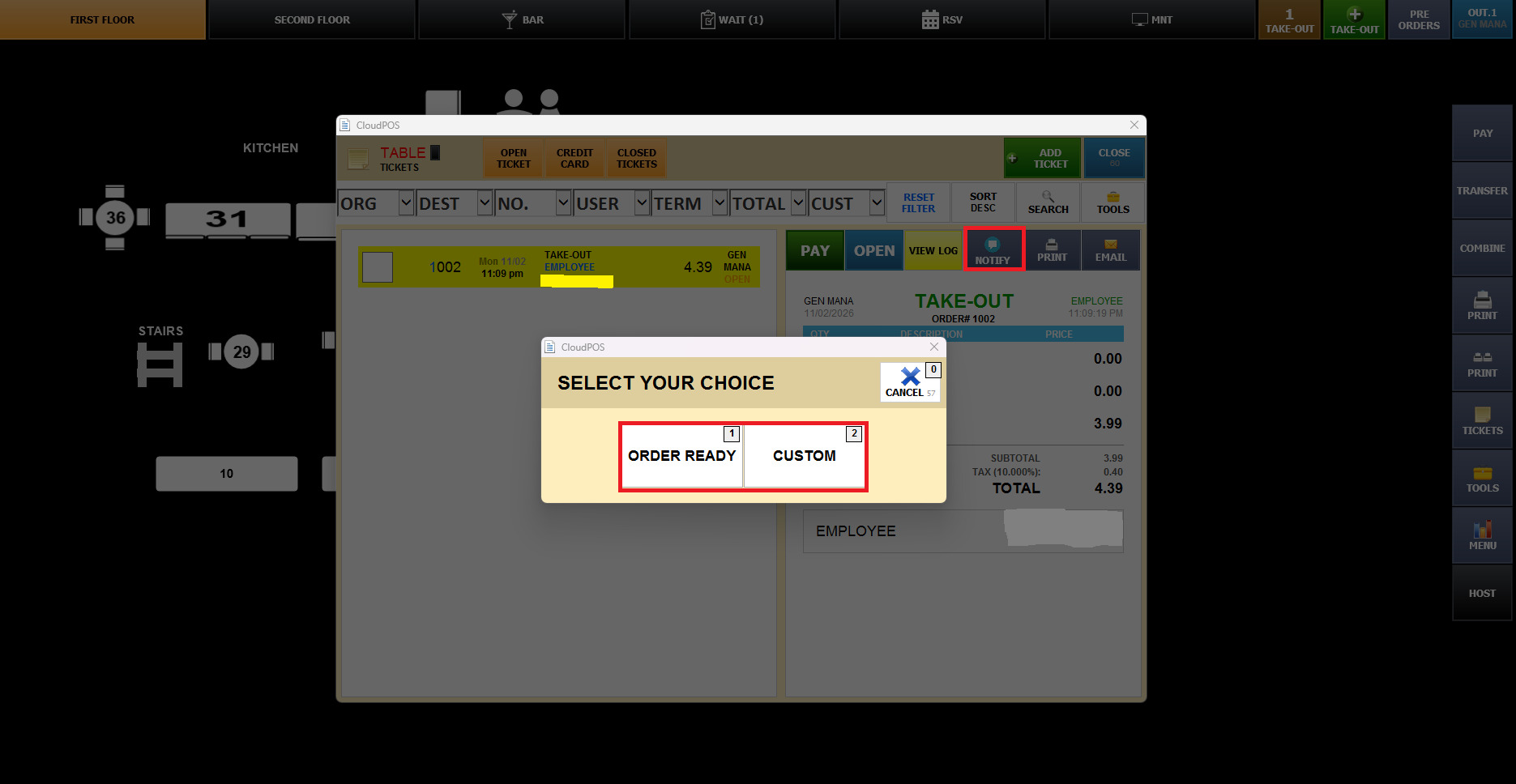
ORDER READY: Notify the customer that the order is ready for pickup.
CUSTOM: Use a customized notification option.
Select PRINT to choose the type of document you want to print.
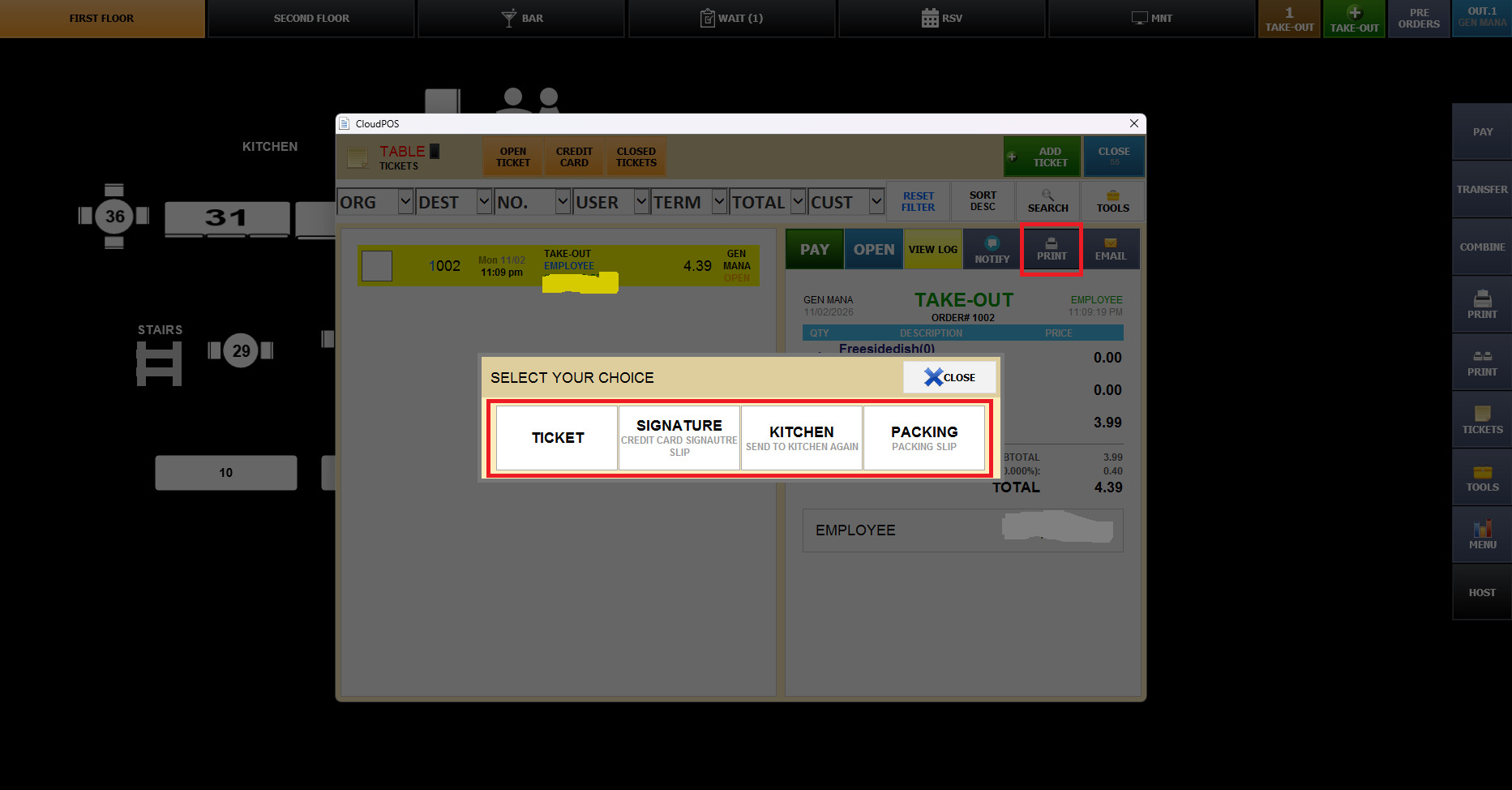
TICKET: Print the order ticket.
SIGNATURE: Print the credit card signature slip.
KITCHEN: Send or reprint the order to the kitchen.
PACKING: Print the packing slip for To-Go orders.
Select EMAIL to send the selected order information by email.
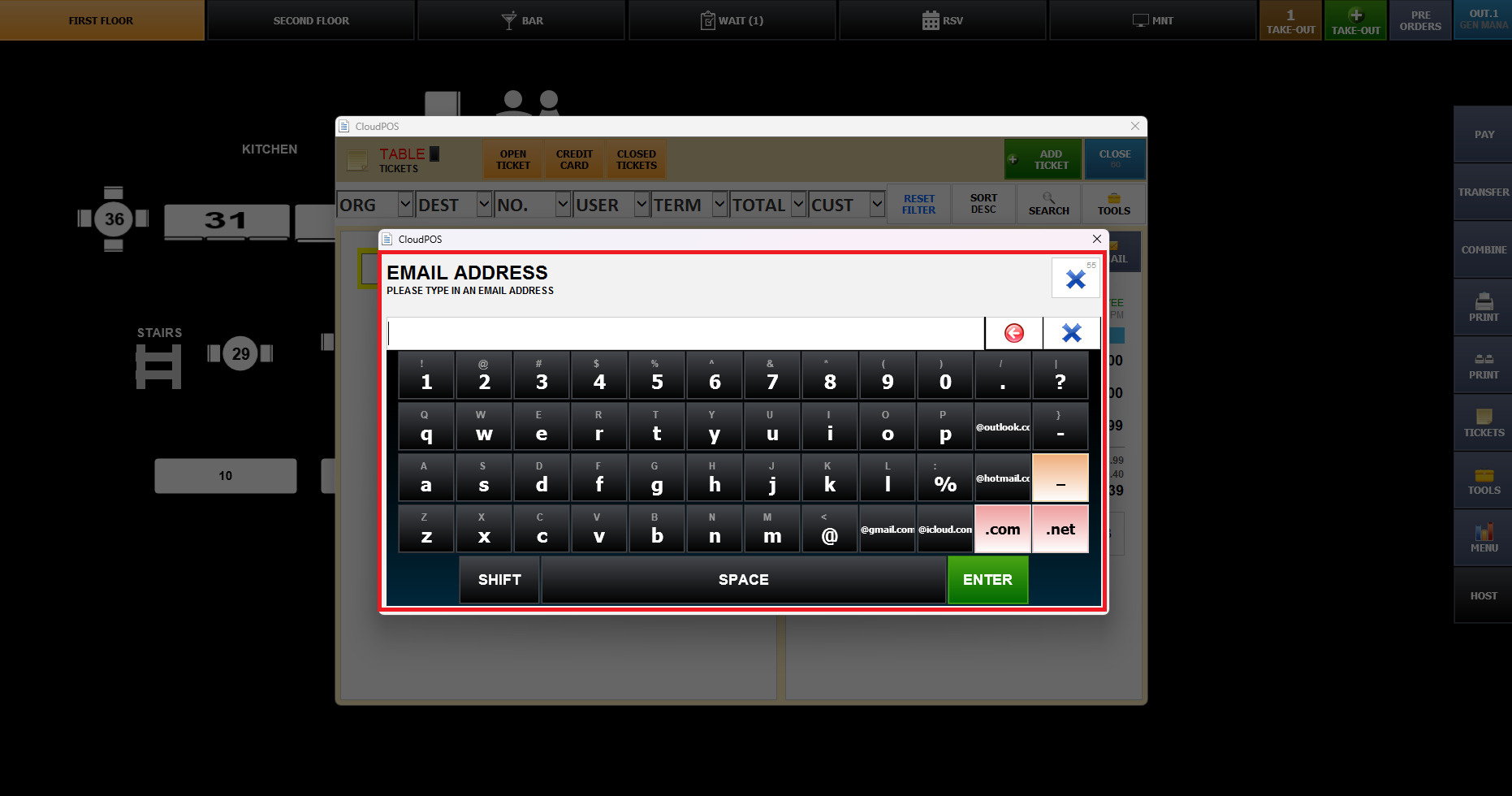
Enter the recipient's email address using the on-screen keyboard.
Confirm the email address and press ENTER to proceed.