Assigning a Price to a Modifier Component
When structuring your menu, modifiers customize an item to a customer’s exact request. Depending on your business model, certain additions or adjustments might incur extra charges, inherit the base price of an existing menu item, or allow a specific quantity for free before charging.
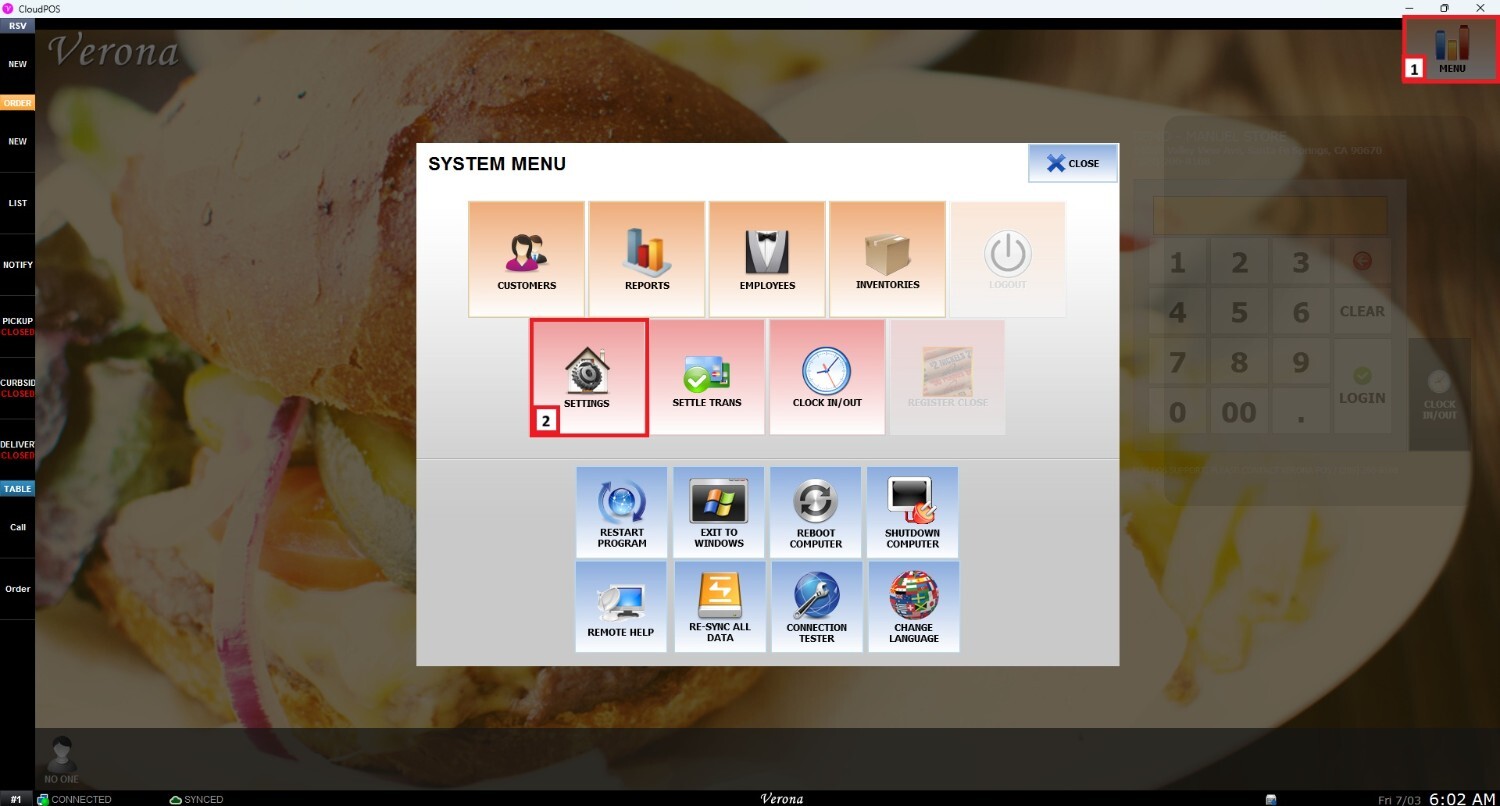
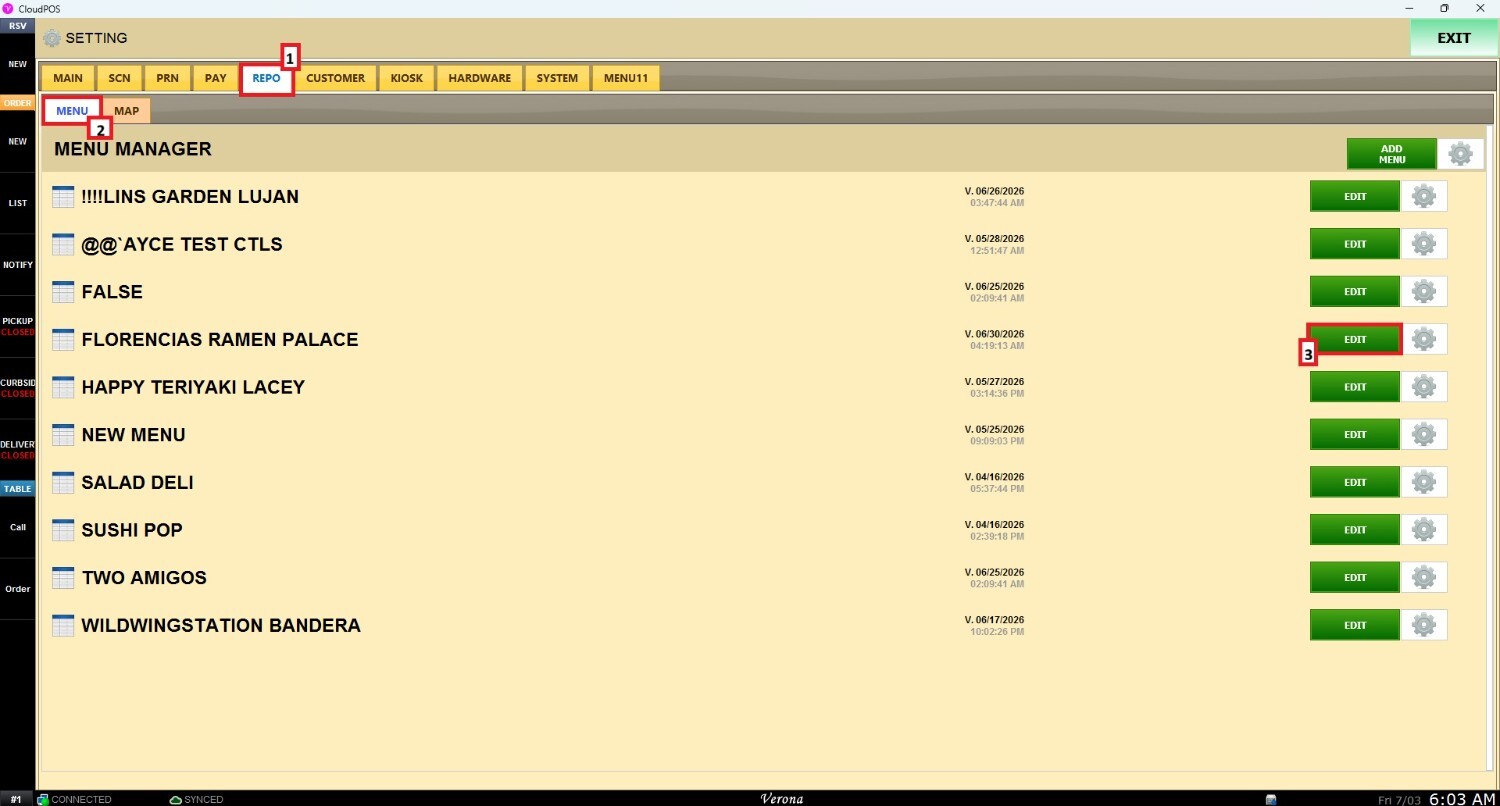
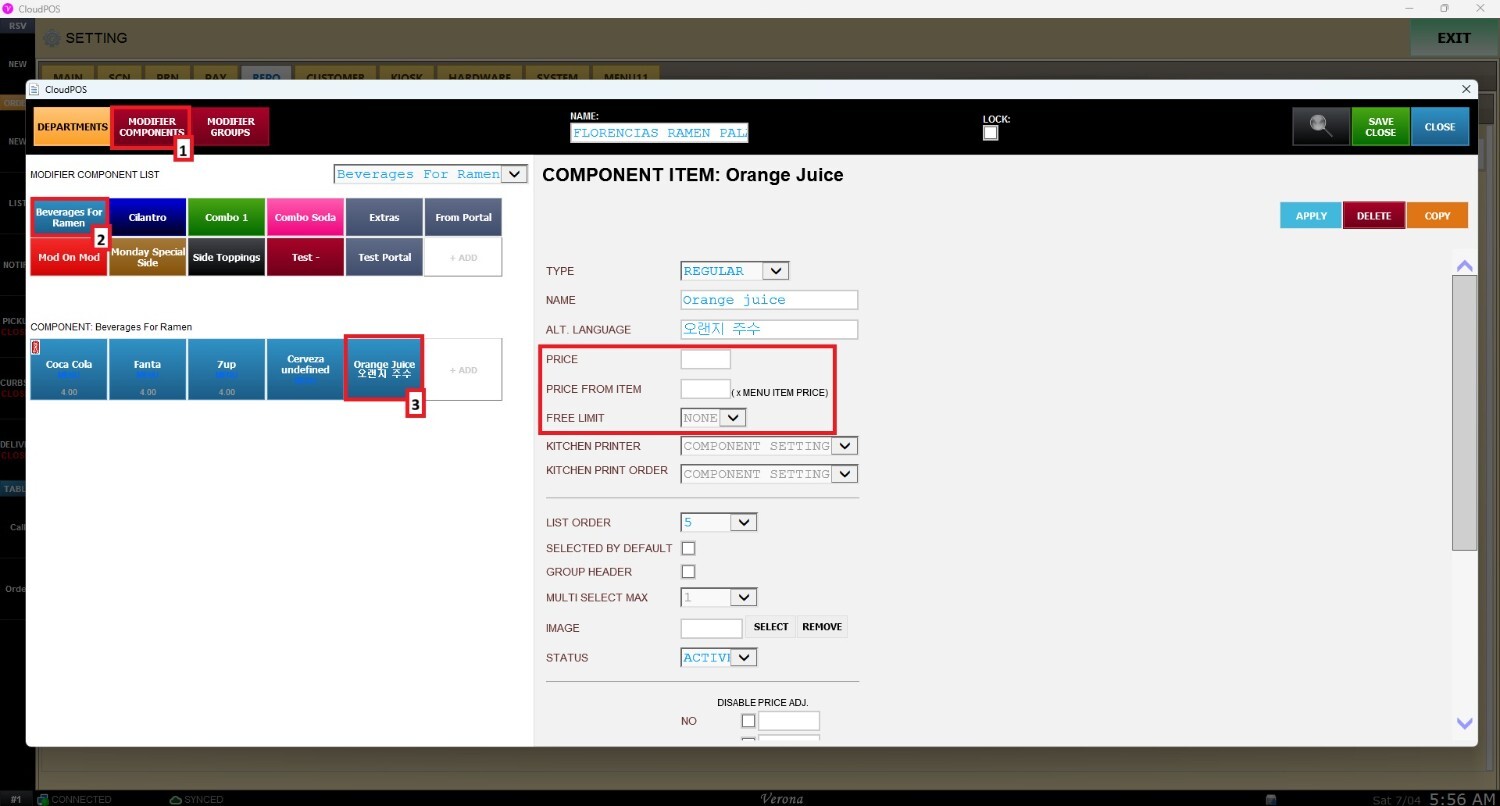
Main screen > MENU > SETTINGS > REPO > MENU > EDIT > MODIFIER COMPONENTS
First, go to MENU and then select SETTINGS.
Open the REPO (Repository) tab, select MENU, locate the specific menu you want to modify, and click EDIT.
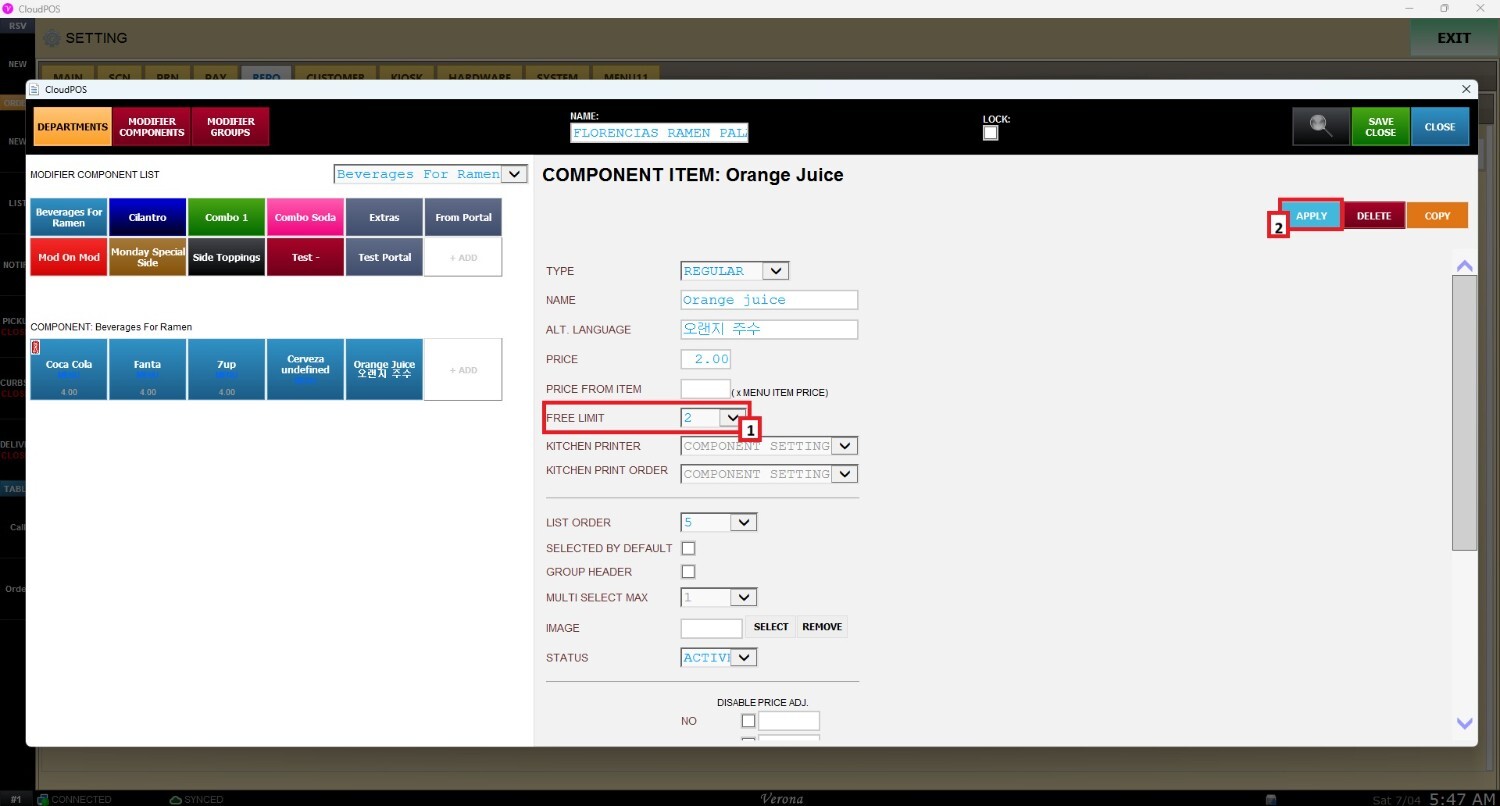
Navigate to MODIFIER COMPONETS, access the MODIFIER COMPONENT LIST, and select the specific COMPONET where the price needs to be adjusted. Here, you will find the PRICE, PRICE FROM ITEM, and FREE LIMIT options.
Price
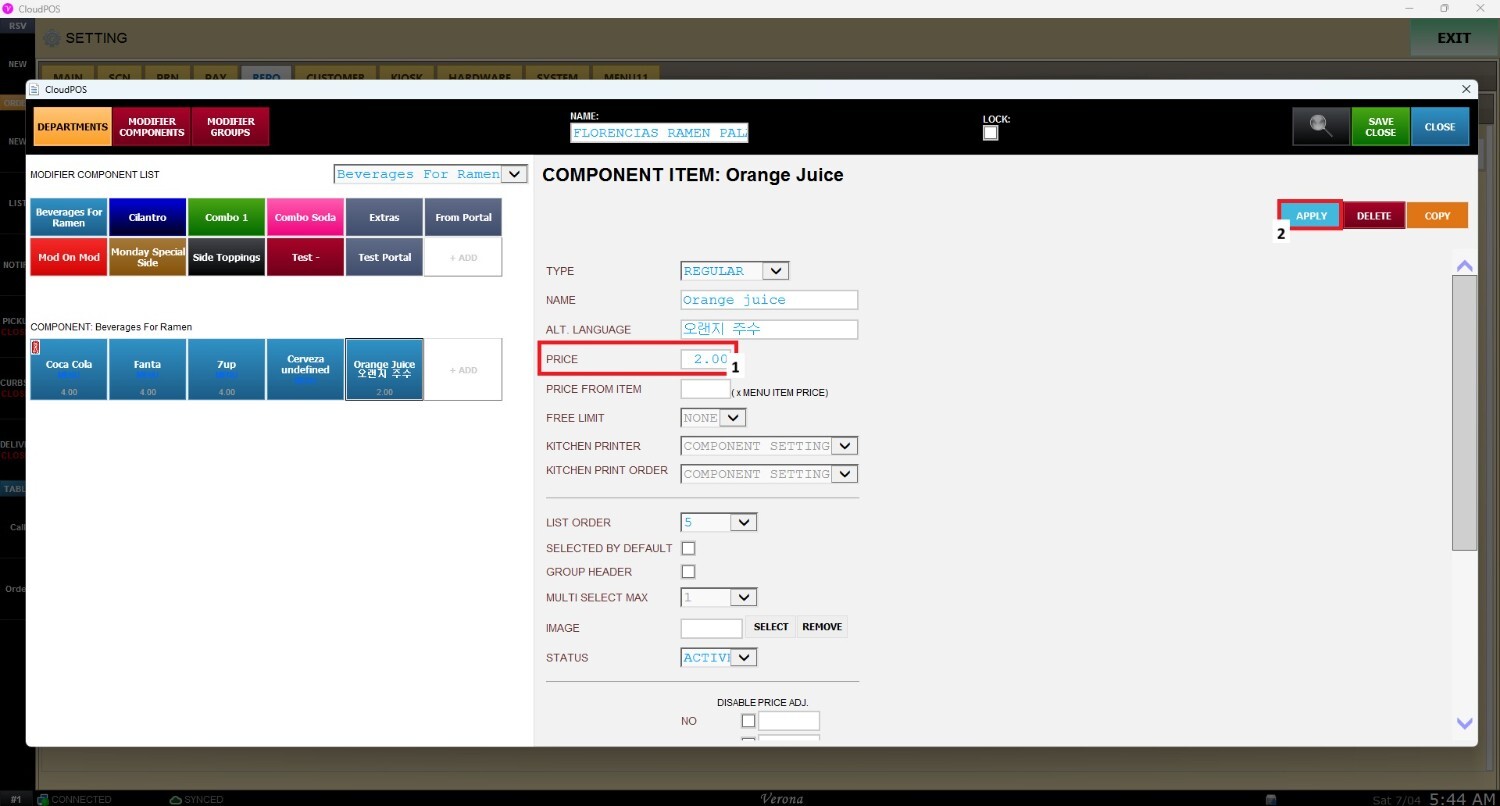
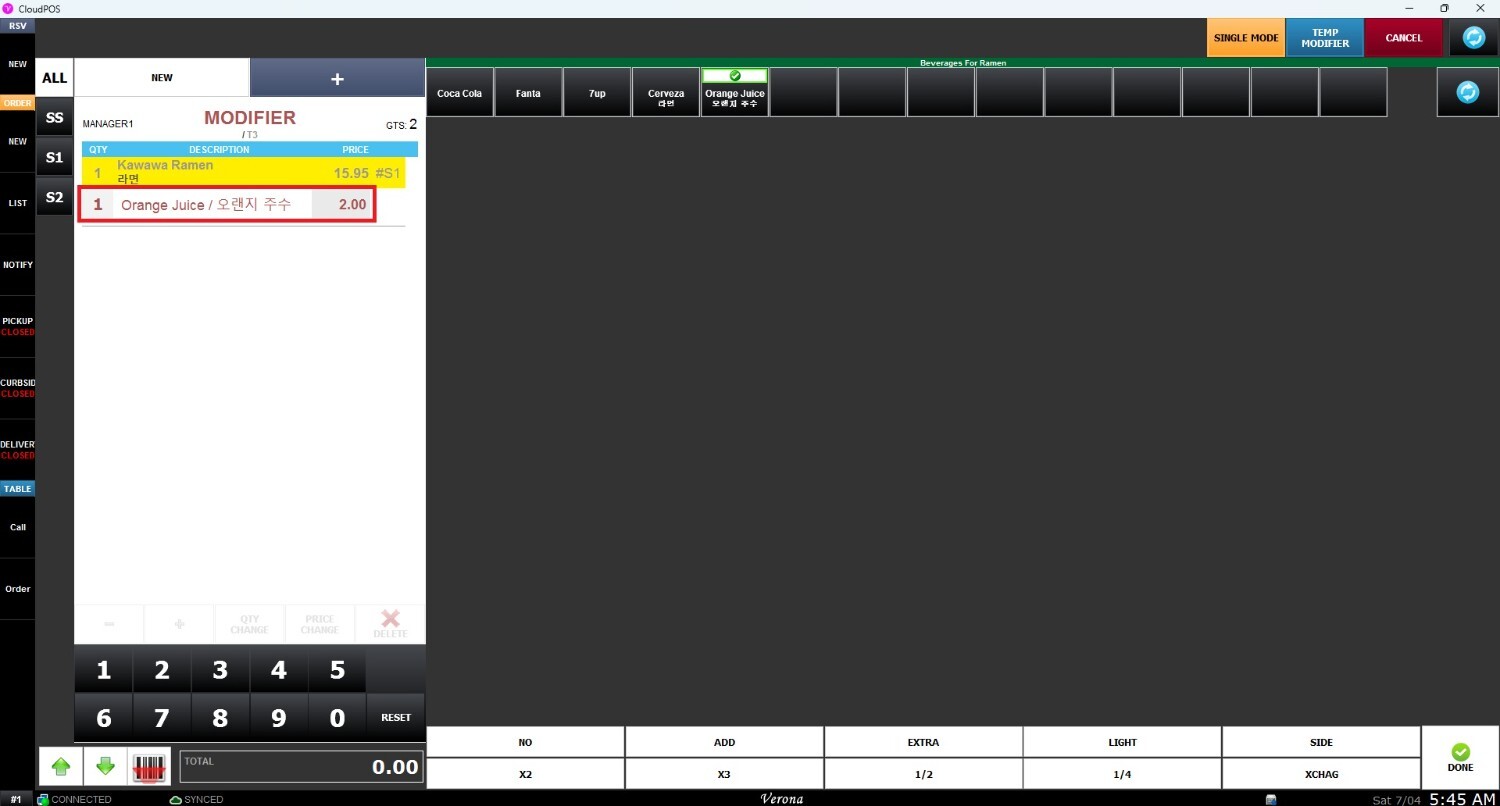
The PRICE feature allows the merchant to set a flat, unique price for the modifier. To activate this feature, enter the component price in the designated field and click APPLY. Once applied, whenever the modifier is selected on the sales screen, this specified price will be added to the ticket.
Price From Item
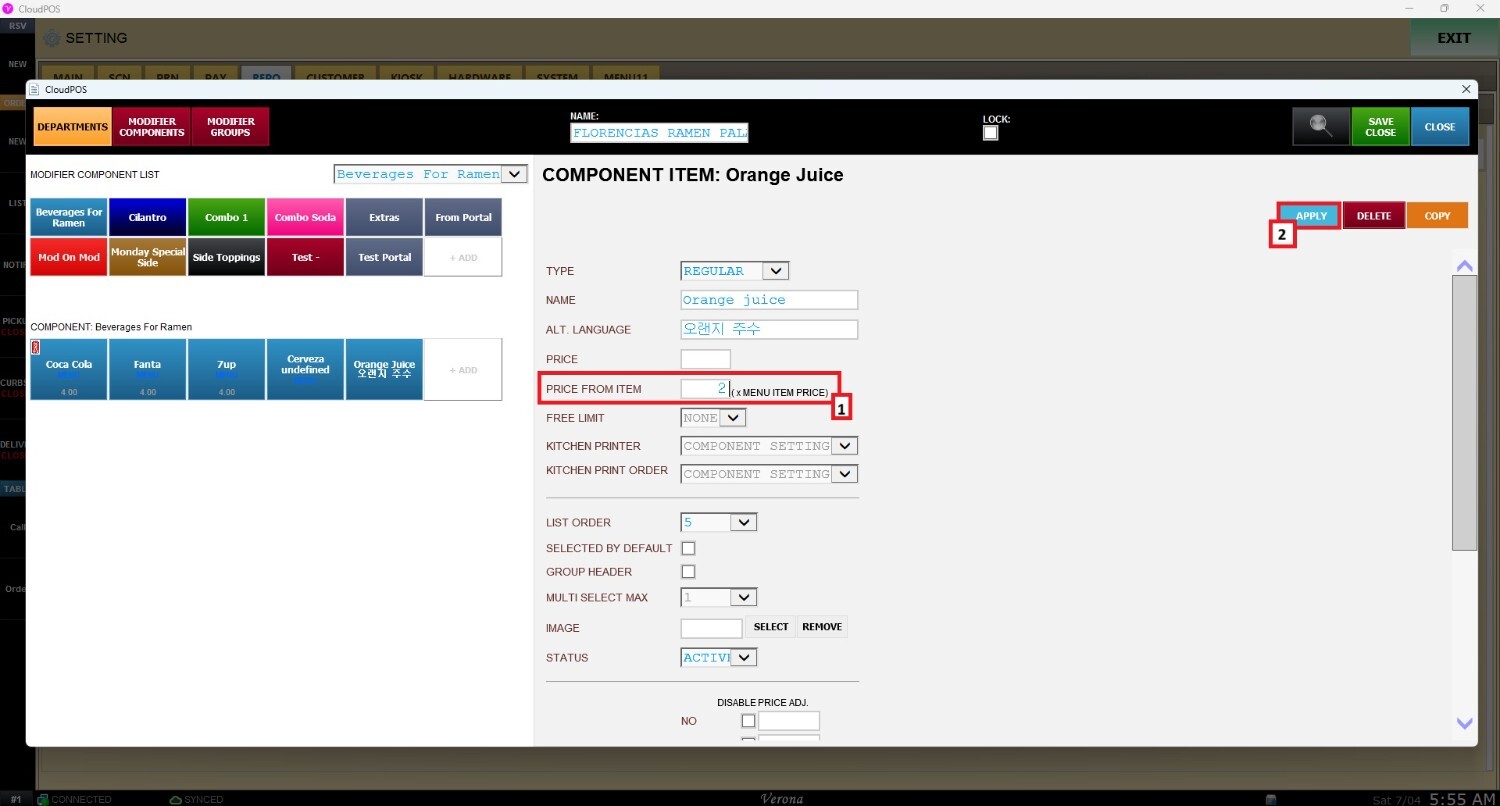
The PRICE FROM ITEM feature dynamically links the modifier's cost to an existing item's price. When configured, the system will multiply the set baseline value by the actual price of the selected menu item. Remember to click APPLY to save these settings.
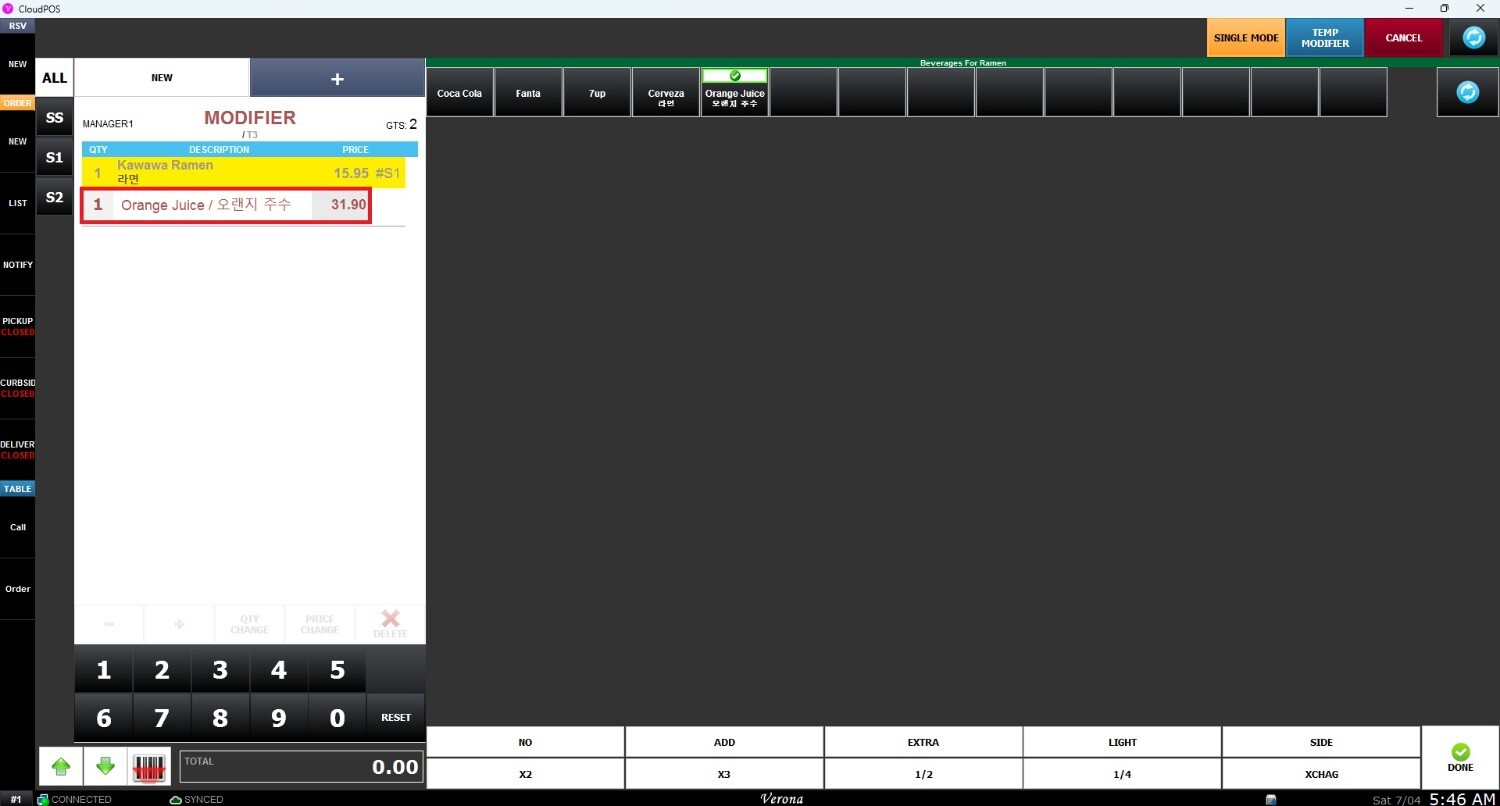
Free Limit
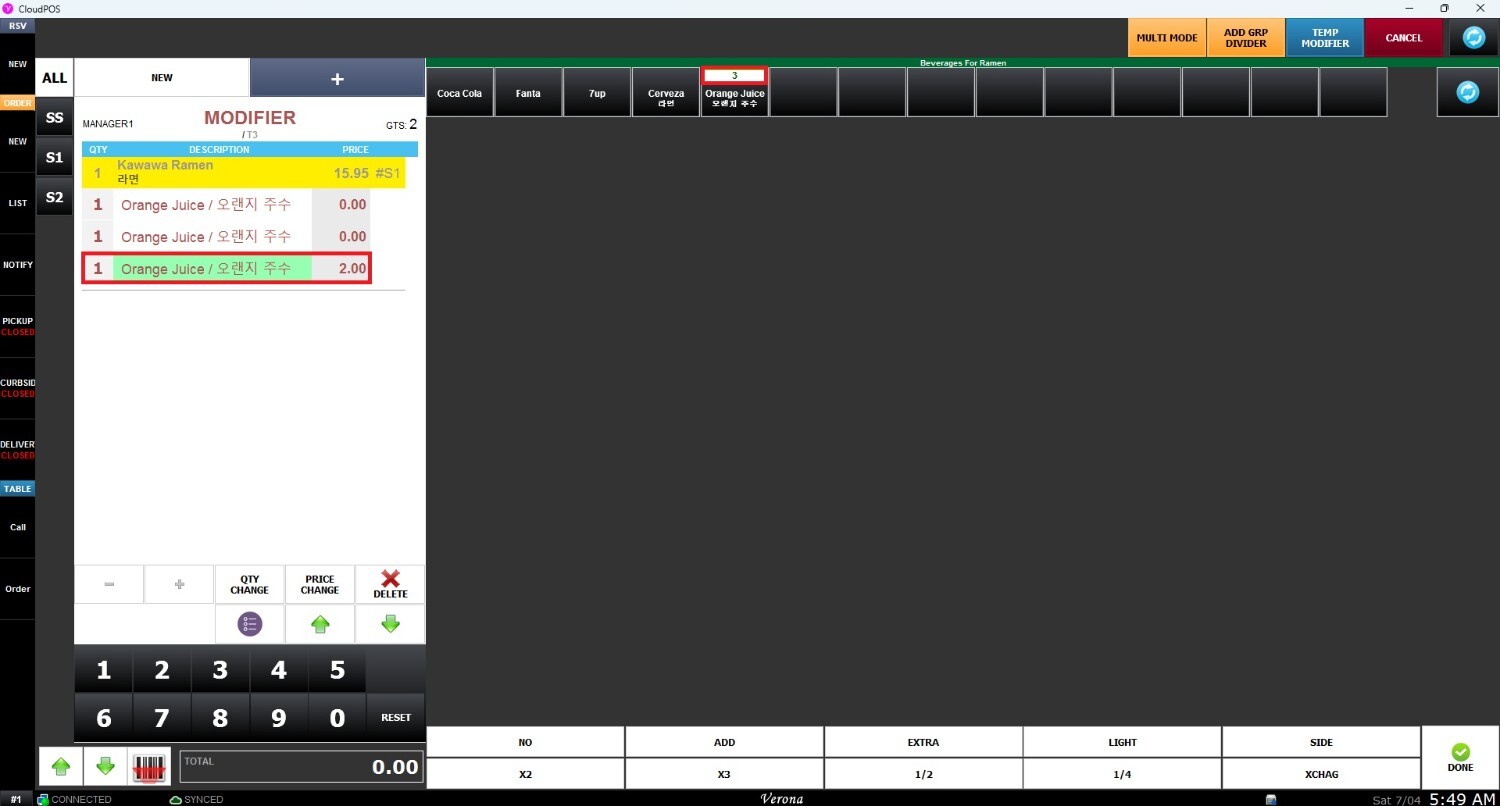
The FREE LIMIT feature allows you to set a maximum number of modifier components that a customer can receive at no extra charge. Once this limit is reached, any additional selections of that component will be charged at the standard price. Remember to click APPLY to enable this feature on your system.