Memo
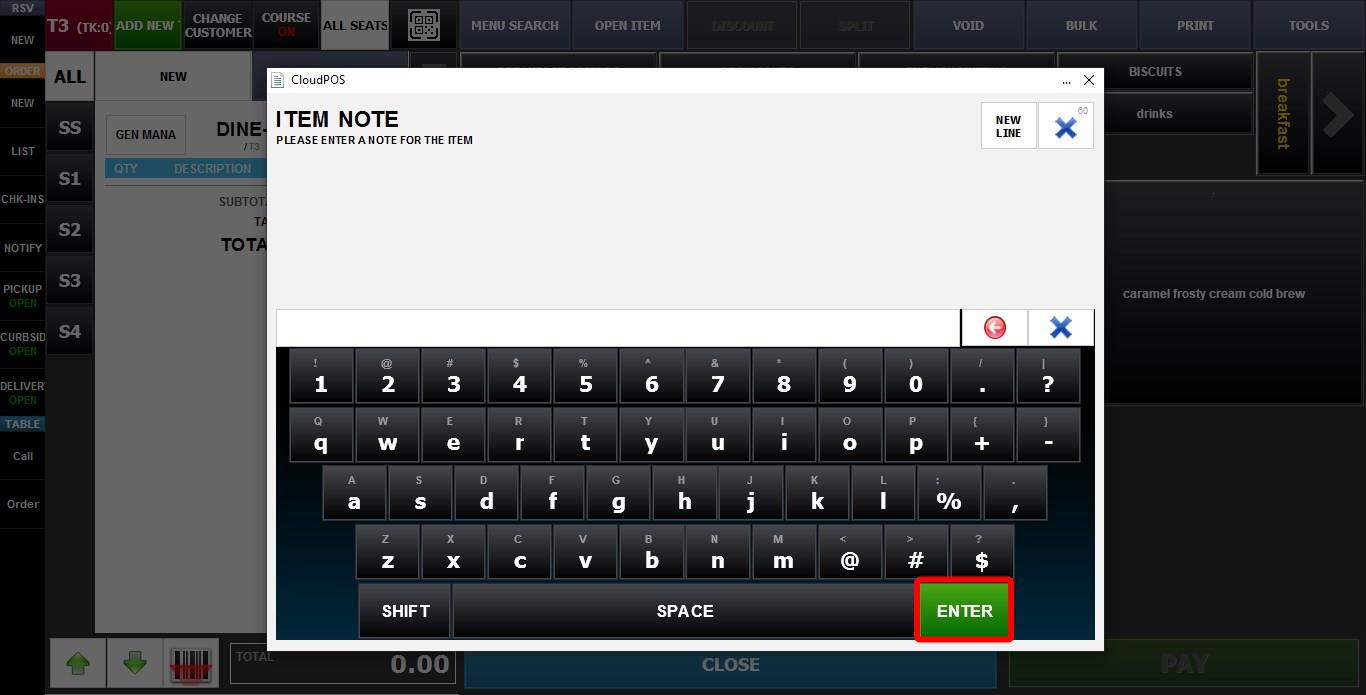
The Memo setting controls whether the memo input screen appears when an item is selected and whether entering a memo is optional or required. This can be used for special instructions, preparation notes, or customer requests.
MENU > SETTINGS > REPO > EDIT > MEMO
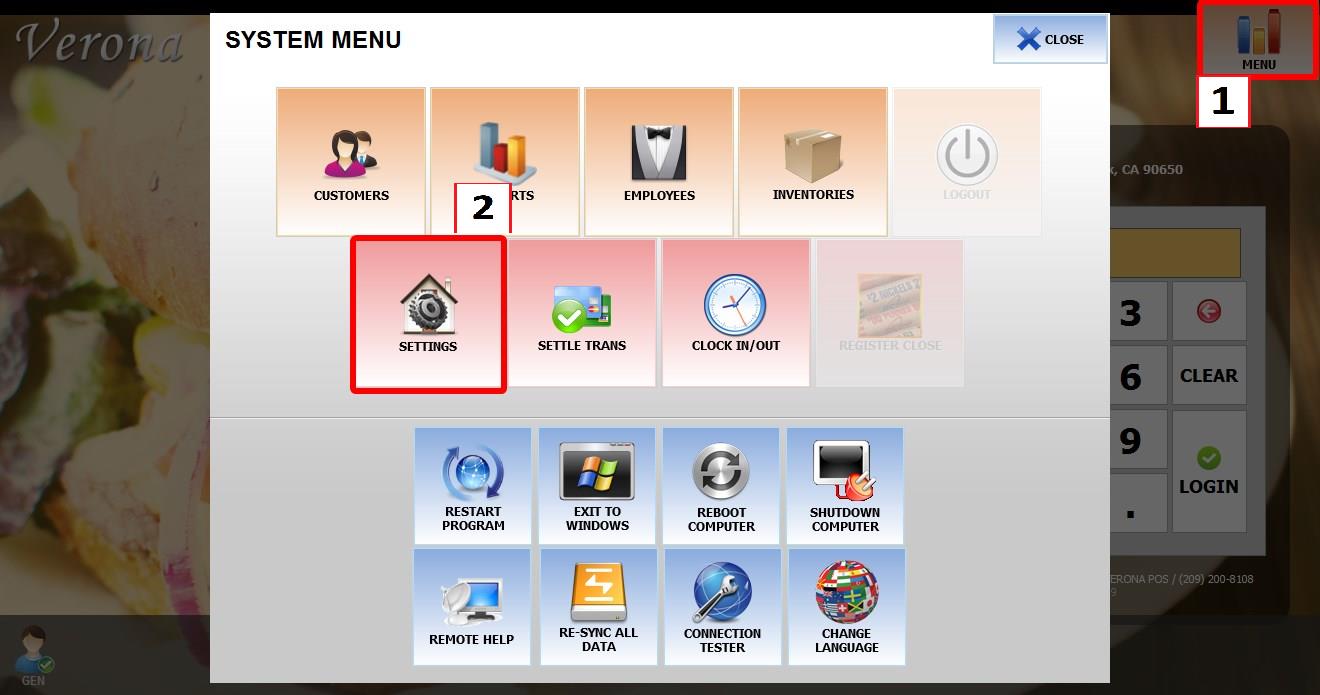
Go to MENU, then select SETTINGS.
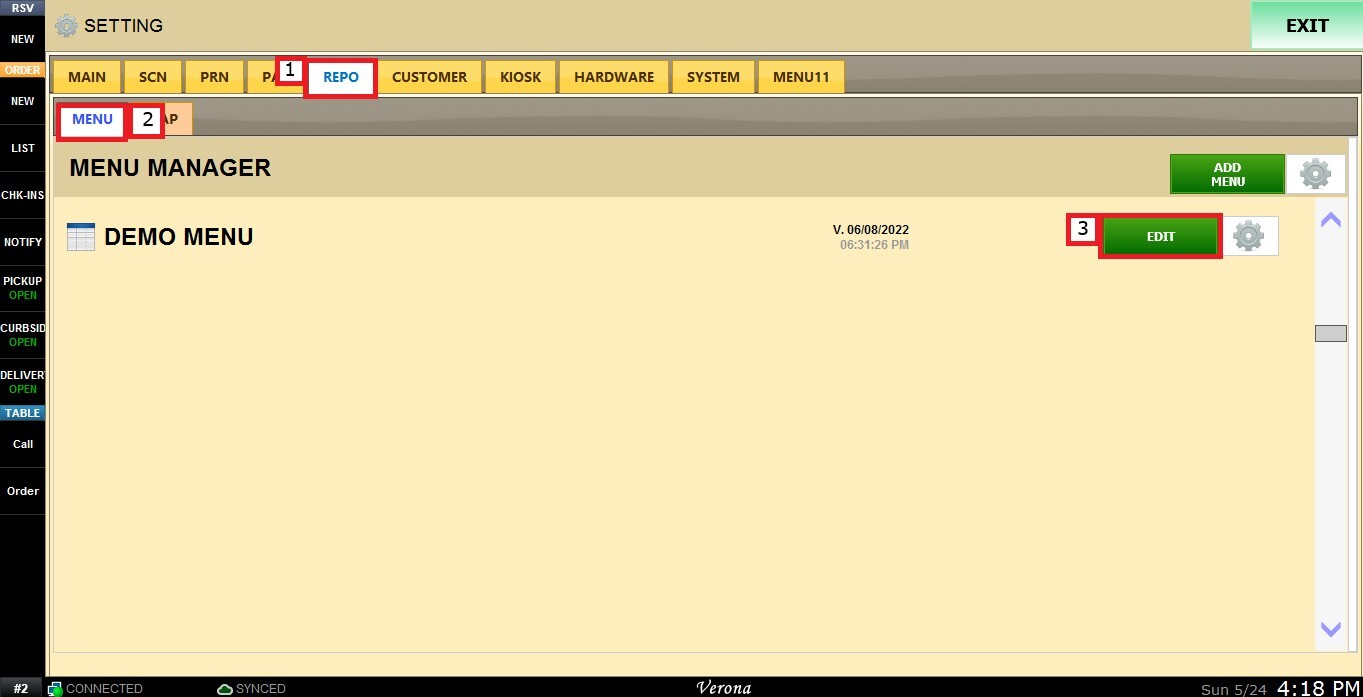
Go to REPO, locate your menu, then click EDIT.
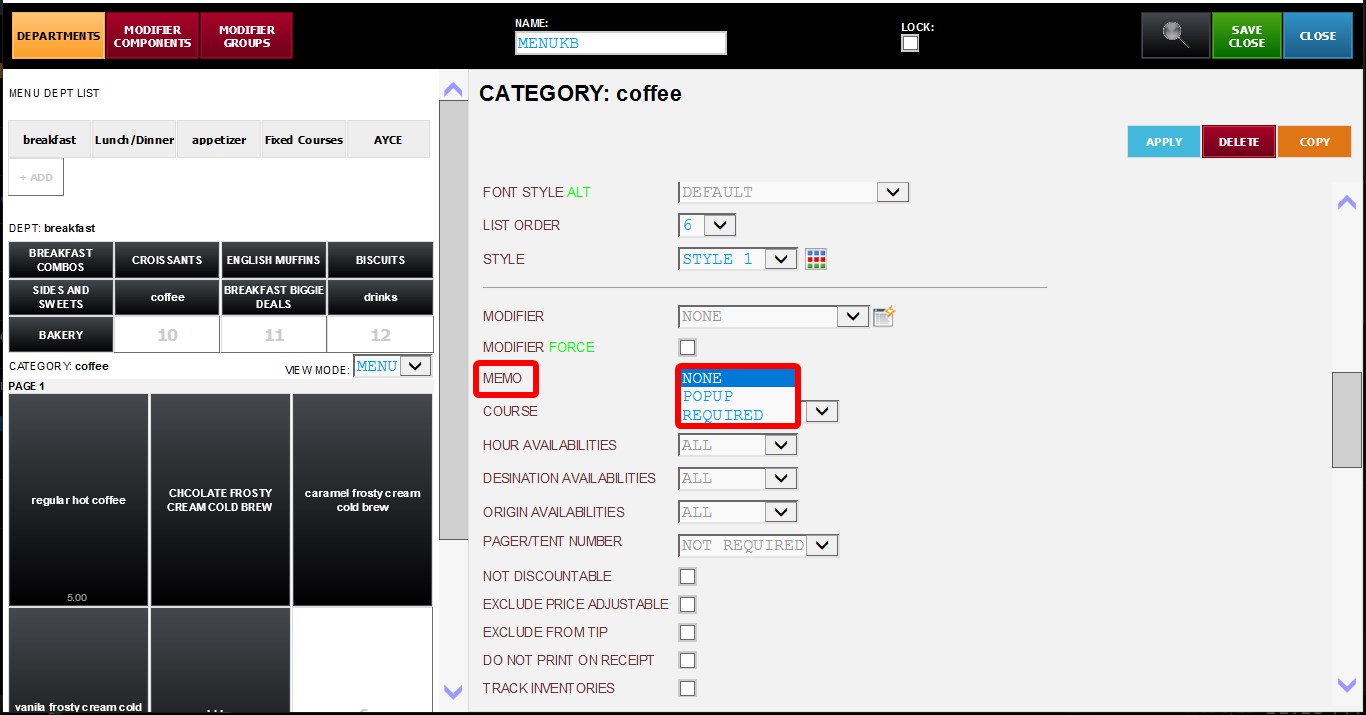
Select the item or category you want to configure. Scroll down through the settings until you find the MEMO dropdown menu.
The following options are available:
1. NONE: The memo screen will not appear when the item is selected.
2. POPUP: The memo screen will appear when the item is selected, but entering text is optional.
3. REQUIRED: The memo screen will appear when the item is selected, and text must be entered before the item can be added to the order.
Hint: A memo setting applied at the category level will automatically apply to all items within that category. Individual items can still override the inherited setting with their own memo configuration if needed.
Click APPLY then SAVE & CLOSE. Then restart the program.

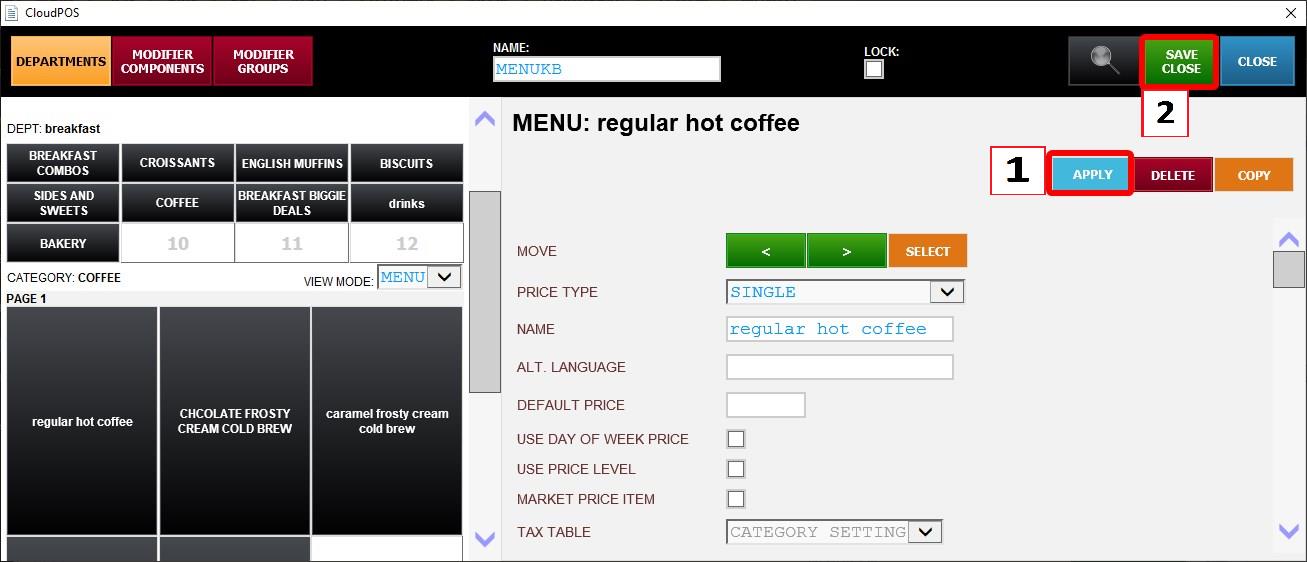
Result:
When the item is selected on the Order Screen, the memo screen behavior will depend on the configured setting:
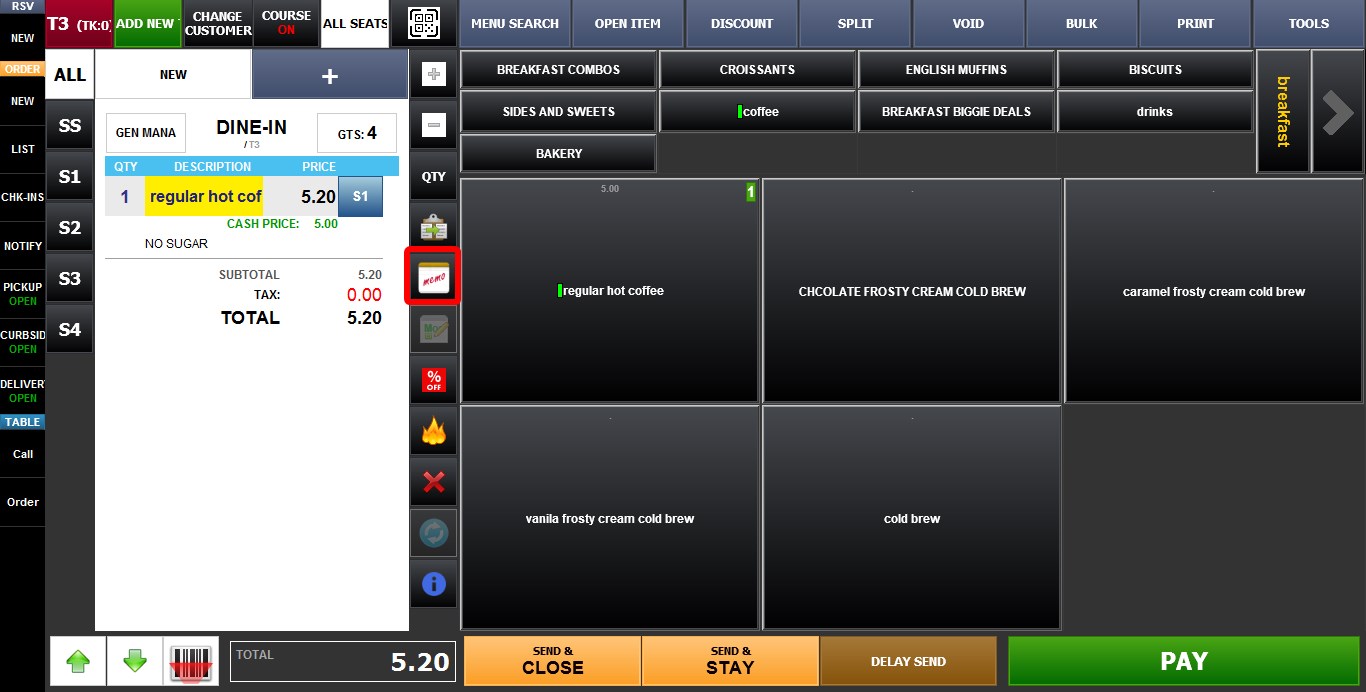
1. NONE: The memo screen will not appear, to add a MEMO, click on the Memo Icon.
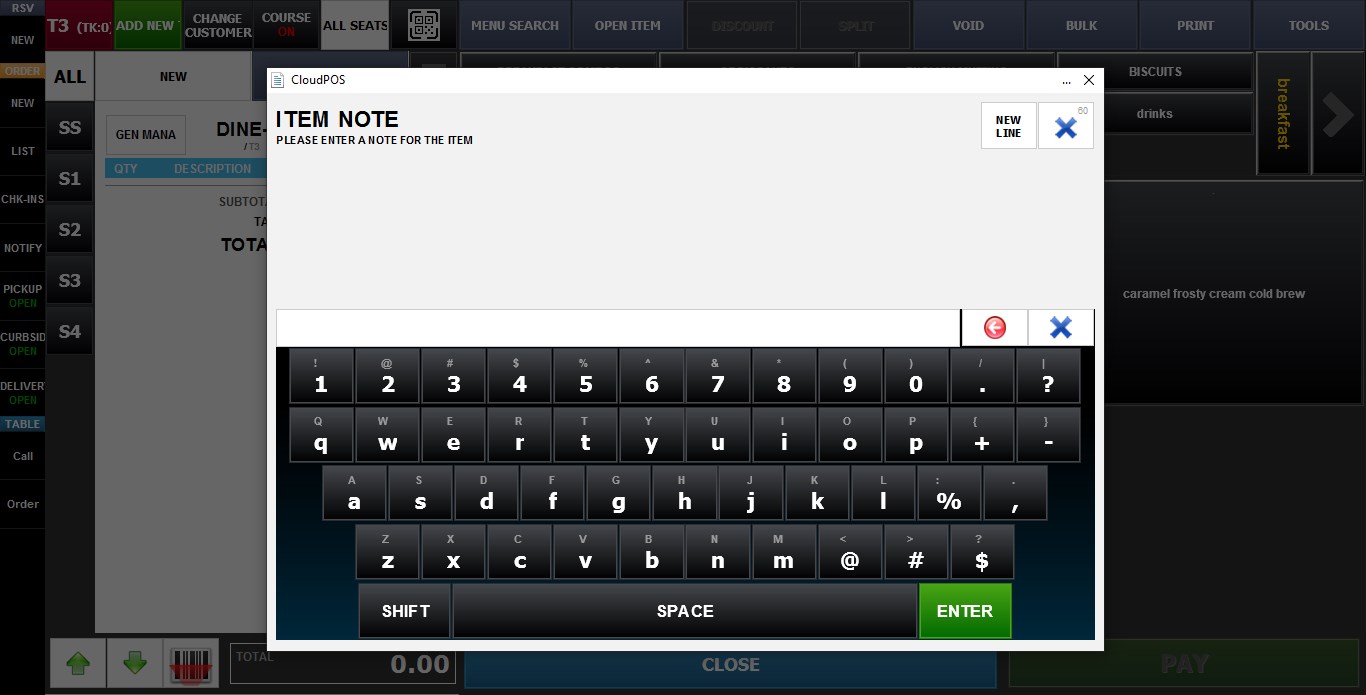
2. POP UP: The memo screen will appear after ringing up the item.
It can be closed using the X button without entering text.
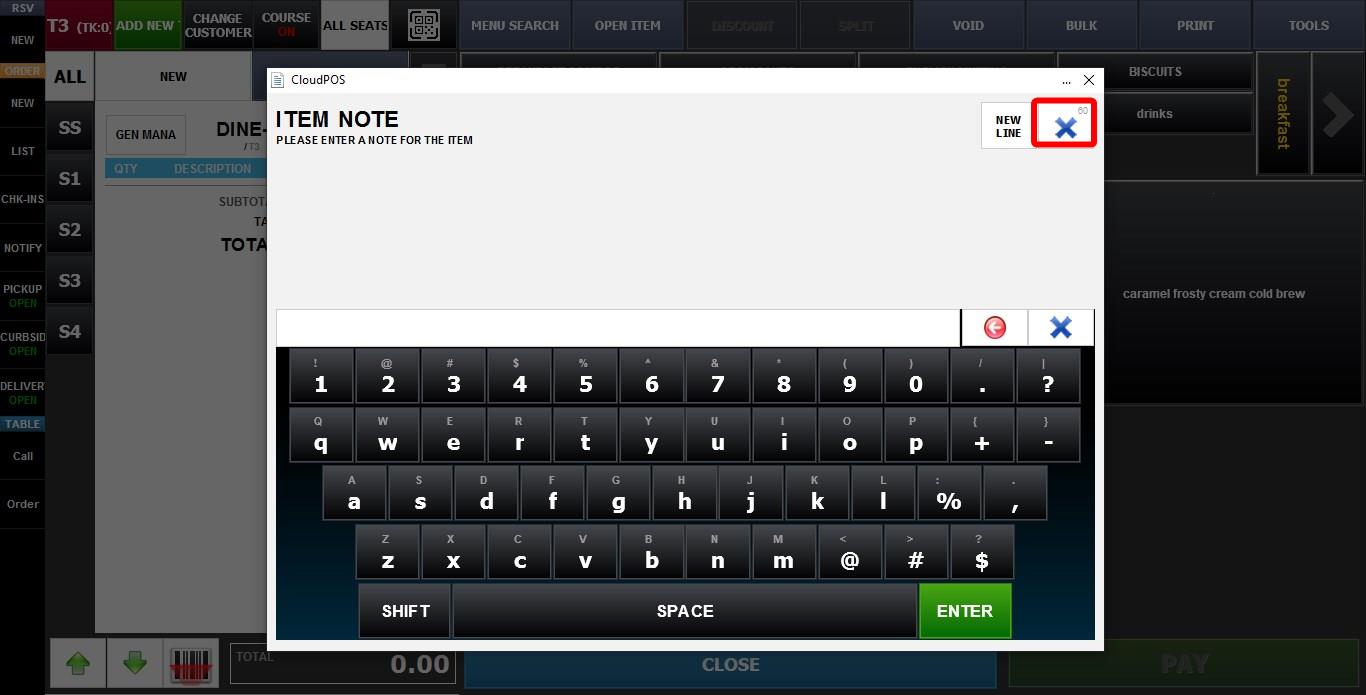
3. REQUIRED: The memo screen will appear, and the X button will not close the screen. Text must be entered and confirmed using ENTER before the item can be added to the order.