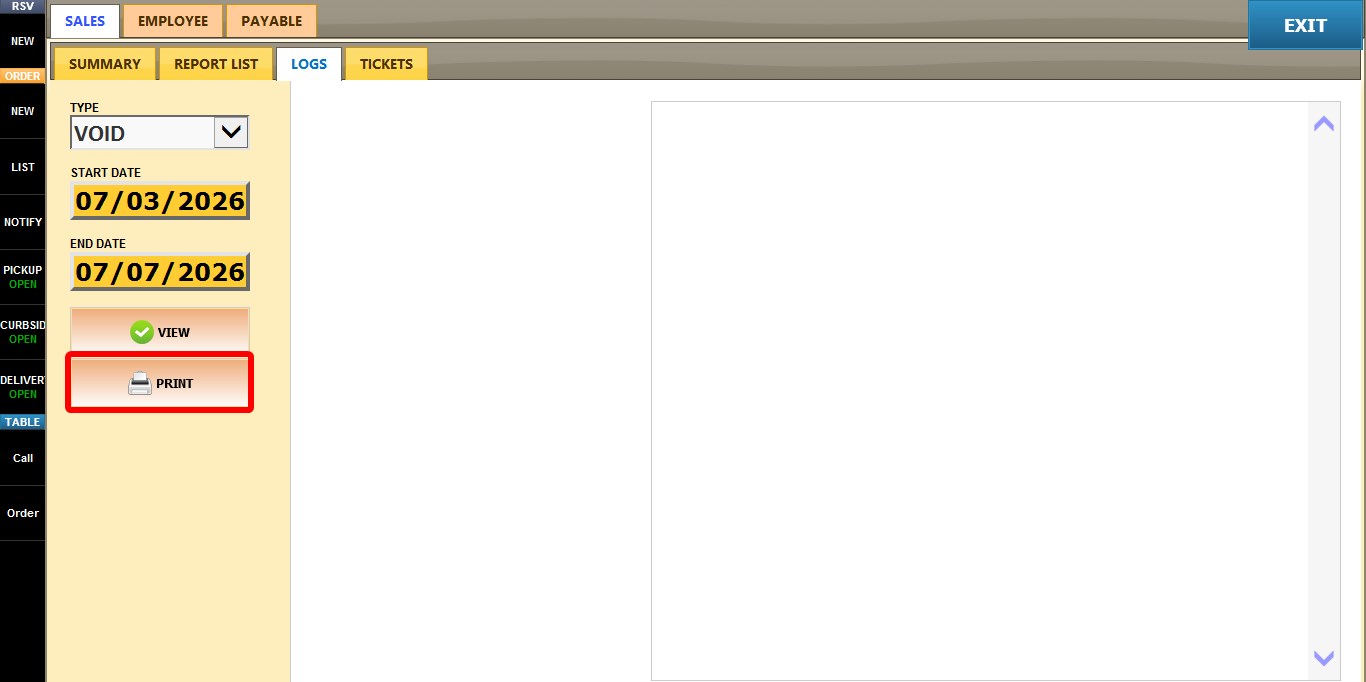
Void Log
The Void Log displays every void performed during the selected period. Use this log to review when items were voided, who performed the void, which ticket was affected, and the reason or details associated with each voided item.
MAIN SCREEN > MENU > REPORTS > SALES > LOGS
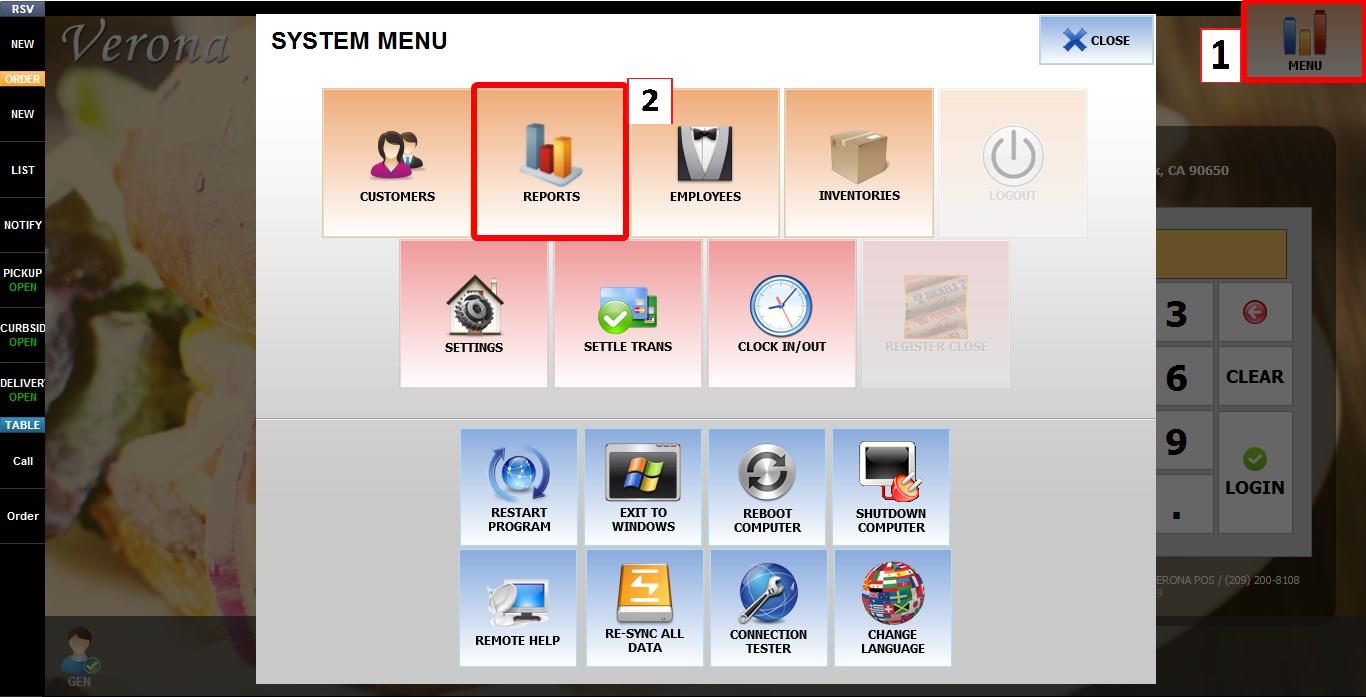
From the MAIN SCREEN, click MENU, then select REPORTS.
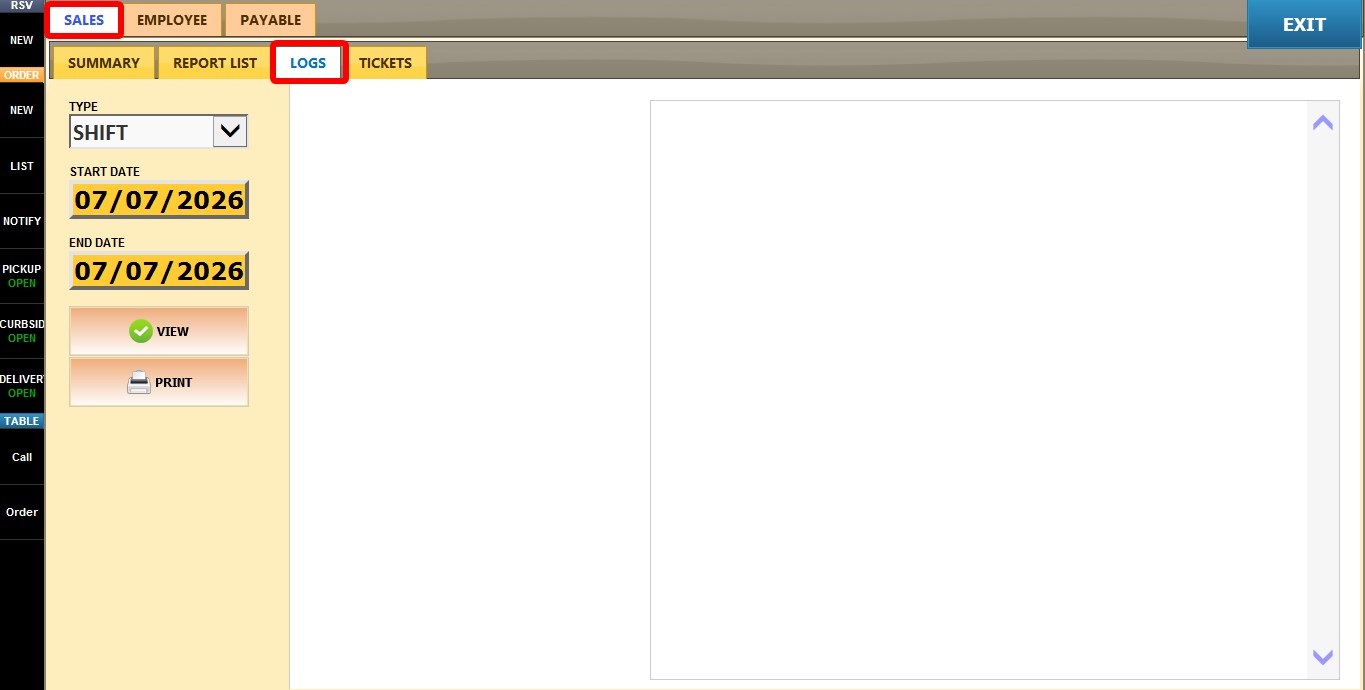
Open the SALES tab, then click LOGS.
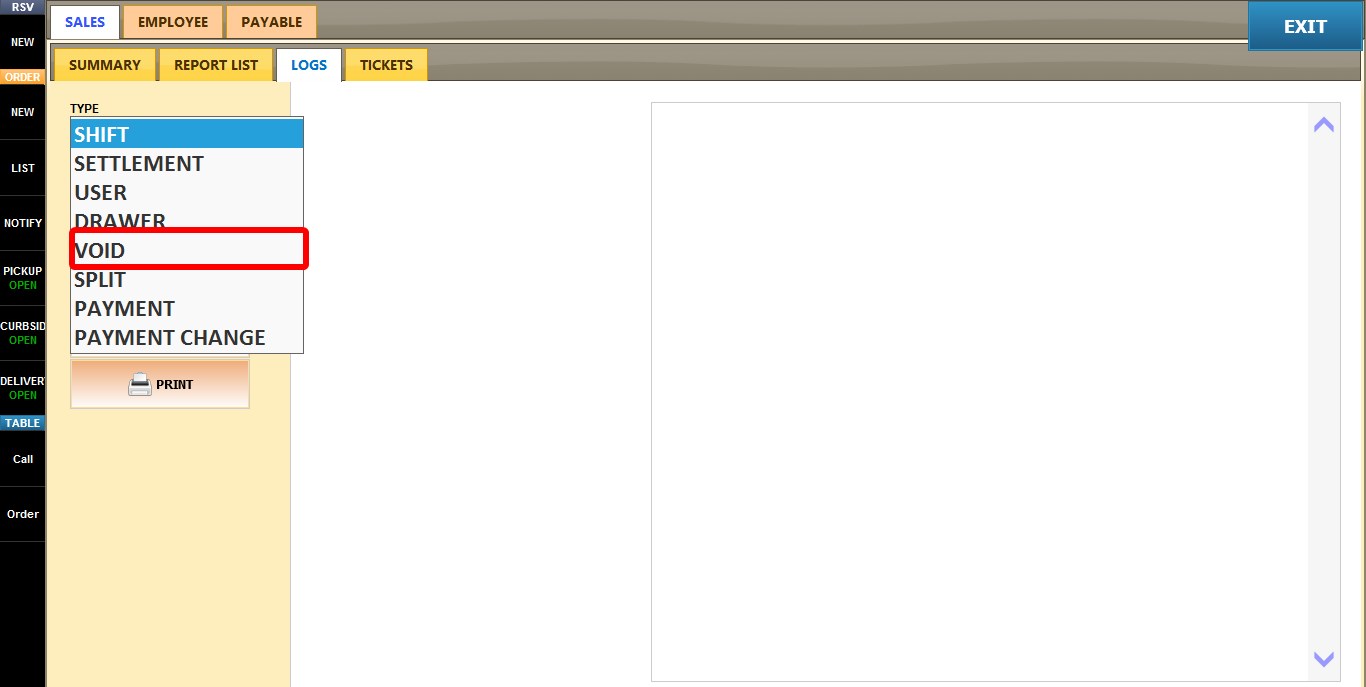
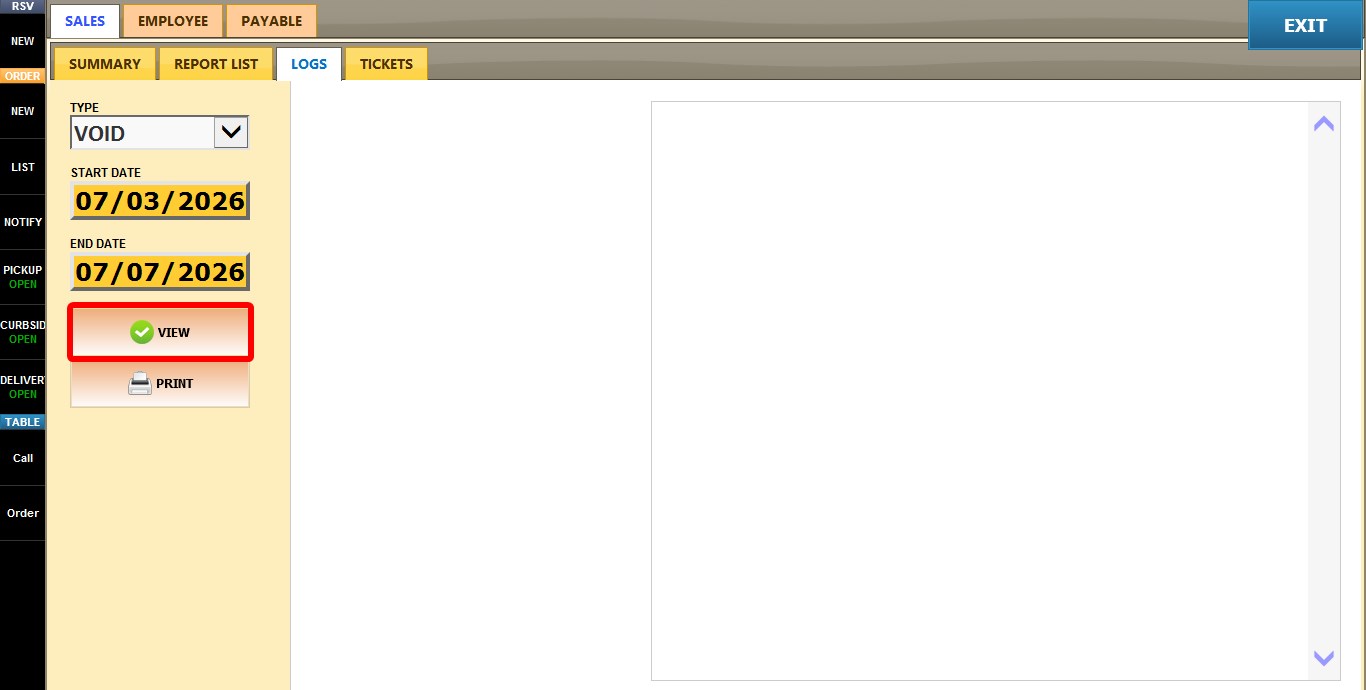
Click the TYPE dropdown. And select VOID.
Click VIEW to display the log or refresh it after changing the selected date range.
The report lists every void transaction recorded during the selected period.
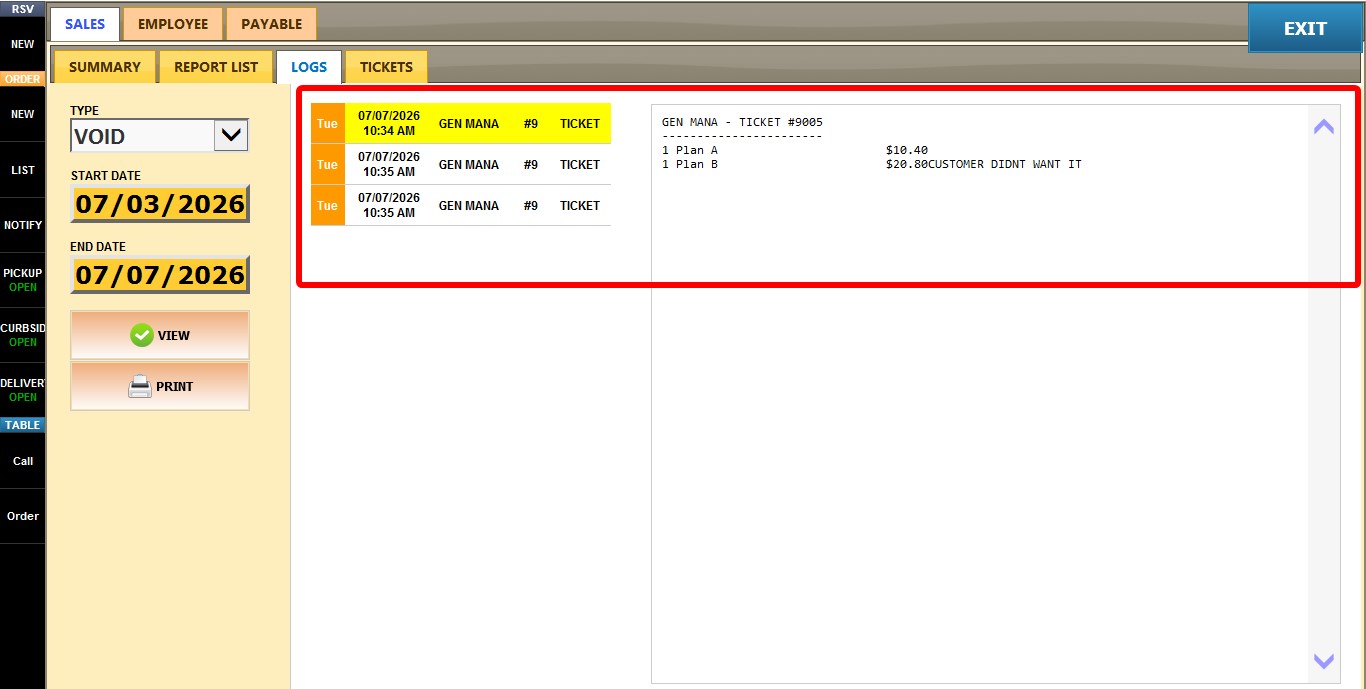
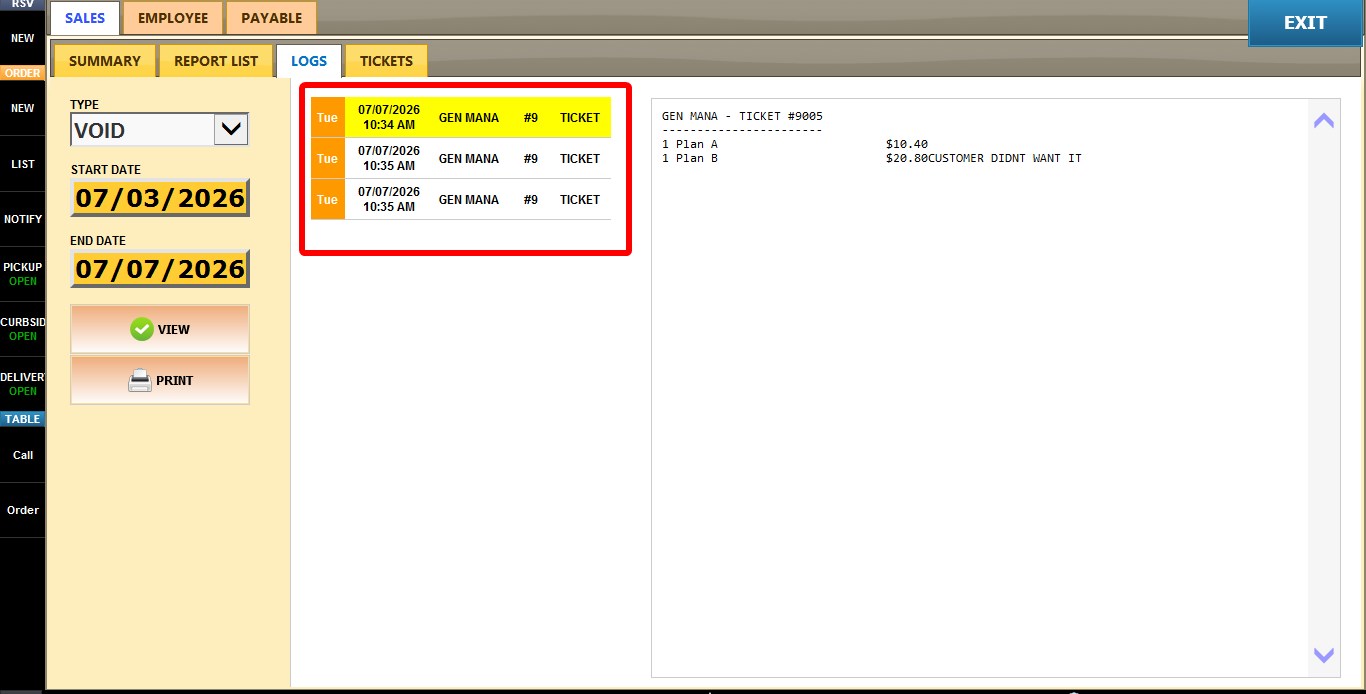
VOID LIST
Displays every void transaction that matches the selected date range.
Each entry includes the business day, time, employee who performed the void, ticket number, and transaction type.
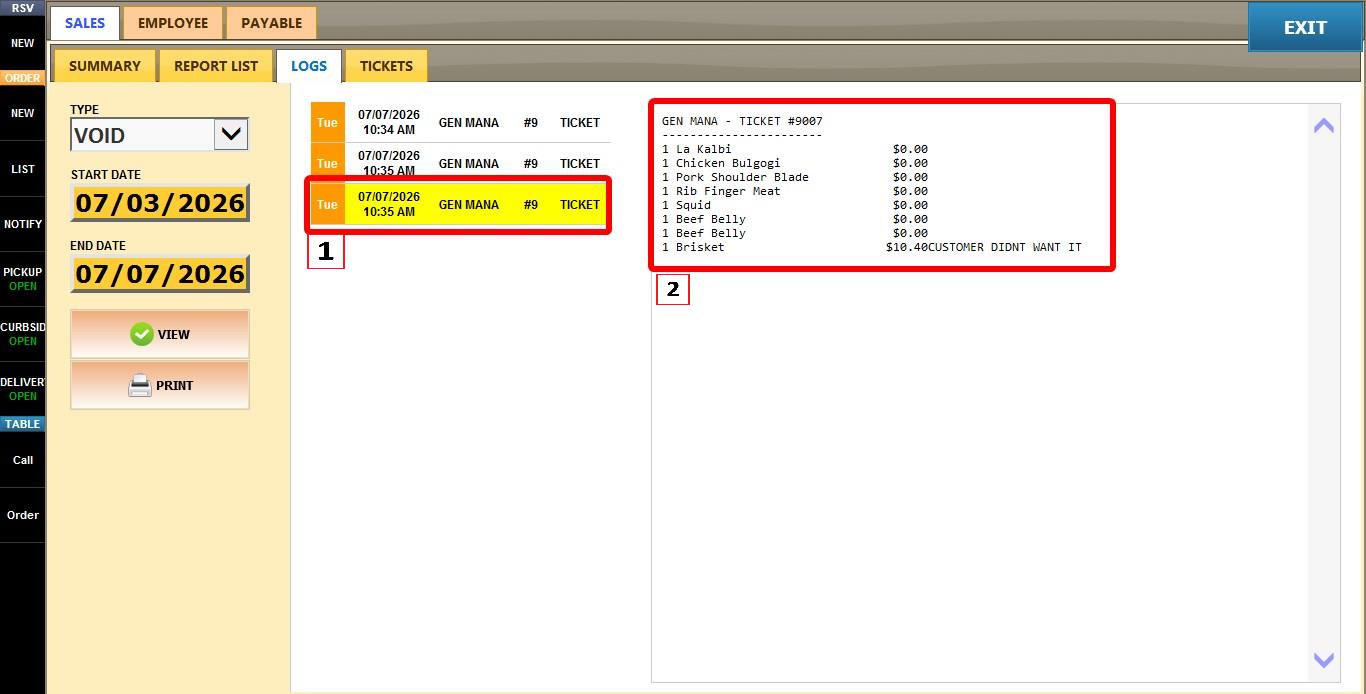
VOID DETAILS
Select any void transaction. On the right side it will display detailed information.
It will show the employee, ticket number, every item that was voided, amount of each item that was voided, the value of each item, and any note entered for the void process.
FILTERS
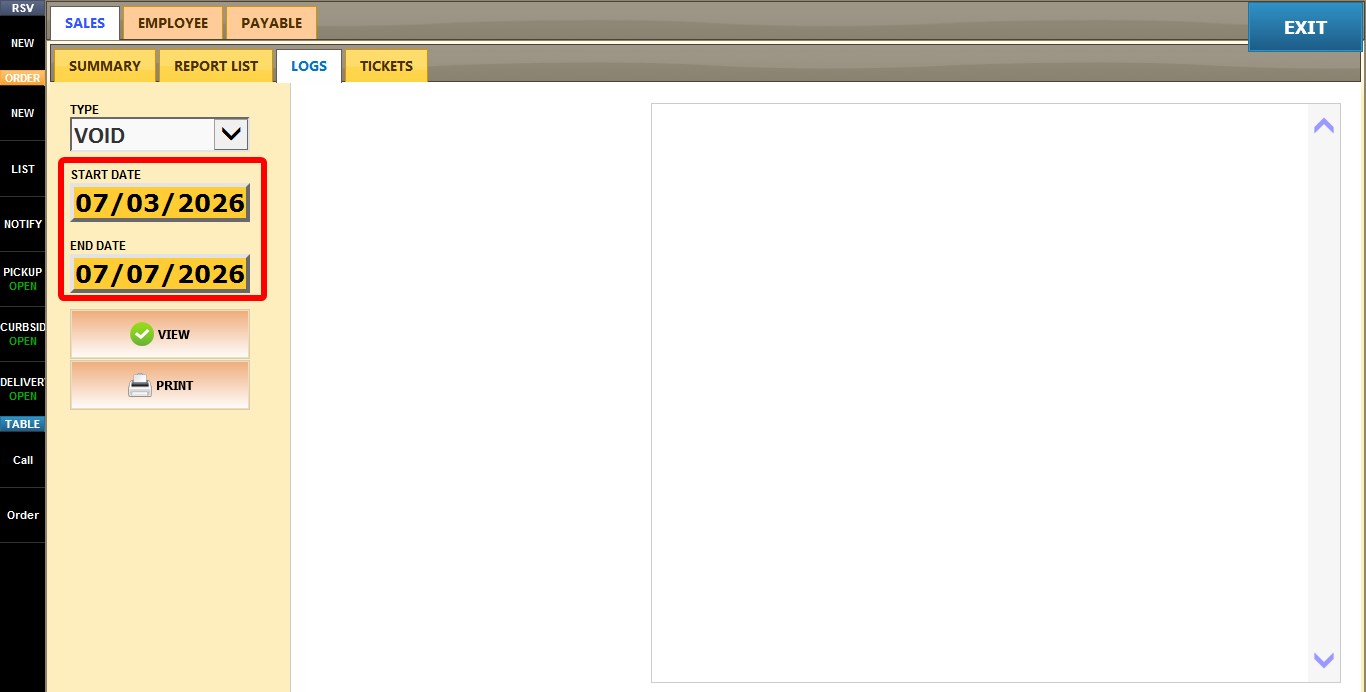
START / END
Allows you to select a custom date range for the log.
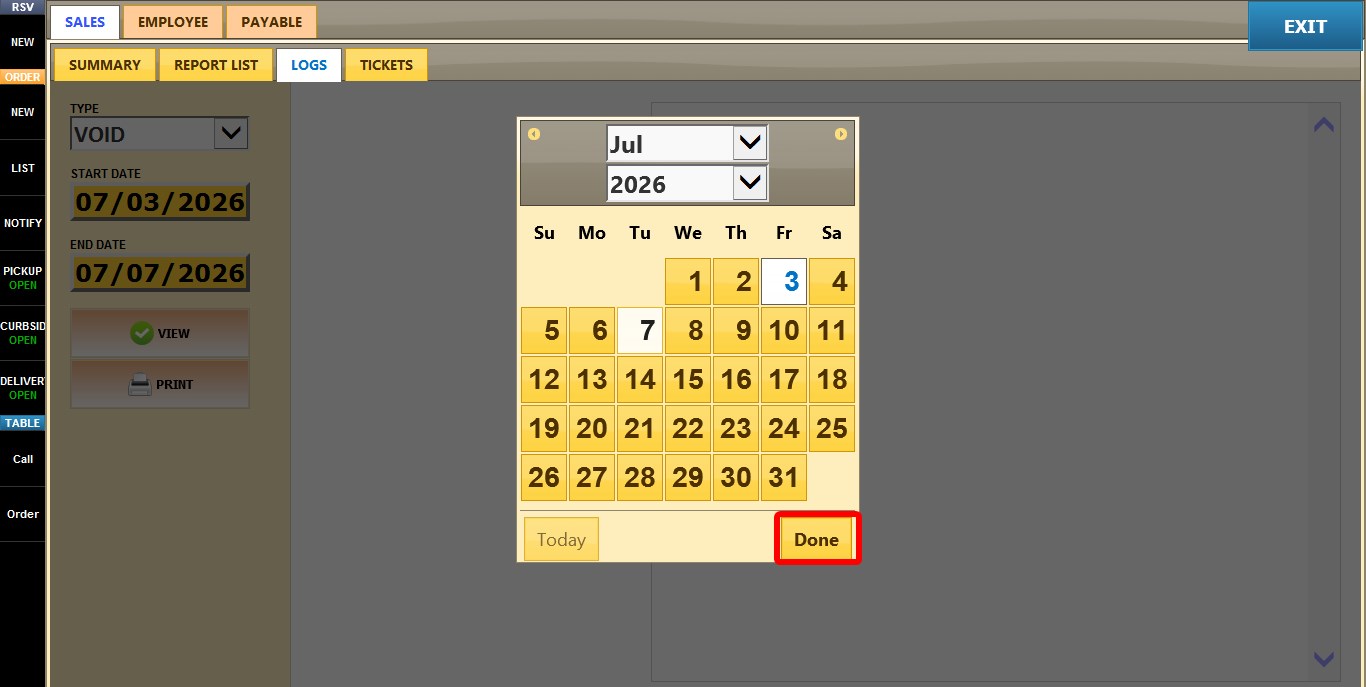
Click either START or END to open the calendar.
Select the desired date and click DONE.
Prints the currently displayed Void Log, including the details of the selected void transaction.