Backup
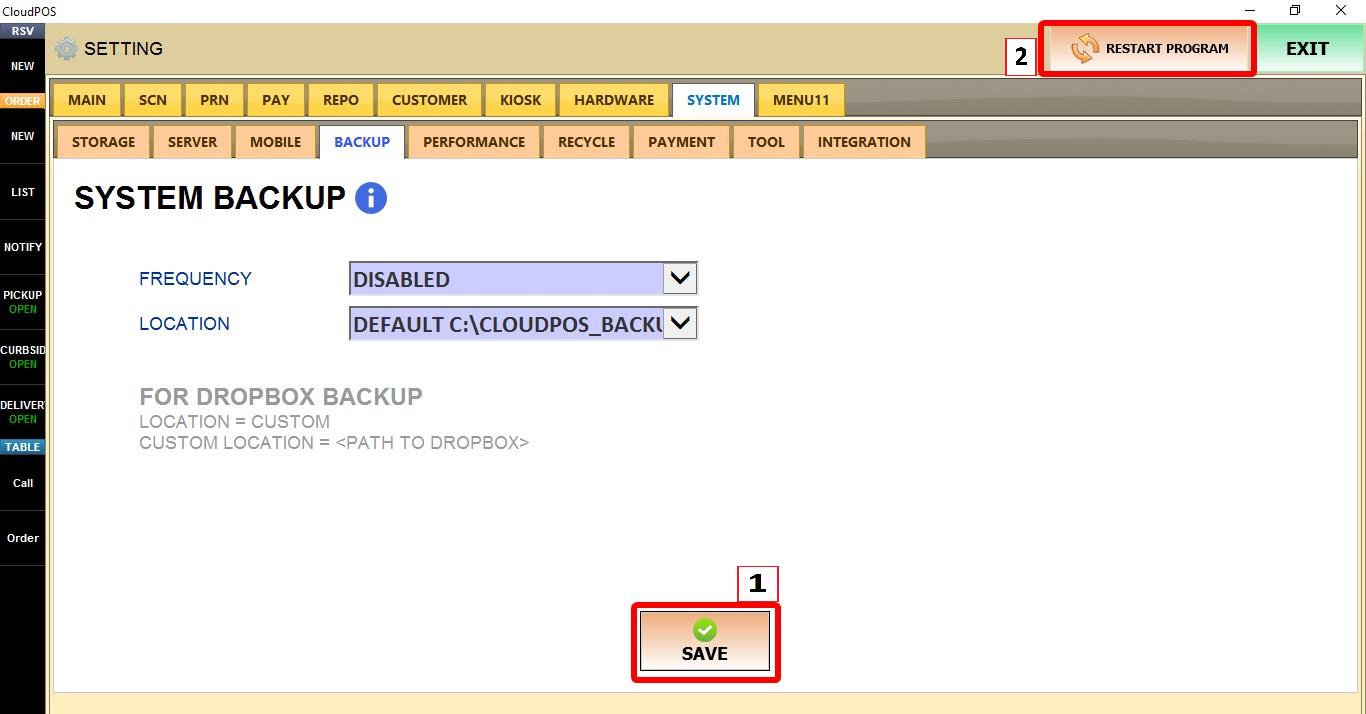
The BACKUP settings control how often the POS creates automatic backups and where they are stored.
MENU > SETTINGS > SYSTEM > BACKUP
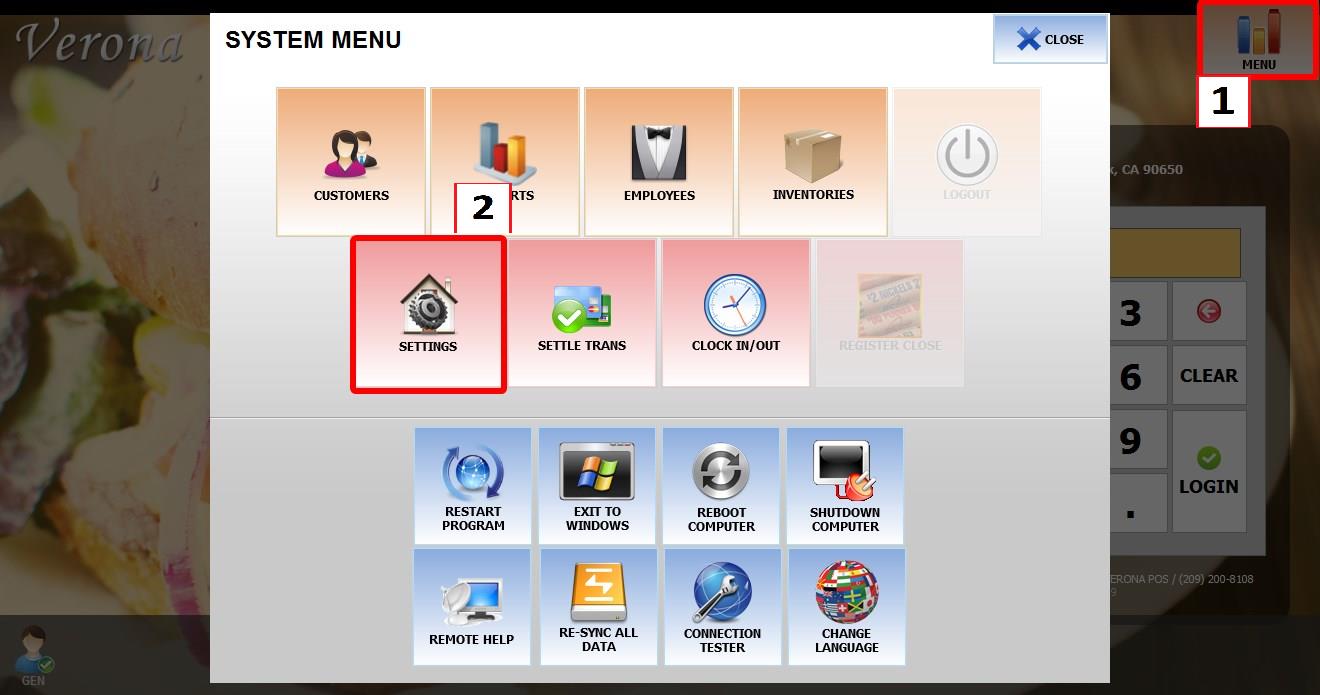
From the MAIN SCREEN, click MENU, then select SETTINGS.
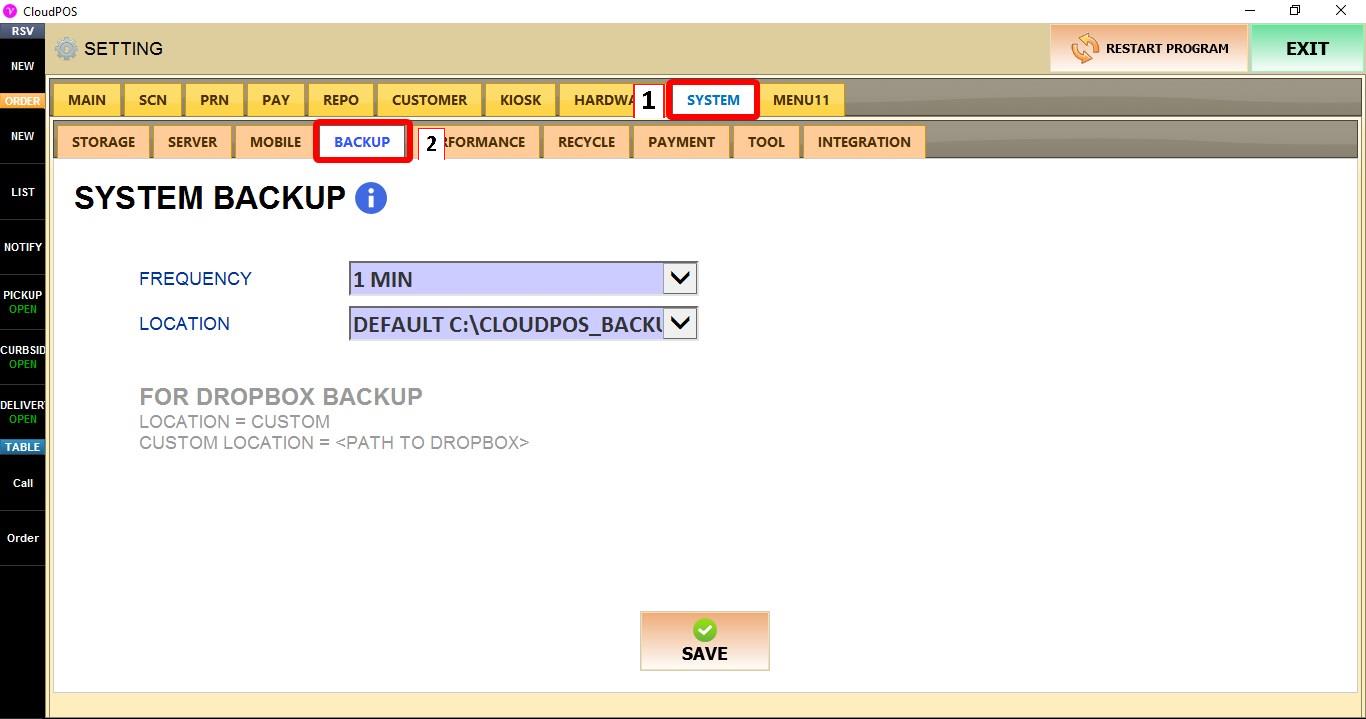
Go to SYSTEM > BACKUP.
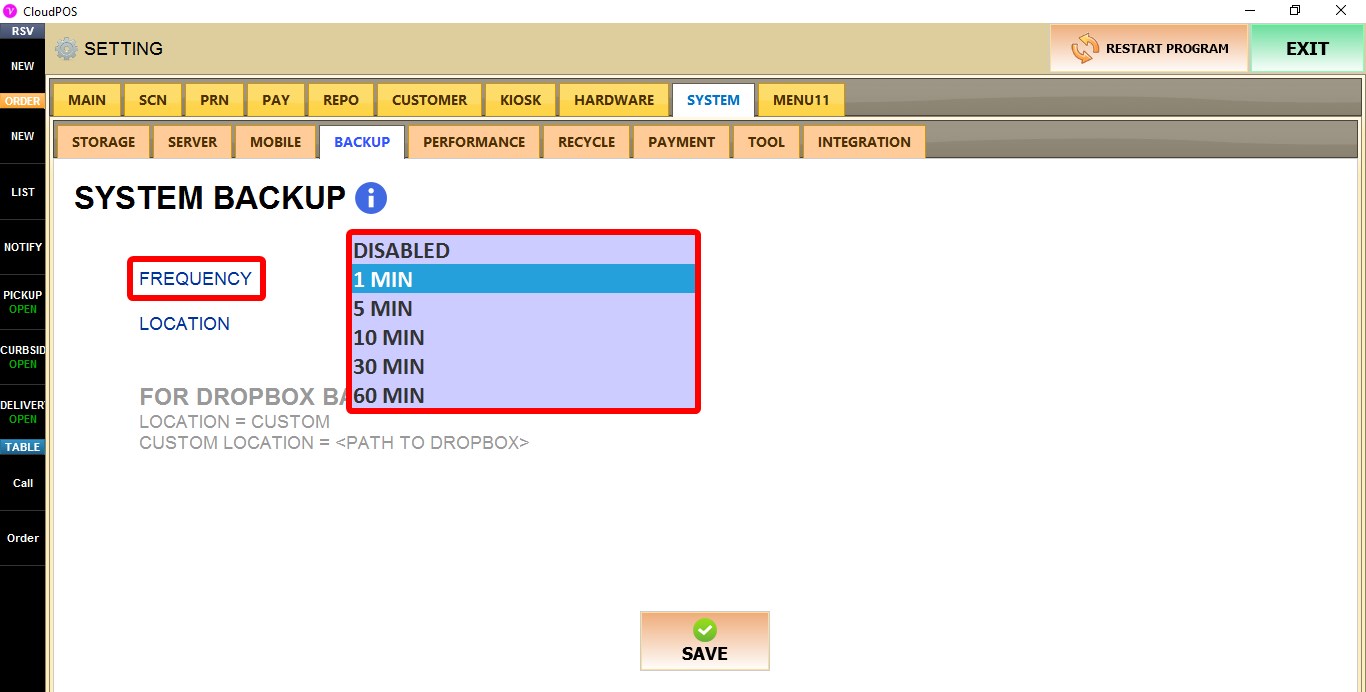
FREQUENCY
Controls how often automatic backups are created.
1. DISABLED: Automatic backups are turned off.
2. 1-60 MINUTES: Creates a backup at the selected interval.
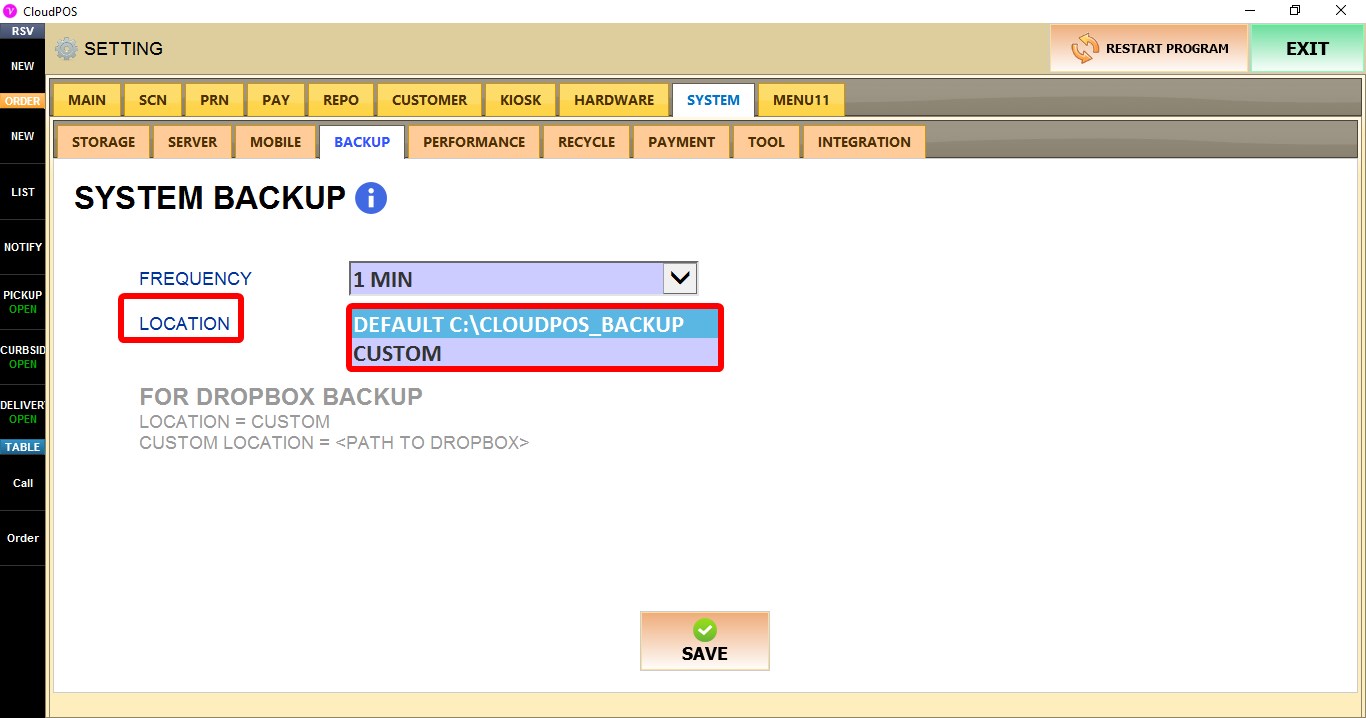
LOCATION
Selects where backup files are stored.
1. DEFAULT: Stores backups in C:\CLOUDPOS_BACKUP.
2. CUSTOM: Allows you to specify a different backup location.

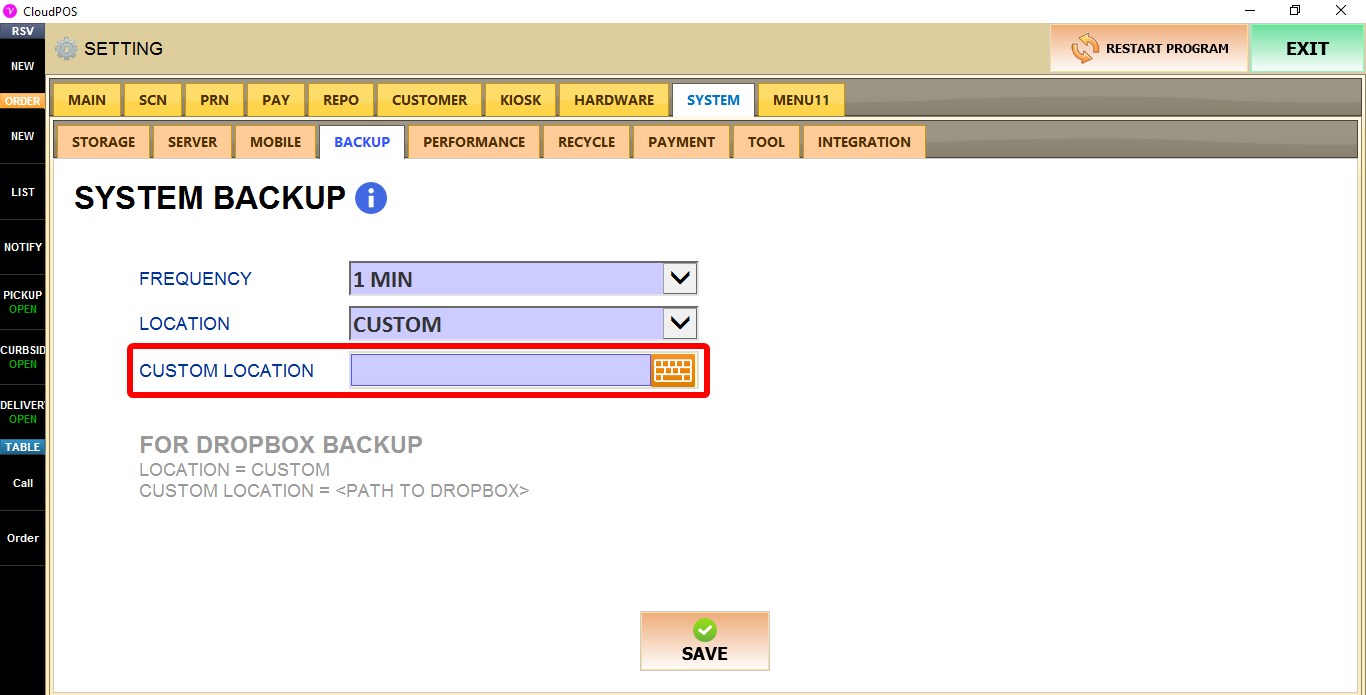
CUSTOM
Available only when LOCATION is set to CUSTOM.
Enter the full path where backup files will be stored.

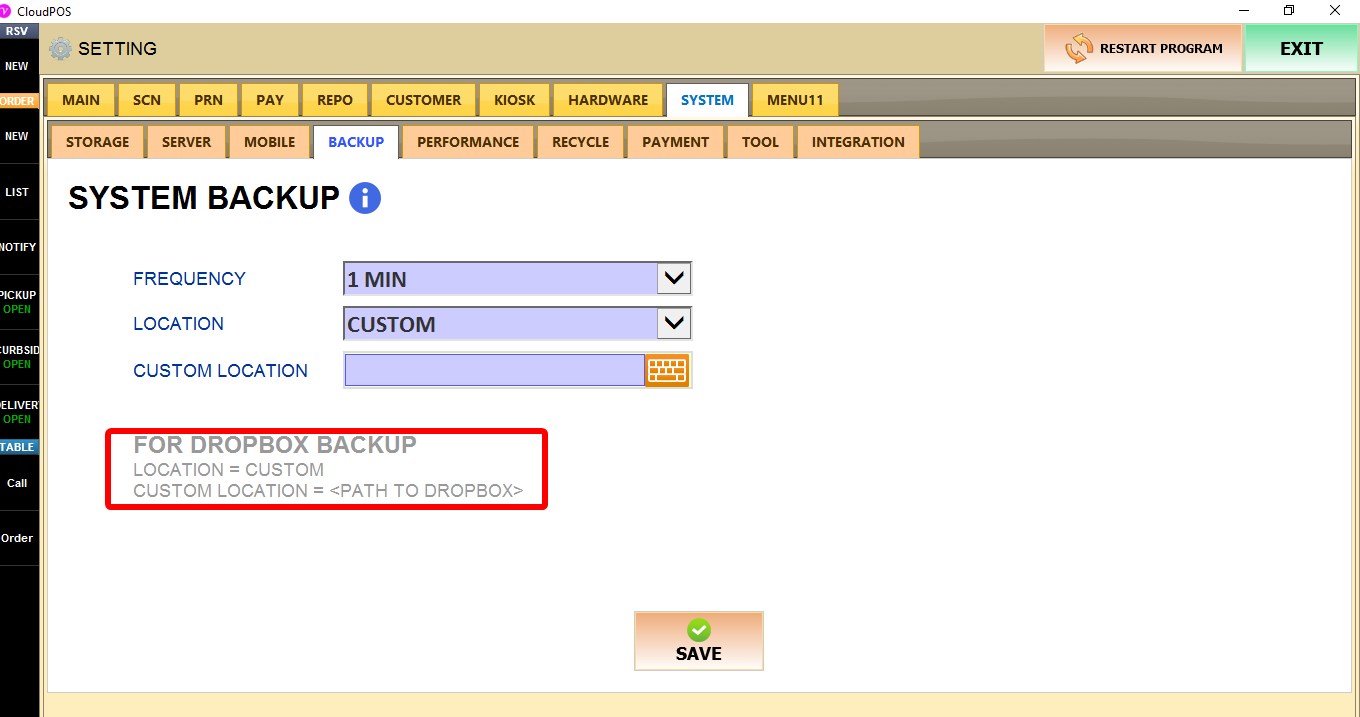
DROPBOX BACKUP
To store backups in Dropbox, set LOCATION to CUSTOM and enter the path to your Dropbox folder in the CUSTOM field.
Click SAVE and restart the program to apply the changes.