Modifier
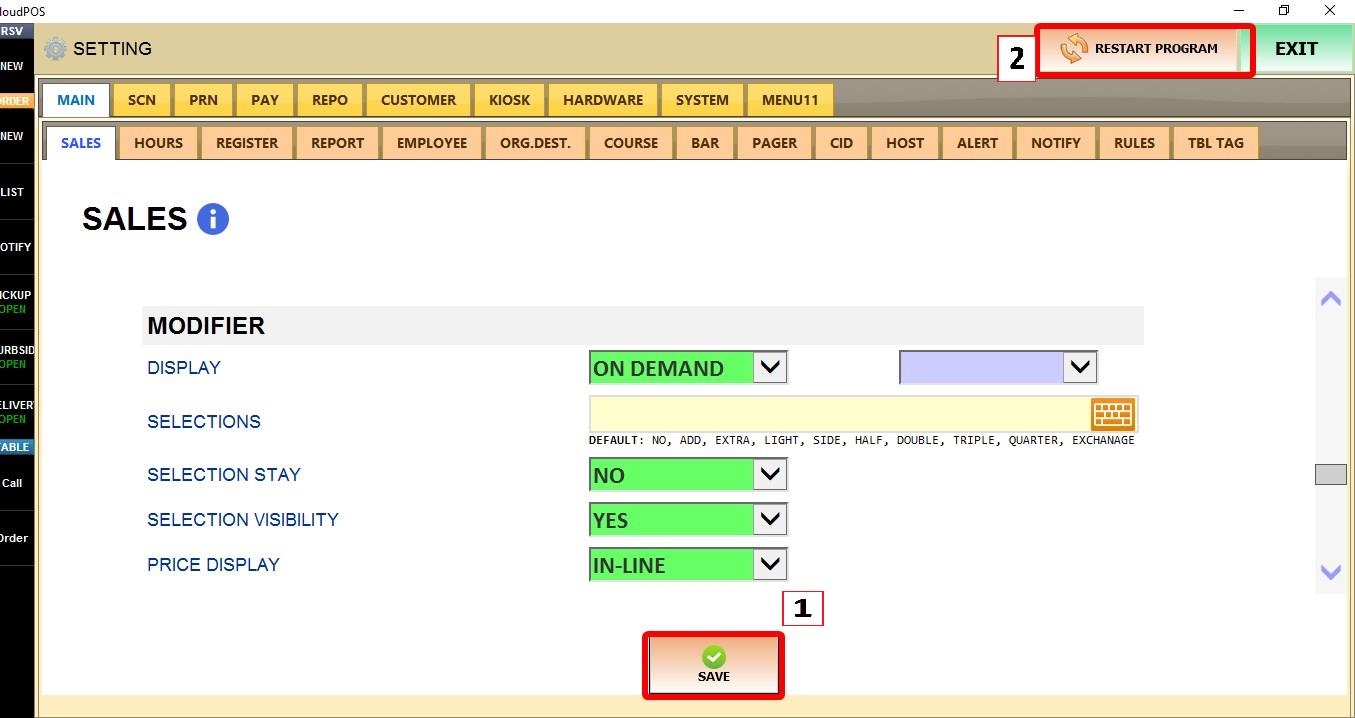
The MODIFIER section controls how modifiers are displayed and behave during ordering. These settings affect the appearance of modifier groups, selection buttons, and pricing. See the MODIFIER STRUCTURE guide for more information on how these settings affect modifier behavior in the POS.
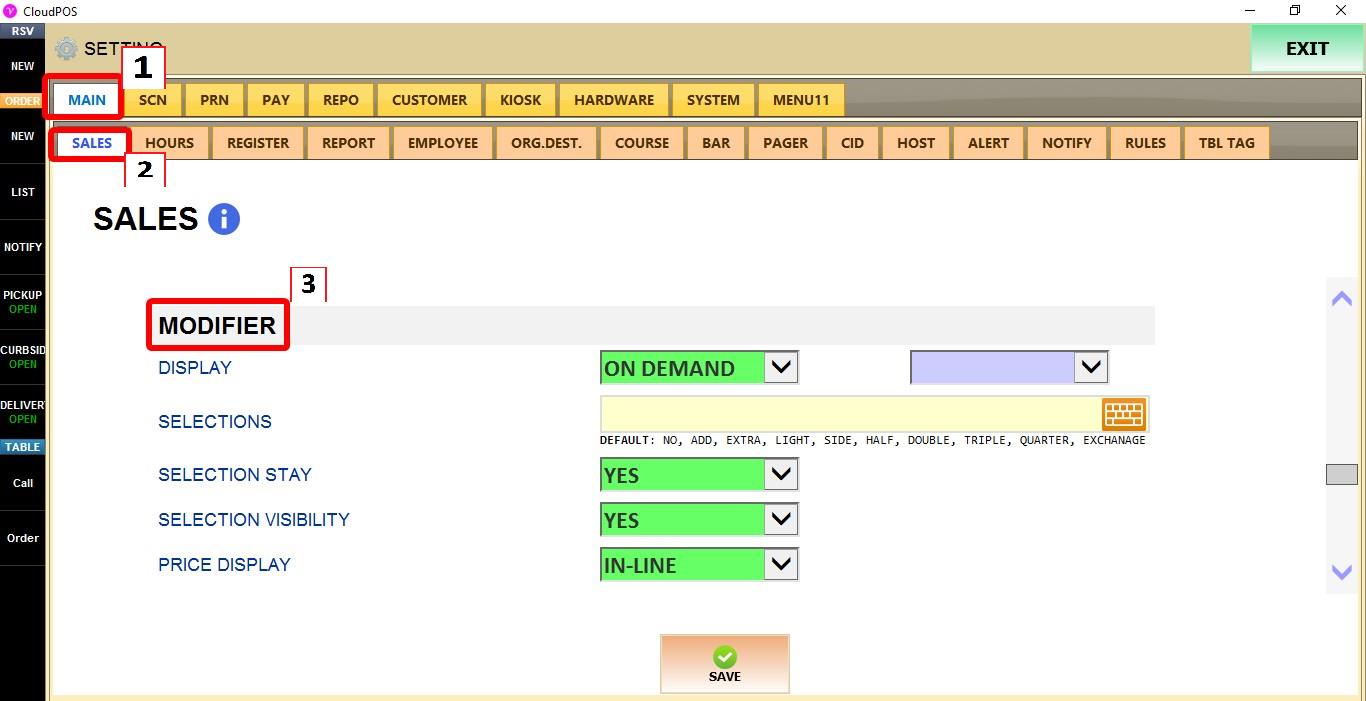
MENU > SETTINGS > MAIN > SALES > MODIFIER
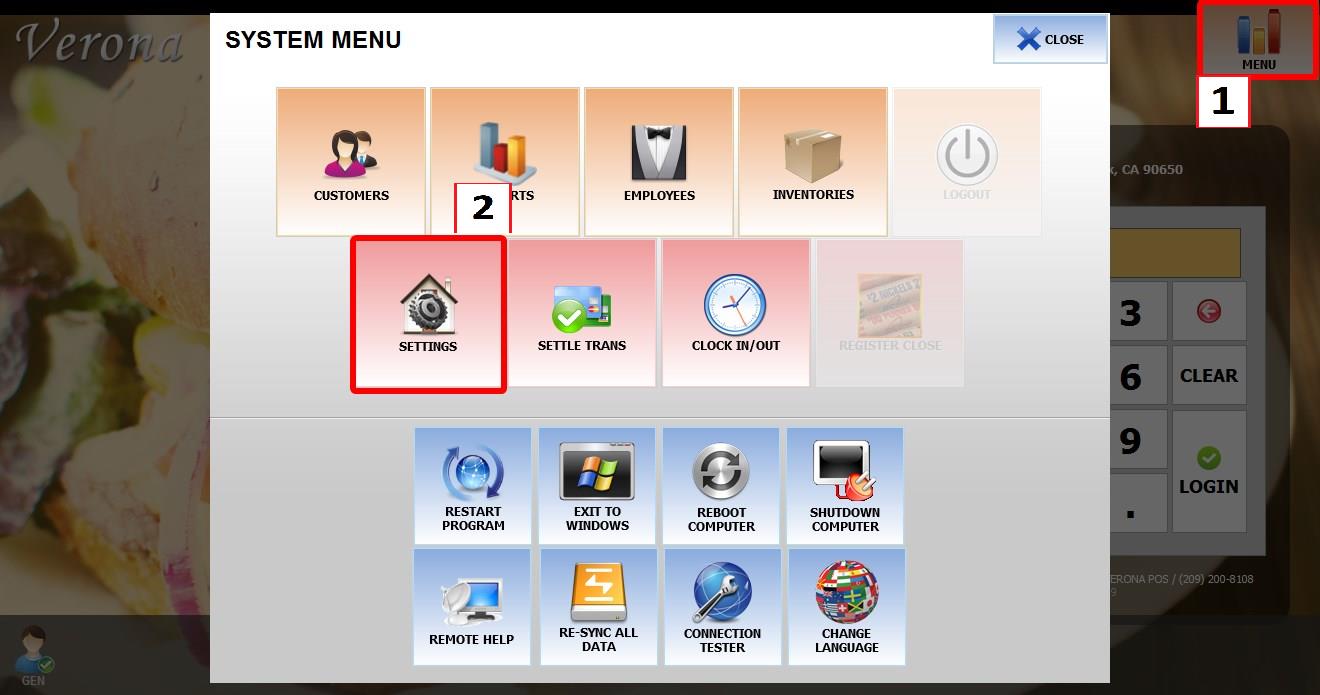
From the MAIN SCREEN, click MENU, then select SETTINGS.

Go to MAIN > SALES > MODIFIER.
TERMINAL
DISPLAY
Controls how the modifier screen is displayed during ordering.
Hint: Use the PURPLE TERMINAL dropdown to configure the DISPLAY setting for the specific POS terminal you are on.
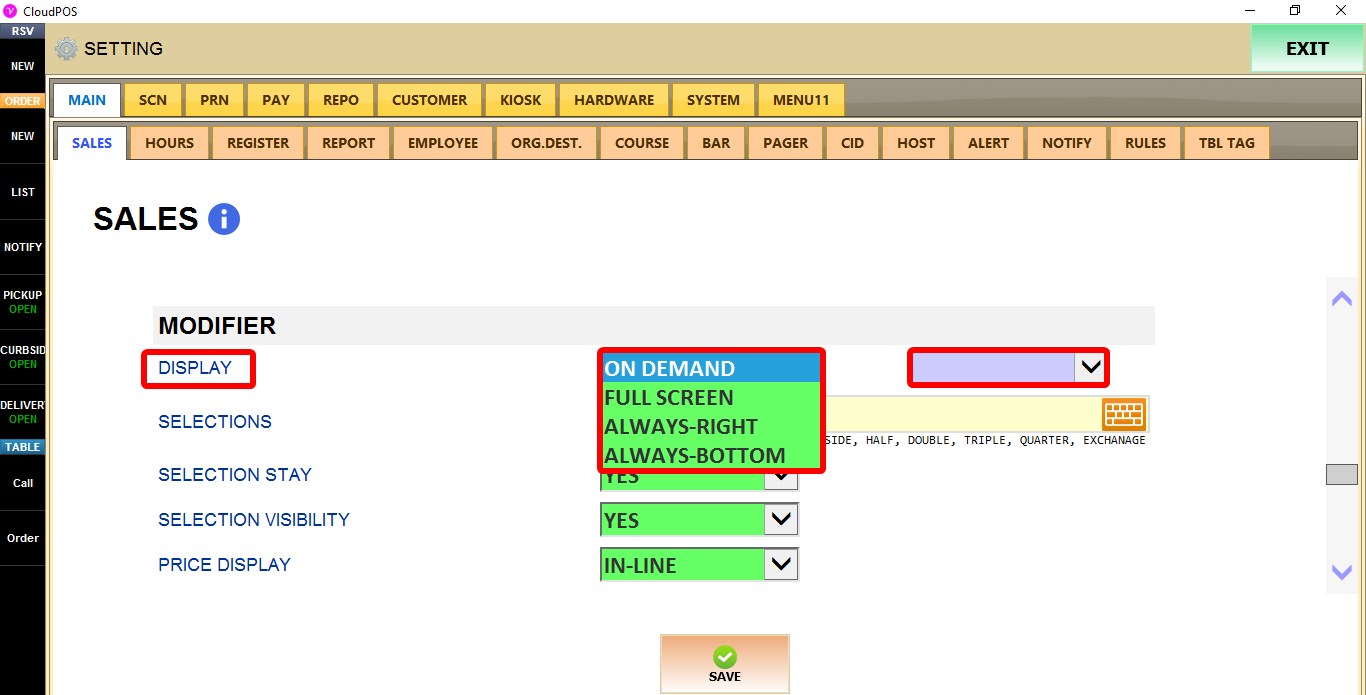
1. ON DEMAND: Displays the modifier screen only when needed.
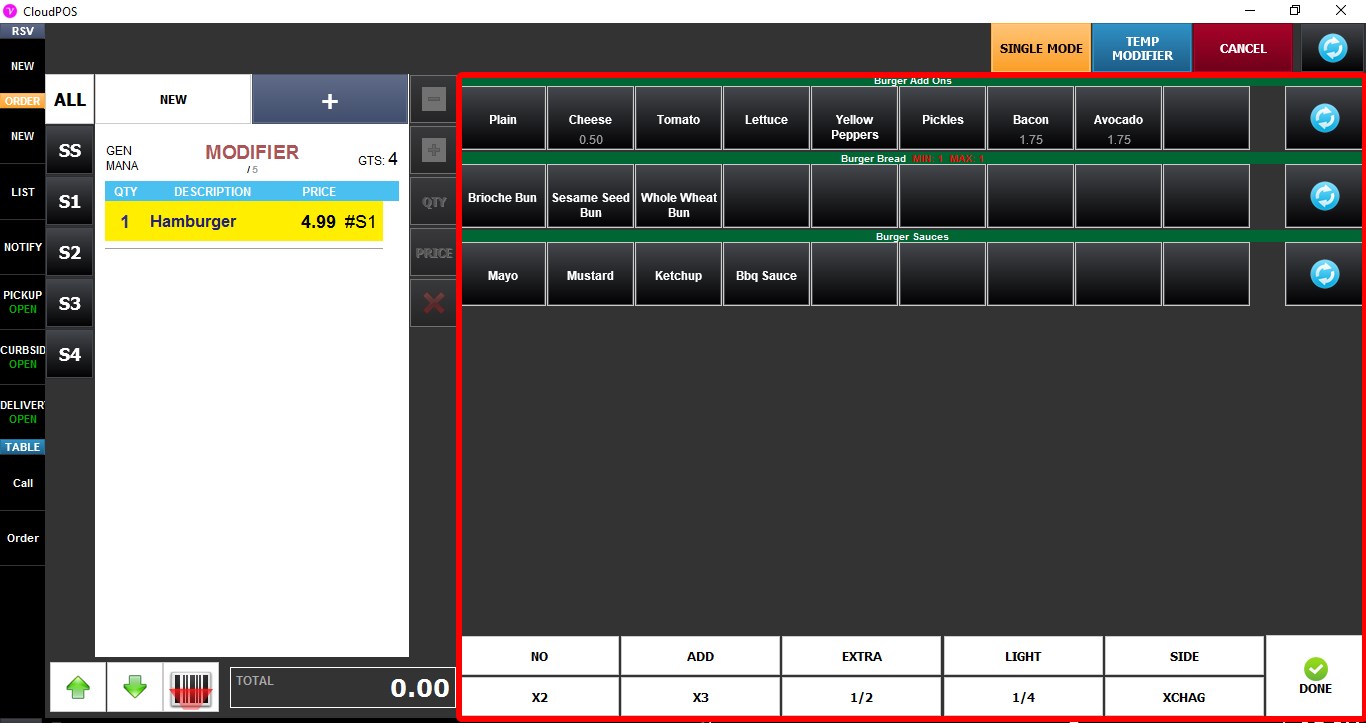
2. FULL SCREEN: Displays modifiers using the full screen.

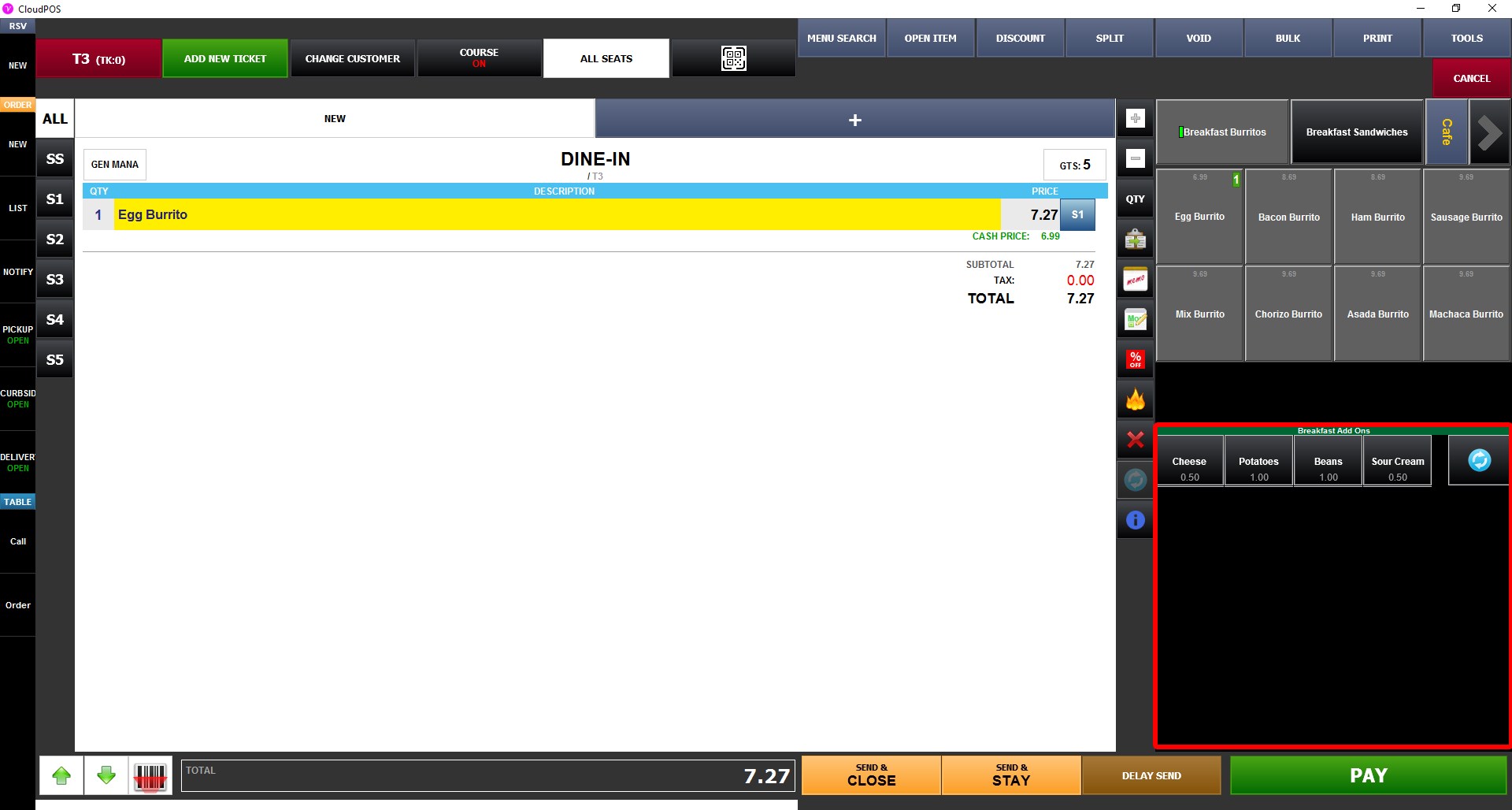
3. ALWAYS-RIGHT: Displays the modifier panel on the right side of the order screen.
4. ALWAYS-BOTTOM: Displays the modifier panel at the bottom of the order screen.
SELECTIONS
Defines the preset modifier selection labels available during ordering. Entering custom text replaces the default labels.
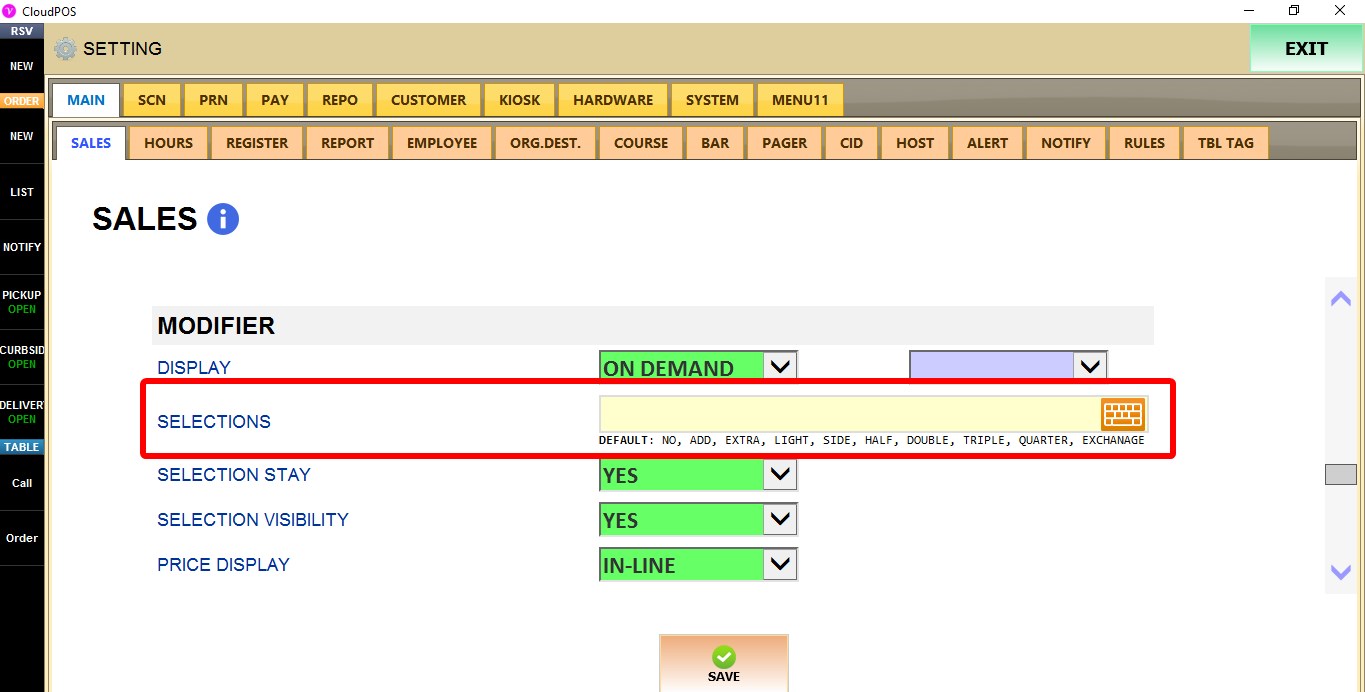
By default, the available labels are NO, ADD, EXTRA, LIGHT, SIDE, HALF, DOUBLE, TRIPLE, QUARTER, and EXCHANGE.
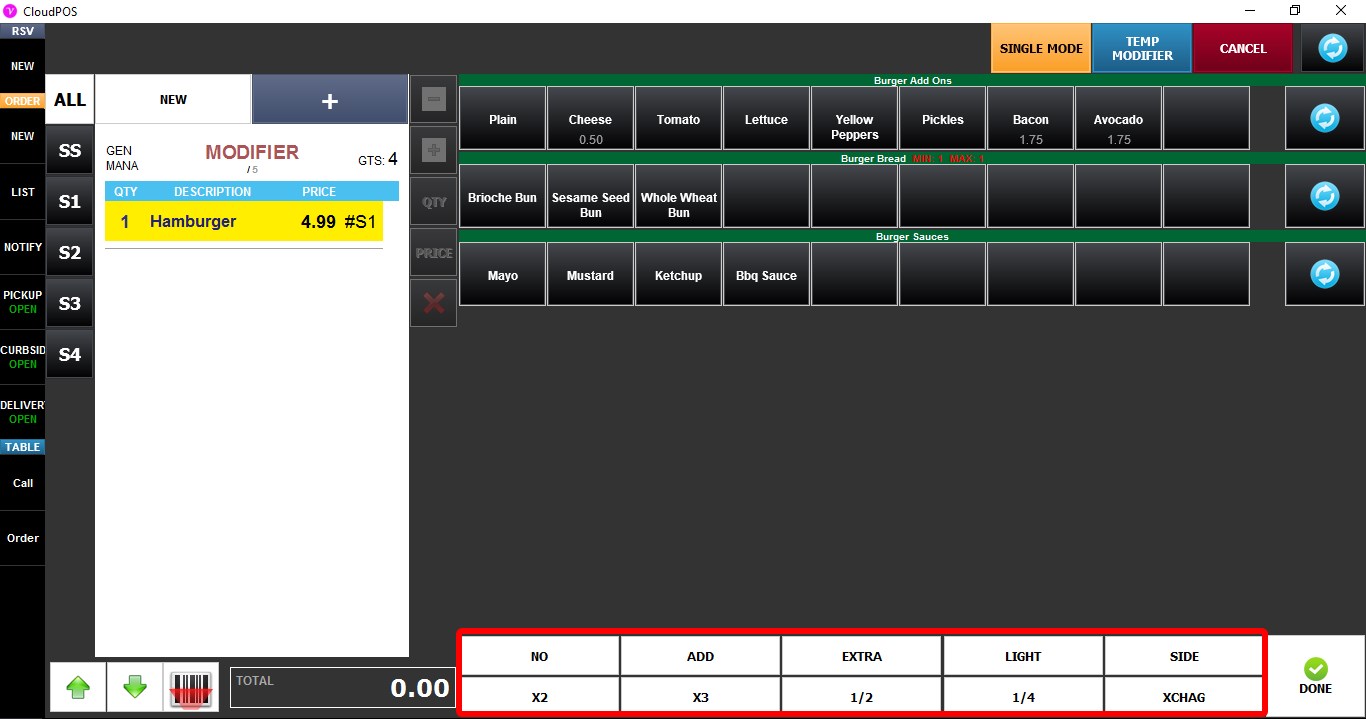
SELECTION VISIBILITY
Controls whether the selection labels defined in SELECTIONS are displayed during ordering.
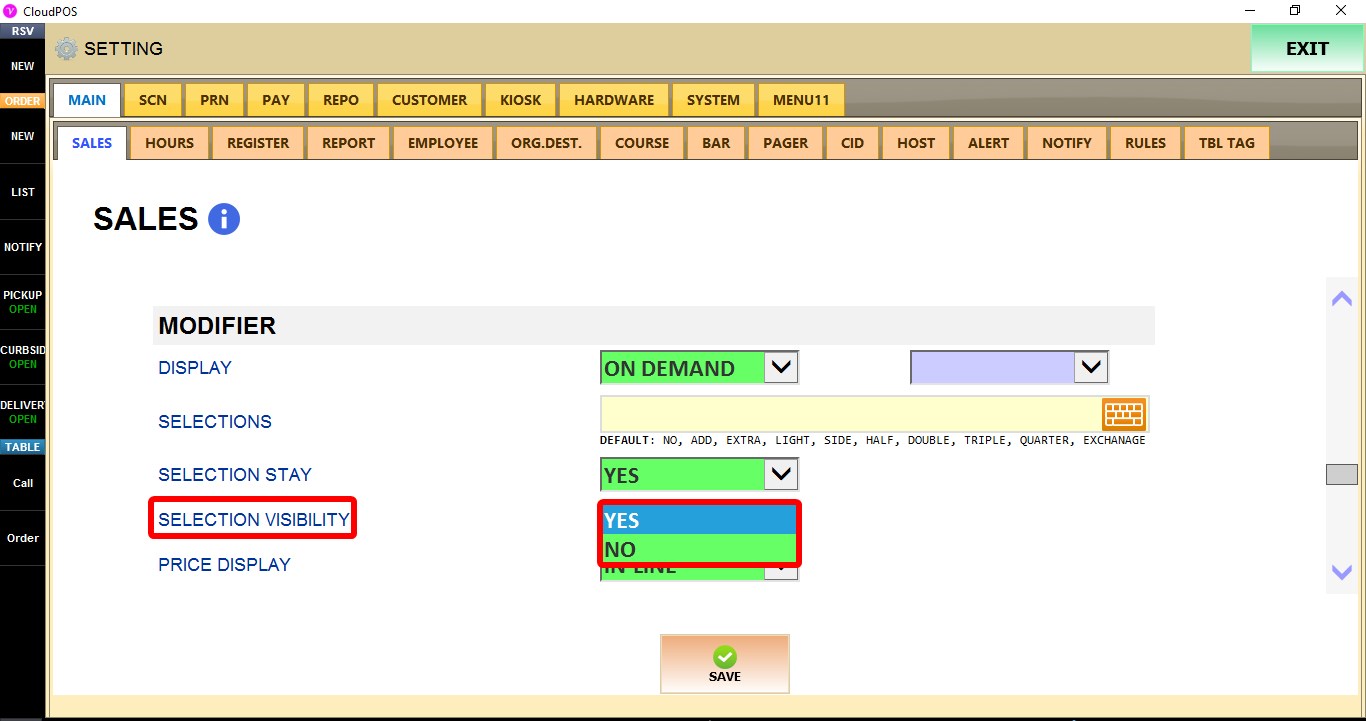
1. YES: Displays the selection buttons.
2. NO: Hides the selection buttons.
PRICE DISPLAY
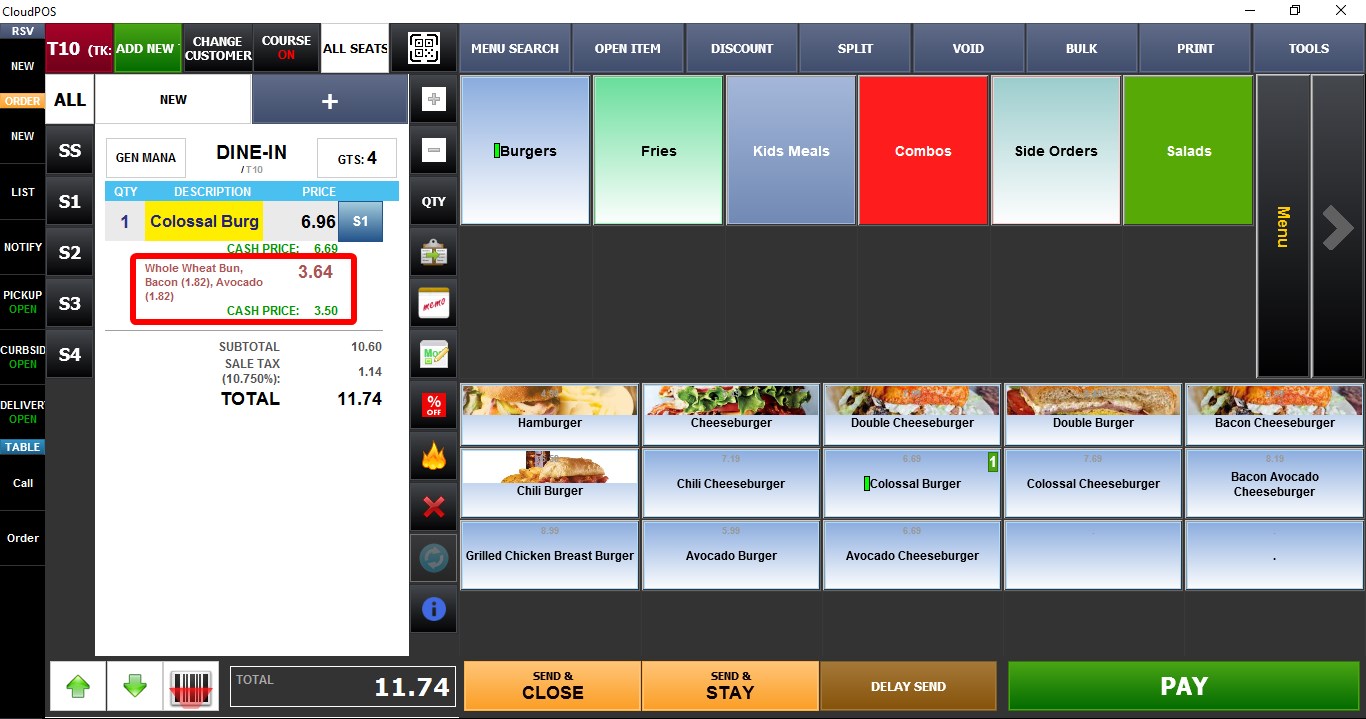
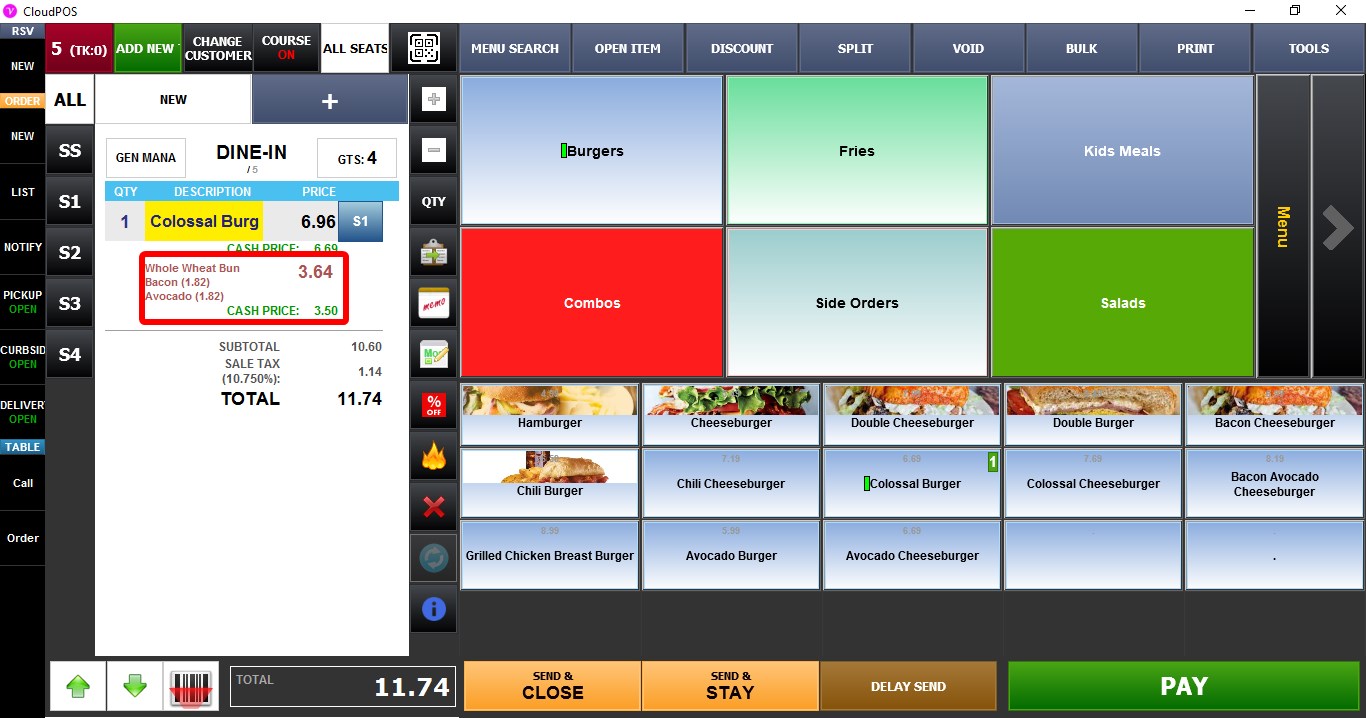
Controls how modifier prices are displayed on the order screen.


1. NO (TOTAL ONLY): Displays only the total modifier price.
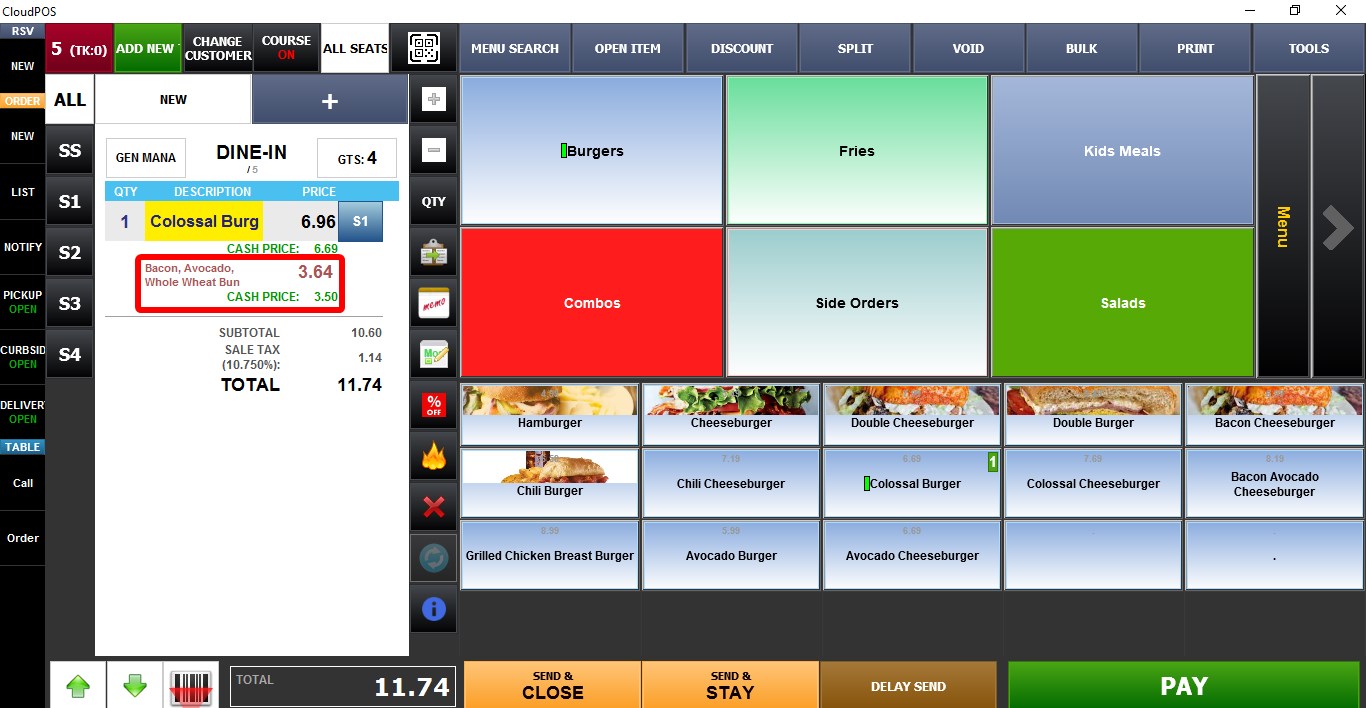
2. IN-LINE: Displays the price next to each modifier.
3. SEPARATE LINE: Displays prices in a new line for each modifier.
Click SAVE to apply the changes, then RESTART the program.