Menu Item
The MENU ITEM settings control how products are displayed on the kiosk ordering screen.
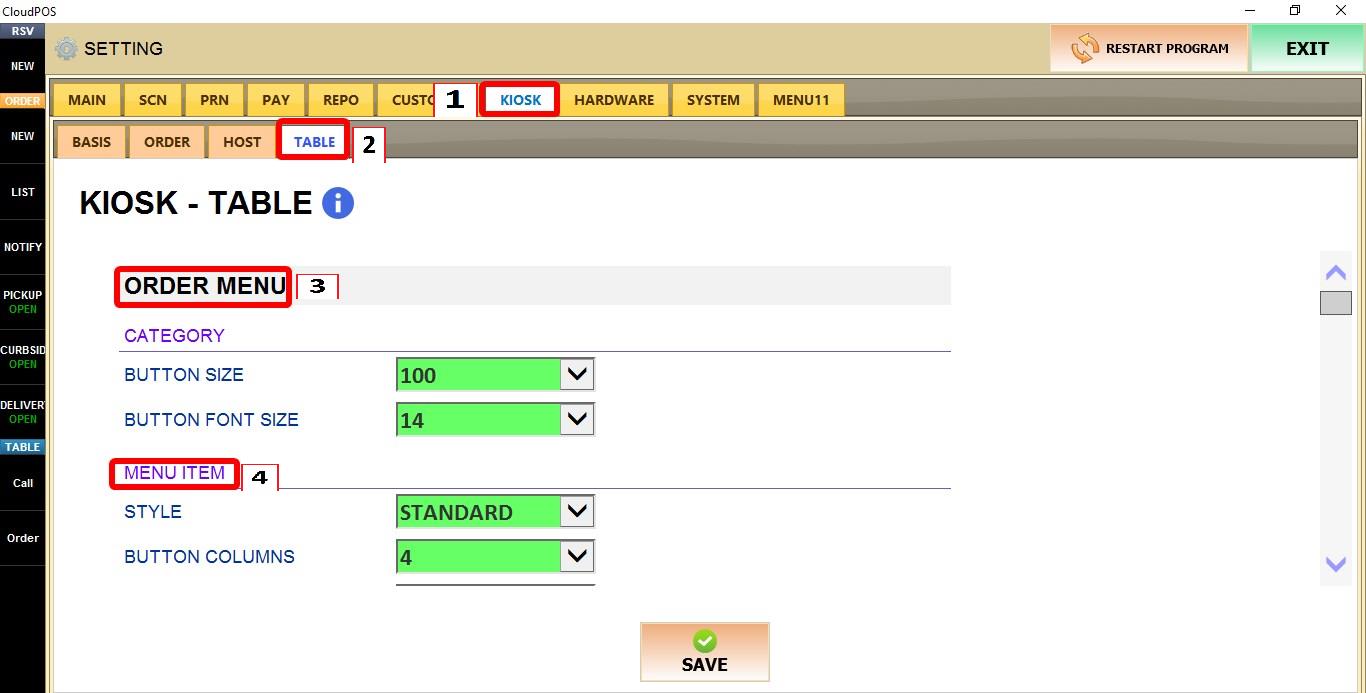
MENU > SETTINGS > KIOSK > TABLE > ORDER MENU > MENU ITEM
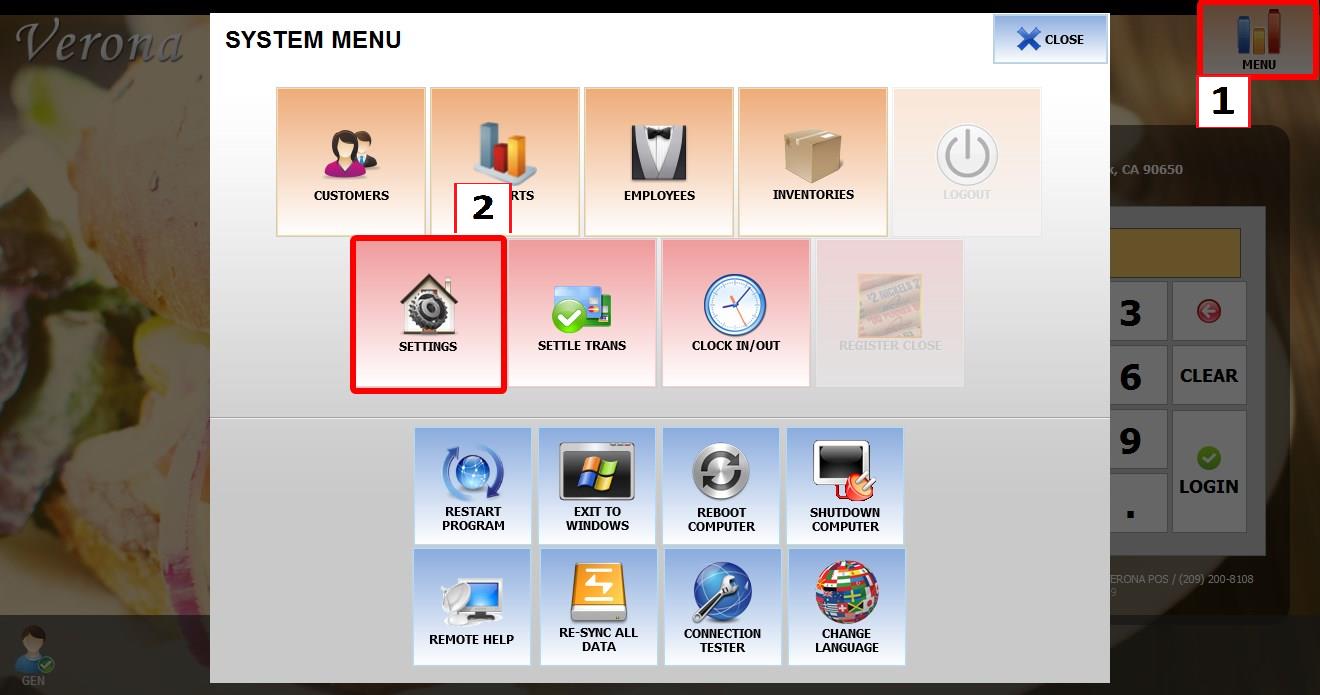
From the MAIN SCREEN, click MENU, then select SETTINGS.
Go to KIOSK > TABLE > ORDER MENU > MENU ITEM.
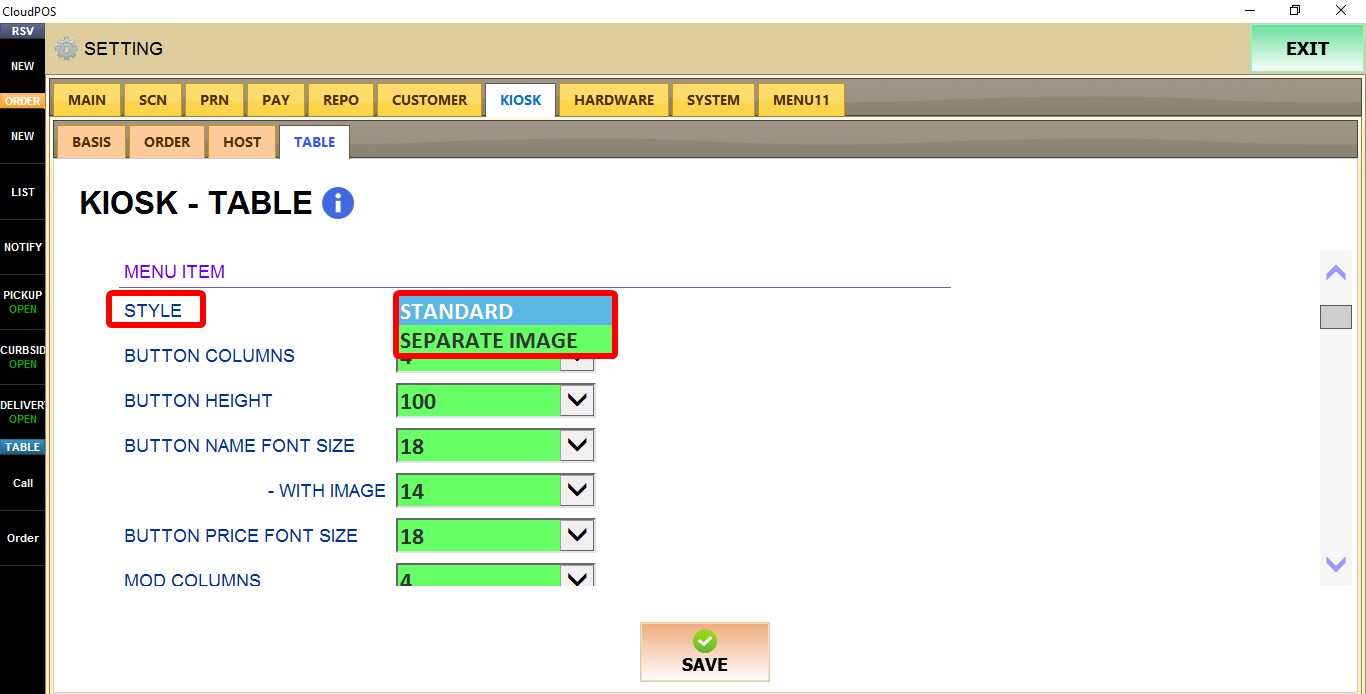
STYLE
Controls how menu items are displayed on the kiosk.
1. STANDARD: Displays the default menu item layout.
2. SEPARATE IMAGE: Displays the product image separately from the item information.
BUTTON COLUMNS
Controls how many menu item buttons are displayed in each row.
Select a value from 1 to 10.
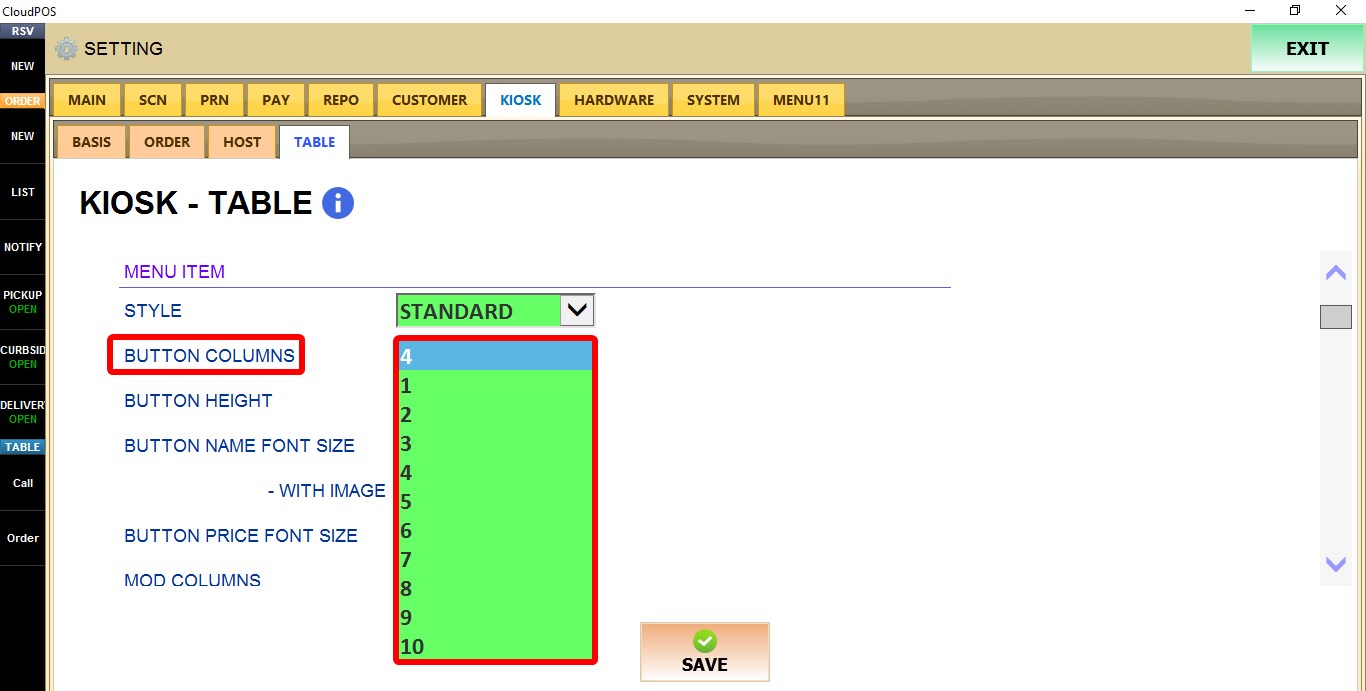
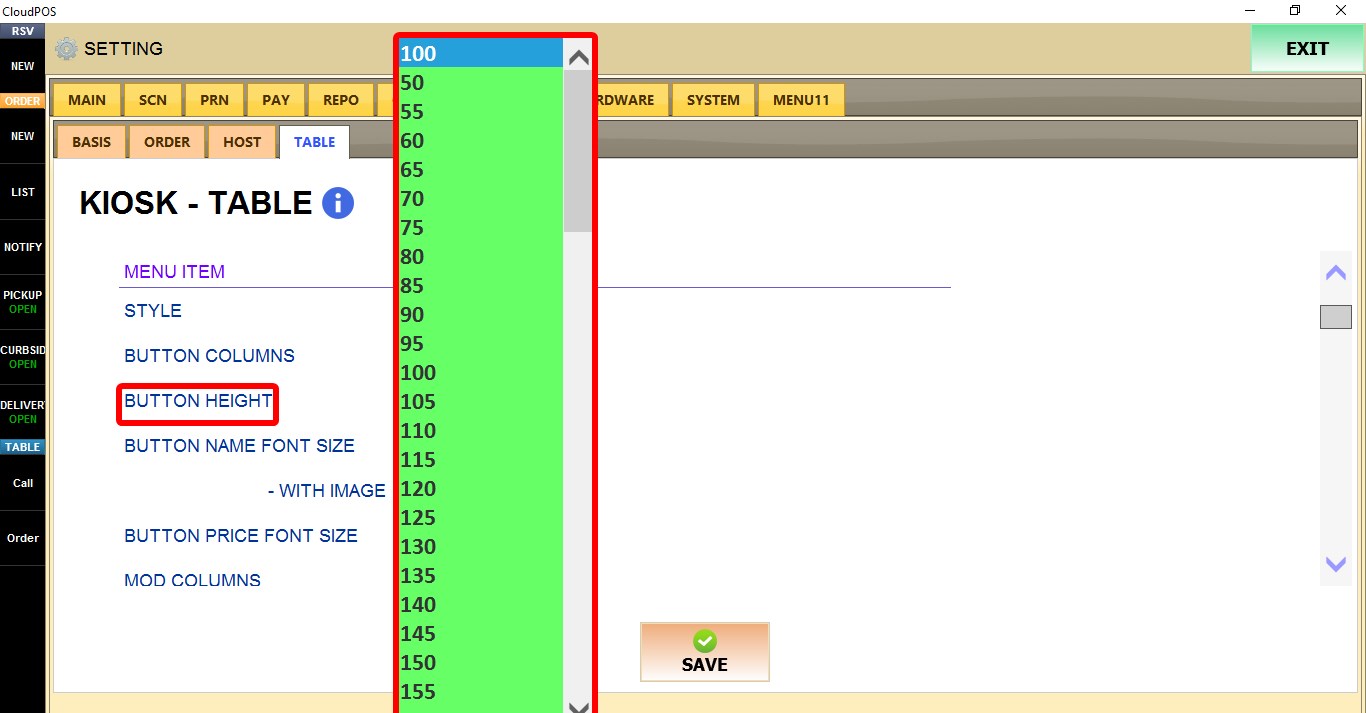
BUTTON HEIGHT
Controls the height of menu item buttons.
Select a value between 100 and 500.
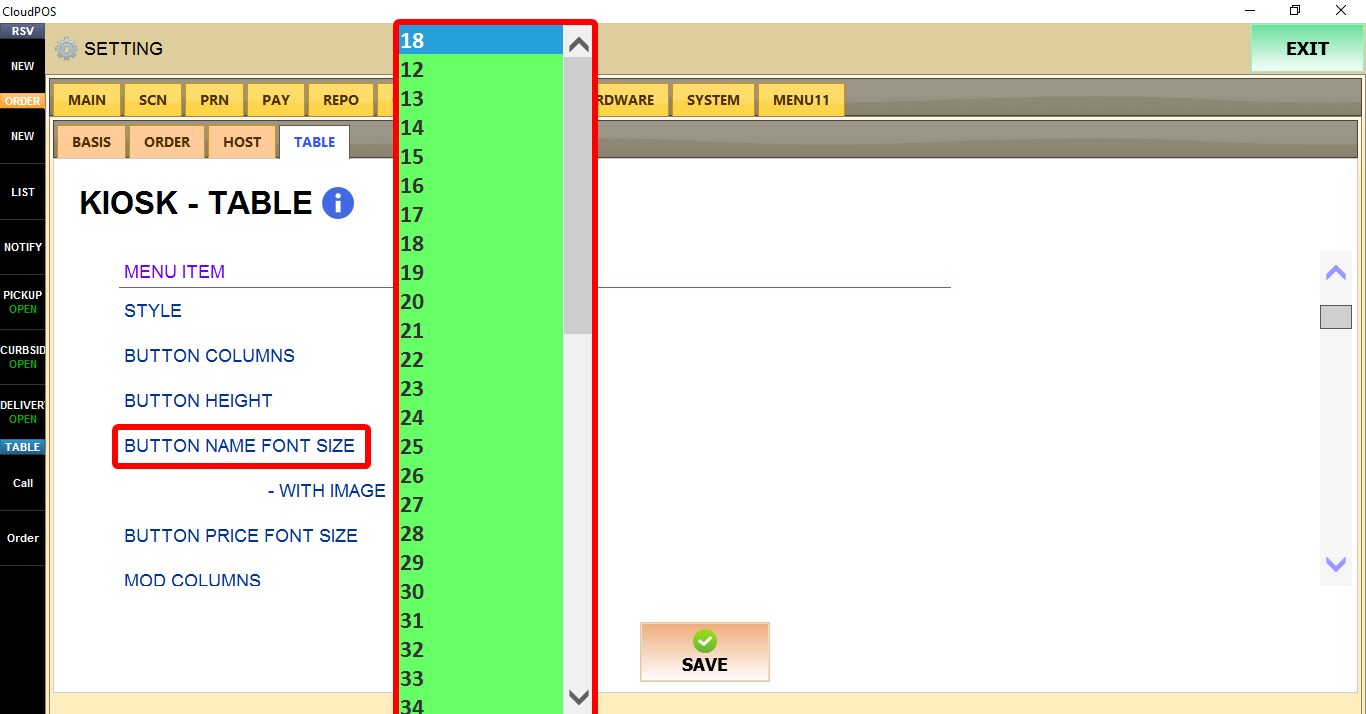
BUTTON NAME FONT SIZE
Controls the font size of menu item names.
Select a value between 18 and 64.
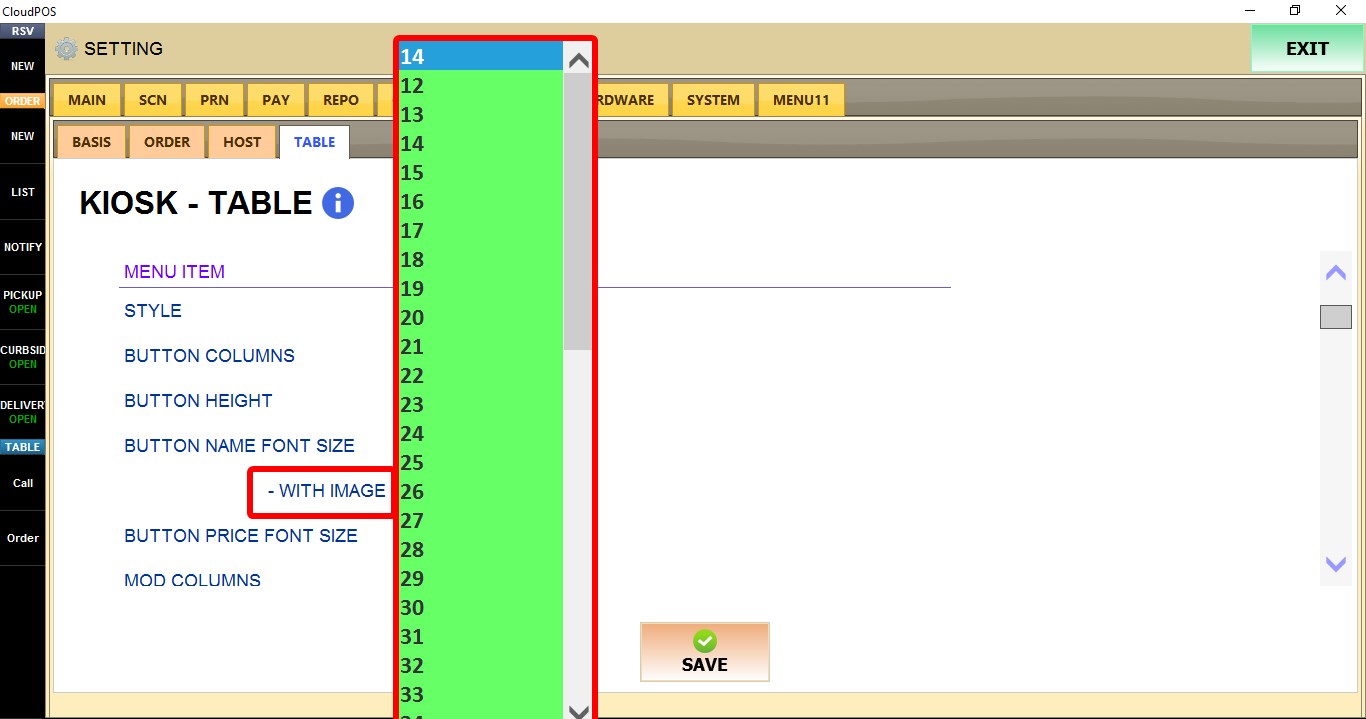
WITH IMAGE
Controls the font size of menu item names when images are displayed.
Select a value between 14 and 61.
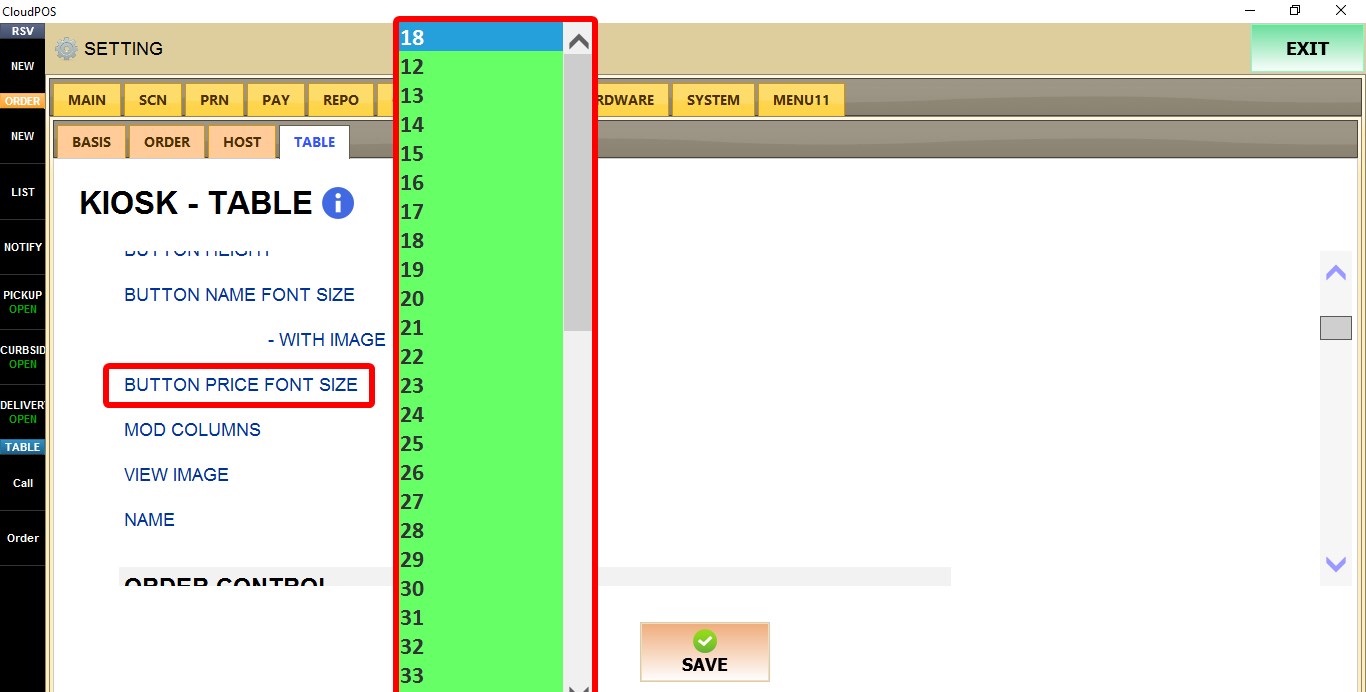
BUTTON PRICE FONT SIZE
Controls the font size of menu item prices.
Select a value between 18 and 64.
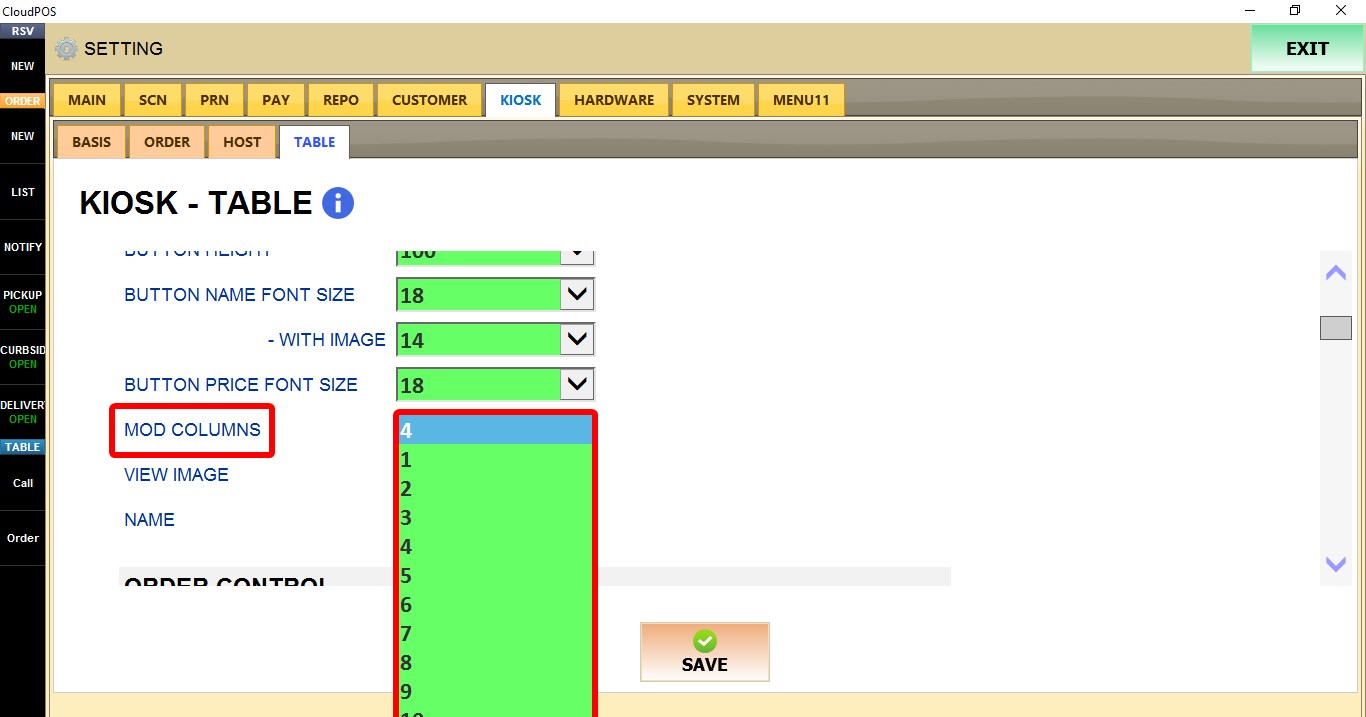
MOD COLUMNS
Controls how many modifier buttons are displayed in each row.
Select a value from 1 to 10.

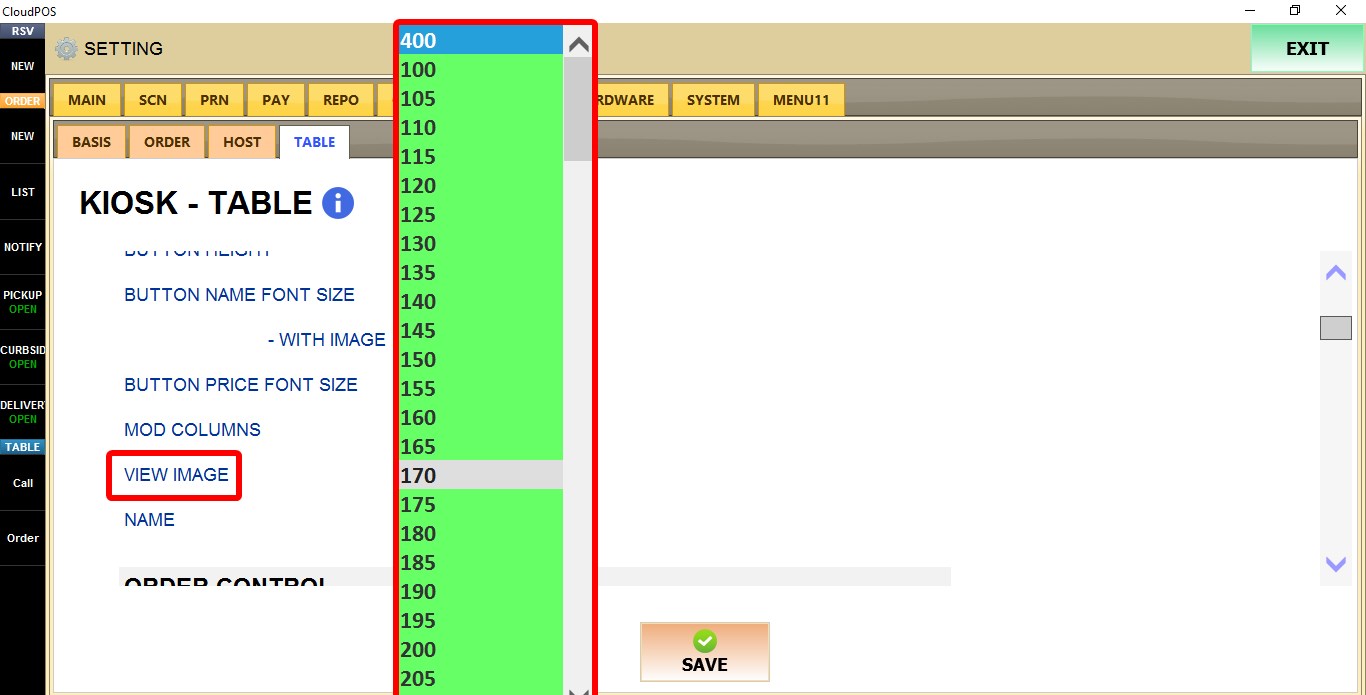
VIEW IMAGE
Controls the displayed size of product images.
Select a value between 100 and 800.
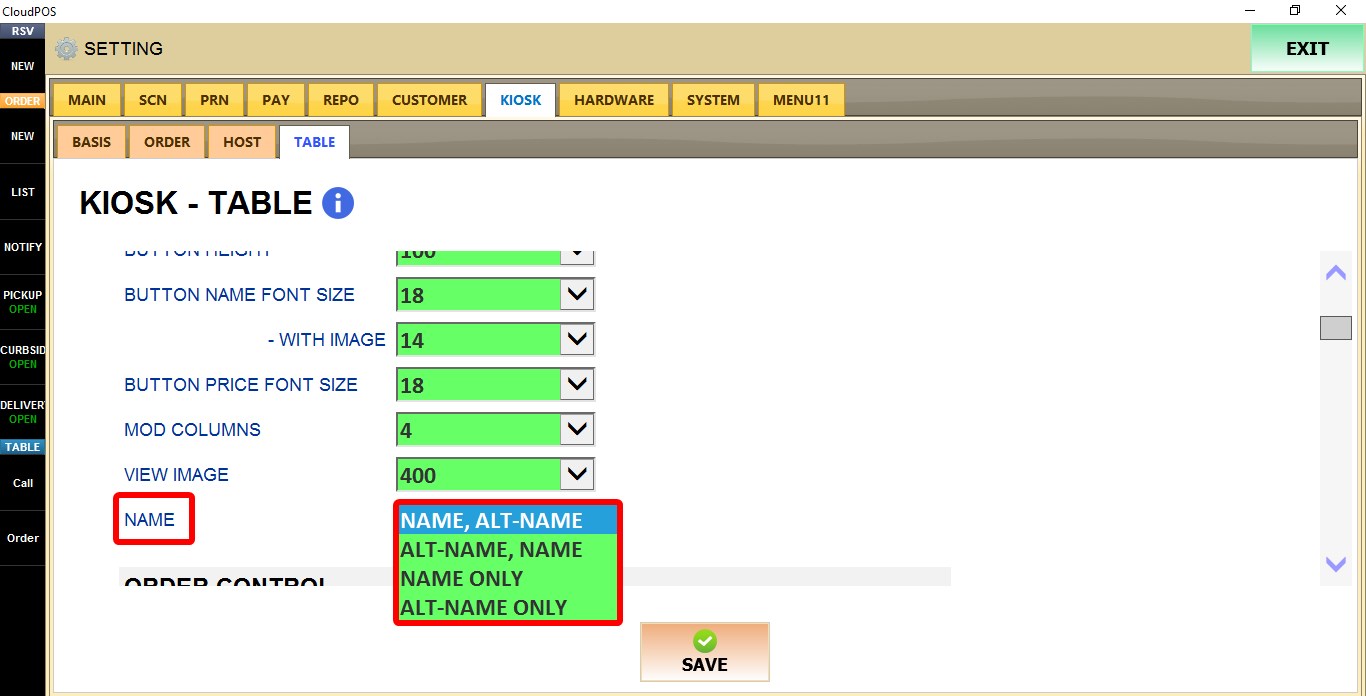
NAME
Controls how product names are displayed.
1. NAME, ALT-NAME: Displays the product name followed by the alternate name.
2. ALT-NAME, NAME: Displays the alternate name followed by the product name.
3. NAME ONLY: Displays only the product name.
4. ALT-NAME ONLY: Displays only the alternate name.
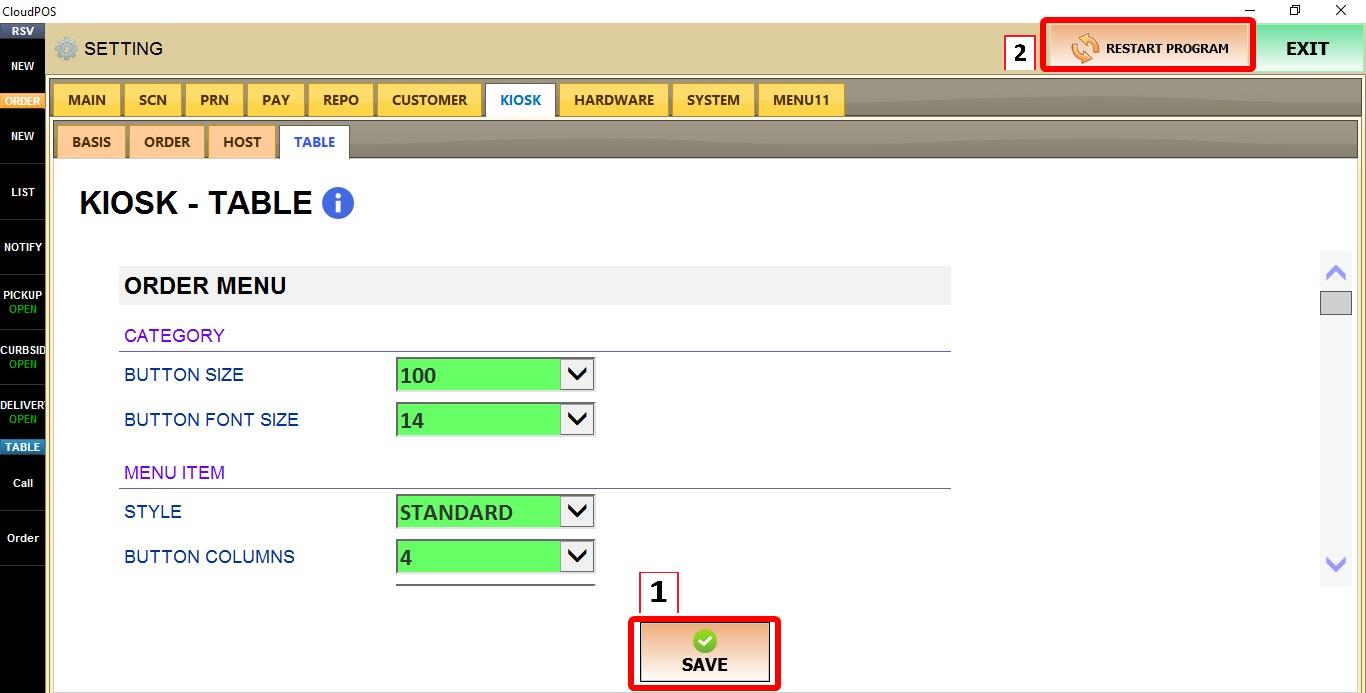
Click SAVE and restart the program to apply the changes.