Countdown
This function allows users to manage item availability directly from the POS system. This tool can be used to enable or disable items for sale and configure stock countdown quantities to track limited inventory in real time.
Main Screen > Number Pad > Sales Screen > TOOLS > COUNT DOWN
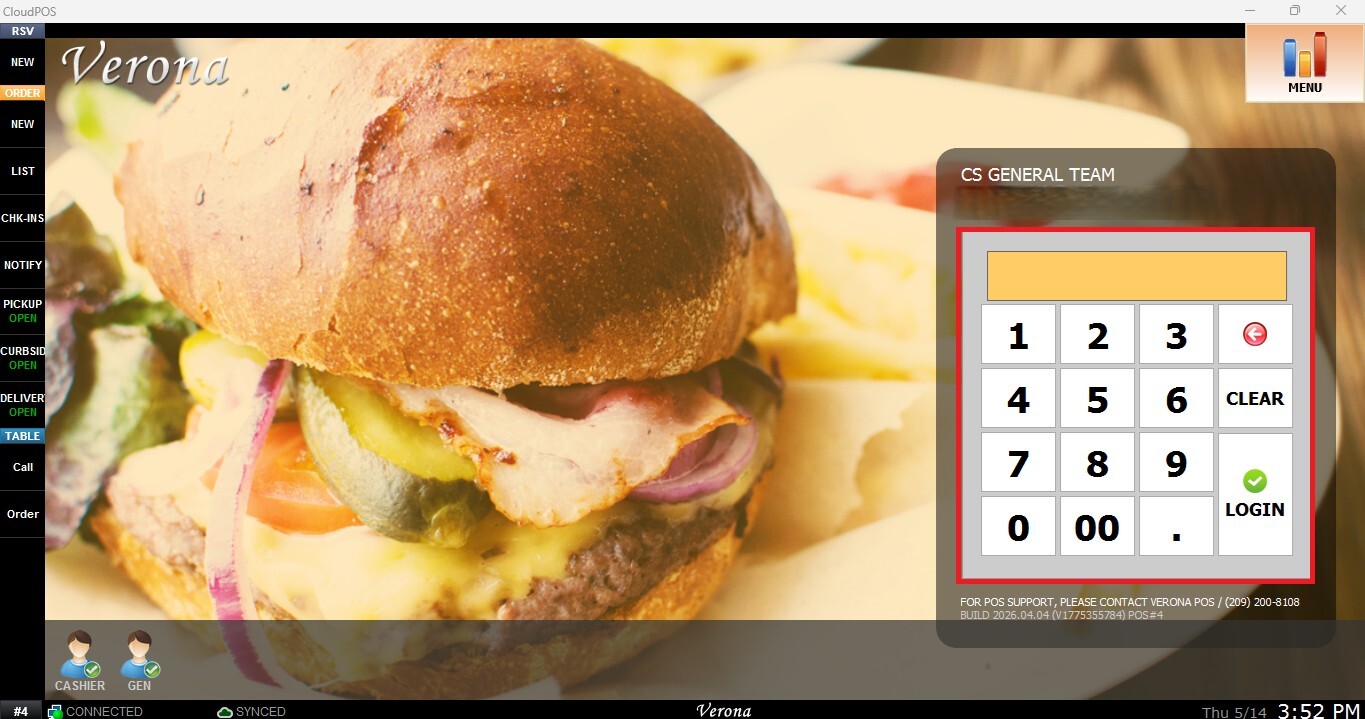
From the Main Screen, use the number pad and enter the assigned employee's password to log in.
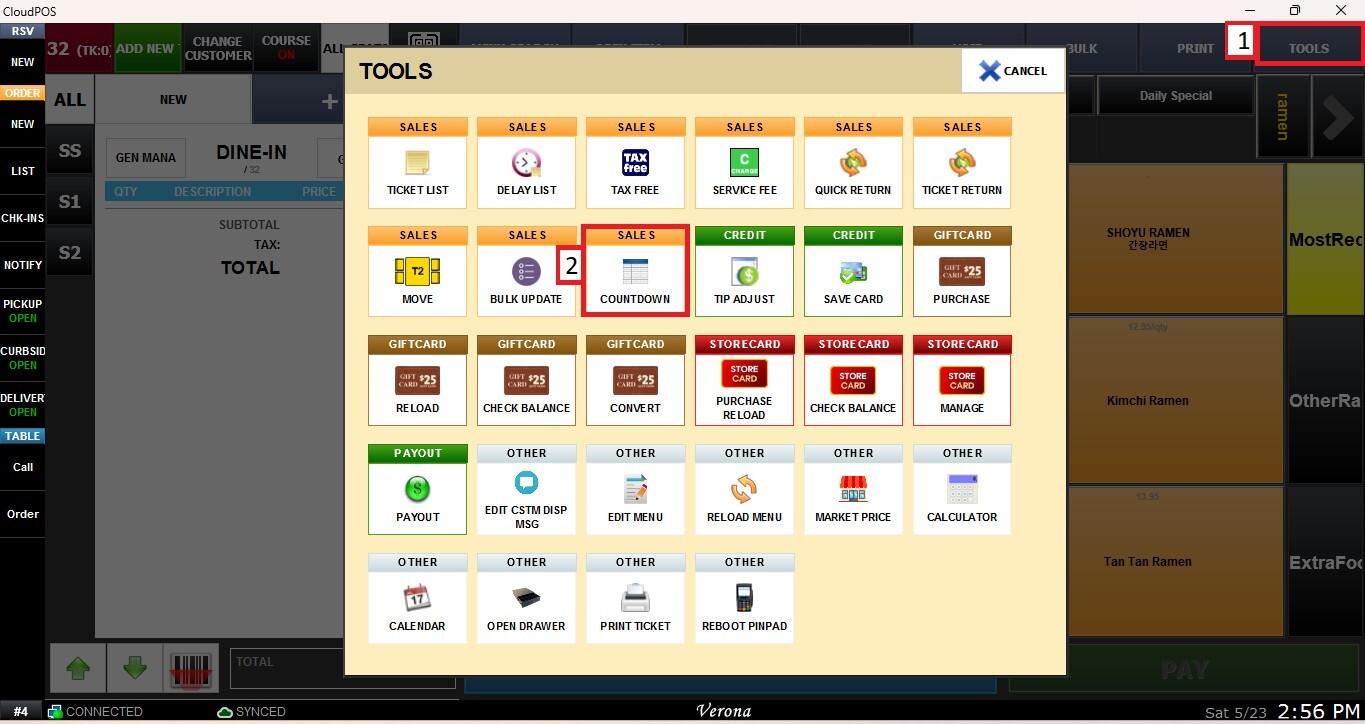
From the Sales Screen, click TOOLS, then select COUNT DOWN.
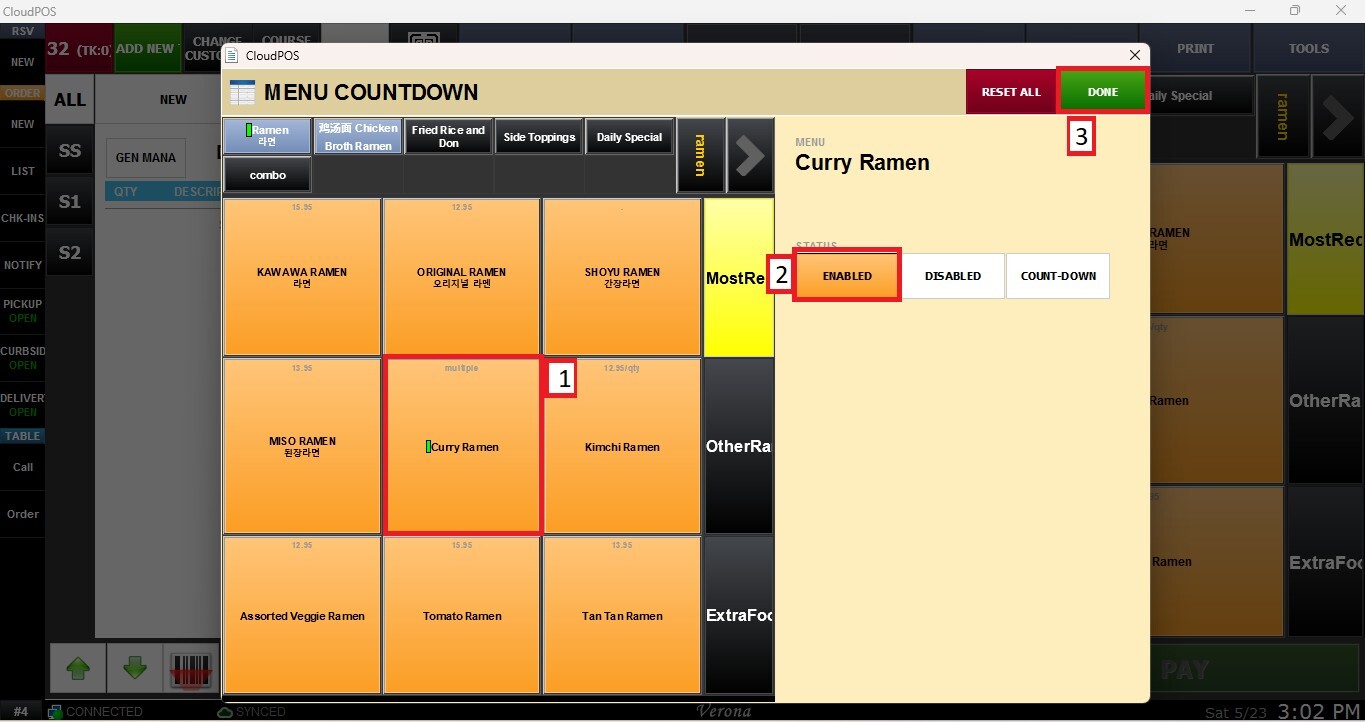
Select the Department, Category, and then the item whose status you want to modify.
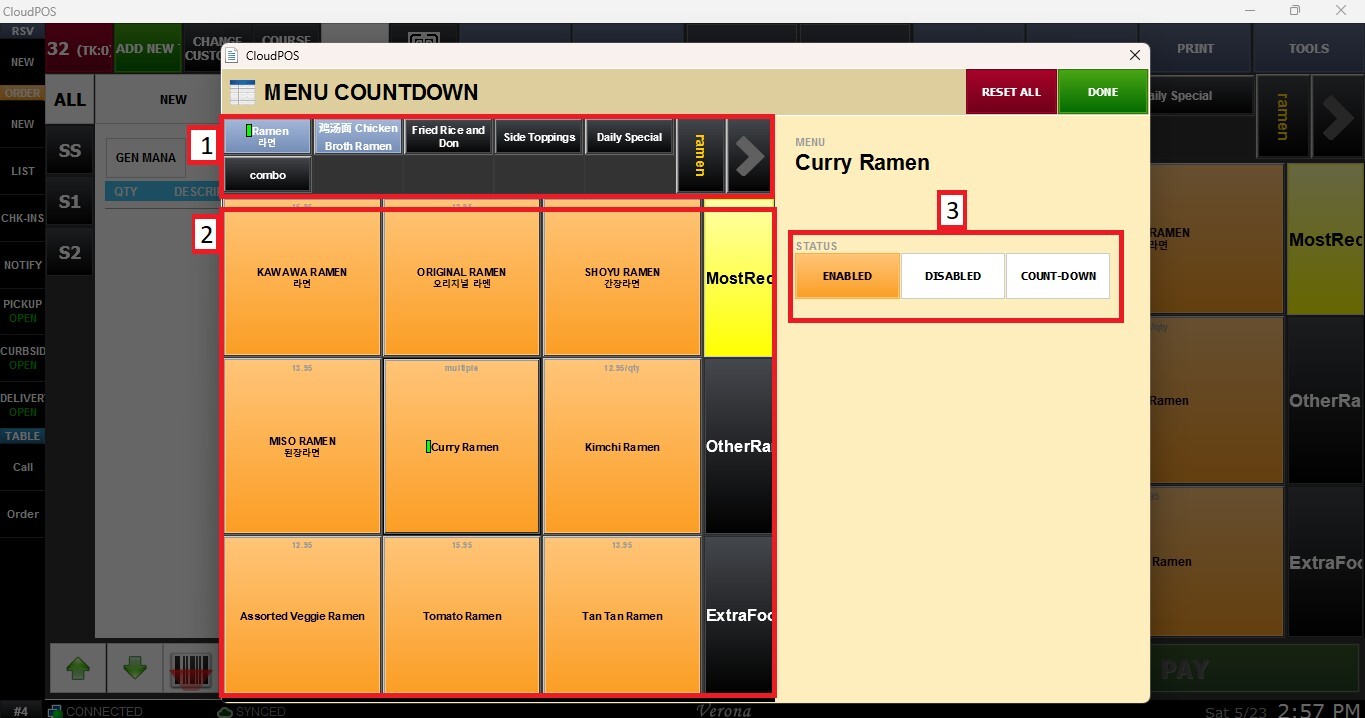
STATUS
Enabled:
Allows previously disabled items to become available again for sale and ordering within the POS system. Useful when an item is back in stock or available again during service.
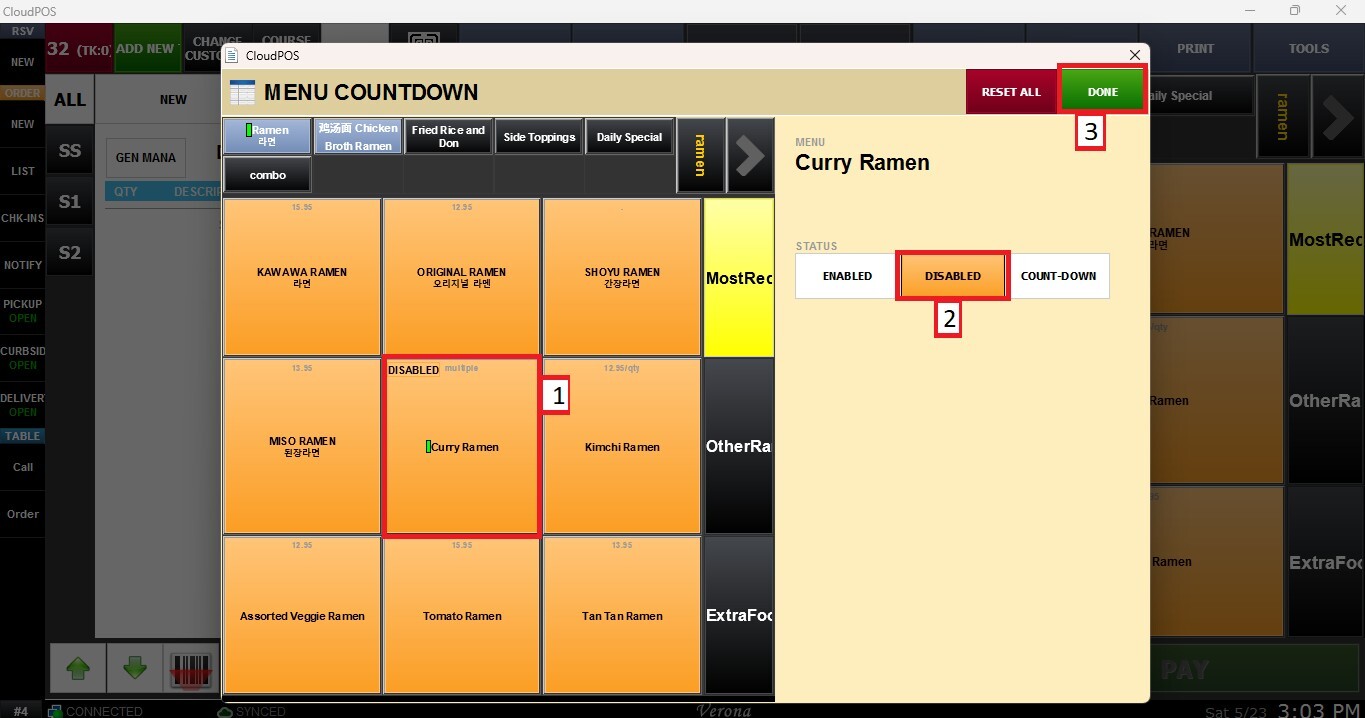
Disabled:
Temporarily disables an item from being sold or ordered through the POS system. Commonly used for out-of-stock items or products that are temporarily unavailable.
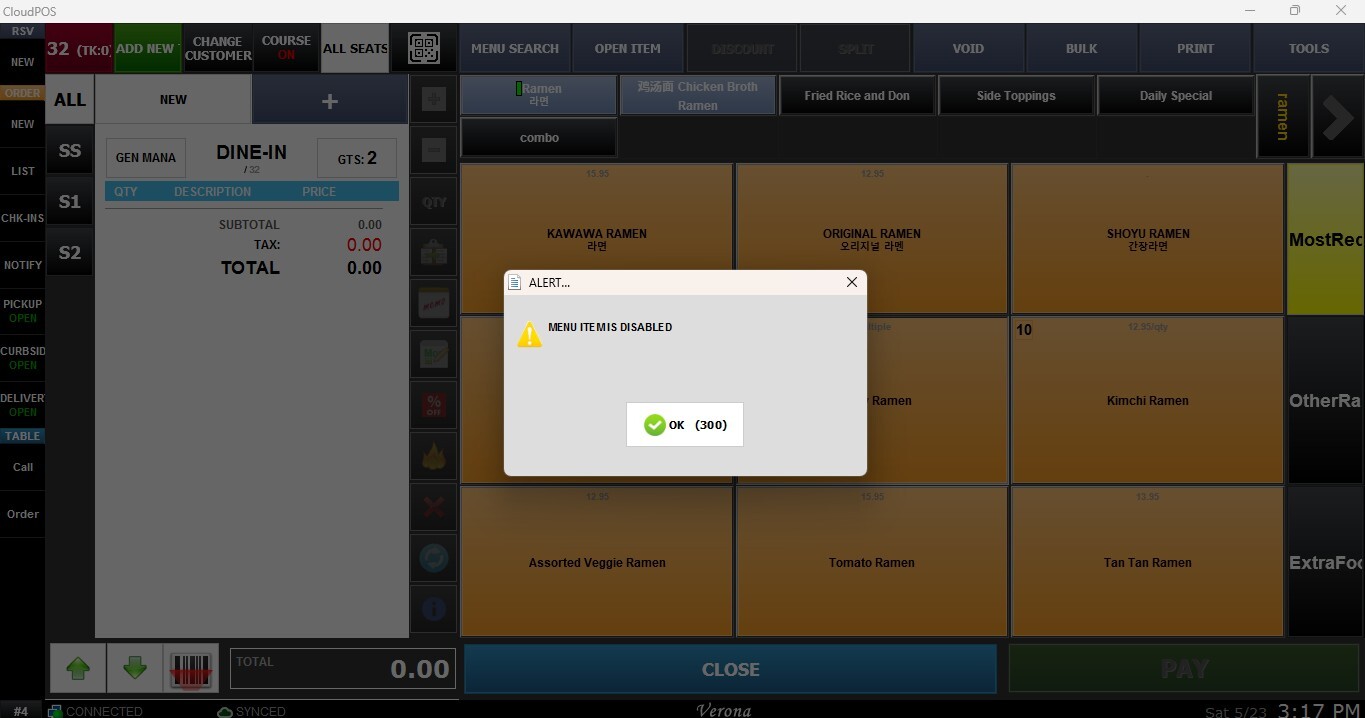
When attempting to ring up a disabled item, the following warning message will be displayed.
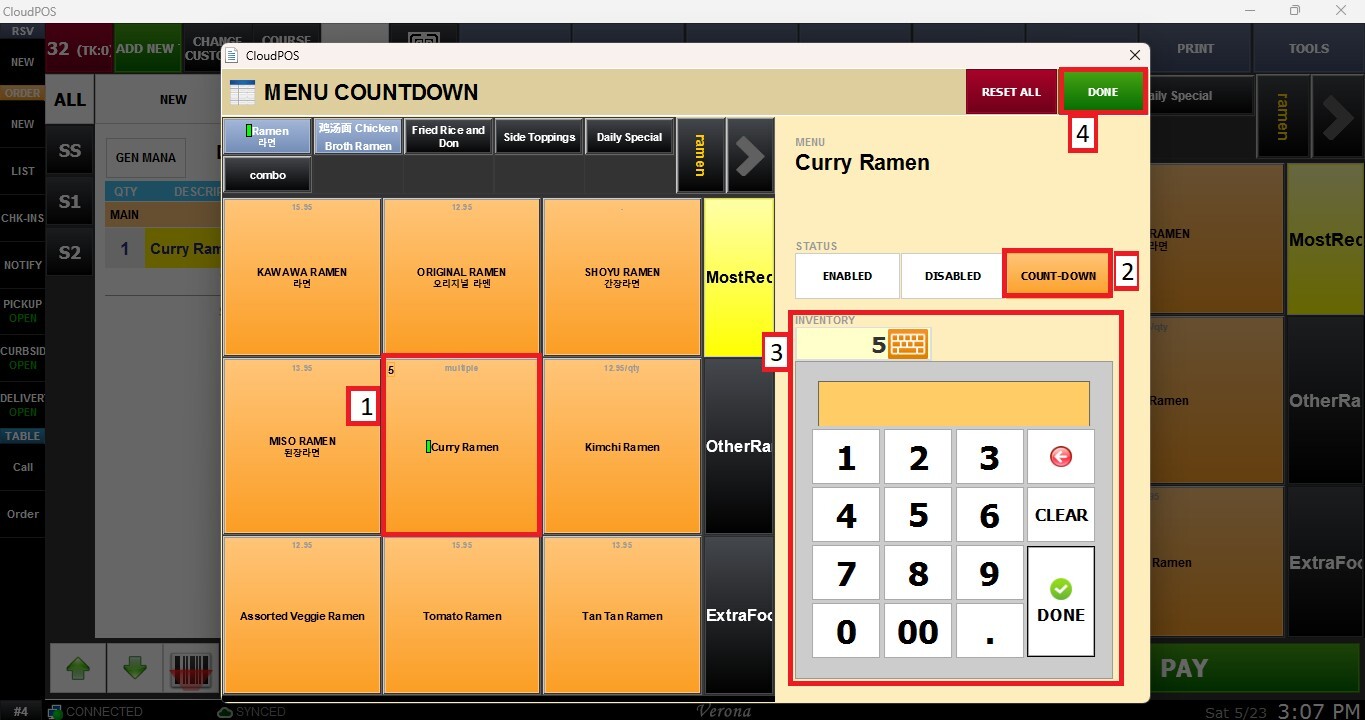
Count Down:
Sets the available stock quantity for an item. The system will automatically reduce the remaining quantity each time the item is rung up on an order. If the item is removed from the order before checkout, the countdown quantity will increase back accordingly.
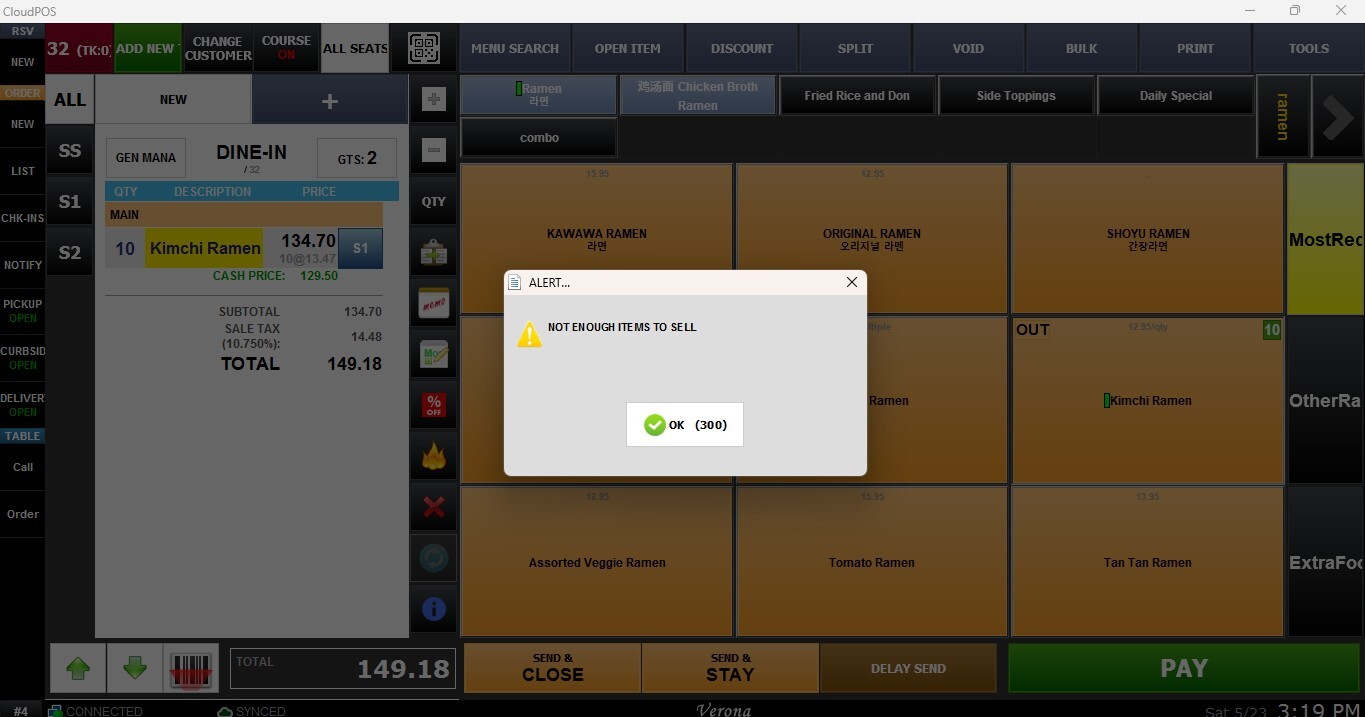
When attempting to ring up a Count Down item whose quantity has reached zero, the following warning message will be displayed.
Result:
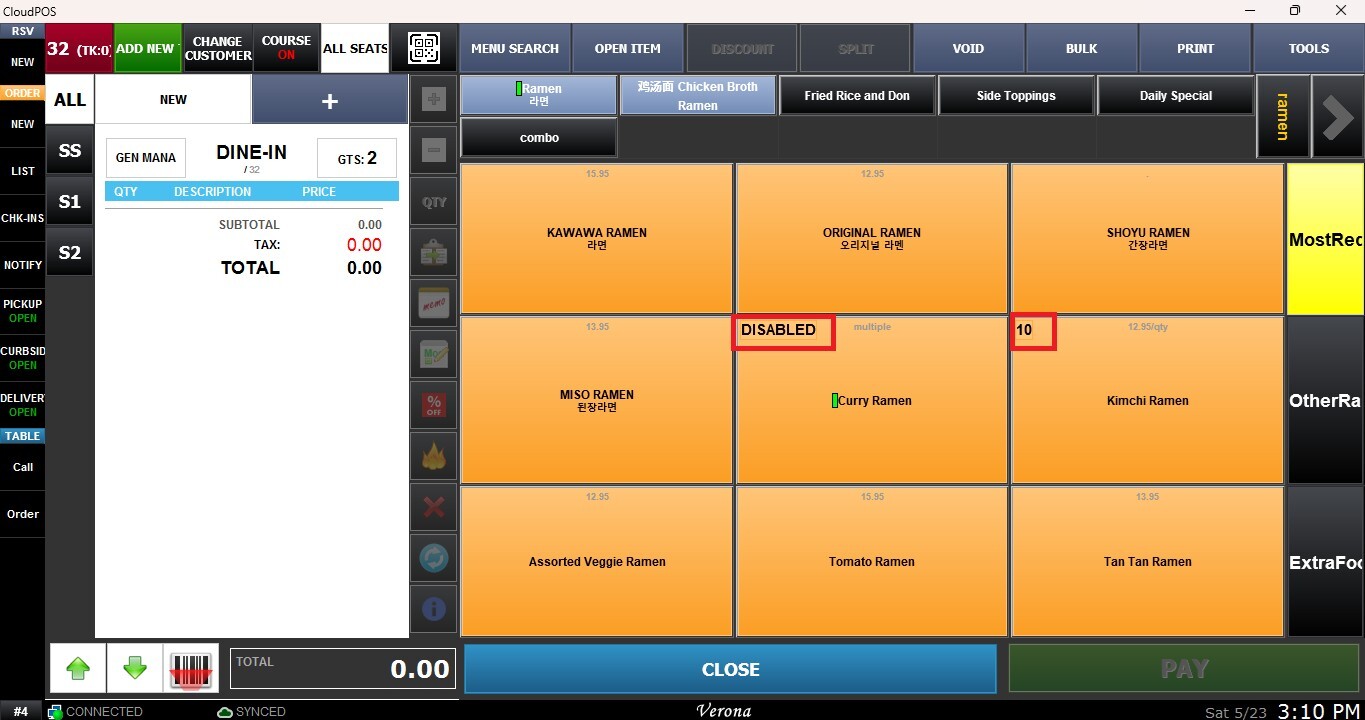
On the Sales Screen, enabled items will appear normally. Disabled items will display a DISABLED label in the top-left corner, while Count Down items will display the remaining quantity number in the same corner.