How to Operate QR Contactless Dining for Store
QR Contactless Dining allows customers to place orders, request assistance, and pay directly from their mobile device. This guide explains how restaurant staff can print QR codes, receive customer orders and requests, and review request history from the POS.
SALES SCREEN > TABLE > QR ICON
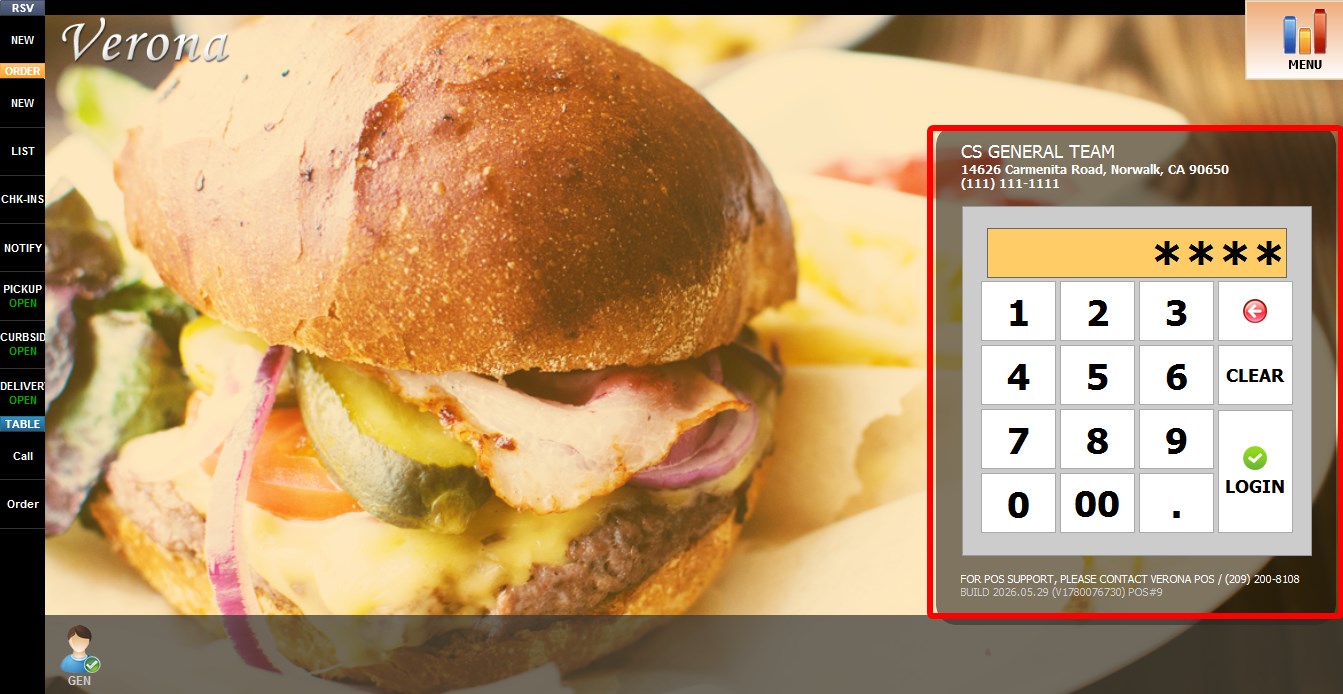
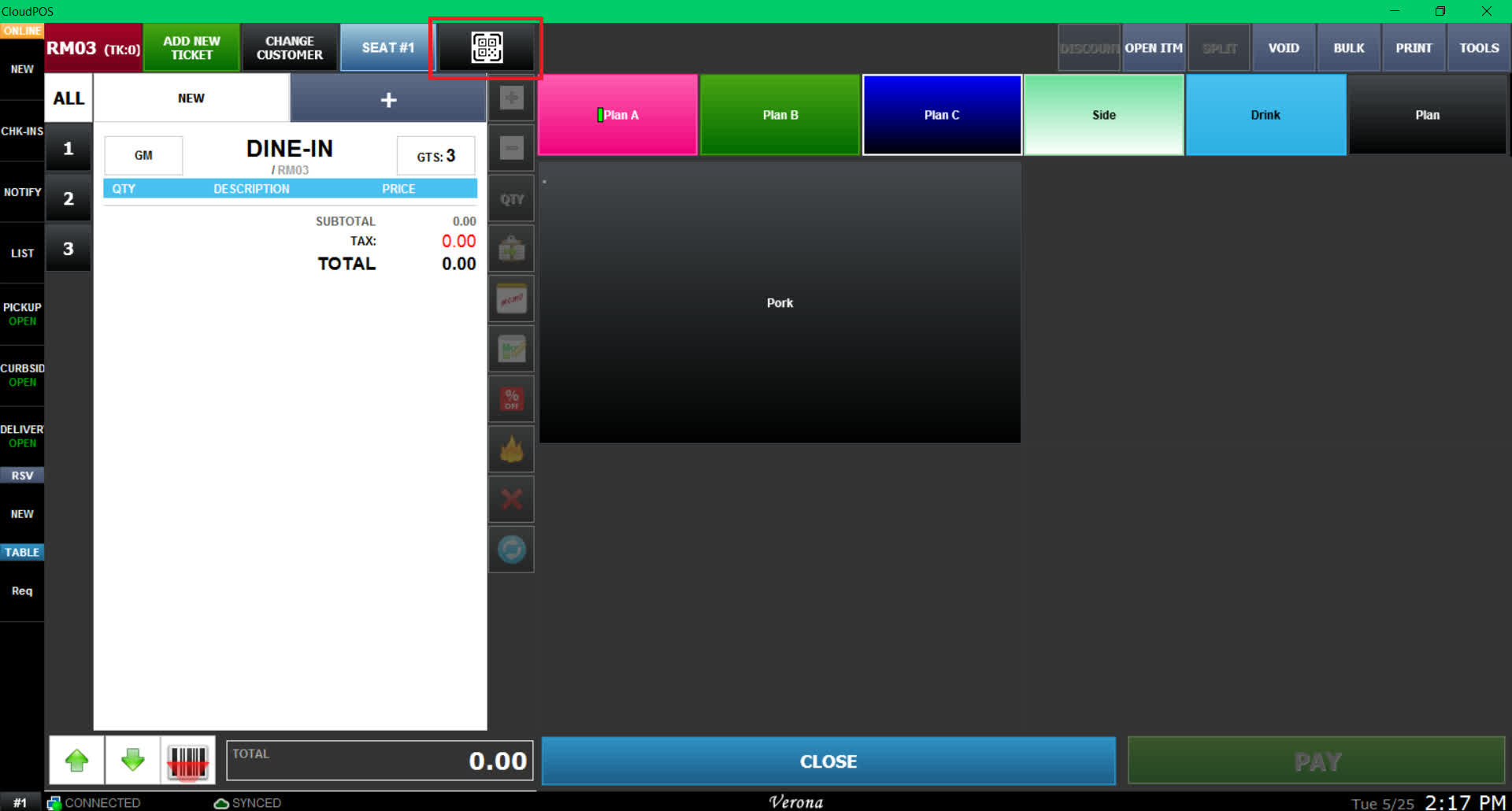
Go to the Sales Screen, open any table, next click the QR CODE button.
You can print a single QR code for the entire table or print one QR code for each guest seated at the table.
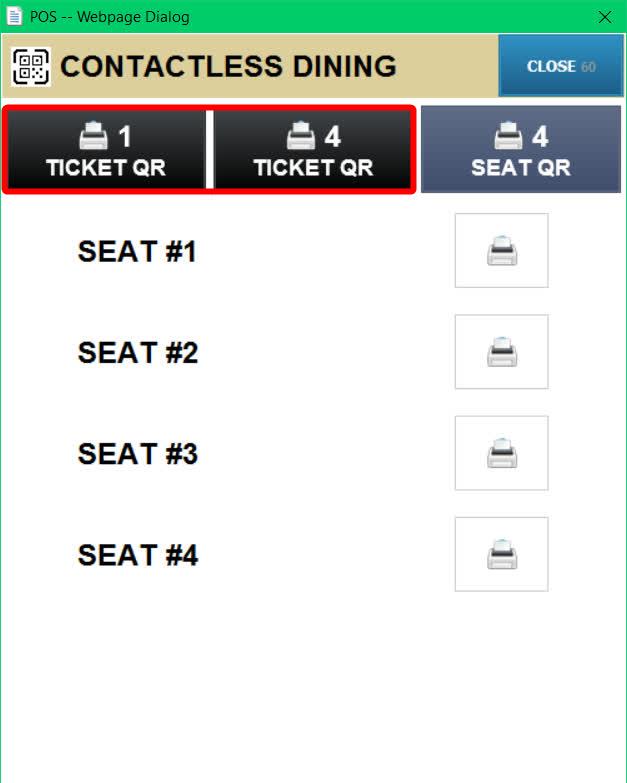
You can also choose to print QR codes for specific seats only.
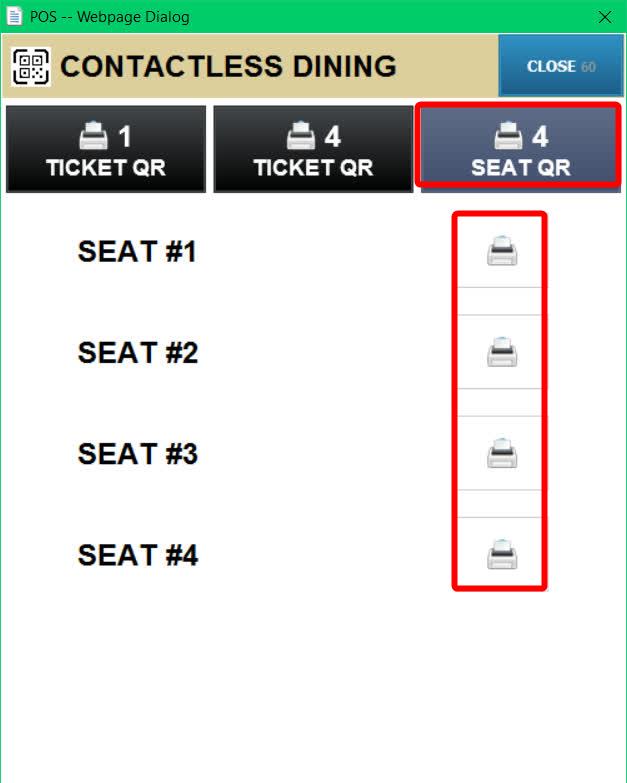
A QR code receipt will be printed from the receipt printer.
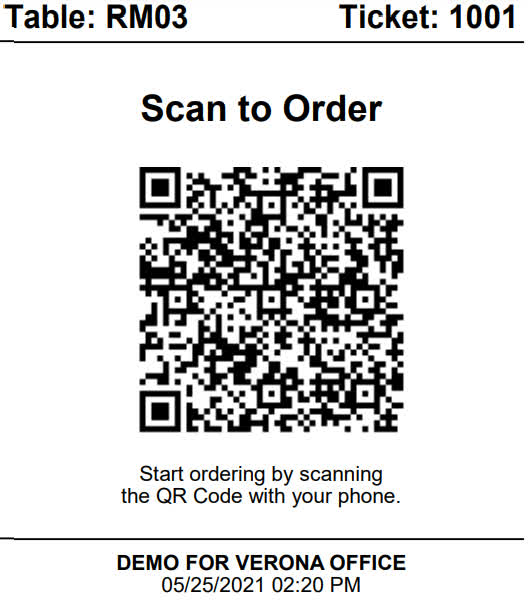
Receive customer orders
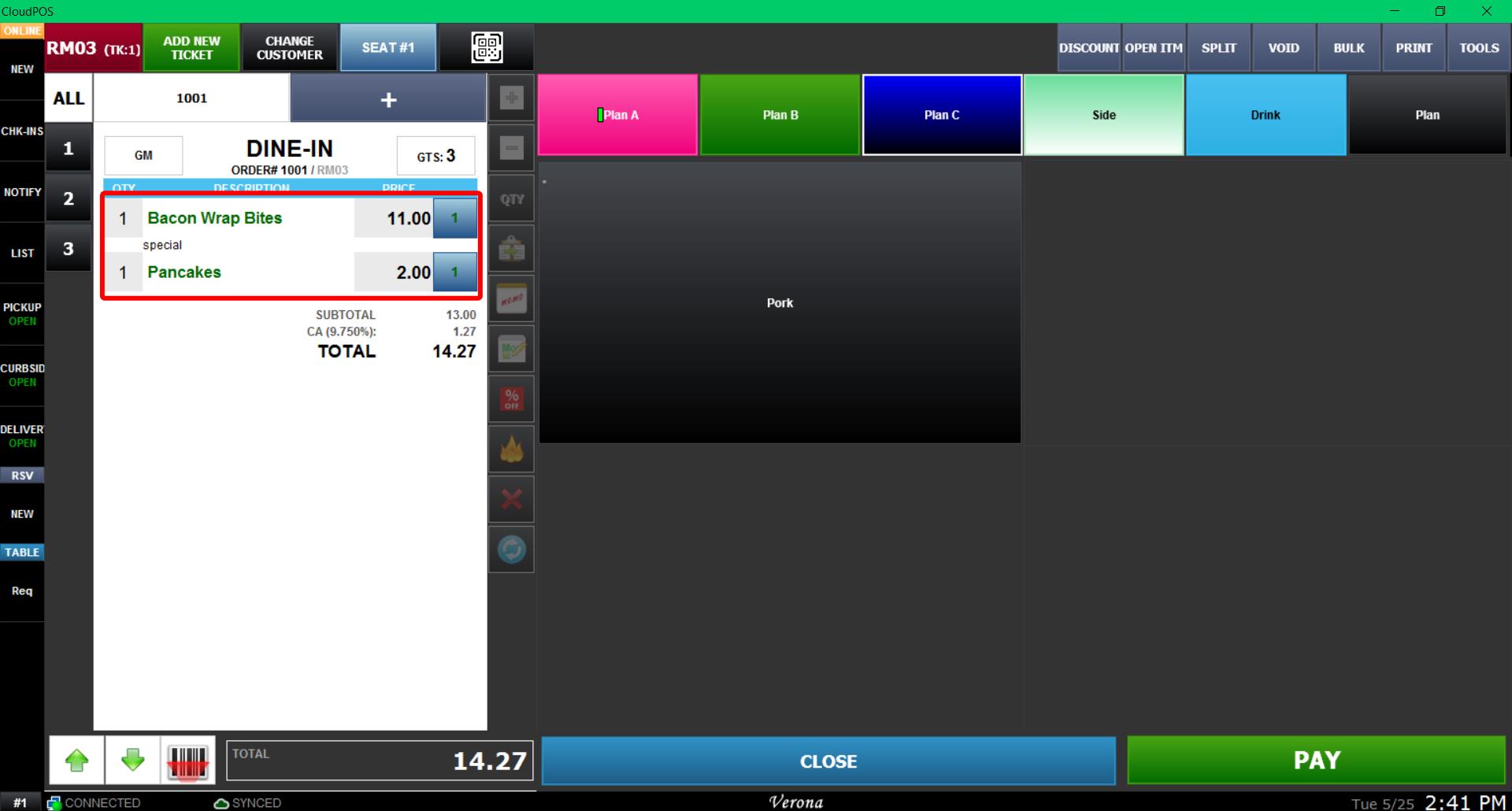
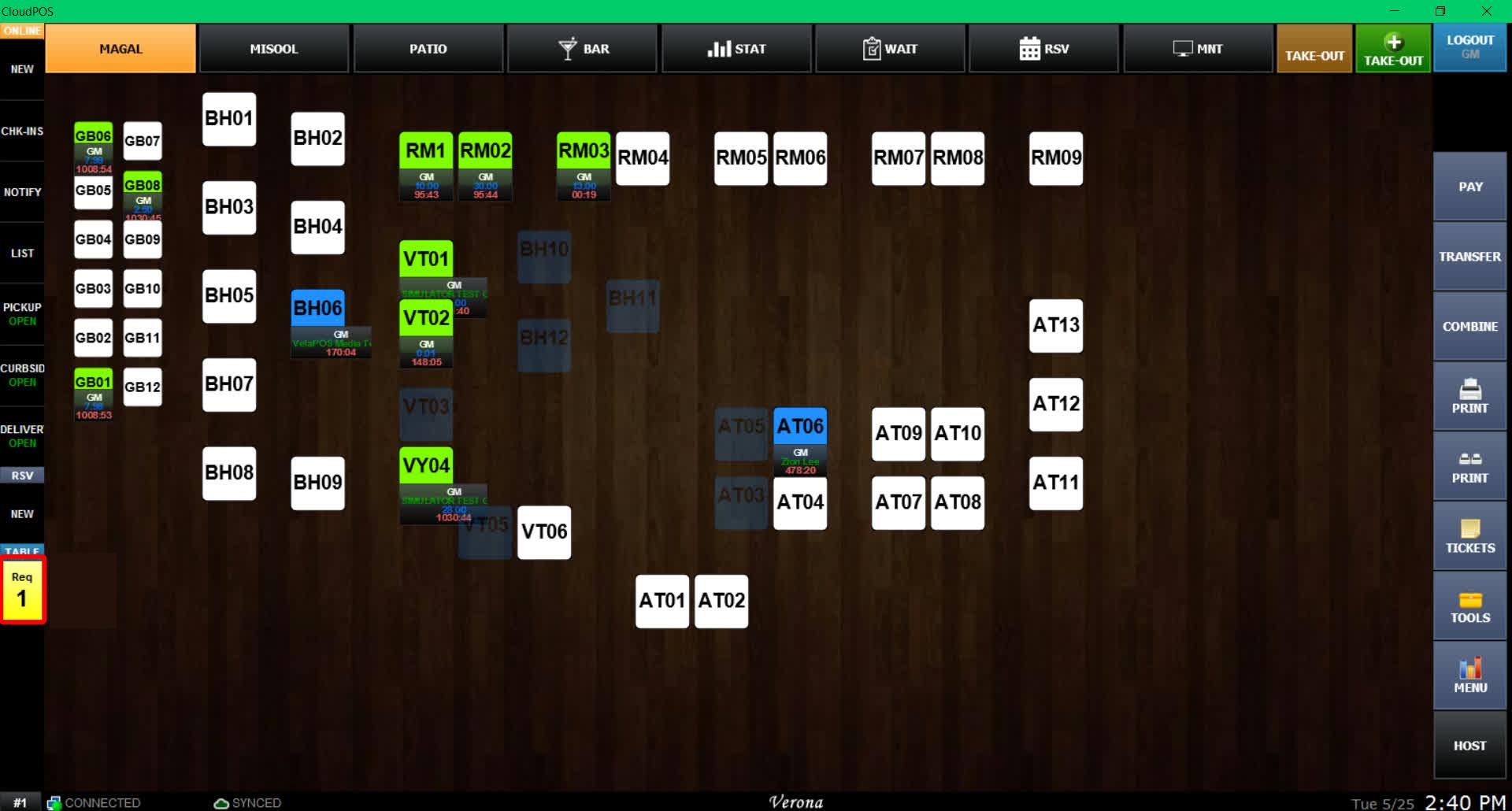
When a customer places an order through QR Contactless Dining, the TABLE REQ button will turn yellow.
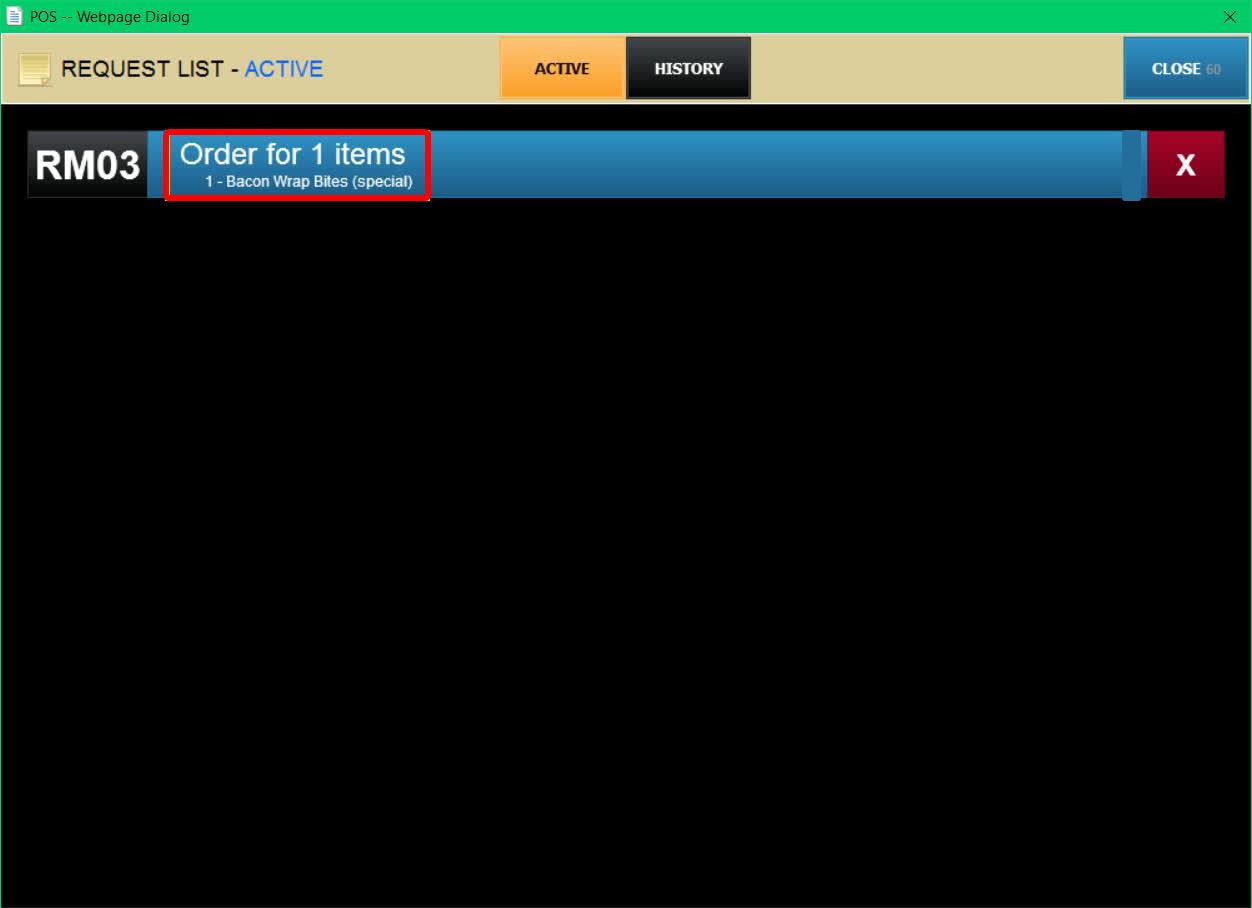
Click REQ to open the REQUEST LIST.
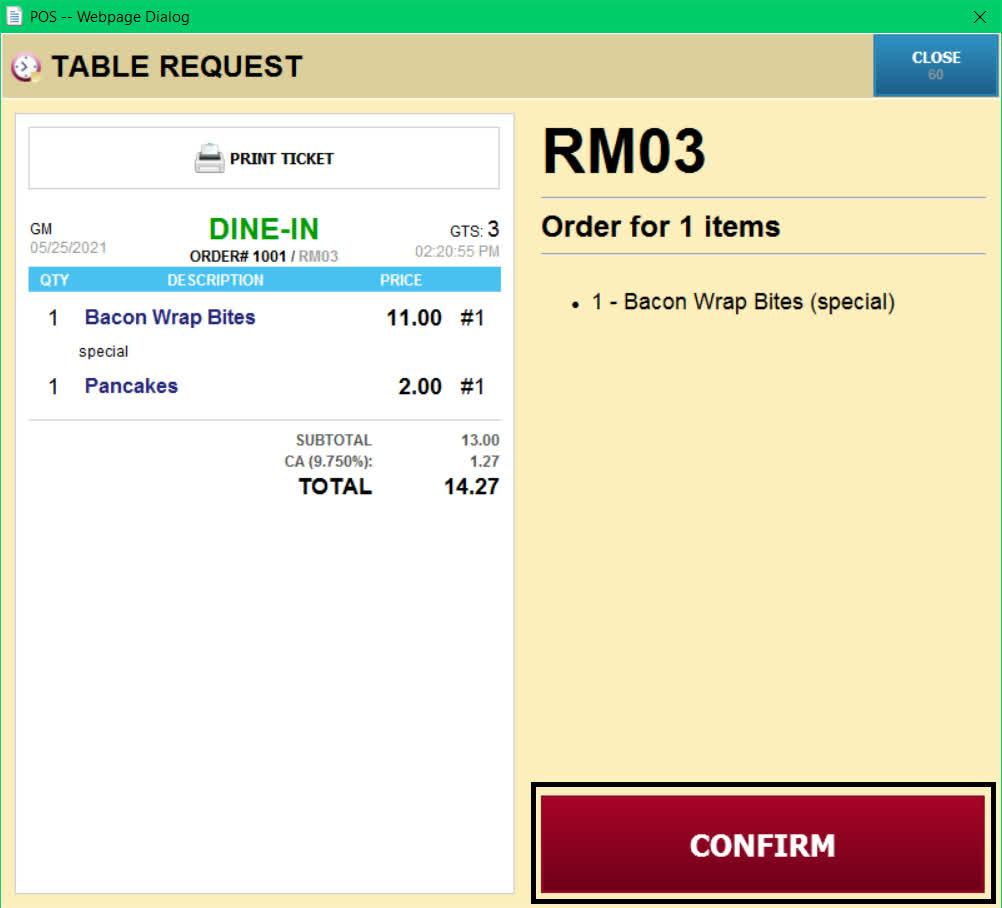
Select the order request, then click CONFIRM.
Receive customer requests
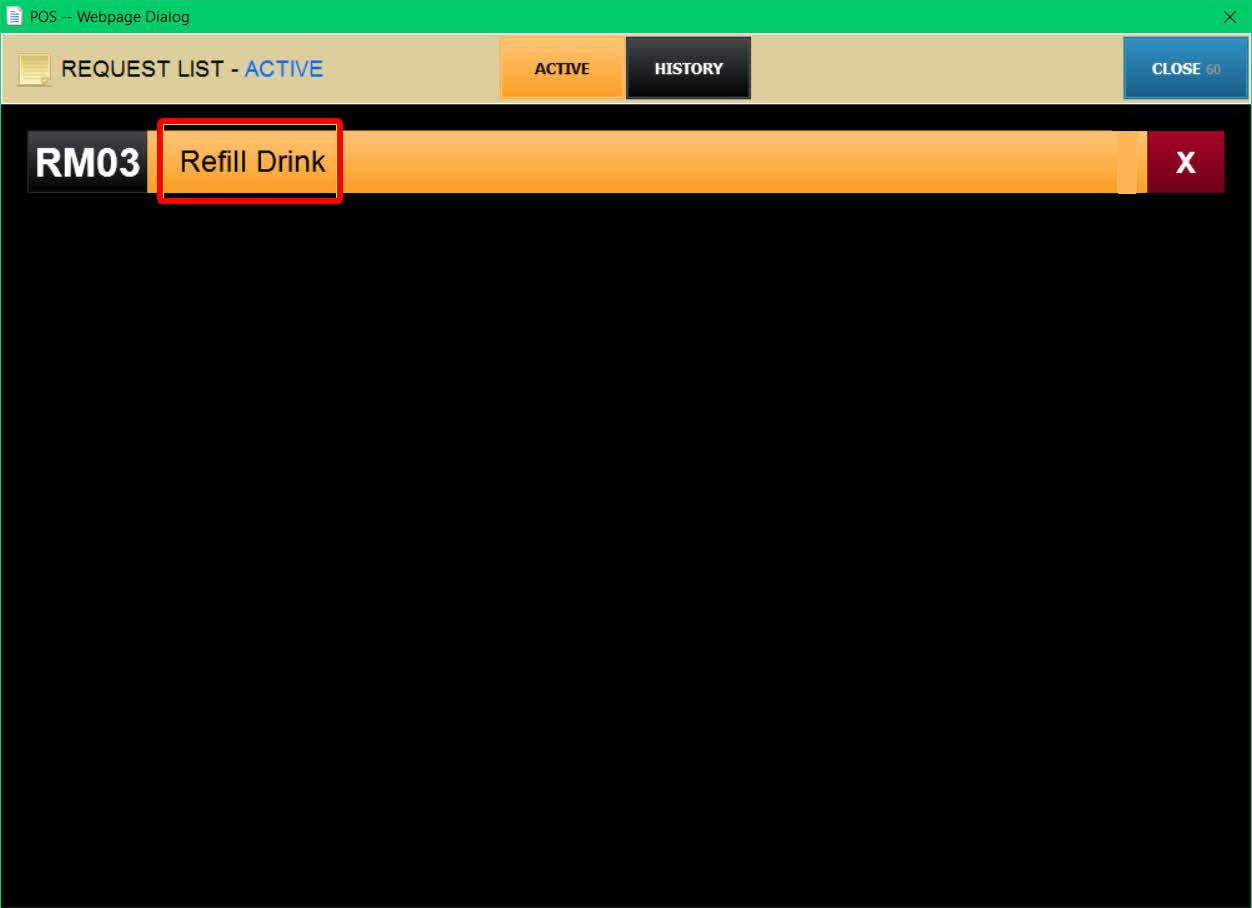
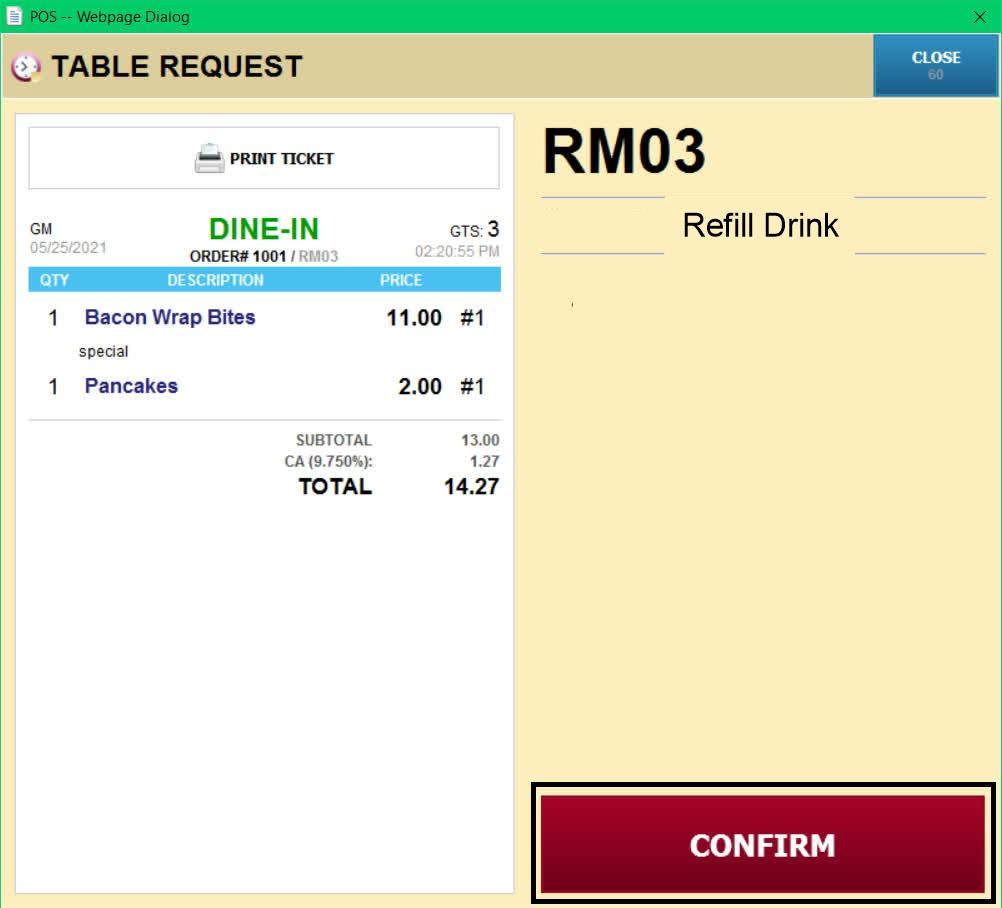
Customers can also send service requests, such as requesting a drink refill. These requests will also cause the TABLE REQ button to turn yellow.
Click REQ to open the REQUEST LIST, select the request, then click CONFIRM.
View request history
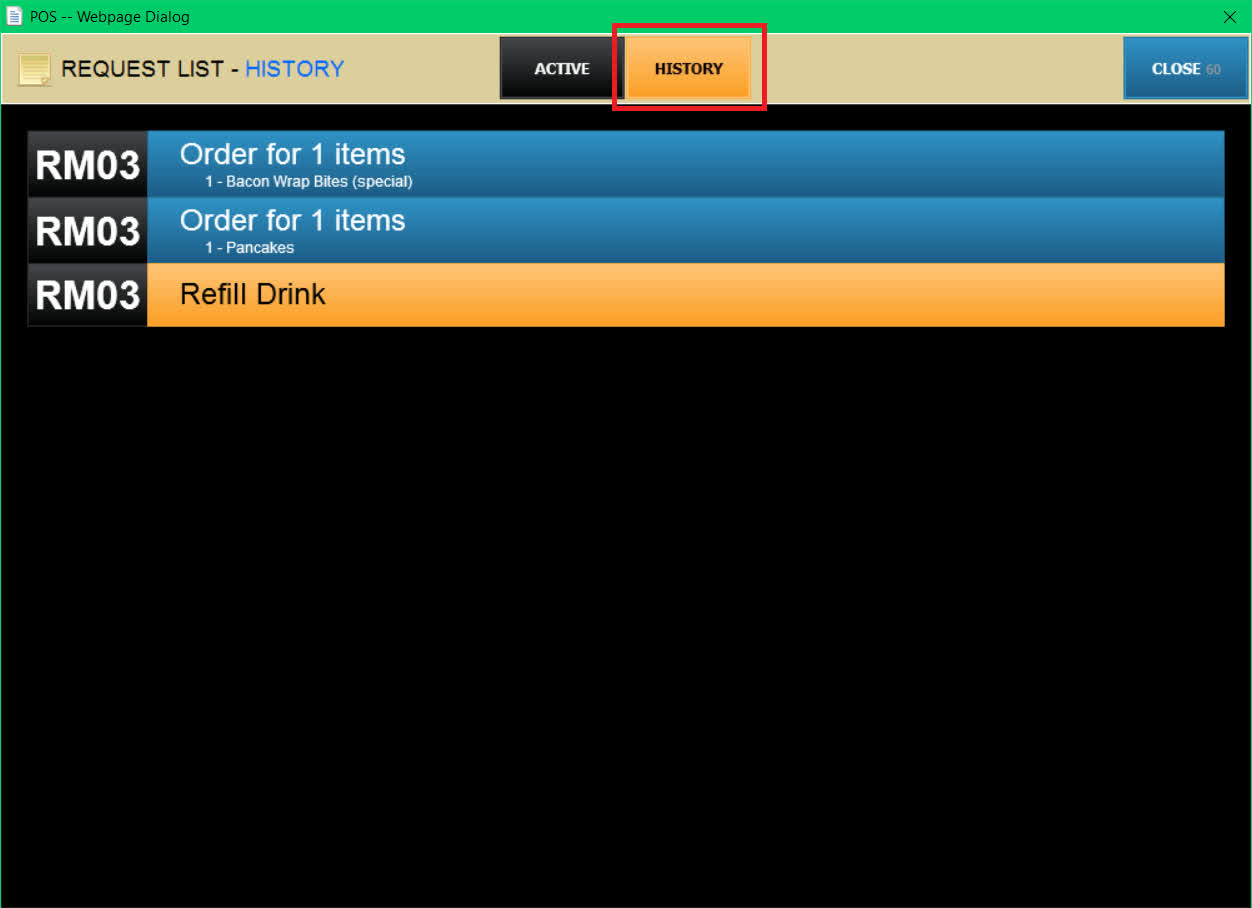
Open REQUEST HISTORY to view all confirmed customer requests for the current day.
RESULT
Orders placed through QR Contactless Dining will be received by the POS and processed like standard orders. Visible from the table