Category
The CATEGORY Price Type allows an item to open another category during ordering instead of using a standard item price configuration. This is commonly used for grouped selections or to redirect users to a different category of items.
MENU > SETTINGS > REPO > EDIT > PRICE TYPE
Go to MENU, then select SETTINGS.

Go to REPO, locate your menu, then click EDIT.

Select the item you want to configure. Scroll down through the item settings until you find the PRICE TYPE dropdown menu.
Select CATEGORY.

After selecting CATEGORY, additional configuration options will appear:
1. CATEGORY: Use this dropdown menu to select which category should open when the item is selected.

2. STAY CONTROL: Controls whether the opened category remains active after an item is selected. You can set it to YES or NO
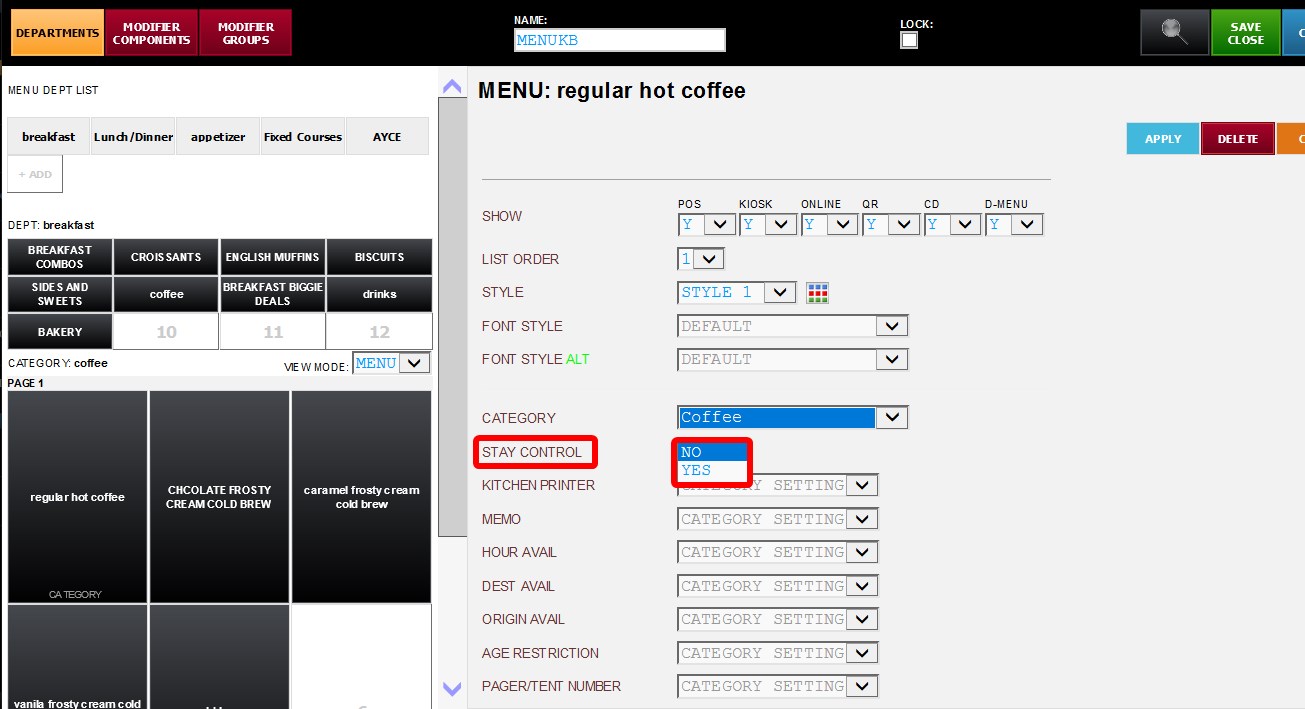
If you choose NO, after selecting an item from the opened category, the system will automatically return to the previous screen.
A STAY button will appear at the top of the category screen. If pressed manually, it will allow multiple items to be selected without exiting the category.

If you choose YES, the STAY function will be automatically enabled when entering the category. This allows multiple items to be selected continuously without automatically returning after each selection.
Press DONE when finished to return to the previous screen.

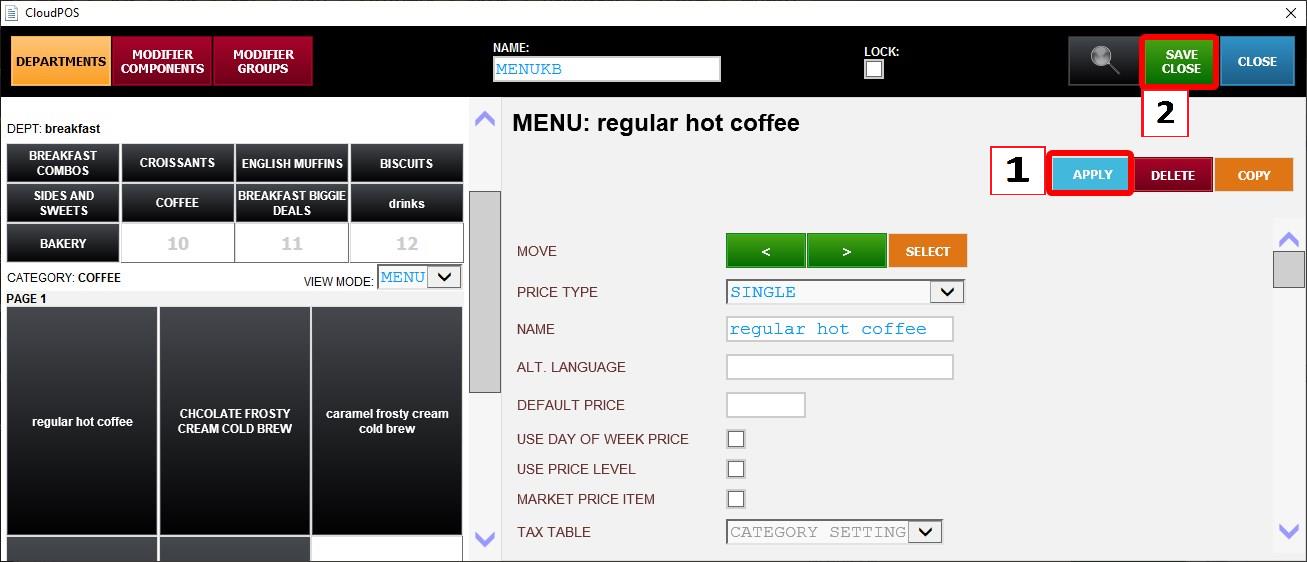
Click APPLY then SAVE & CLOSE. Then restart the program.
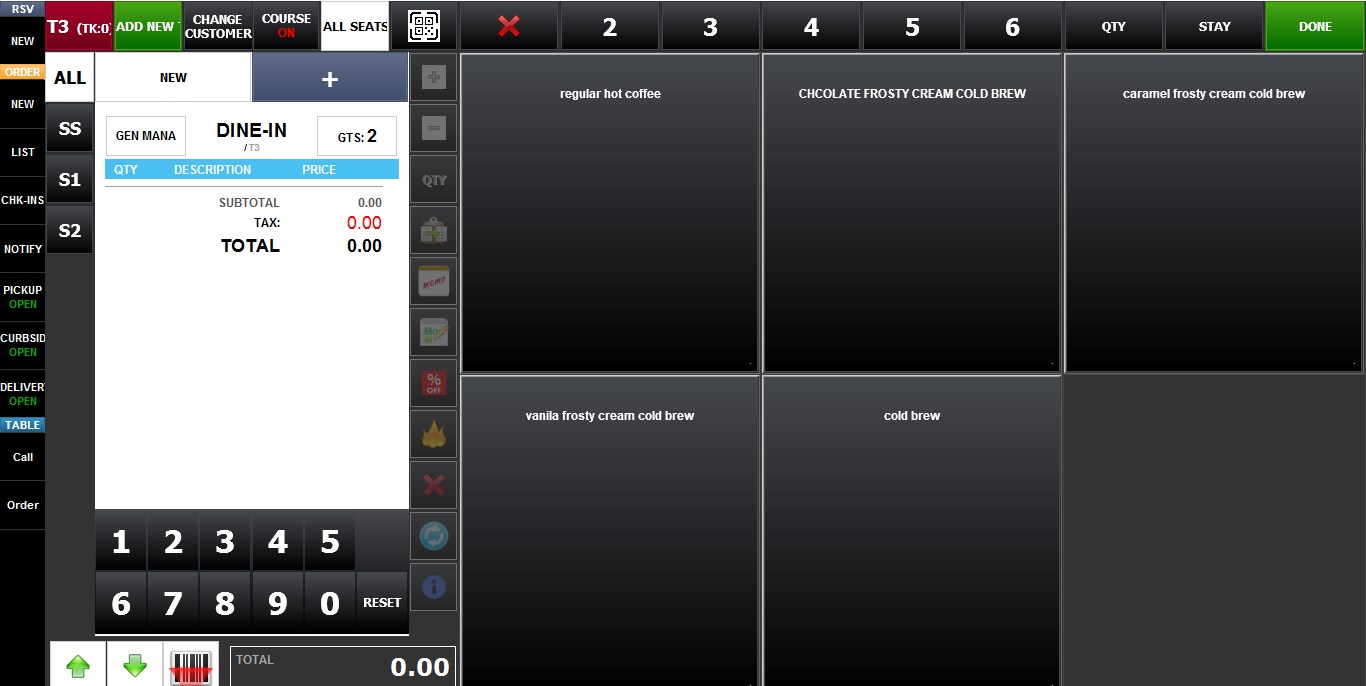
Result:
When the item is selected on the Sales Screen, the system will open the configured category instead of ringing up the item as a standard priced item.