Waiting List
The Waiting List feature helps restaurants efficiently manage guests waiting to be seated. Staff can add guests to the waiting list, record party details and seating preferences, monitor wait times, notify guests when their table is ready, and review previous call history, all from the mobile device.
Waiting List
Displays all guests currently waiting to be seated.
From the Home Screen, tap Waiting List.
The header displays KIM - Waitings, along with an Actions button and a Close button
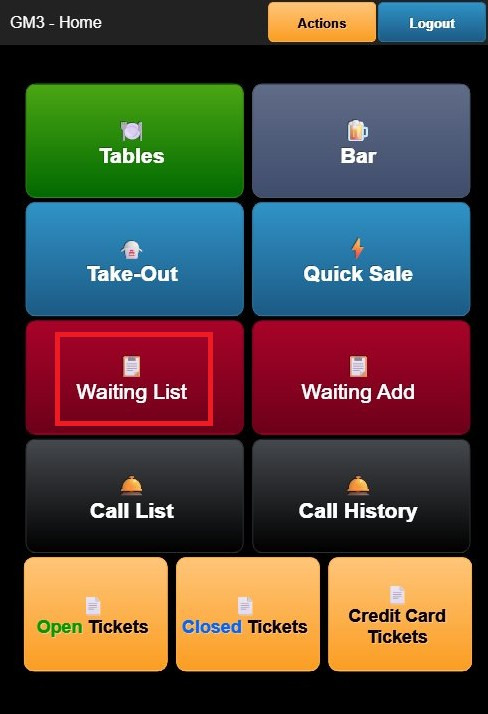
Each waiting guest is displayed with the following information:
- # – Entry number.
- Info – Guest name, preferred seating location (such as Bar, Patio, or Table), and any special notes.
- Size – Number of guests in the party.
- Time – The time the guest was added and the elapsed waiting time.
Waiting Add
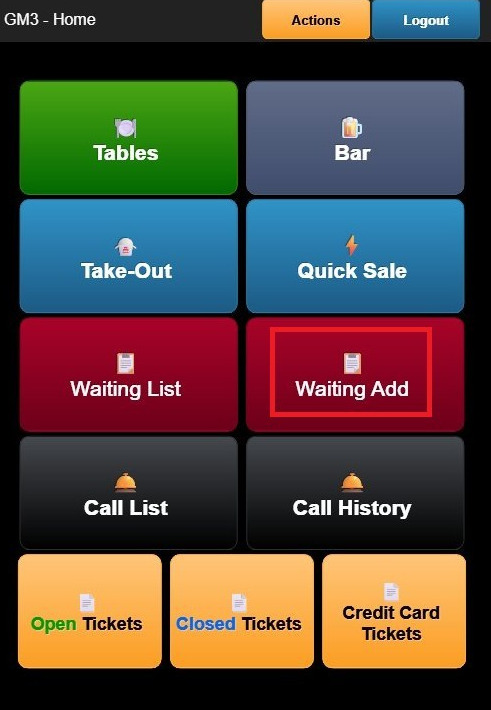
From the Home Screen, tap Waiting Add.
Complete the following fields:
PHONE: Enter the guest's contact phone number.
NAME: Enter the guest's name.
PARTY SIZE: Select the number of guests in the party.
LOCATION: Select the guest's preferred dining area.
Available options may include:
- Any
- Bar
- Patio
- Dining Room
SEAT: Select the preferred seating type for the party.
NOTES: Select any special accommodations or guest information that applies.
Available options include:
- VIP
- Birthday
- Anniversary
- High Chair
- Booster
- Wheelchair
- All Access
MEMO: Enter any additional notes or special requests for the guest.
TIME: The current time is displayed automatically.
You can also select one of the predefined estimated wait times:
- 10 Minutes
- 15 Minutes
- 20 Minutes
- 30 Minutes
- 45 Minutes
- 1 Hour
- 1.5 Hours
- 2 Hours
Once all information has been entered, tap SAVE.
The guest will be added to the Waiting List.
Call List
Displays guests who are ready to be notified that their table is available.
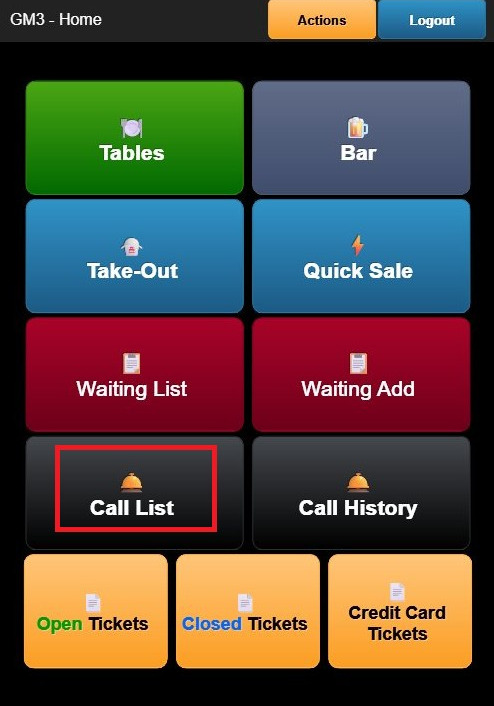
From the Home Screen, tap Call List (bell icon). From this screen, you can notify guests that their table is ready for seating.
Call History
Provides a record of guest notifications previously sent from the Waiting List.
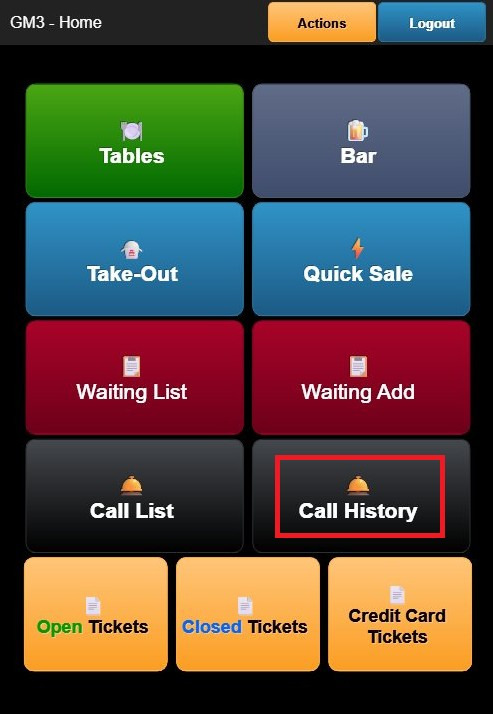
From the Home Screen, tap Call History (bell icon).
The Call History displays information such as:
- Guest name
- Time the guest was notified
- Notification status
This history can be used to review previous guest call-outs and monitor seating activity.