Getting Started
The CloudPOS Mobile app lets employees take orders and payments from a mobile device. This guide explains how to log in and log out of the app.
Open the CloudPOS app on the mobile device
Login Screen:
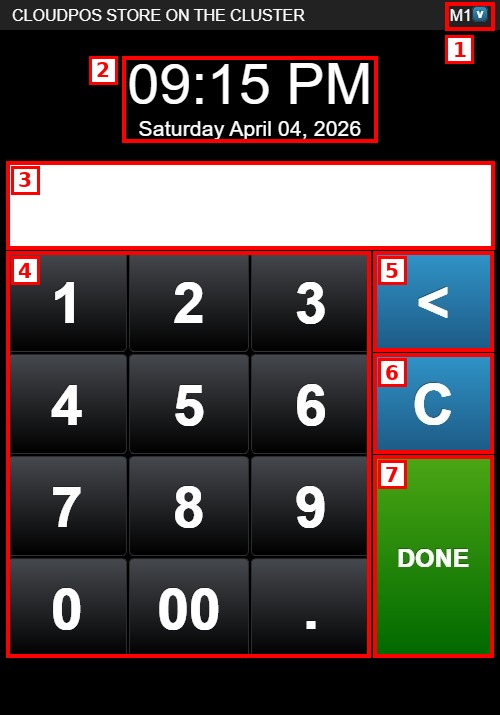
1. REGISTER INDICATOR: Identifies the register the device is assigned to (e.g., M1).
2. CLOCK: Shows the current time and date.
3. PIN FIELD: Displays an asterisk (*) for each digit entered.
4. NUMERIC KEYPAD: Digits 1–9, 0, 00 and the decimal point (.) used to enter the employee PIN.
5. BACKSPACE (<): Removes the last digit entered.
6. CLEAR (C): Clears all the digits entered.
7. DONE: Submits the PIN and logs in.
Logging In:
Enter the employee PIN using the numeric keypad. If a wrong digit is entered, tap < to delete the last digit or C to clear the entire entry.
Tap DONE to submit. On a successful login, the app opens the Home Screen.
Logging Out:
From the Home Screen, tap LOGOUT in the top-right corner to return to the login screen.