Notice
This feature allows you to configure how your store receives notifications when a new online order is placed through the Online Ordering system.
Main Screen>MENU>SETTINGS>MENU11>ORDER>NOTICE
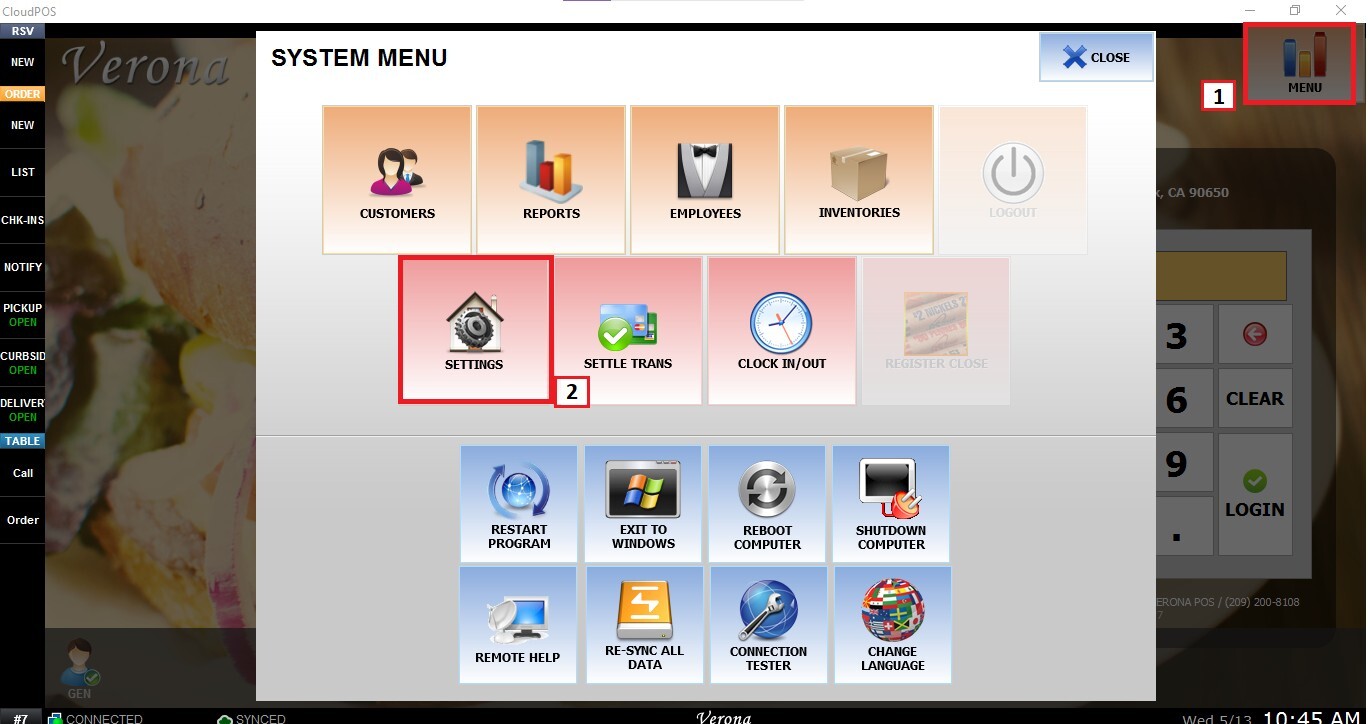
From the Main Screen, go to MENU and SETTINGS.
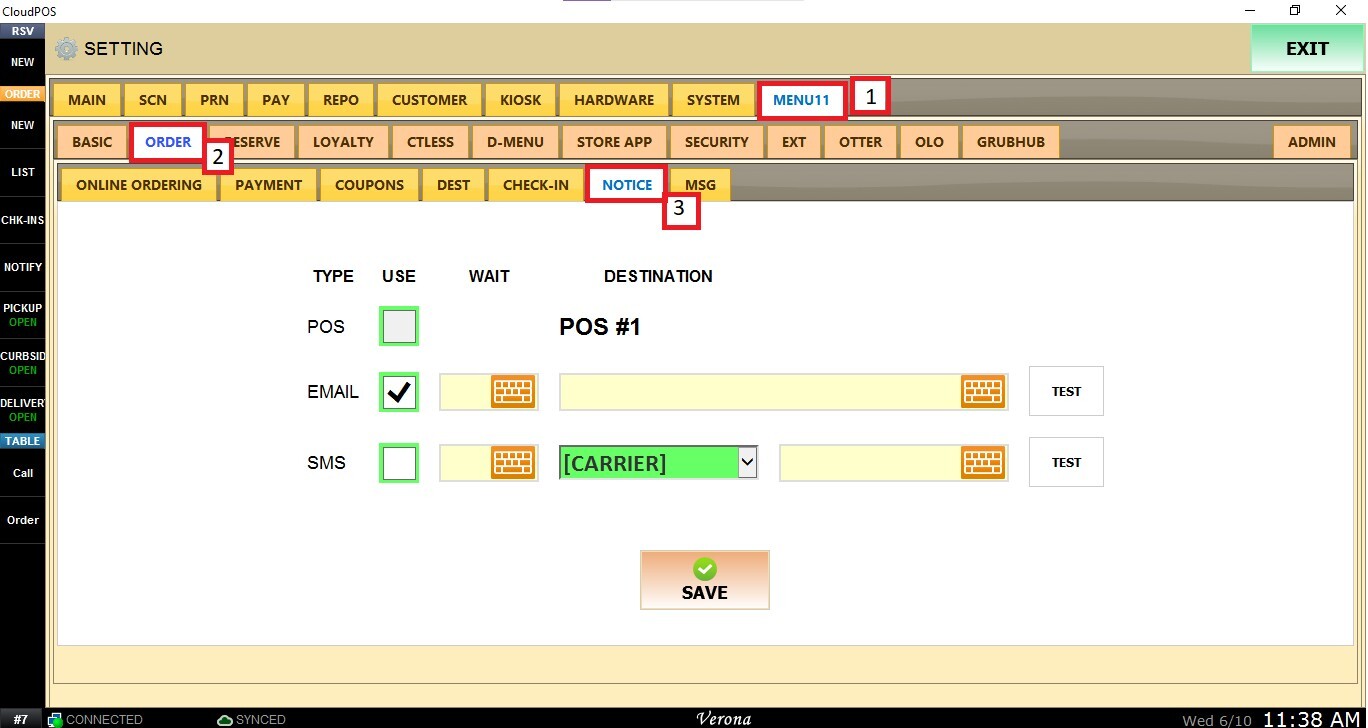
Navigate to the MENU11 tab, click ORDER, and select NOTICE.
POS
The POS notification method sends notifications directly to the POS system when a new online order is received.
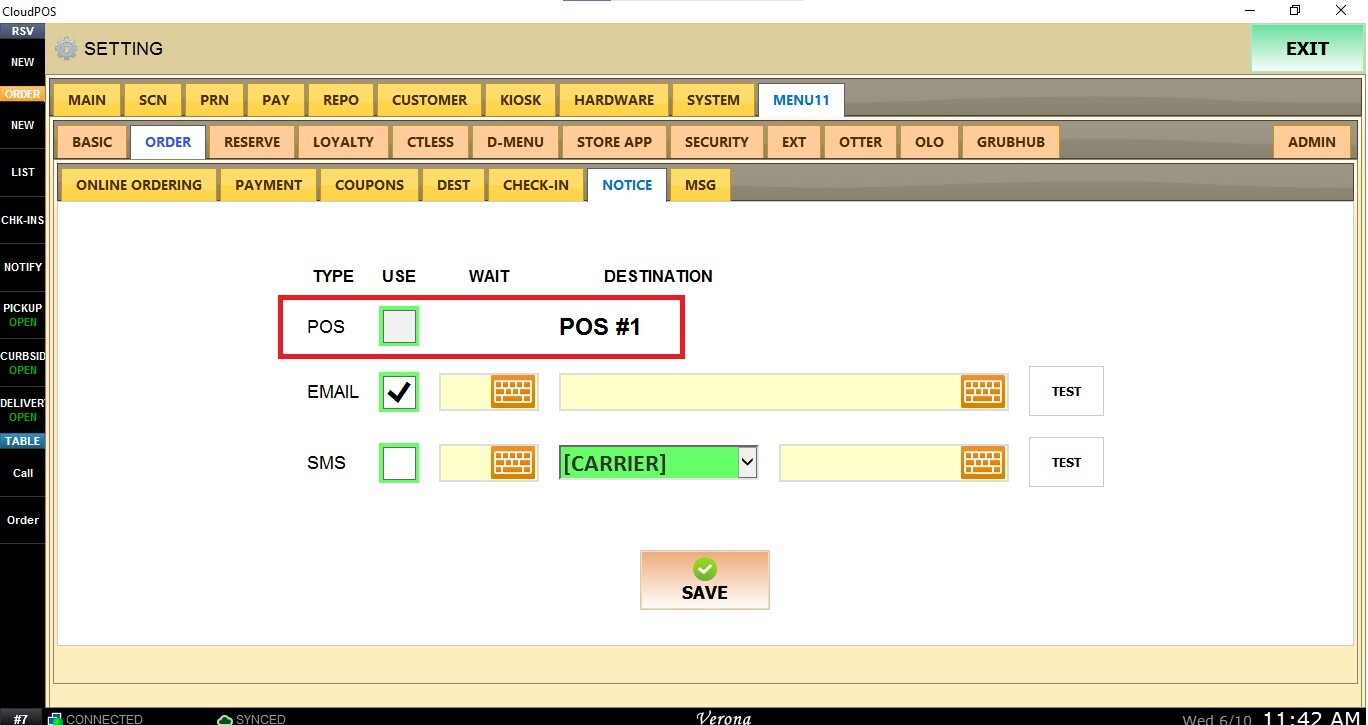
Note: POS notifications are enabled by default and cannot be disabled.
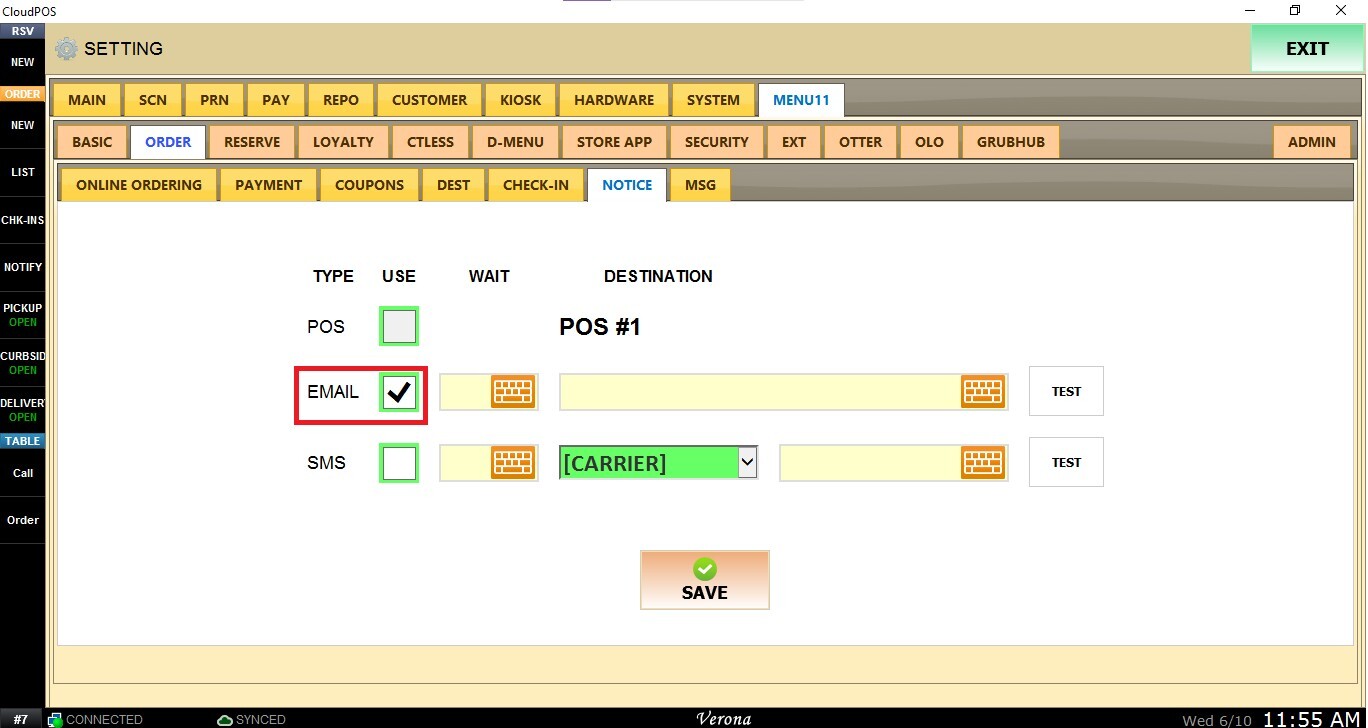
The Email notification method sends an email alert whenever a new online order is placed.
To configure email notifications, check the USE box.
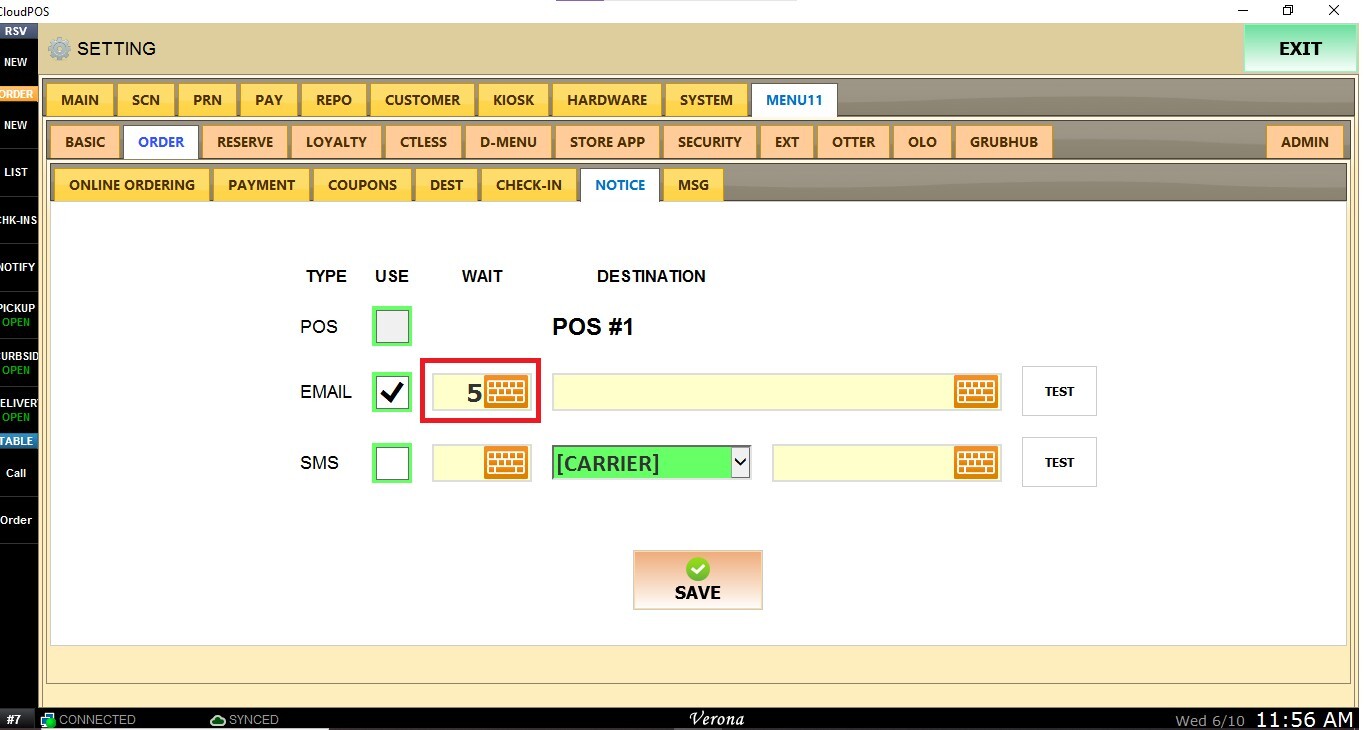
The WAIT setting allows you to configure a delay before a notification is sent. Enter the number of minutes the system should wait before generating the notification (Optional).
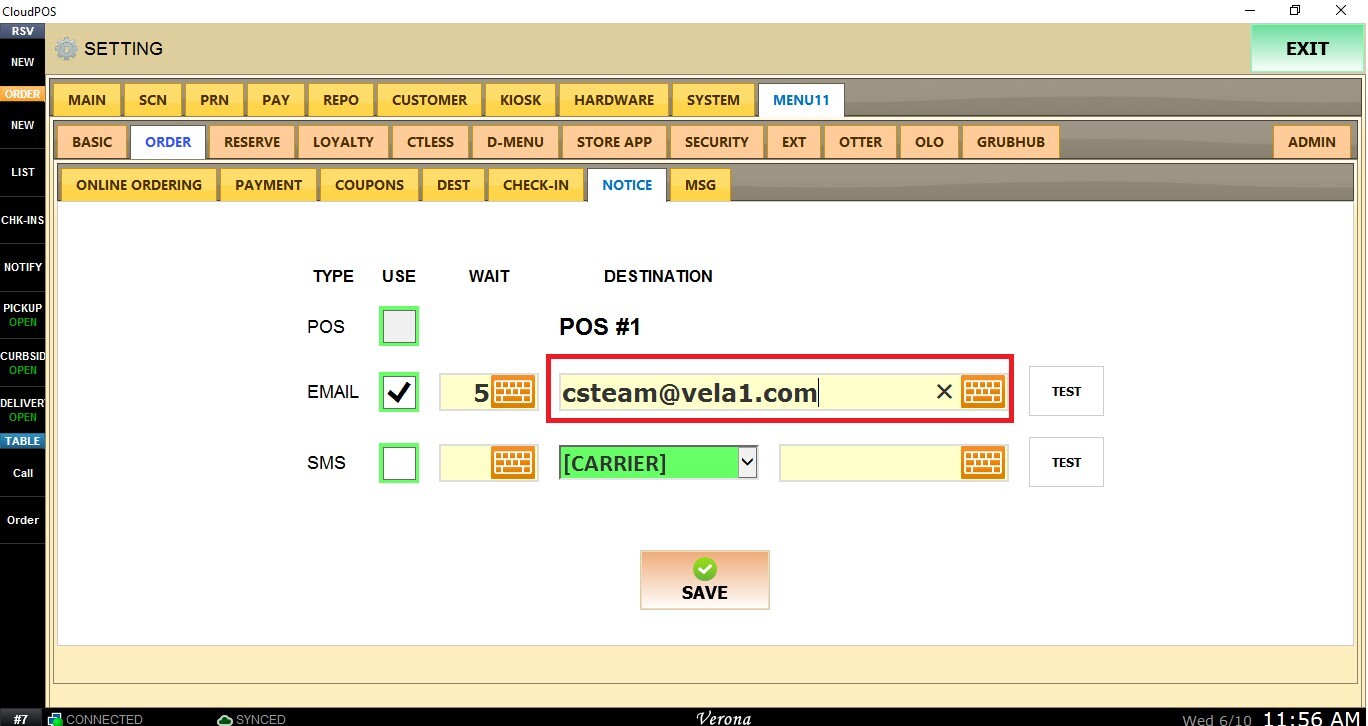
Enter the destination email address in the provided field.
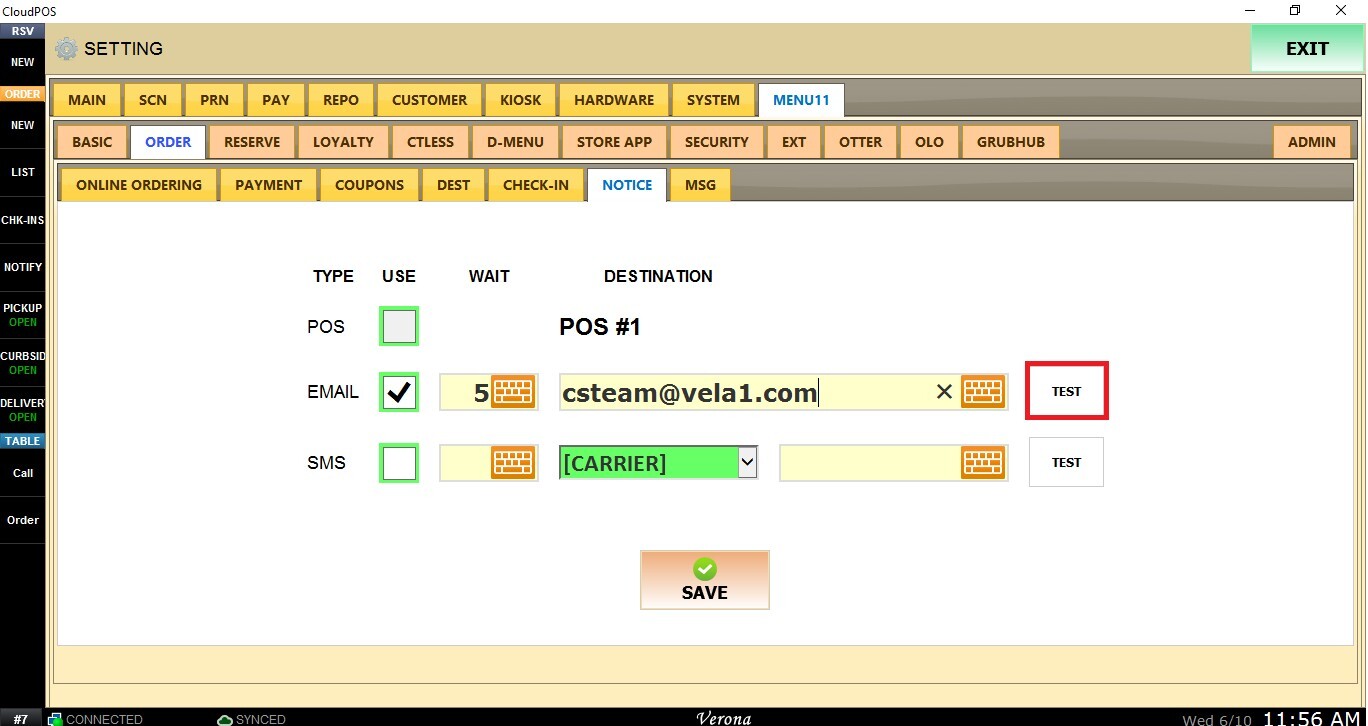
After entering the destination email address, click the TEST button to verify that notifications can be successfully delivered.
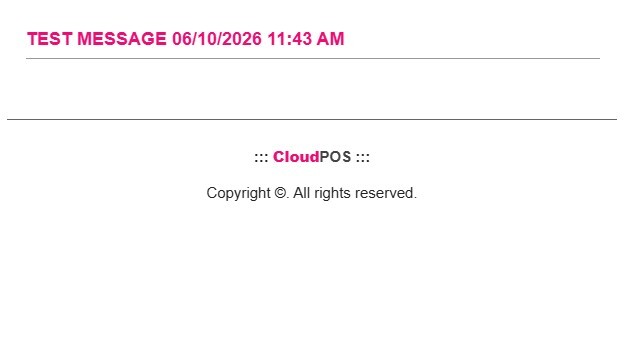
Email Test Notification:
SMS
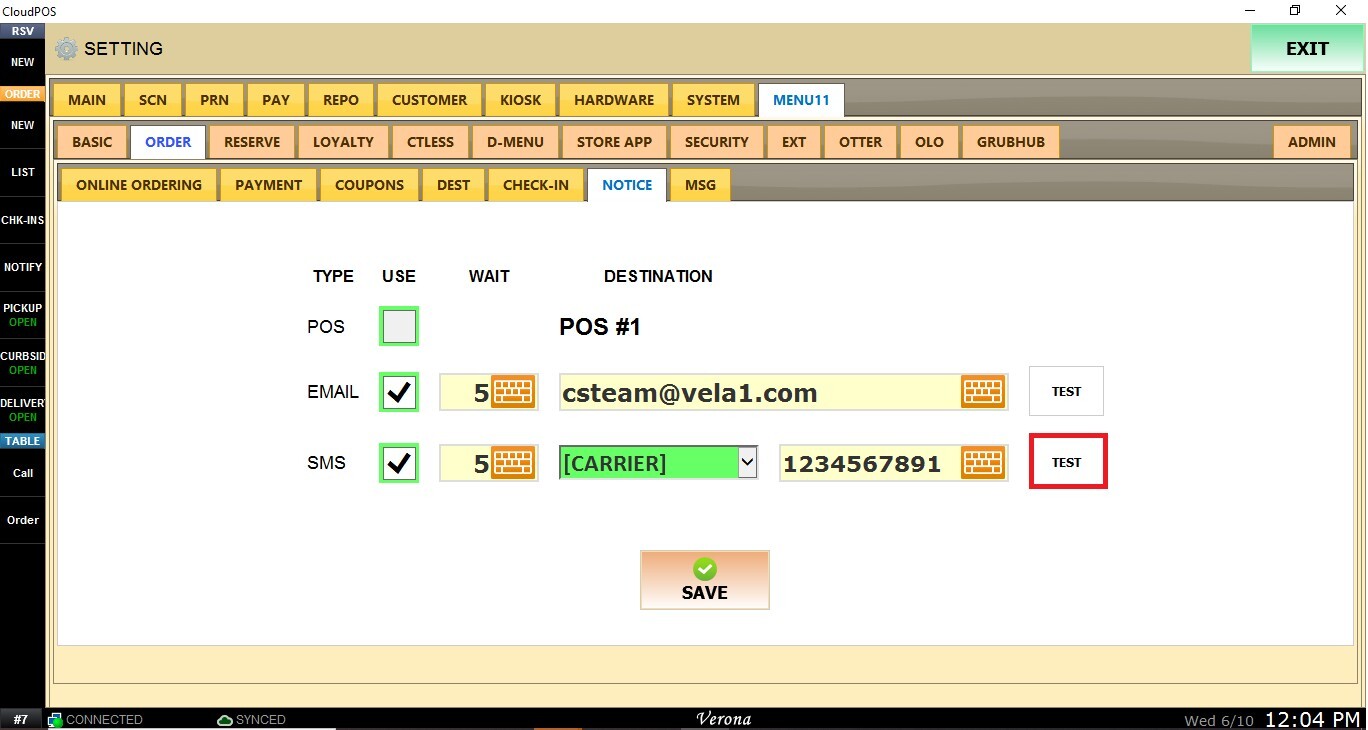
The SMS notification method sends a text message alert whenever a new online order is placed.
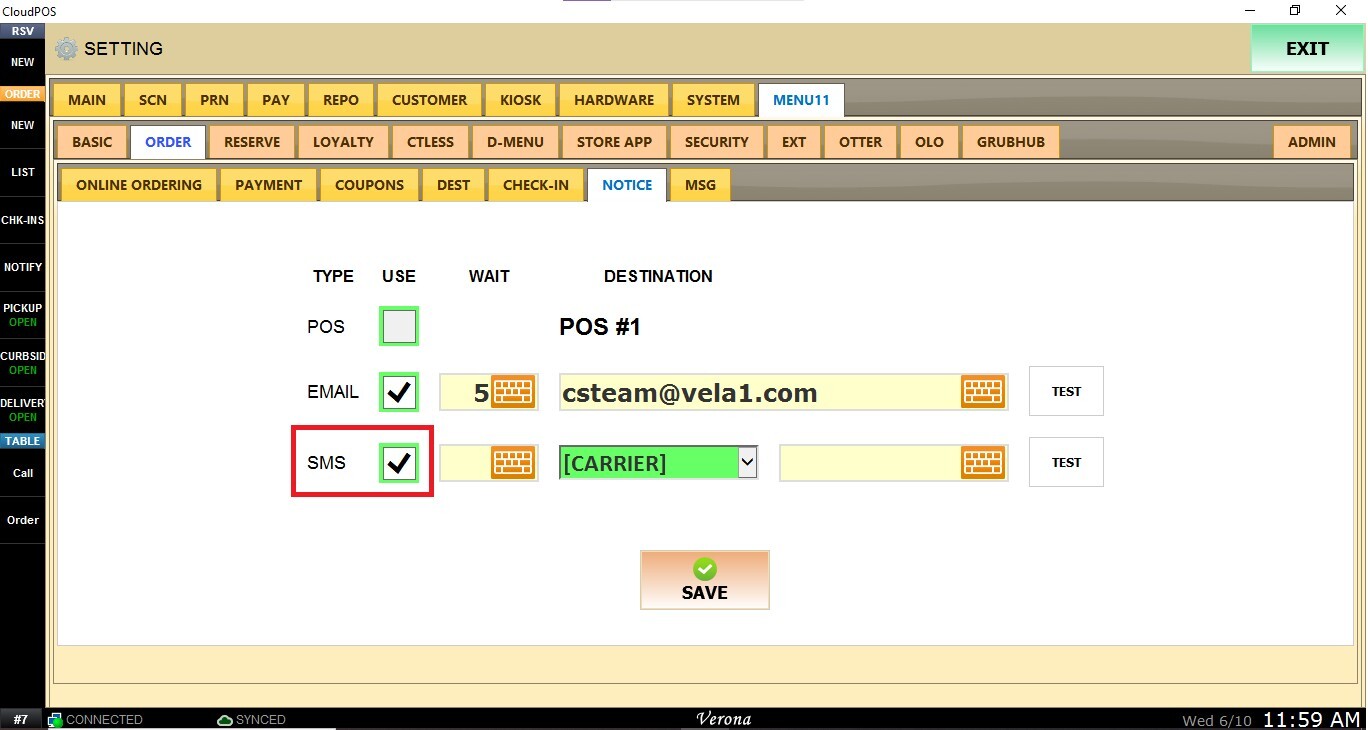
To configure SMS notification, check the USE box.
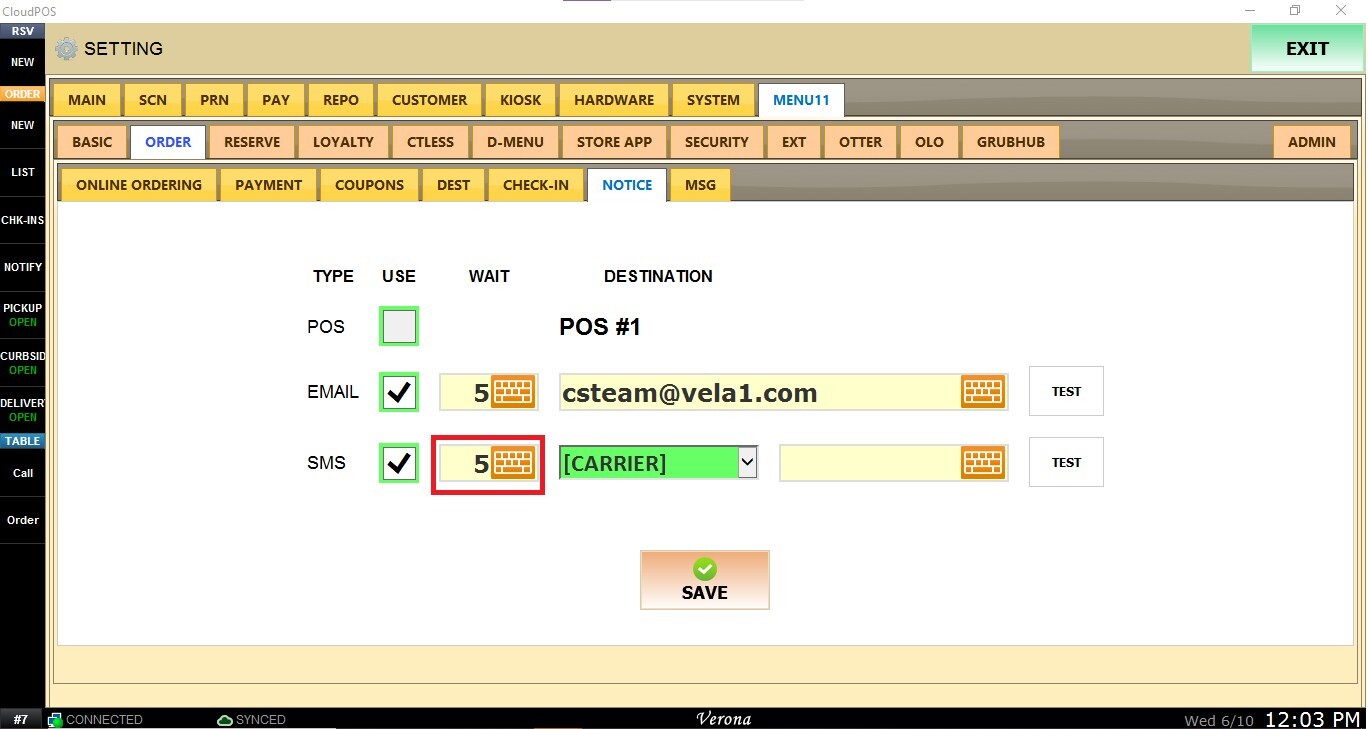
The WAIT setting allows you to configure a delay before a notification is sent. Enter the number of minutes the system should wait before generating the notification (Optional).
Select the mobile carrier from the drop-down menu and enter the destination phone number in the provided field.
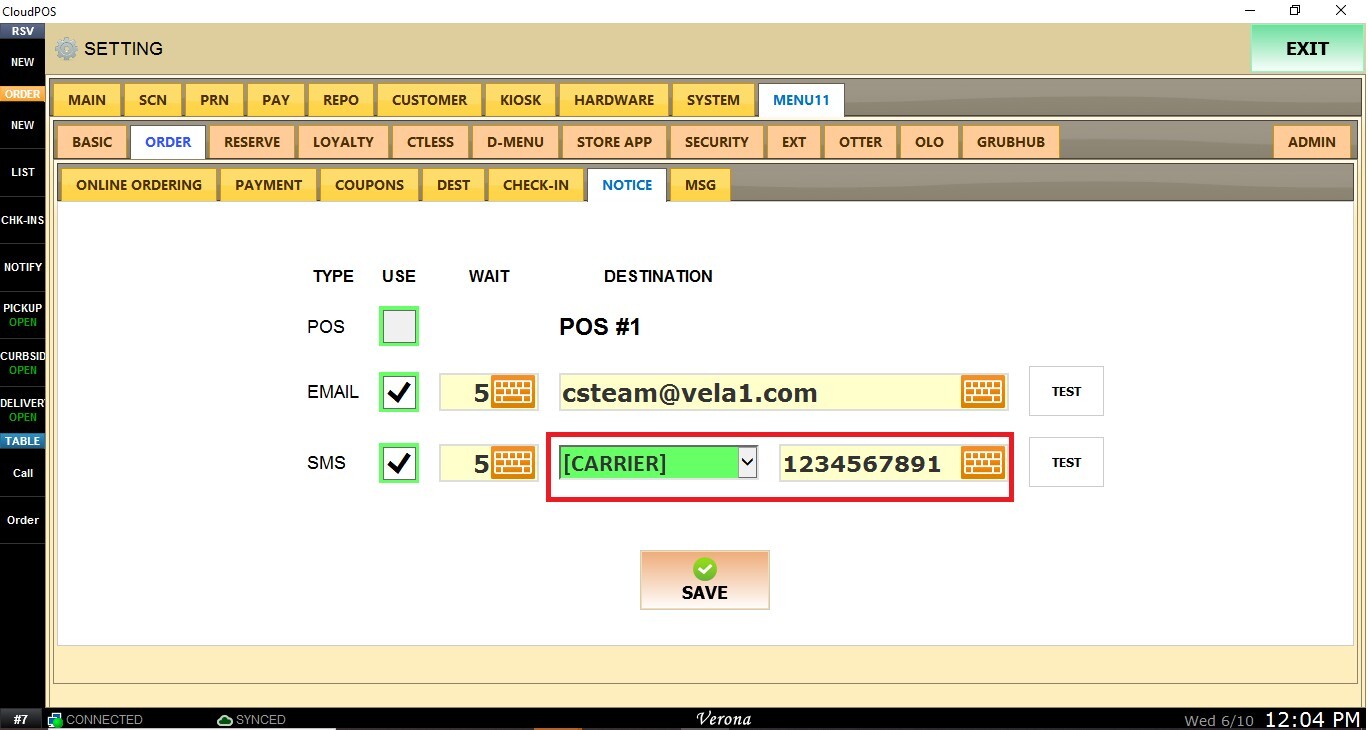
After entering the phone number, click the TEST button to verify that notifications can be successfully delivered.
Once configured, press SAVE.
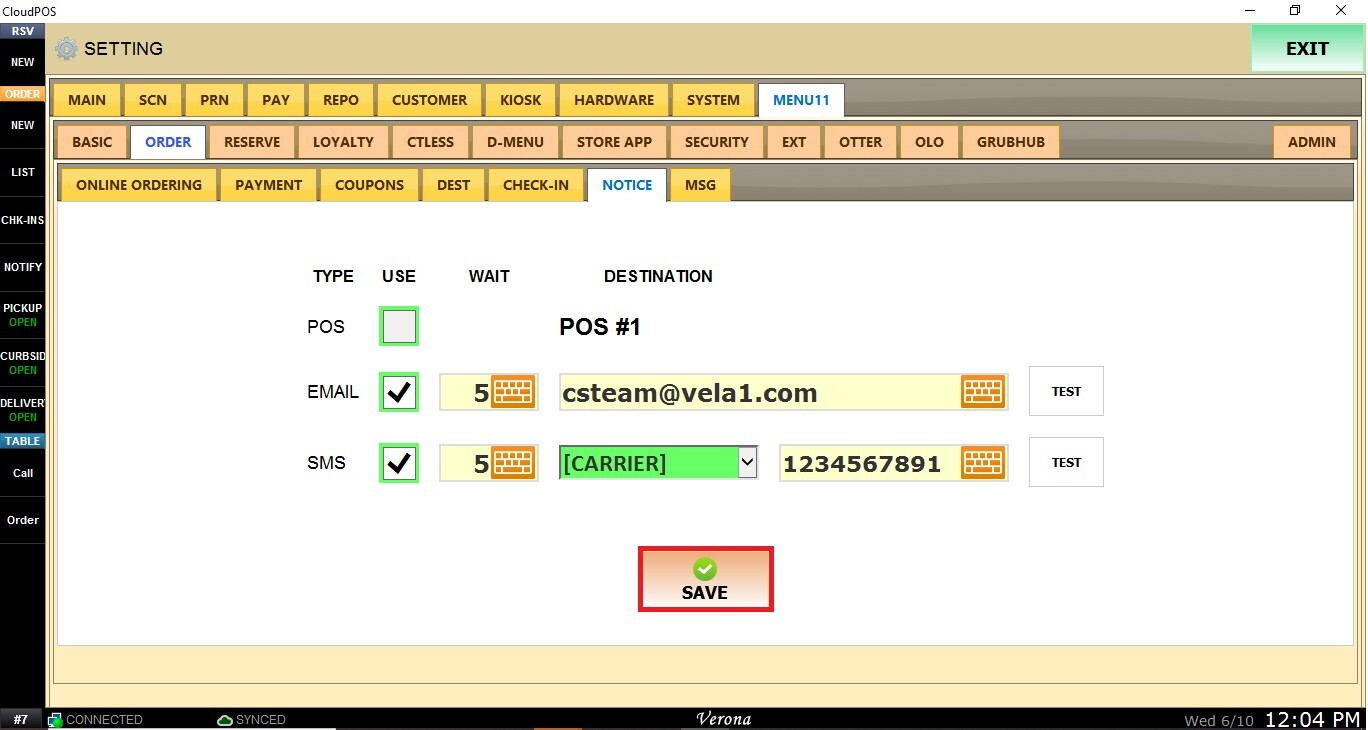
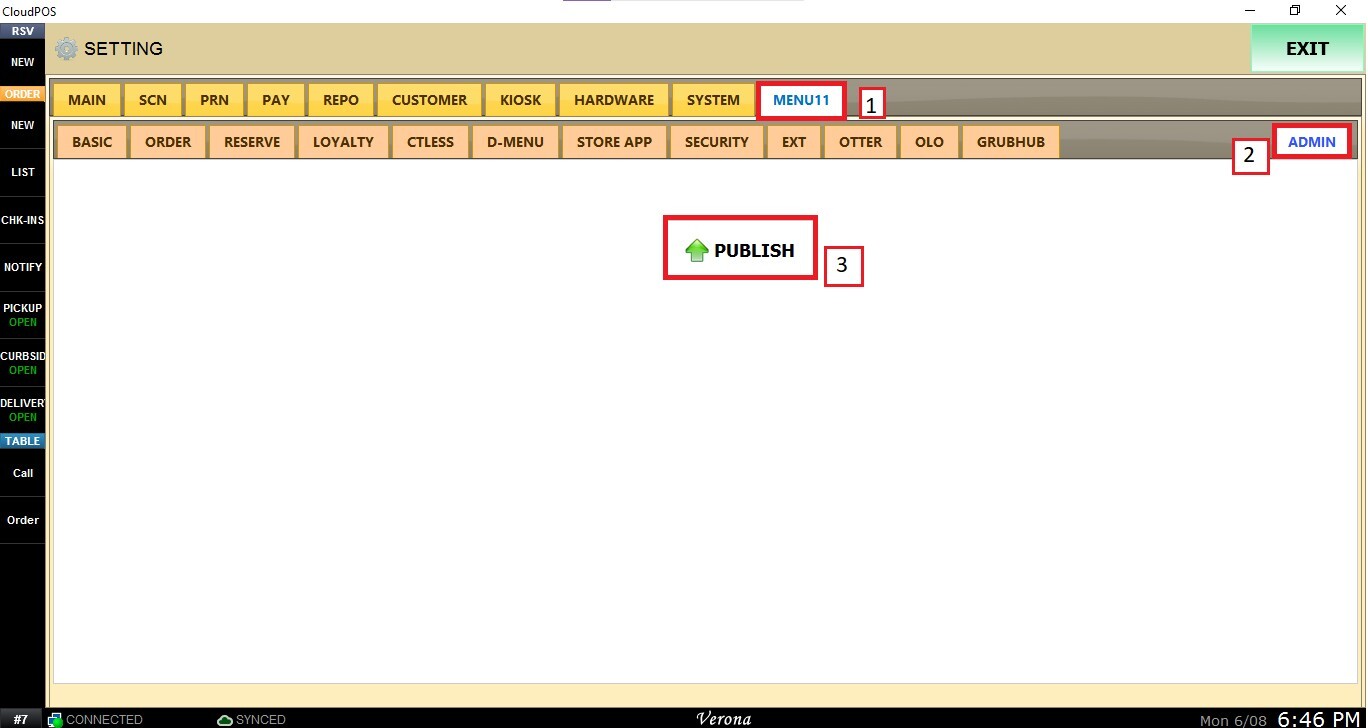
Then navigate to the MENU11 tab, select ADMIN, and click PUBLISH to apply the changes.