Course
The Item Course Configuration feature allows individual menu items to use their own custom course assignment and optional course pricing, independent from the category settings. This is useful when specific items need to appear under a different course than the rest of their category or require a different price when Courses are enabled.
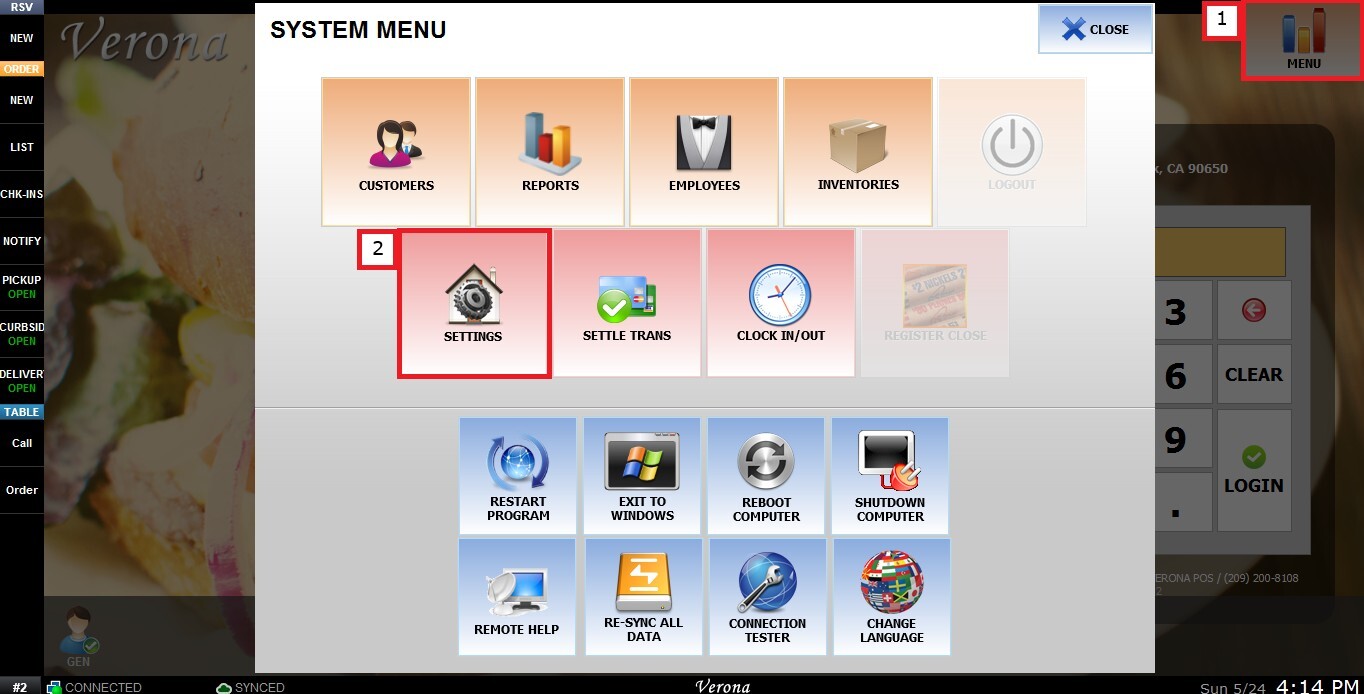
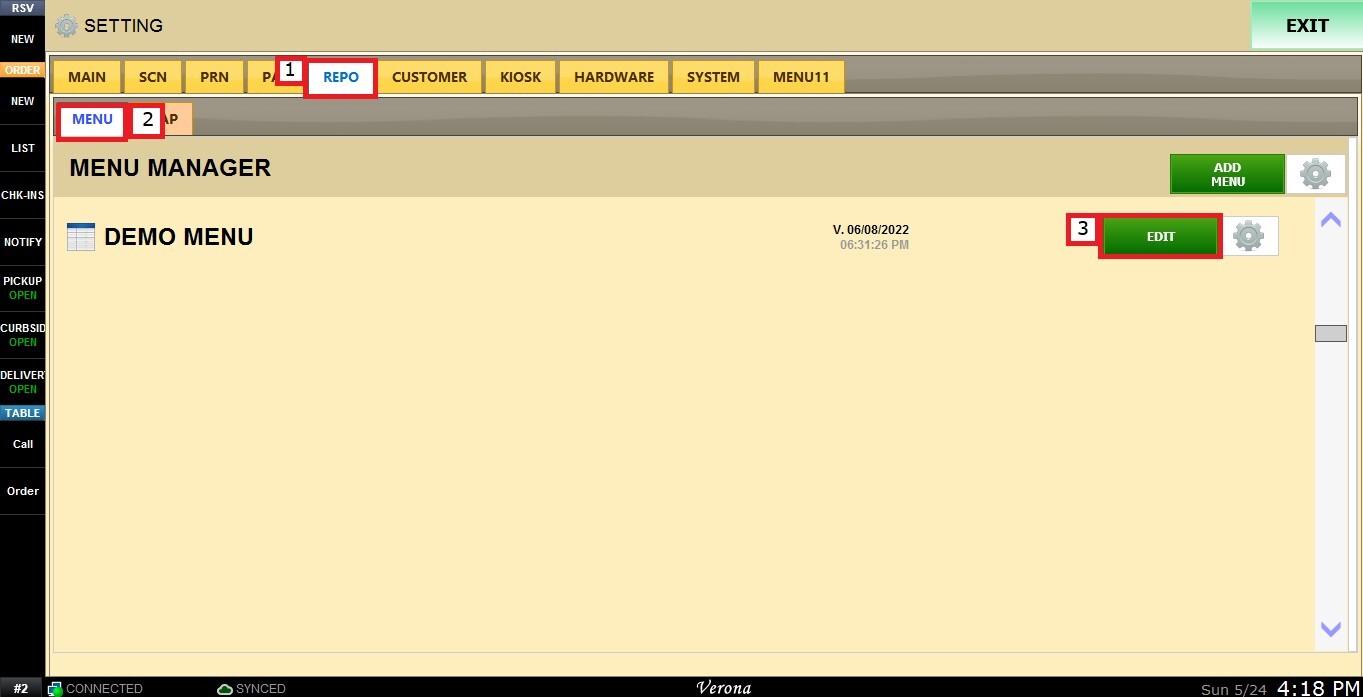
Main Screen> MENU> SETTINGS> REPO> MENU> EDIT> ITEM TO EDIT> COURSE.
Before configuring Courses, make sure the Courses feature is enabled and course names have already been created in the Courses settings.
From the Main Screen, click on MENU, then select SETTINGS.
From the REPO tab, select MENU, choose the desired menu, and click on EDIT.
Select the category containing the item you want to configure.
Locate and select the item, then scroll down until you find the COURSE section.
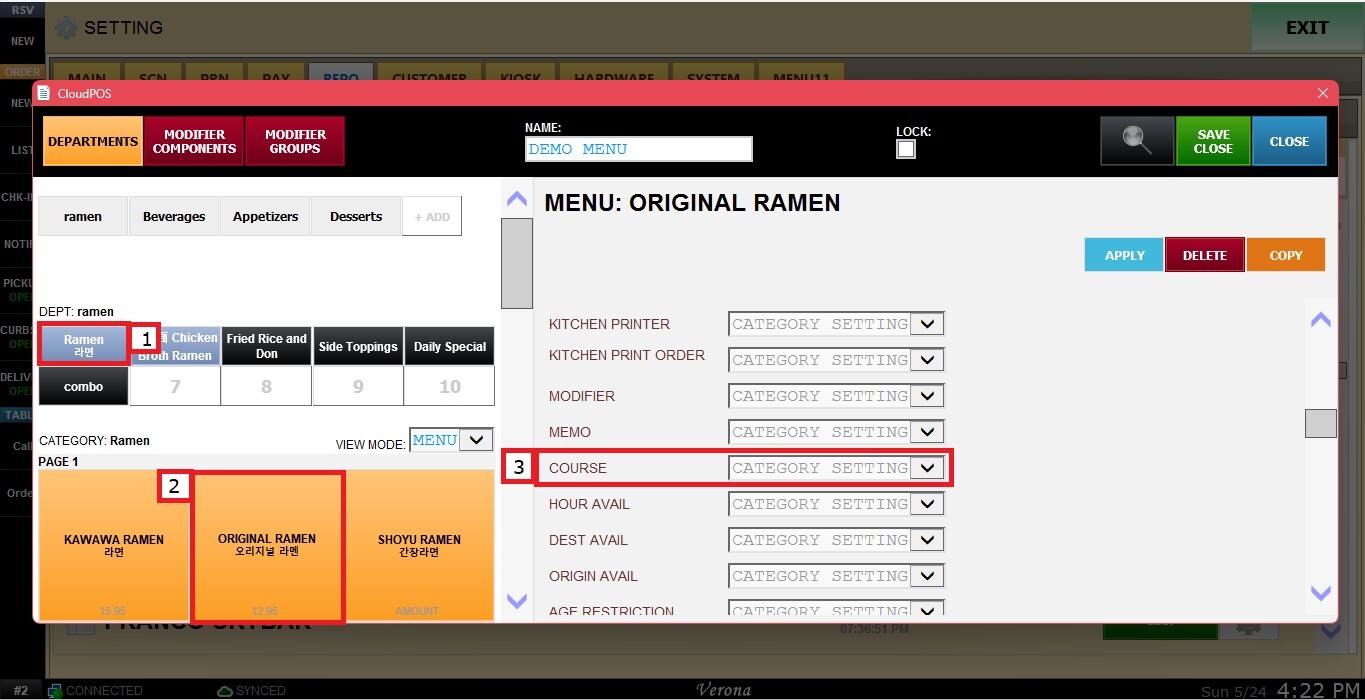
By default, the item will use Category Settings, meaning the item follows the course configuration assigned to the entire category.
To learn how category-level course assignment works, refer to the Category Course guide.
CUSTOM ITEM COURSE OPTIONS
Open the dropdown menu and select CUSTOM to configure individual course settings for the item.
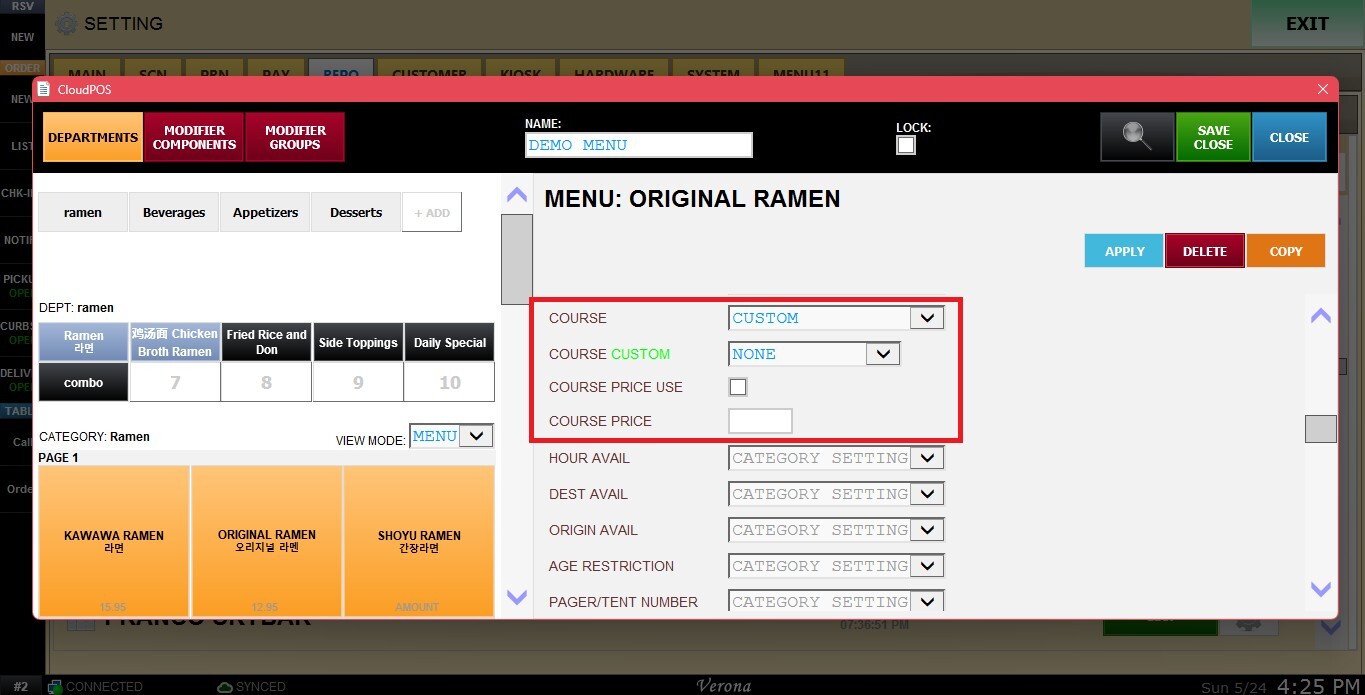
Once selected, the following options will become available:
1. COURSE CUSTOM: Assigns a specific course to the item.
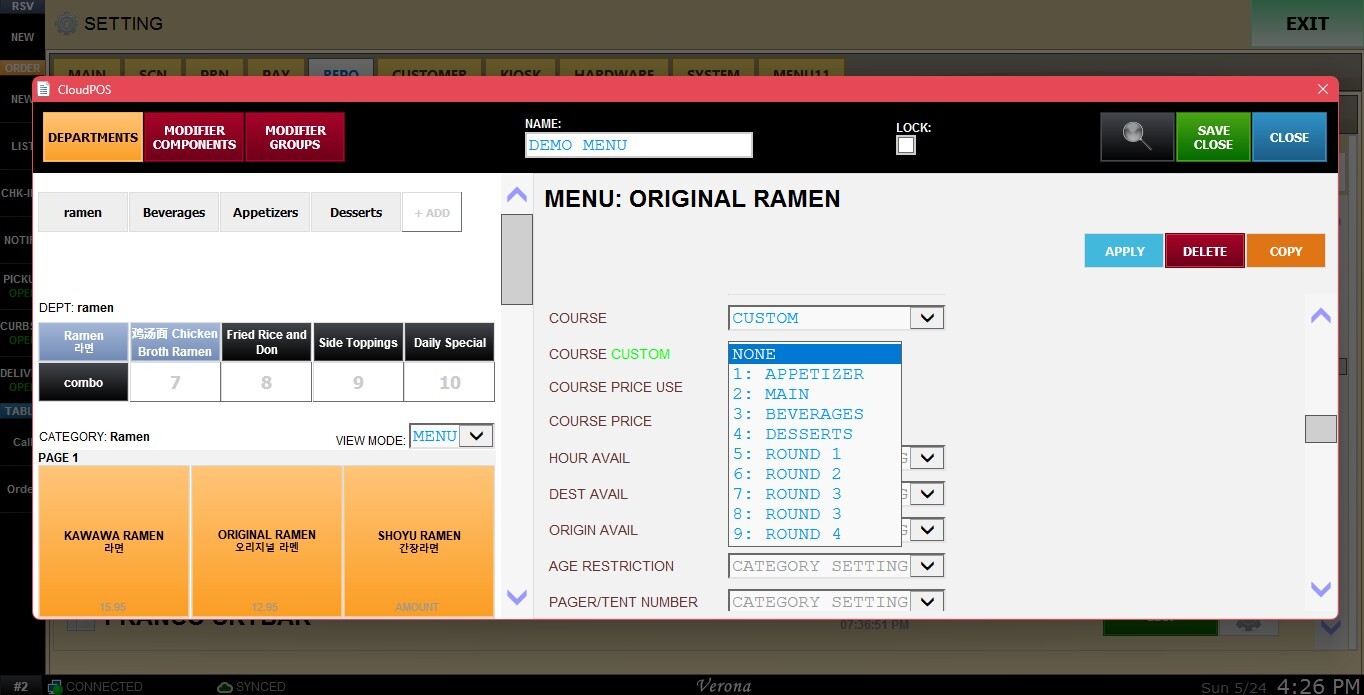
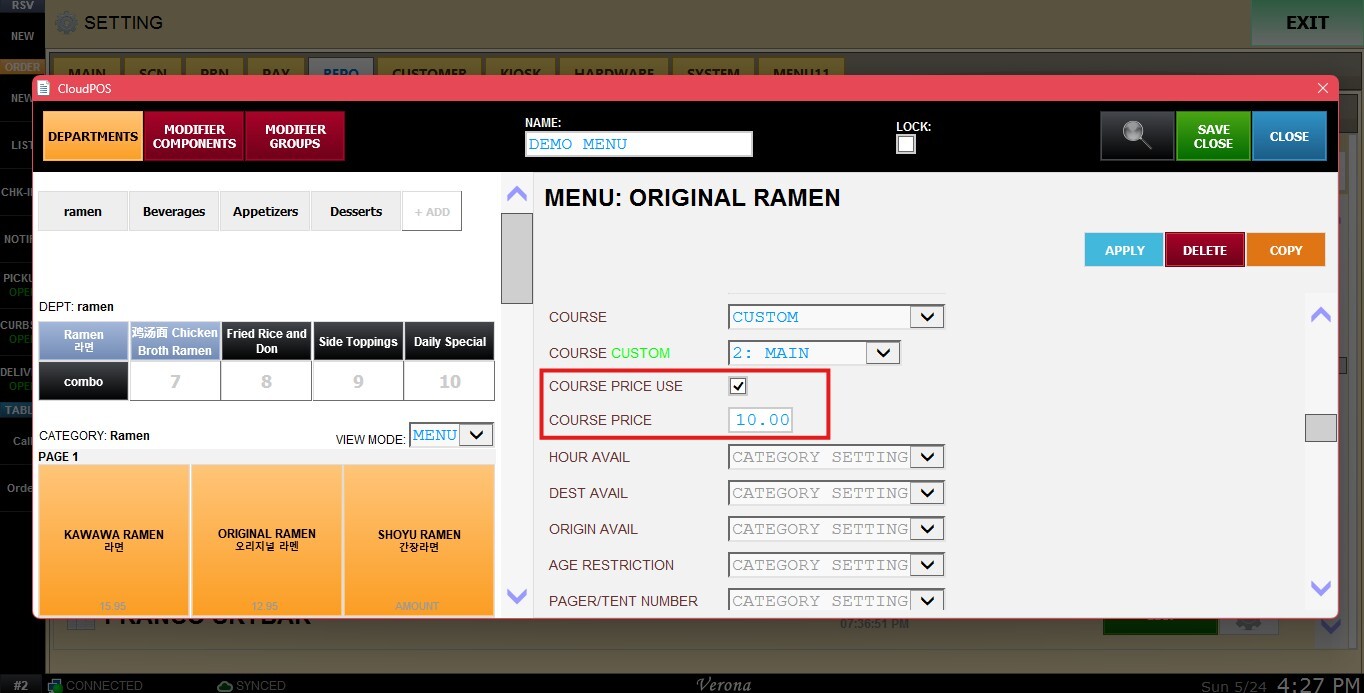
2. COURSE PRICE USE: Enables a custom course price for the item. When checked, this price will override the default item price while Courses are enabled.
3. COURSE PRICE: Sets the custom price that will apply to the item when ordered with Courses enabled.
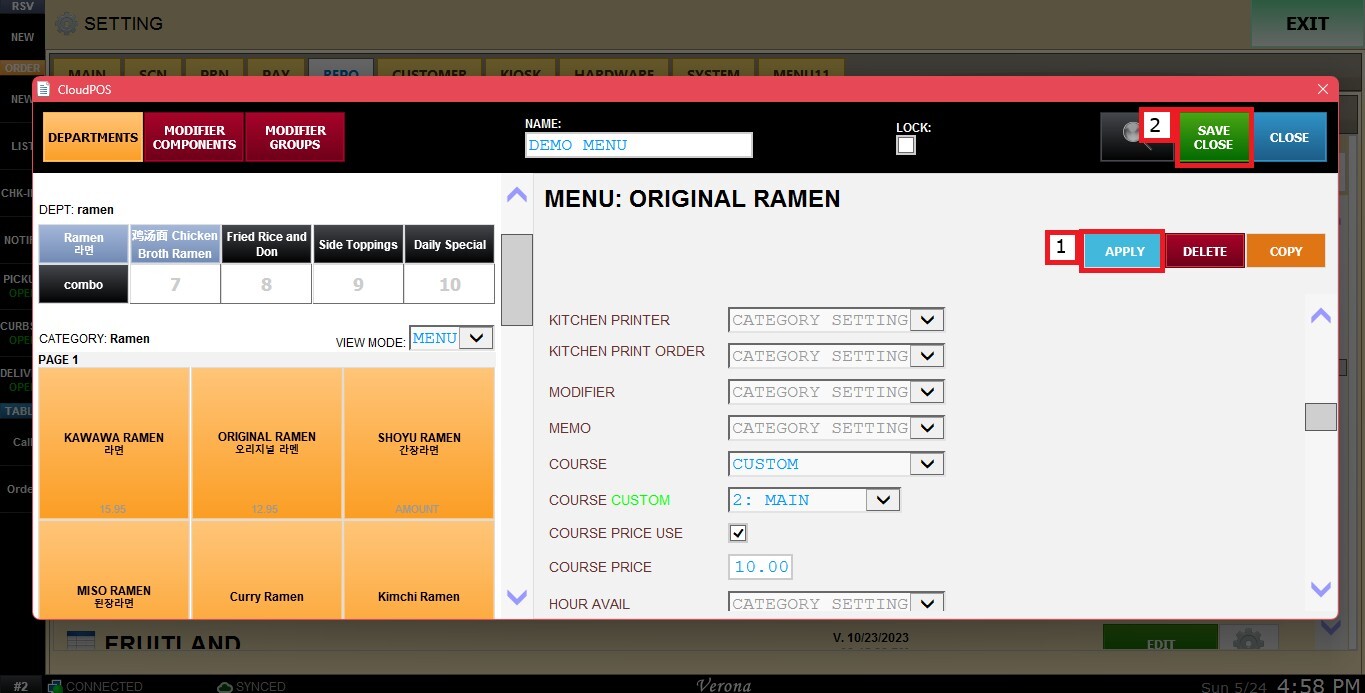
Press APPLY, then SAVE CLOSE to save the changes.
After configuration is complete, any time this item is ordered while Courses are enabled on a table, it will automatically appear under the selected course and apply the custom course price if enabled. 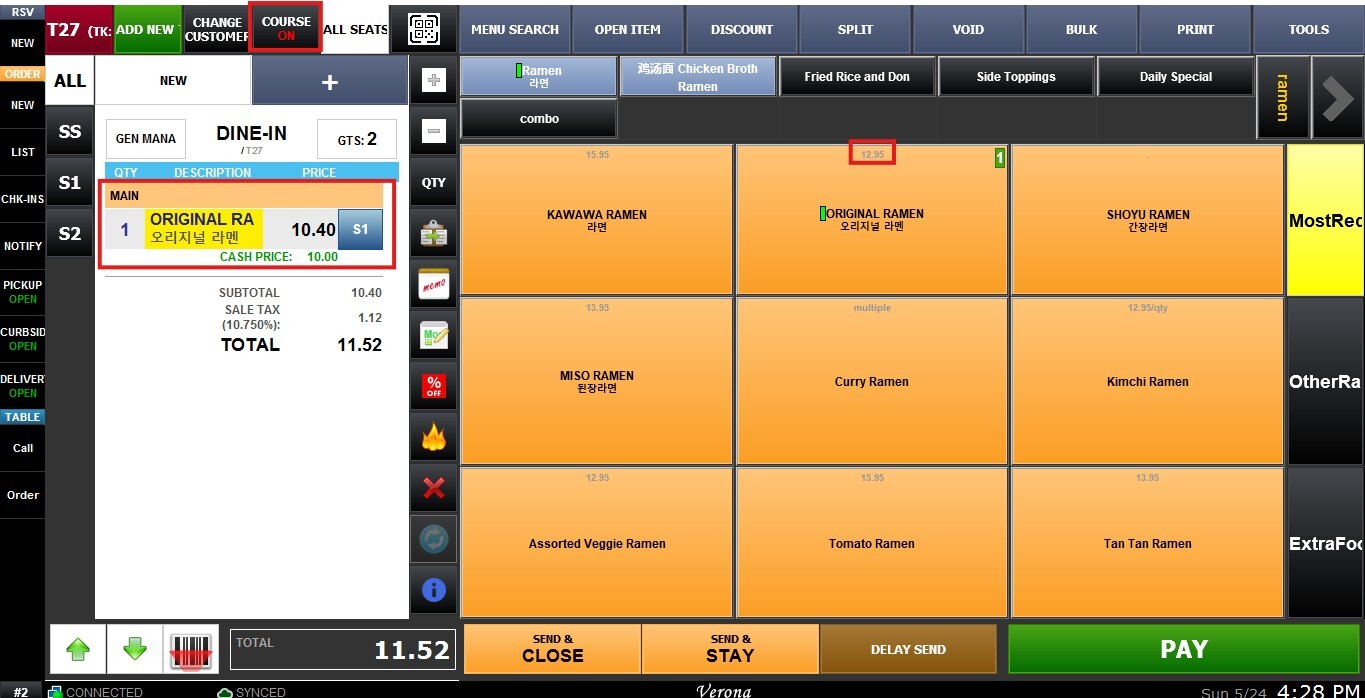
See the Course Operation guide to learn how to manually organize and manage courses during an active order.