Market Price
Market Price is used for menu items whose prices change frequently.
Instead of setting a fixed price for the menu item, you can designate the item as a MARKET PRICE ITEM.
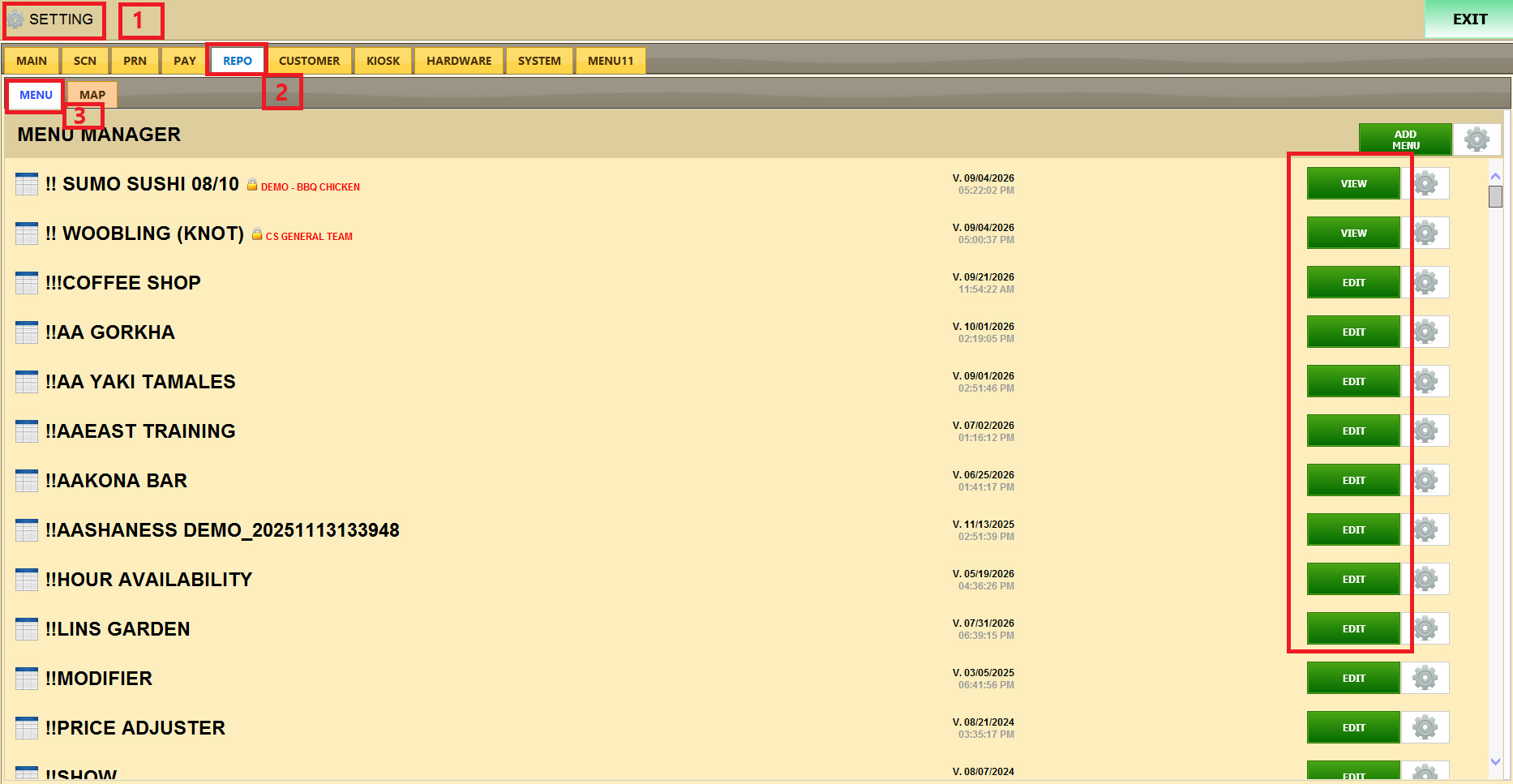
MAIN > SETTING > REPO > MENU
Tap MENU in the upper-right corner of the main screen and select SETTINGS
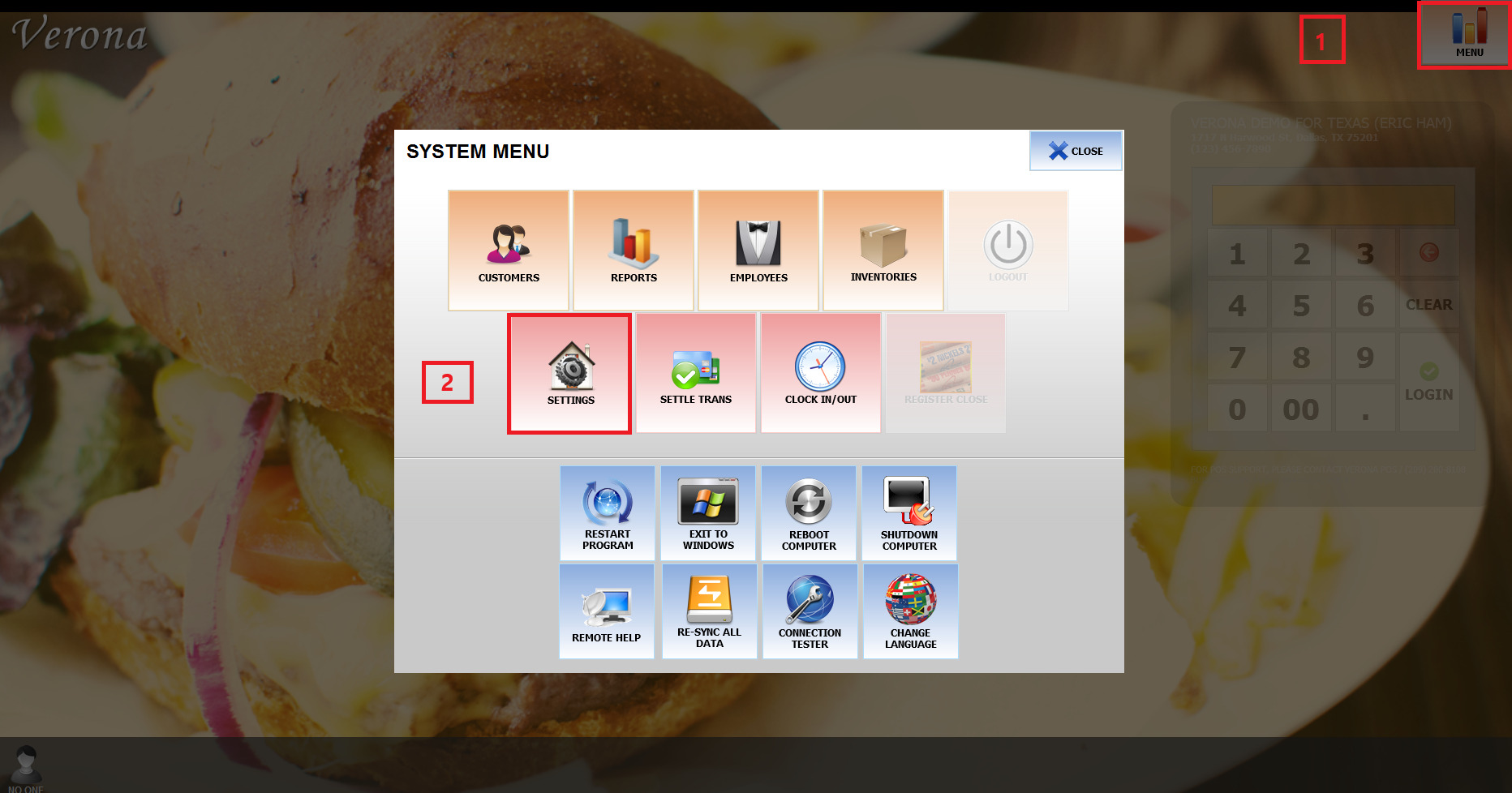
When the SYSTEM MENU window opens, tap SETTINGS. (Delete this and explain the steps of the picture below: something like go to repo and MENU and press on EDIT )
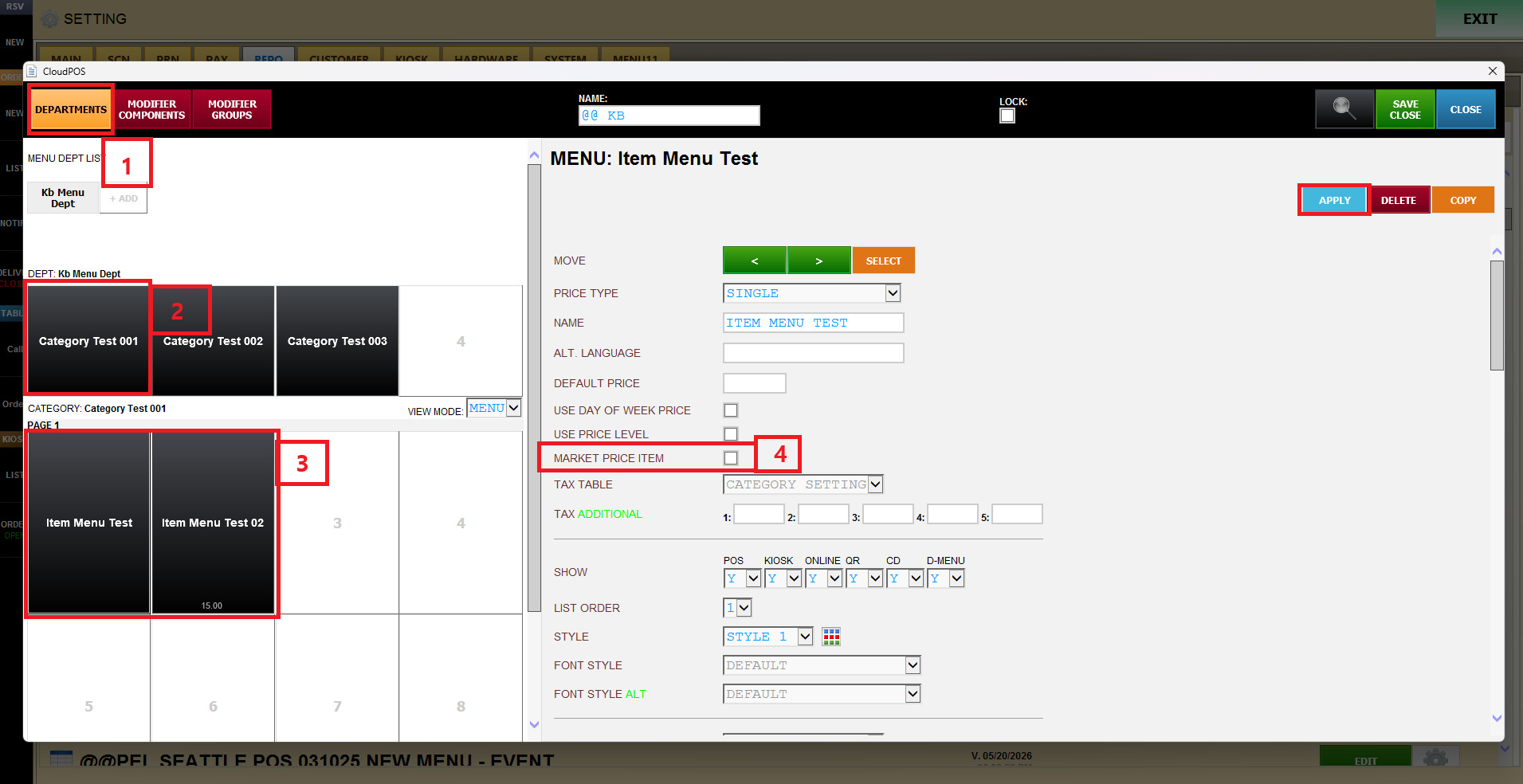
In the category area on the left, select the desired menu item
Check MARKET PRICE ITEM, then tap SAVE/CLOSE (make sure to indicate that they need to select the department, the category, and the item, and scroll on the right side of the screen to find the market price option)
Result:
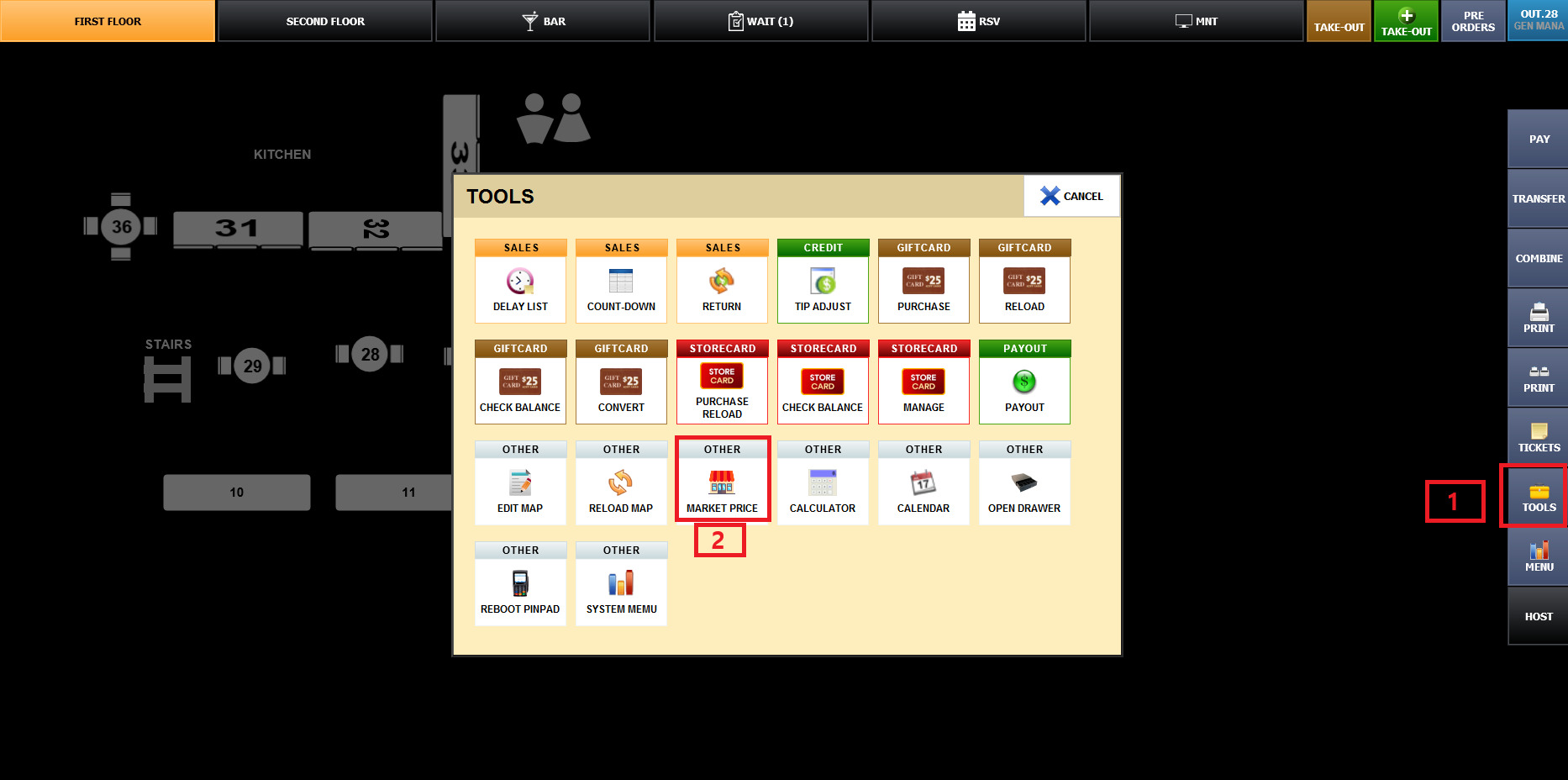
On the sales screen, tap TOOLS on the right.
In the OTHER section of the TOOLS window, tap MARKET PRICE.
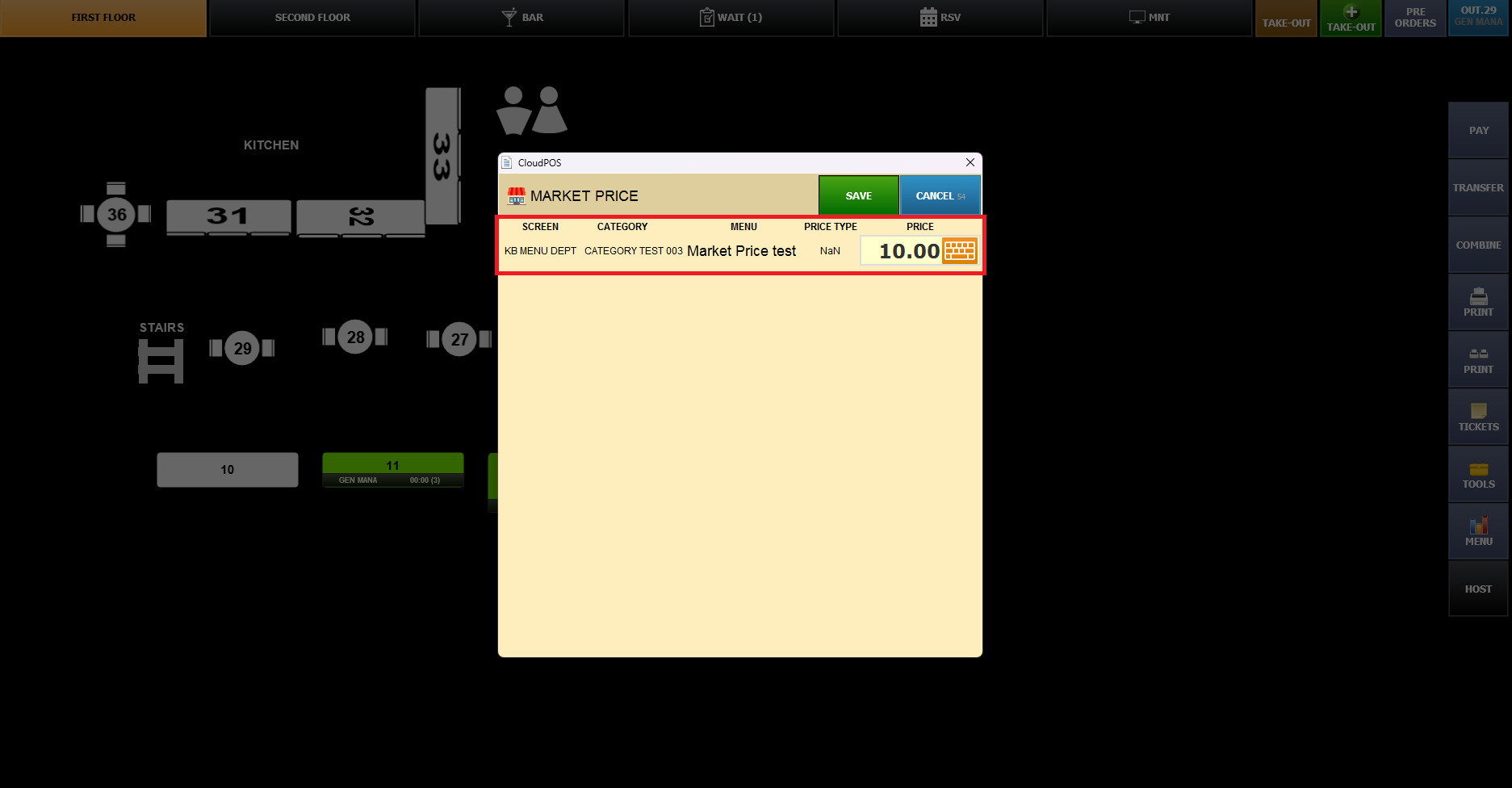
Confirm that the SCREEN, CATEGORY, and MENU columns identify the item being sold.
Tap the PRICE field and use the number pad to enter the exact selling price
On the sales screen, select the menu item configured as Market Price
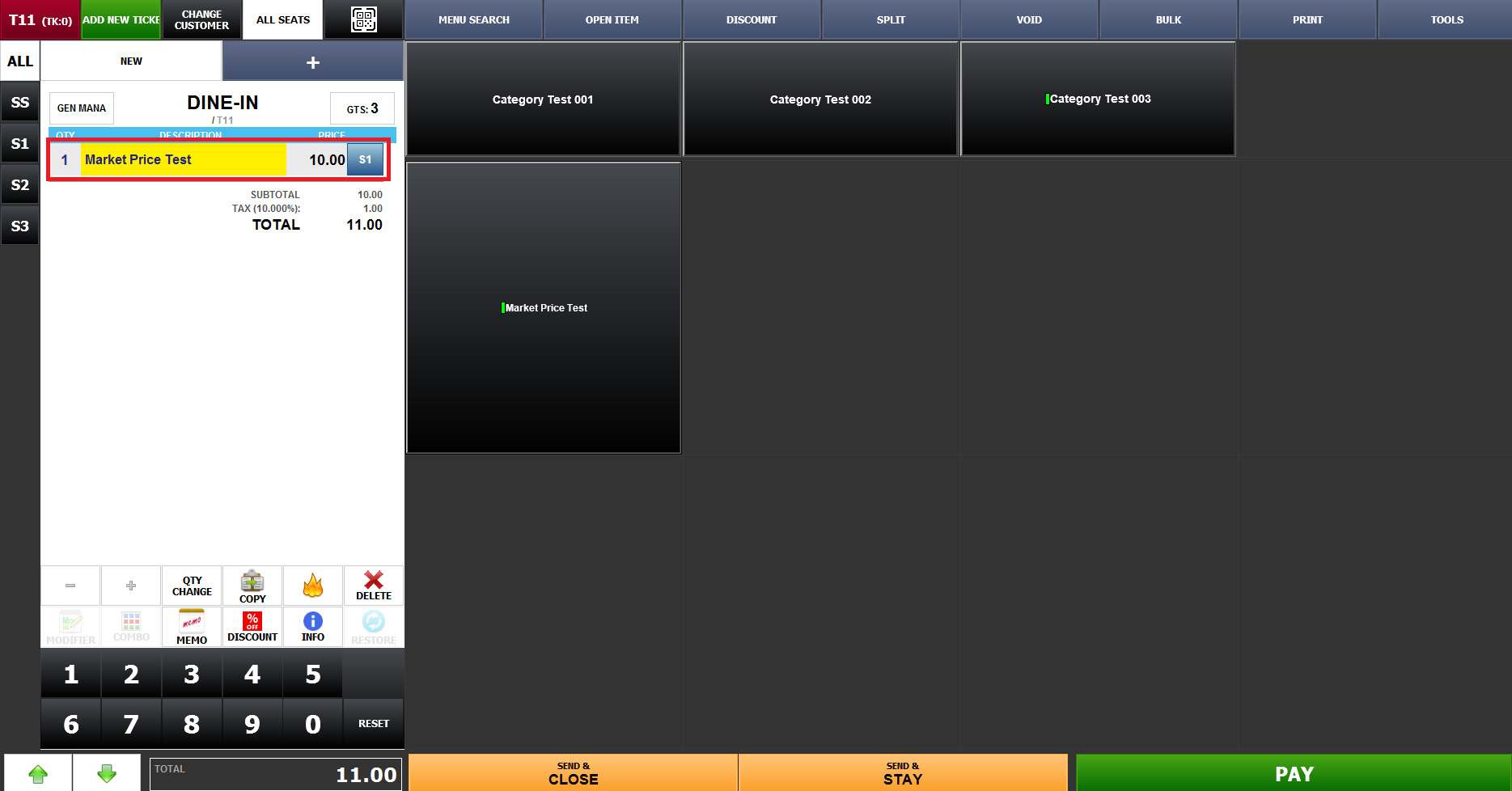
The price can then be entered or changed directly from the Sales Screen when the item is ordered. (REVIEW THIS SENTENCE WITH THE TEAM)
This is useful when the price of an item changes depending on the current selling price. (This may go as part of the description)
Verify the RESULT process you did; maybe there is already a KB about how to execute the market price from the sales screen. If the team verifies that this is the way to add the link to another KB to the one you are making:
To learn how to create and configure department layouts, refer to the Create a Department guide.
And just a small adjustment to take into consideration for the next KBs: having the numbers on the pictures with a white background would be awesome!