Employee
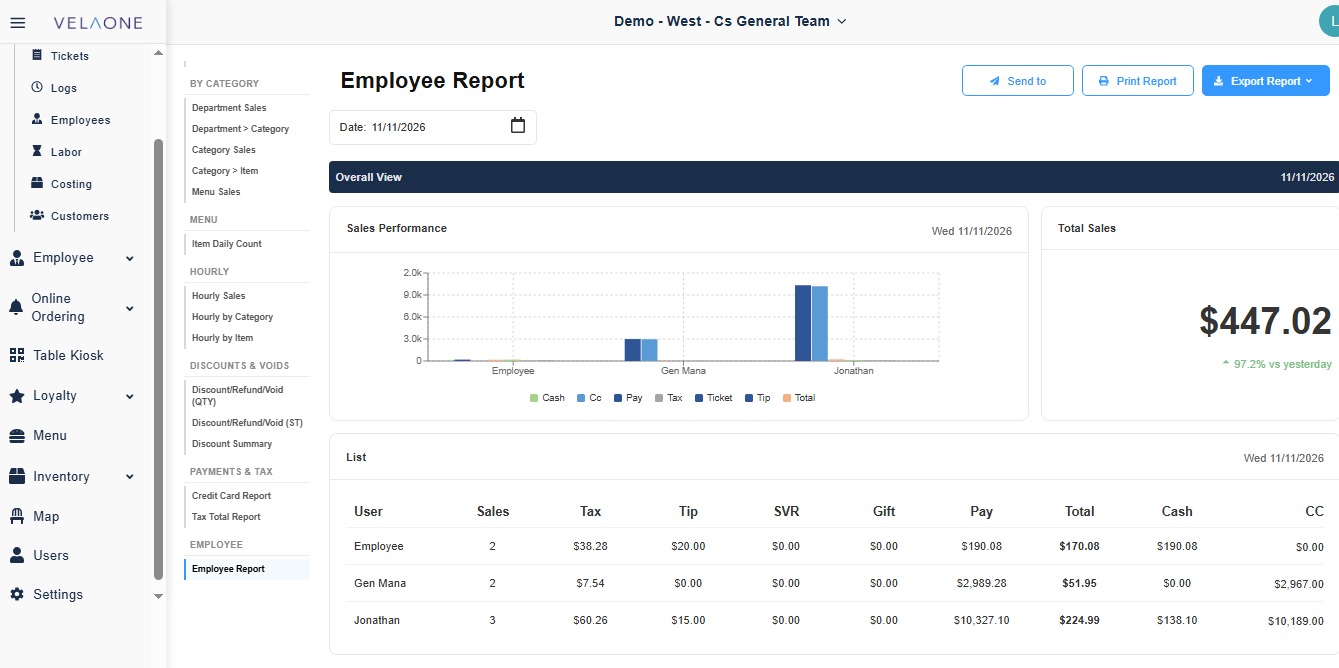
The Employee Report shows the sales handled by each employee for the selected date. Use it to review how many sales each employee processed, the taxes, tips and service charges on those sales, and how the payments were collected.
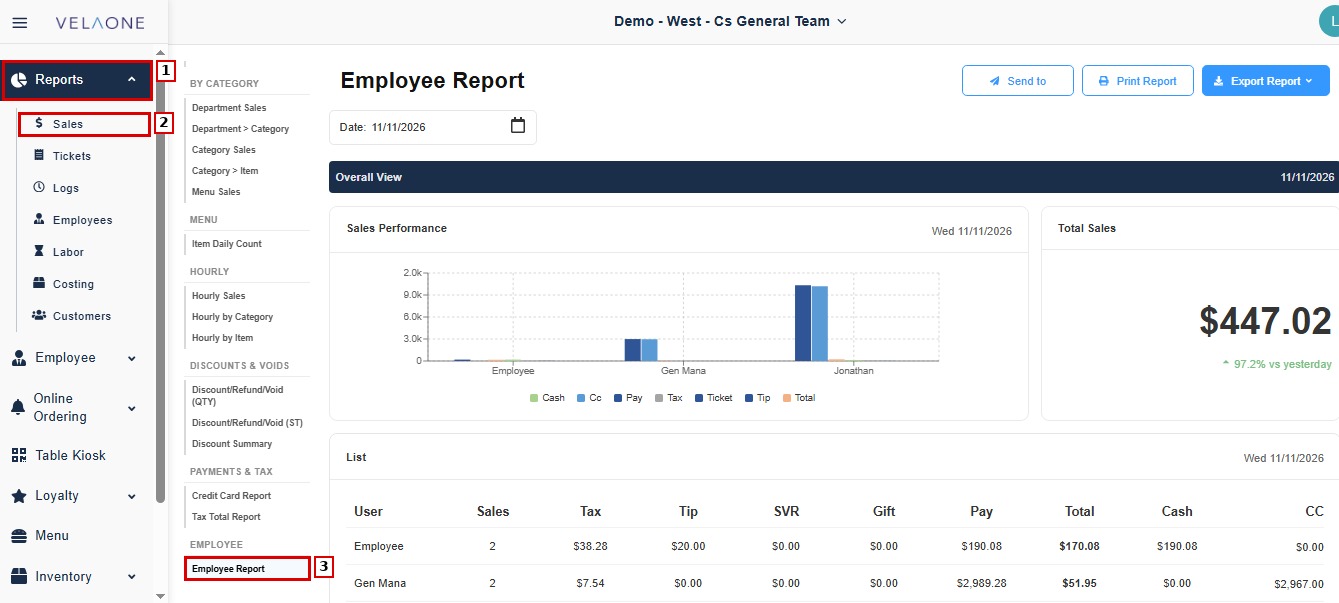
REPORTS> SALES> EMPLOYEE REPORT
From the left menu, click REPORTS, then select SALES. In the SALES REPORTS panel, scroll down to EMPLOYEE and click EMPLOYEE REPORT.
FILTERS
The filter and report buttons are at the top of the report.
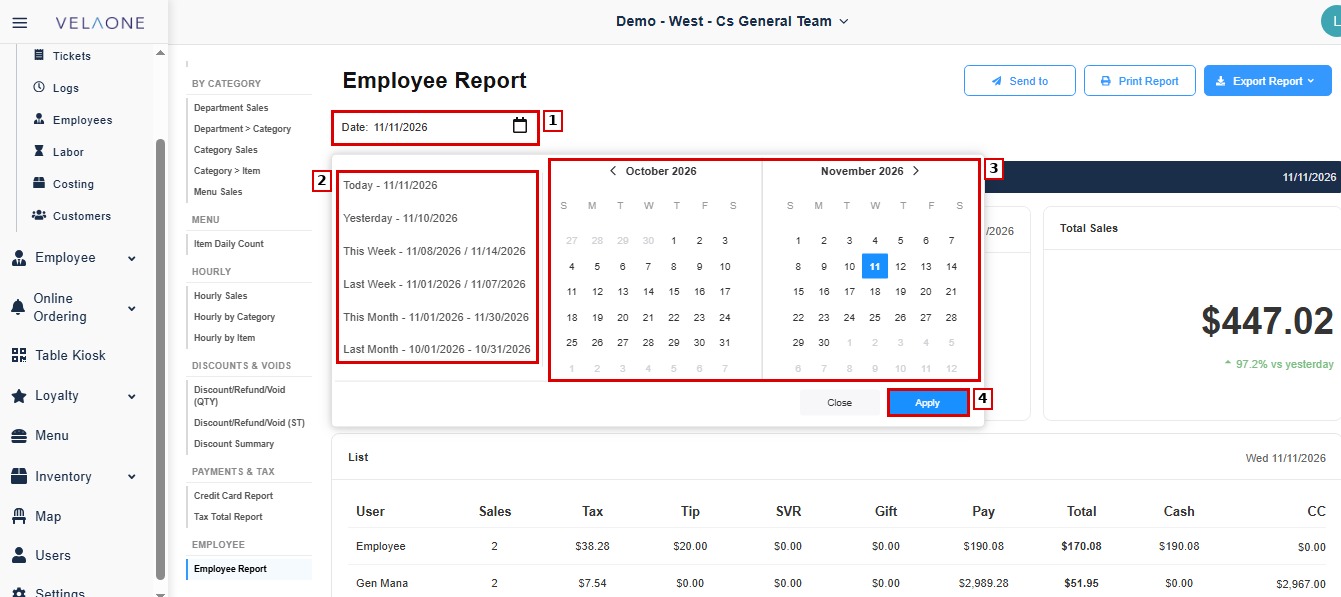
DATE: sets the day or period the report covers.
Click the DATE field to open the calendar. Select a preset period from the list on the left: TODAY, YESTERDAY, THIS WEEK, LAST WEEK, THIS MONTH or LAST MONTH. You can also click the start and end dates directly on the calendars, using the arrows next to the month names to move to earlier or later months. Click APPLY to load the report, or CLOSE to exit without changes.
EXPORT OPTIONS
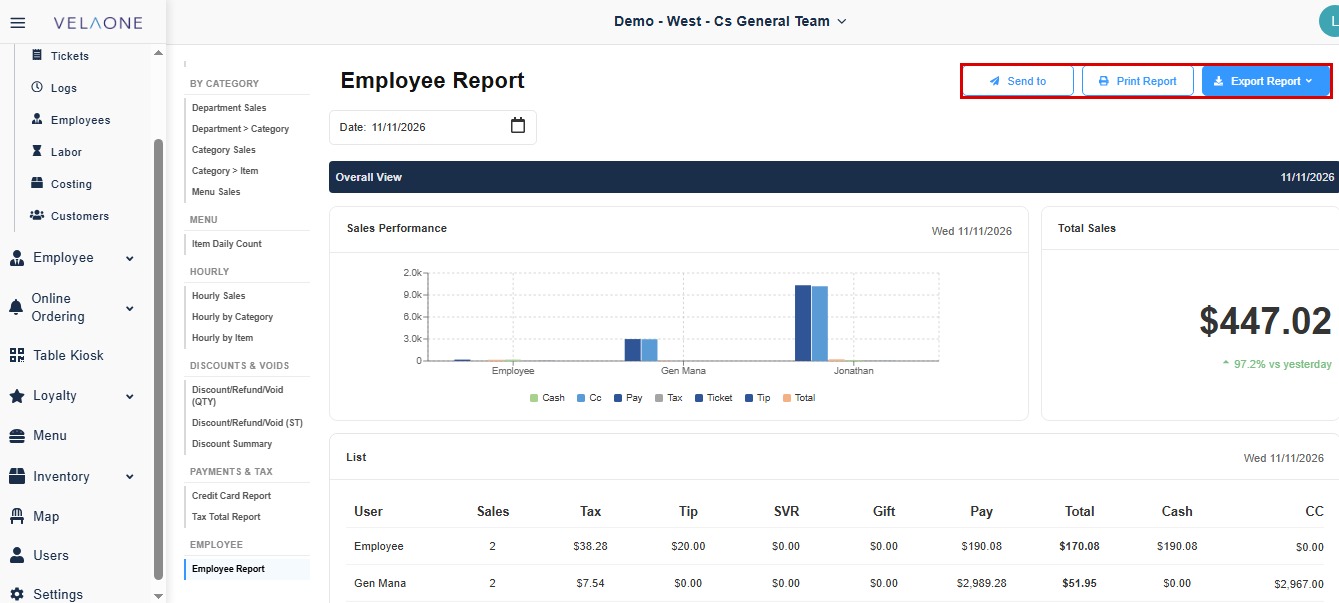
SEND TO: sends the report to a recipient.
PRINT REPORT: prints the report as it is displayed.
EXPORT REPORT: downloads the report. Click EXPORT REPORT, then select the file format.
OVERALL VIEW
The bar at the top of this section shows the date currently loaded.
Sales Performance: shows a bar chart that compares Cash, Cc, Pay, Tax, Ticket, Tip and Total for each employee.
Total Sales: shows the total sales of all employees for the selected date, with a percentage badge that compares it with the previous day. Green indicates an increase and red a decrease.
List: shows a table with one row per employee. The columns are:
- User: name of the employee.
- Sales: number of sales (tickets) the employee processed.
- Tax: total tax collected on the employee’s sales.
- Tip: total tips received.
- SVR: total service charges applied to tickets.
- Gift: amount collected from gift card sales.
- Pay: total amount of payments the employee collected, across all payment methods.
- Total: total sales amount for the employee.
- Cash: payments collected in cash.
- CC: payments collected by credit card.