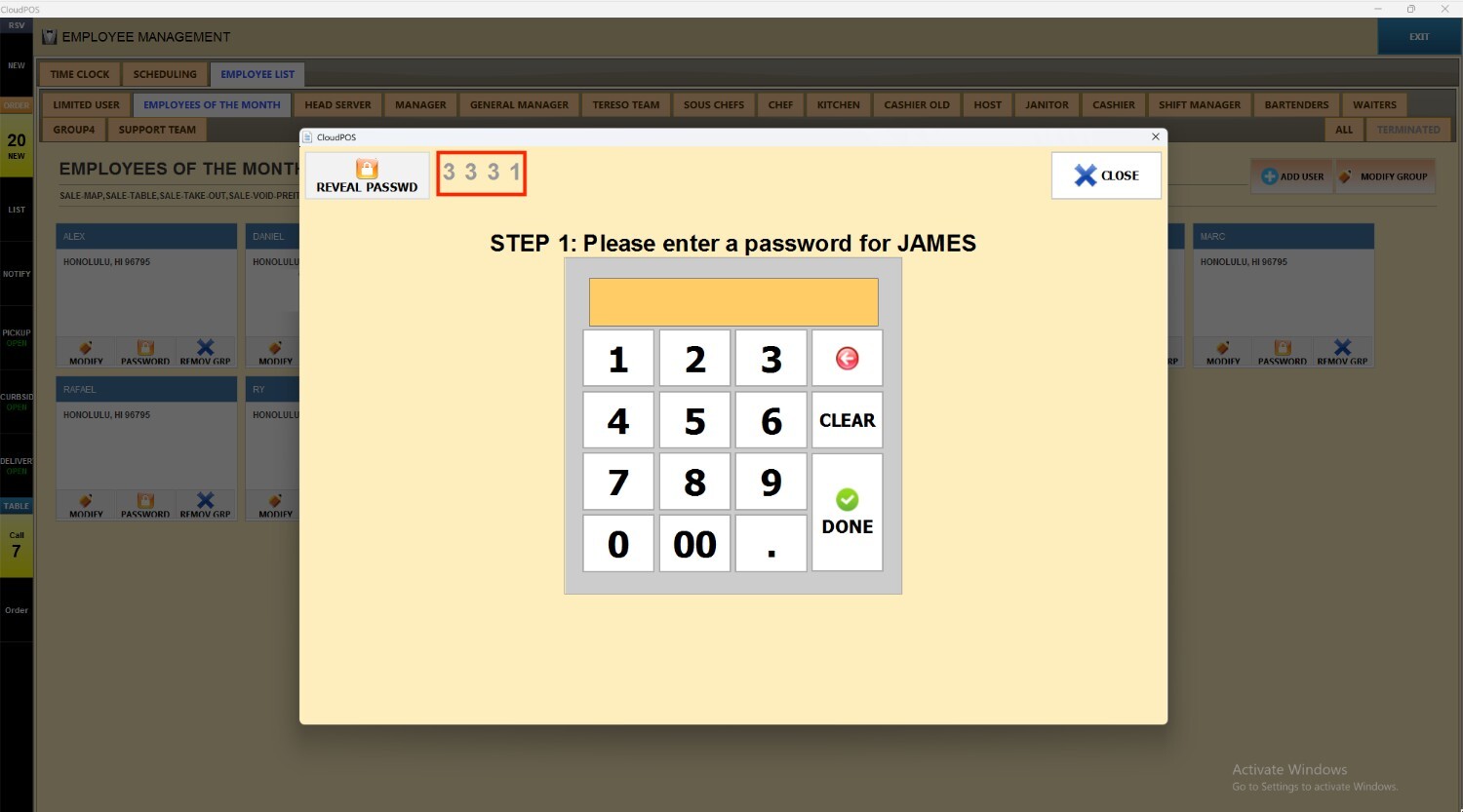
Managing Employee's Password
This guide outlines the process for securely managing employee passwords within the system. It ensures that each staff member has unique login credentials, supports password updates when required, and maintains overall account security and activity tracking.
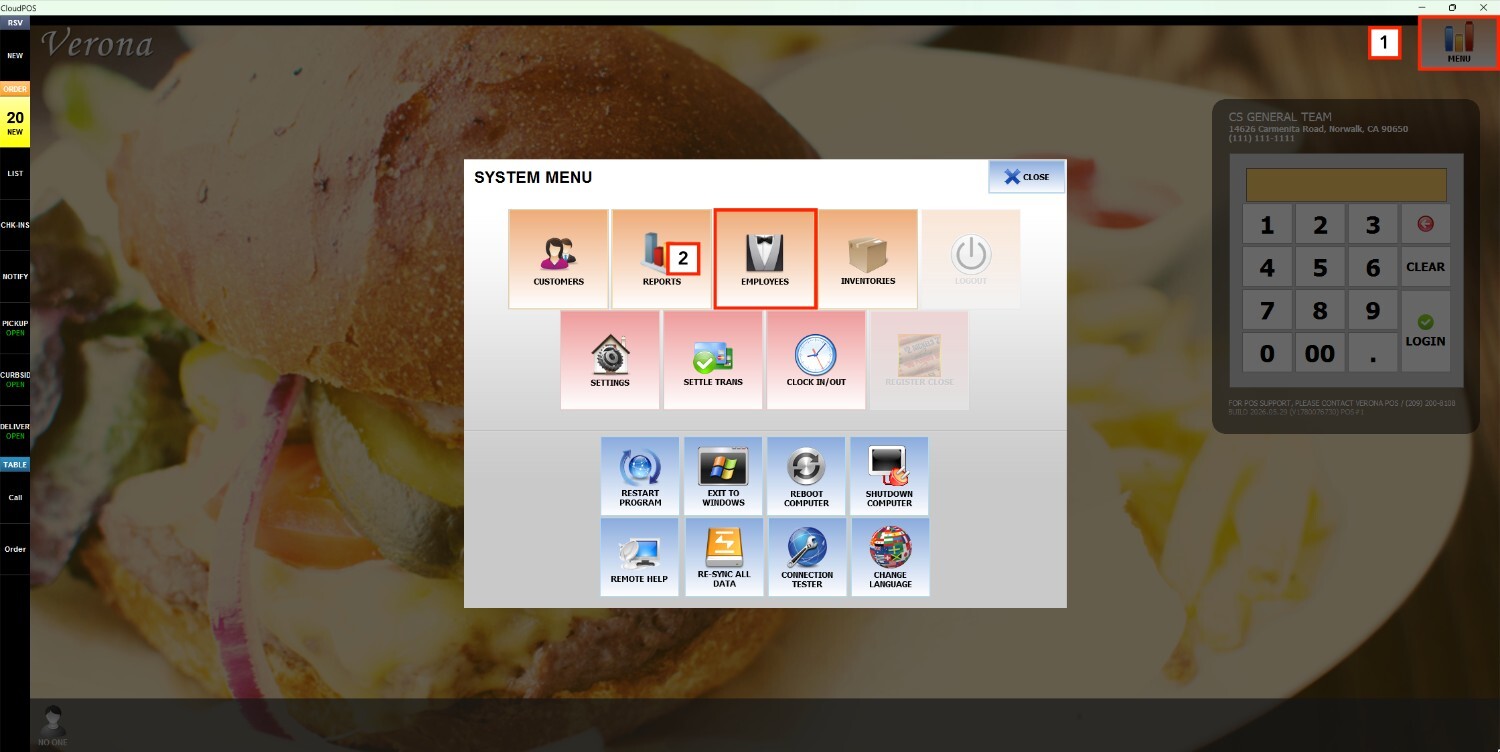
Main Screen> MENU> EMPLOYEES> EMPLOYEE LIST
On the Main Screen, go to MENU and press EMPLOYEES.
View Employee's Passwords
Go to USER LIST, select a group of employees, and pick a profile.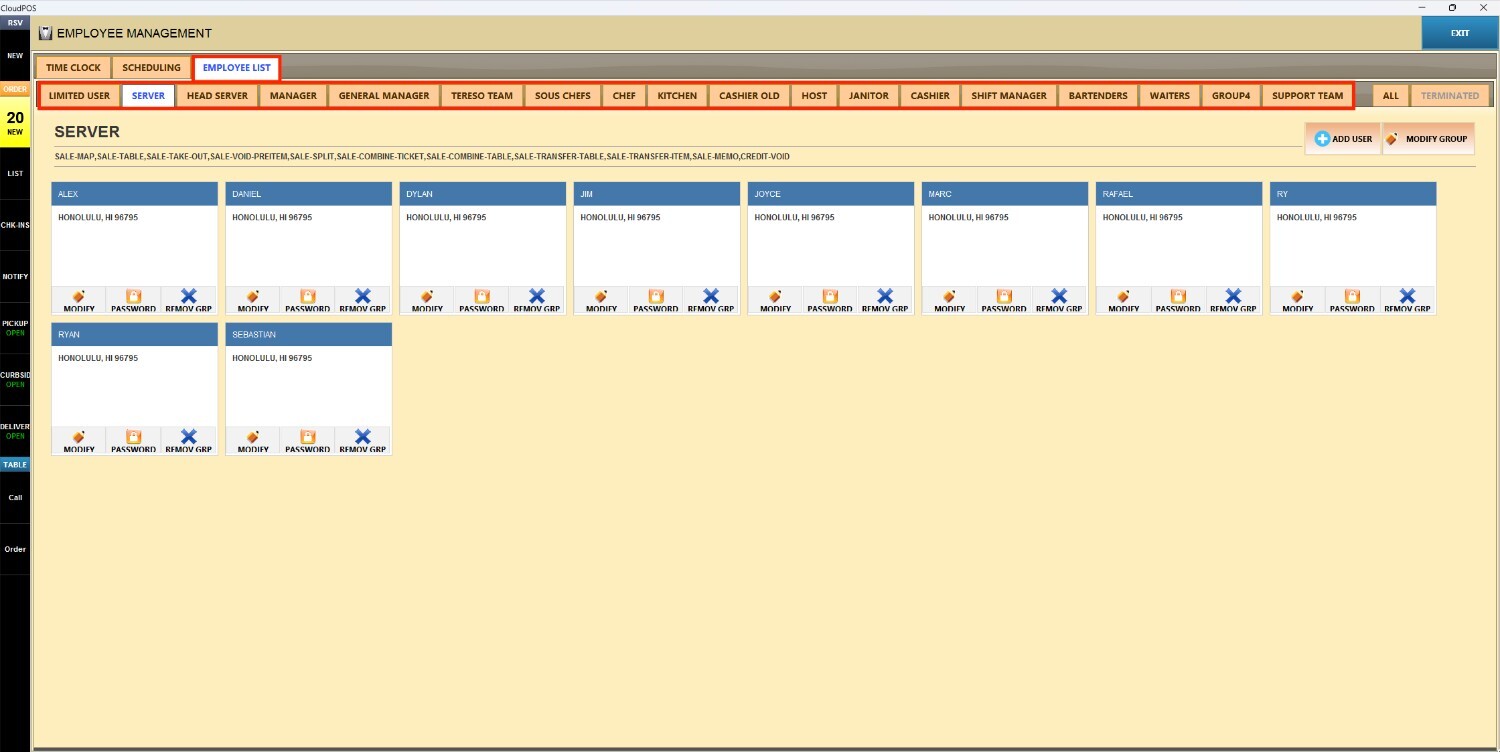
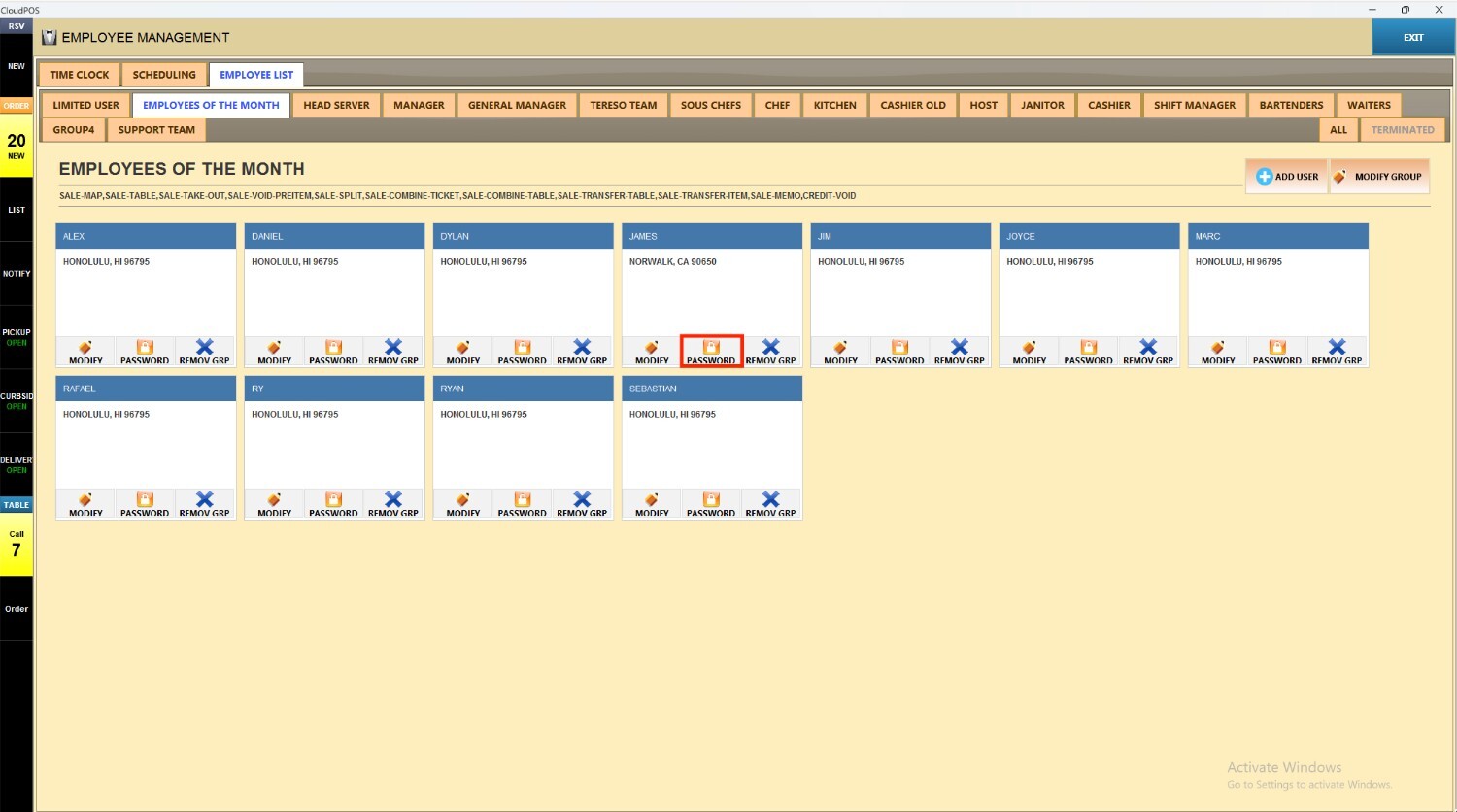
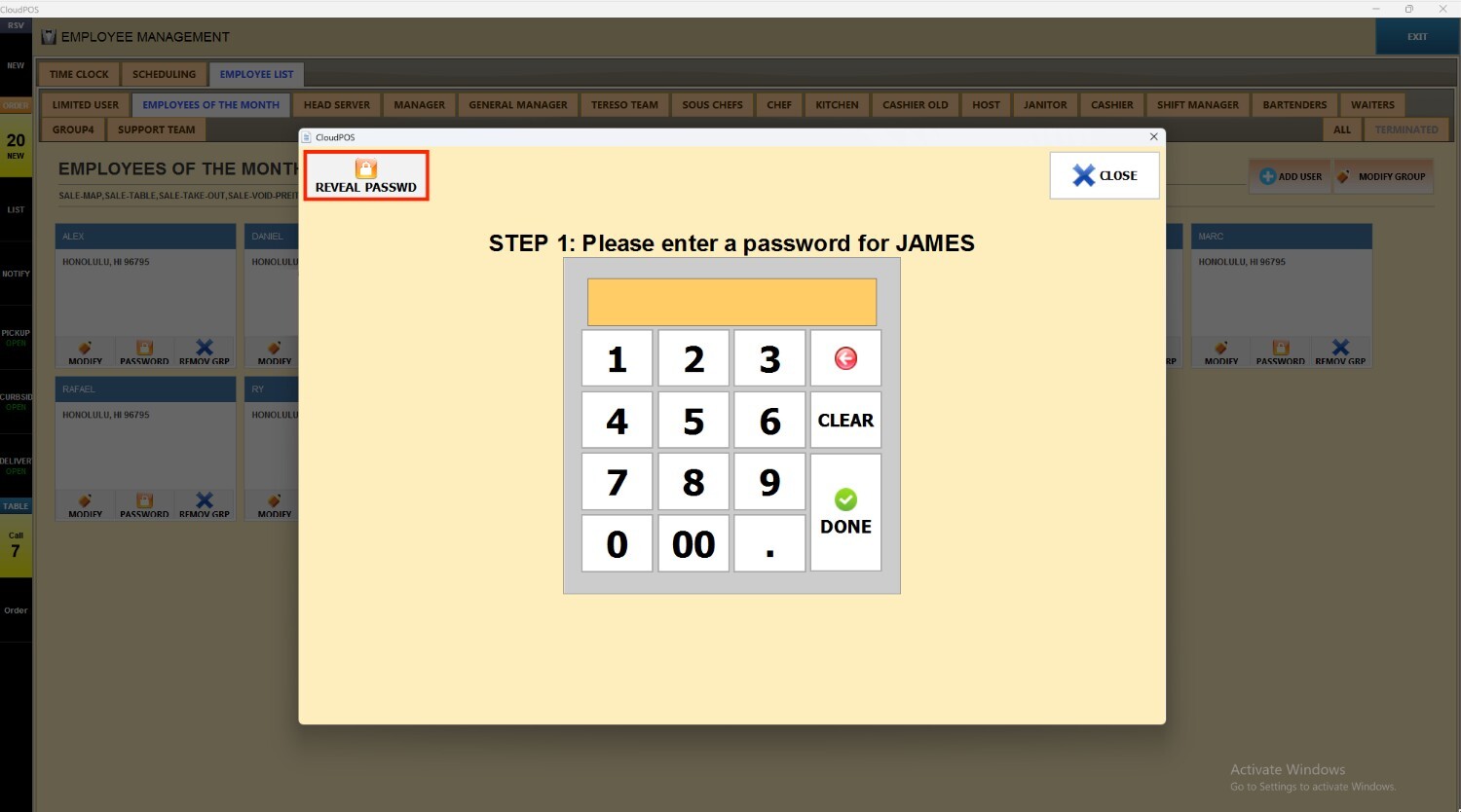
Within the selected employee profile, choose the PASSWORD button.
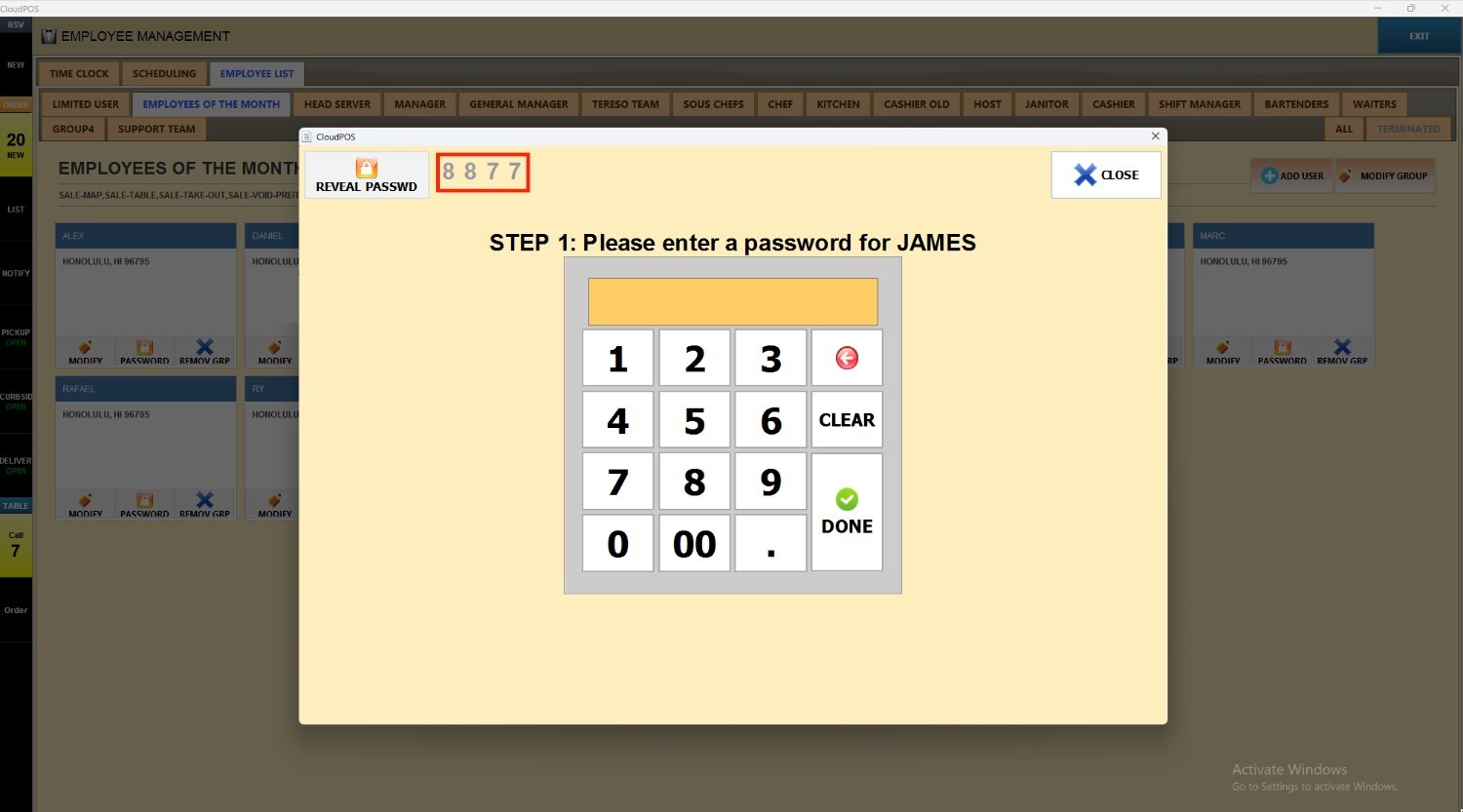
To view the current password, use REVEAL PASSWD
Update Employee's Password
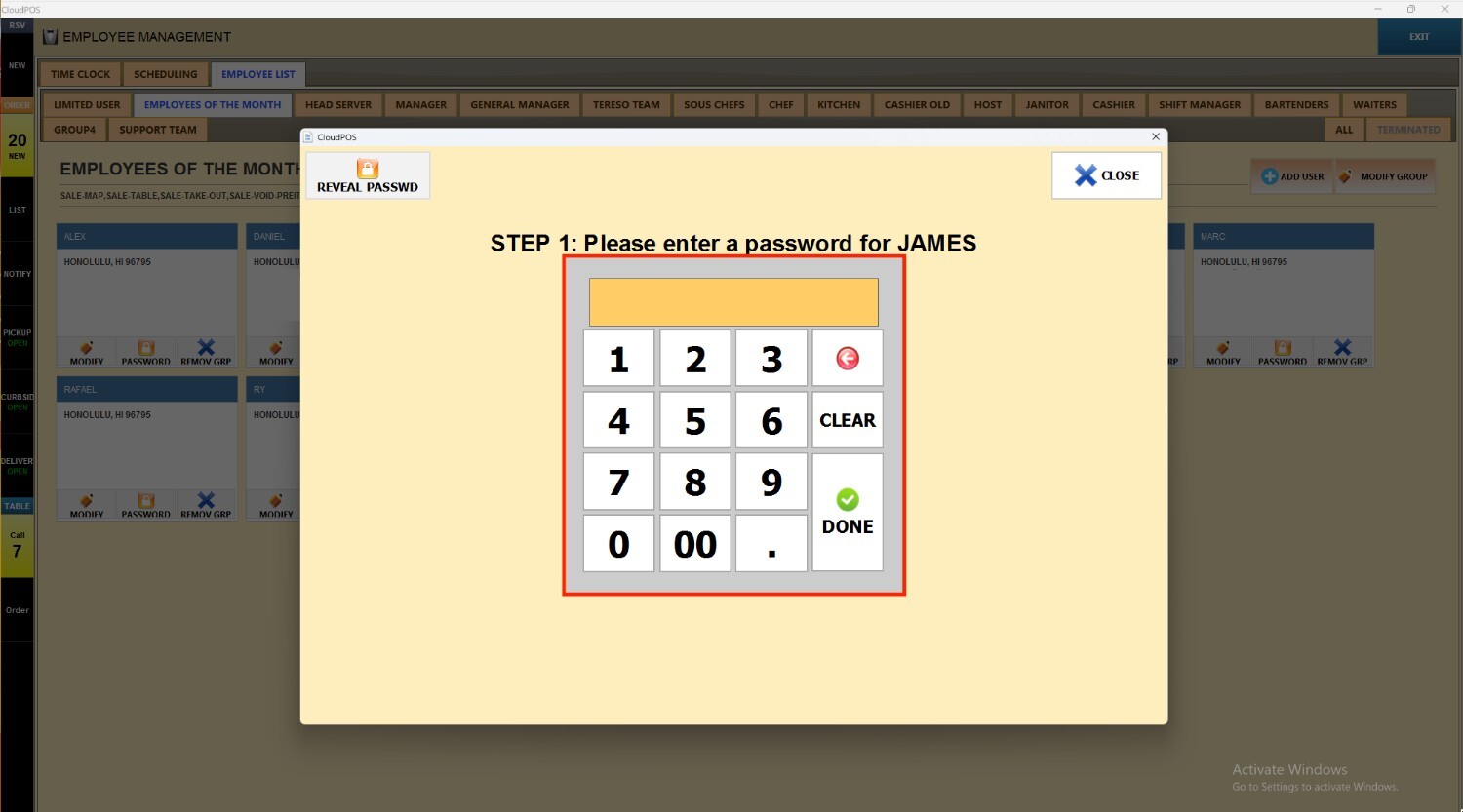
Select PASSWORD on the chosen employee profile
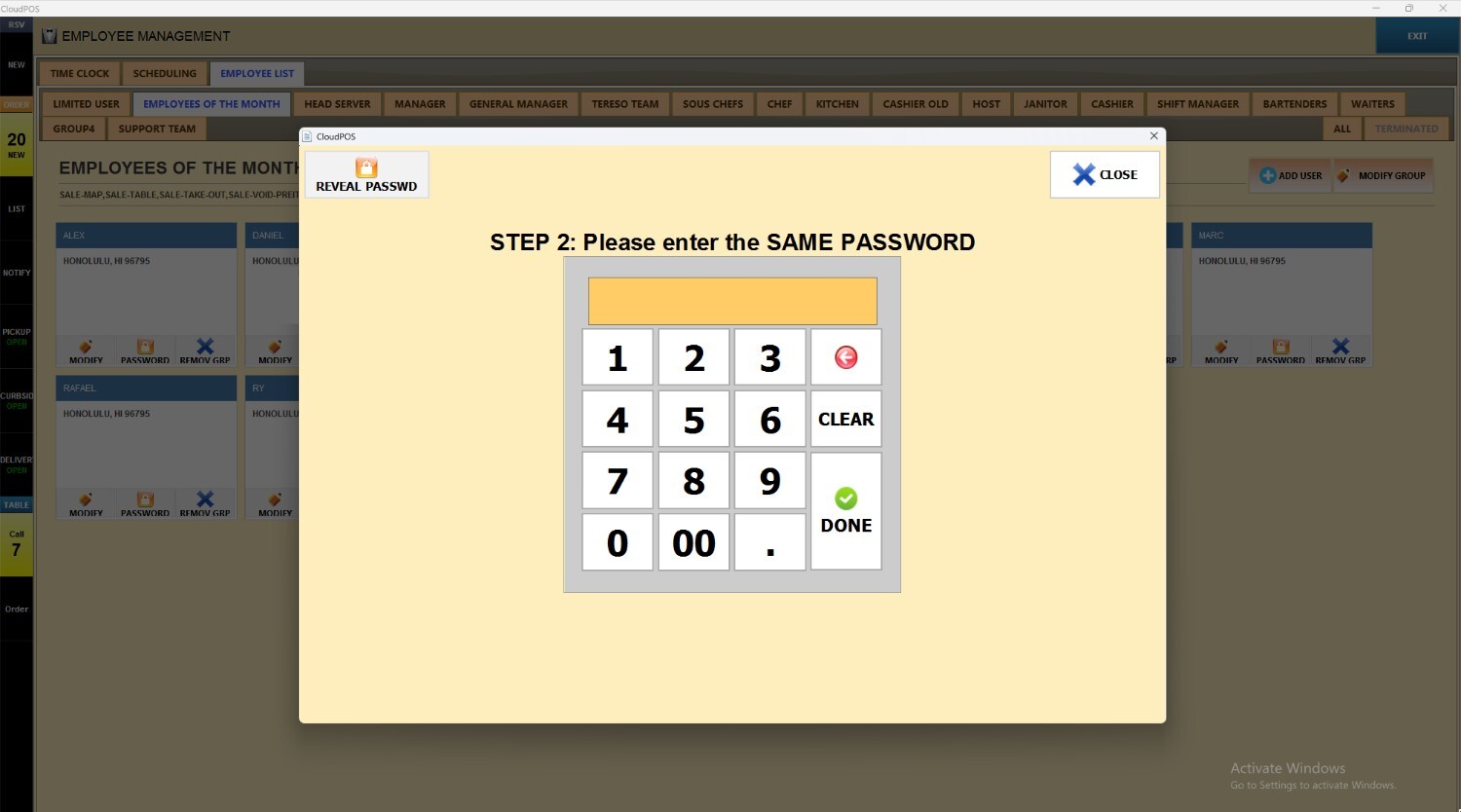
When the number pad appears, enter the new password and re‑enter it for confirmation.
Result:
The new password was successfully changed.