Ticket List
The Ticket List allows you to view and manage previously closed tickets directly from the Sales Screen. By default, the system displays the tickets closed on the current day, but you can select a different date, apply filters, search for a specific ticket, and print the ticket information.
Sales Screen > TOOLS > TICKET LIST
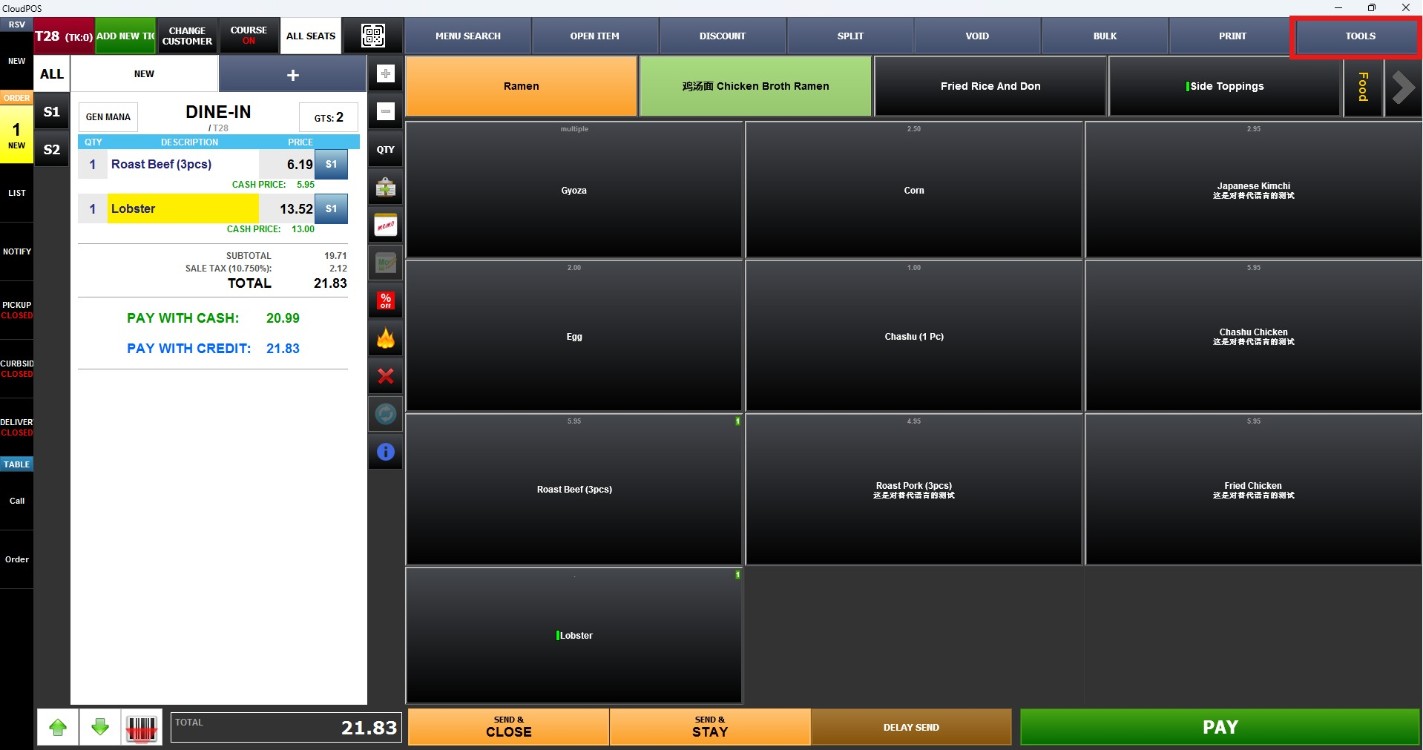
From the Sales Screen, press TOOLS in the upper-right corner.
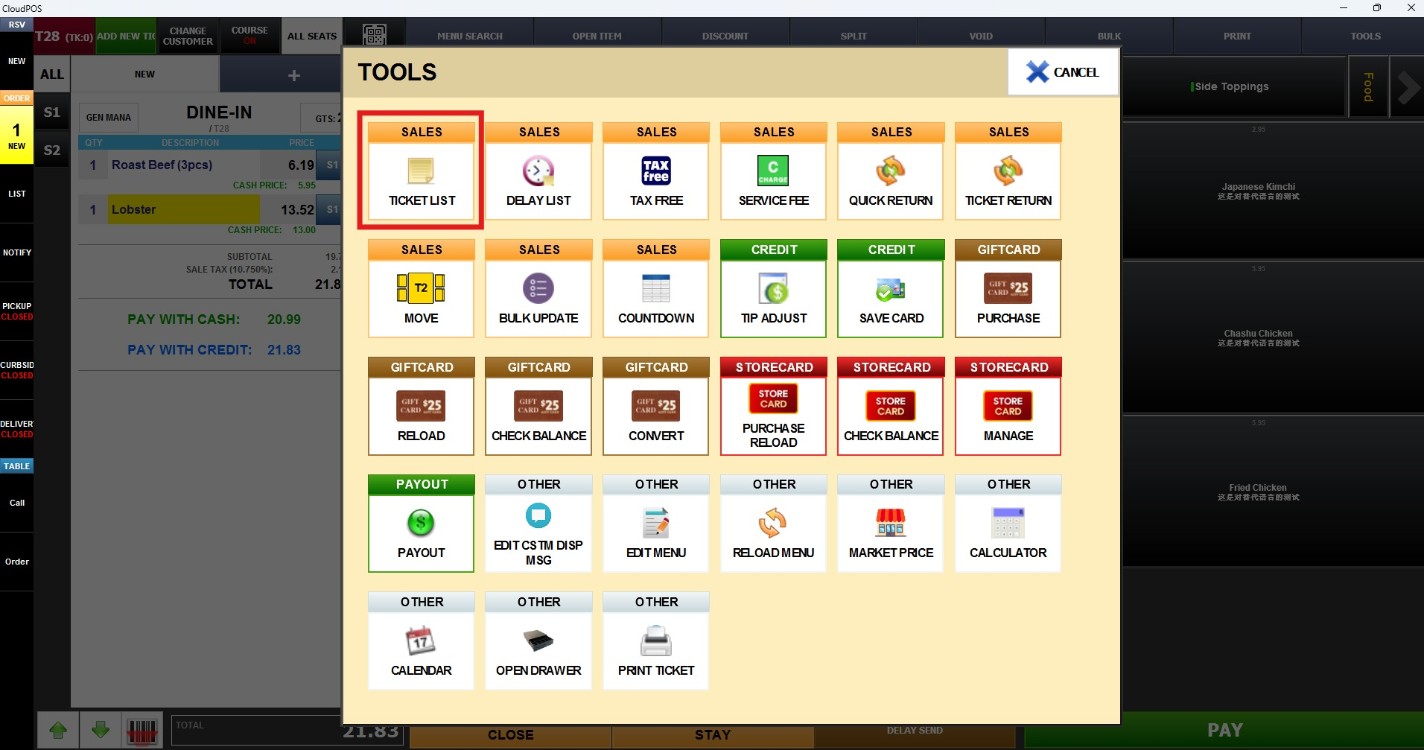
Under the SALES section, select TICKET LIST.
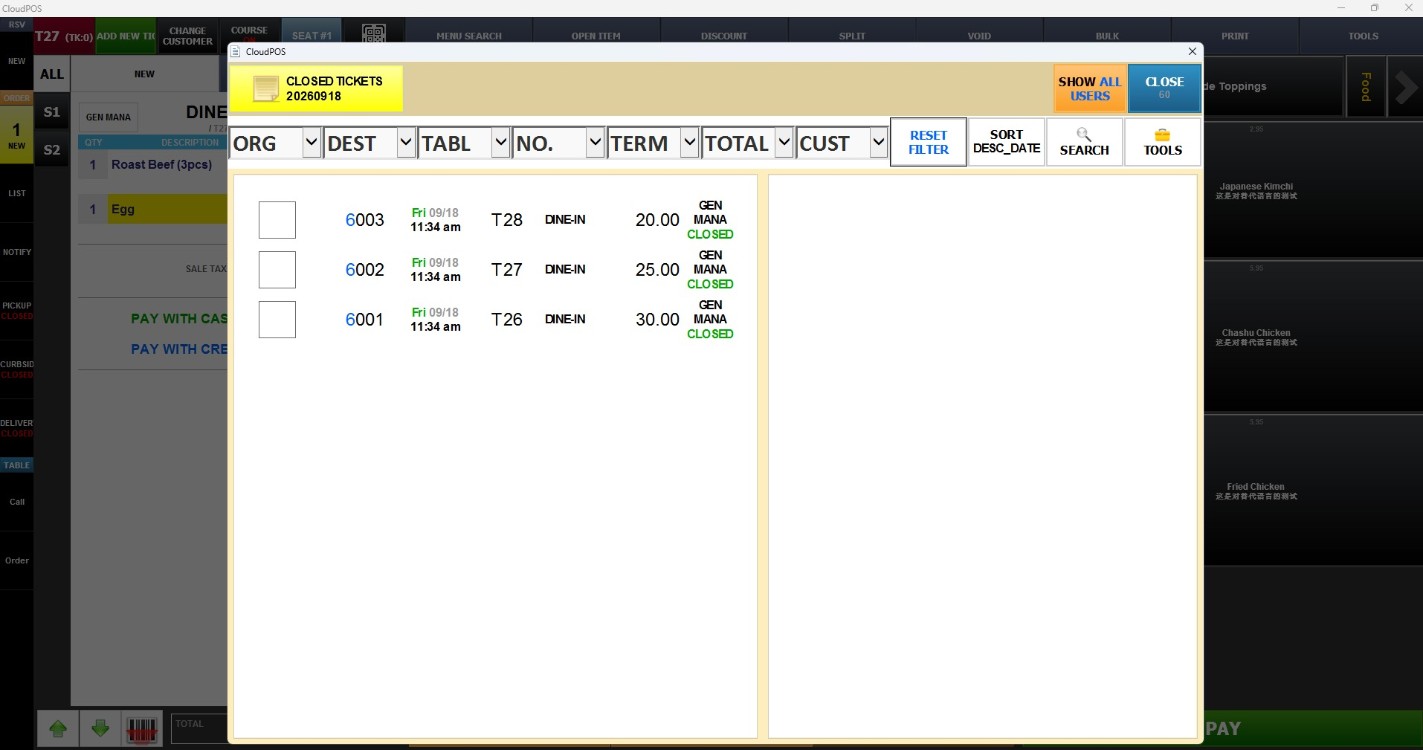
The Ticket List displays all tickets closed on the current day.
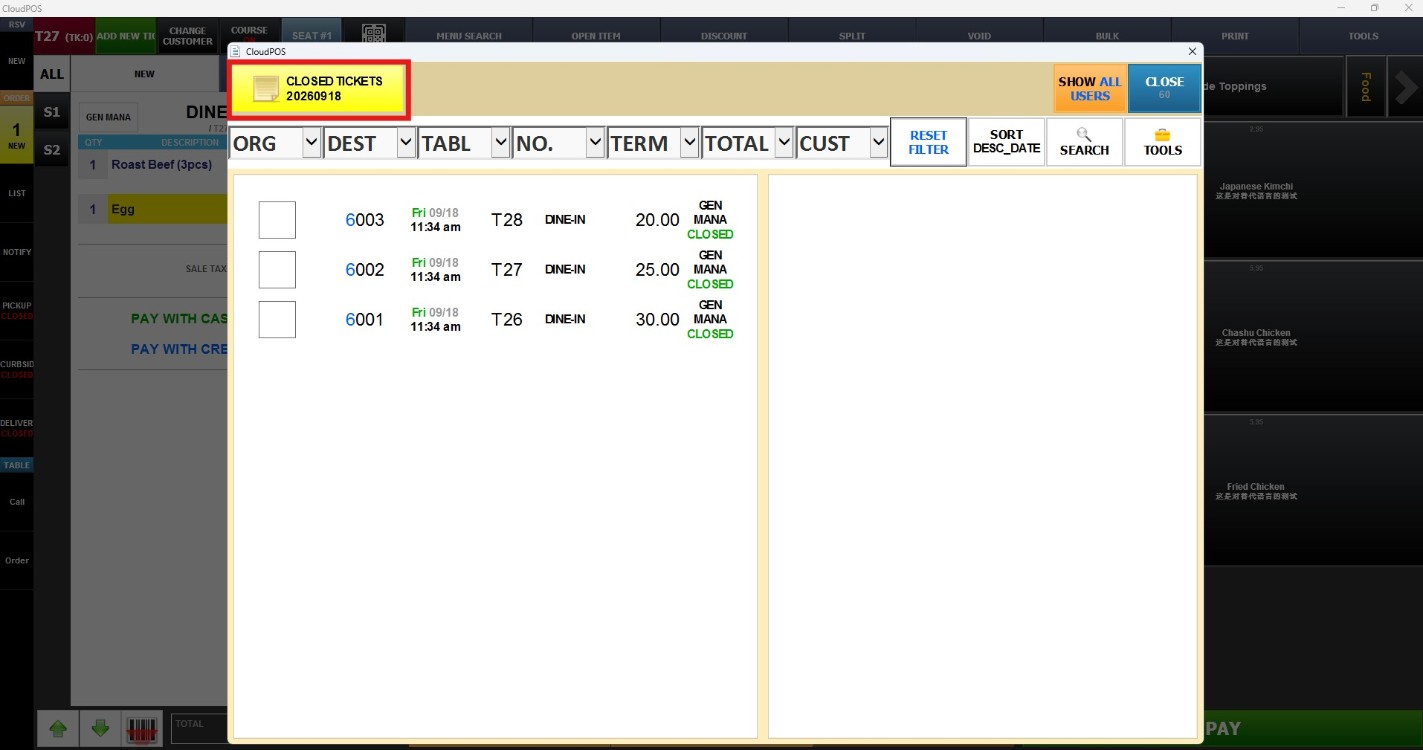
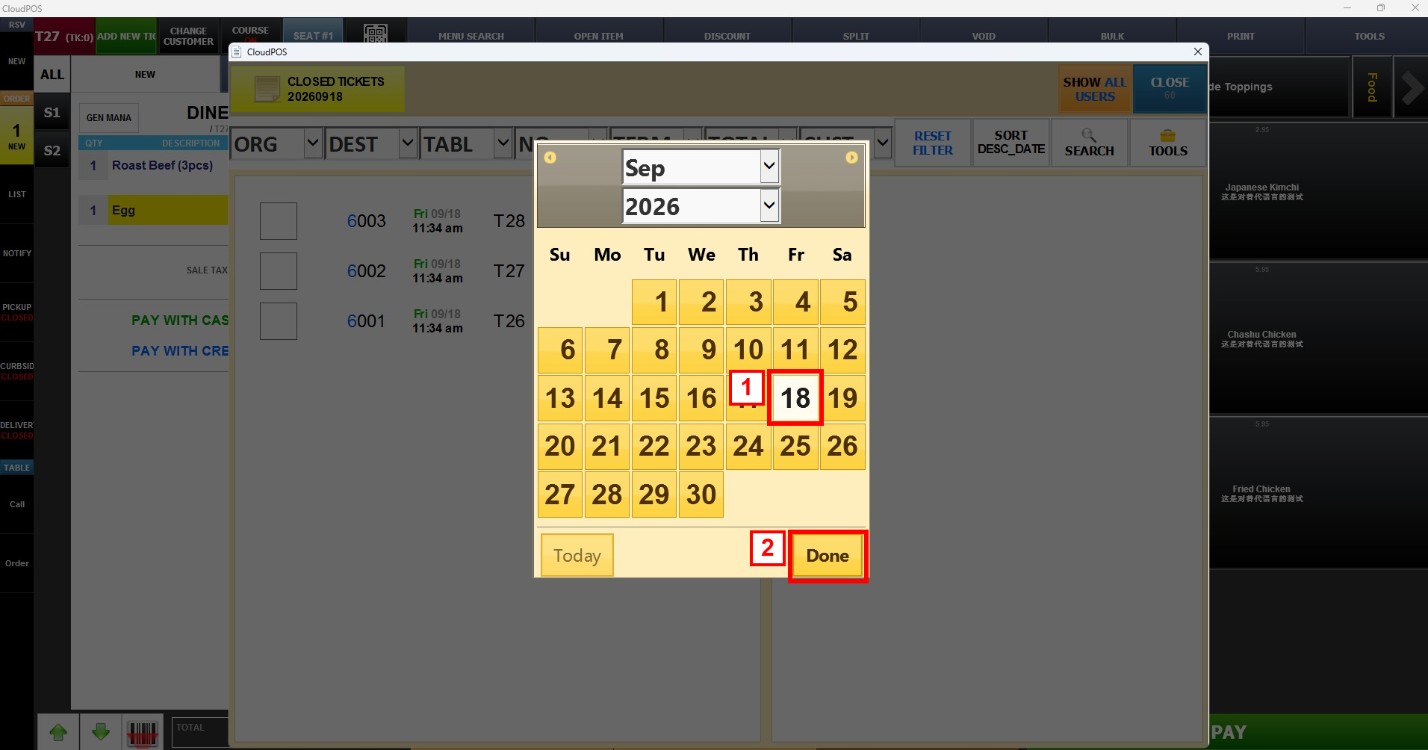
To review tickets from a different day:
At the top-left of the Ticket List, press CLOSED TICKETS followed by the displayed date.
Select the date you would like to review in the calendar and press DONE.
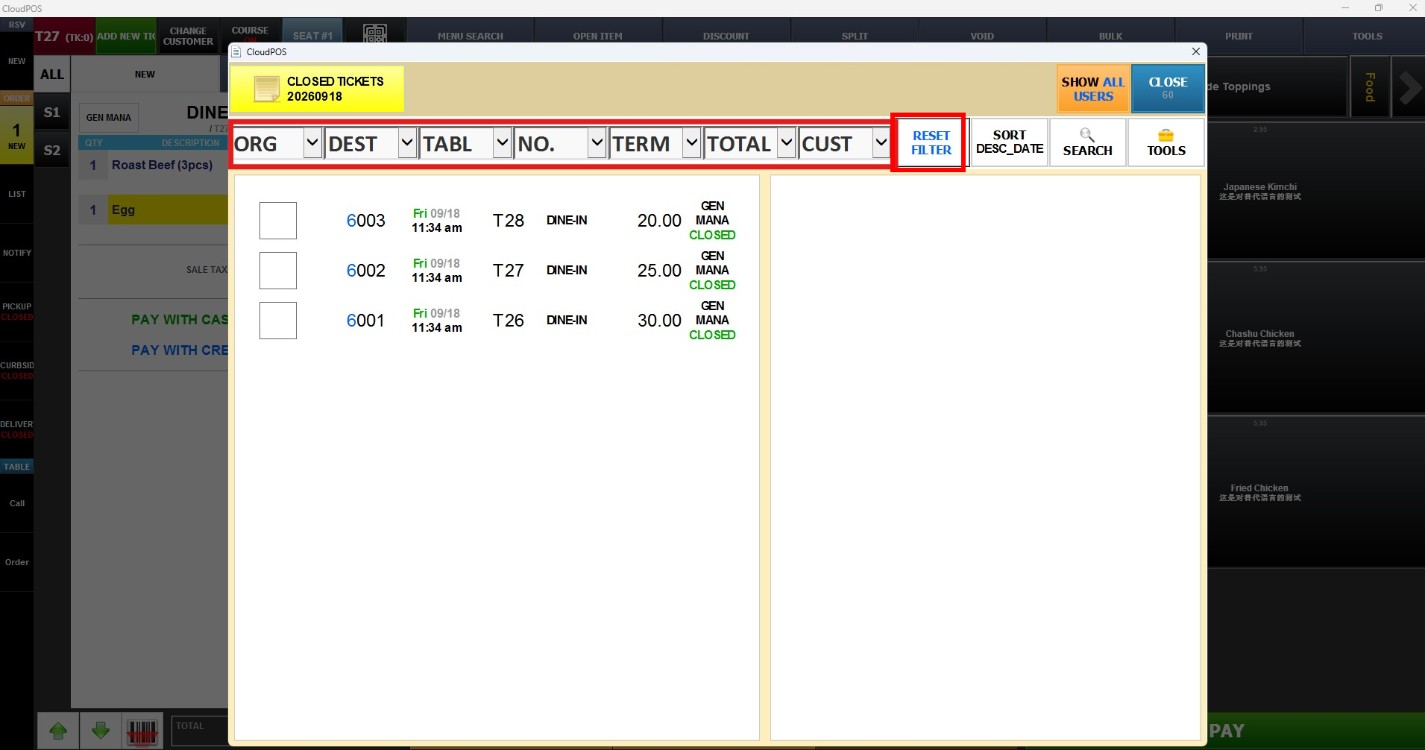
To filter the tickets:
Use the dropdowns at the top of the Ticket List to display only the tickets that match the selected value:
1. ORG: Filters by the origin of the order.
2. DEST: Filters by order destination, such as DINE-IN or TAKE-OUT.
3. TABL: Filters by table.
4. NO.: Filters by ticket number.
5. TERM: Filters by the terminal where the ticket was created.
6. TOTAL: Filters by ticket total.
7. CUST: Filters by customer.
Press RESET FILTER to remove the applied filters and return to the complete list for the selected date.
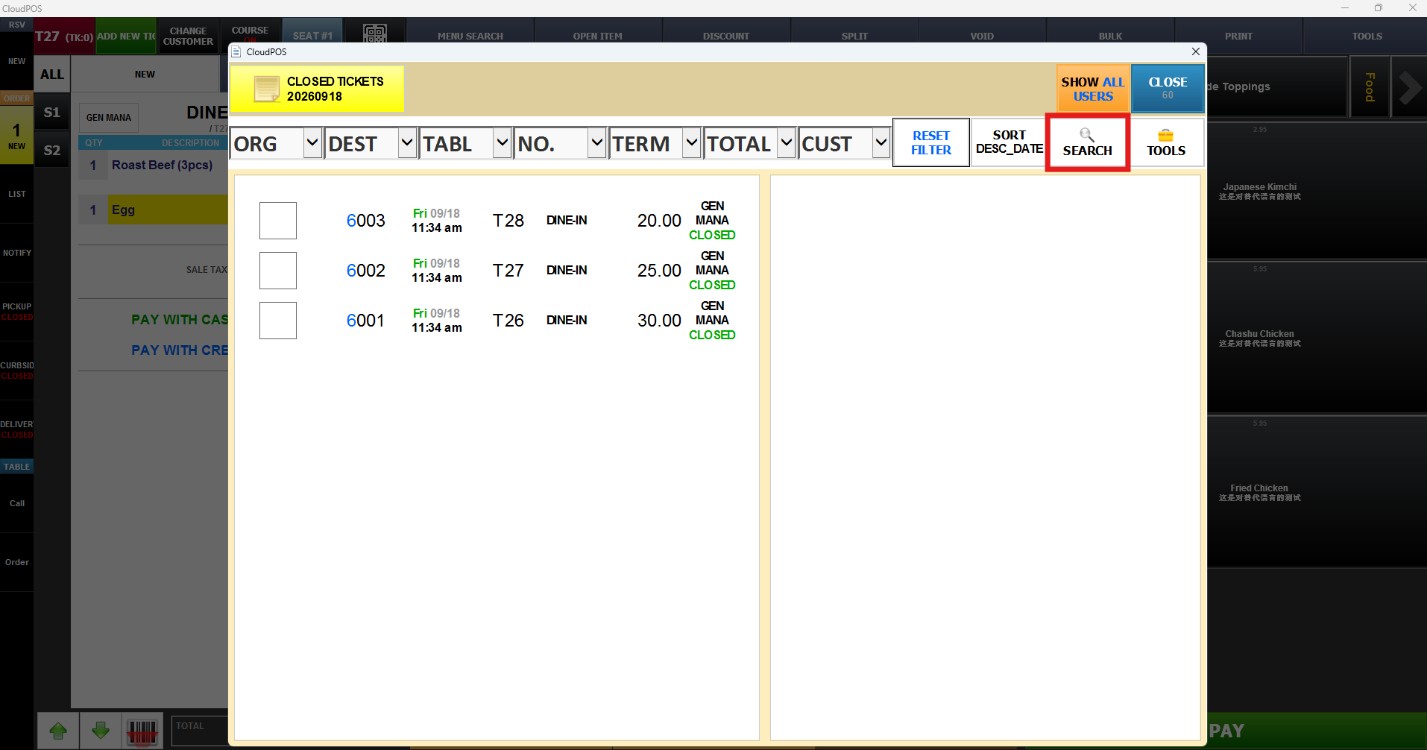
To search for a specific ticket:
Press SEARCH to locate a ticket when you already know the information you are looking for.
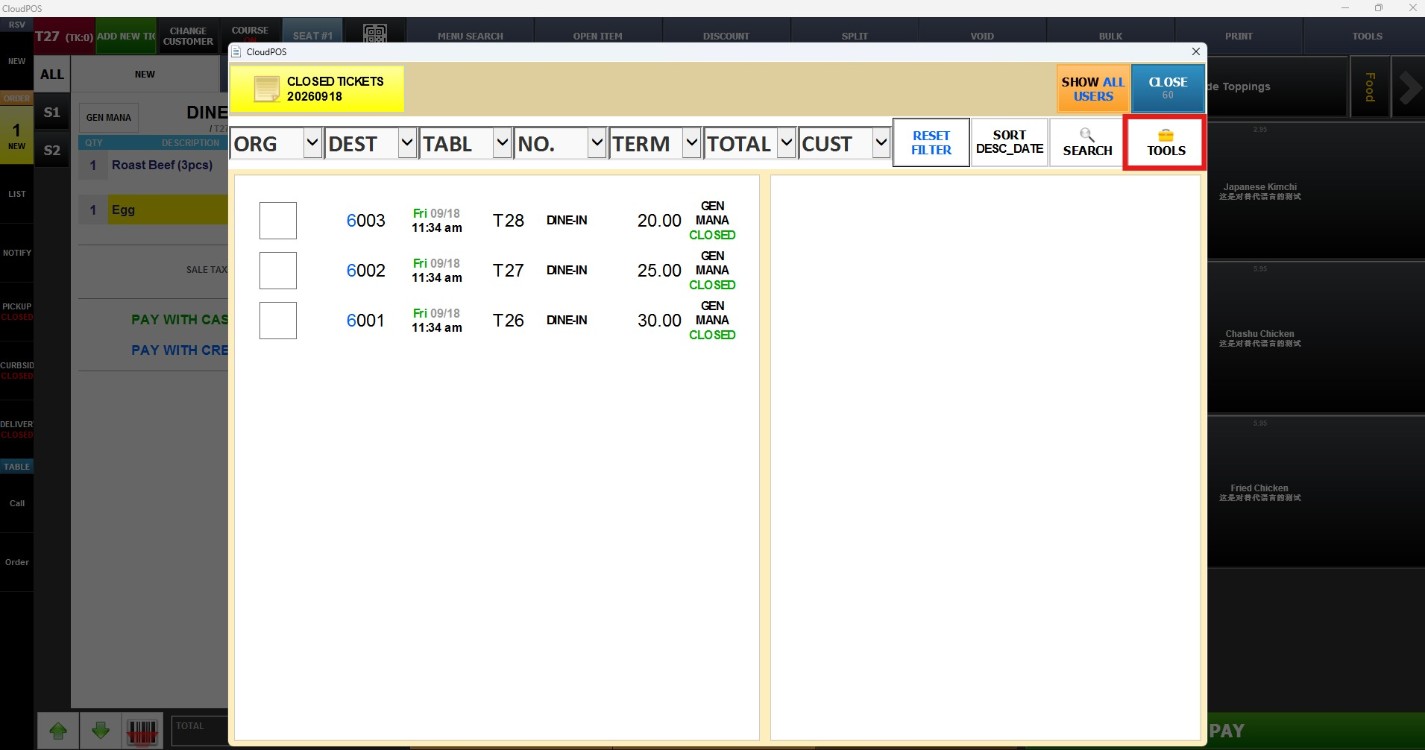
To print the ticket information:
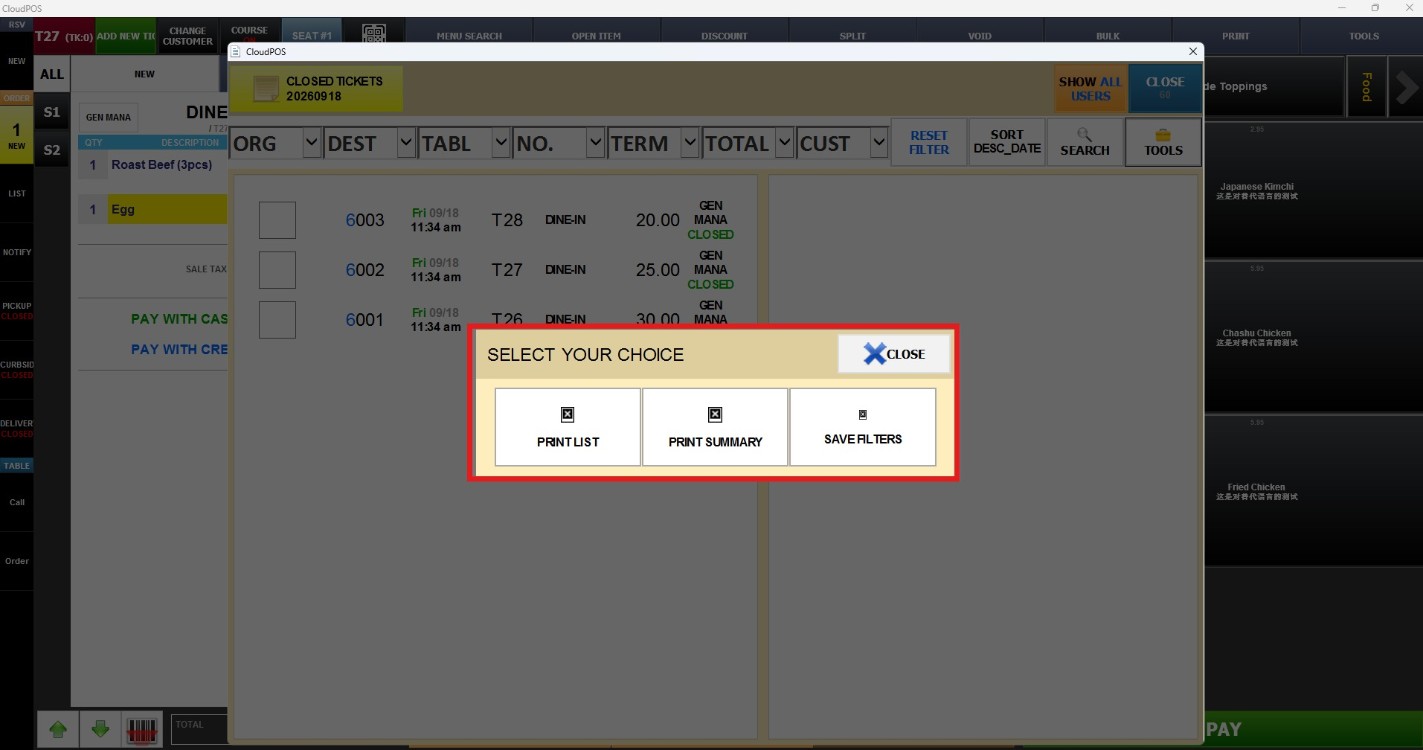
Press TOOLS on the Ticket List screen to access the available options.
In the SELECT YOUR CHOICE window, select one of the following options:
1. PRINT LIST: Prints the list of displayed tickets.
2. PRINT SUMMARY: Prints a summary of the displayed ticket information.
3. SAVE FILTERS: Saves the currently applied filters.
Note: The Ticket List automatically opens with the current day's closed tickets. You only need to change the date when reviewing tickets from a different day.