Top Sellers
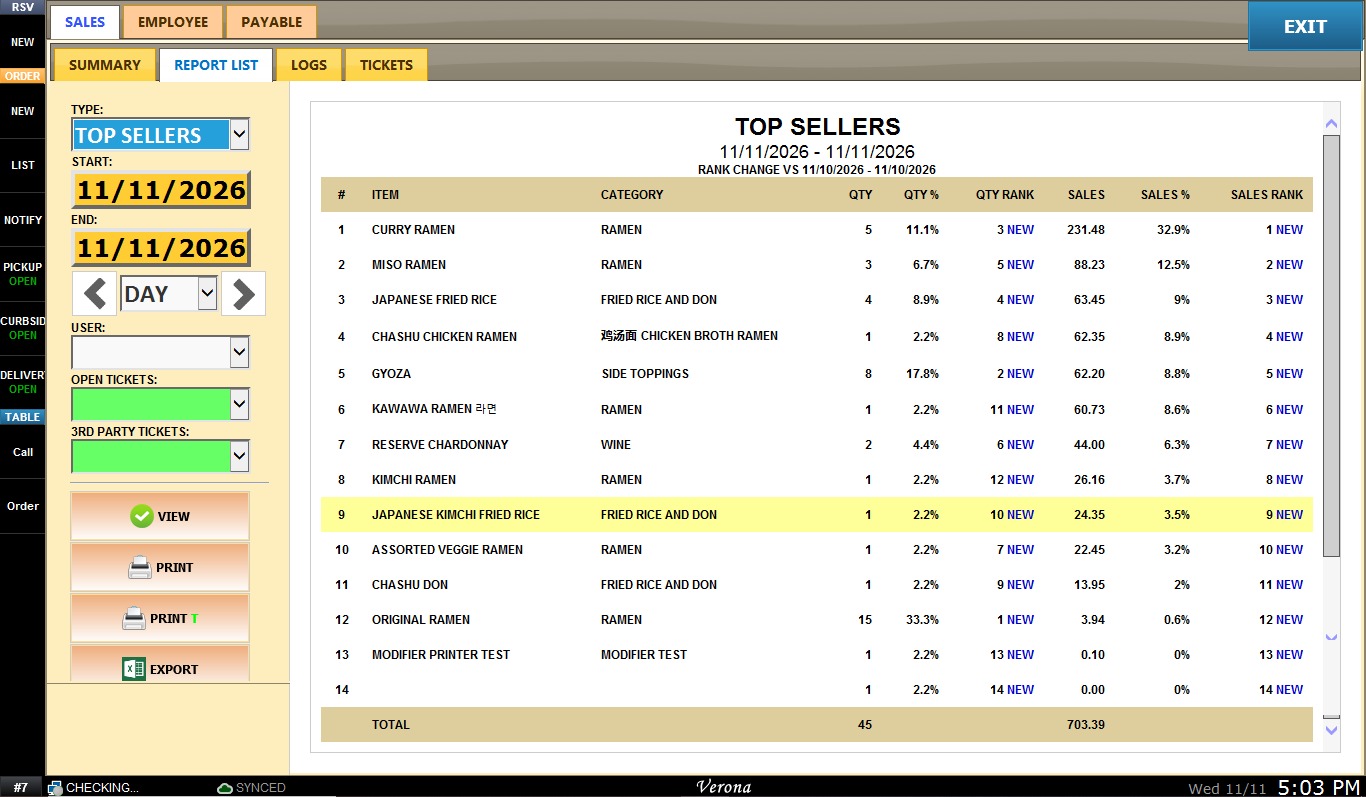
The Top Sellers report ranks the items sold in the selected date range by their sales. Use it to identify your best-selling items, compare quantities and sales between items, and see how their ranking changed from the previous period.
Main Screen> MENU> REPORTS> SALES> REPORT LIST> TOP SELLERS
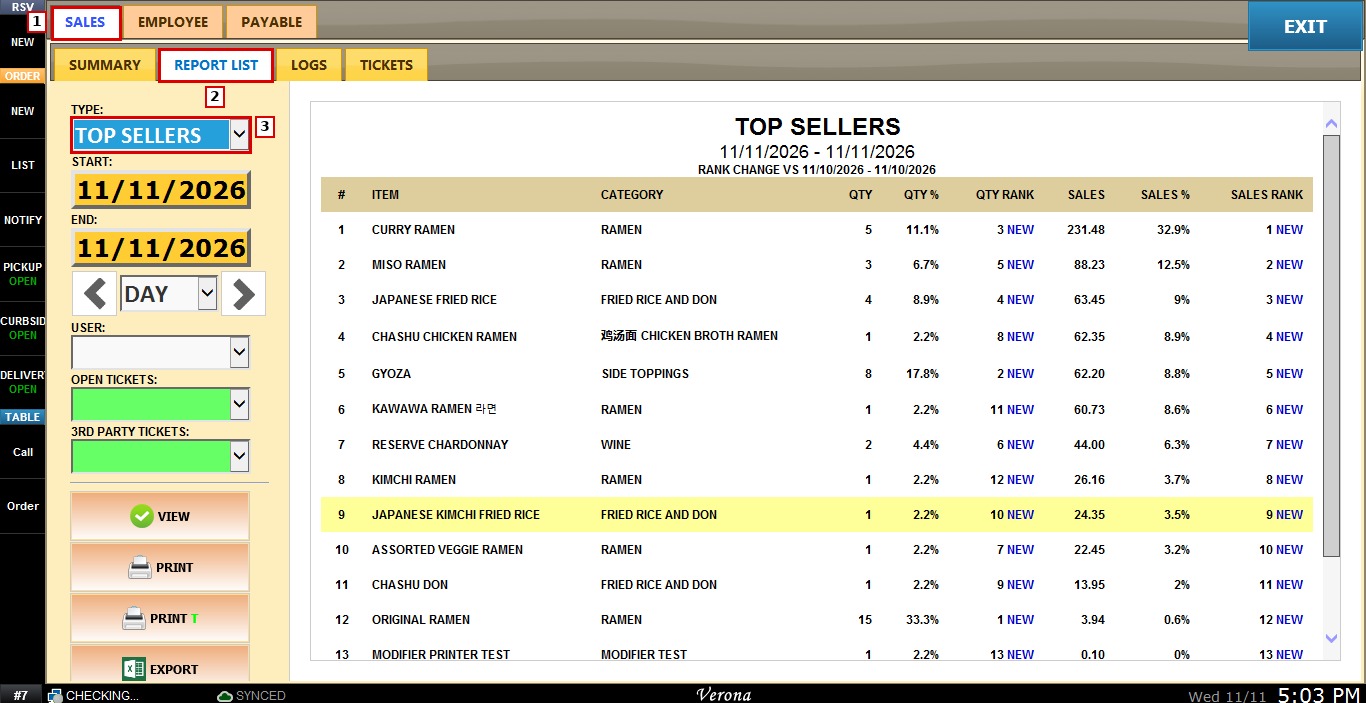
From the Main Screen, go to MENU and press REPORTS.

Under the SALES tab, select REPORT LIST. In the TYPE field, select TOP SELLERS.
FILTERS
Use the filters on the left side of the screen to set what the report includes.

1. START: press the field to select the first date of the report. A calendar will open.
In the calendar, select the month and year from the dropdown menus, or use the arrows in the top corners to move to the previous or next month. Press the day you want, or press TODAY to select the current date. Then press DONE to confirm.
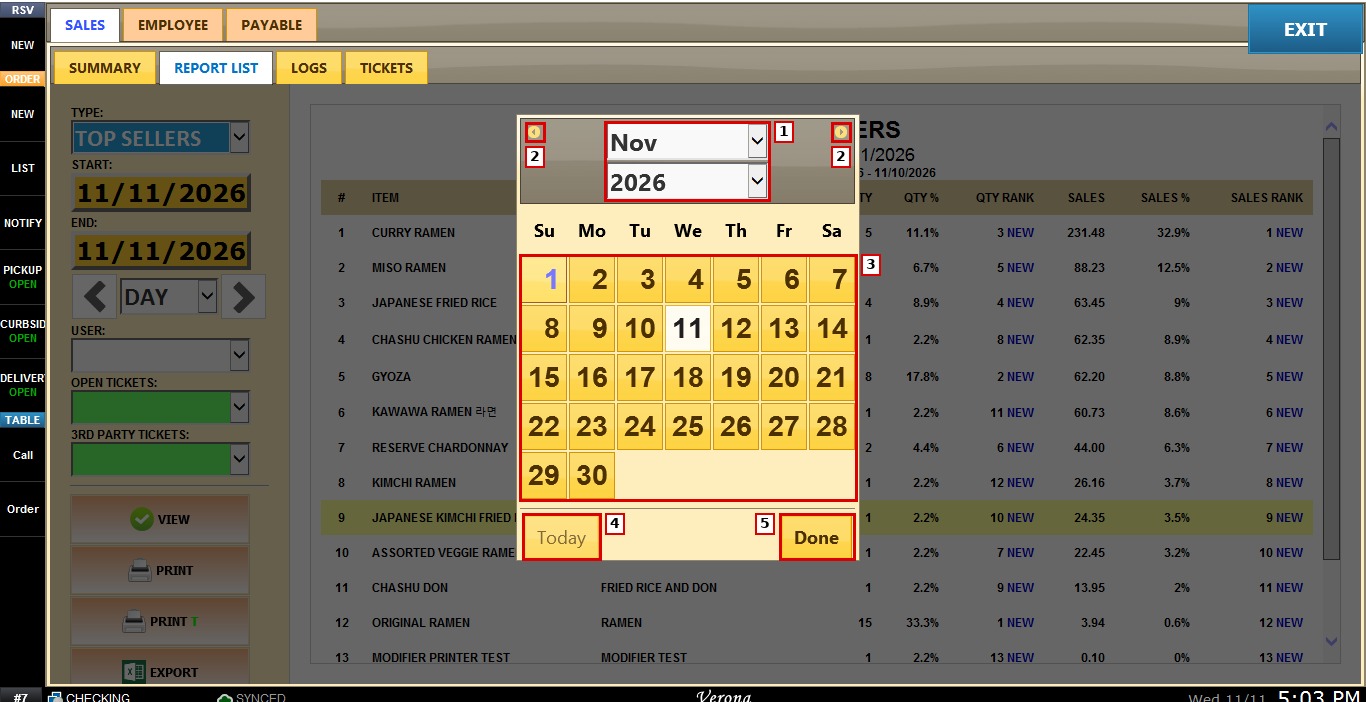
2. END: press the field to select the last date of the report, following the same steps in the calendar.
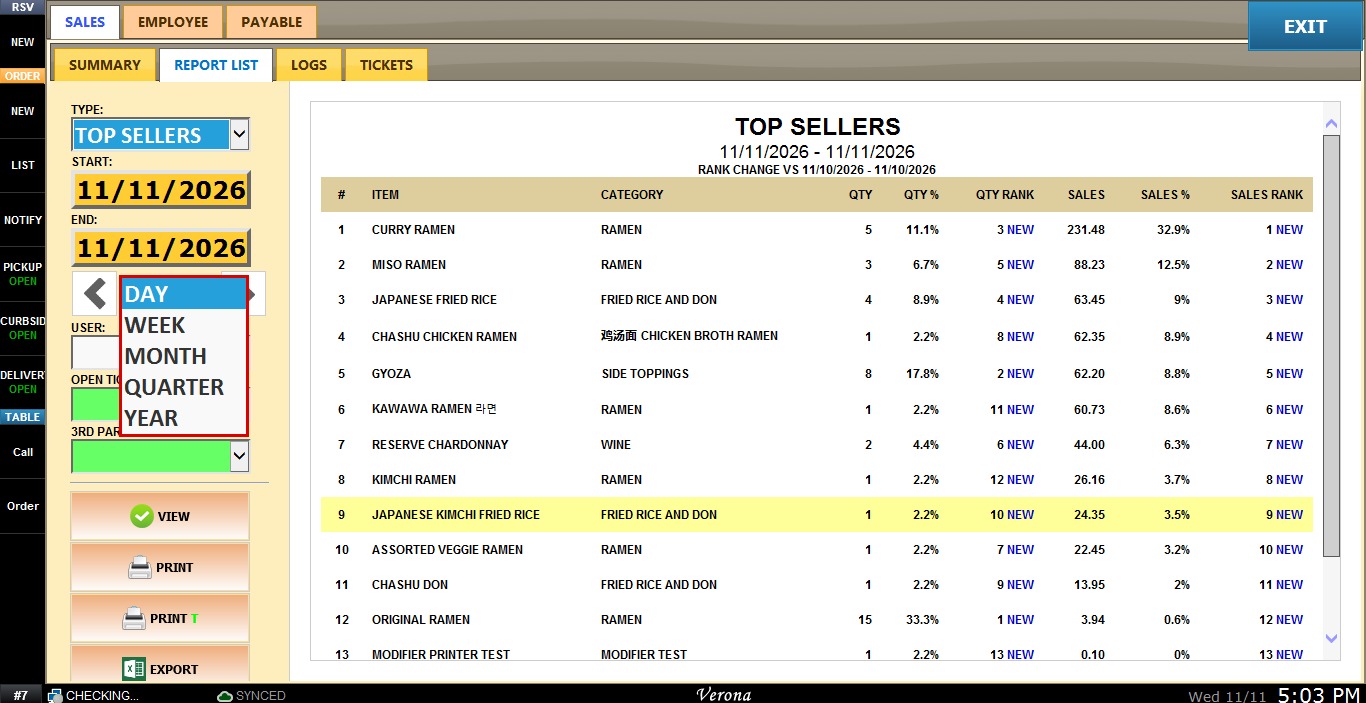
3. PERIOD SELECTOR: filters the report by DAY, WEEK, MONTH, QUARTER or YEAR. Use the side arrows to move backward or forward through those periods.
4. USER: filters the report by a single user. Leave it blank to include all users.
5. OPEN TICKETS: sets whether open tickets are included in the report.
6. 3RD PARTY TICKETS: sets whether tickets from third-party sources are included in the report.
REPORT OPTIONS
1. VIEW: displays the report using the selected filters.
2. PRINT and PRINT T: print the report.
3. EXPORT: exports the report data to an Excel file for analysis or recordkeeping.
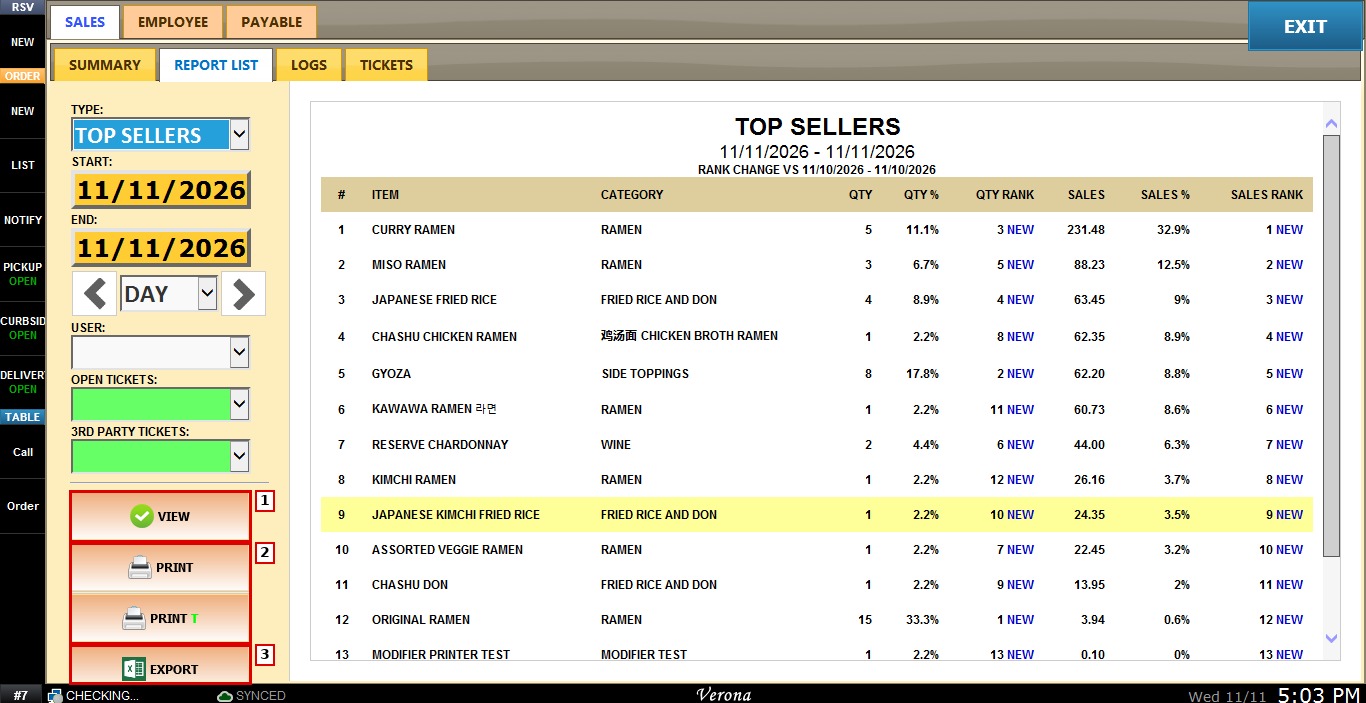
After setting the filters, press VIEW to display the report.
Result:
The Top Sellers report appears with the selected date range under the title. Below it, RANK CHANGE VS shows the previous period used to compare the rankings. Items are ranked by sales, from highest to lowest. The columns are:
- #: the item’s position in the ranking.
- ITEM: the name of the item.
- CATEGORY: the category the item belongs to.
- QTY: the number of units sold.
- QTY %: the item’s share of the total quantity sold.
- QTY RANK: the item’s position when items are ranked by quantity sold.
- SALES: the total sales amount of the item.
- SALES %: the item’s share of the total sales.
- SALES RANK: the item’s position when items are ranked by sales.
The TOTAL row at the bottom shows the total quantity and sales of all items in the report.