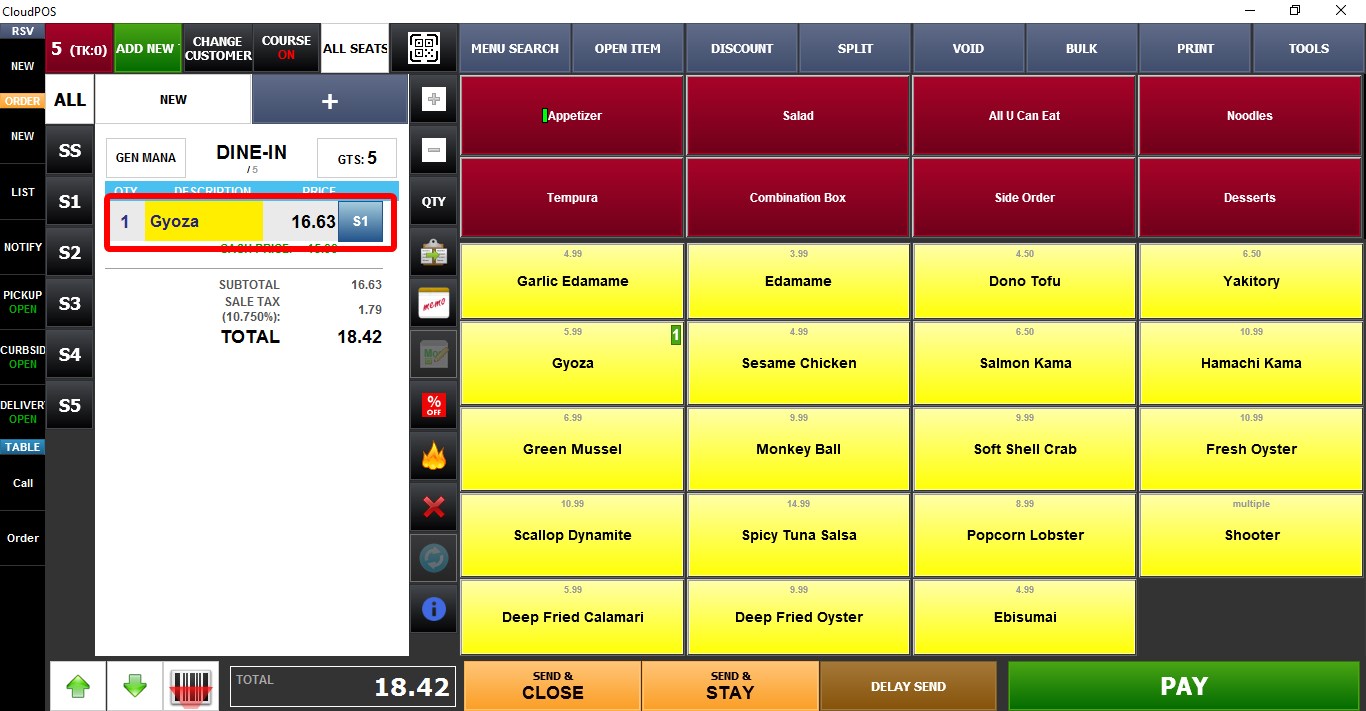
Barcode Scan
The barcode setting allows VelaPOS to recognize barcodes generated by scales for products sold by weight. These barcodes contain both the product identifier and its selling price, allowing the POS to automatically identify the product and apply the correct price when scanned.
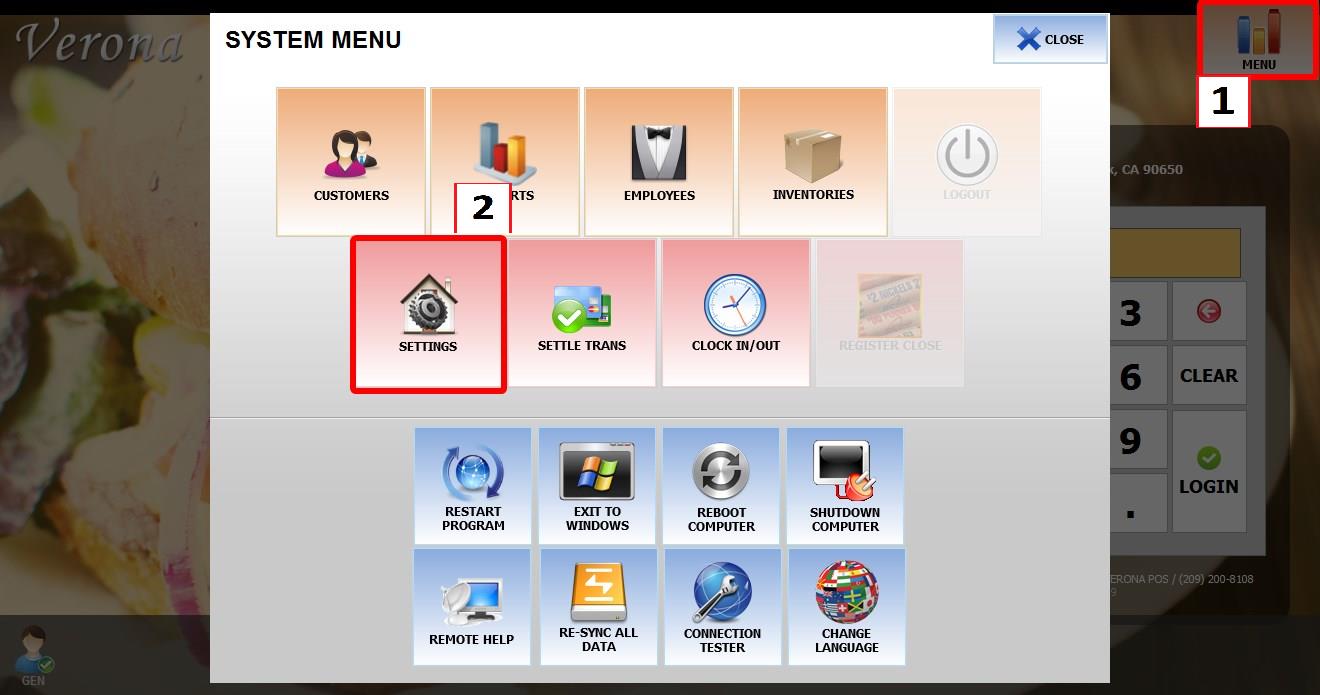
MENU > SETTINGS > MAIN > SALES
From the MAIN SCREEN, click MENU, then select SETTINGS.

Go to MAIN > SALES, then scroll to the BARCODE SCAN section.
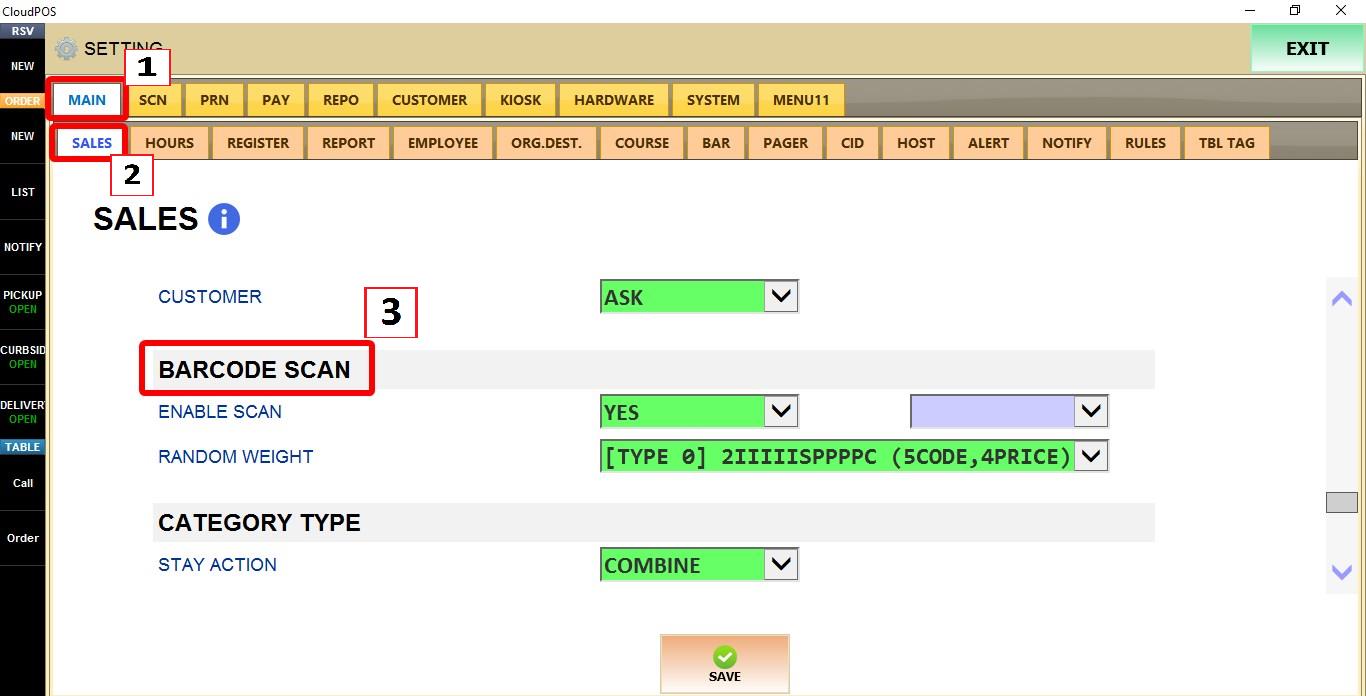
ENABLE SCAN
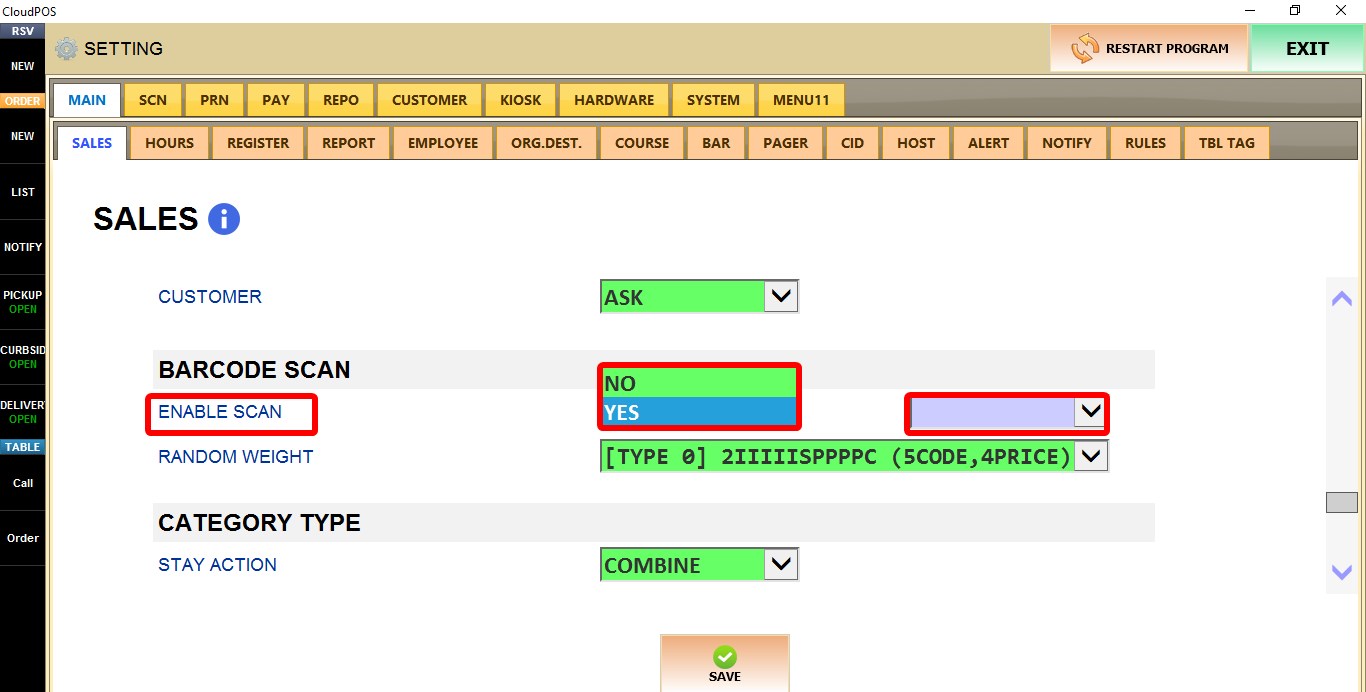
1. YES: Enables barcode functionality
2. NO: Disables barcode functionality
Hint: Purple dropdown menu allows you to select YES or NO that will only apply to the terminal you are on.
RANDOM WEIGHT
Controls the barcode format used for products sold by weight.
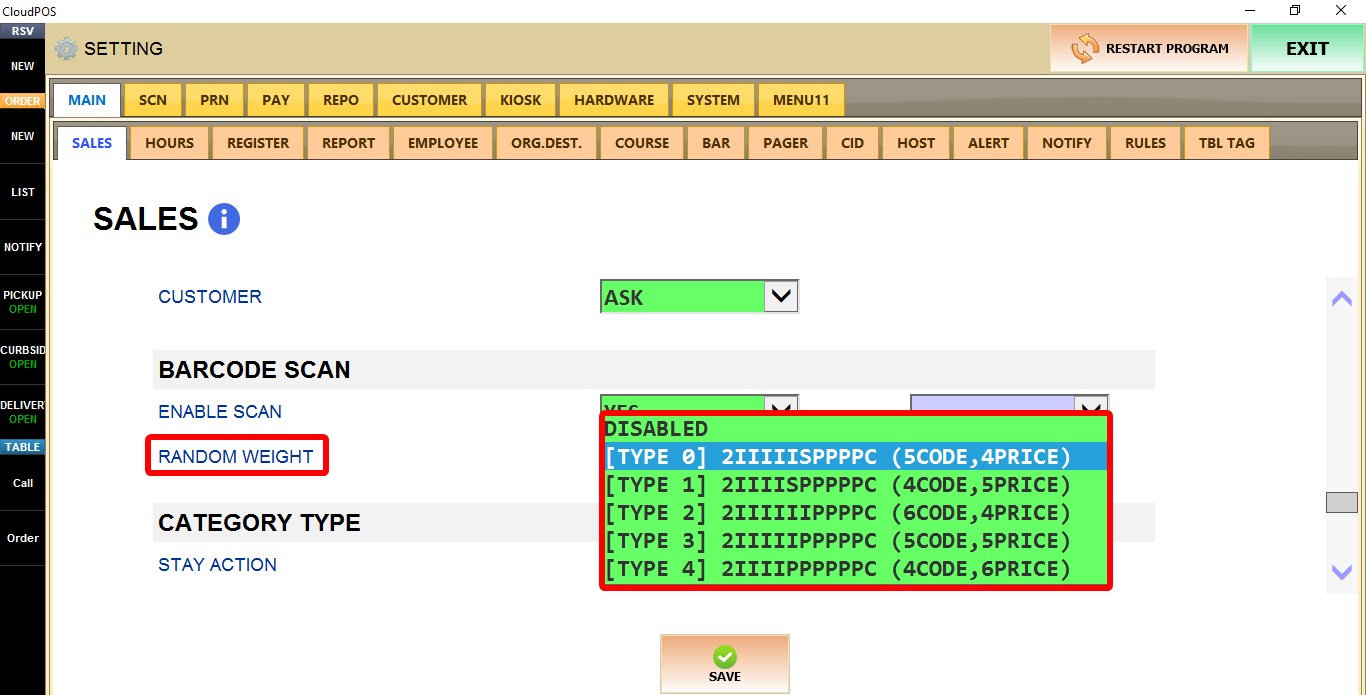
1. DISABLED: Disables support for random weight barcodes.
2. TYPE 0 through TYPE 4: Enables support for different random weight barcode formats. Select the format that matches the configuration of the merchant's scale.
BARCODE SECTIONS
Each barcode is made up of the following sections:
HEADER (2): The first digit(s) that identify the barcode as a random weight barcode. This value is fixed.
PRODUCT INFORMATION (I): Contains the product code used by Verona to identify the item. The number of digits depends on the selected barcode format.
HEADER BEFORE PRICE (S): A separator placed between the product code and the price. The value depends on the selected barcode format.
PRICE (PPPP): Contains the selling price encoded in the barcode. The first digits represent the whole currency amount and the last two digits represent the decimal value. For example, 1799 represents $17.99.
SUFFIX (C): The final digit used to complete the barcode.
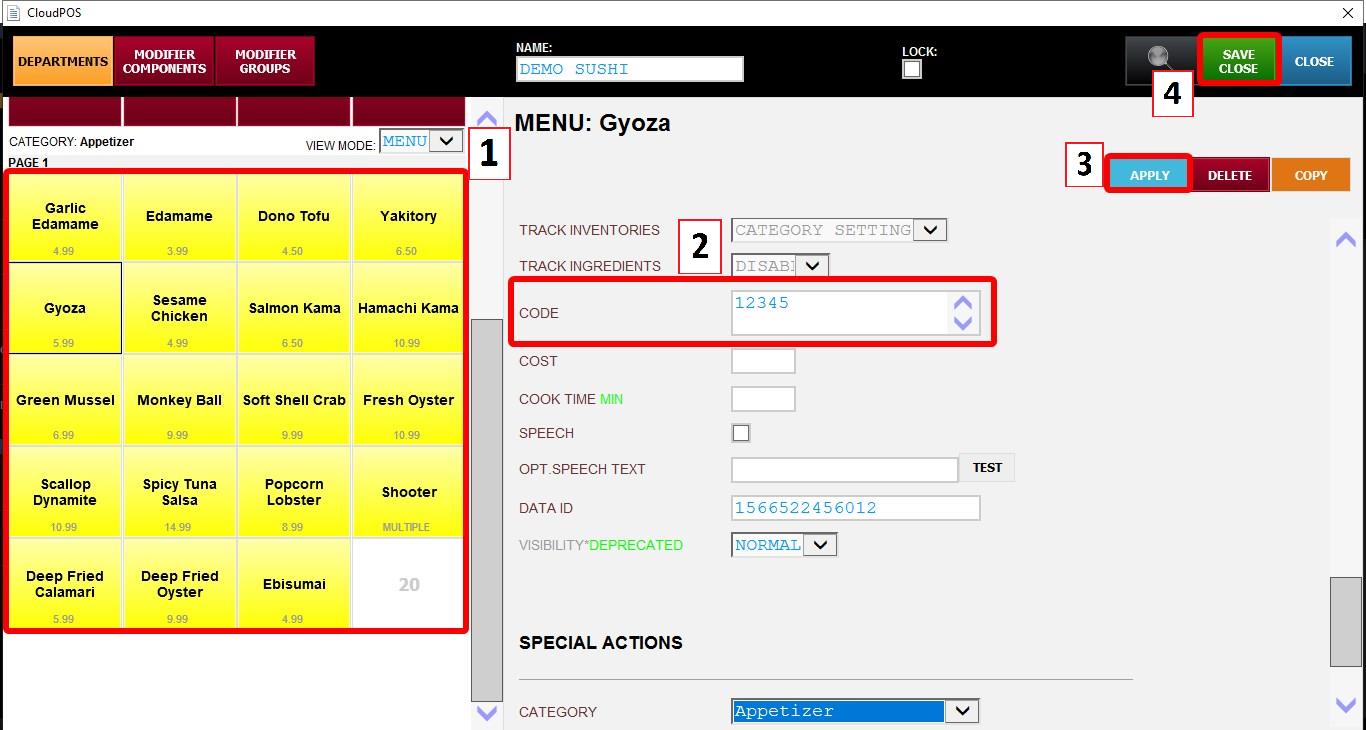
For this feature to work correctly, the product must have a matching product code configured in Verona.
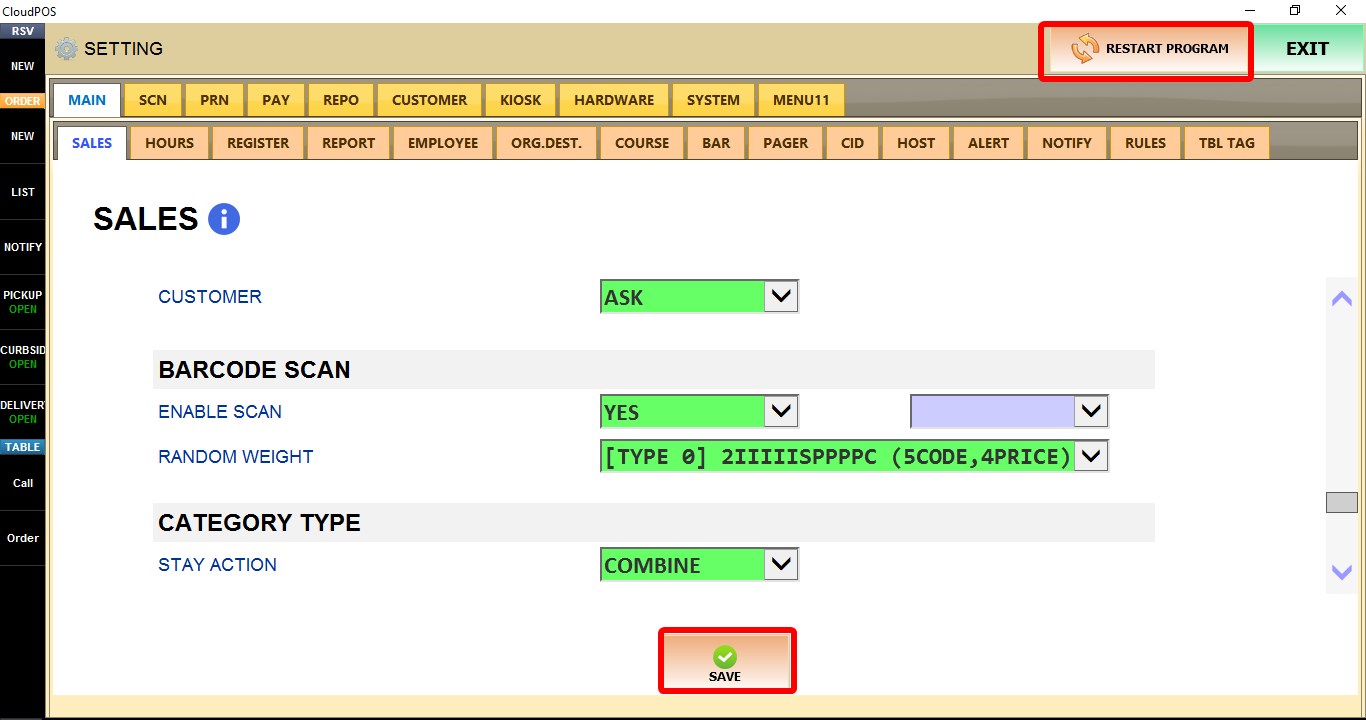
Click SAVE to apply the changes, then RESTART the program.

RESULT
From the SALES screen, click BARCODE SCAN and scan the random weight barcode, or enter it manually.
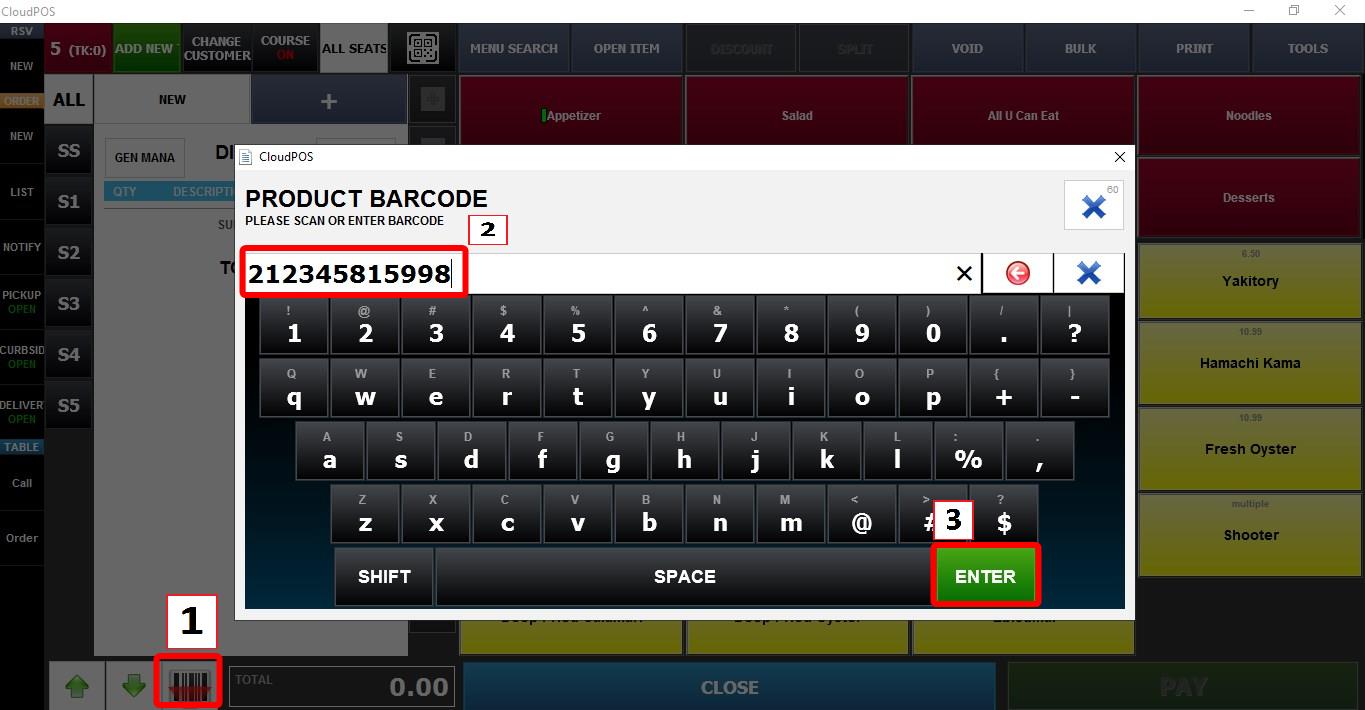
When the barcode is successfully recognized, VelaPOS automatically identifies the product and rings it up using the encoded price.