This section allows you to customize the information printed on online ordering receipts. From this page, you can enable or disable the QR code, configure the appearance of the receipt header and footer, and define the messages displayed to customers. These settings help personalize printed receipts and improve the presentation of online order information.
Main Screen>MENU>SETTINGS>MENU11>BASIC>PRINT
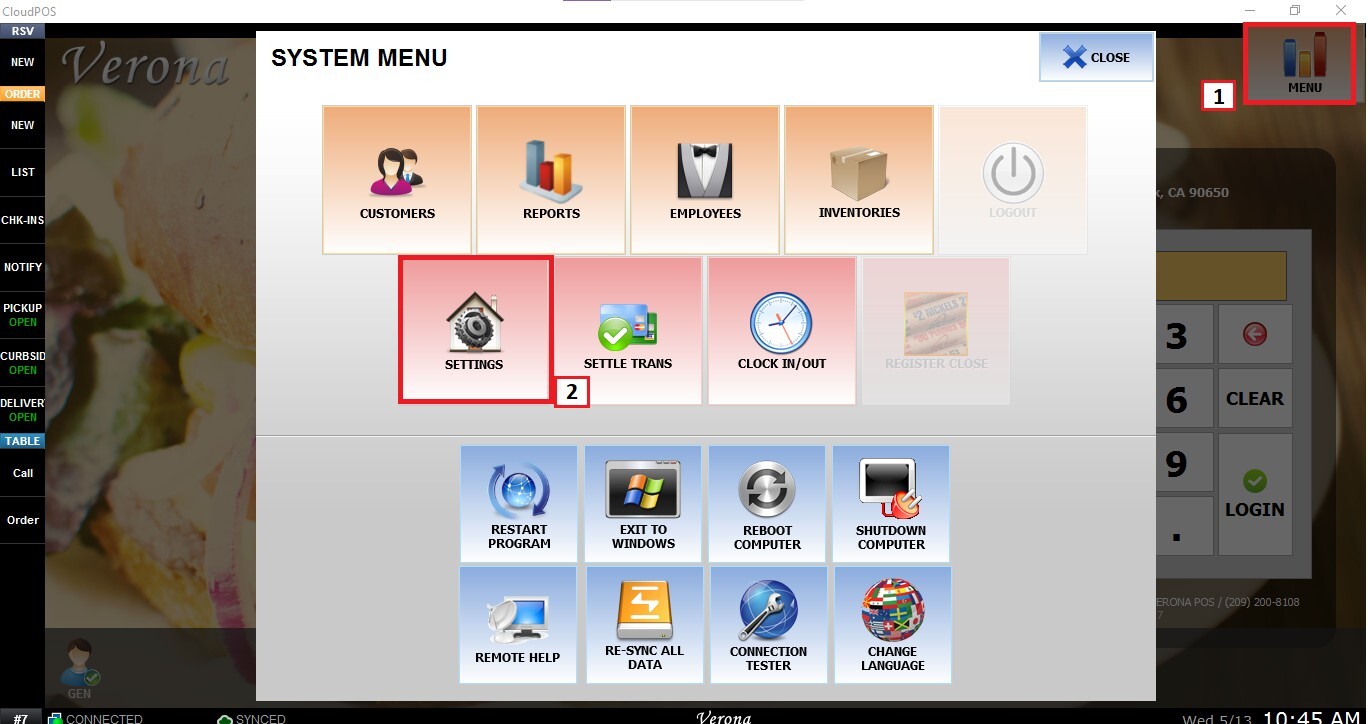
From the Main Screen, click MENU then SETTINGS.
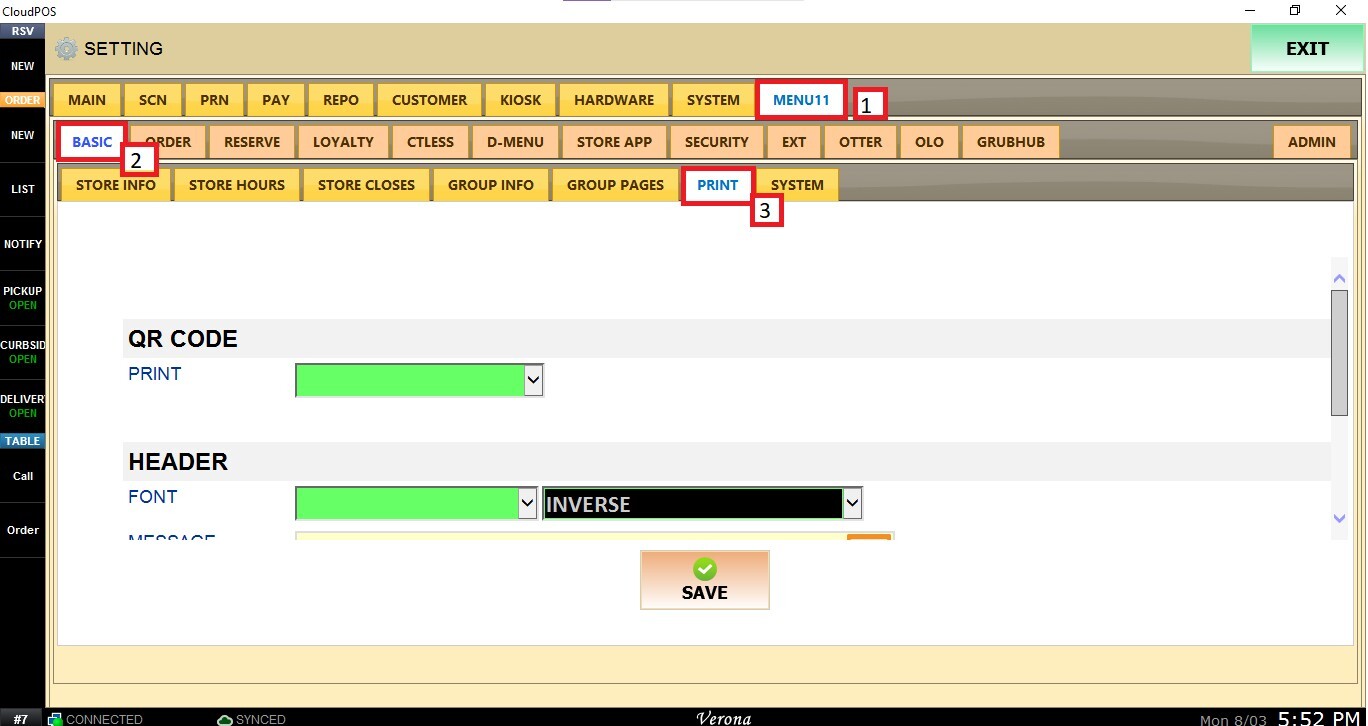
Navigate to MENU11, click BASIC and open the PRINT tab.
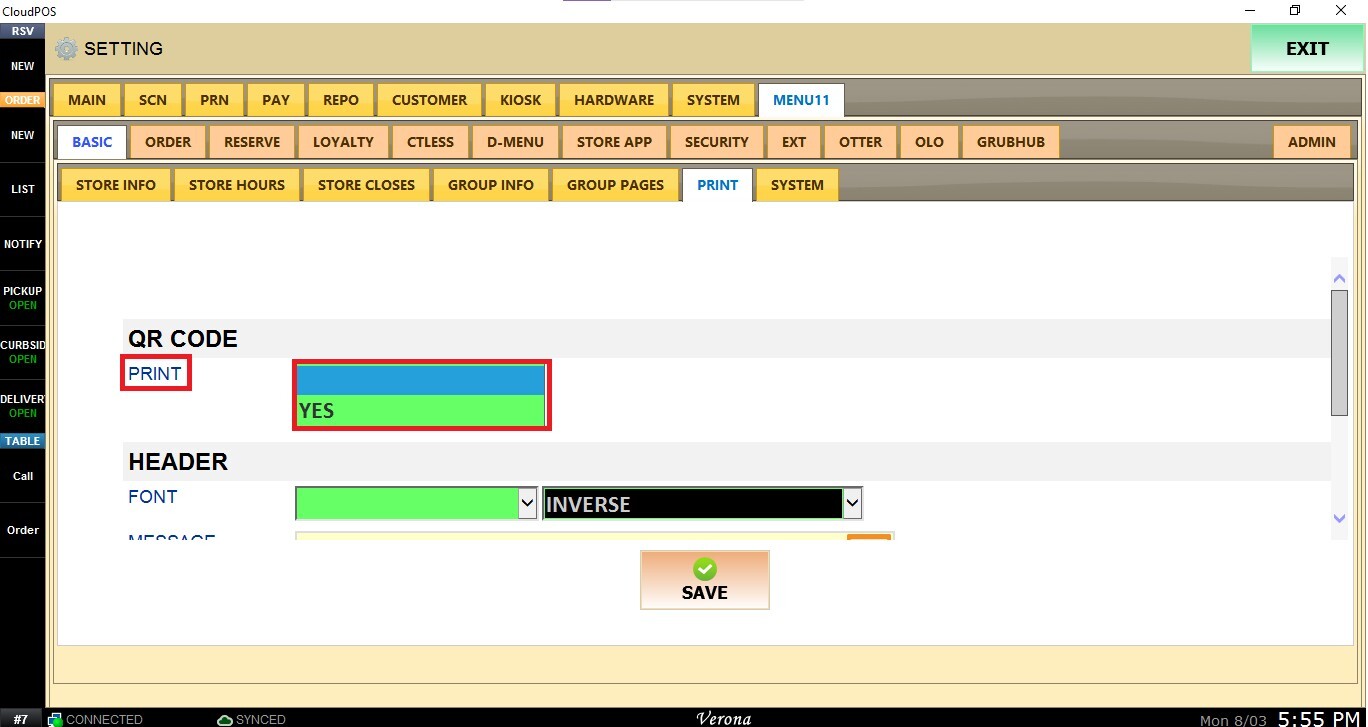
QR CODE
Enables or disables printing of the QR code on online ordering receipts.
HEADER
This setting controls the message displayed at the top of the printed online ordering receipt.
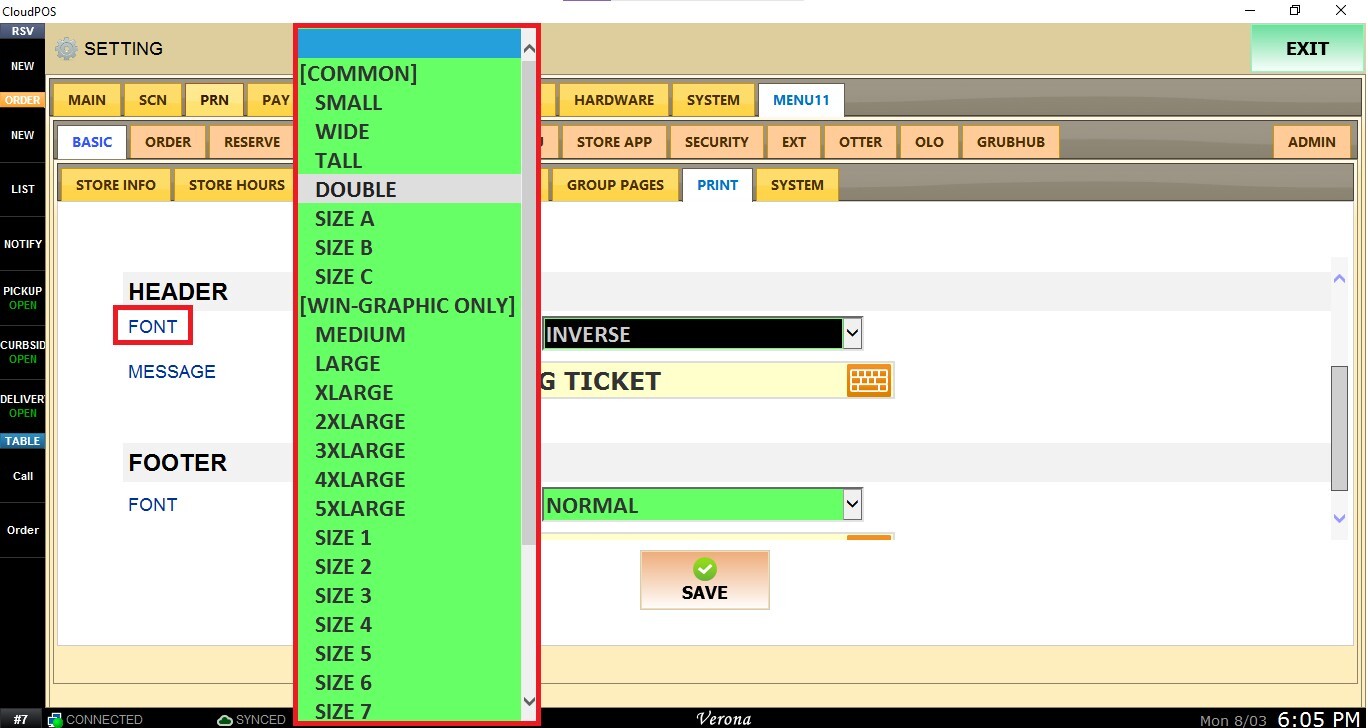
FONT SIZE: Selects the font size used for the header message.
Select one of the available options from the drop-down menu.
Common Fonts
- SMALL: Small font size.
- WIDE: Wide character format.
- TALL: Tall character format.
- DOUBLE: Double-width and height characters.
- SIZE A
- SIZE B
- SIZE C
Win-Graphic Only Fonts
These font sizes are available only when using Windows graphic printing.
- MEDIUM
- LARGE
- XLARGE
- 2XLARGE
- 3XLARGE
- 4XLARGE
- 5XLARGE
- SIZE 1
- SIZE 2
- SIZE 3
- SIZE 4
- SIZE 5
- SIZE 6
- SIZE 7
Note: The availability of Win-Graphic fonts depends on the printer and print mode being used.
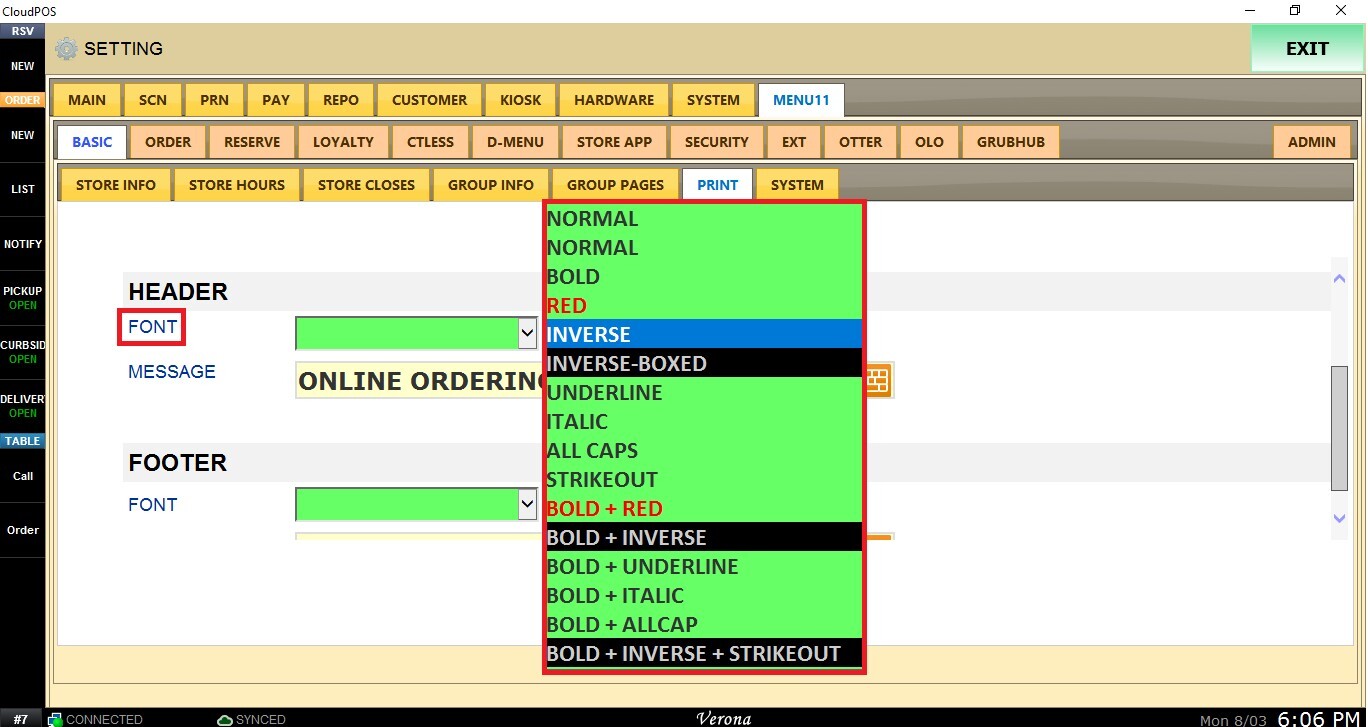
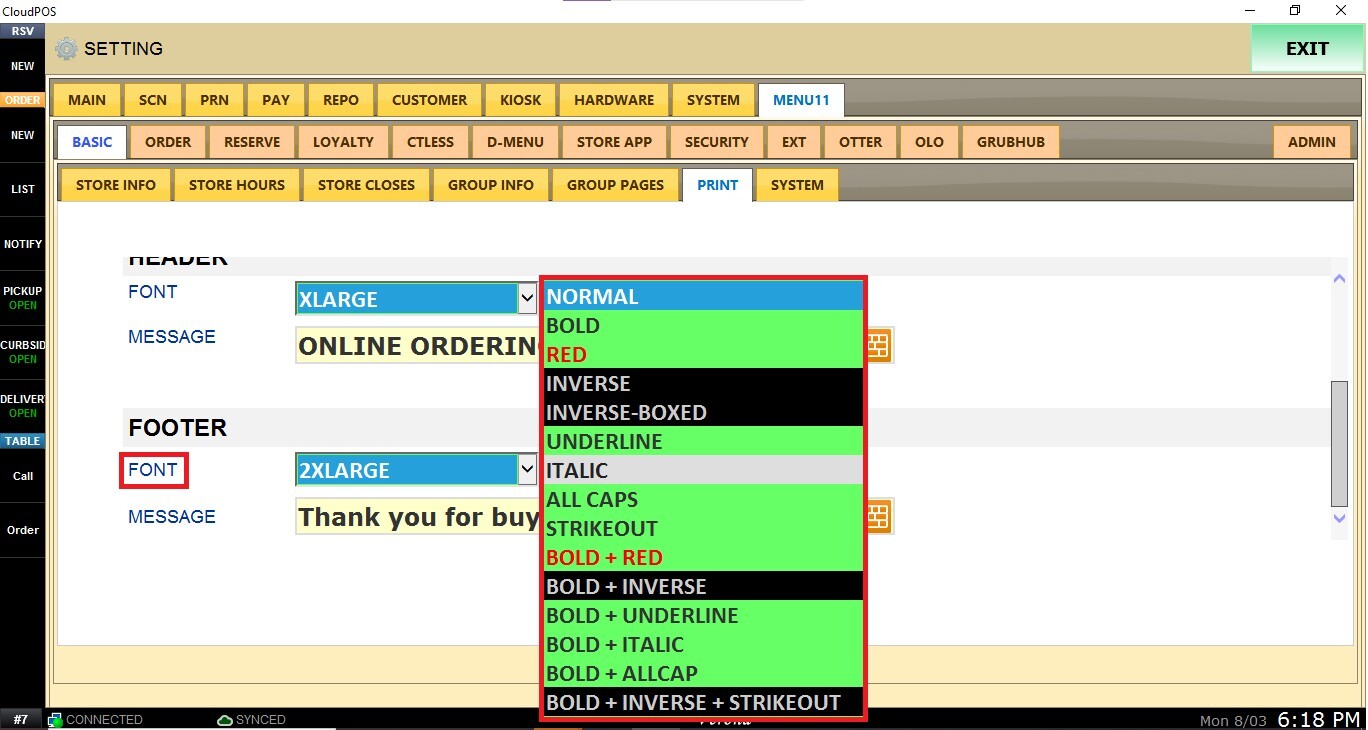
FONT STYLE: Defines the text formatting applied to the header.
Available options:
- NORMAL: Standard text.
- BOLD: Bold text.
- RED: Prints text in red (supported printers only).
- INVERSE: White text on a black background.
- INVERSE-BOXED: Inverse text enclosed in a box.
- UNDERLINE: Underlined text.
- ITALIC: Italic text.
- ALL CAPS: Converts all text to uppercase.
- STRIKEOUT: Displays text with a strike-through.
- BOLD + RED: Bold red text.
- BOLD + INVERSE: Bold inverse text.
- BOLD + UNDERLINE: Bold underlined text.
- BOLD + ITALIC: Bold italic text.
- BOLD + ALLCAP: Bold uppercase text.
- BOLD + INVERSE + STRIKEOUT: Combination of bold, inverse, and strike-through formatting.
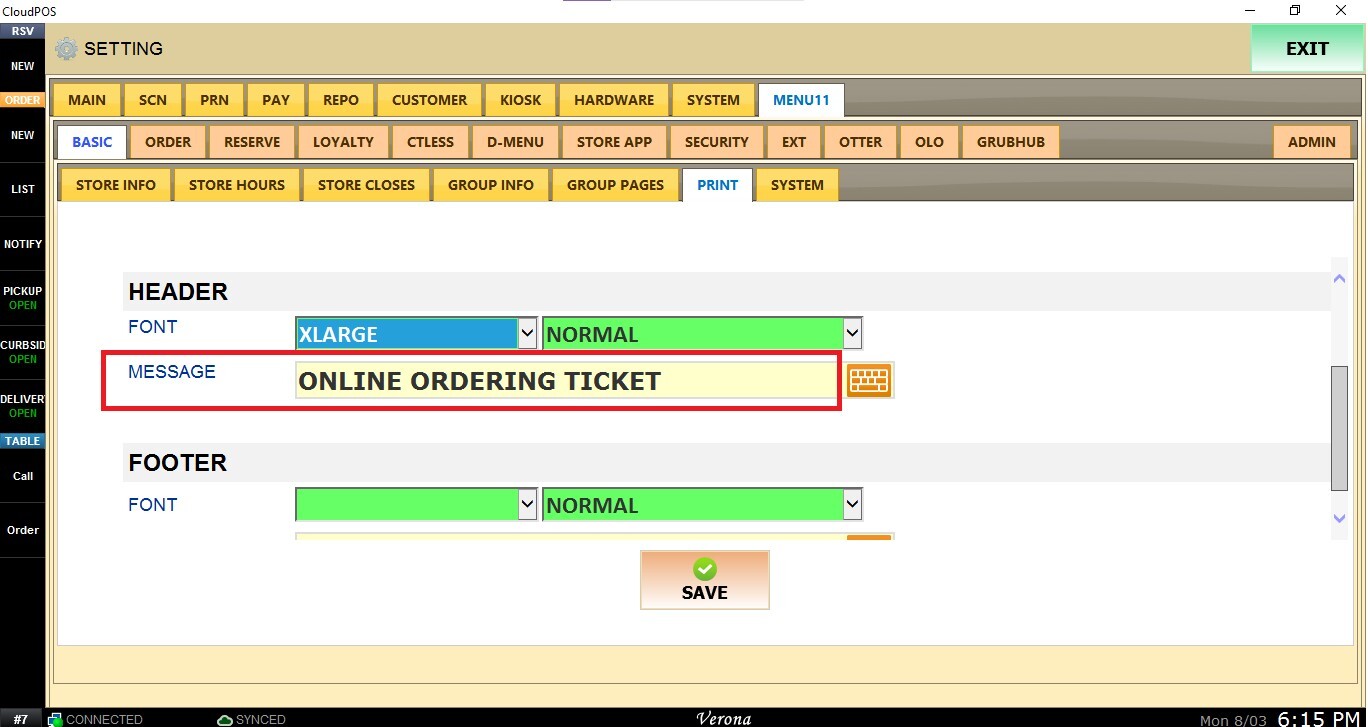
MESSAGE: Enter the custom text that will be printed in the header section of the online ordering receipt.
FOOTER
This section controls the message displayed at the bottom of the printed online ordering receipt.
FONT SIZE: Uses the same font size options available for the HEADER section.
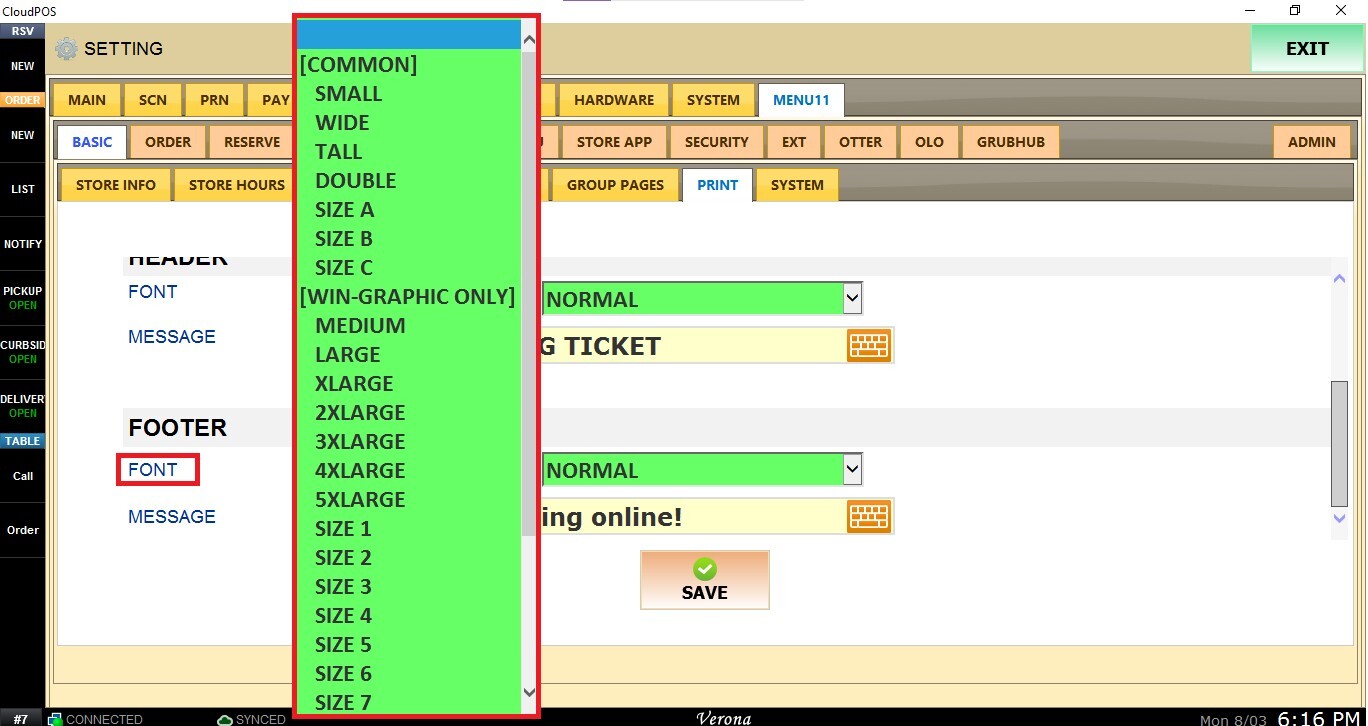
FONT STYLE: Uses the same text formatting options available for the HEADER section.
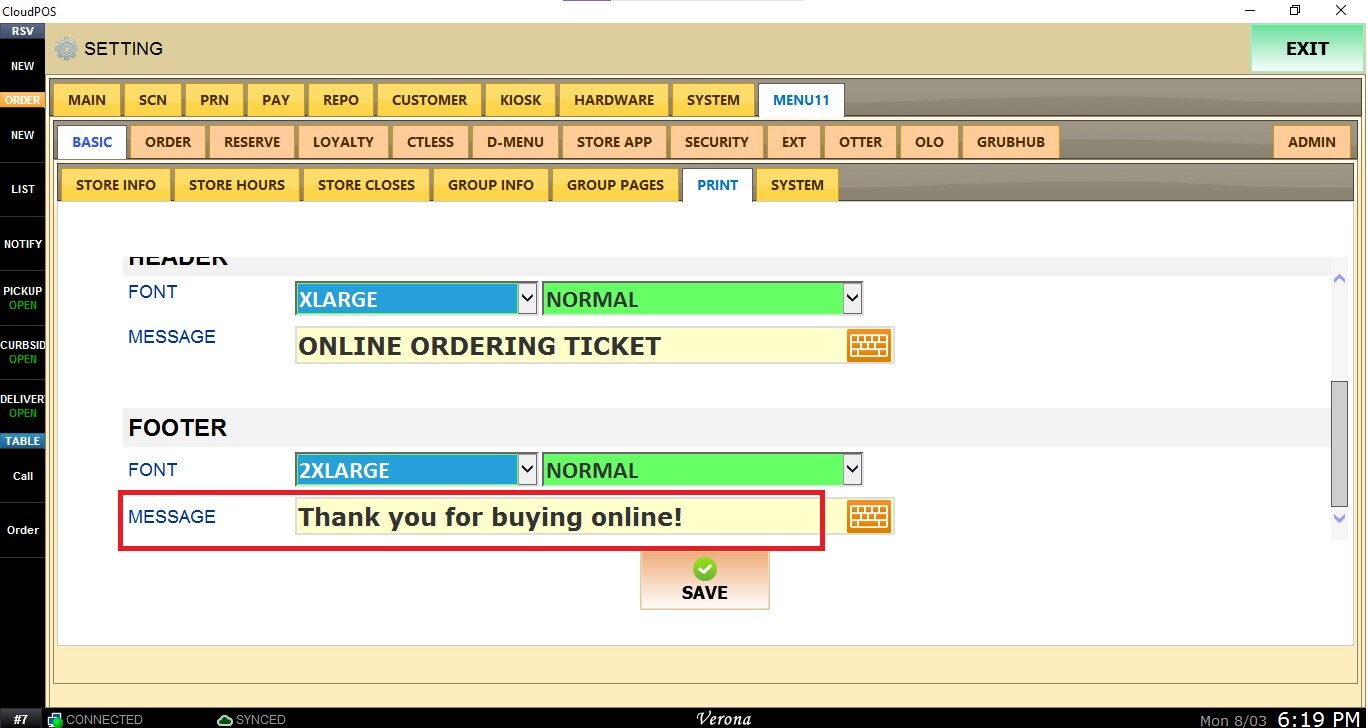
MESSAGE: Enter the custom text that will be printed in the footer section of the online ordering receipt.
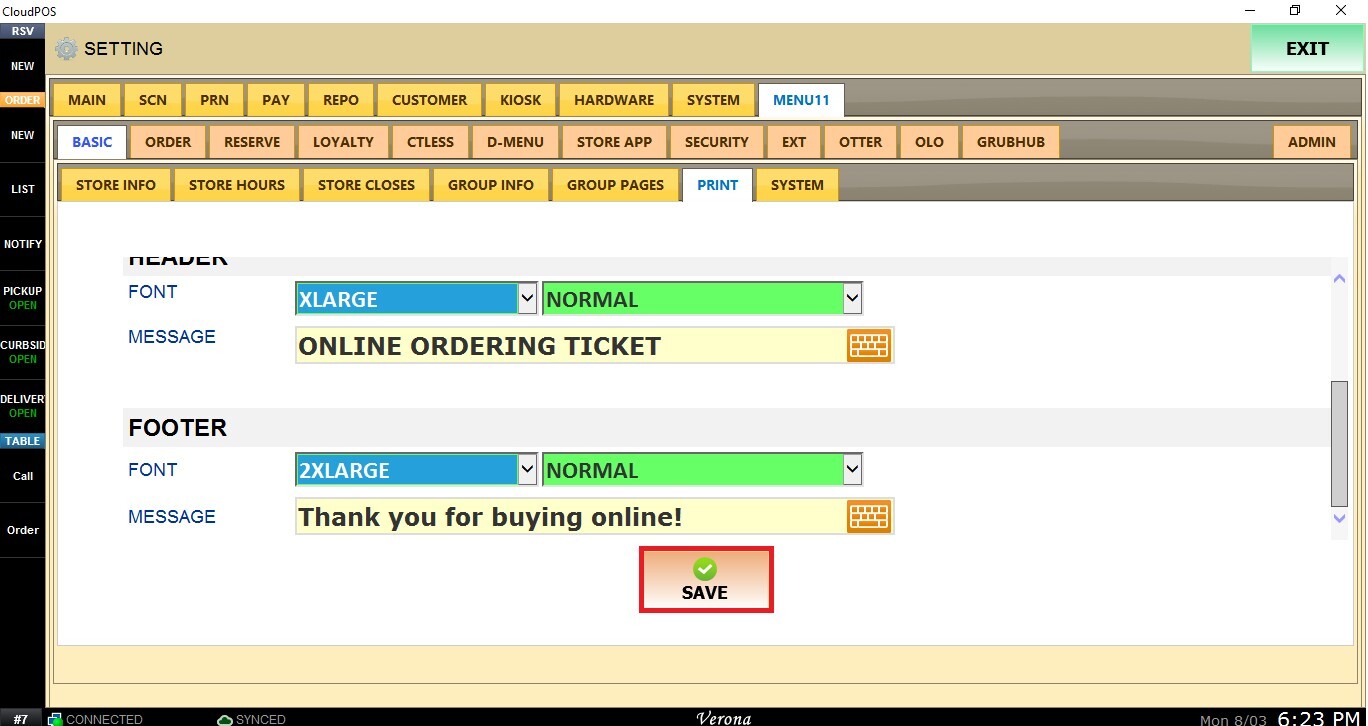
After making any changes, click SAVE.
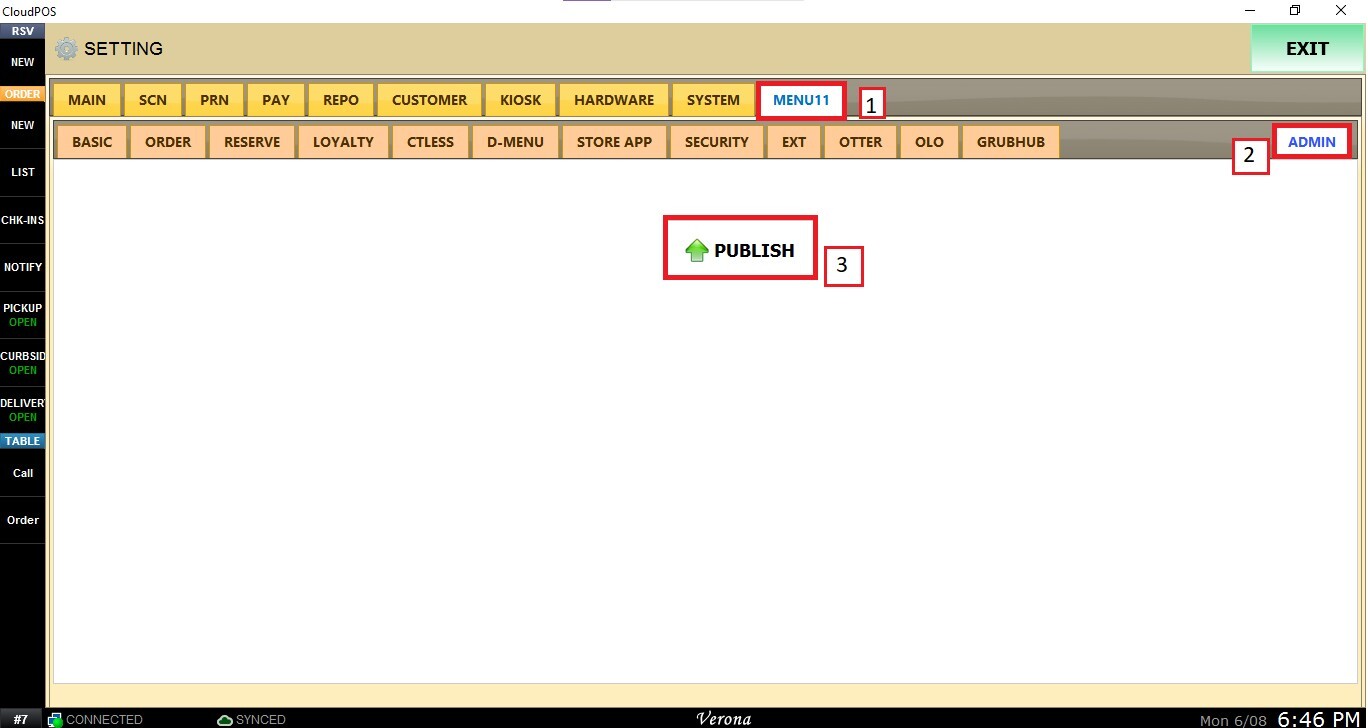
Go to MENU11, select ADMIN and PUBLISH to apply the new print settings.