Fees
The Fees settings allow you to configure service charges and additional fees that can be automatically applied to orders based on specific conditions. Fees can be configured as a percentage or fixed amount and can be customized according to the order's subtotal, total, destination, number of guests, tax, payment method, and other criteria. Verona provides a Service Charge configuration as well as up to five additional fee configurations, allowing stores to create different fees for different business requirements.
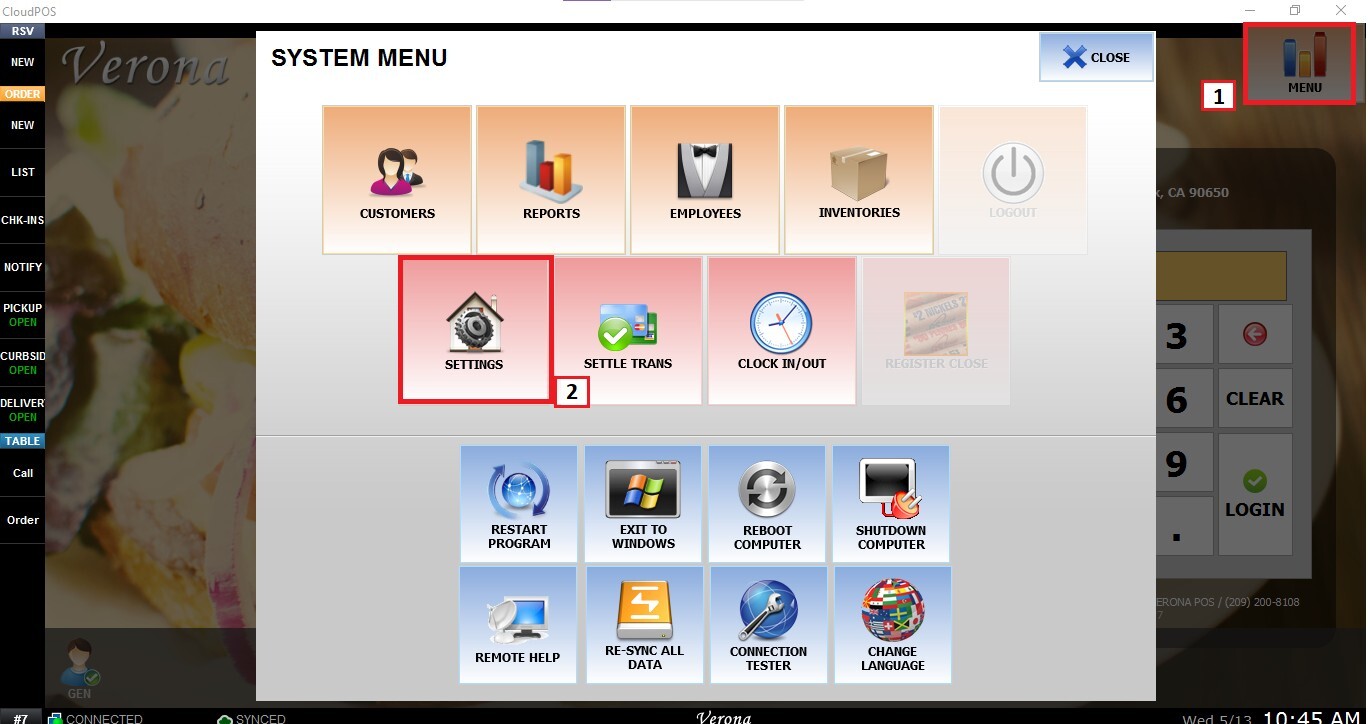
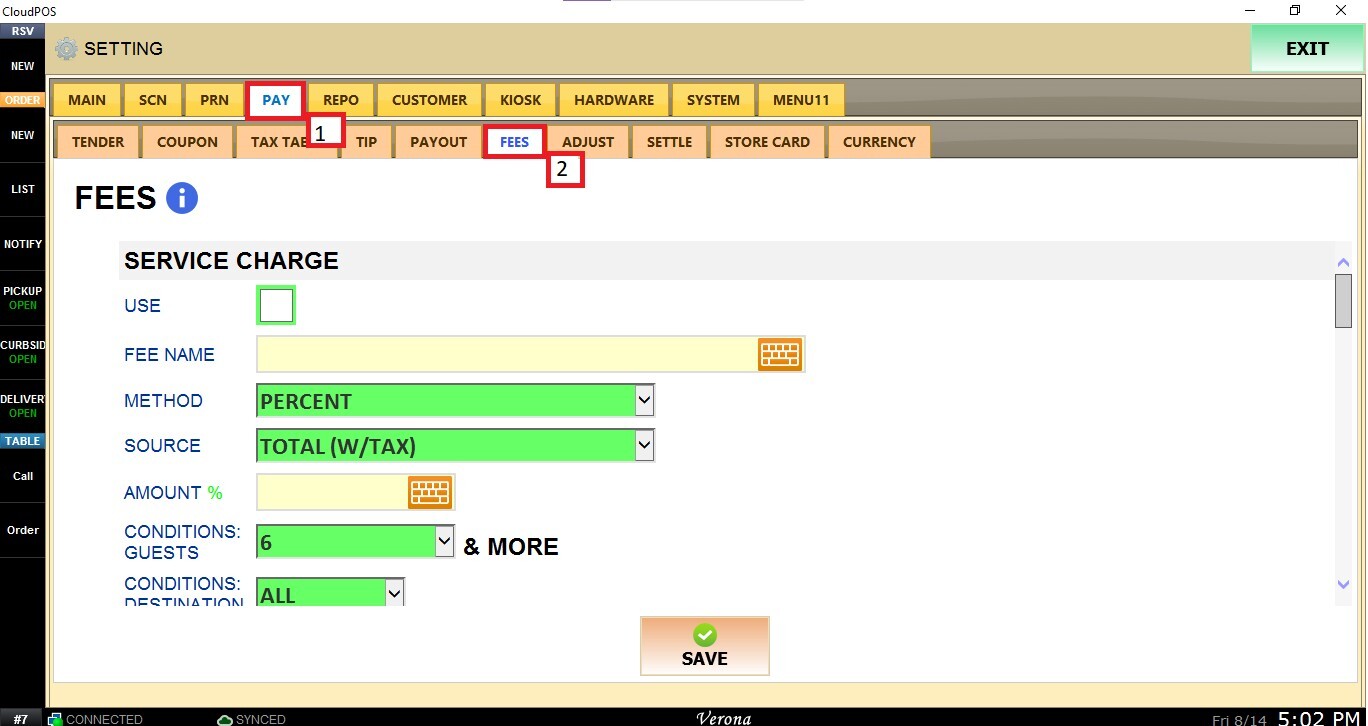
Main Screen>MENU>SETTINGS>PAY>FEES
From the Main Screen, select MENU and then SETTINGS.
Navigate to the PAY tab and select FEES.
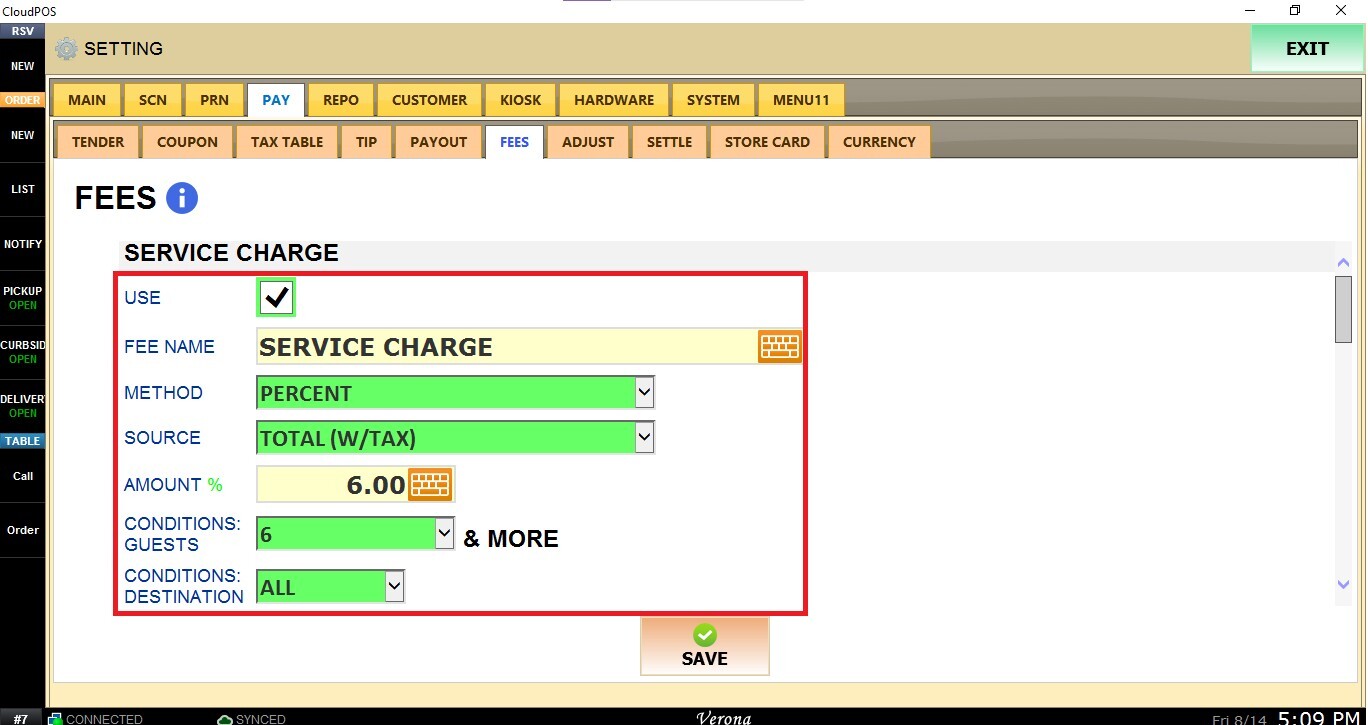
Service Charge
This section allows you to create and configure a service charge that can be automatically applied to qualifying orders.
USE: Enable this checkbox to activate the service charge.
FEE NAME: Enter the name that will identify the service charge.
METHOD: Select how the service charge is calculated:
-
- PERCENT: Calculates the charge as a percentage of the selected source amount.
- FIXED AMOUNT: Applies a specific dollar amount.
SOURCE: Determines which order amount is used to calculate the service charge. Available options include:
- SUBTOTAL (PRE-TAX): Uses the subtotal before tax.
- TOTAL (W/TAX): Uses the total including tax.
- SUBTOTAL (PRE-DISCOUNT, PRE-TAX): Uses the subtotal before discounts and tax.
- TOTAL (PRE-DISCOUNT, W/TAX): Uses the total before discounts but including tax.
- SUBTOTAL (EXCLUDE NON-SERVICE ITEM, PRE-DISCOUNT, PRE-TAX): Uses the subtotal of service items only, before discounts and tax.
- TOTAL (EXCLUDE NON-SERVICE ITEM, PRE-DISCOUNT, W/TAX): Uses the total of service items only, before discounts and including tax.
AMOUNT %: Enter the percentage or amount to be applied based on the selected METHOD.
CONDITIONS: GUESTS: Select the number of guests required for the service charge to apply. Available values range from 0 to 100, with MORE available for parties larger than 100 guests.
CONDITIONS: DESTINATION: Select which order destinations the service charge applies to.
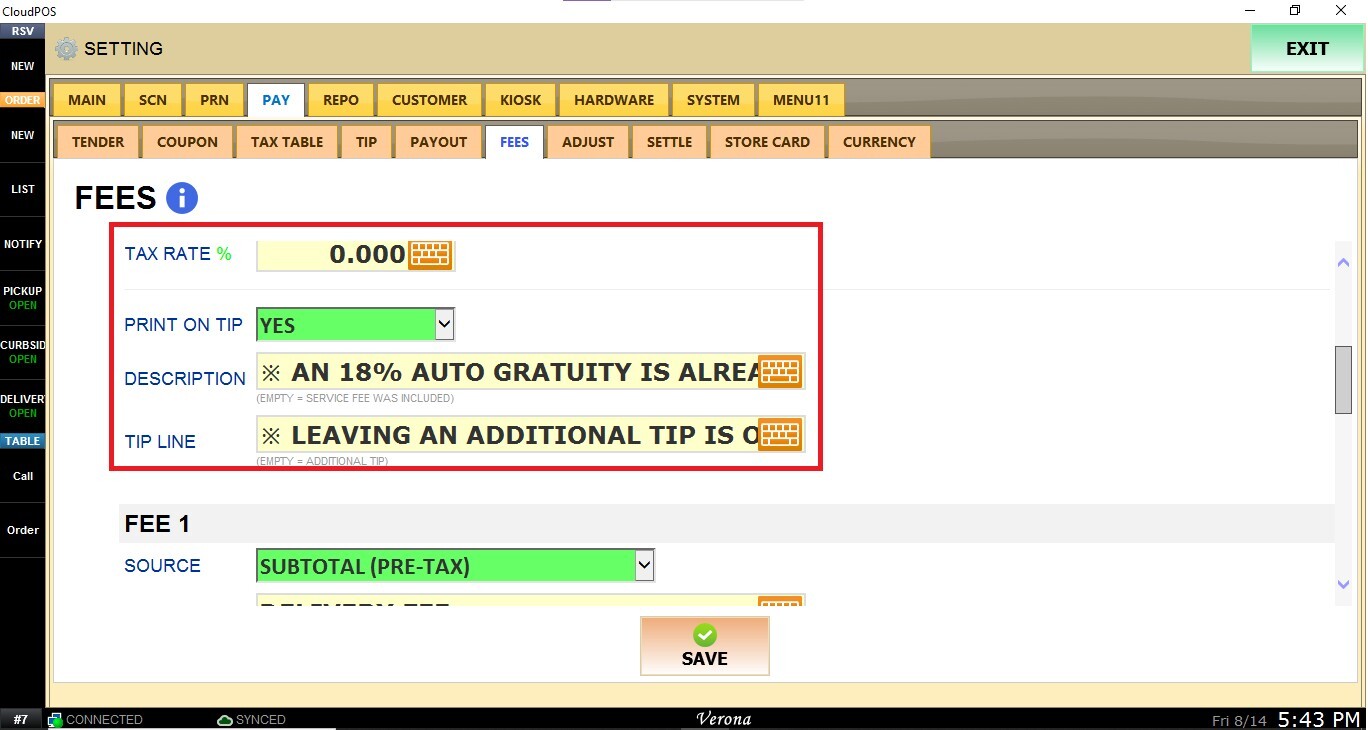
TAX RATE %: Enter the tax rate to be associated with the service charge.
PRINT ON TIP: Determines whether the service charge is included when calculating or displaying the tip amount. Select YES or NO.
DESCRIPTION: Enter a custom description for the service charge. If left empty, the system uses the default description SERVICE FEE WAS INCLUDED.
TIP LINE: Enter the information that should be displayed on the tip line. If left empty, the system uses ADDITIONAL TIP.
Additional Fees
For each FEE 1–5, configure the following options:
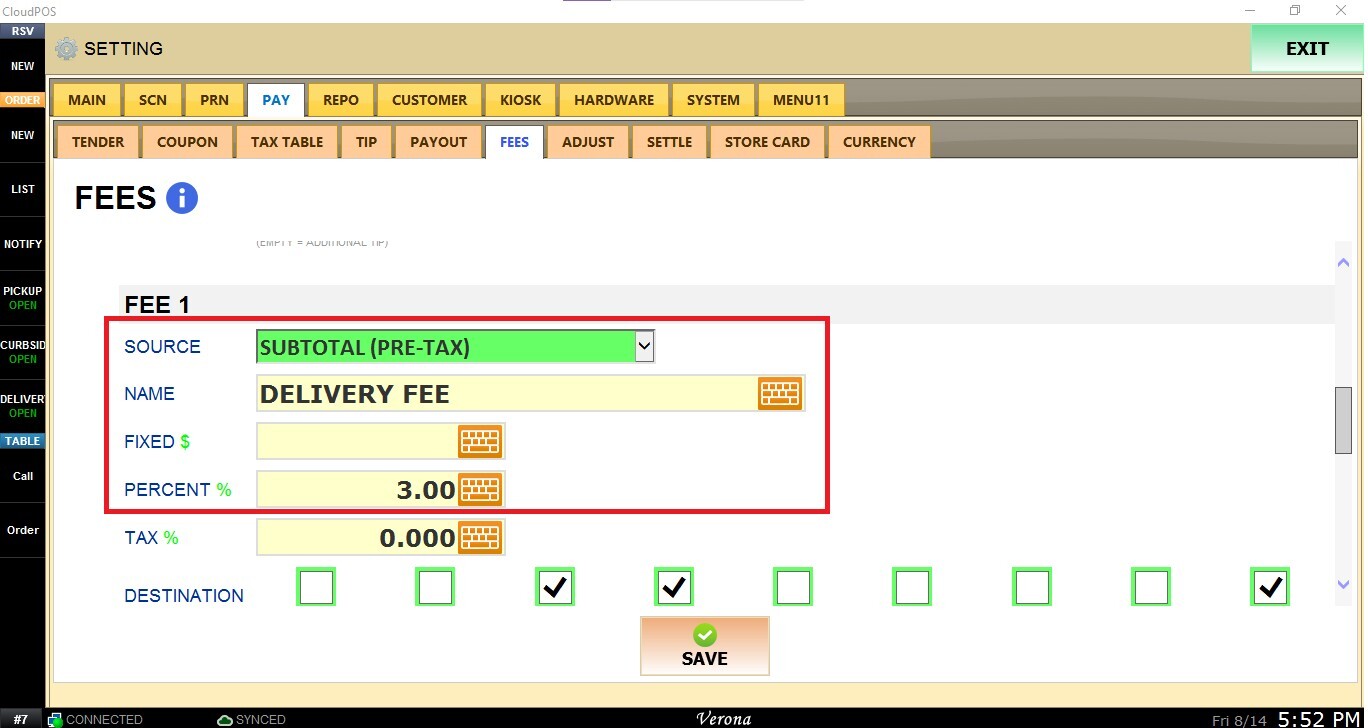
SOURCE: Determines whether the fee is enabled and which order amount is used to calculate it.
Available options include:
- DISABLED: Disables the fee.
- SUBTOTAL (PRE-TAX): Calculates the fee using the subtotal before tax.
- TOTAL (W/TAX): Calculates the fee using the total including tax.
- SUBTOTAL (PRE-DISCOUNT, PRE-TAX): Calculates the fee using the subtotal before discounts and tax.
- TOTAL (PRE-DISCOUNT, W/TAX): Calculates the fee using the total before discounts and including tax.
NAME: Enter the name of the fee as it should be identified in the system.
FIXED $: Enter a fixed dollar amount for the fee.
PERCENT %: Enter a percentage to calculate the fee based on the selected source.
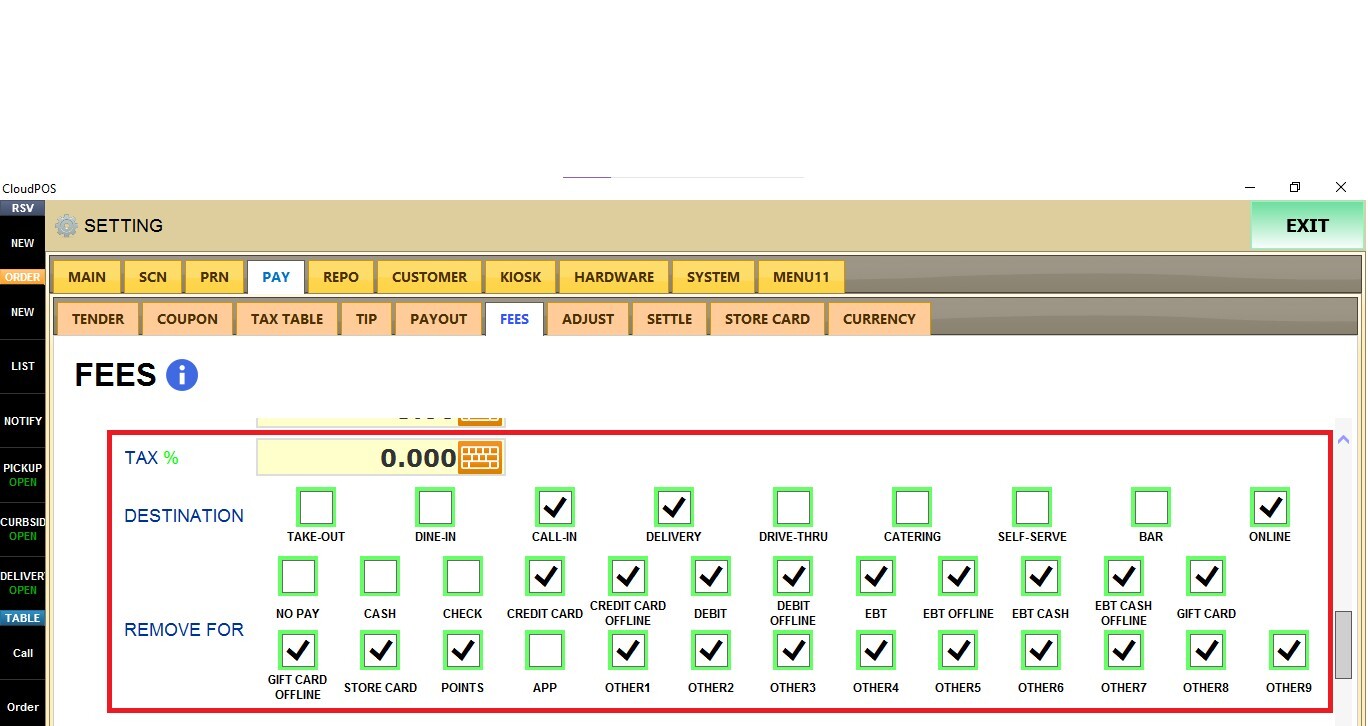
TAX %: Enter the applicable tax percentage for the fee.
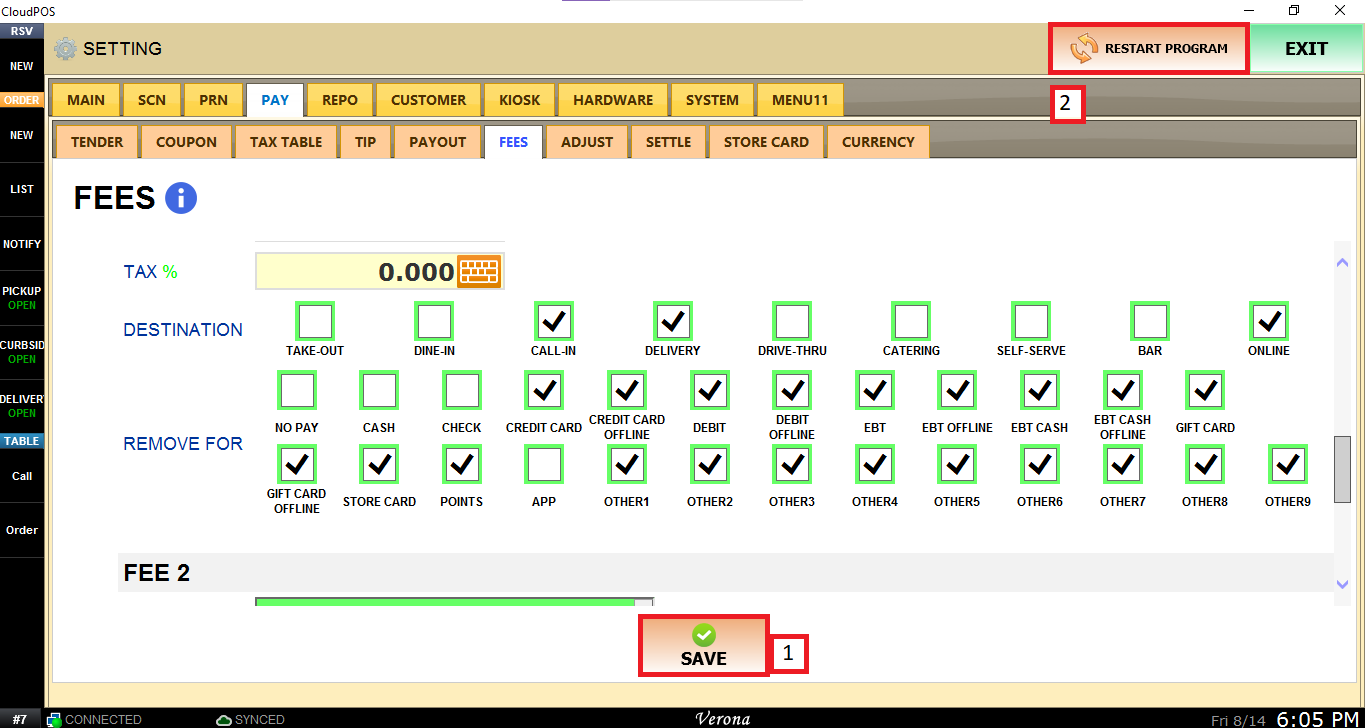
DESTINATION: Enable the corresponding destination options to apply the fee only to those order types.
REMOVE FOR: Check the payment methods for which the fee should not be applied.
Once configured, click SAVE and RESTART PROGRAM.