Remove an Employee from a Group
This feature allows you to manage and update team access, roles, and permissions. When an employee is removed from a group, all roles and permissions tied to that group are automatically revoked.
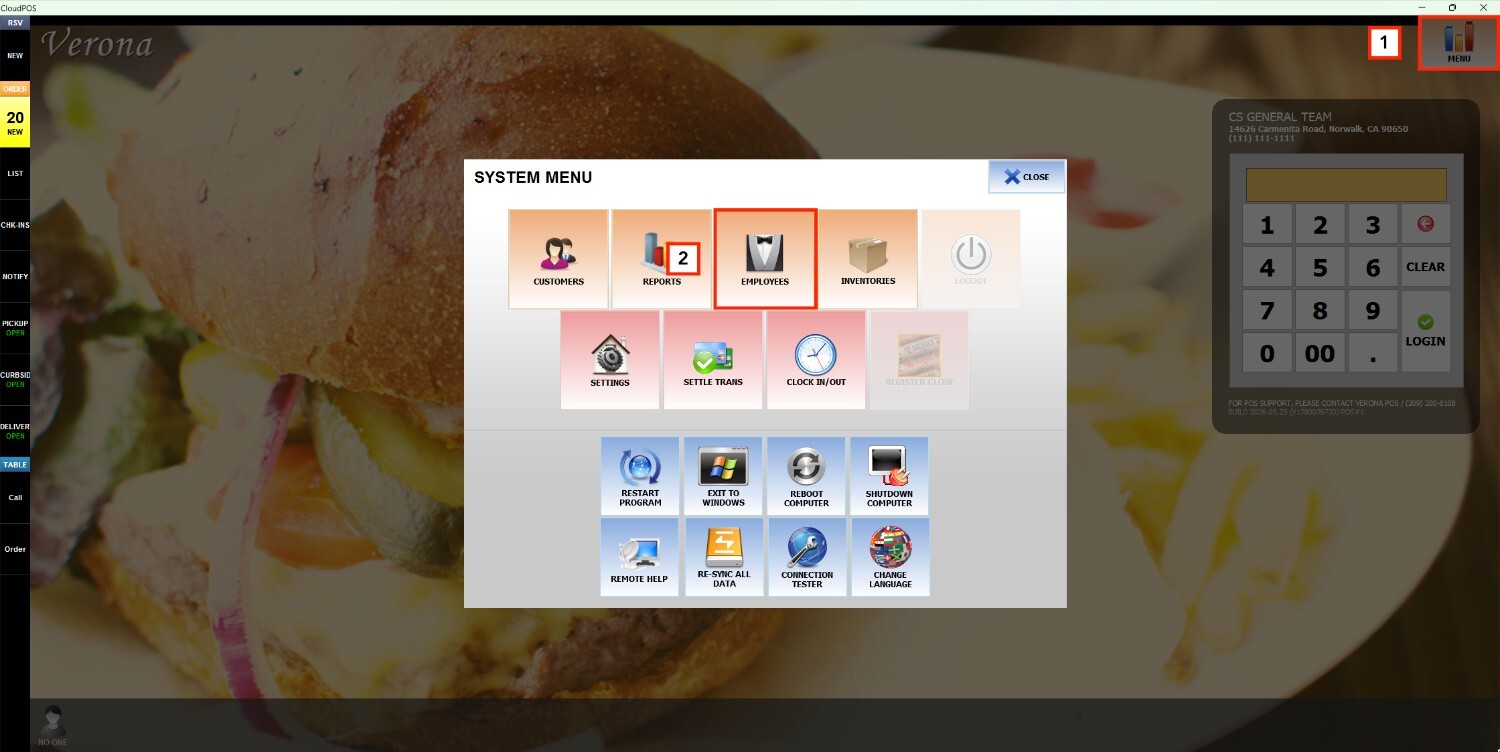
Main Screen> MENU> EMPLOYEES> EMPLOYEE LIST
On the Main Screen, go to MENU and press EMPLOYEES
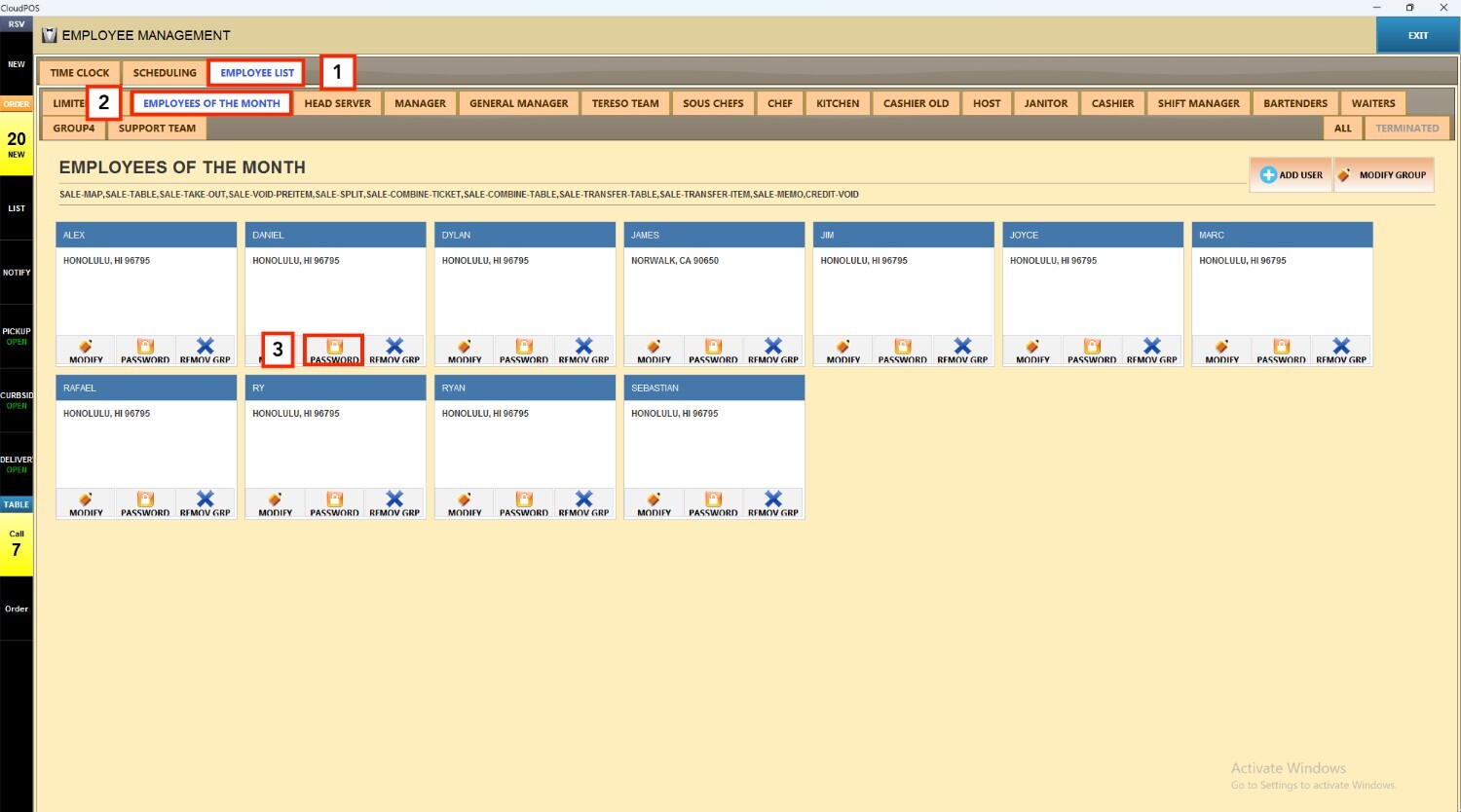
Go to the EMPLOYEE LIST and select the group the employee belongs to.
Locate the employee account and press REMOVE GRP.
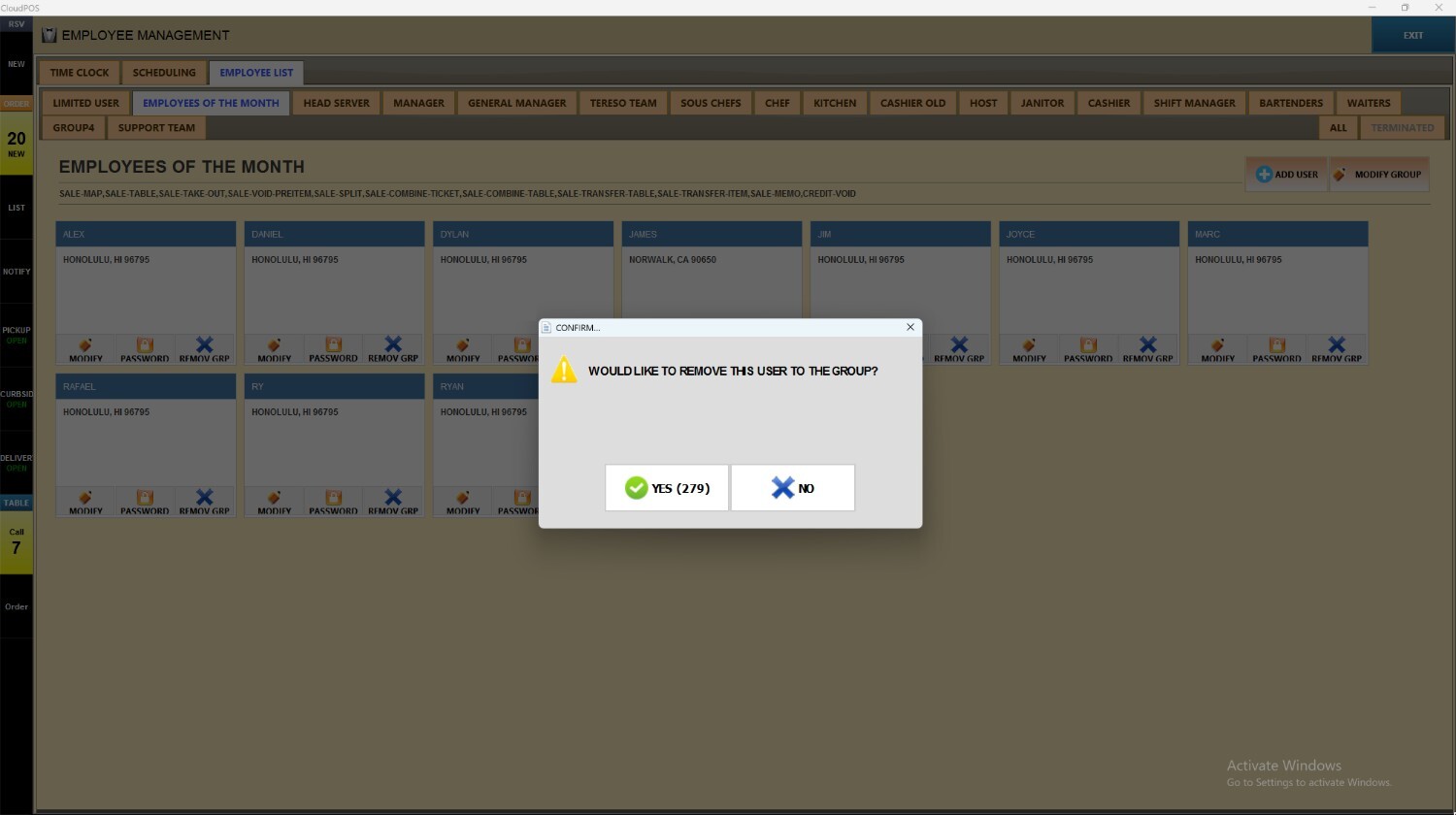
A confirmation pop-up will appear.
Press YES to continue.
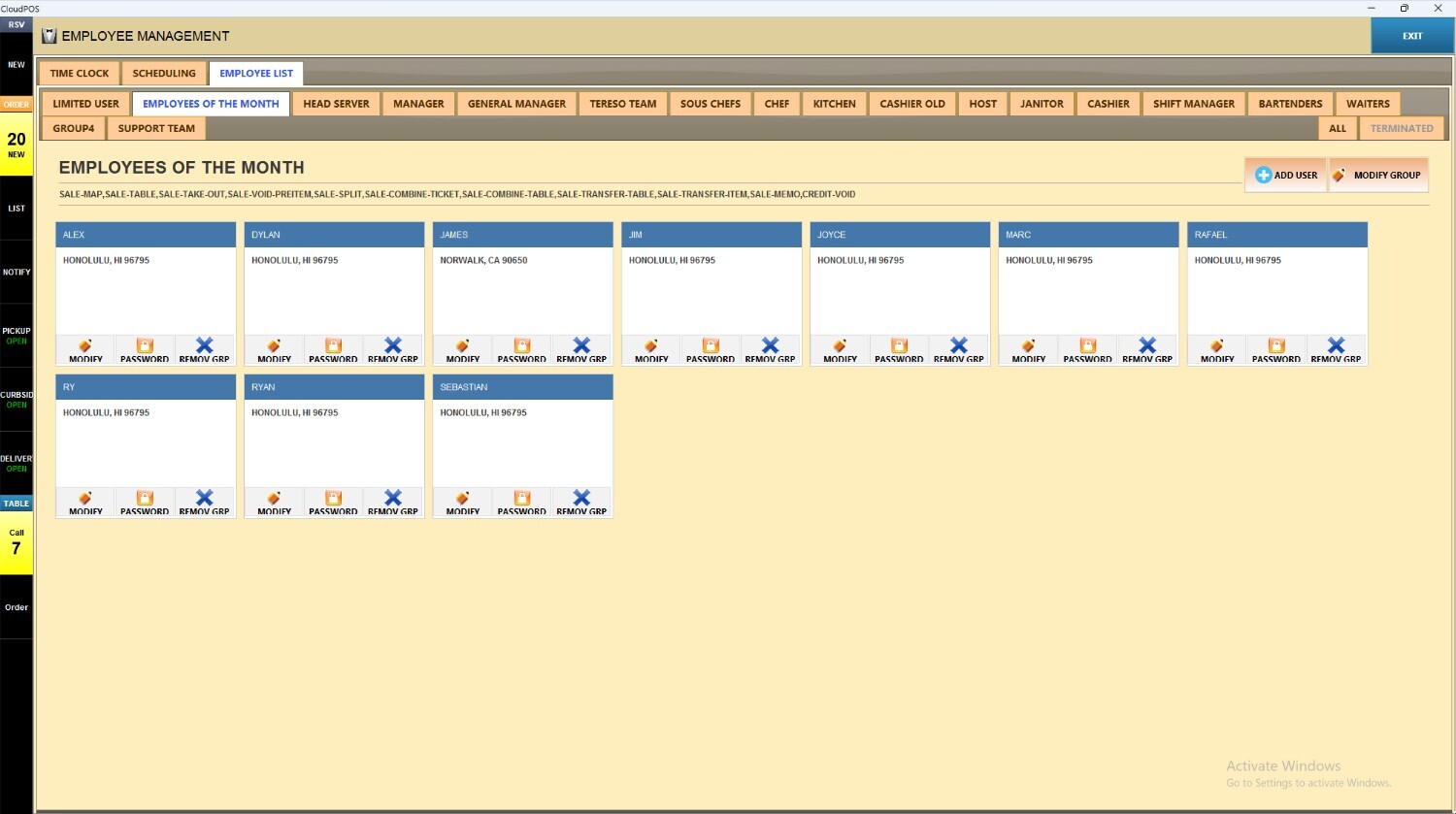
Result:
Removes the employee from the group, after which the employee is no longer shown.
Note: After removing the employee from their current group, you can reassign them to another group. Please refer to the Assign an Employee to a Different Group guide for detailed instructions.