The Print settings control whether the QR contactless dining code is printed at the bottom of the receipt or shown on the payment screen, and the title and message shown with it.
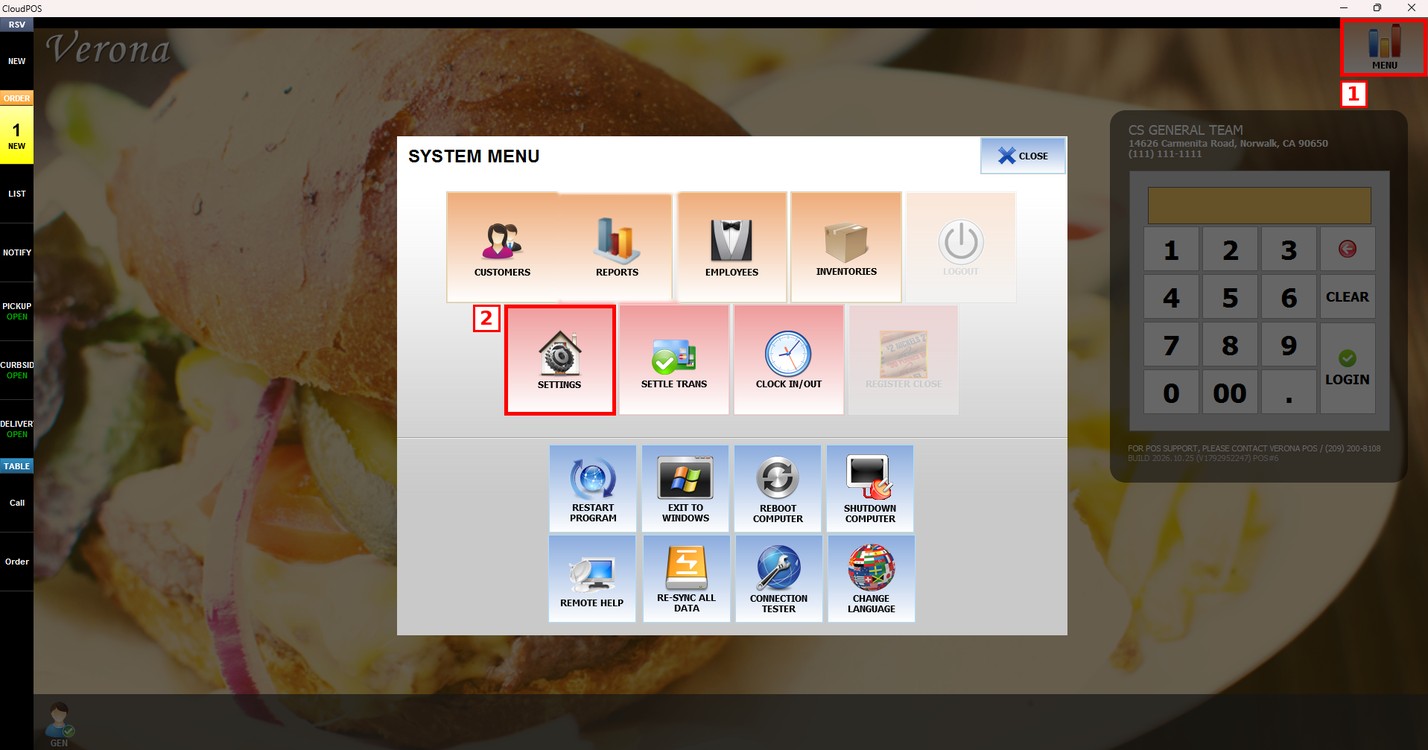
MENU > SETTINGS > MENU11 > CTLESS > PRINT
Go to MENU and press SETTINGS.
Press the MENU11 tab, then the CTLESS subtab, and then PRINT.
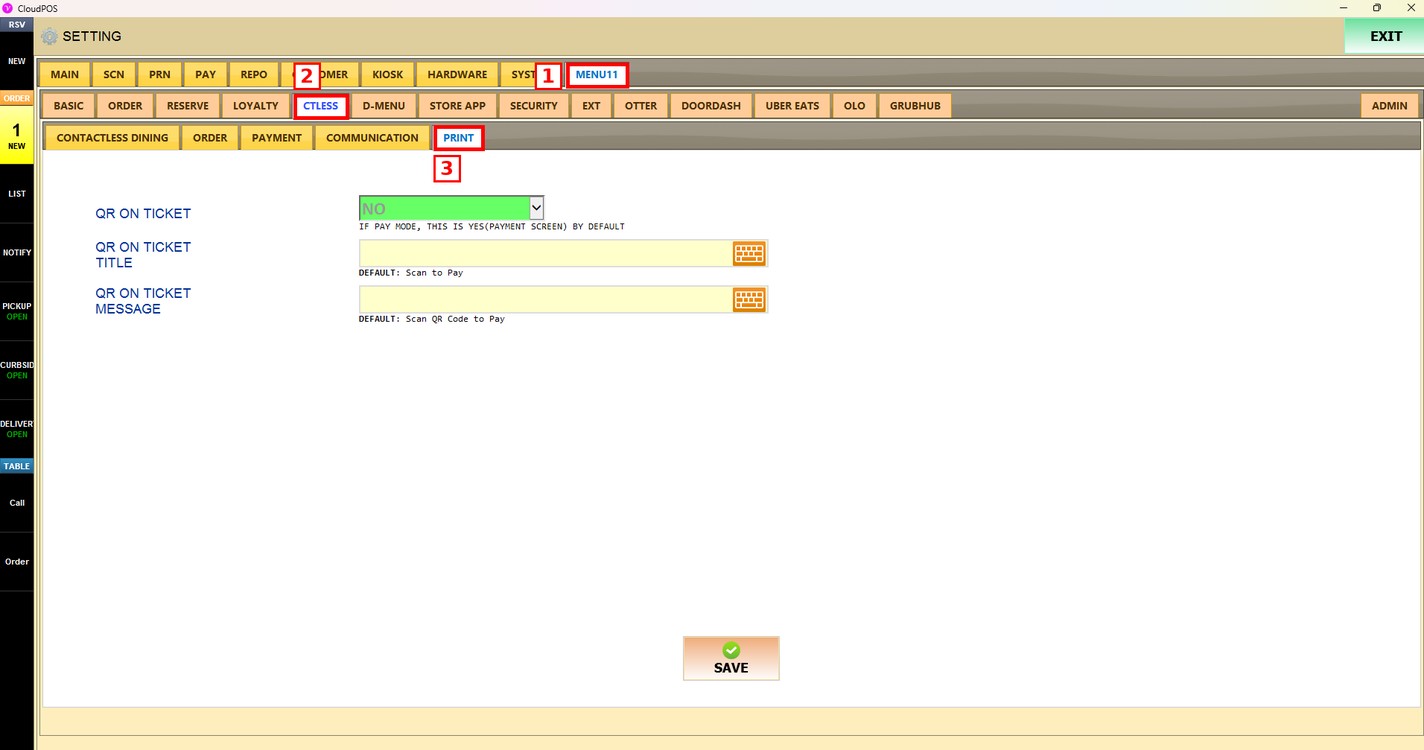
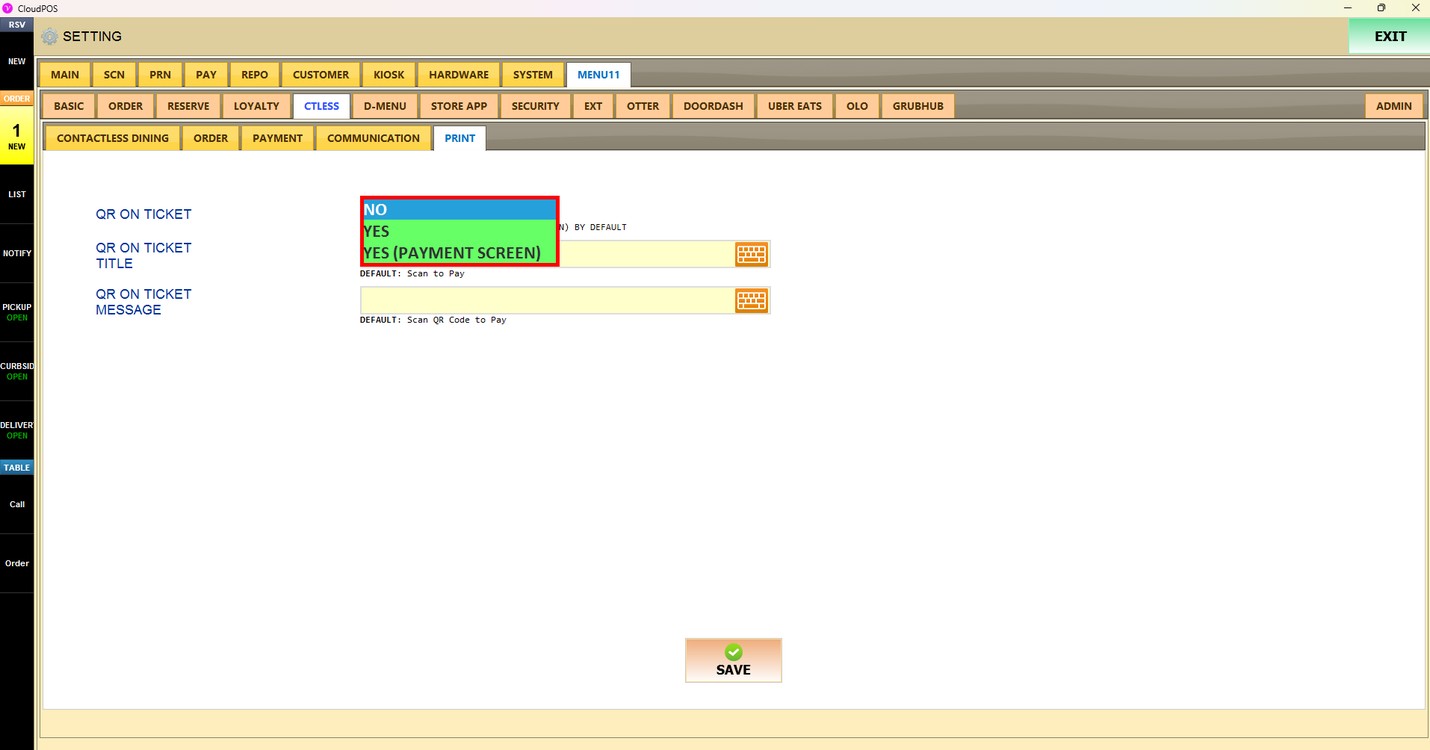
QR on Ticket:
Sets whether the QR code is printed on the receipt.
1. NO: The QR code is not printed on the receipt.
2. YES: The QR code is printed at the bottom of the receipt.
3. YES (PAYMENT SCREEN): The QR code is shown on the payment screen.
When MODE is set to PAY in the Contactless Dining settings, this setting is YES (PAYMENT SCREEN) by default.
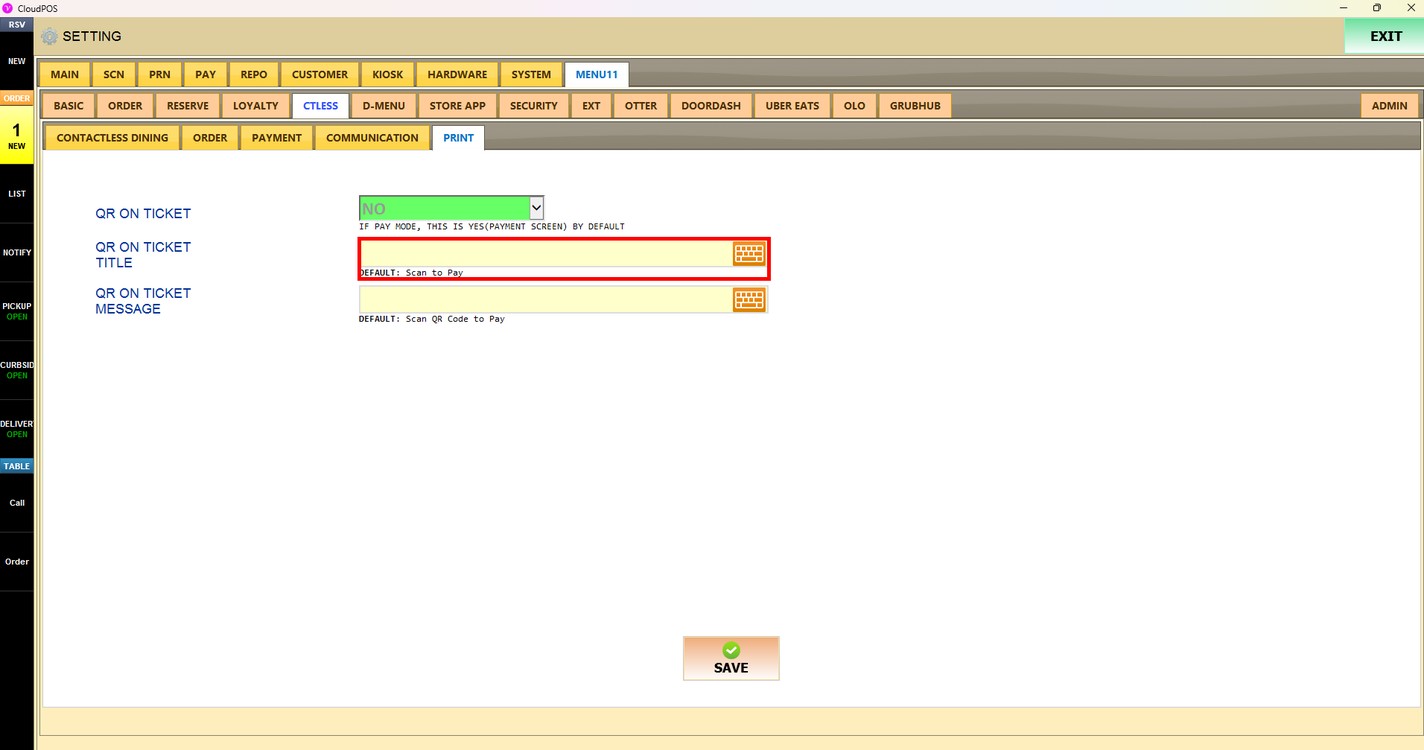
QR on Ticket Title:
Sets the title shown with the QR code. Press the keyboard icon to enter the title. Leave it empty to use the default title, Scan to Pay.
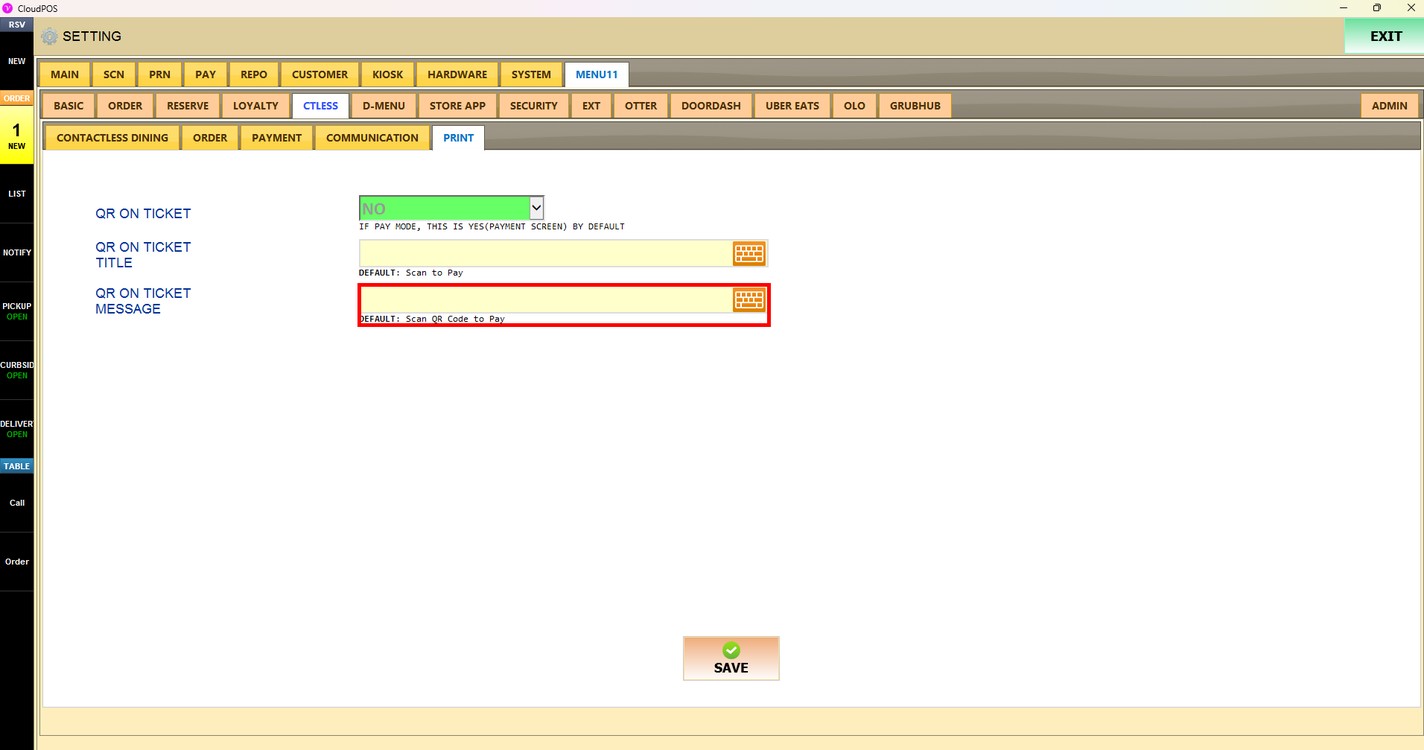
QR on Ticket Message:
Sets the message shown with the QR code. Press the keyboard icon to enter the message. Leave it empty to use the default message, Scan QR Code to Pay.
Press SAVE to apply the changes.
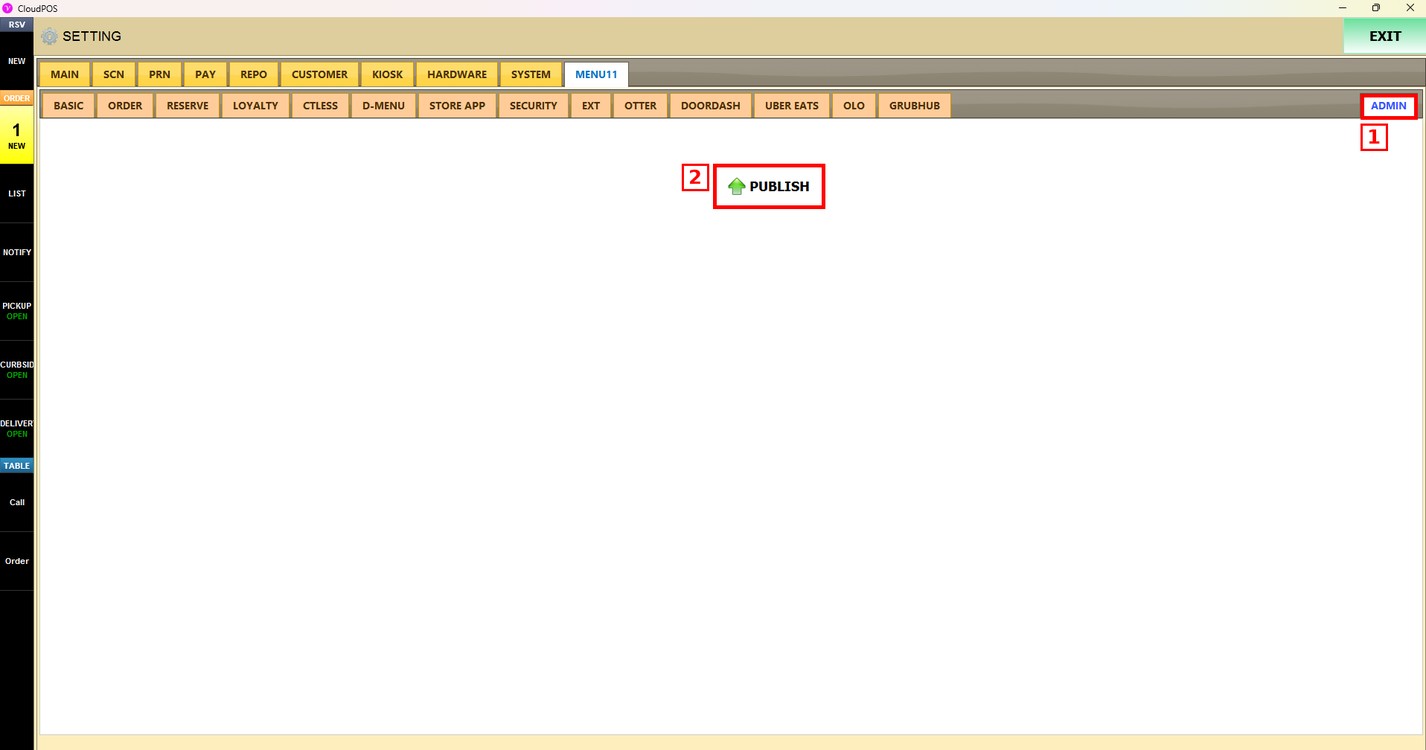
Publish the changes:
After saving, press the ADMIN tab and press PUBLISH. The changes are updated only after they are published.