Payment Change
The Payment Change log lists every time a payment of a ticket was changed or deleted in a selected date range. Select an entry to see the ticket, the employee who made the change and the payment before and after the change.
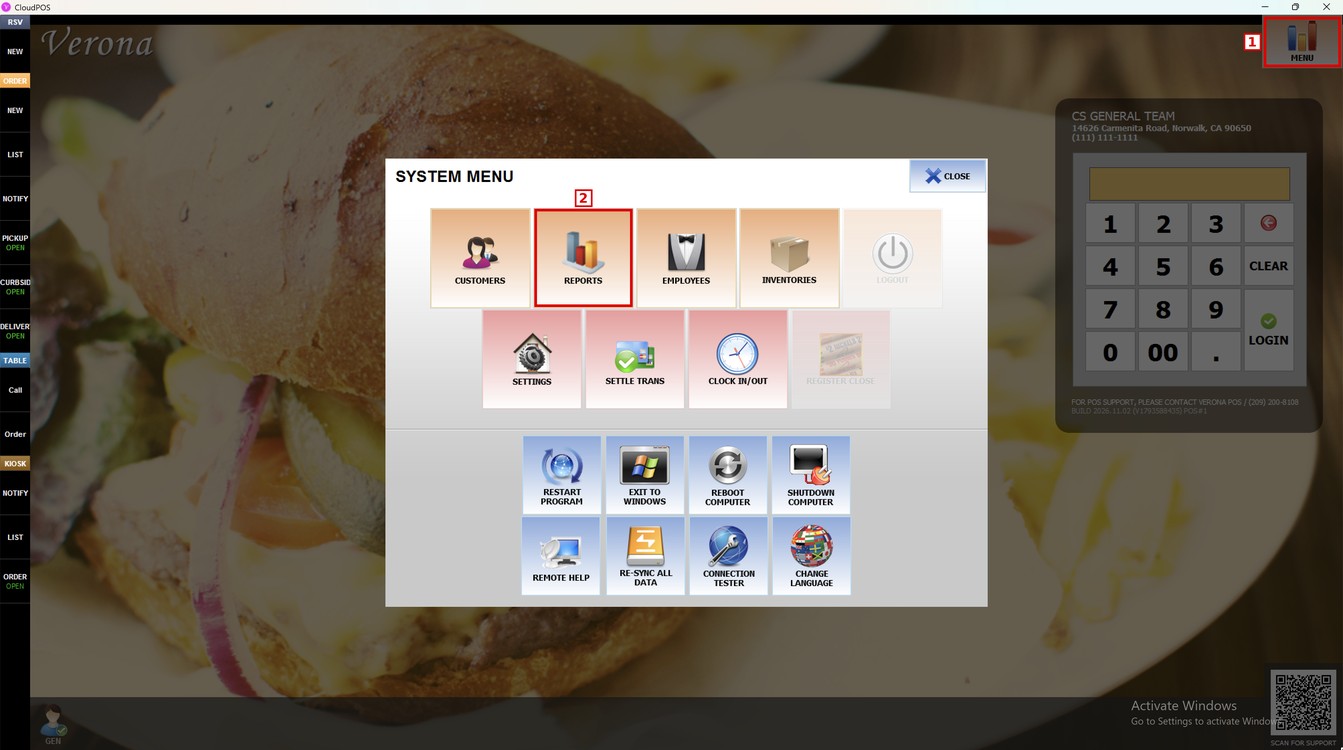
Main Screen> MENU> REPORTS> SALES> LOGS> PAYMENT CHANGE
Press MENU and then REPORTS.
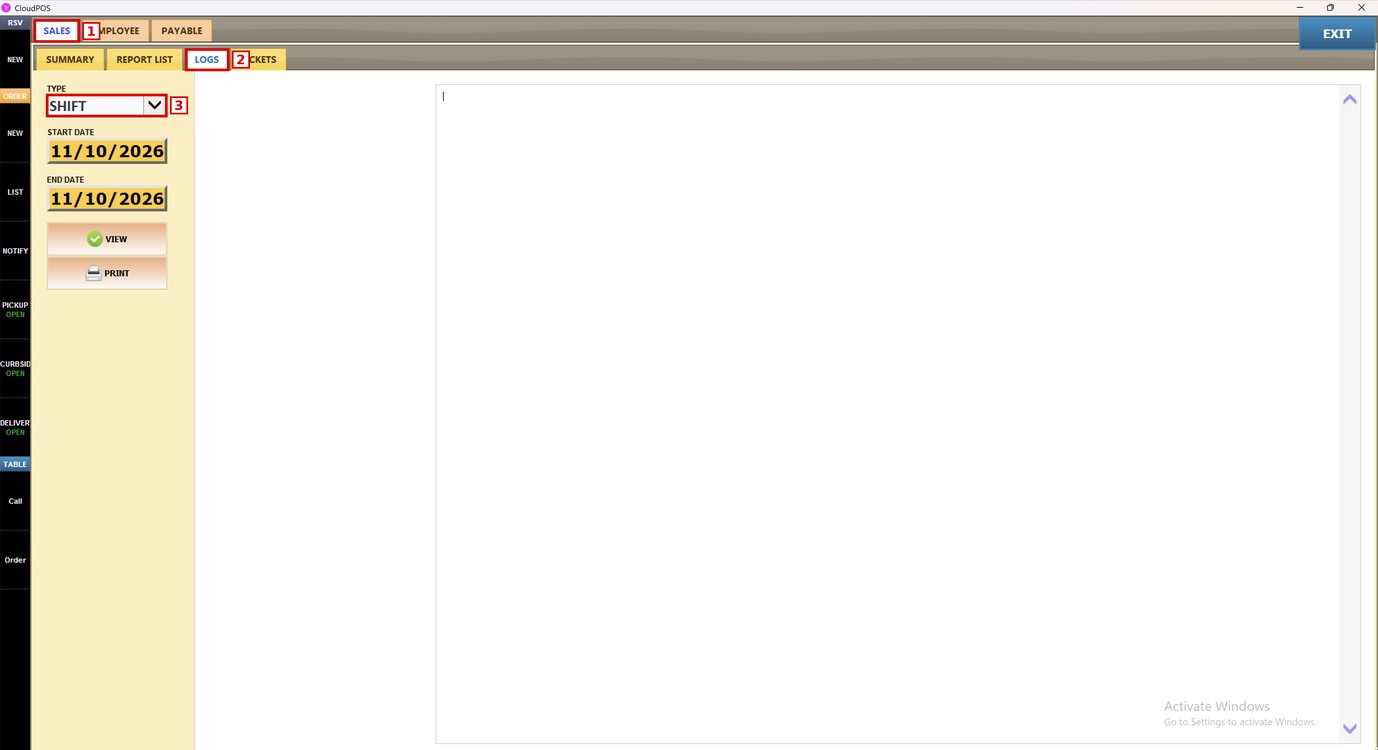
Go to the SALES tab, open LOGS, and press the TYPE dropdown.
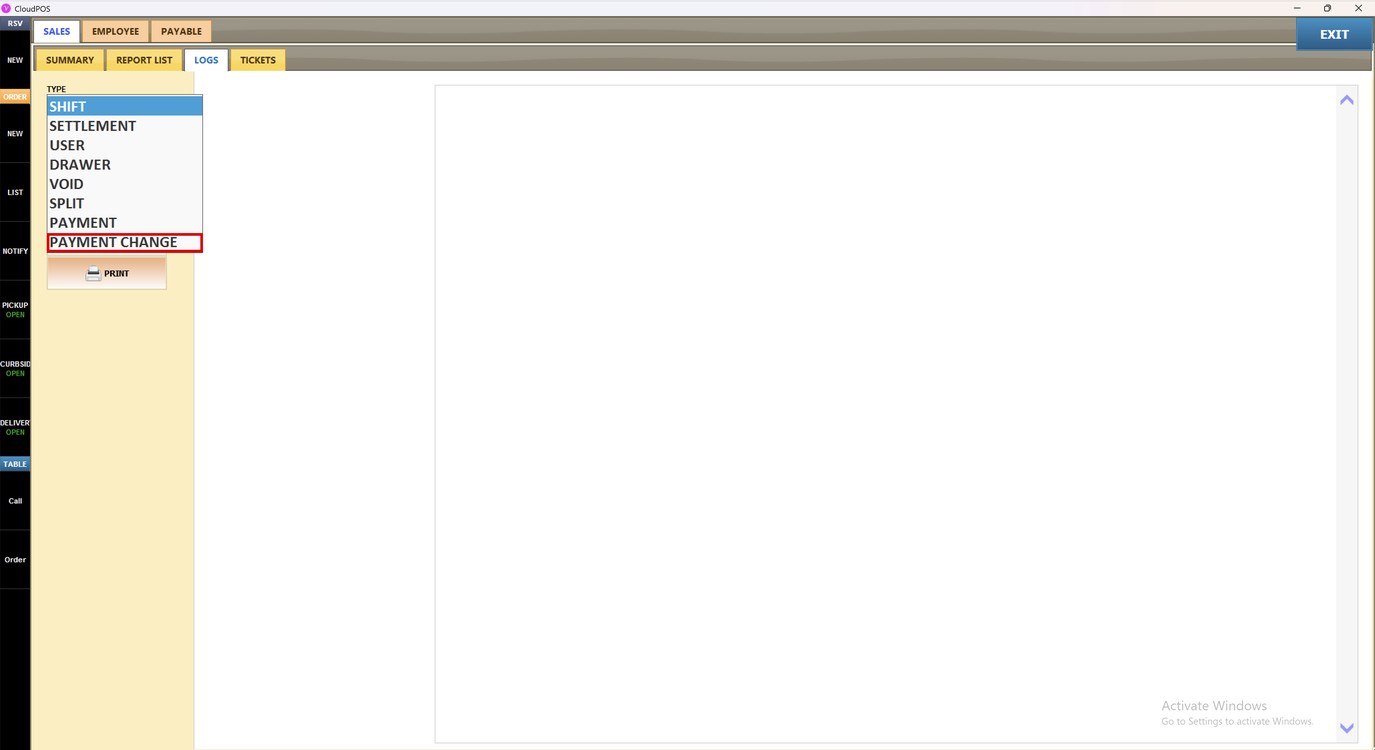
Select PAYMENT CHANGE.
Filters:
1. START DATE: press the date field, select the first day of the range, and press DONE.
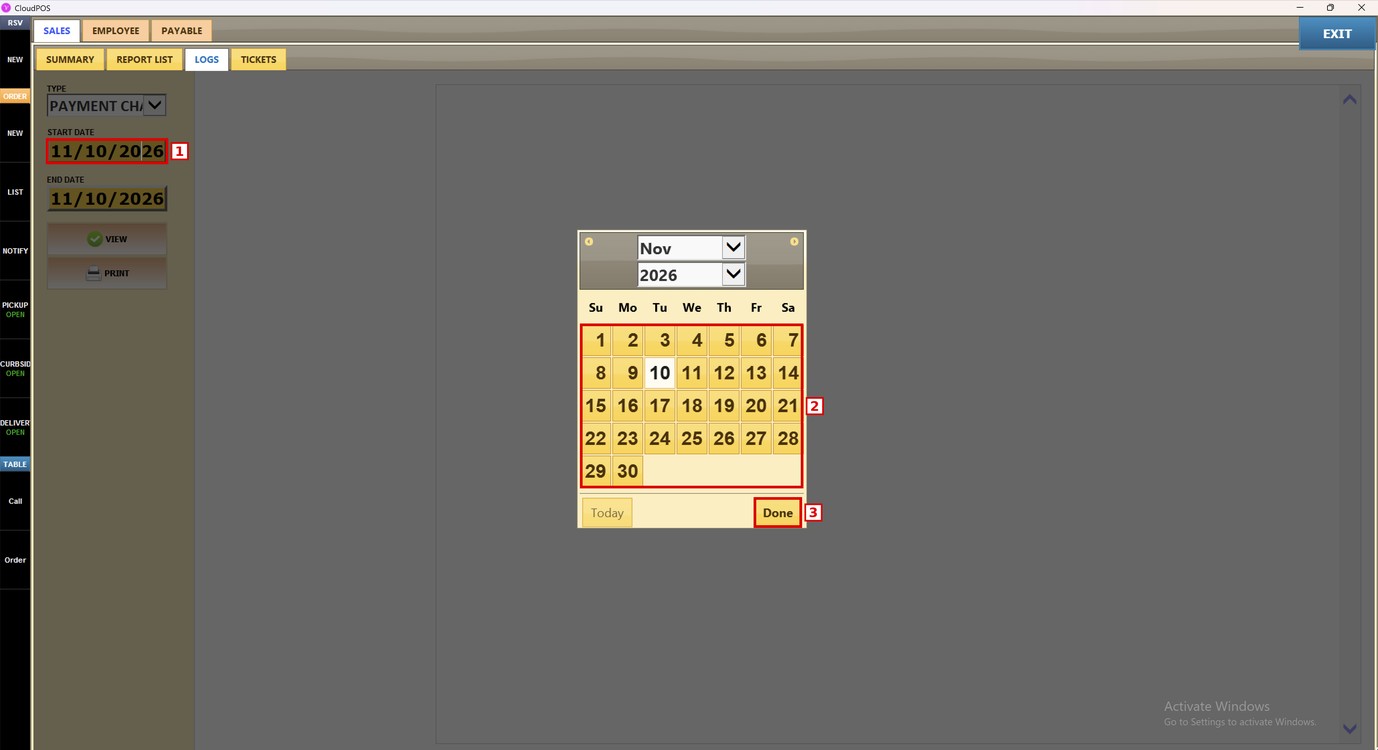
2. END DATE: press the date field, select the last day of the range, and press DONE.
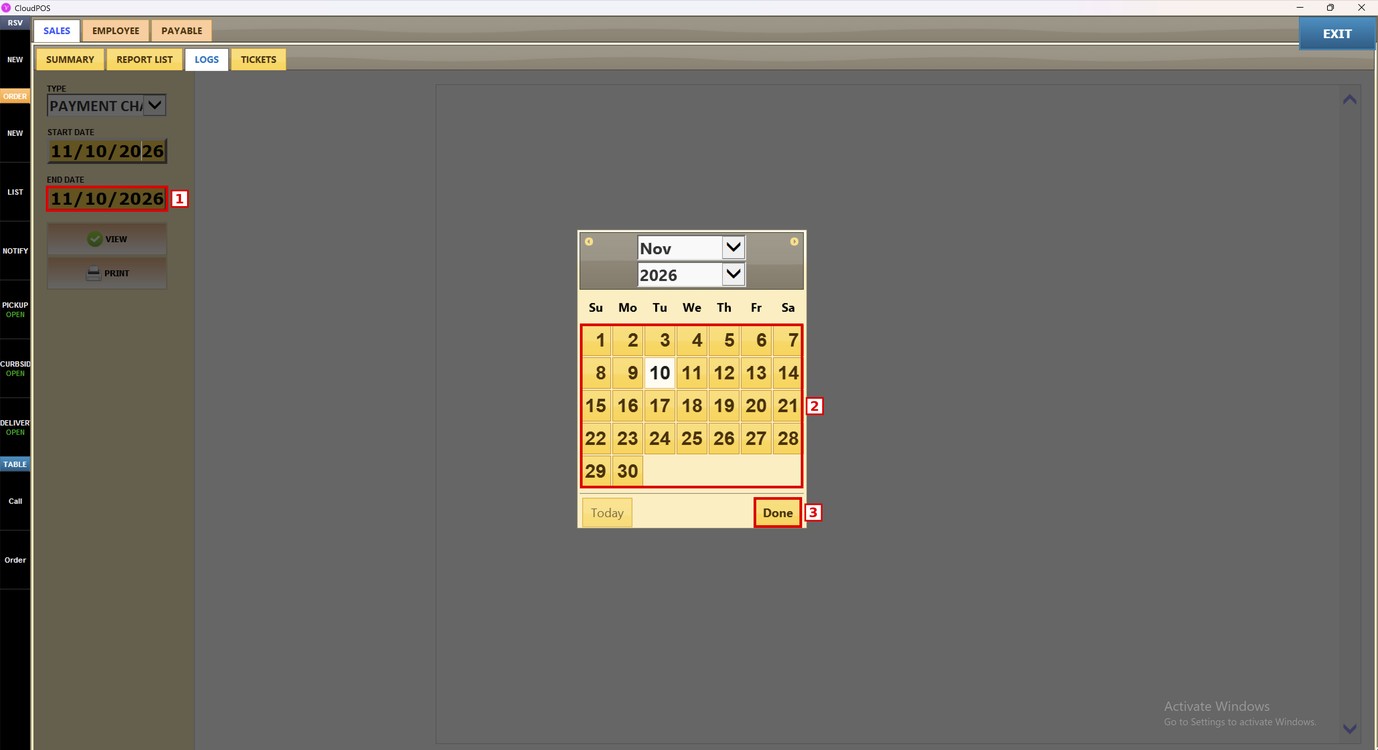
3. VIEW: press it to show the list of payment changes for the selected dates.
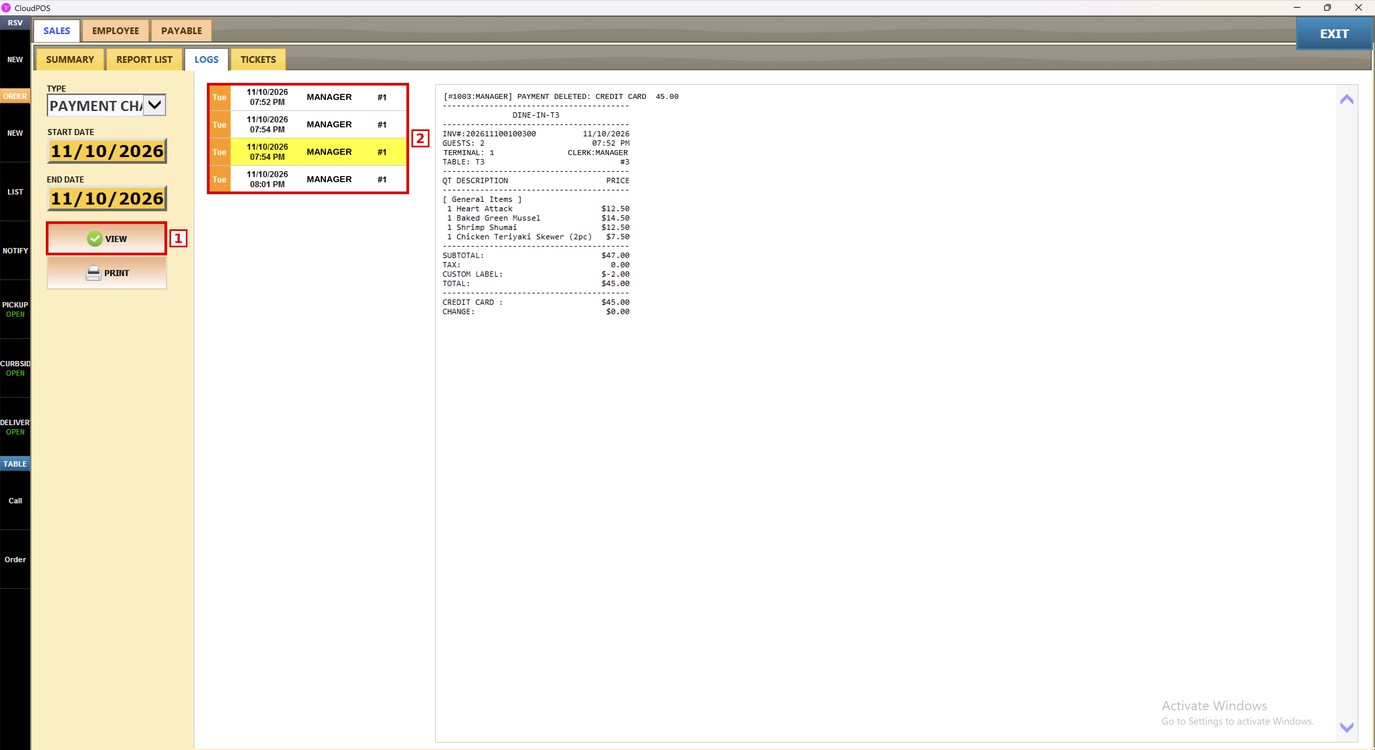
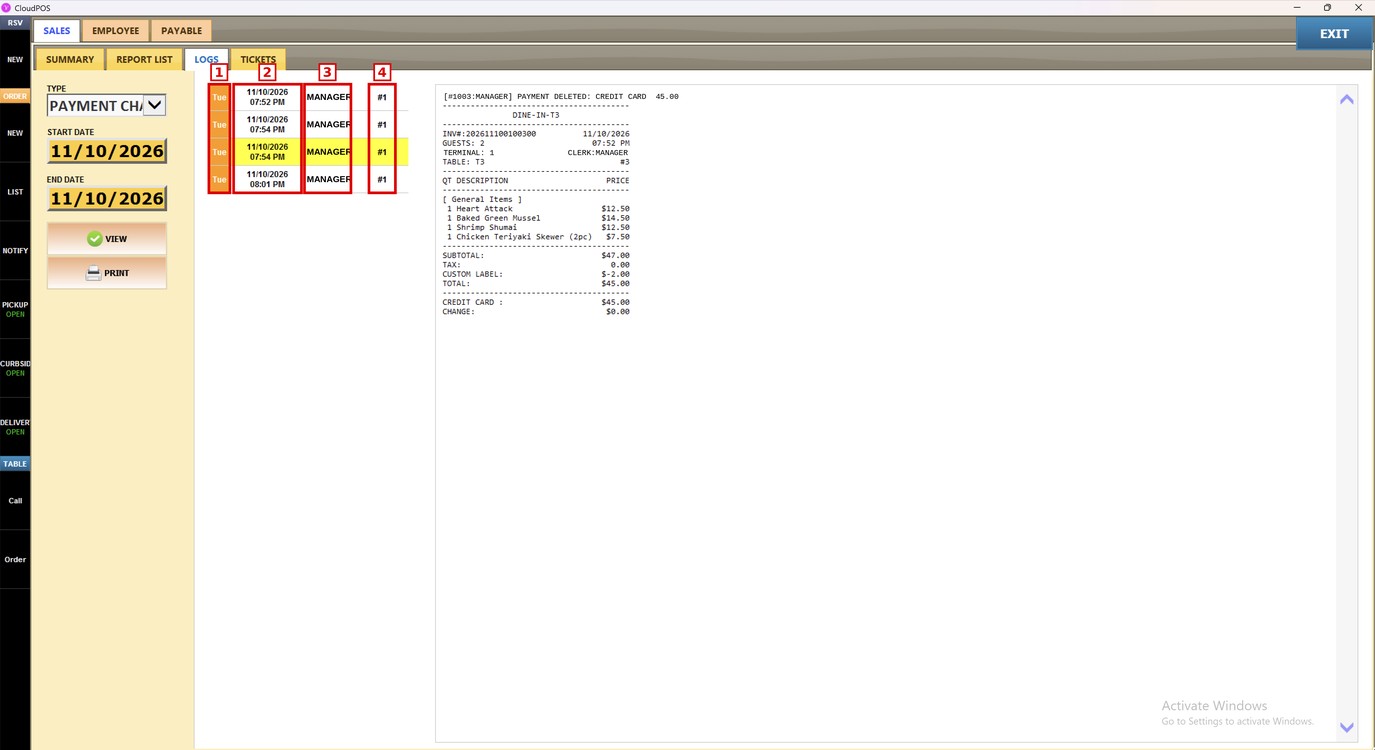
Each row of the list is one payment change, ordered by date and time.
1. DAY: day of the week.
2. DATE AND TIME: when the payment was changed.
3. USER: employee who changed the payment.
4. REGISTER: register number.
Viewing a Payment Change:
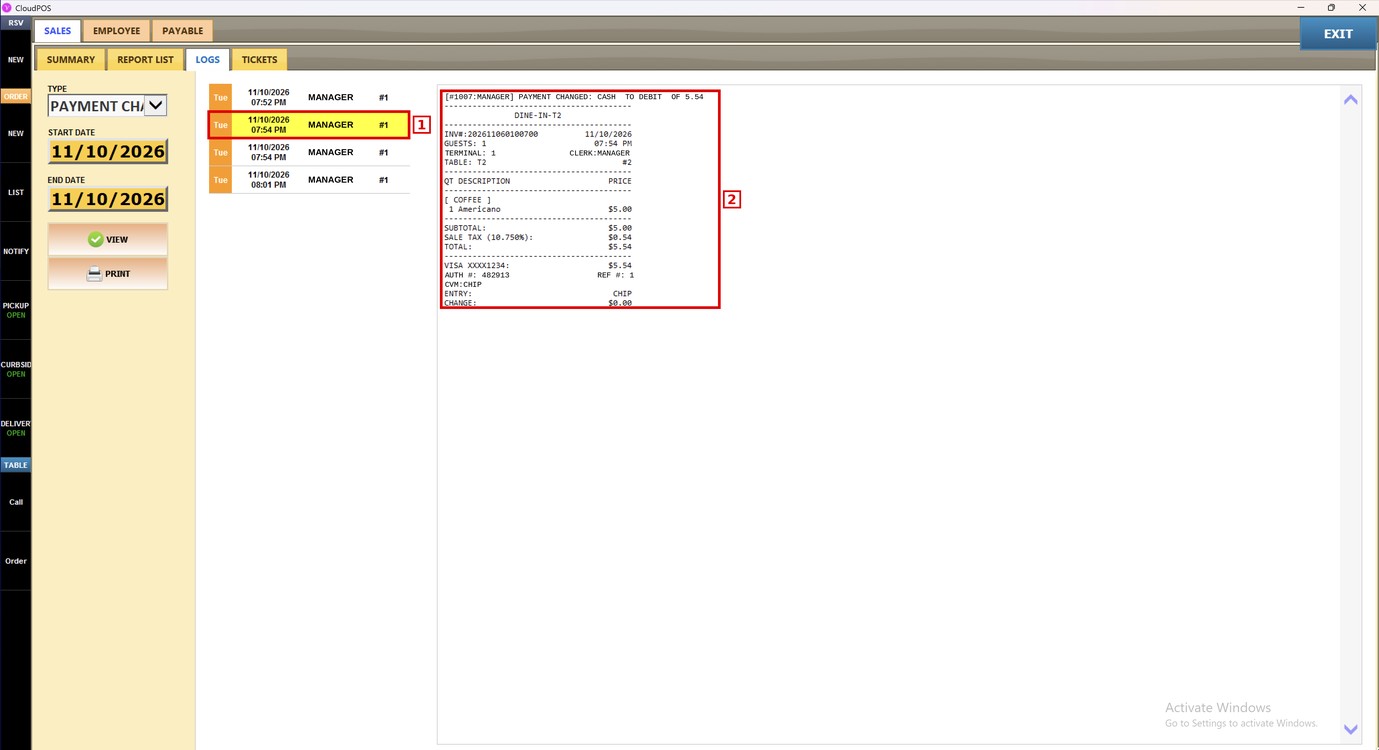
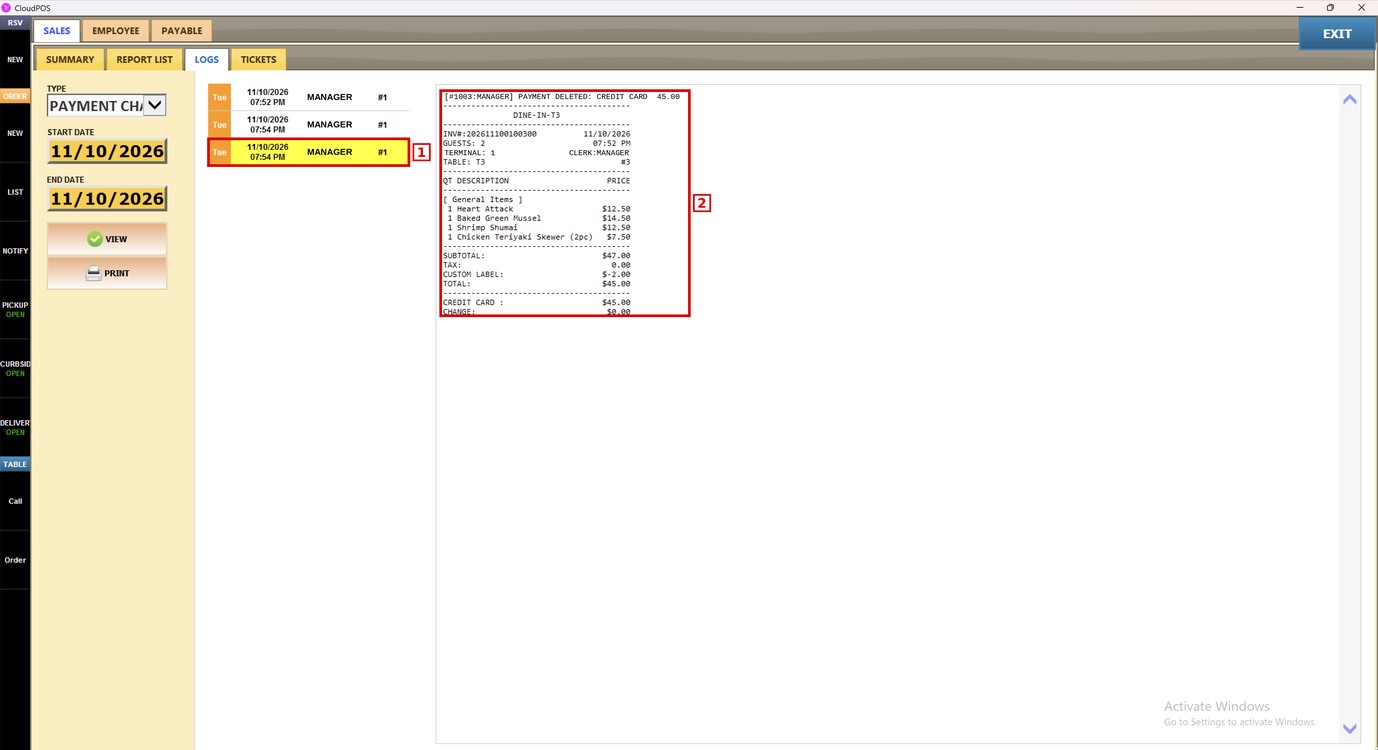
Press any entry of the list (1). The selected entry turns yellow and the ticket shows on the right (2). The first line of the ticket shows the employee and the change that was made.
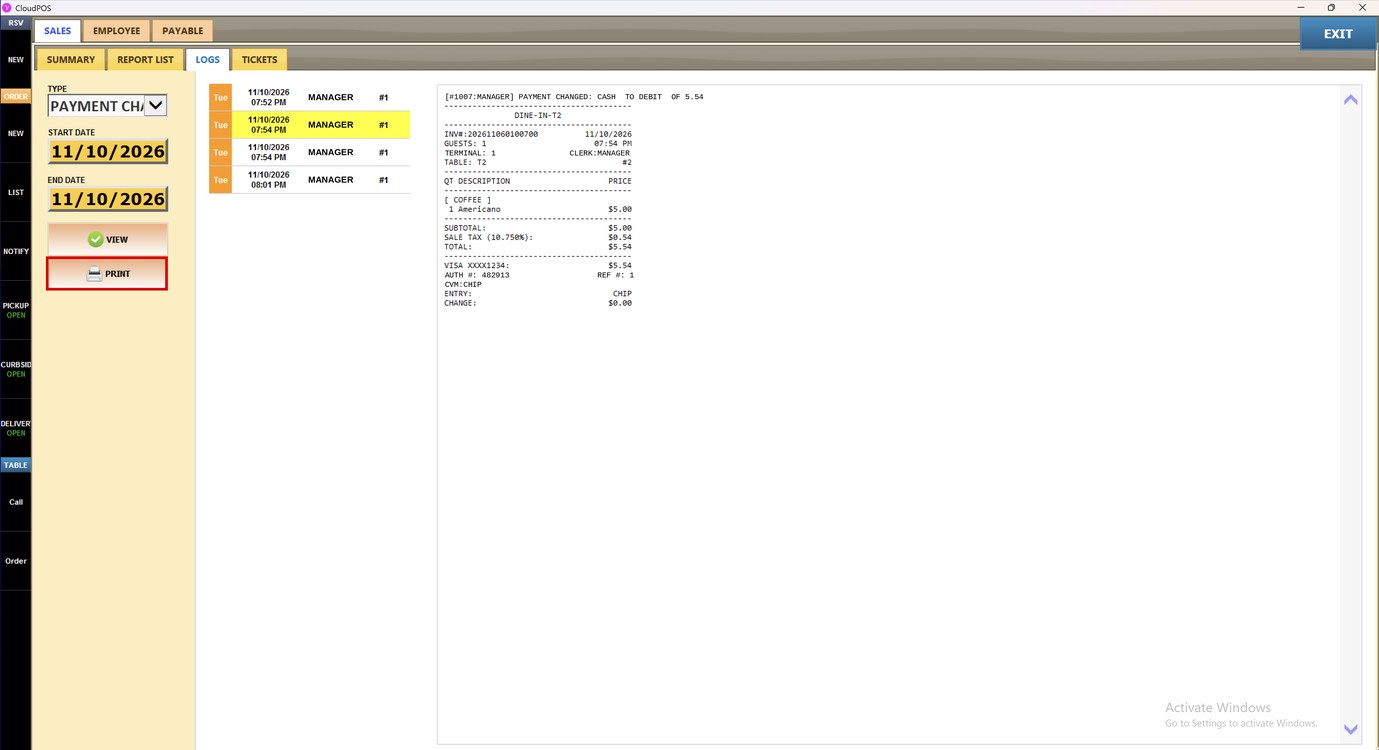
PAYMENT CHANGED: the payment method of the ticket was changed. In this example, the payment of 5.54 was changed from CASH to DEBIT, and the ticket shows the new card payment.
PAYMENT DELETED: the payment of the ticket was deleted. In this example, the credit card payment of 45.00 was deleted.
Press PRINT to print the selected entry.
To learn about the payment log, please refer to the Payment Guide.