Tax Table
The Tax Table sets up to 5 taxes for the store. Each tax has a name, an amount, a type and a rounding. These taxes are later assigned to the items of the menu.
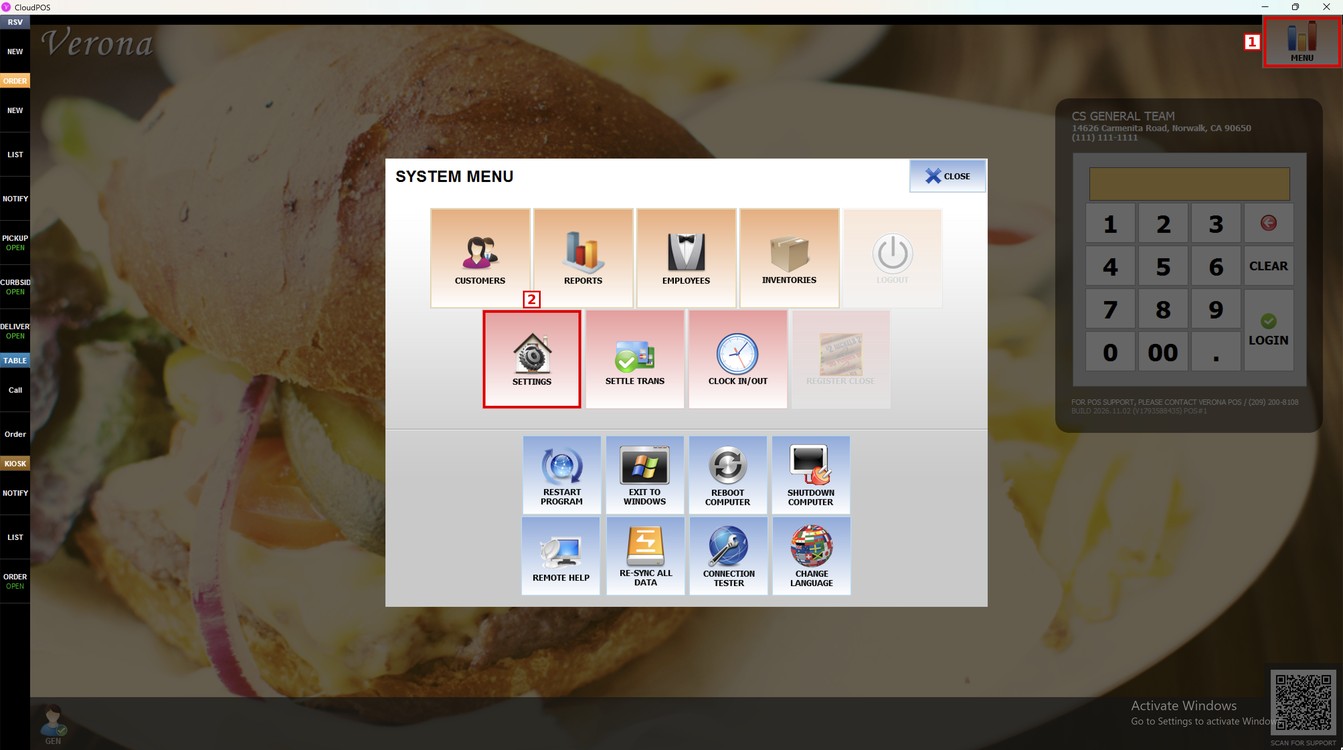
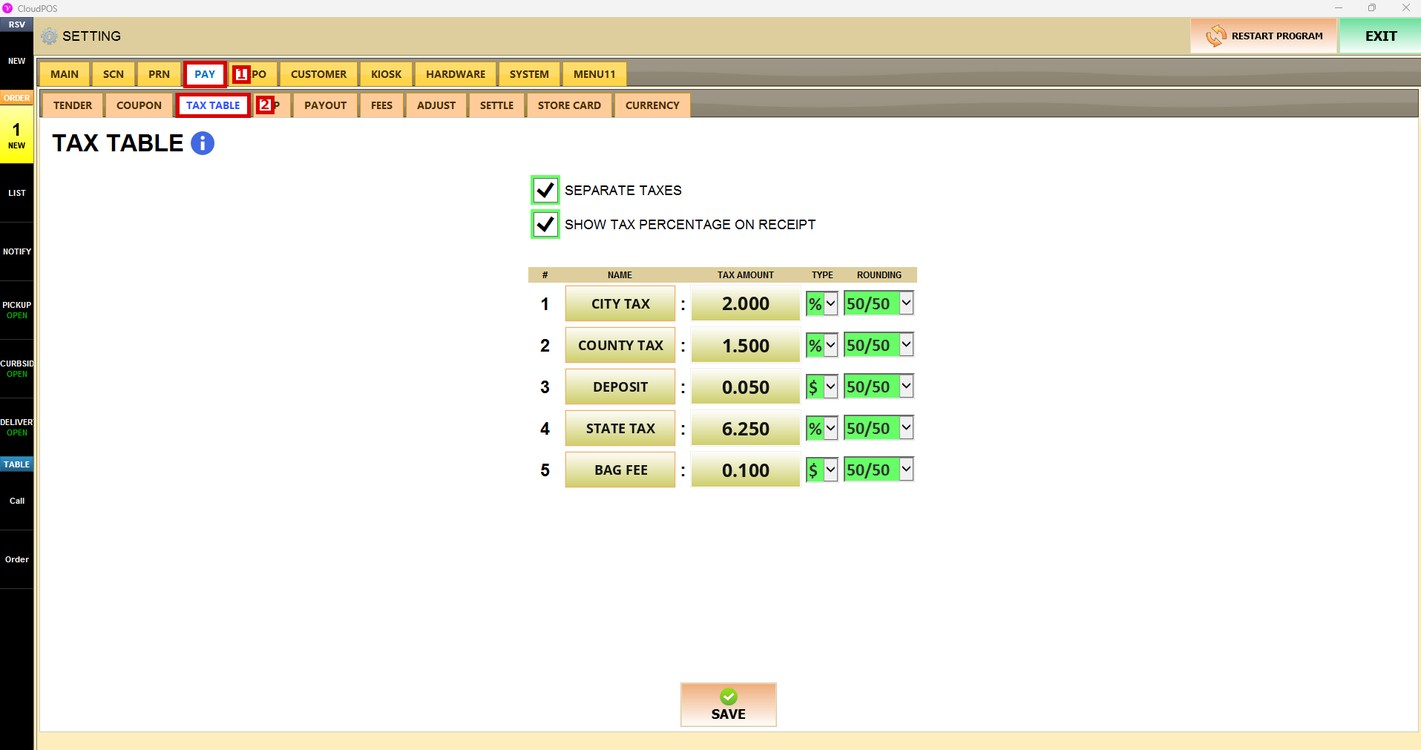
MENU> SETTINGS> PAY> TAX TABLE
Go to MENU and press SETTINGS.
Press the PAY tab and then the TAX TABLE subtab.
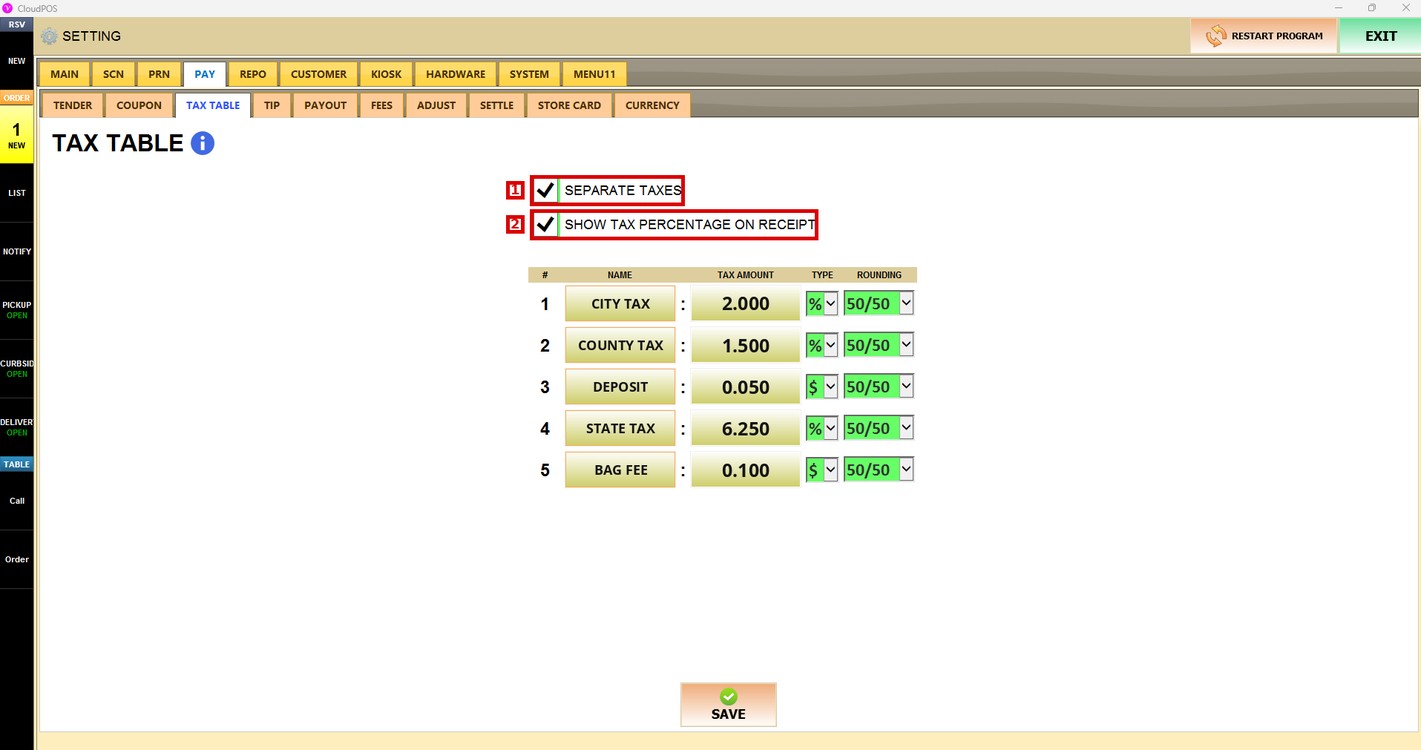
Tax Options:
1. SEPARATE TAXES: Shows each tax in a separate line on the ticket and the receipt, instead of one total tax line.
2. SHOW TAX PERCENTAGE ON RECEIPT: Prints the percentage of each tax next to its name on the receipt.
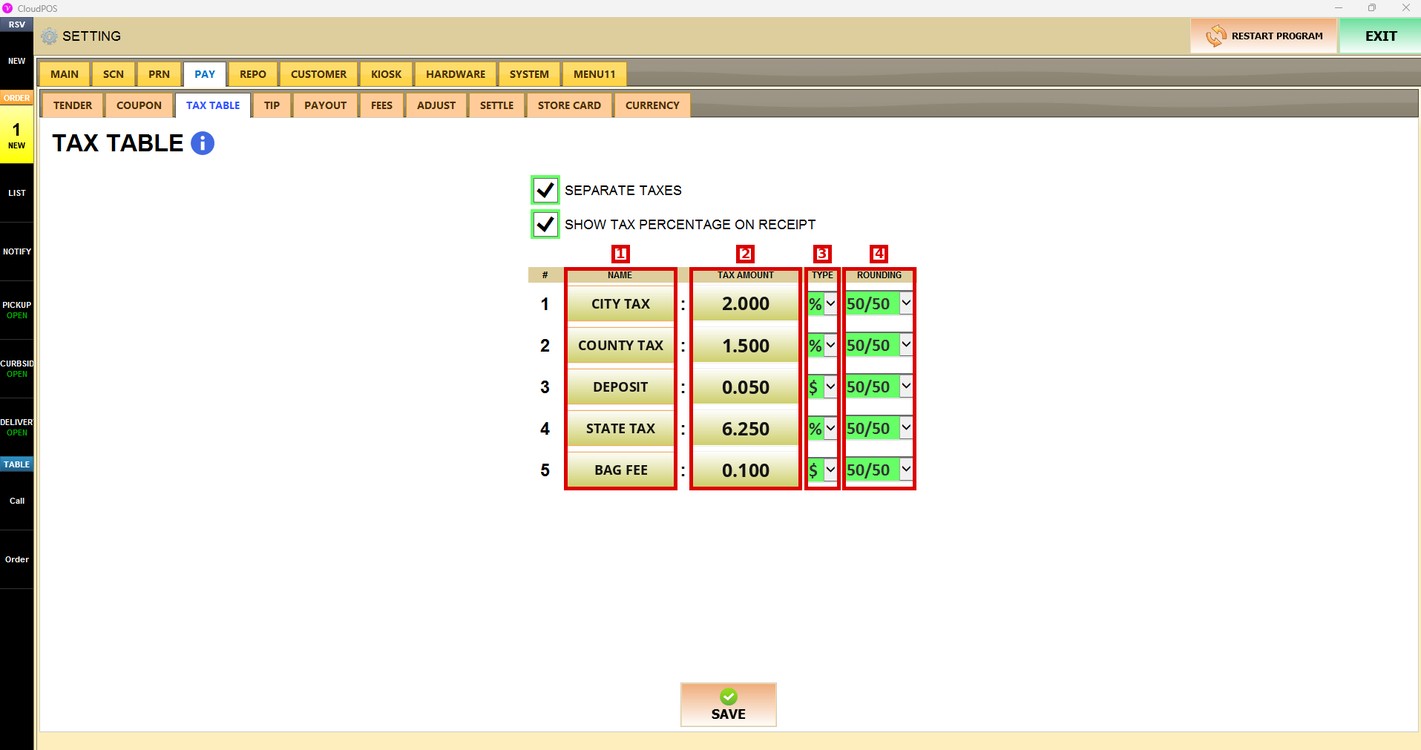
Tax Table:
Each row from 1 to 5 is one tax. Each column shows:
1. NAME: Name of the tax shown on the ticket and the receipt.
2. TAX AMOUNT: Value of the tax.
3. TYPE: Sets if the tax is a percent or a fixed amount.
4. ROUNDING: Sets how the tax is rounded.
Set Up a Tax:
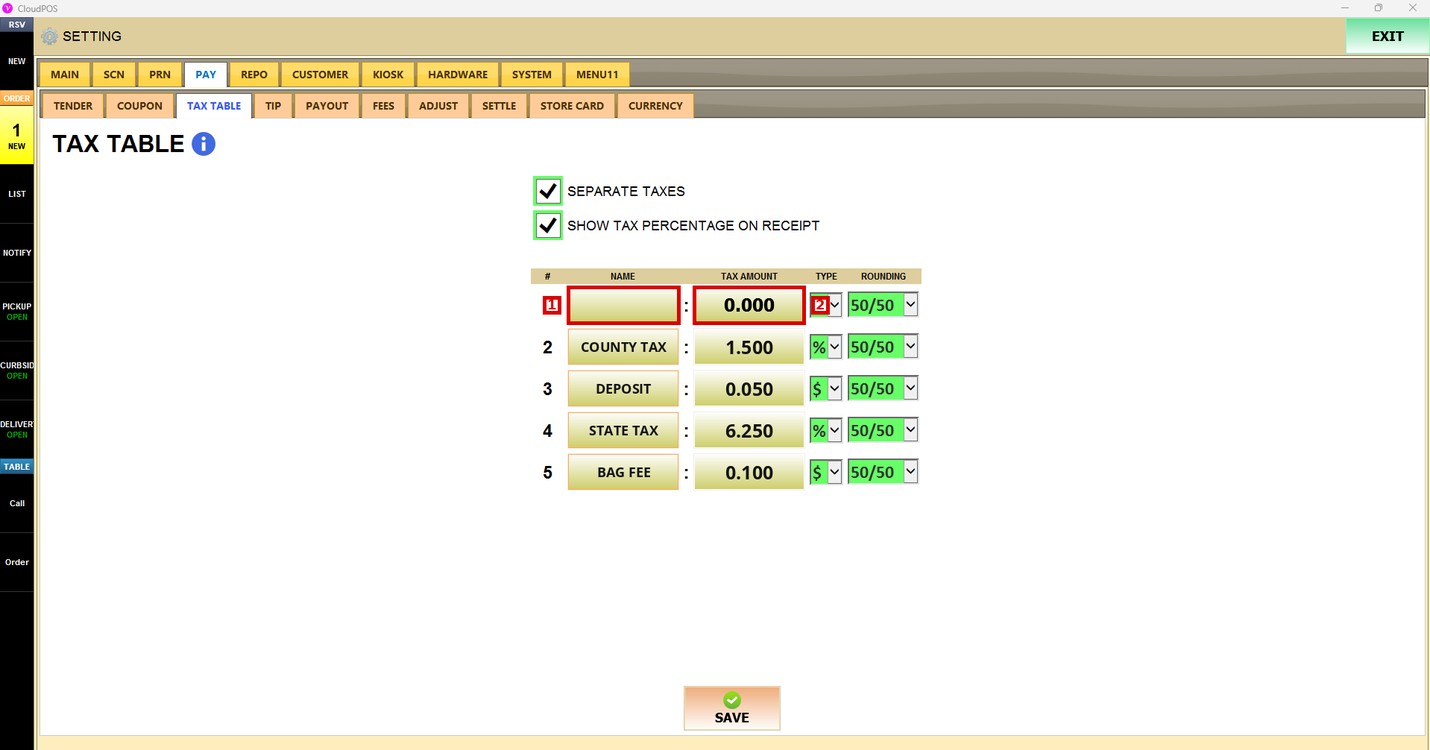
In an empty row, press the NAME field to enter the name of the tax and the TAX AMOUNT field to enter its value.
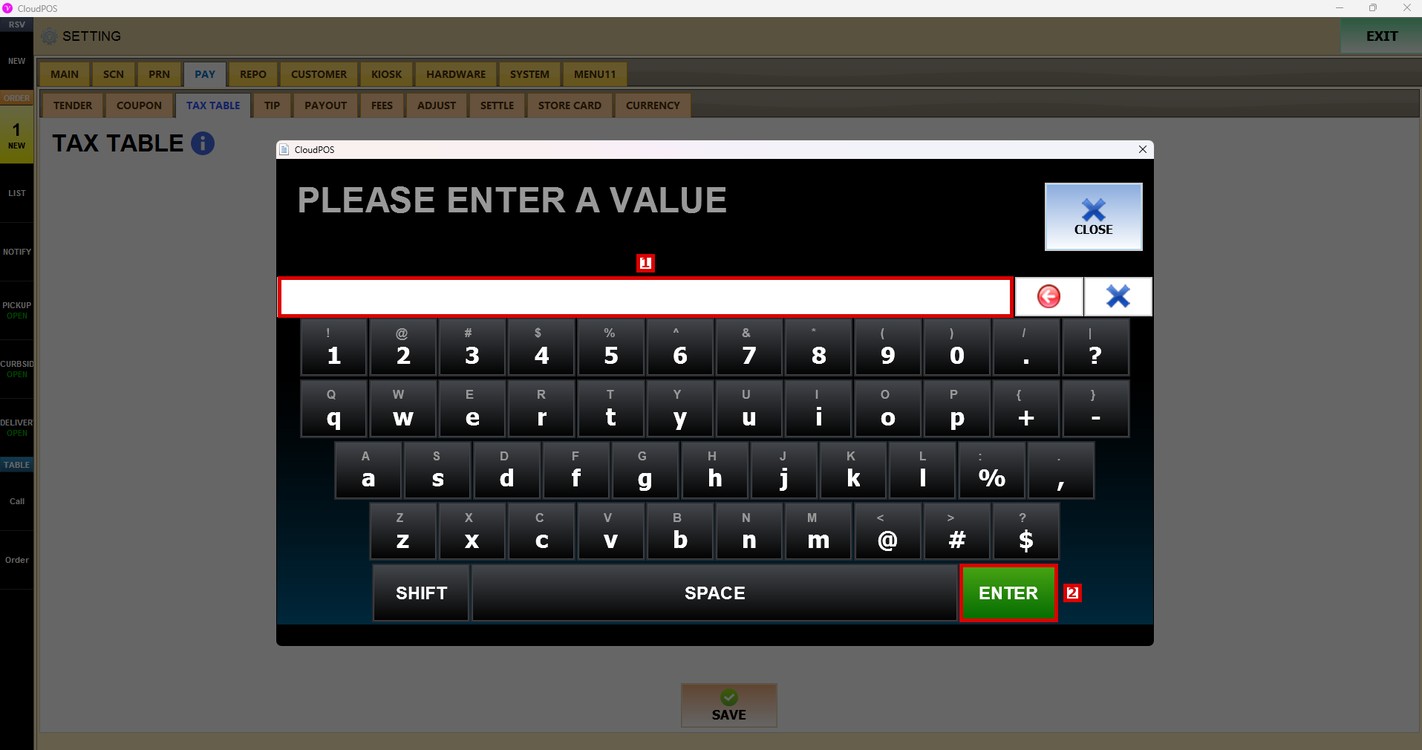
The NAME field opens the keyboard. Type the name of the tax.
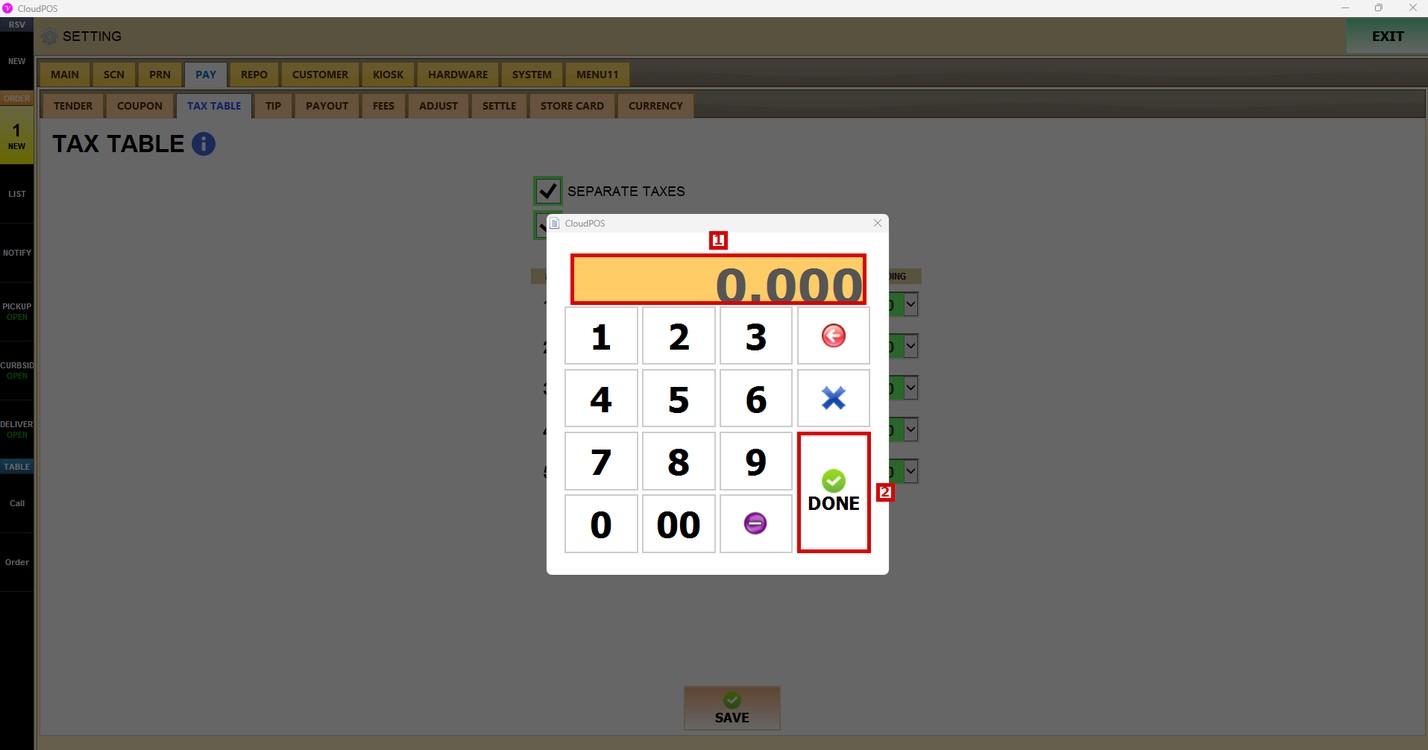
The TAX AMOUNT field opens the number pad. Enter the value of the tax, and press DONE.
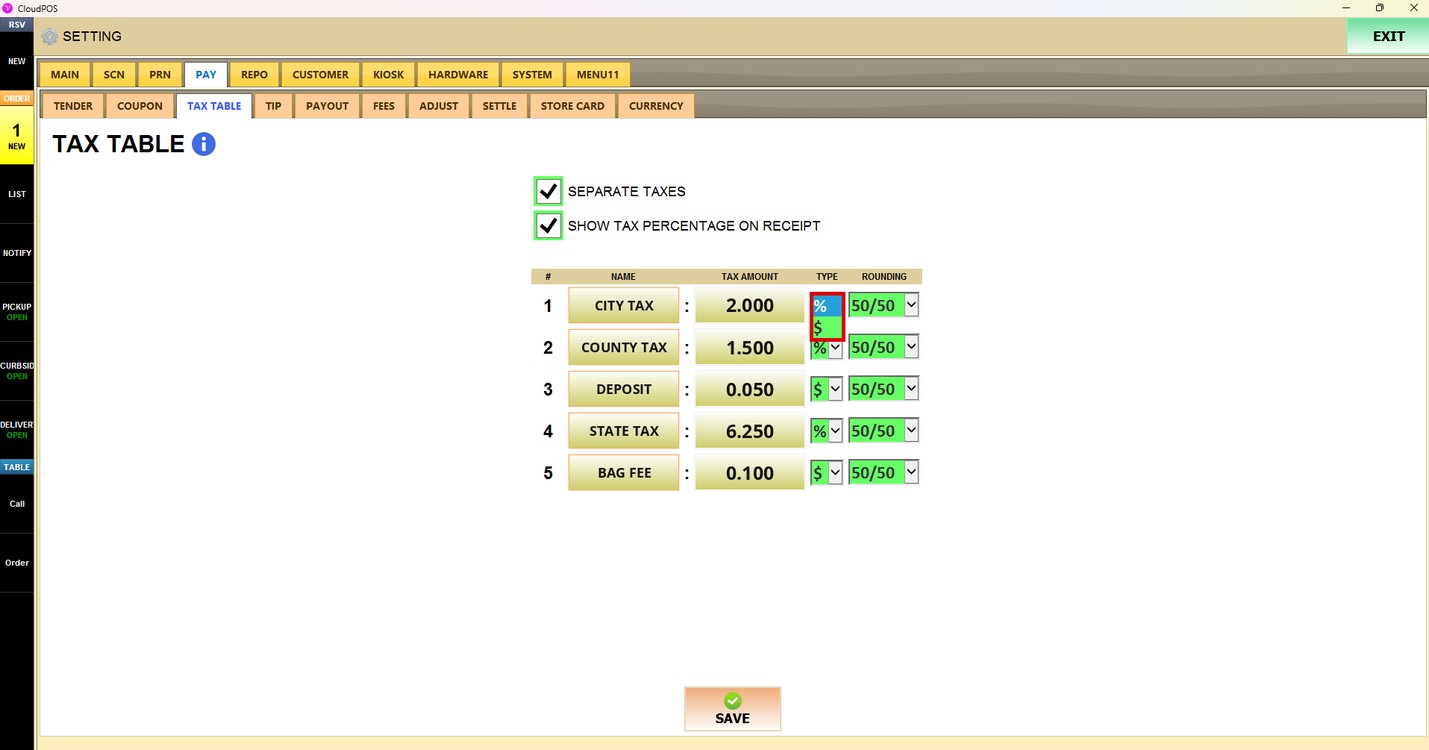
Type:
Press the TYPE dropdown.
1. %: The tax is a percent of the price of the item.
2. $: The tax is a fixed amount for each item.
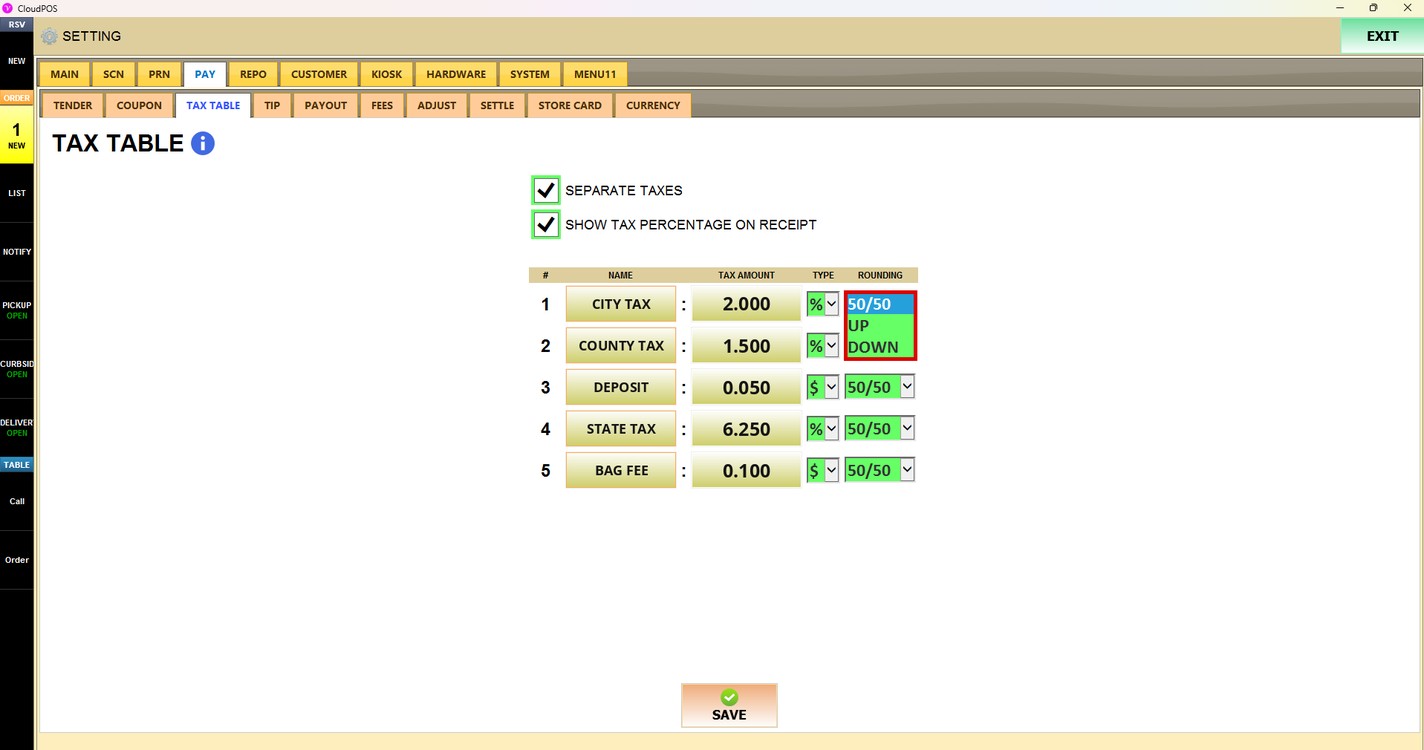
Rounding:
Press the ROUNDING dropdown.
1. 50/50: Rounds the tax to the nearest cent.
2. UP: Always rounds the tax up.
3. DOWN: Always rounds the tax down.
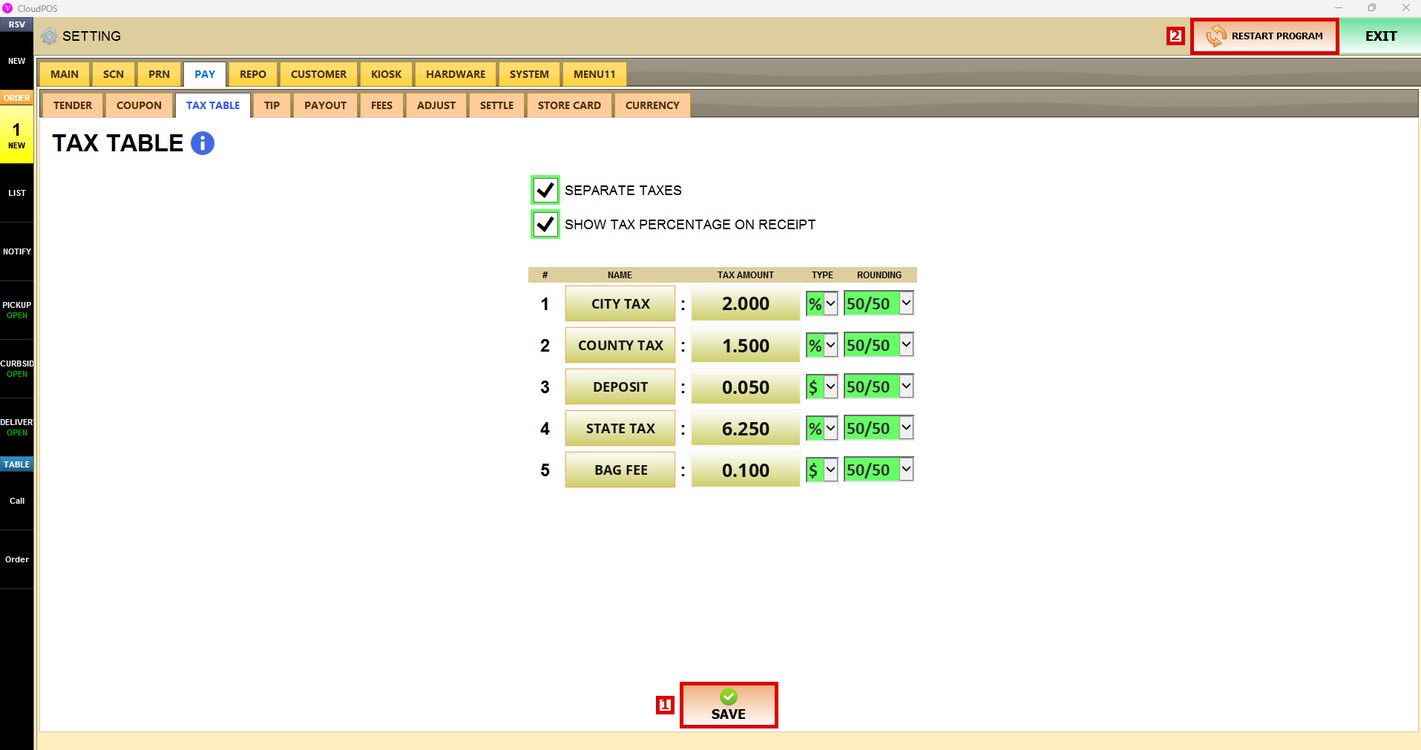
Press SAVE and then RESTART PROGRAM to apply the changes.
To learn how to assign taxes to menu items, refer to the Tax Table and Tax additional guide. To learn how to apply taxes to an entire category, refer to the Apply Taxes to a Category guide.