Host
The Host settings control the Host Kiosk, where customers add themselves to the waitlist: which information is requested, whether a ticket is printed, how the waitlist is shown, and when the kiosk returns to the start screen.
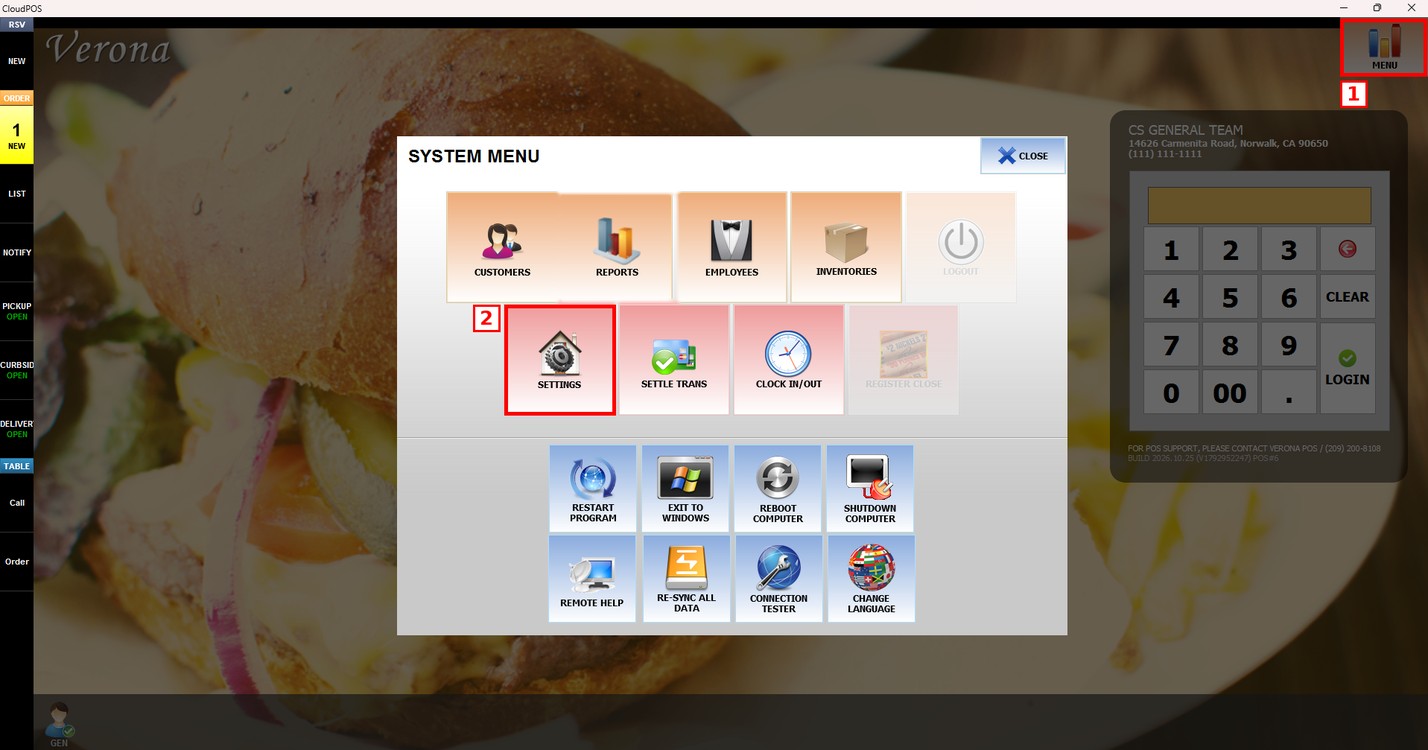
MENU > SETTINGS > KIOSK > HOST
Go to MENU and press SETTINGS.
Press the KIOSK tab and then the HOST subtab.
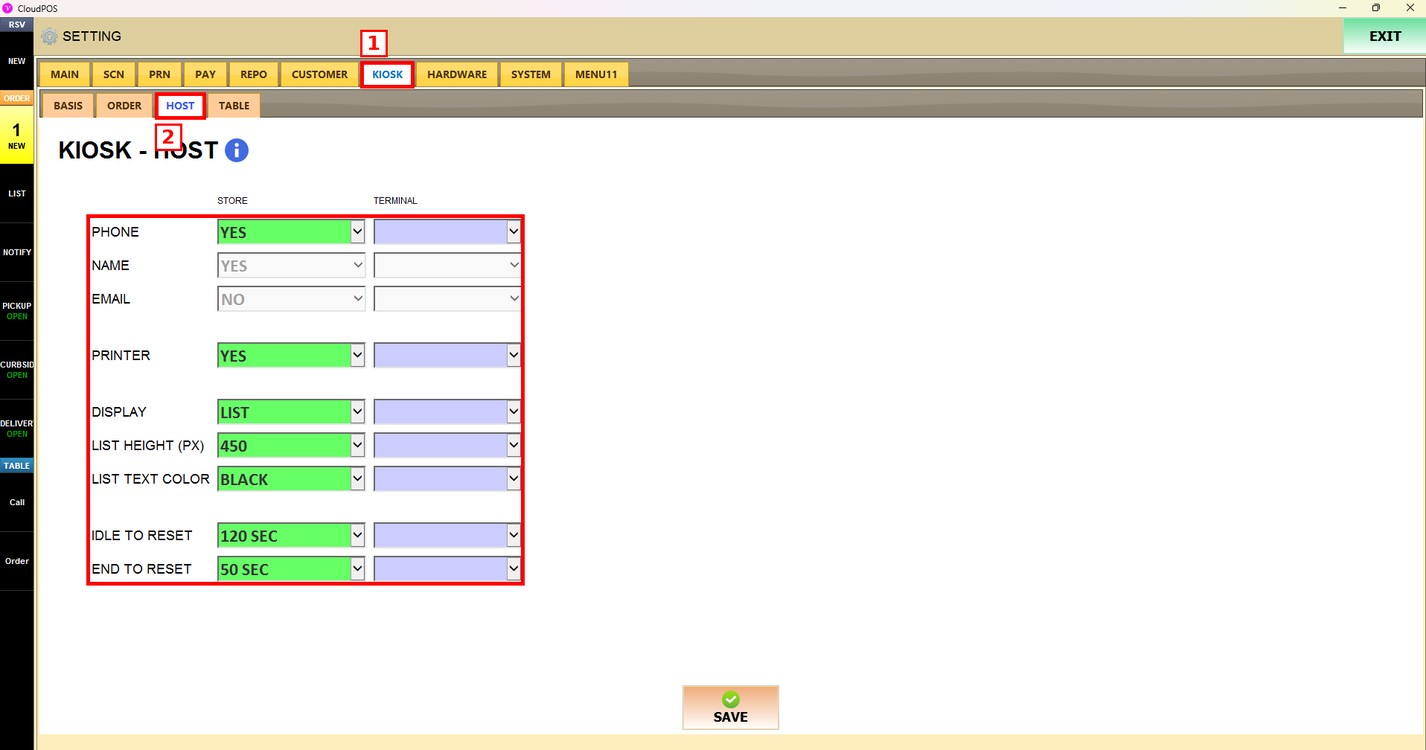
Each setting has two dropdowns. The STORE dropdown (green) is the setting used by all the kiosks of the store. The TERMINAL dropdown is the setting used only by this kiosk. Leave it empty to use the store setting.
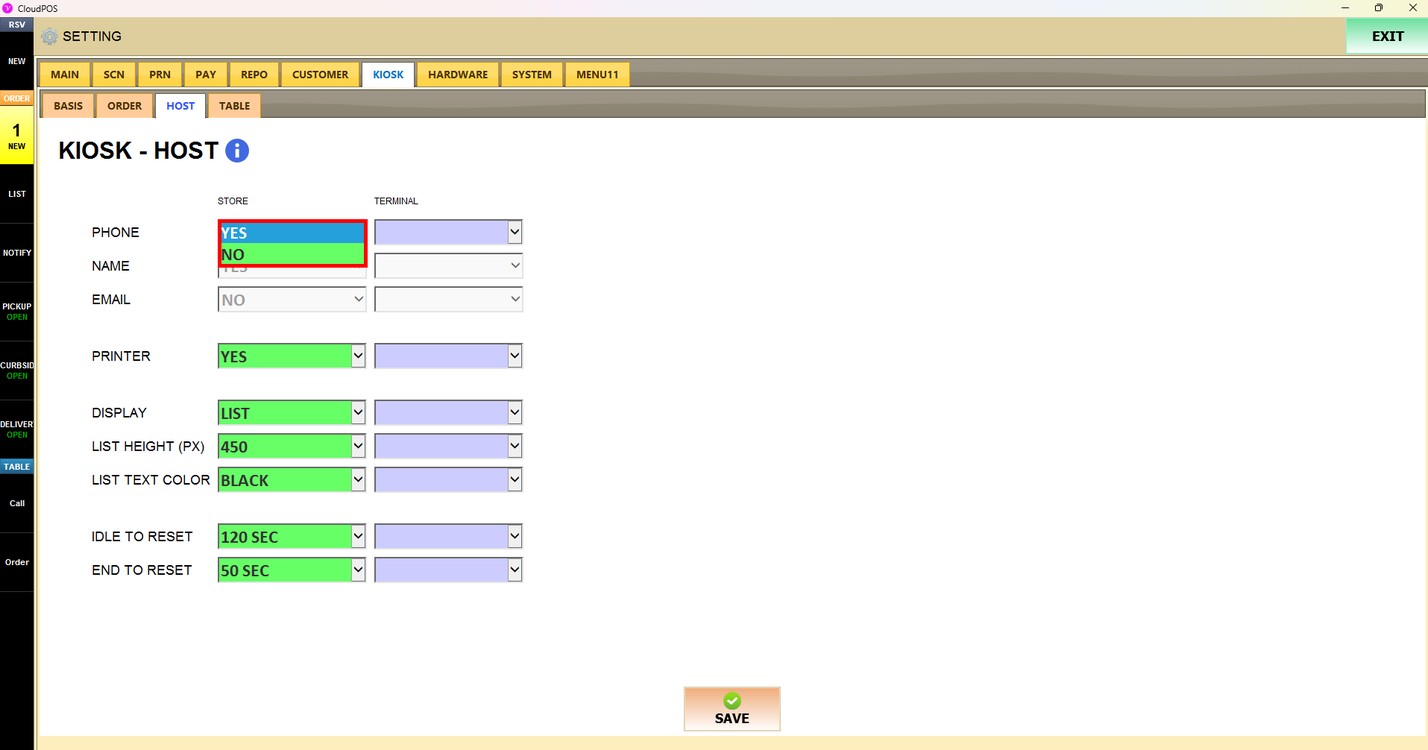
Phone:
Sets whether the customer is asked for a phone number when joining the waitlist. Choose YES or NO.
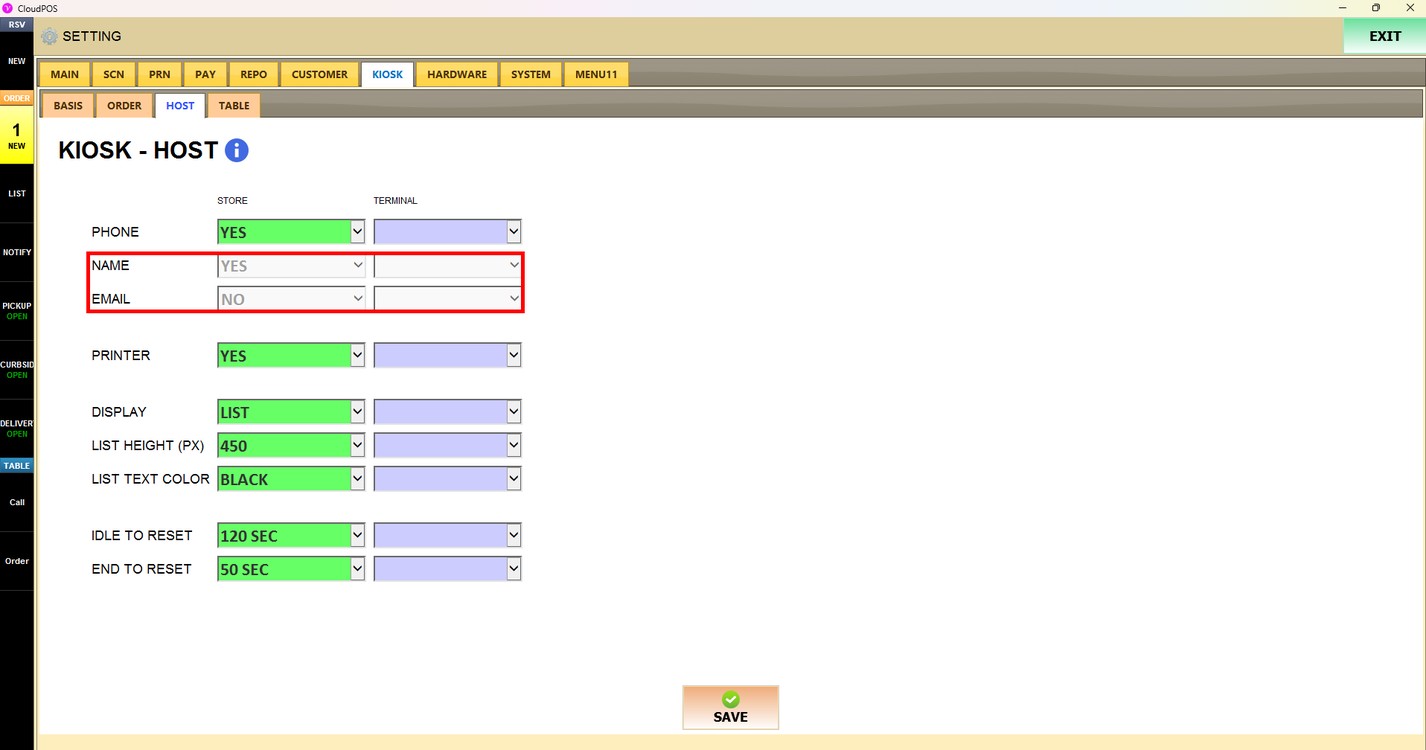
Name and Email:
These settings are shown in gray and cannot be changed.
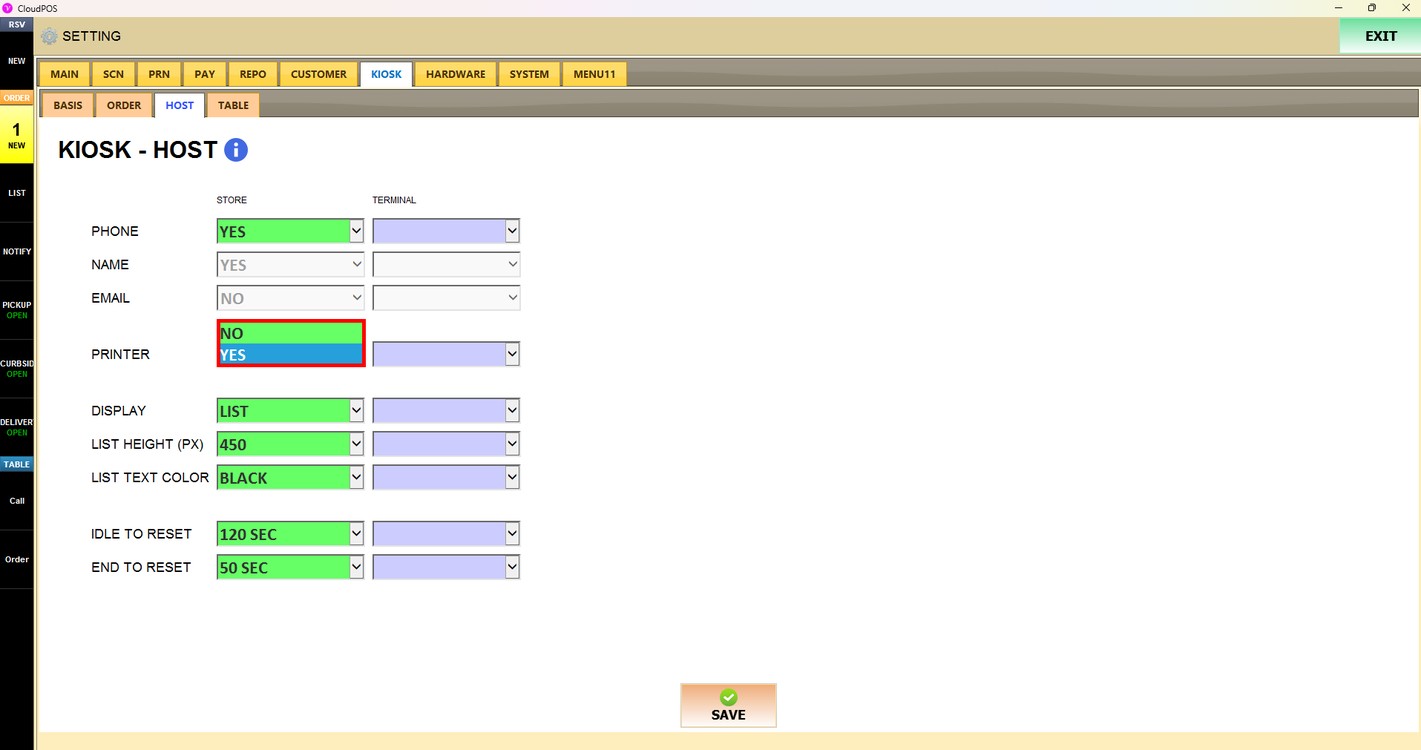
Printer:
Sets whether a ticket is printed when the customer joins the waitlist. Choose YES or NO.
Display:
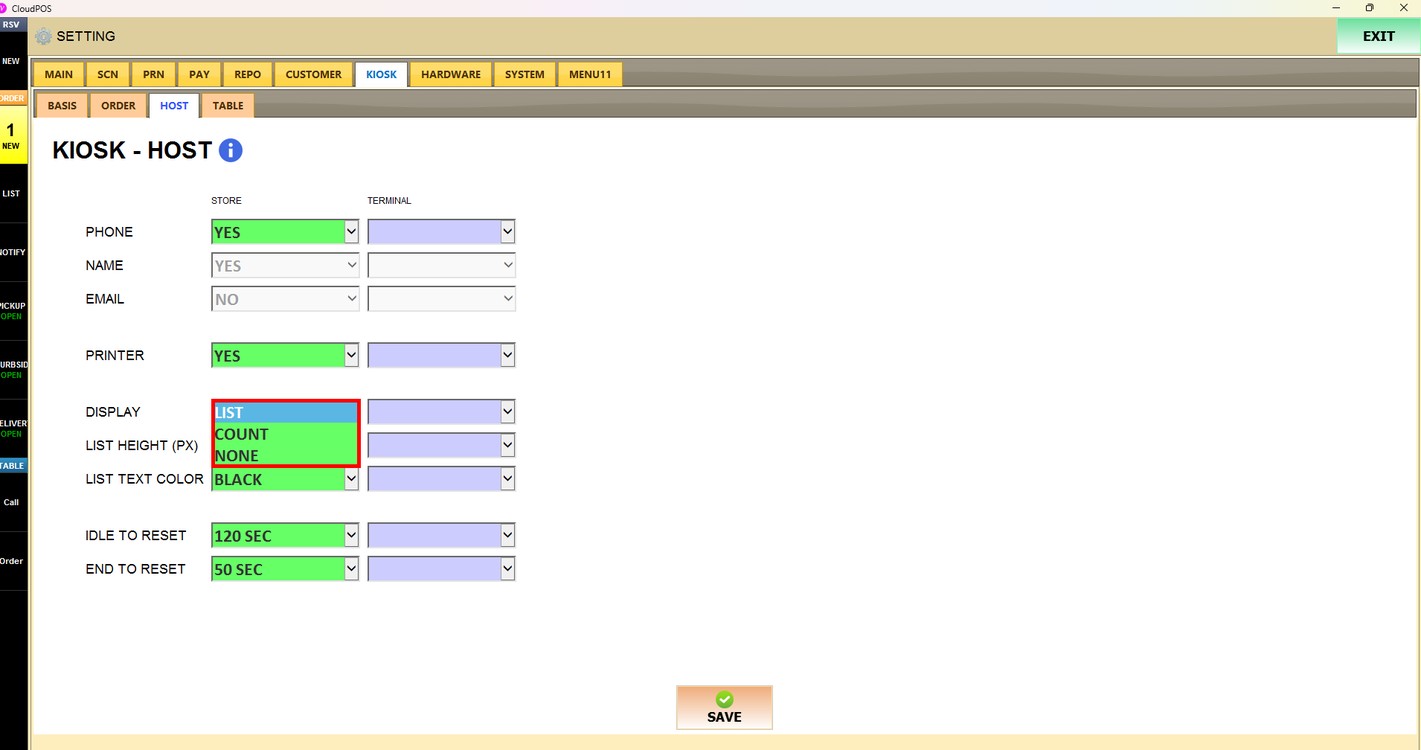
Sets how the waitlist is shown on the Host Kiosk.
1. LIST: The waitlist is shown as a list.
2. COUNT: Only the number of customers on the waitlist is shown.
3. NONE: The waitlist is not shown.
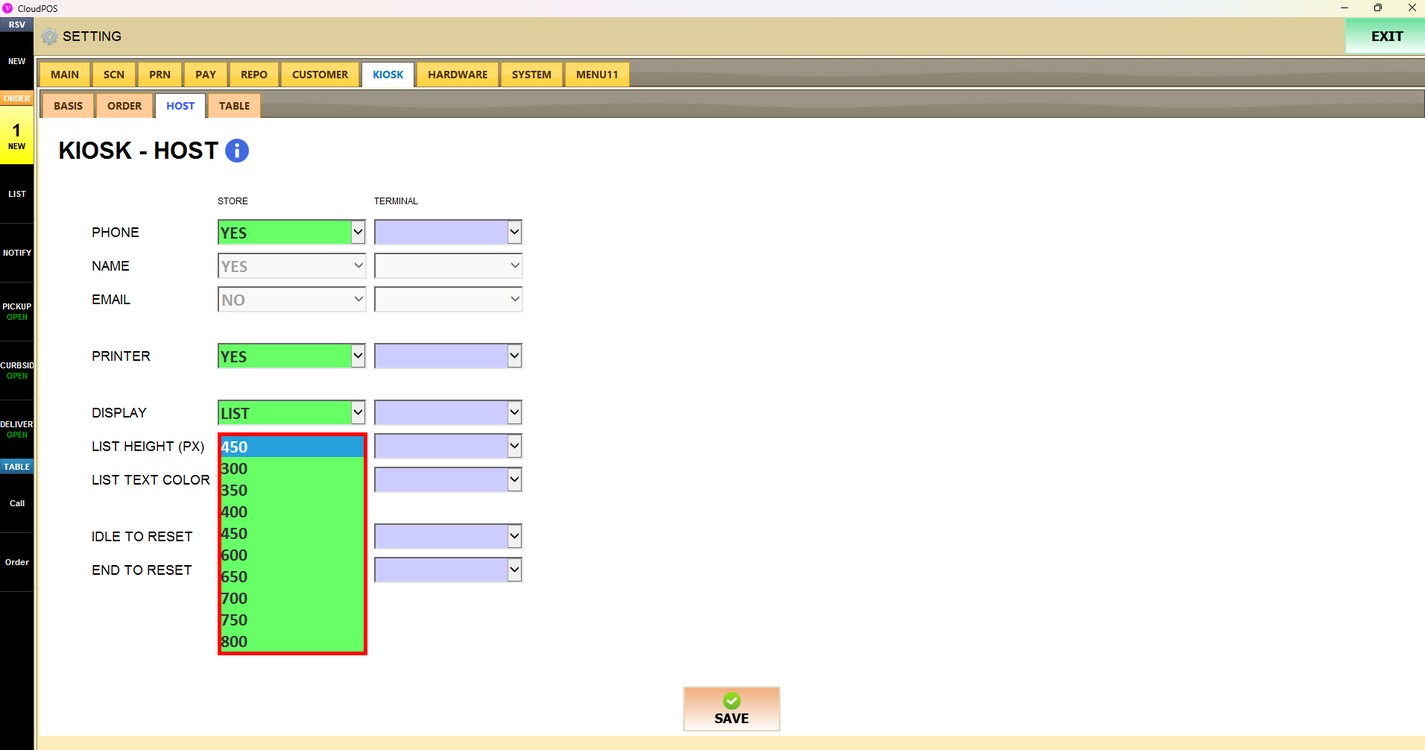
List Height (PX):
Sets the height of the waitlist, in pixels, when DISPLAY is set to LIST. Choose 300, 350, 400, 450, 600, 650, 700, 750 or 800.
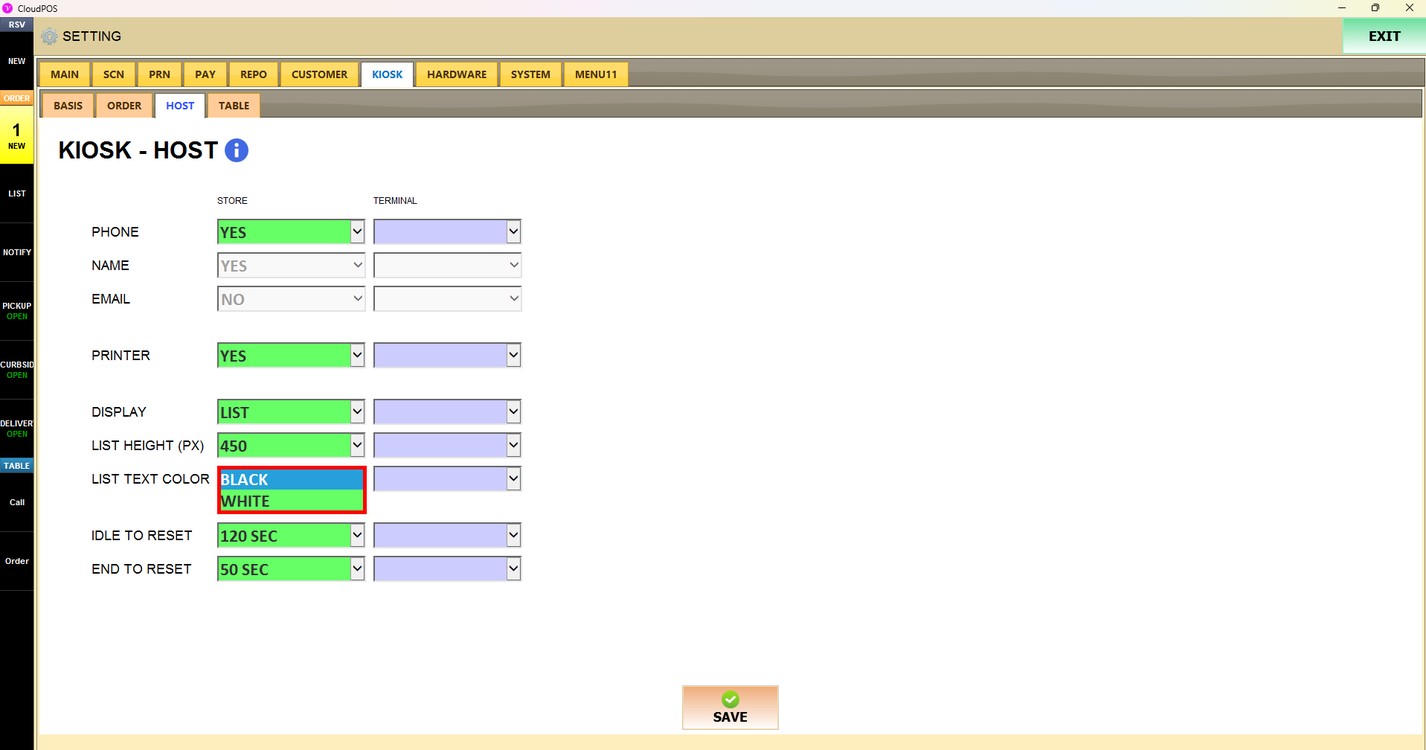
List Text Color:
Sets the color of the waitlist text. Choose BLACK or WHITE.
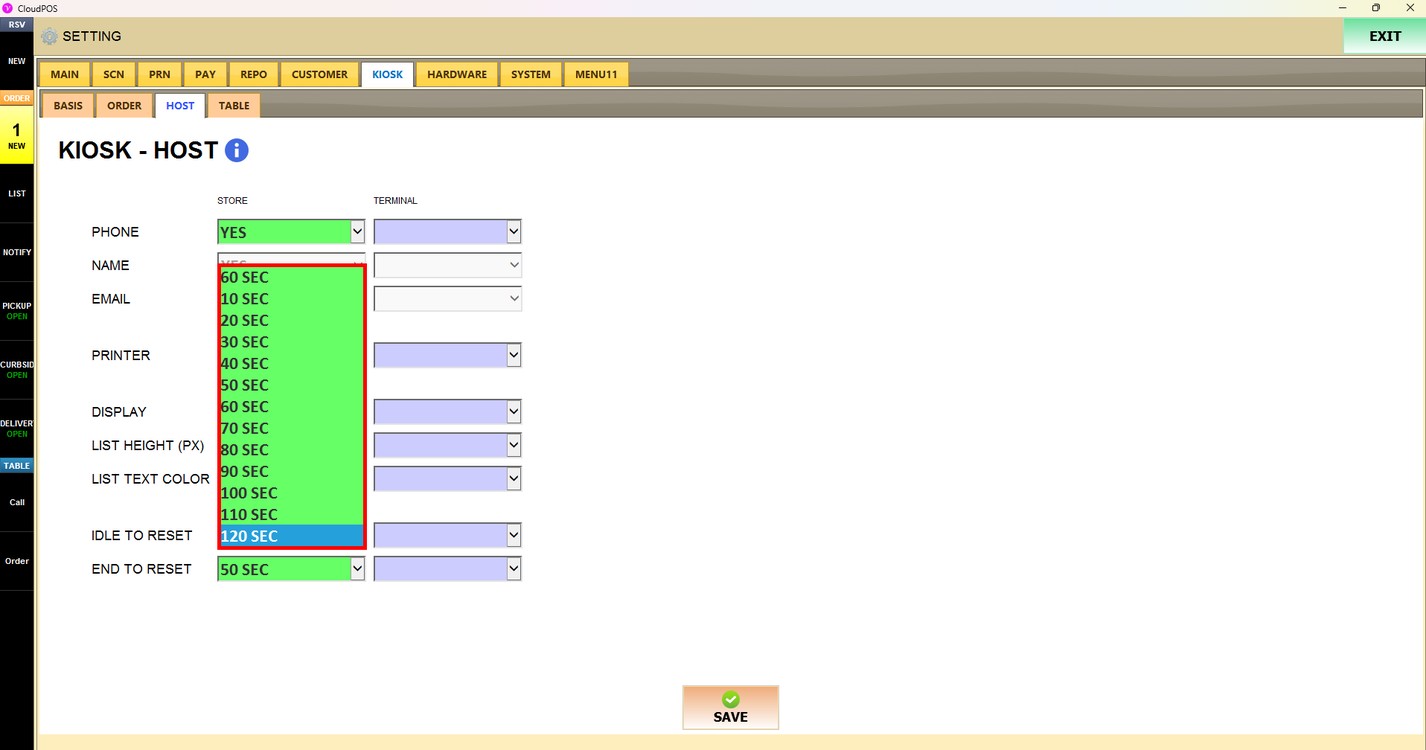
Idle to Reset:
Sets how long the kiosk waits without activity before it returns to the start screen. Choose from 10 SEC to 120 SEC, in steps of 10 seconds.
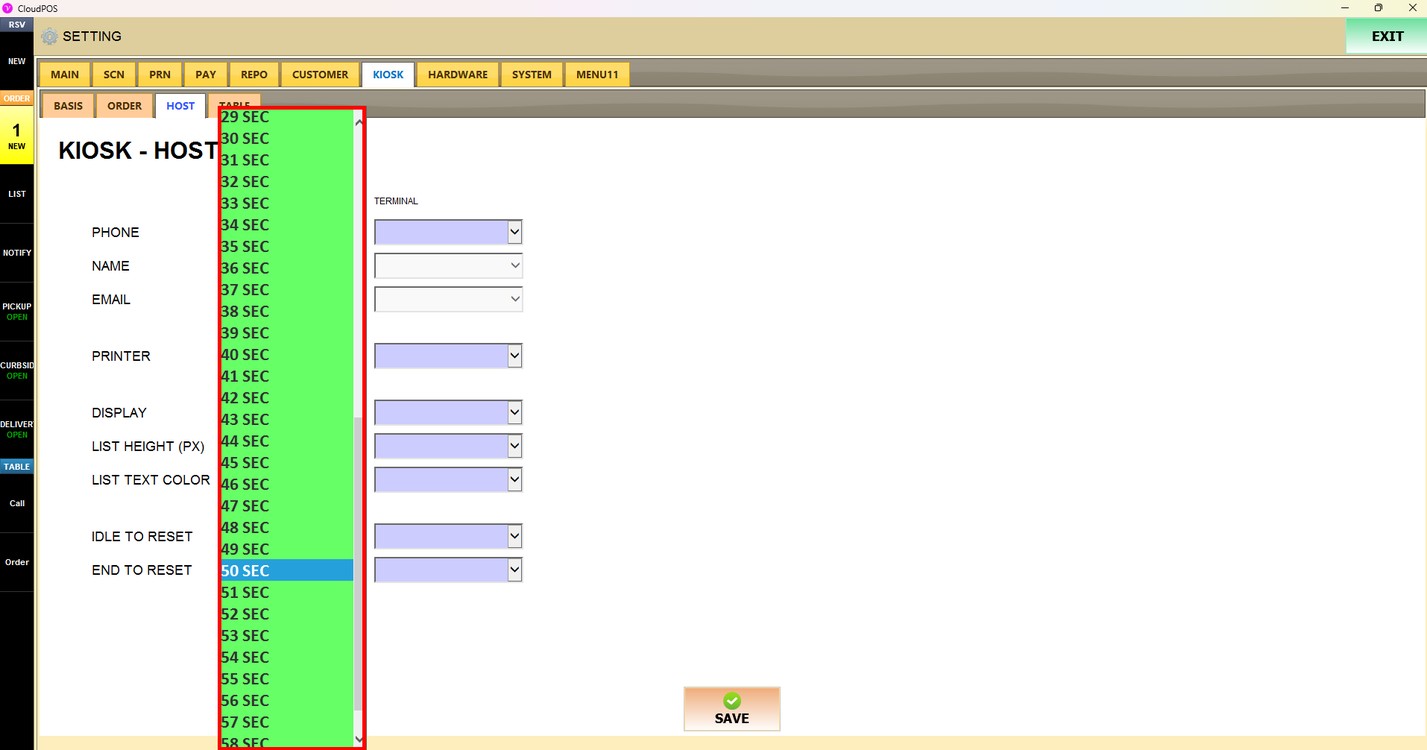
End to Reset:
Sets how long the kiosk waits after the customer finishes before it returns to the start screen. Choose a number of seconds from the list.
Press SAVE to apply the changes.