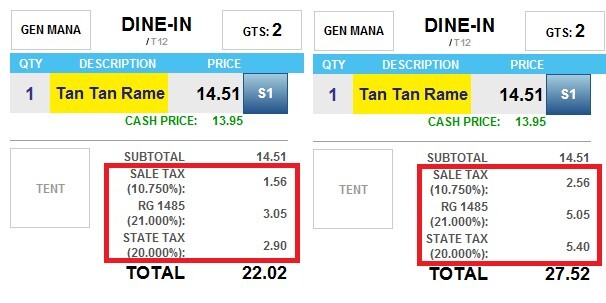
Tax Table and Tax Additional
This section allows you to configure the taxes applied to the selected item. By default, items inherit the tax configuration from their category. Configuring taxes at the item level overrides the category tax settings for that specific item.
Main Screen > MENU > SETTINGS > REPO > EDIT> CATEGORY> Selected Item> TAX TABLE/TAX ADDITIONAL.
Go to MENU, then SETTINGS.
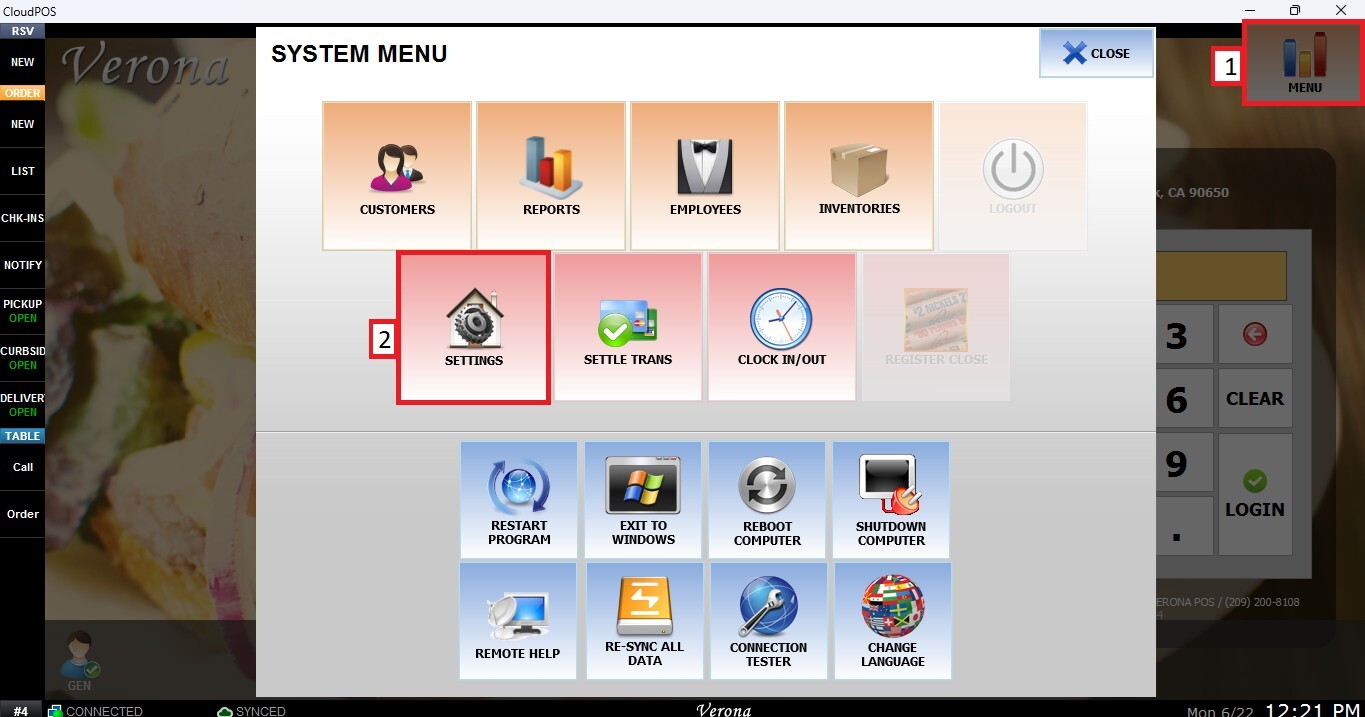
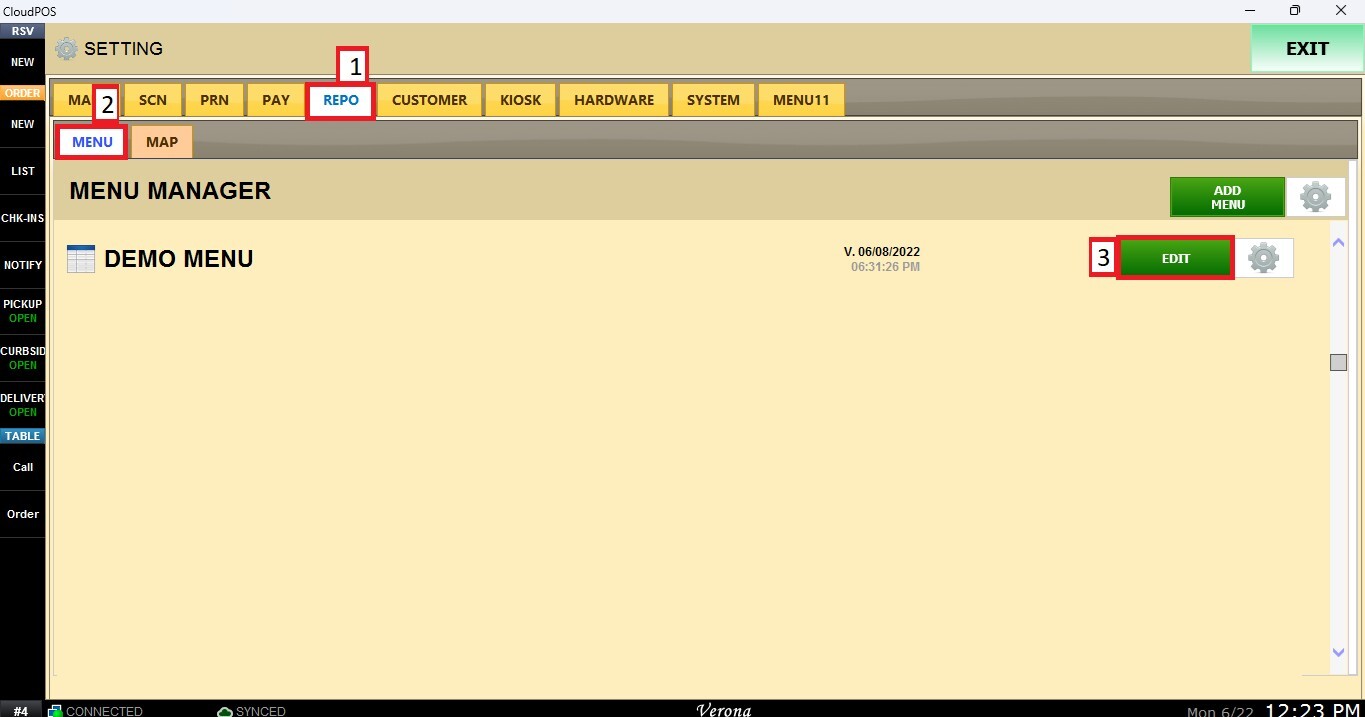
Open the REPO tab, select MENU to locate your menu, and click EDIT.
Click on the category that contains the item you want to configure. Then, select the item and scroll down through the item settings until you reach the Tax Table and Tax Additional section.
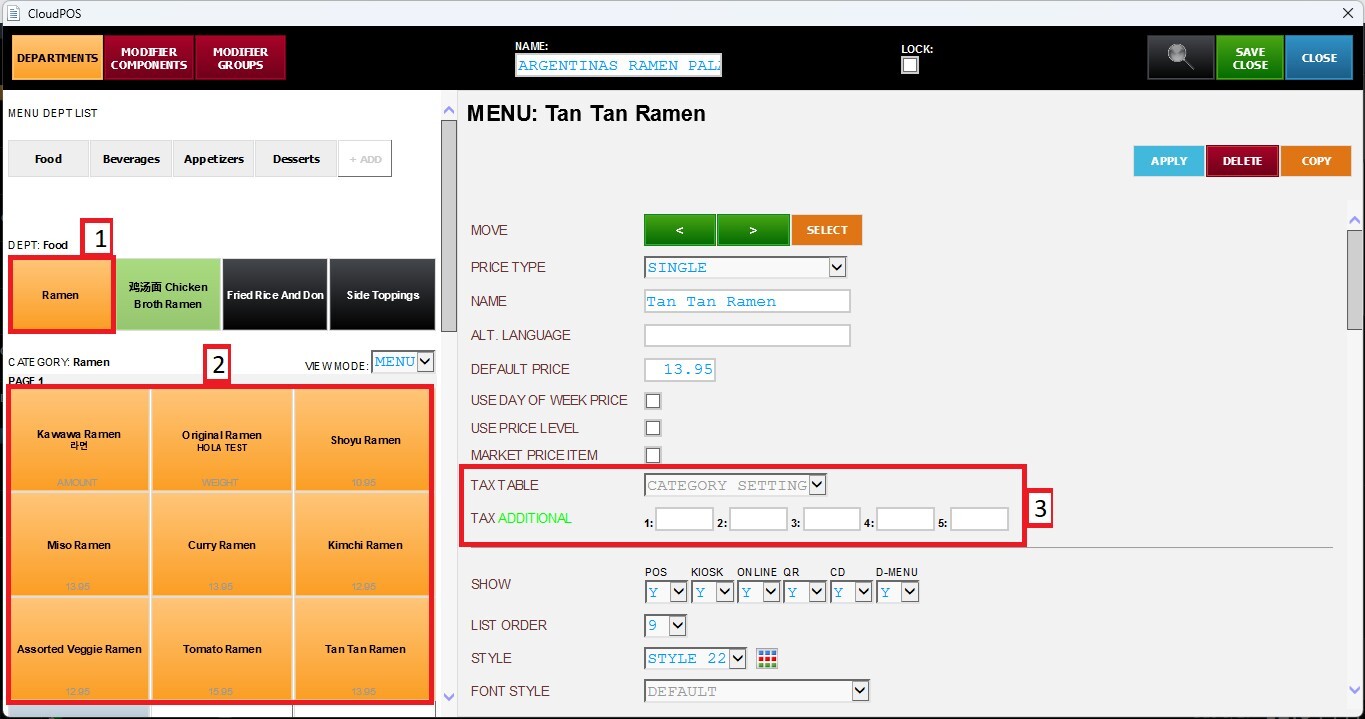
On the Tax Table dropdown menu, select the desired option for the item.
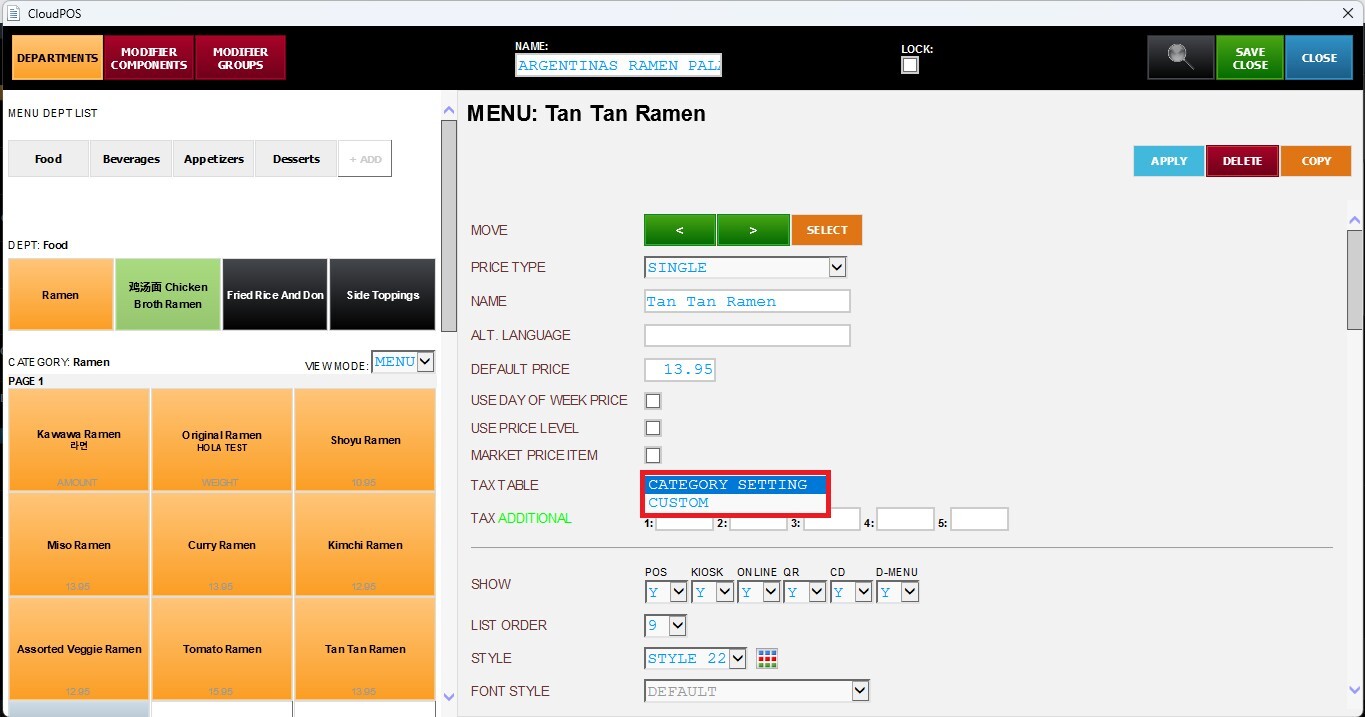
Category Setting: The item inherits and applies the tax settings configured for its category by default.
CUSTOM: Enables additional tax configuration options.
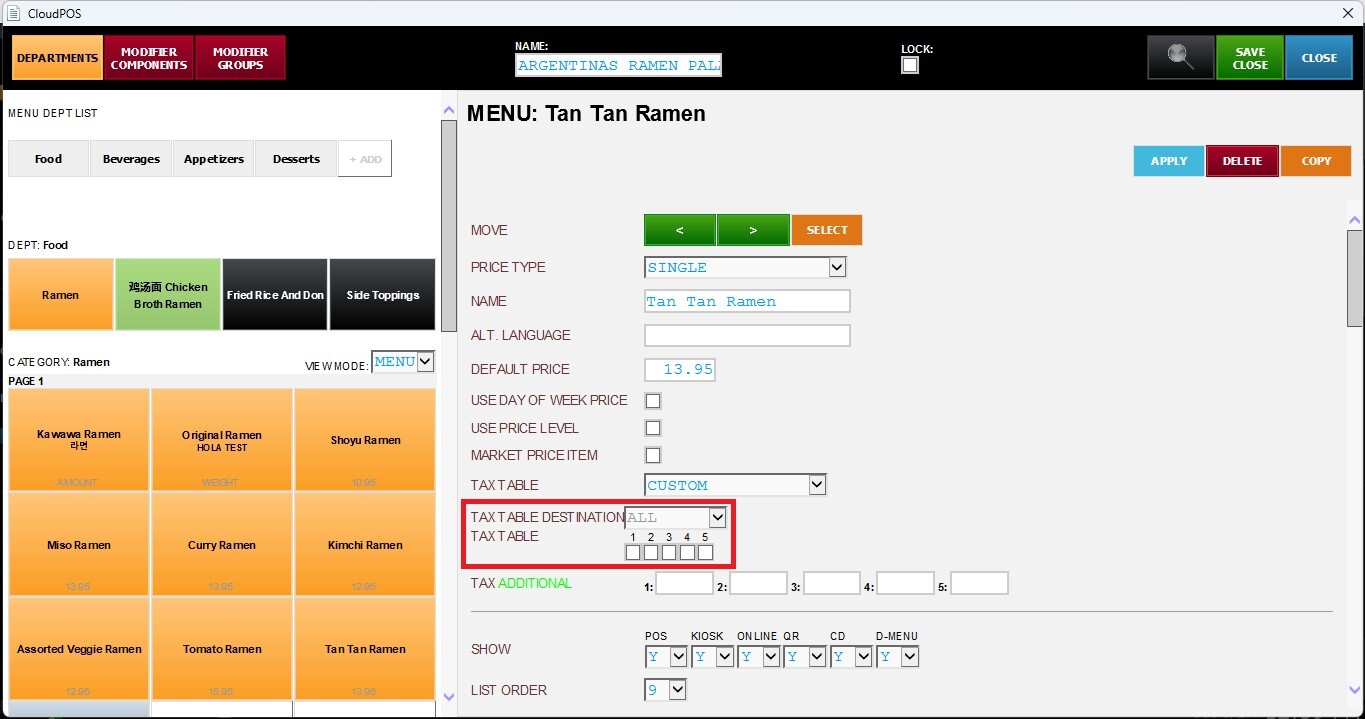
For detailed information about Tax Table Destination and Tax Tables, please refer to: Applying Taxes to a Category.
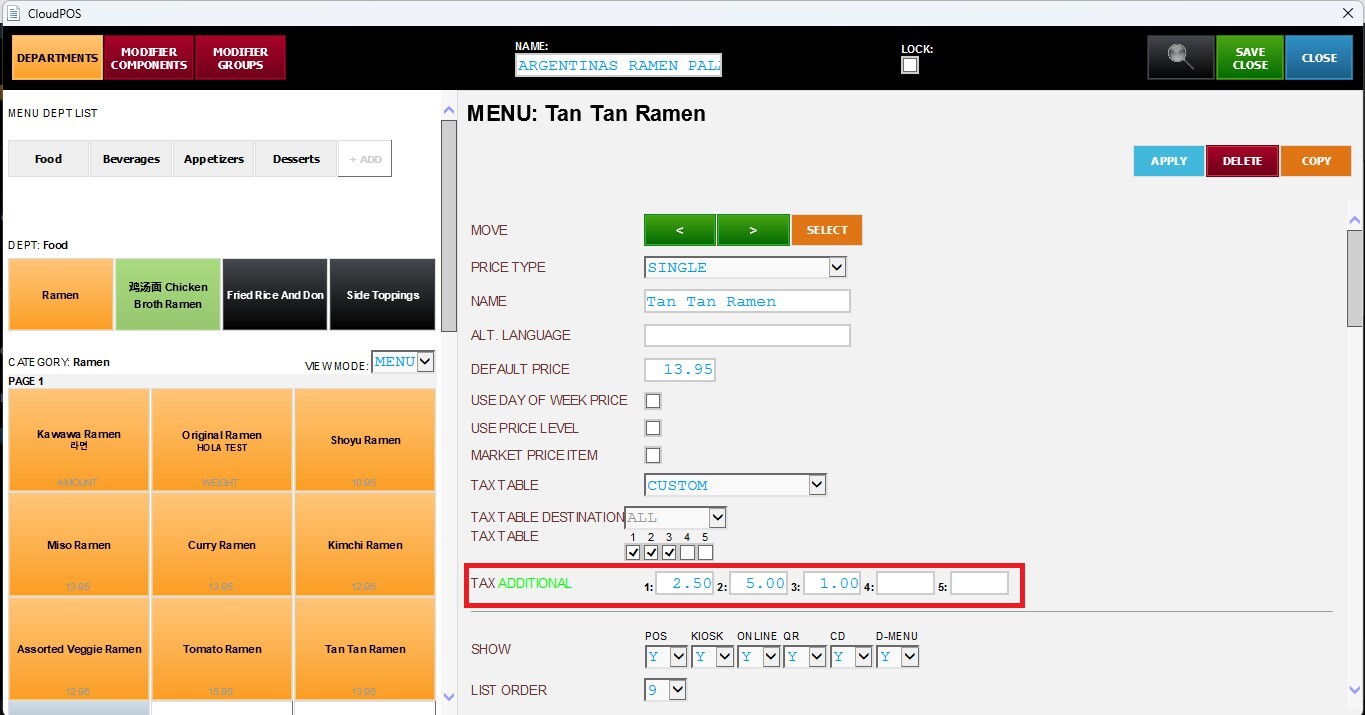
Tax Additional: Allows you to define a fixed amount that is added on top of each selected Tax Table (1–5). Each table can have its own value, applied independently based on the configured selection.
After making all the changes, press APPLY and SAVE and CLOSE to save the configuration.
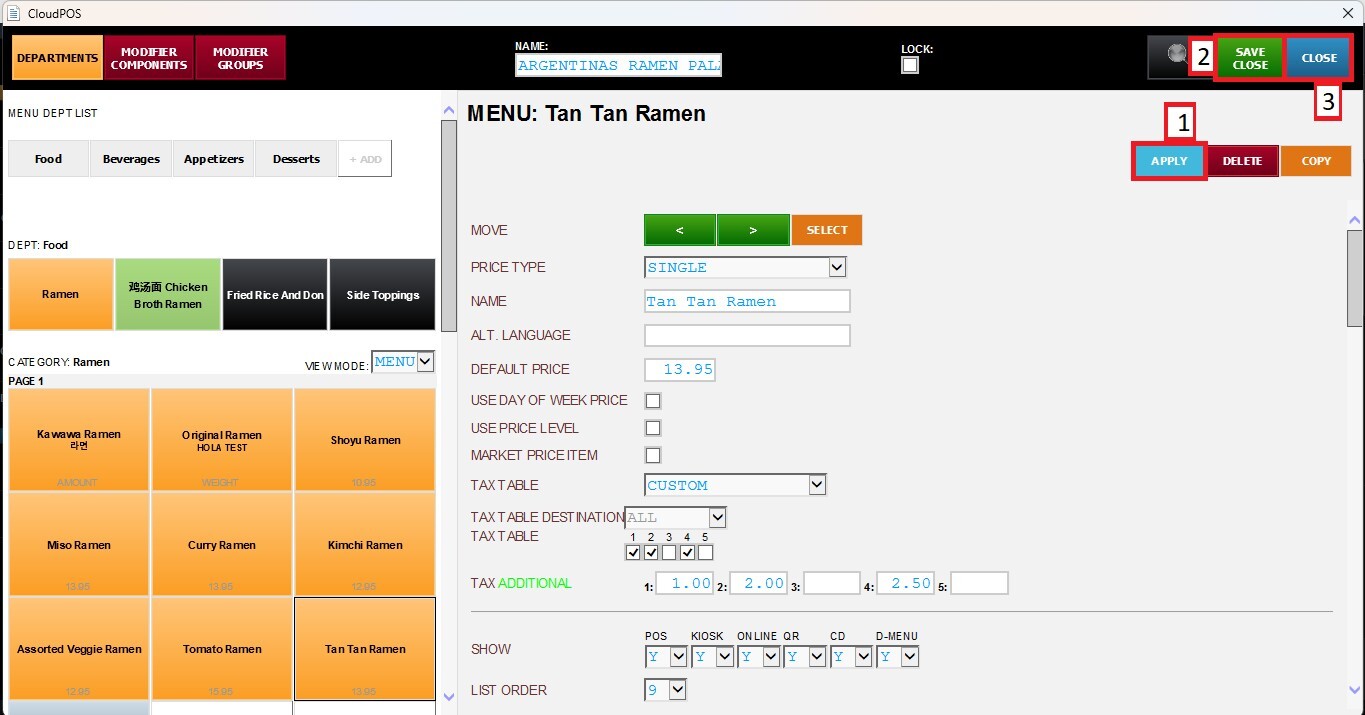
Result
The selected Tax Tables will be applied to the item, and any configured Tax Additional amounts will be added accordingly.