Employee Hours
The Employee Hours report displays the clock in and clock out times and total hours worked by each employee for a selected week, allowing managers to review attendance and track labor hours at a glance.
MAIN SCREEN> MENU> REPORTS> EMPLOYEE> HOURS
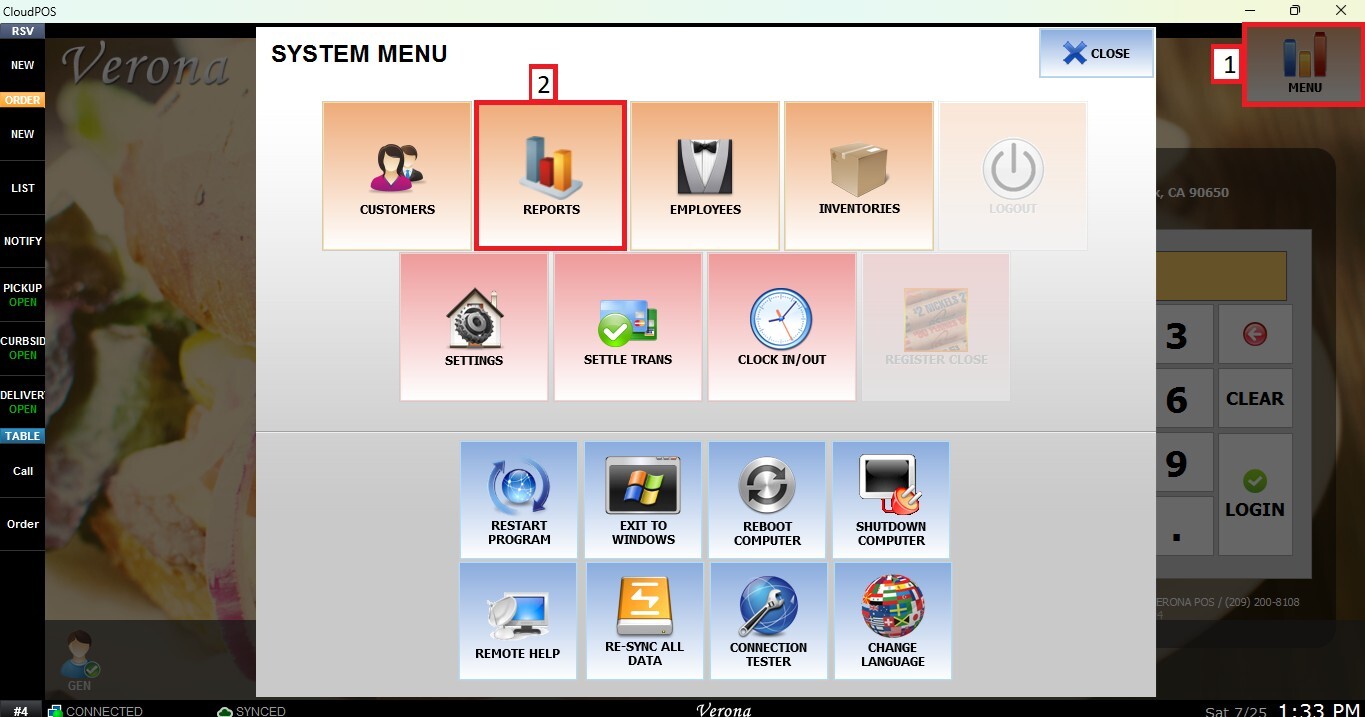
From the Main Screen, click MENU, then select REPORTS.
Select the EMPLOYEE tab, then click HOURS.
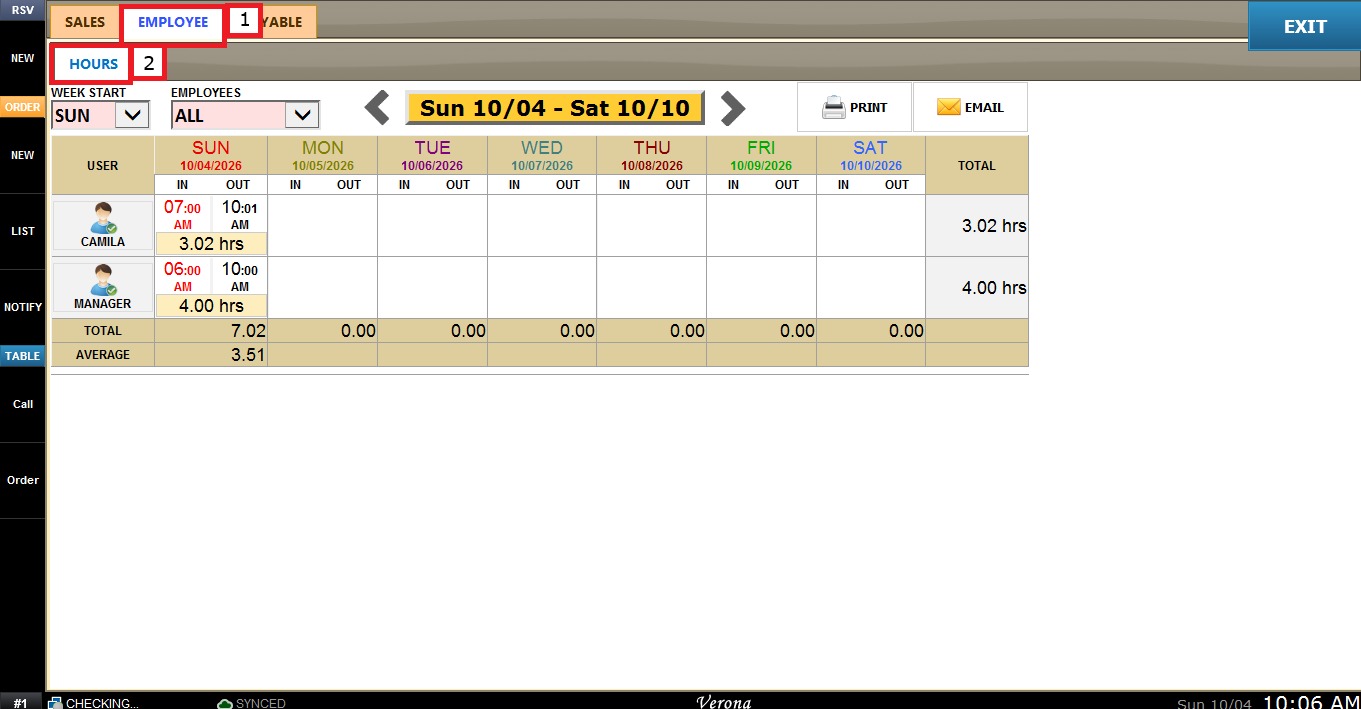
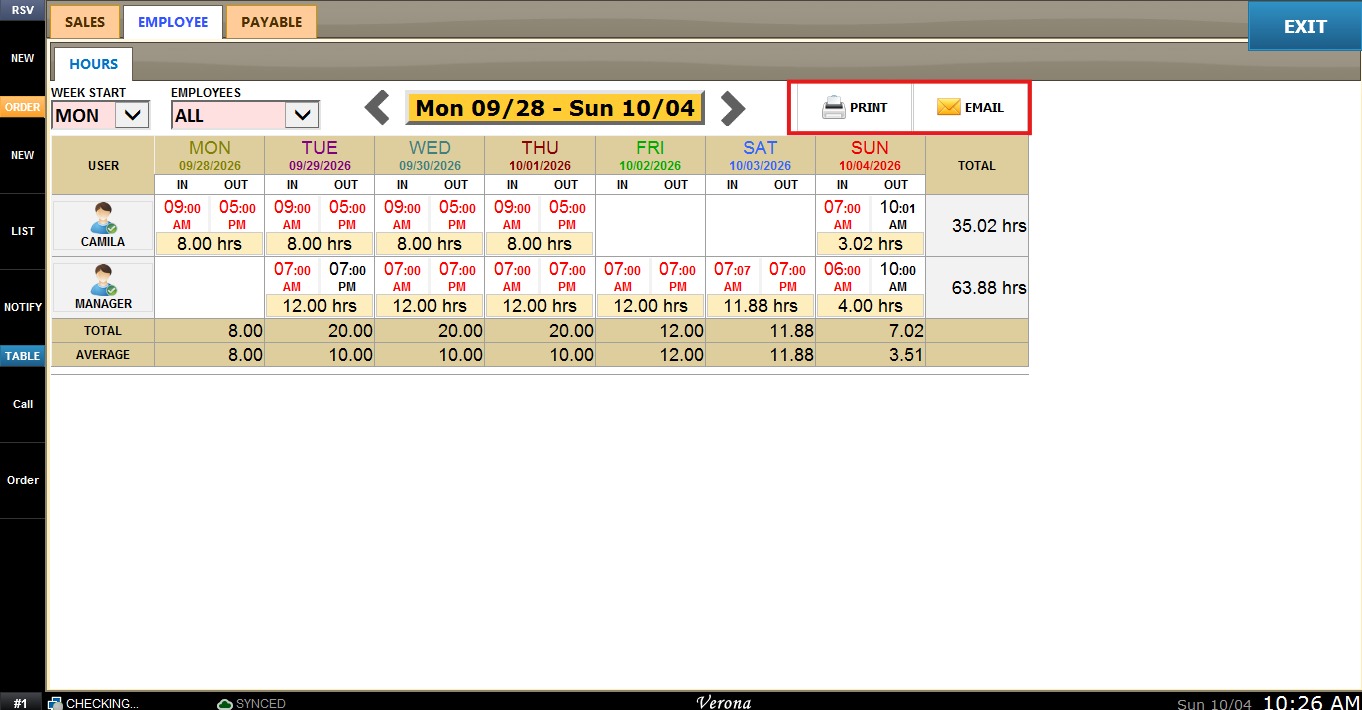
The report displays a weekly grid with one row per employee and one column per day of the week.
For each day, it shows the clock-in and clock-out times (IN / OUT) recorded for the employee, along with the total hours worked that day below them.
The TOTAL column on the right shows the total hours worked by each employee during the selected week.
At the bottom of the grid, the TOTAL row shows the combined hours worked by all employees on each day, and the AVERAGE row shows the average hours worked per employee on each day.
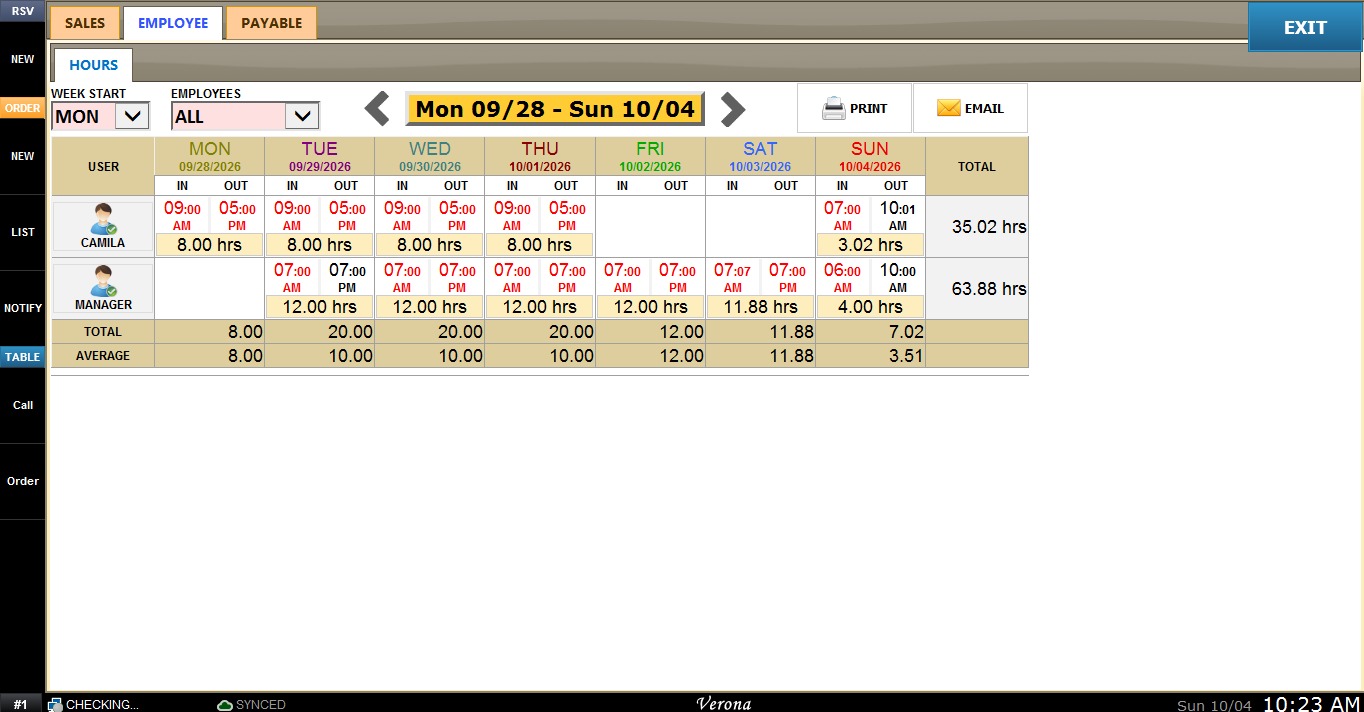
Note: Times displayed in red were added or edited manually by a user with permission to edit the employee time clock in the Employee section. Times displayed in black were recorded by the employee through the clock in/out feature.
Filters and Buttons
Use the options at the top of the report to customize how it is displayed.
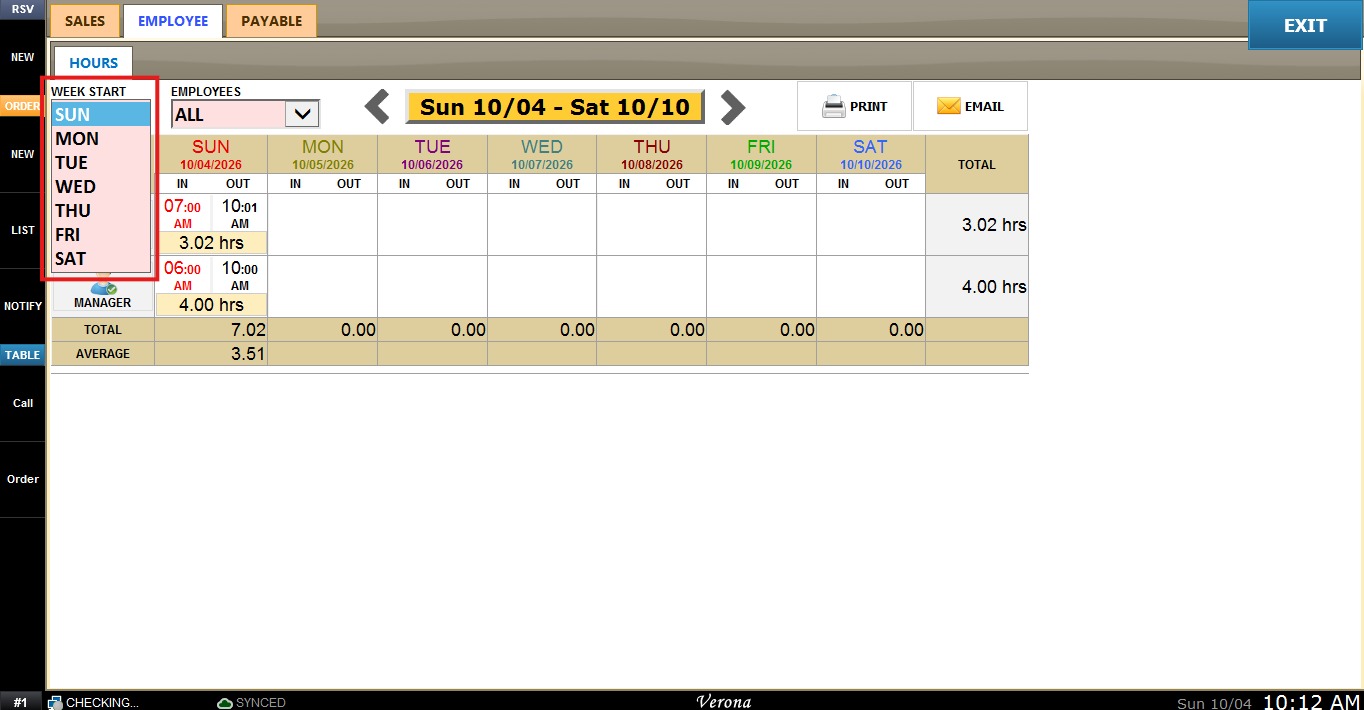
1. WEEK START: Allows the user to choose which day the week begins on (SUN through SAT). The report will display the seven day period starting on the selected day.
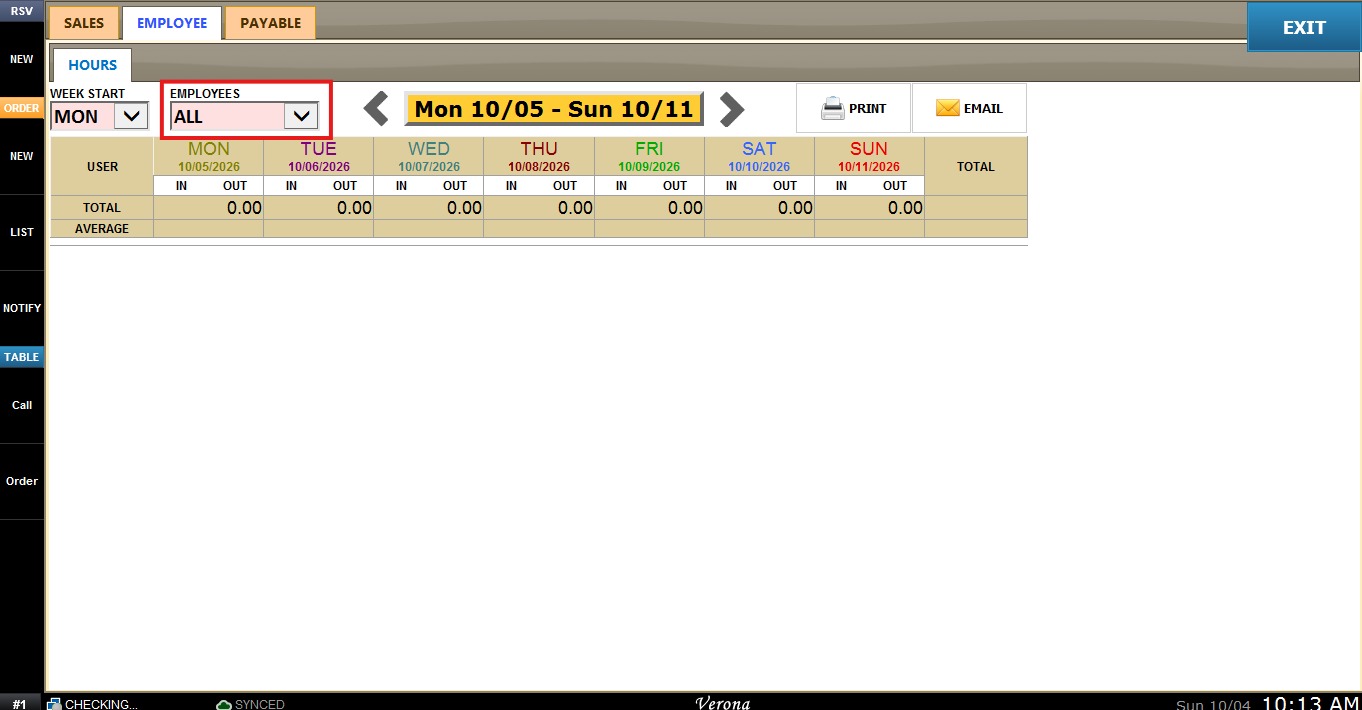
2. EMPLOYEES: Allows the user to choose which employee's hours are displayed. Select ALL to display every employee.
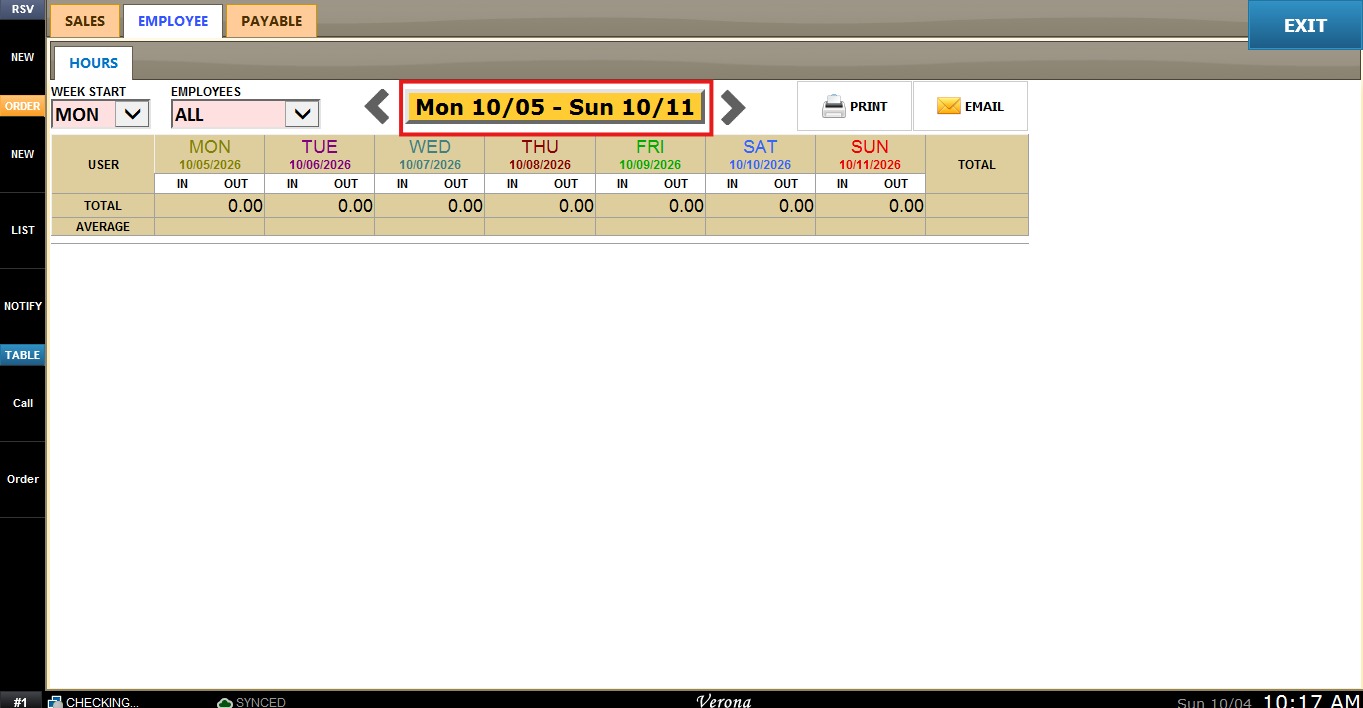
3. DATE RANGE: Displays the week currently being viewed. Click it to open a calendar window.
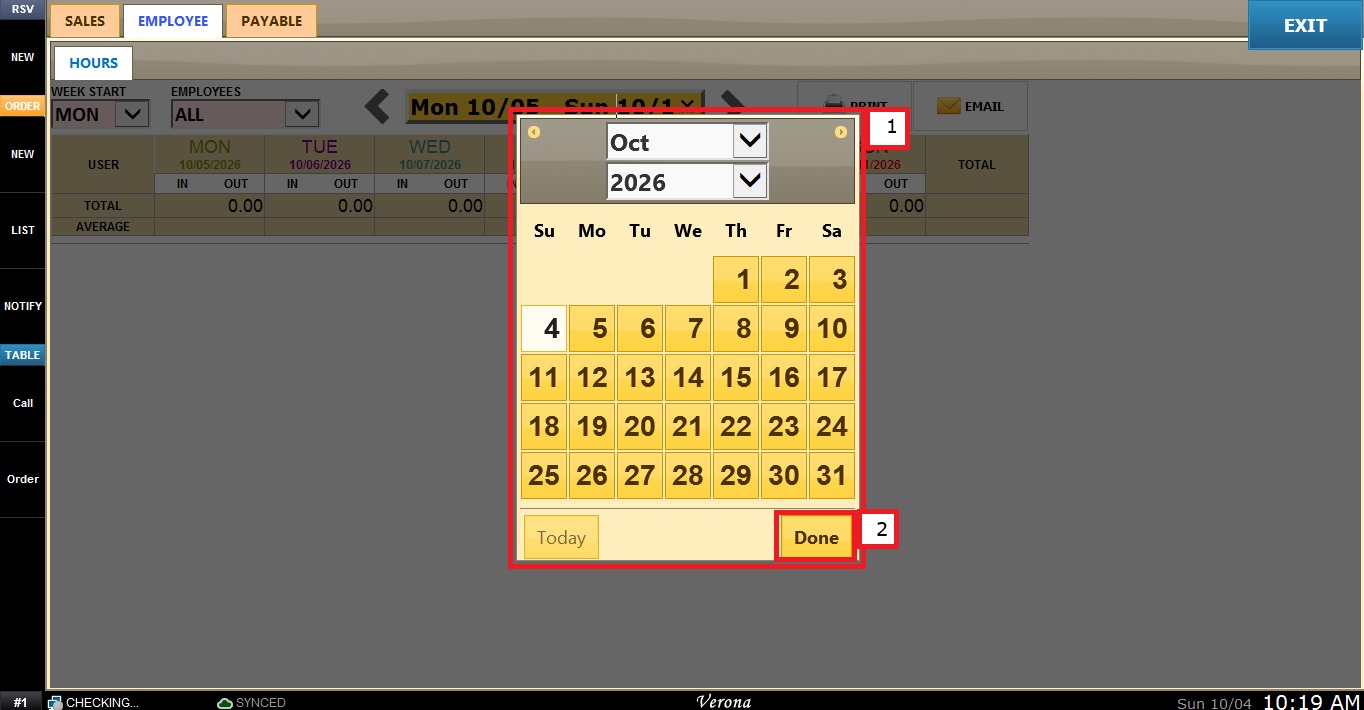
Select the desired day, then click DONE. The report will display the week that includes the selected date.
4. PREVIOUS/NEXT ARROWS: Use the arrows on each side of the date range to move backward or forward one week at a time.
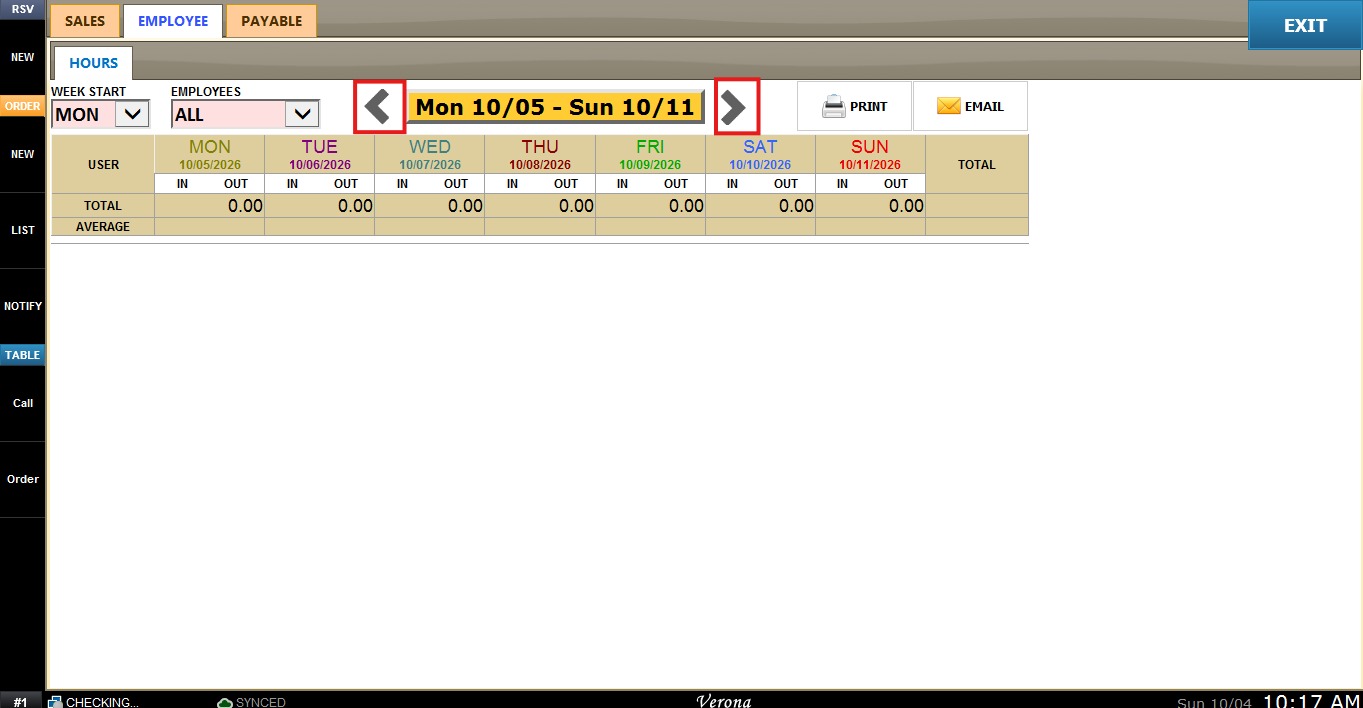
5. PRINT: Prints the report currently being displayed.
6. EMAIL: Sends the report currently being displayed by email.