Store Card Tools
The StoreCard tools are used to sell store cards, add money to them, check their balance and manage them, directly from the ticket screen of a table.
Main Screen> TABLE> Select a Table> TOOLS> STORECARD
Open the ticket of the table and press TOOLS at the top right of the screen.
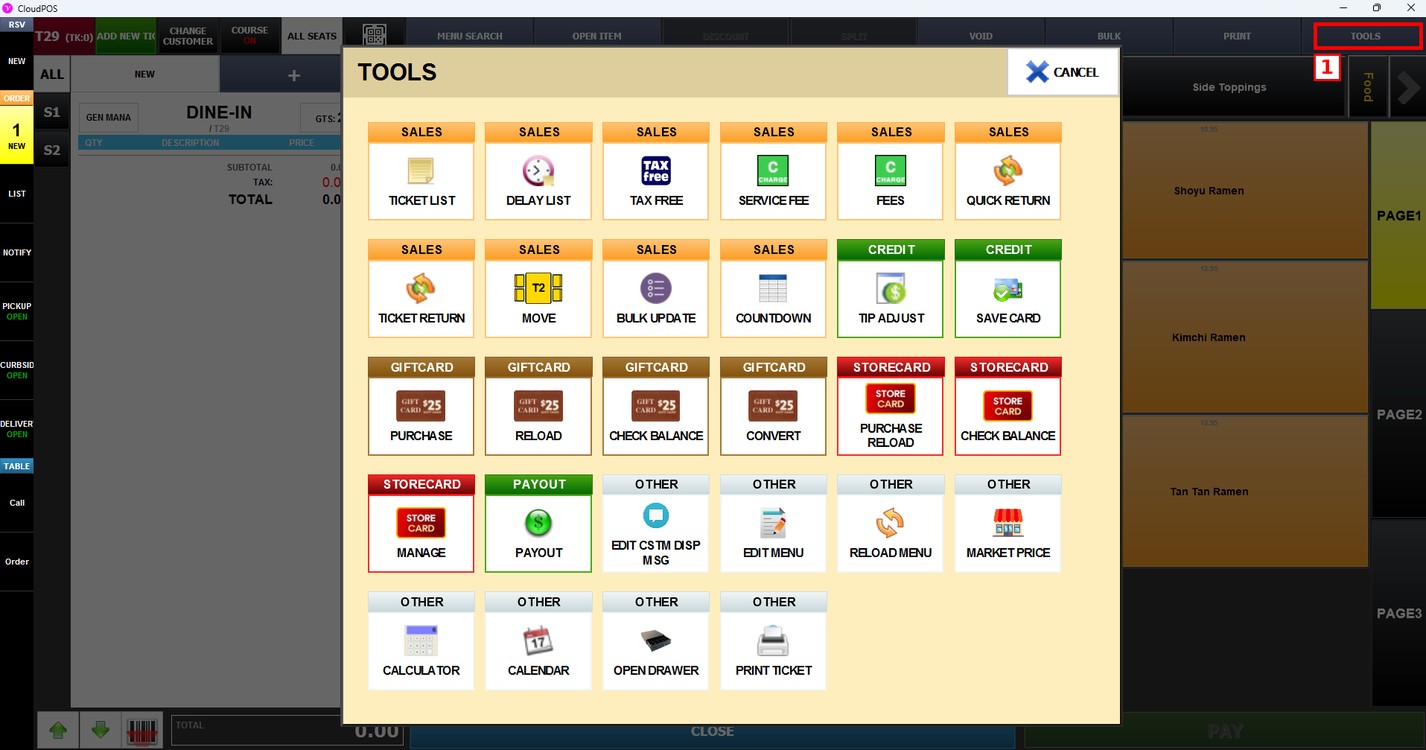
The STORECARD section has three tools:
1. PURCHASE RELOAD: Sells a new store card or adds money to a store card the customer already has.
2. CHECK BALANCE: Shows the balance left on a store card.
3. MANAGE: Opens the store card list to review and manage the store cards.
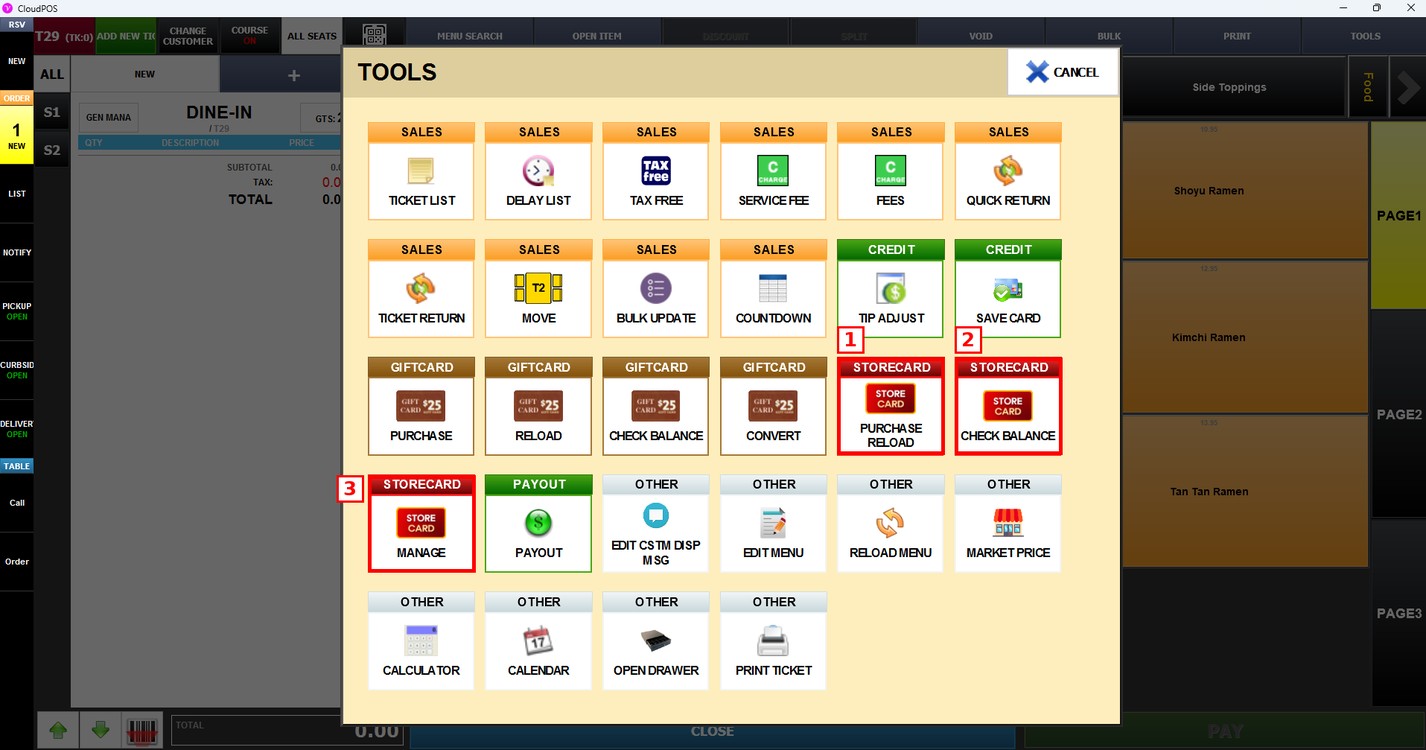
Purchase Reload:
Press PURCHASE RELOAD. Enter the store card number and the amount to load on the card.
Check Balance:
Press CHECK BALANCE and enter the store card number. The POS shows the balance of the card.
Manage:
Press MANAGE to open the store card list. From the list, you can add, import or export store cards, view the history of each card, set its value or delete it.
Pay with a Store Card:
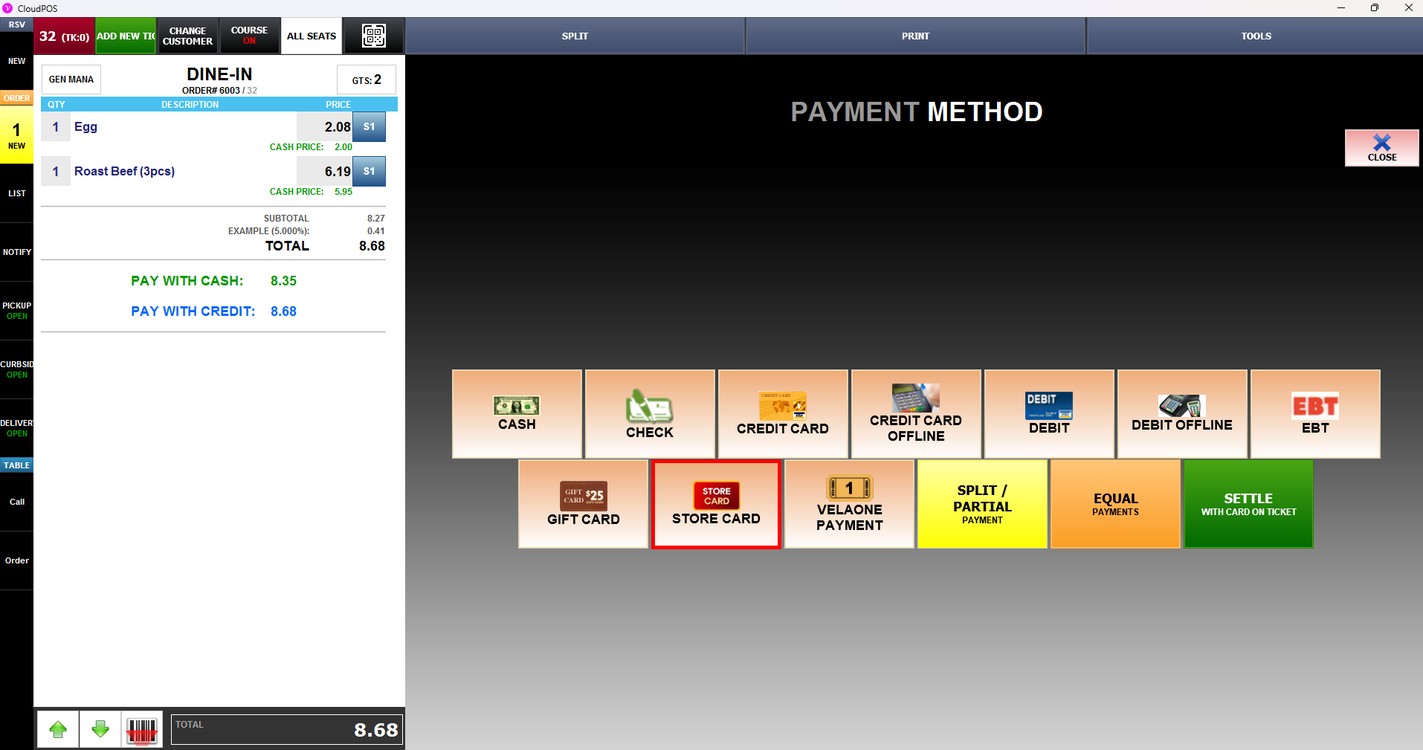
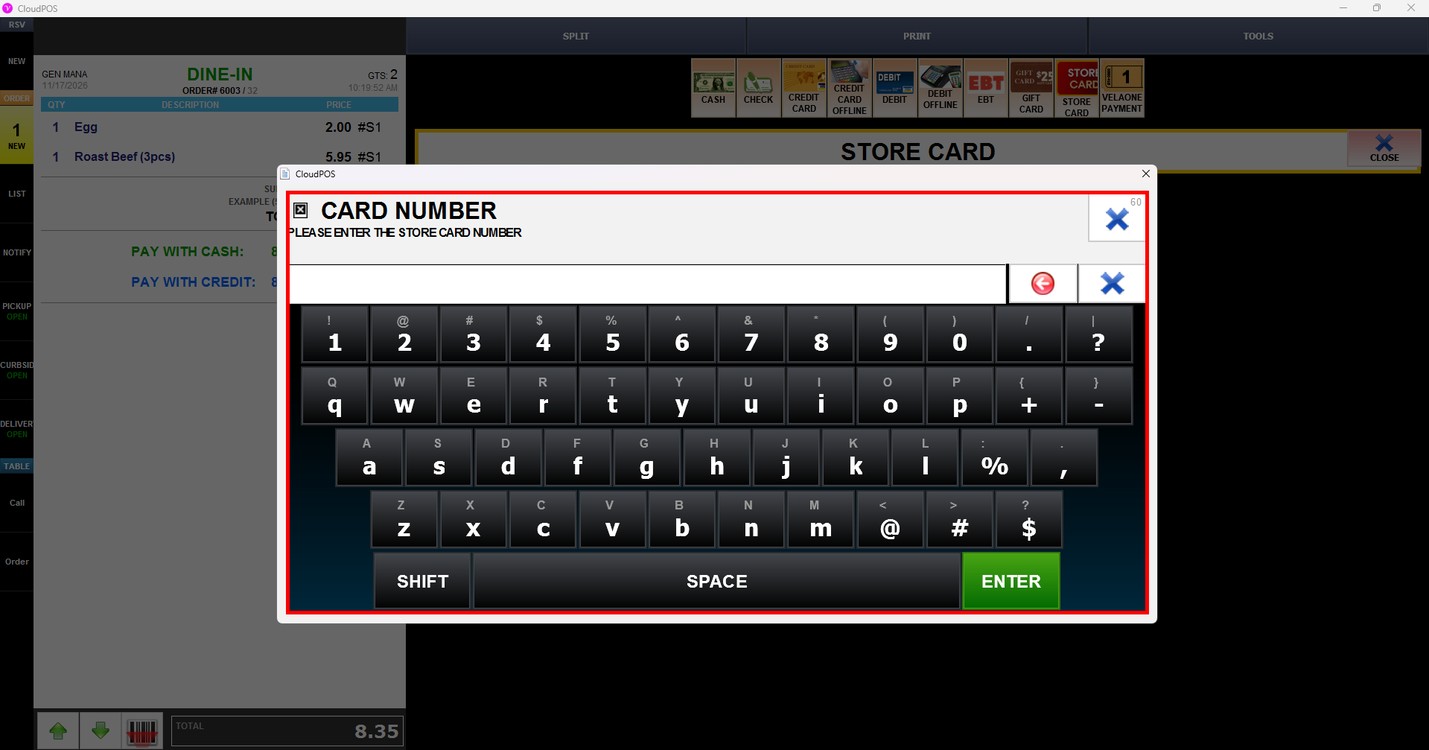
To pay a ticket with a store card, press PAY and select STORE CARD in the PAYMENT METHOD screen.
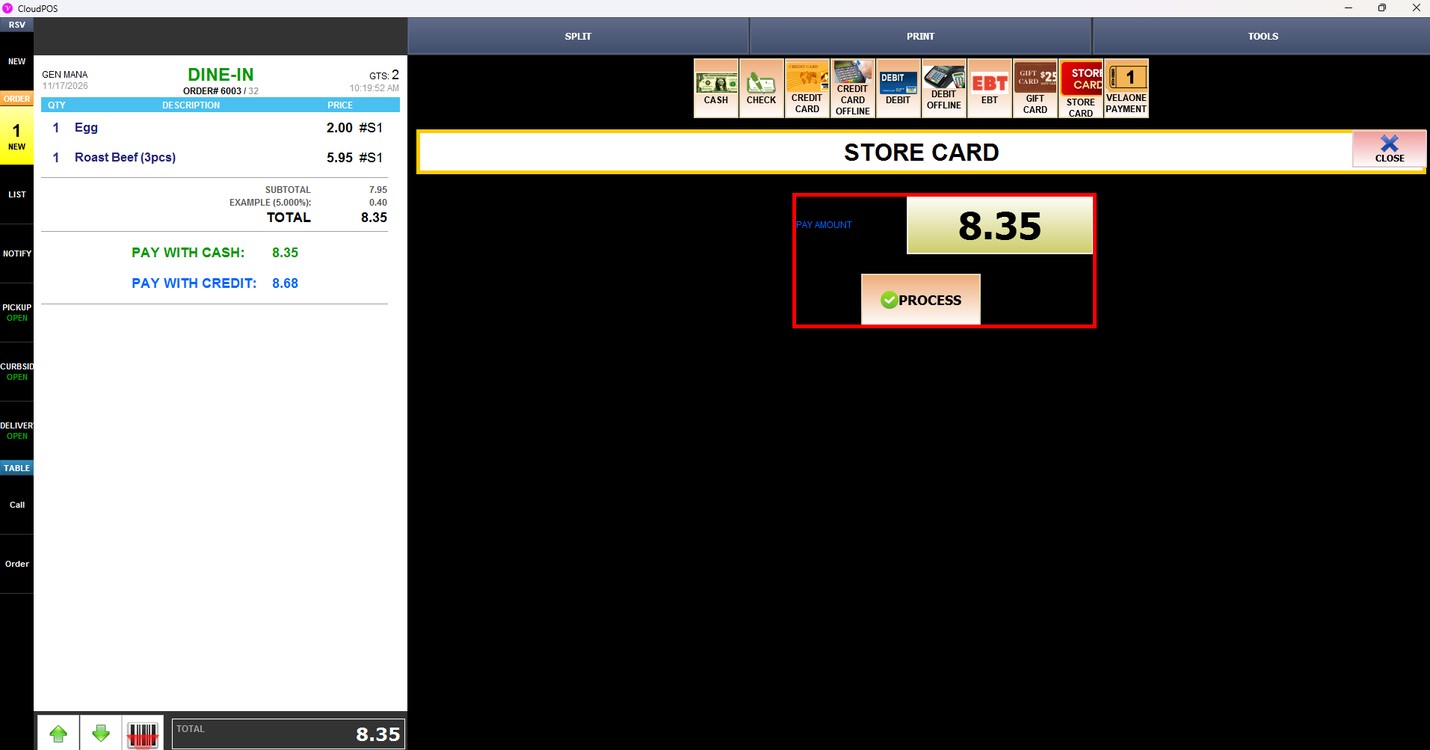
The STORE CARD screen shows the PAY AMOUNT. Press PROCESS.
The CARD NUMBER window opens. Enter the store card number and press ENTER to complete the payment.
Note: To learn how to set up store cards, please refer to the StoreCard settings guide.